
1. In short
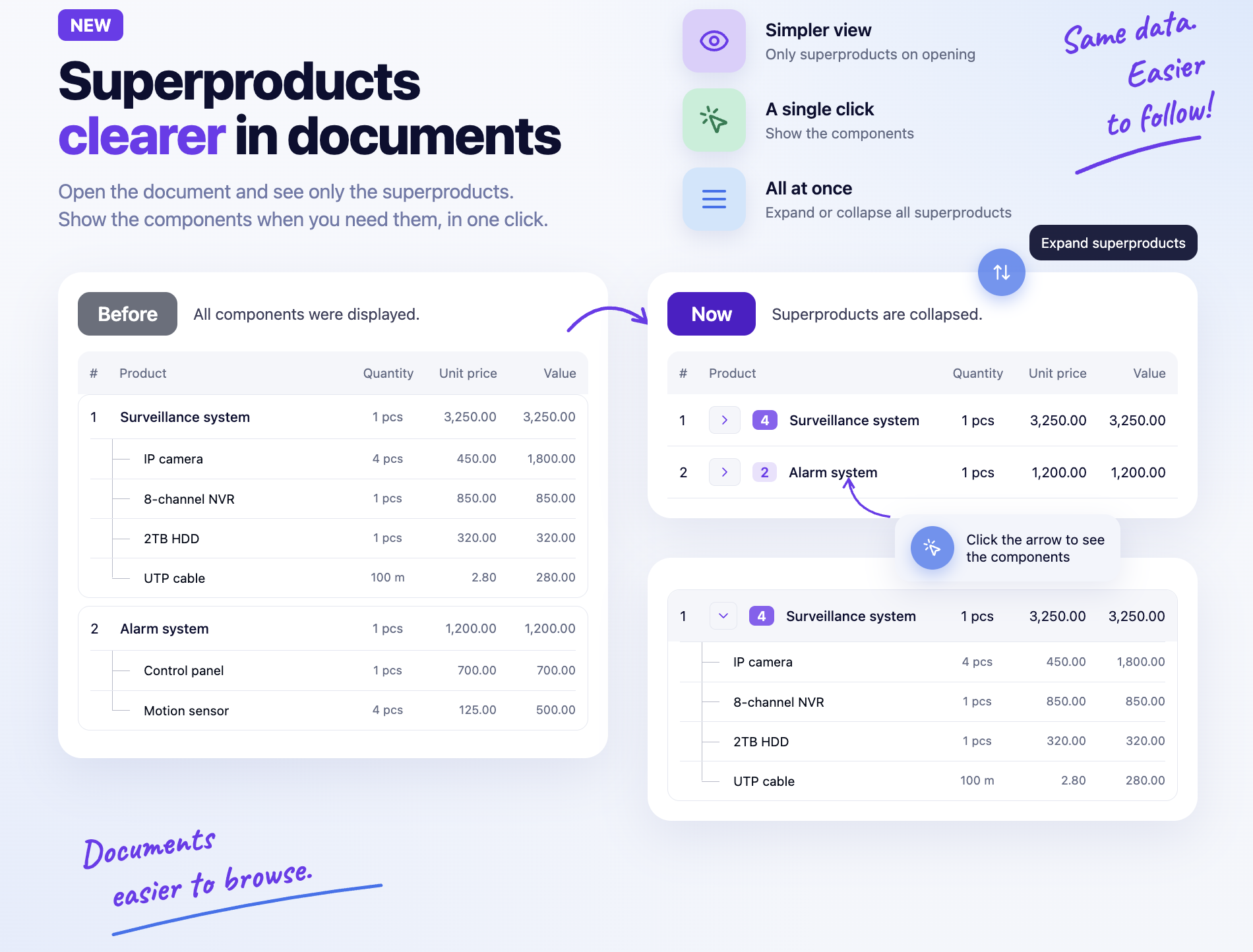
In sales documents, superproducts are now collapsed: when you open a document, only the superproduct row is visible and its components are hidden. You can show the components by clicking the pill on the superproduct row or, for all superproducts at once, with the new button above the table.
Documents with many superproducts become easier to read and review. The data, totals and printed documents do not change.
| Before | Now | |
|---|---|---|
| State on open | Components were shown | Superproducts are collapsed |
| Collapsing in view mode | Did not exist | A pill on every superproduct plus a button for all of them |
| Collapsing in add and edit mode | Arrow on the superproduct row | Pill with arrow and component count |
| Collapsing all superproducts | Did not exist | Expand superproducts / Collapse superproducts button |
| Superproduct marker in view mode | The ⓘ “Super Product” icon | The pill with the component count |
| Maximize table, Show stock location | In the table header | In the bar above the table |
2. Where to find it
On opportunities, quotes, orders, invoices, proforma invoices and delivery notes, in the product table, in view, add and edit mode:
- the pill in the Product column, to the left of each superproduct's name;
- the round blue button with an arrow in the bar above the table.
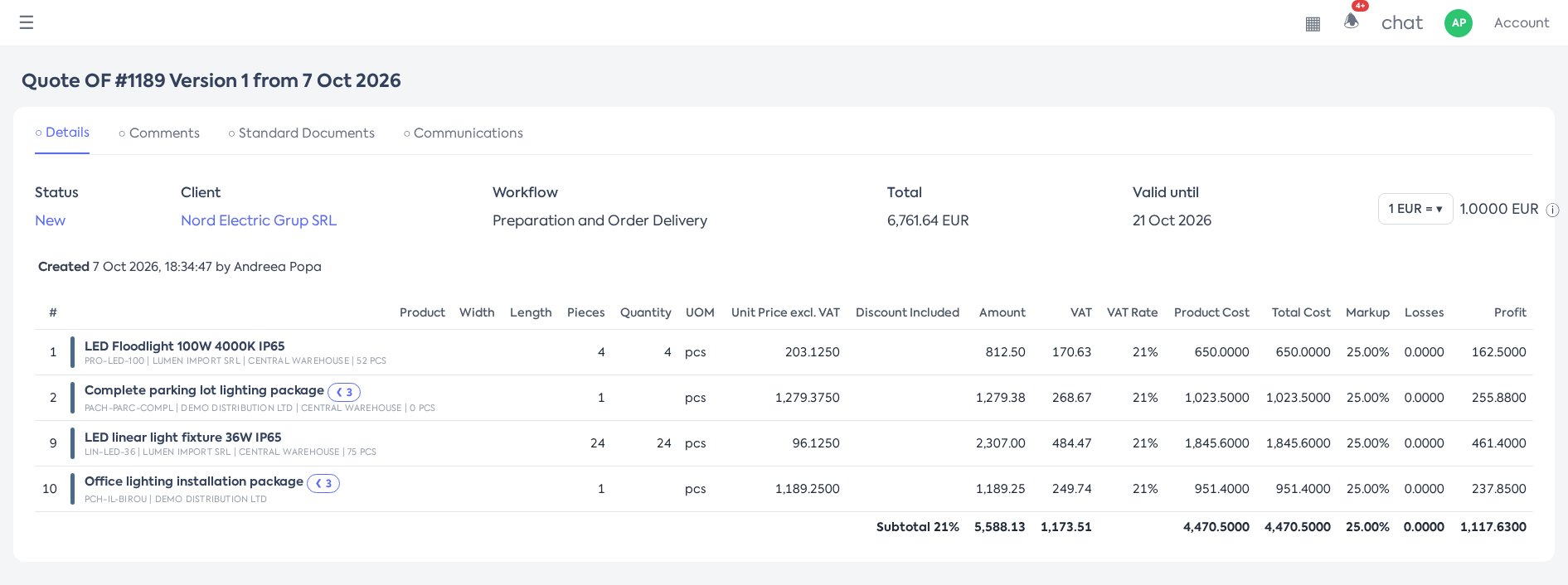
Collapsed superproducts with their pills, on another document type.
Clients who view their orders in the online account find the pill on the order detail page. The order list in the client's account remains unchanged.
3. Before you start
- There is nothing to enable: the feature is available to every user who can open the documents.
4. Viewing the components of a superproduct
Step 1. Open the document. All superproducts appear collapsed. On each row, the pill shows a right-pointing arrow and the number of components.
Step 2. Hover over the pill: “Expand N components” appears.
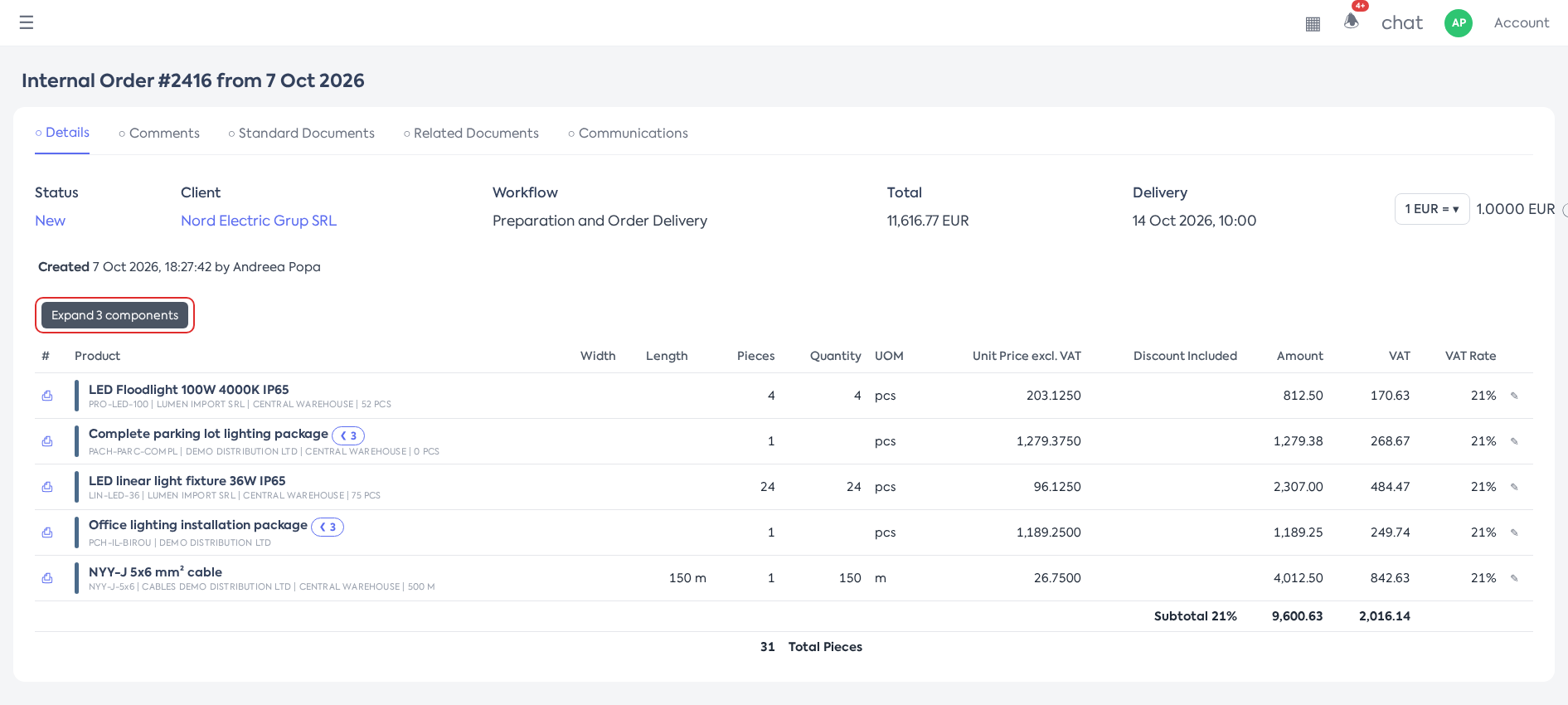
Collapsed superproducts, with the pill and tooltip shown on hover.
Step 3. Click the pill. The superproduct's direct components appear and the arrow turns down. The superproducts nested inside it stay collapsed, with their own pills.
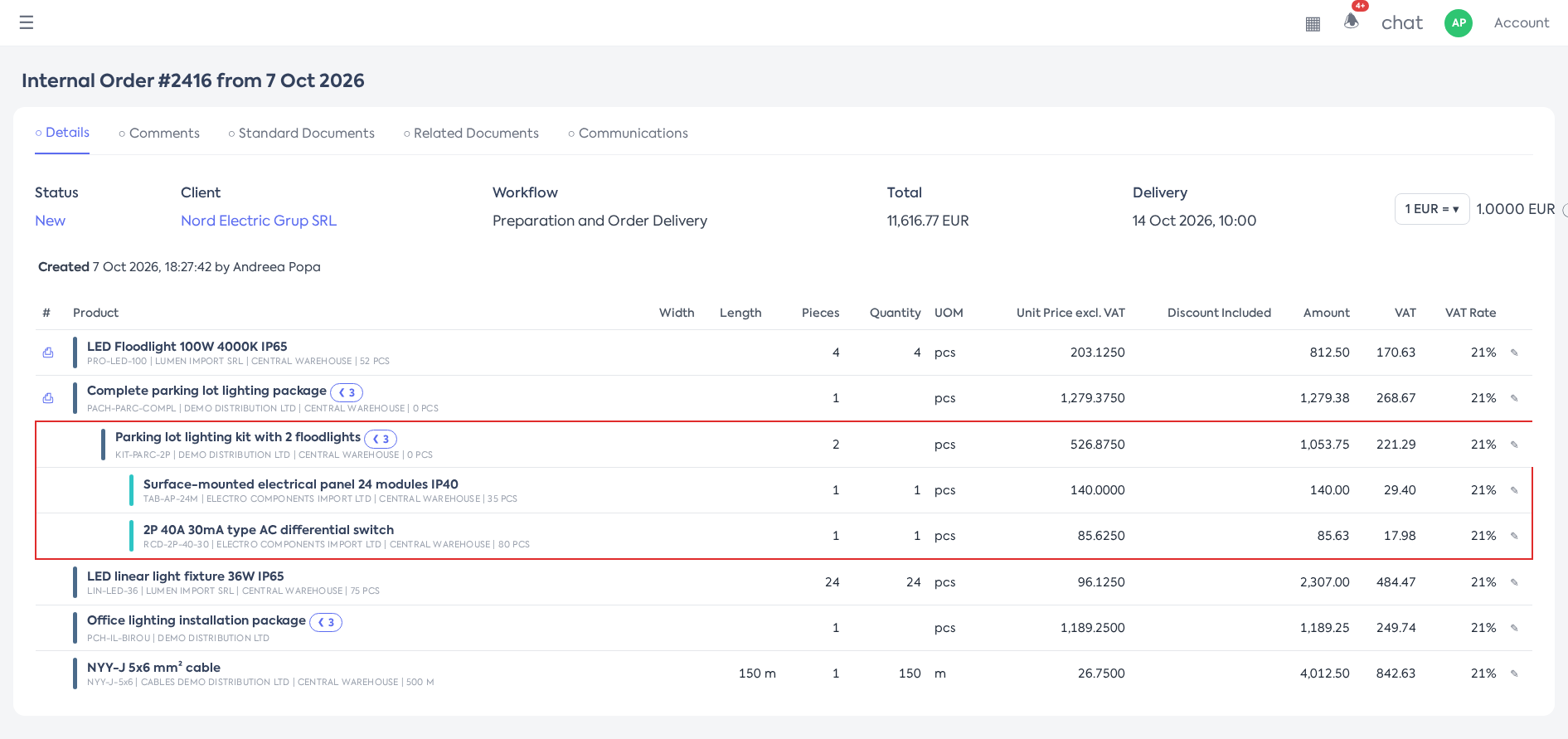
An expanded superproduct: its direct components, while the nested superproduct stays collapsed.
Step 4. Click the pill again (“Collapse N components”) to hide the components. The superproducts nested inside it are collapsed as well; the next time it is expanded, they appear collapsed again.
Note: the number on the pill is the count of direct components: a superproduct nested in another superproduct counts as a single component. The number updates when components are added or removed. The equipment rows of the components are hidden and shown together with the components.
5. Expanding or collapsing all superproducts
Step 1. Hover over the round button above the table. “Expand superproducts” appears (when all are collapsed) or “Collapse superproducts” (when at least one is expanded).
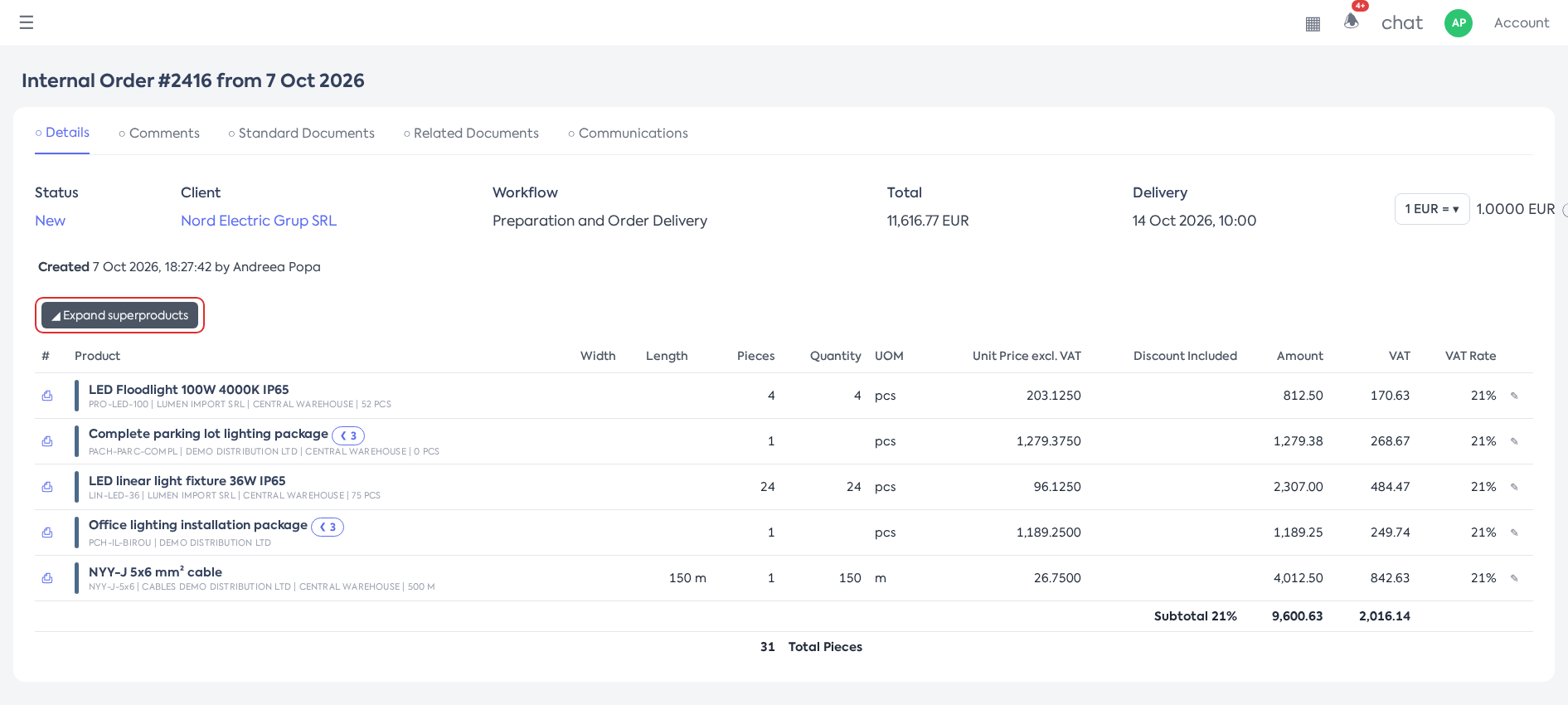
The button above the table, with the Expand superproducts tooltip.
Step 2. Click the button. If all superproducts were collapsed, they all expand, at every level. If at least one was expanded, they all collapse.
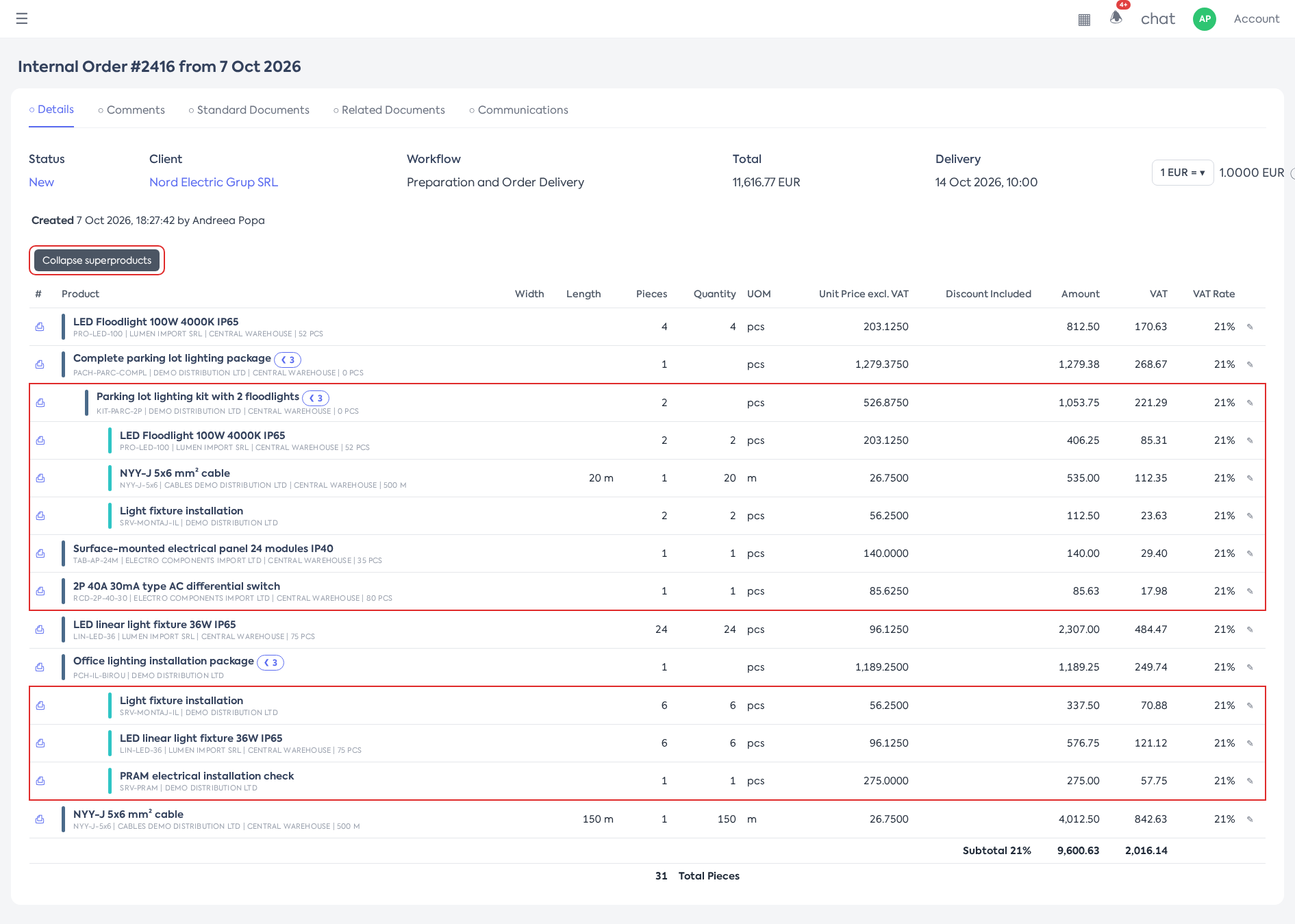
All superproducts expanded at every level; the button now shows Collapse superproducts.
Note: in add and edit mode, the same bar also holds the Maximize table button (opportunities, quotes, orders) and Show stock location / Hide stock location (opportunities, quotes, orders, proforma invoices, when the Show Stock Location Field setting is active), moved out of the table header. The stock location button now has a warehouse icon, and the stock location column disappears completely when hidden.
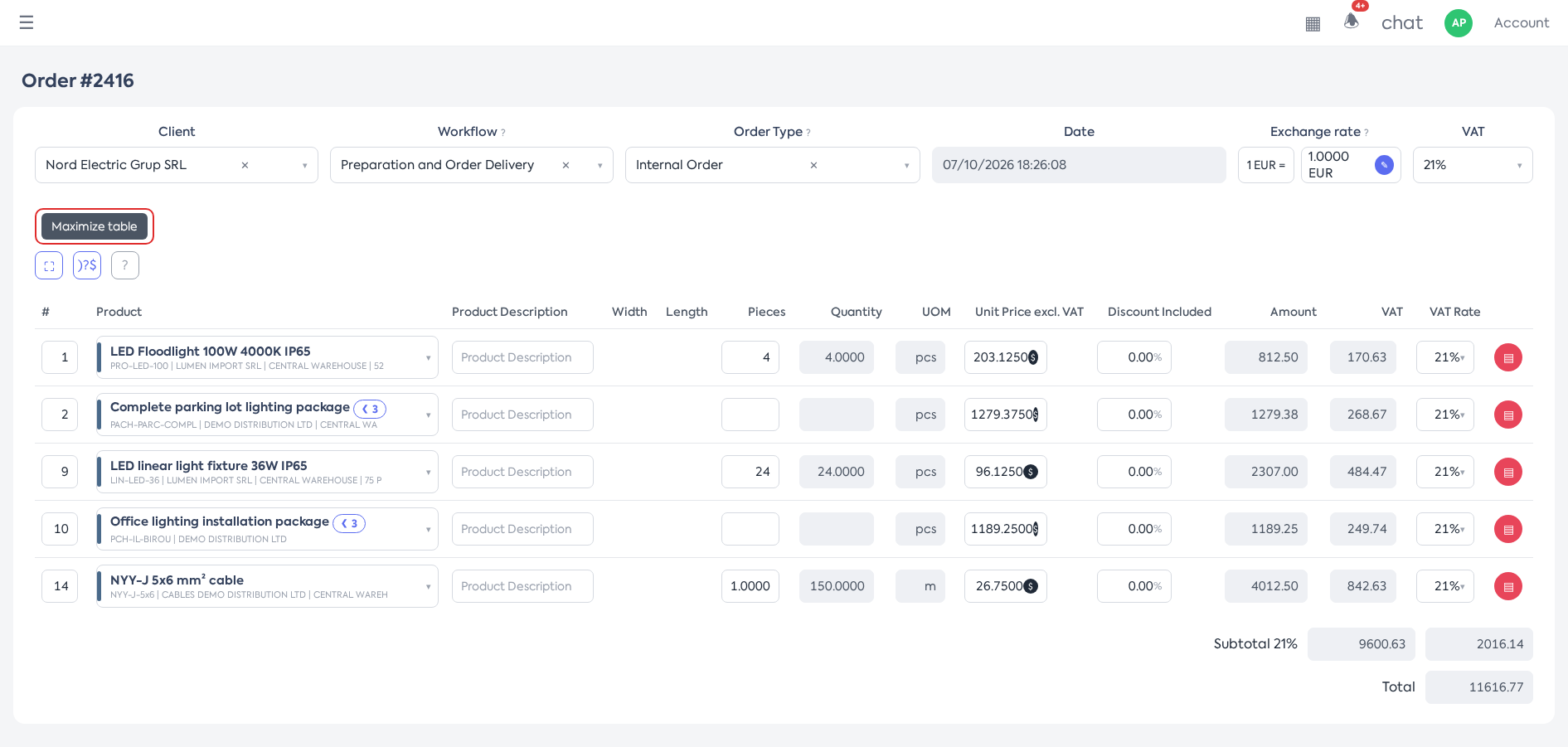
The bar above the table with superproduct buttons, table maximize, and stock location.
6. Adding a superproduct
Step 1. When creating or editing the document, add the superproduct on a new line or change an existing line's product into a superproduct. The components are loaded automatically and the new superproduct appears expanded. The other superproducts stay as they were.
Step 2. Review the components or add more with Add Line or Import. The buttons are visible only while the superproduct is expanded; Import appears only if file import is enabled.
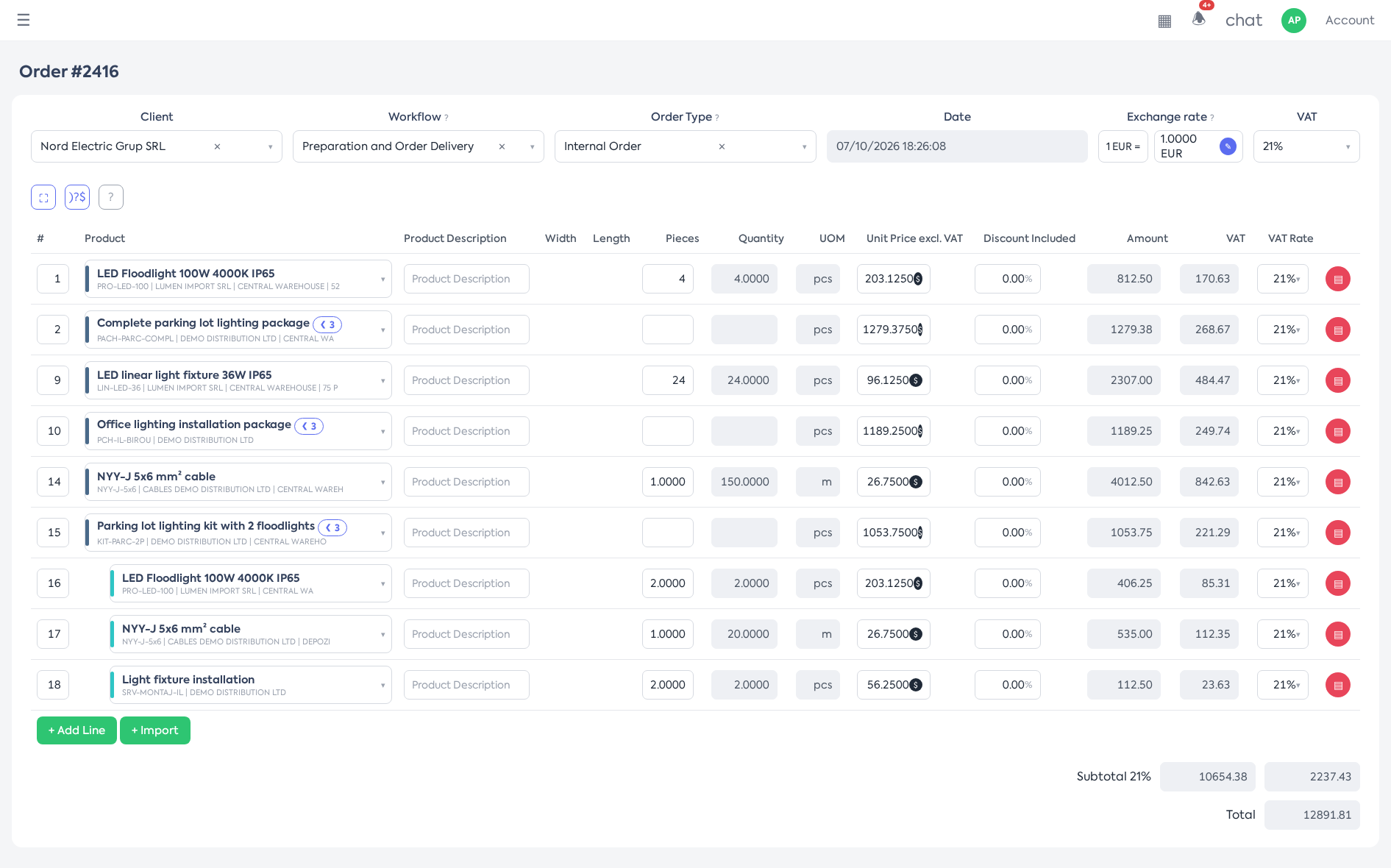
The newly added superproduct appears expanded, with its components loaded and component buttons.
Step 3. Save the document. If a hidden component has an error, its superproduct expands automatically and the page scrolls to the error. This happens both for in-page validation and for errors received after saving.
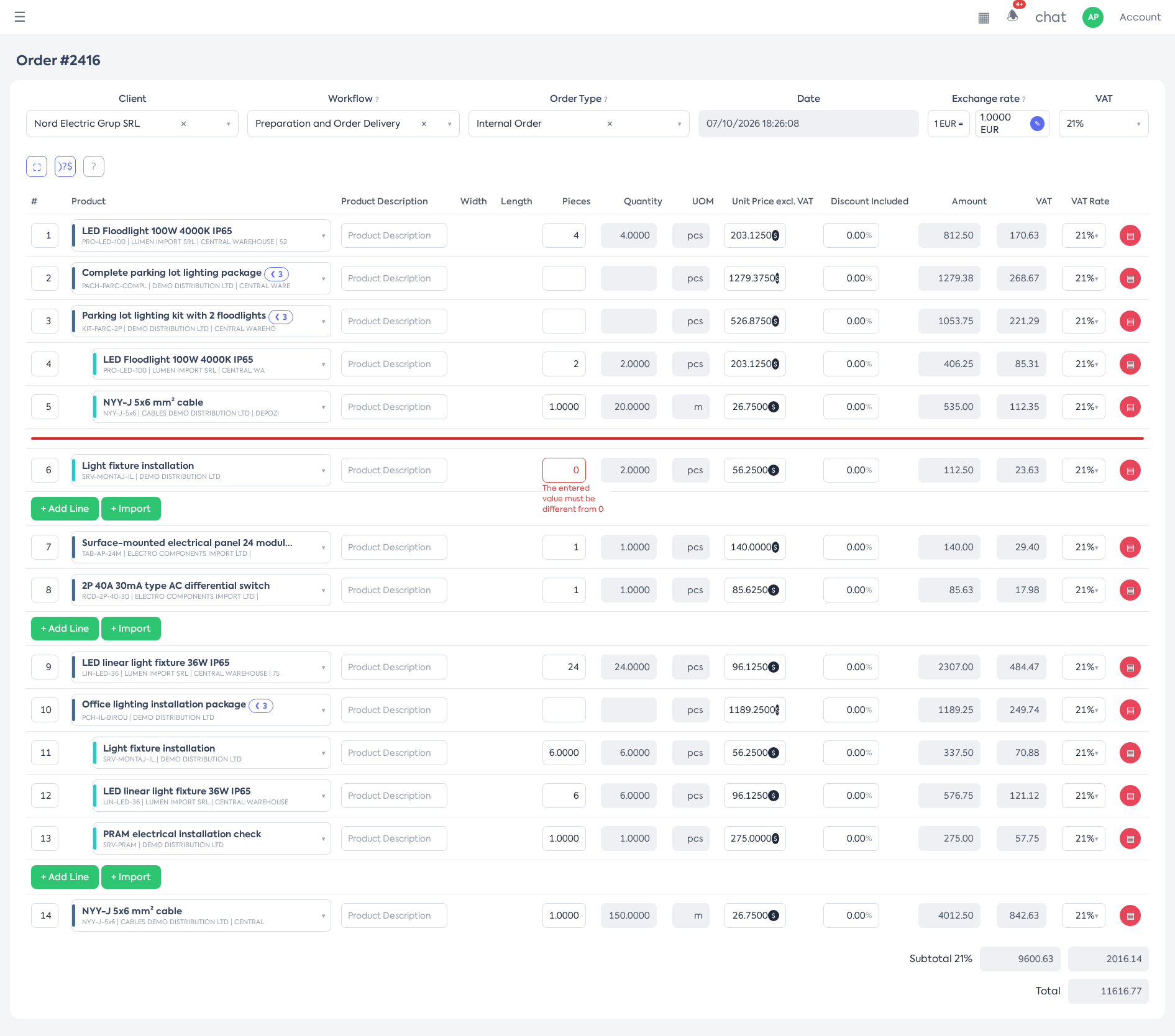
The superproduct auto-expanded, with the component in error highlighted.
Note: if saving fails and the page reloads with errors, all superproducts go back to collapsed, including the one just added. Only the superproduct containing the error expands automatically.
7. What you see afterwards
- Every time the document is opened (view, edit, after saving), superproducts start collapsed.
- Totals include all lines, and hidden components are saved as usual.
- PDFs, emails and e-Invoicing remain unchanged and contain all lines, as before.
- On the order view page, the “Low Stock” and “Cancelled Product” warnings now appear under the product name, in the same cell. The workflow history button has a new icon so it is not confused with the collapse arrow.
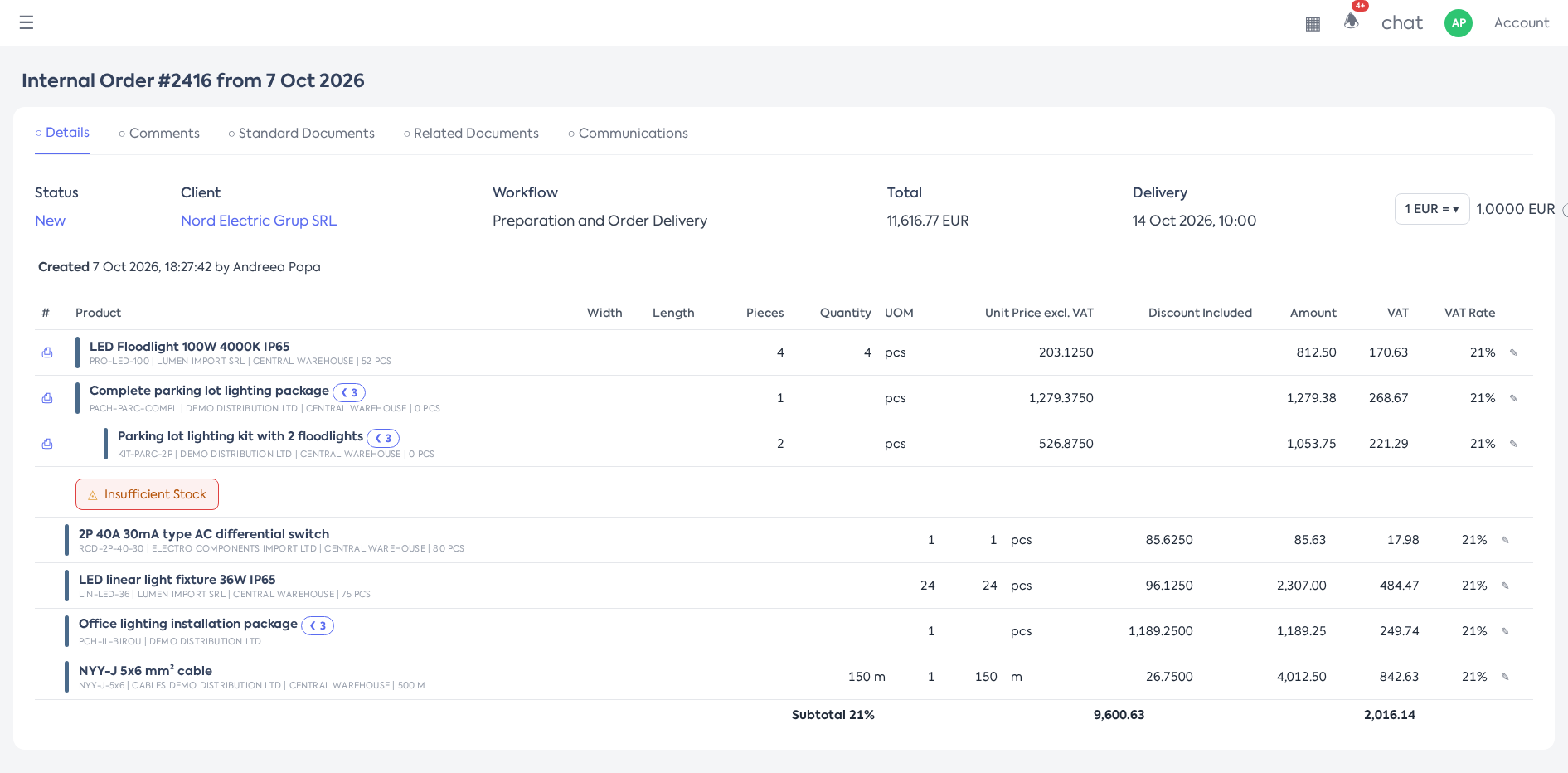
The Low Stock warning shown under a component's name, on an order.
8. Rules and limits
- The expanded / collapsed state is not remembered and there is no setting to start expanded.
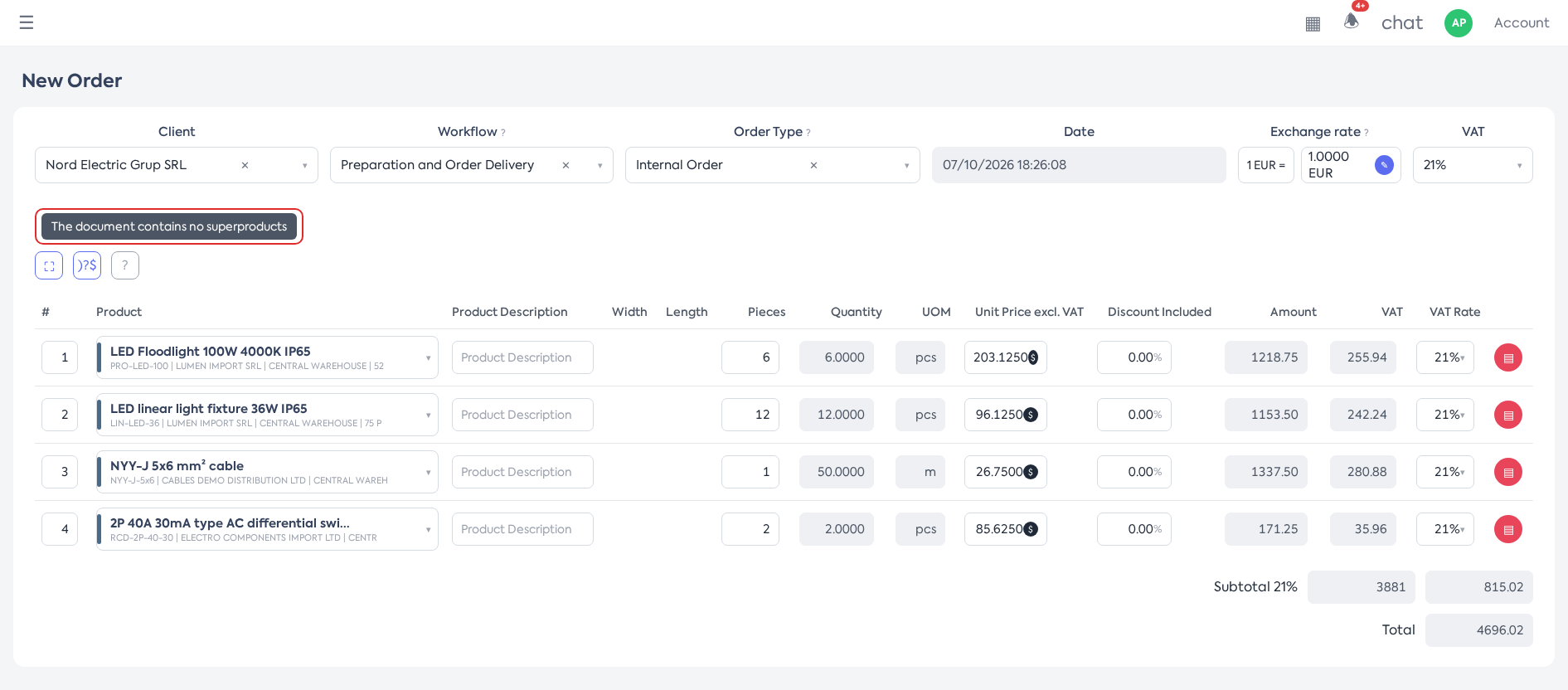
- On a document without superproducts, in add and edit mode, the all-superproducts button is inactive, with the message “Document contains no superproducts”. It becomes active when the first superproduct is added.
- Deleting a superproduct, collapsed or not, also deletes its components, as before.
- Line numbering does not change: hidden components keep their numbers, so the visible numbering can have gaps.
- When printing the page directly from the browser, collapsed components do not appear; expand the superproducts first.
- In the mobile view of orders, where available, components are grouped under “Components (N)”, collapsed by default; the pill and the all-superproducts button do not appear there.
Warning: a component's “Low Stock” and “Cancelled Product” warnings are not visible while the superproduct is collapsed, and the superproduct row does not signal them. To check component stock, expand the superproducts. The stock check when saving the order still includes all components.
9. Settings and permissions
There are no new permissions or settings.