
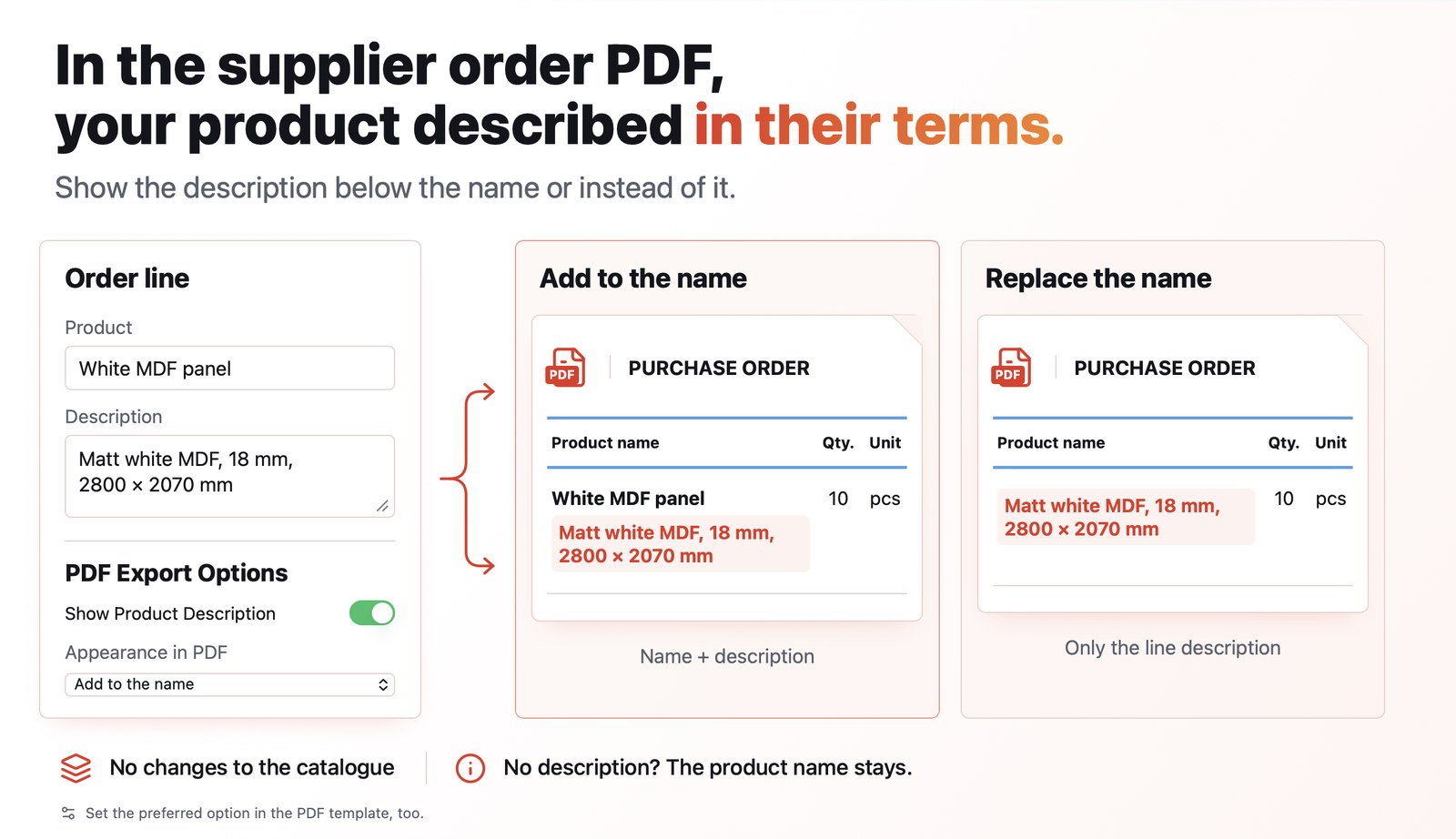
In the supplier order PDF you could already replace the product name with its alias, using the Display Product Alias option. What is new is that you can also use the description entered on the order line: it can appear under the name or replace it. This way, the same product can have three names, each for a different reader, without changing your product catalogue.
When it helps
A common example: a product already has a name and an alias set up, and you now place an order with a supplier in France.
- The name is what the client sees on quotes and invoices: “Fabric wall frame 3 x 2.25 m”.
- The alias is the internal name your operators know: “SEG wall 3 m”.
- The description on the order line is a third name, for the supplier, in French: “Mur textile droit 3 x 2,25 m, cadre SEG”.
The display options of the order decide which one appears in the PDF.
The result
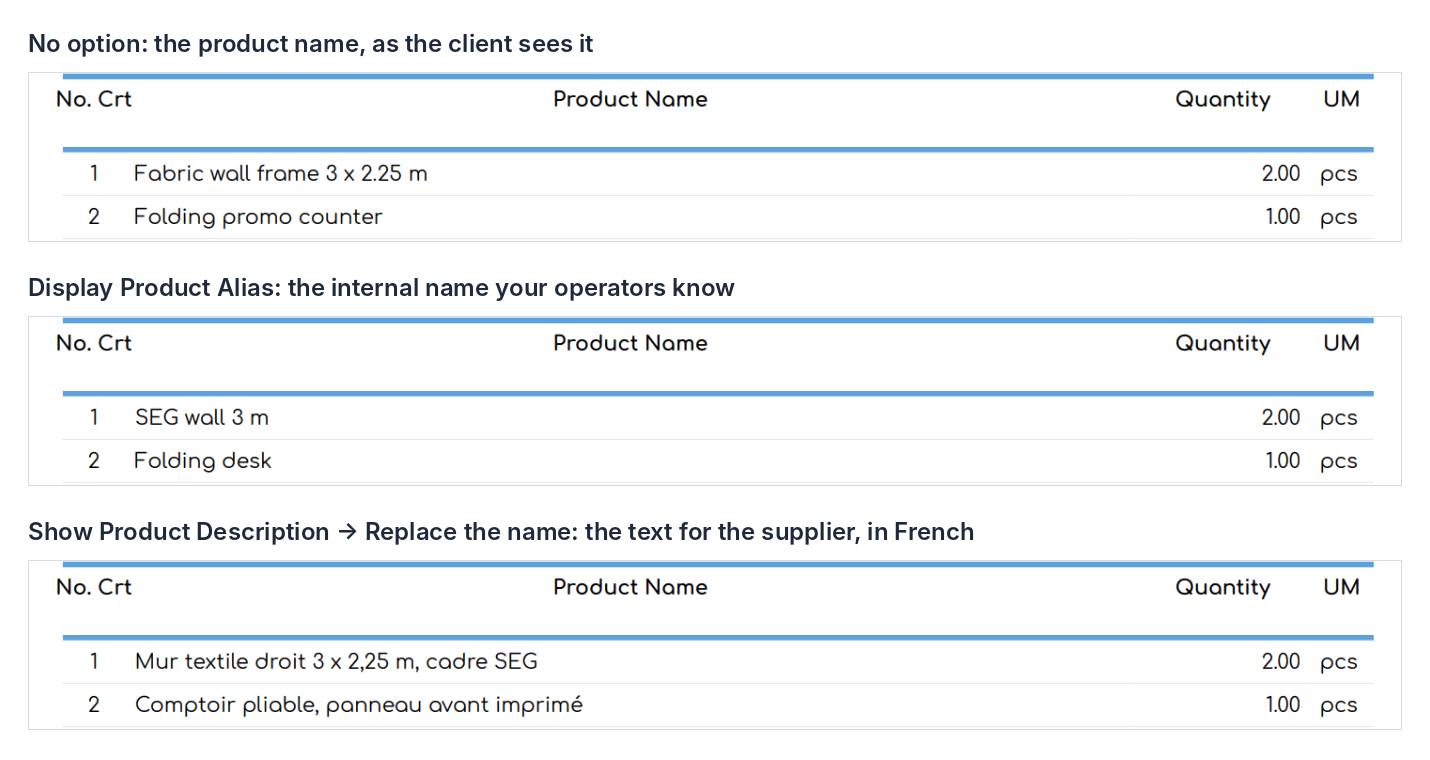
The same supplier order, as a PDF, with the three display variants.
Before you start
- The alias is entered on the product. The description is entered on each line of the supplier order.
- There are no new permissions.
Prepare the names
Step 1. If you want to use the alias, open the product from Products, click Edit and fill in the Alias field with the internal name. Save.
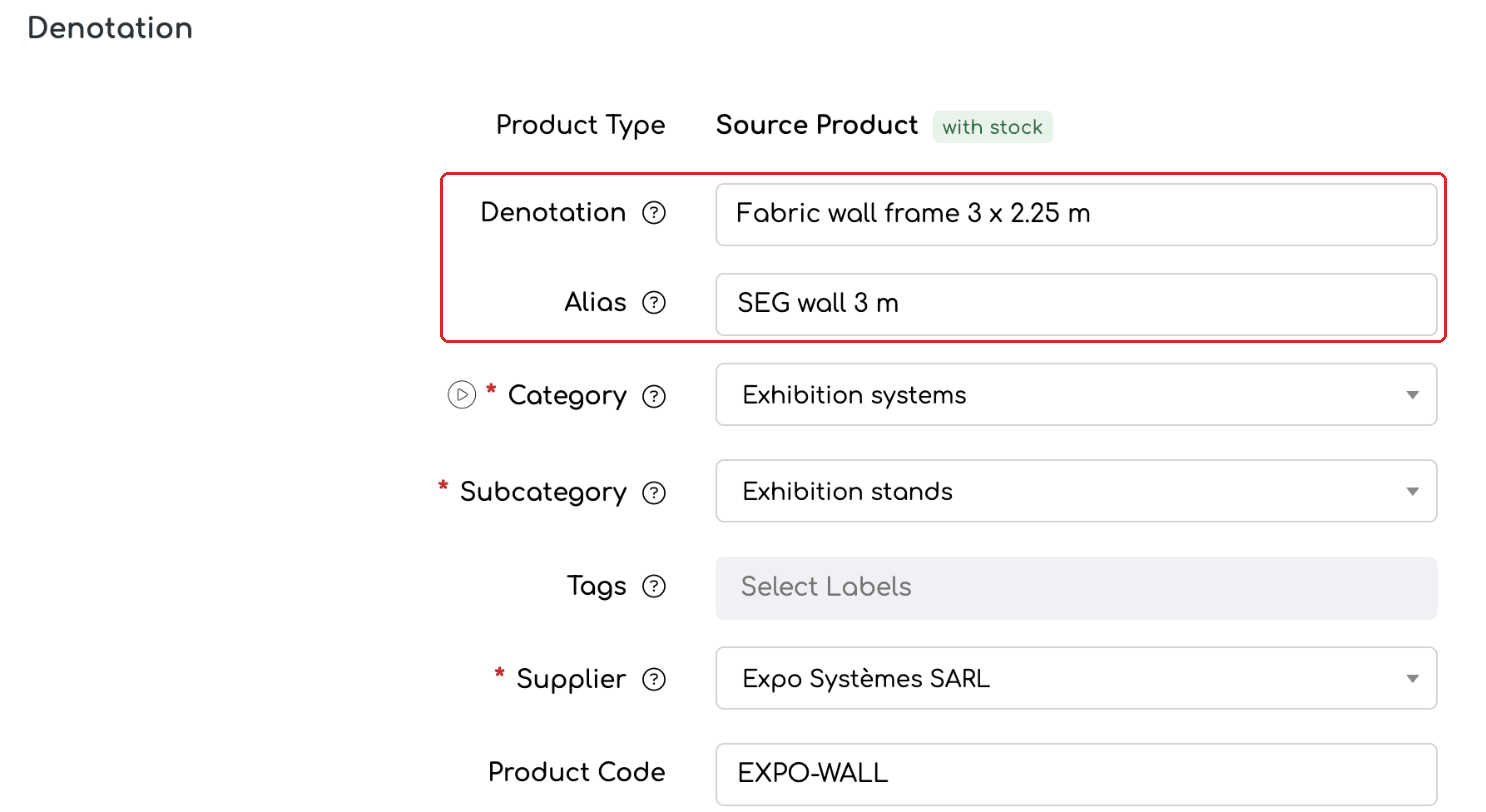
The name (Denotation) and the alias on the product.
Step 2. Open , the Orders tab, and create a New Order or edit an existing one. In the Description field next to each product, write the text the supplier should see.

The description for the supplier, entered on the order lines.
Choose the display variant
Step 3. In the PDF Export Options section of the order you have several ways to display the products:
- No option turned on: the PDF shows the product name.
- Display Product Alias: the PDF shows the alias instead of the name.
- Display Product Code: the product code is added next to the name, in any variant.
- Show Product Description (new): choose from the list next to the switch:
- Complete the name (default): the name (or alias), with the line description below it;
- Replace the name: only the line description, instead of the name.
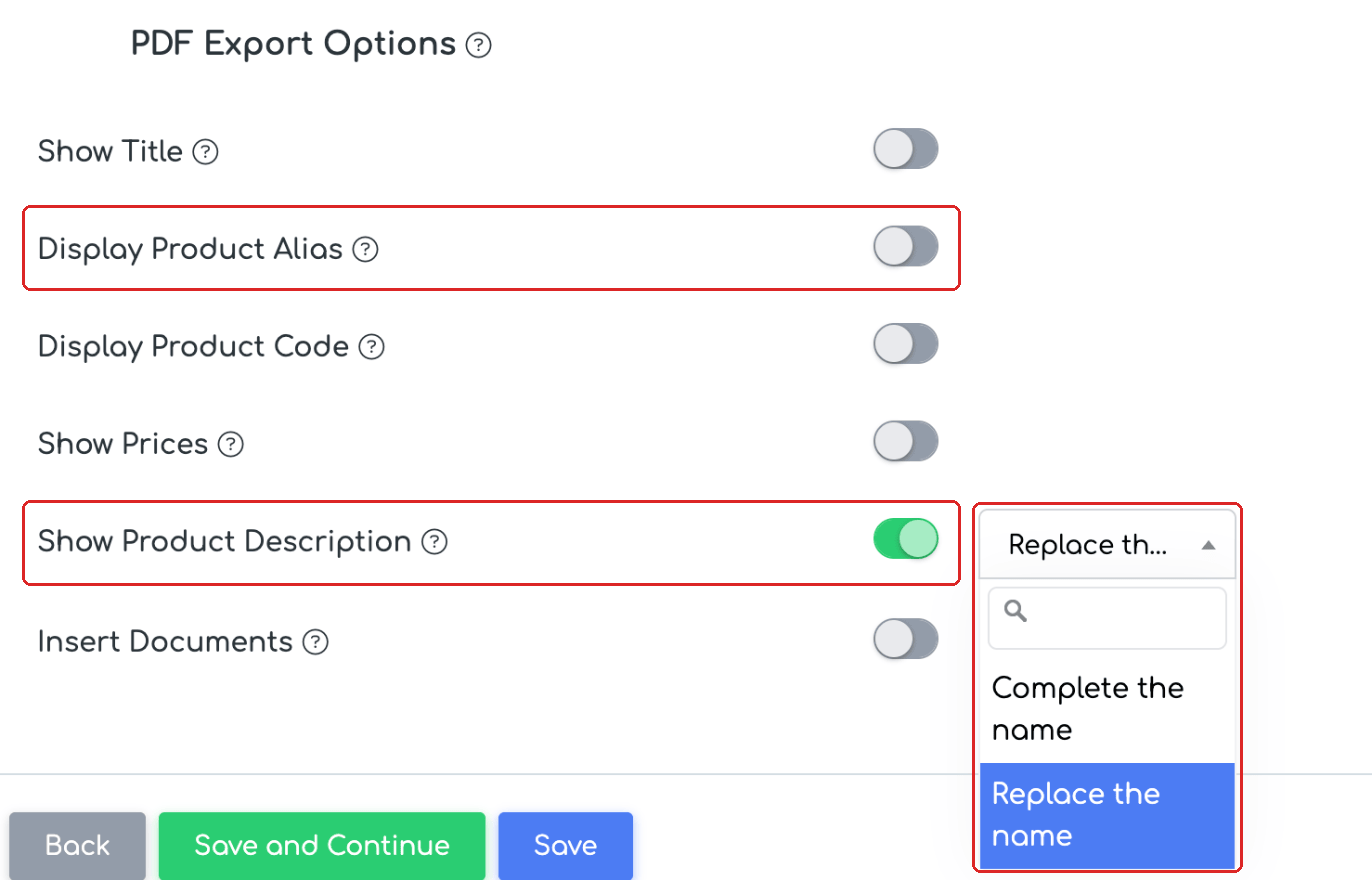
The display options: Display Product Alias and Show Product Description, with its two variants.
Step 4. Save the order. On the order page, under Export Options, the chosen variant is shown.
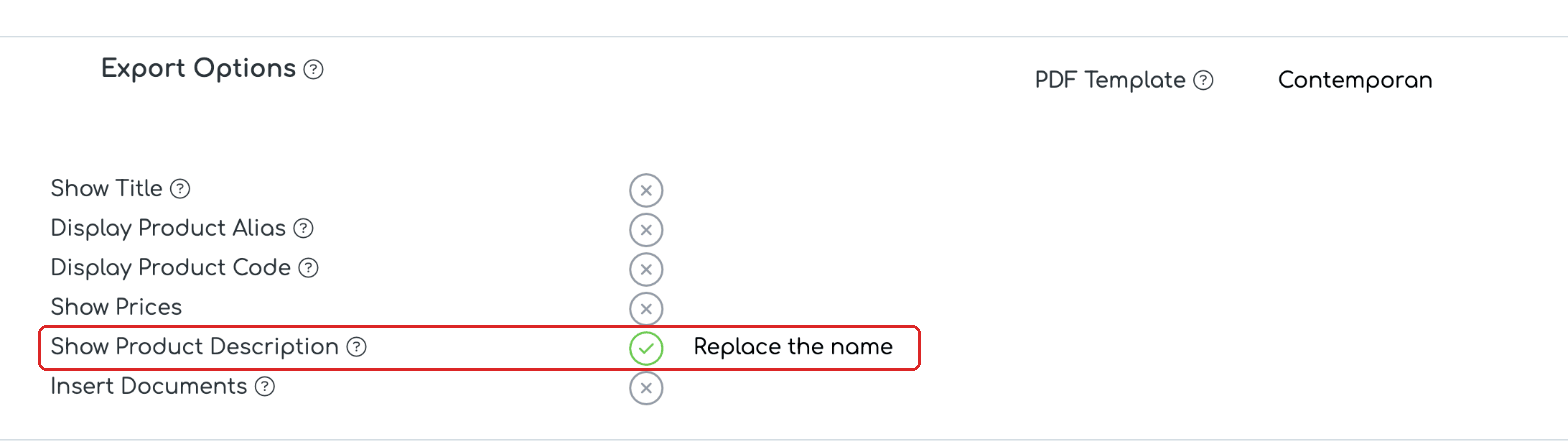
The chosen variant, shown on the order page.
Step 5. From Actions, click Generate PDF or Print. The “Product Name” column shows the text according to the chosen variant.
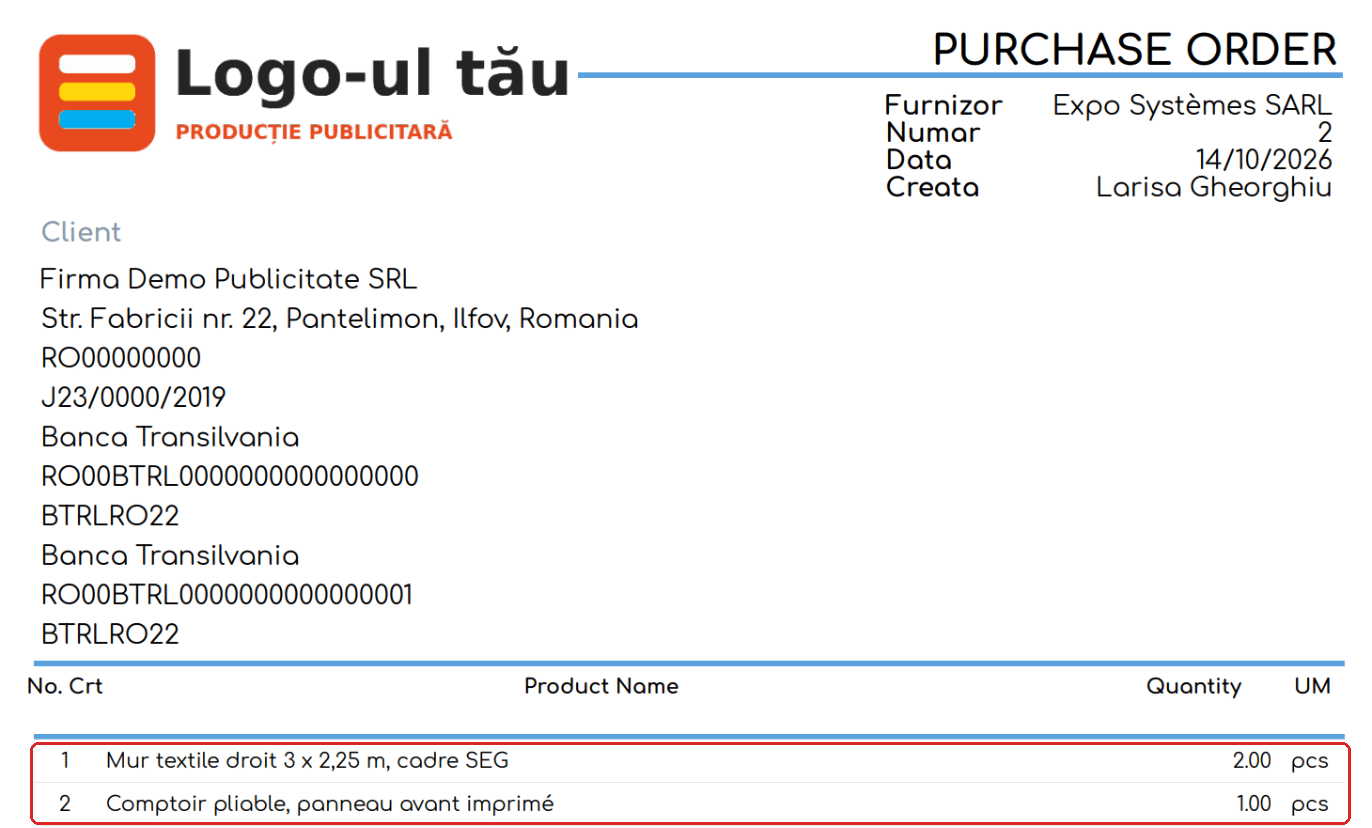
The order PDF with “Replace the name”: the supplier sees the French description.
In PDF templates
Step 6. To avoid choosing the variant on every order, set it in the template: , the PDF tab, type Supplier Orders. Edit the template, turn on the options you want (for example Show Product Description and its variant) and save. When you choose this PDF template on an order, the values from the template are used.
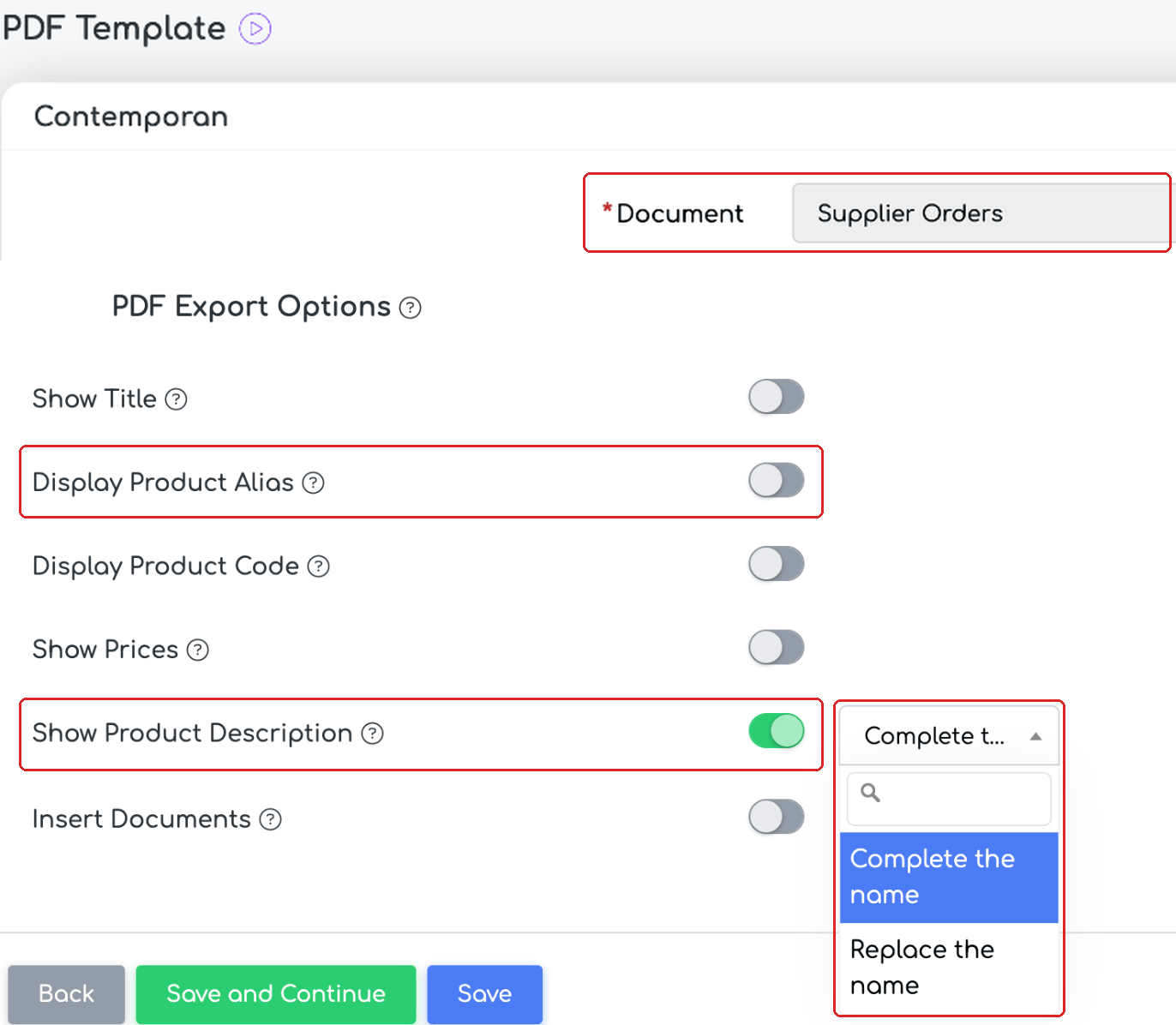
The PDF template for supplier orders, with the same display options.
Good to know
- If a line has no description, “Replace the name” shows the product name, or the alias if “Display Product Alias” is on.
- If a product has no alias, “Display Product Alias” shows its name.
- The template language sets the PDF labels (for example PURCHASE ORDER, Product Name). The product name, alias and description are printed as you entered them.
- The variant applies to the generated or printed PDF and to the PDF emailed to the supplier. The Excel export and the order form do not change.
- Existing orders and templates were set to “Complete the name”, so their PDFs stay the same.
- Also in the supplier order PDF, the supplier's country in the address is now shown by its name.
Frequently asked questions
What is the difference between the alias and the description?
The alias is set once, on the product, and appears on every order where Display Product Alias is on. The description is entered on each order line, so you can adapt it for each supplier, for example in another language.
Does the description also appear in the Excel file sent to the supplier?
No. The chosen variant applies only to the PDF: generated, printed or sent by email.
Do my old orders look different now?
No. Existing orders and templates were set to Complete the name, so their PDFs stay the same.