
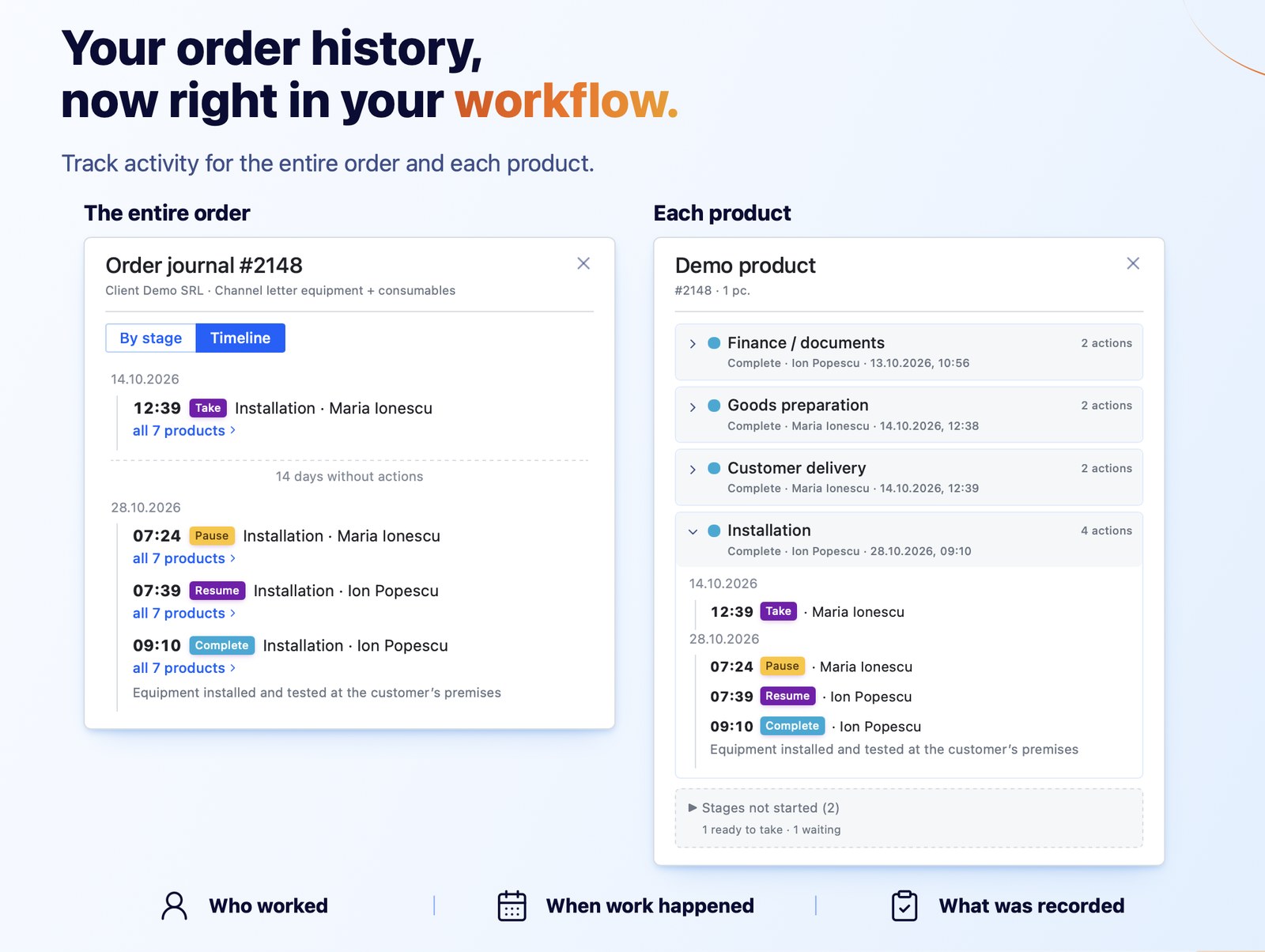
The history of actions on an order was already available, but only from the order itself: you had to open the order and expand the product to see who took over, paused or completed each stage. Now the log also opens directly from the Workflow, in one click, without opening the order. In addition to the By stage view, there is a new Timeline view that shows all activity on the order, day by day.
For each action, the log also shows what was filled in: comments, instruction values and attached files. For example, the production operator opens the log directly from the Workflow, sees the print file the graphic designer attached when completing the stage, and opens it in one click, without searching the order or asking for it by email.
The result
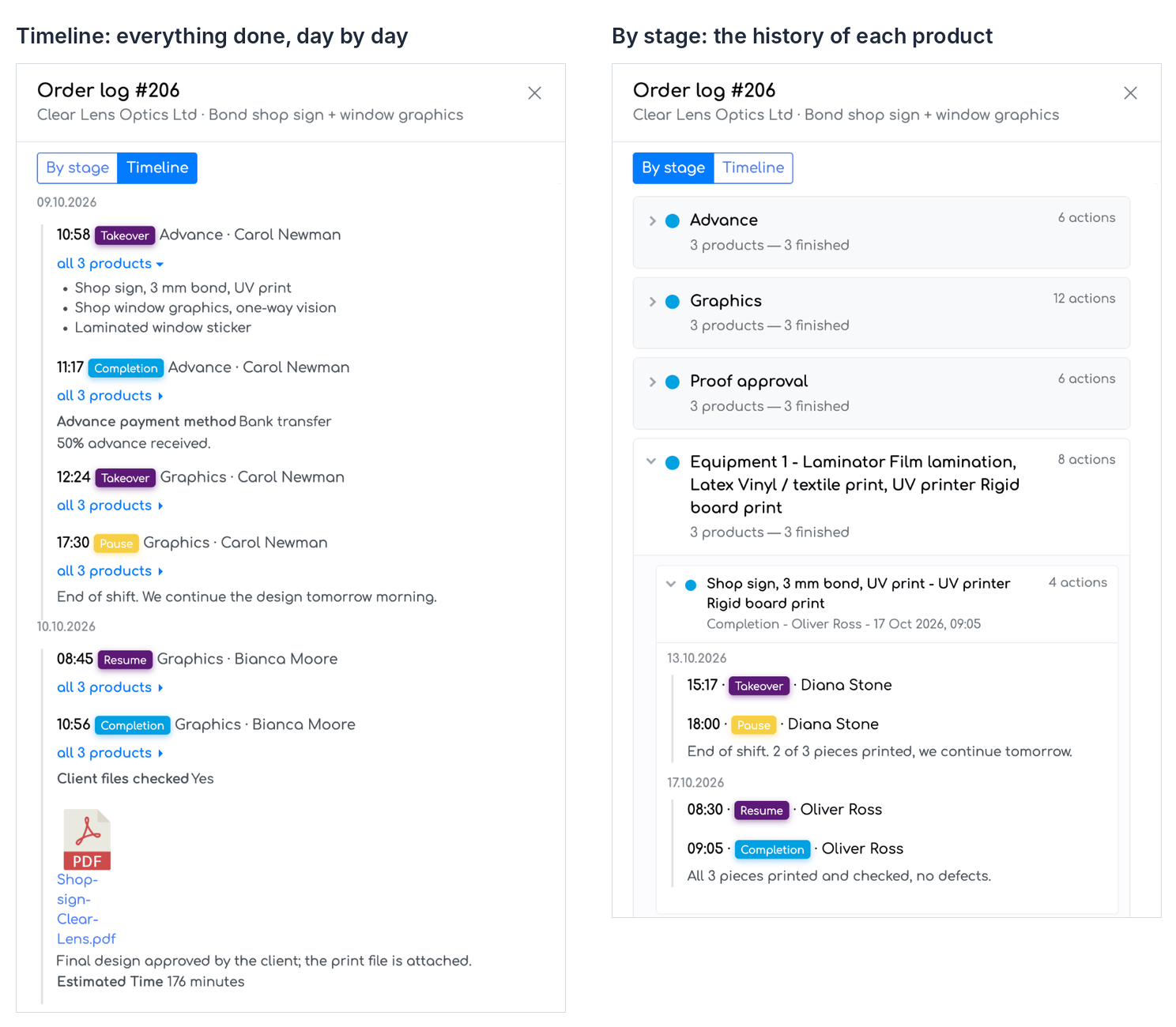
Order log: the Timeline view (left) and the By stage view, with the history of one product (right).
The two views: By stage and Timeline
The order log has two buttons at the top: By stage and Timeline. Both show the same actions, but organise them differently and answer different questions.
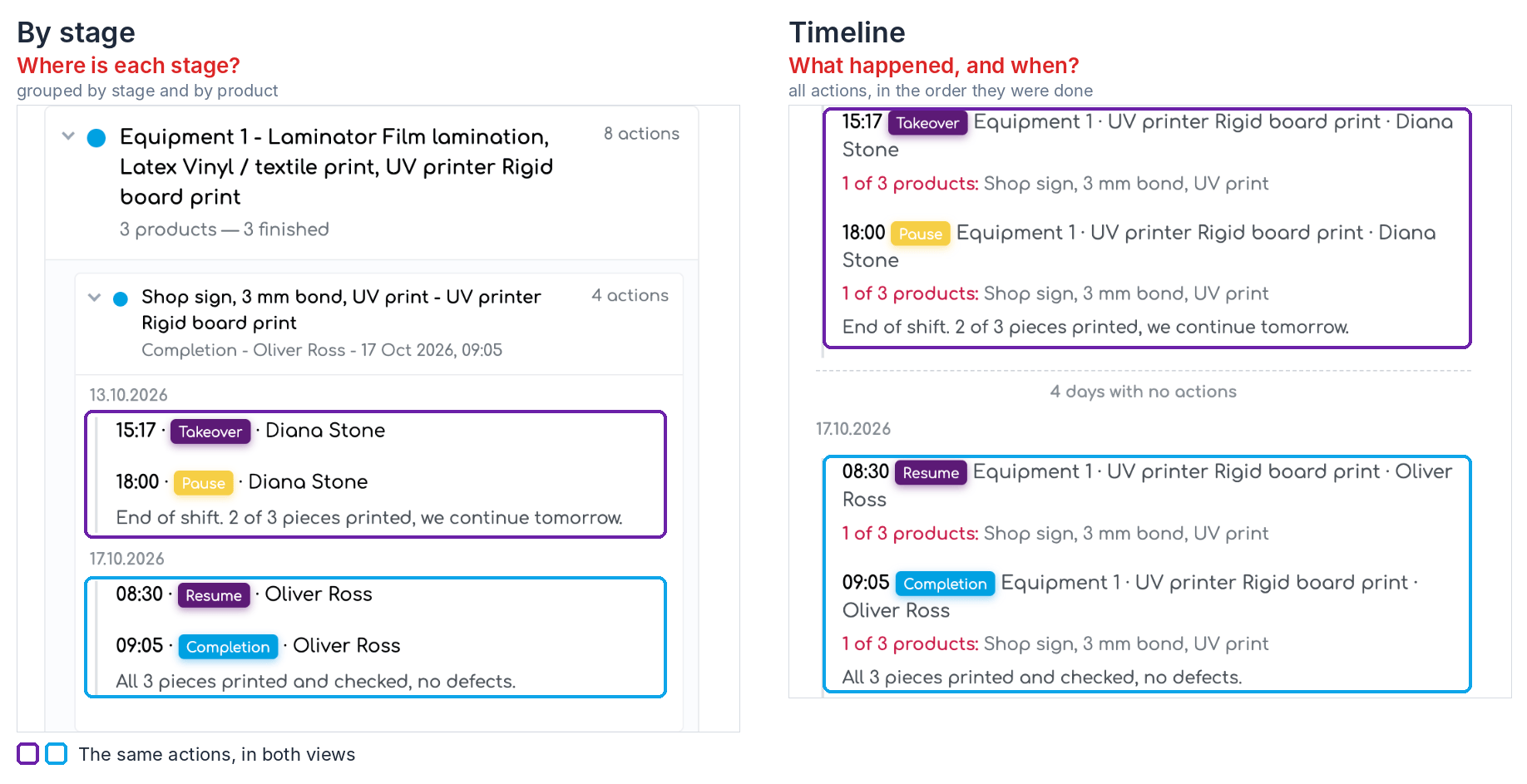
Order #206, stage Equipment 1. The same actions appear in both views: on the left, under the stage and the product they were done on; on the right, in order of the days, among the actions from the other stages.
By stage — “Where is each stage?” Actions are grouped by workflow stage, and within each stage by product. You can see at a glance which stages are finished, which are in progress and which have not been started yet. To reach an action, open the stage, then the product. In the example, everything done on the Shop sign in stage Equipment 1 is grouped together: the takeover and the end-of-shift pause on 13.10, then the resume and the completion on 17.10, with their comments.
Timeline — “What happened on the order, and when?” All actions, from all stages and for all products, are listed one after another, in the order they were done, day by day. Gaps between days are marked (“4 days with no actions”), and at the end you can see how many days have passed since the last activity on the order. In the example, after the 18:00 pause on 13.10 there were 4 days with no action on the order until the resume on 17.10 — something the By stage view does not show.
In short: use By stage when you want to know the status of the order and what is left to do, and Timeline when you want to follow the story of the order and see where time was lost. The product log only has the By stage view, because it shows the history of a single product.
Where to find it
- Order log — the icon next to the order number, in the Orders tab.
- Product log — the icon next to the product name, in the expanded rows of the Orders tab, in the Products and Employee Allocation tabs, and on the cards on the phone.
The log opens in a panel on the right side of the page and is read-only. Close it with X, with the Esc key or by clicking outside it. The Open order #N link at the bottom opens the order in a new tab.
What do you want to find in the log?
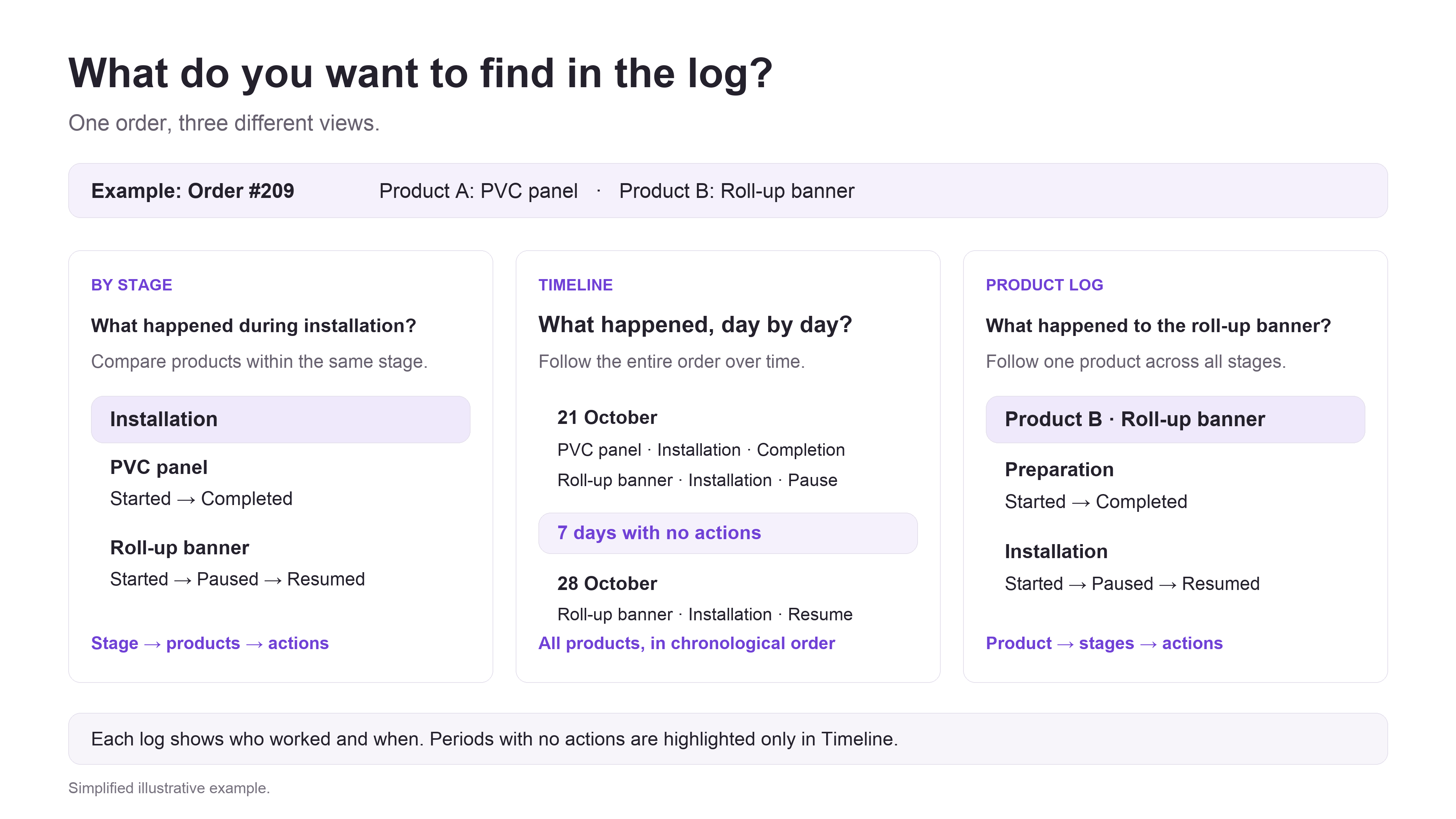
The same order, three perspectives: By stage, Timeline and Product log.
Order log, by stage
Step 1. In Workflow, the Orders tab, click the icon next to the order number.
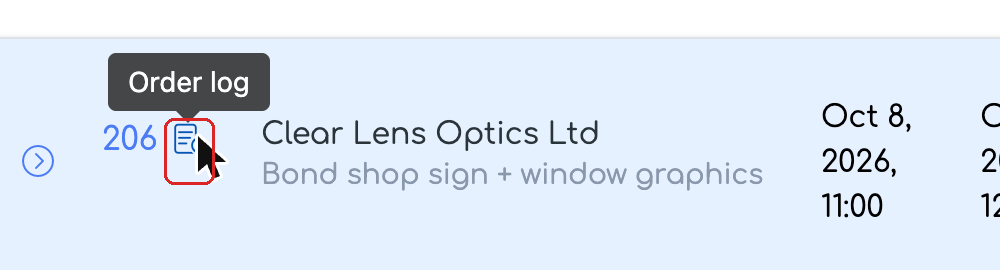
The Order log icon, next to the order number.
Step 2. The log opens in the By stage view. For each stage you can see how many products it has, their status and how many actions were recorded. Stages not worked on yet are collapsed at the end, in the Stages not started (N) card, with a summary such as “1 can be taken · 1 waiting”. Click the card to show them.
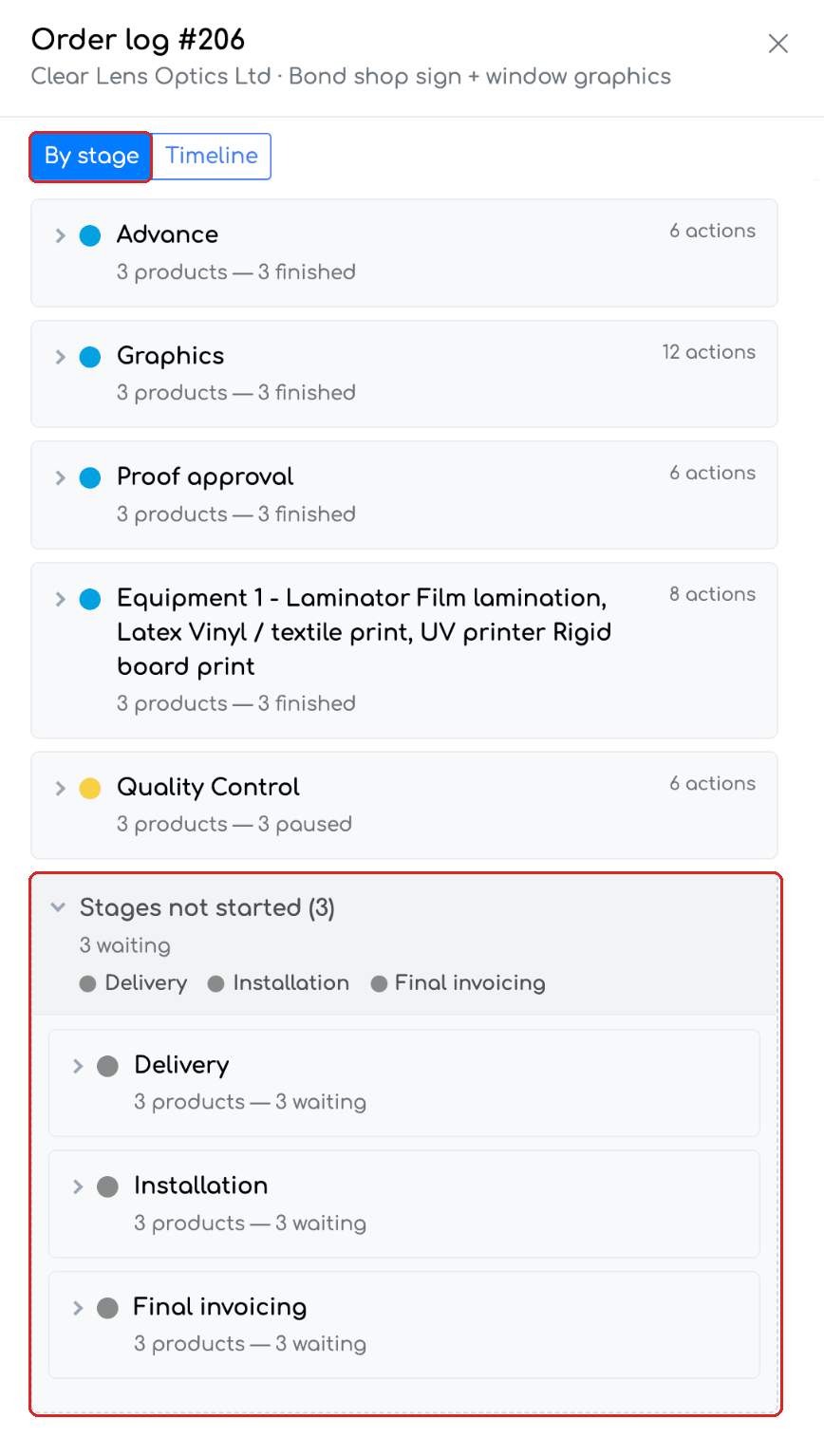
The By stage view, with the Stages not started card open.
Step 3. Click a stage, then a product. The history of the product on that stage appears, grouped by day (“Today” or the date), with the time, the person, the action and the values filled in for the instructions, the comments, files and signatures. Click a file to open it.
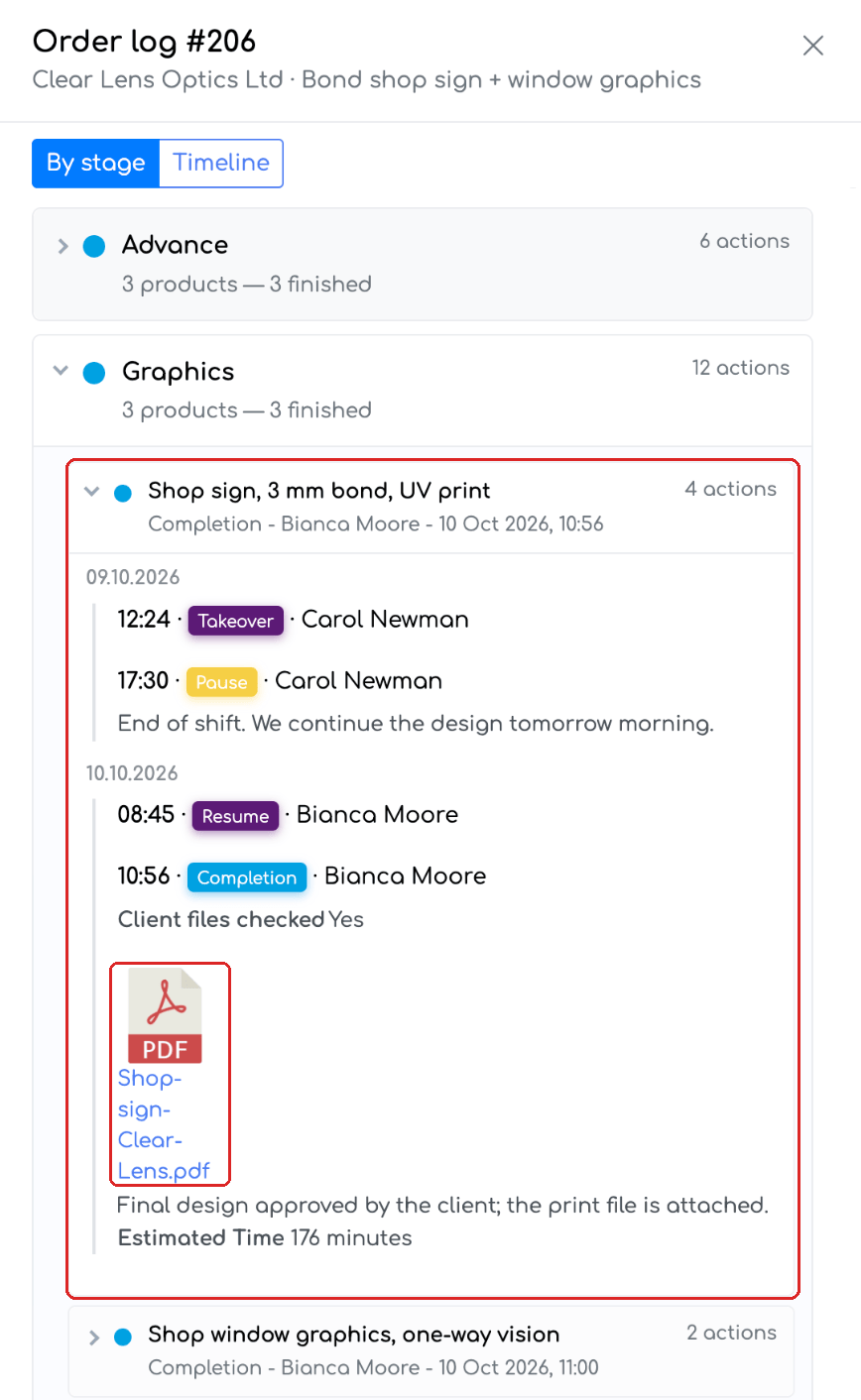
The Graphics stage open: the history of the Shop sign product, with the end-of-day pause, the comments and the design proof attached at completion.
Order log, in chronological order
Step 4. Click Timeline at the top of the log. You see all actions on the order, in the order they were done, grouped by day.
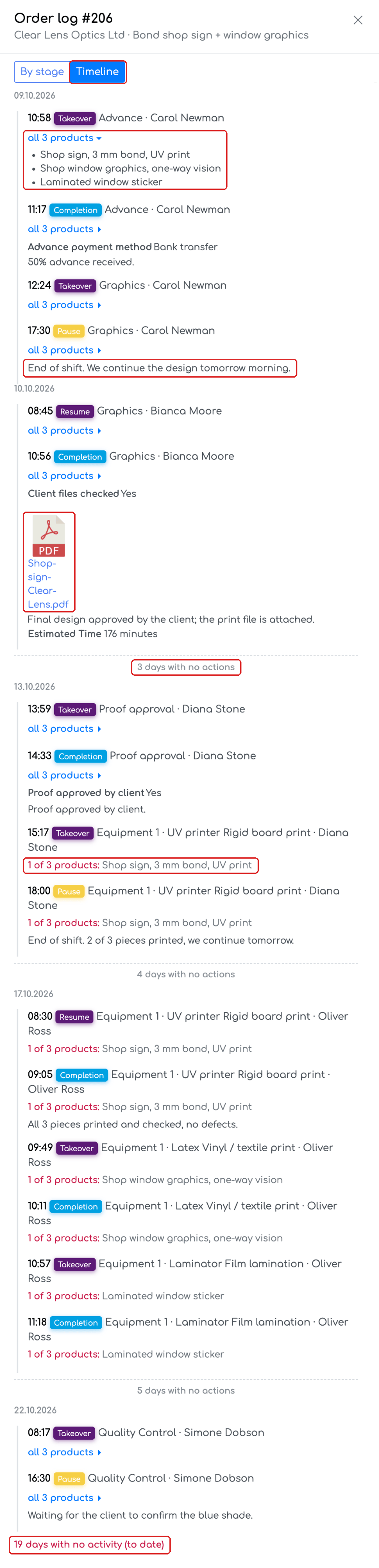
The Timeline view: actions grouped by day, the product list, comments and files, the gaps between actions and the days with no activity to date.
- An action saved on several products at once appears on a single row, marked “all N products” or “N of M products”. Click the label to show the list of products. If the values filled in differ from one product to another, they are shown for each product.
- Gaps between actions are marked “N days with no actions”. For unfinished orders, the list ends with “N days with no activity (to date)”, so you can see right away how long the order has been waiting.
- Comments and files filled in on an action appear under it, just like in the By stage view.
- The list opens at the most recent actions; older ones load as you scroll up.
Product log
Step 5. Expand the order and click the icon next to the product name.
The Product log icon, next to the product name.
Step 6. The product log is titled with the product name, followed by the order number and the quantity. For each stage you see the last action (action, person, date and time) and the number of actions; click a stage to see its full history.
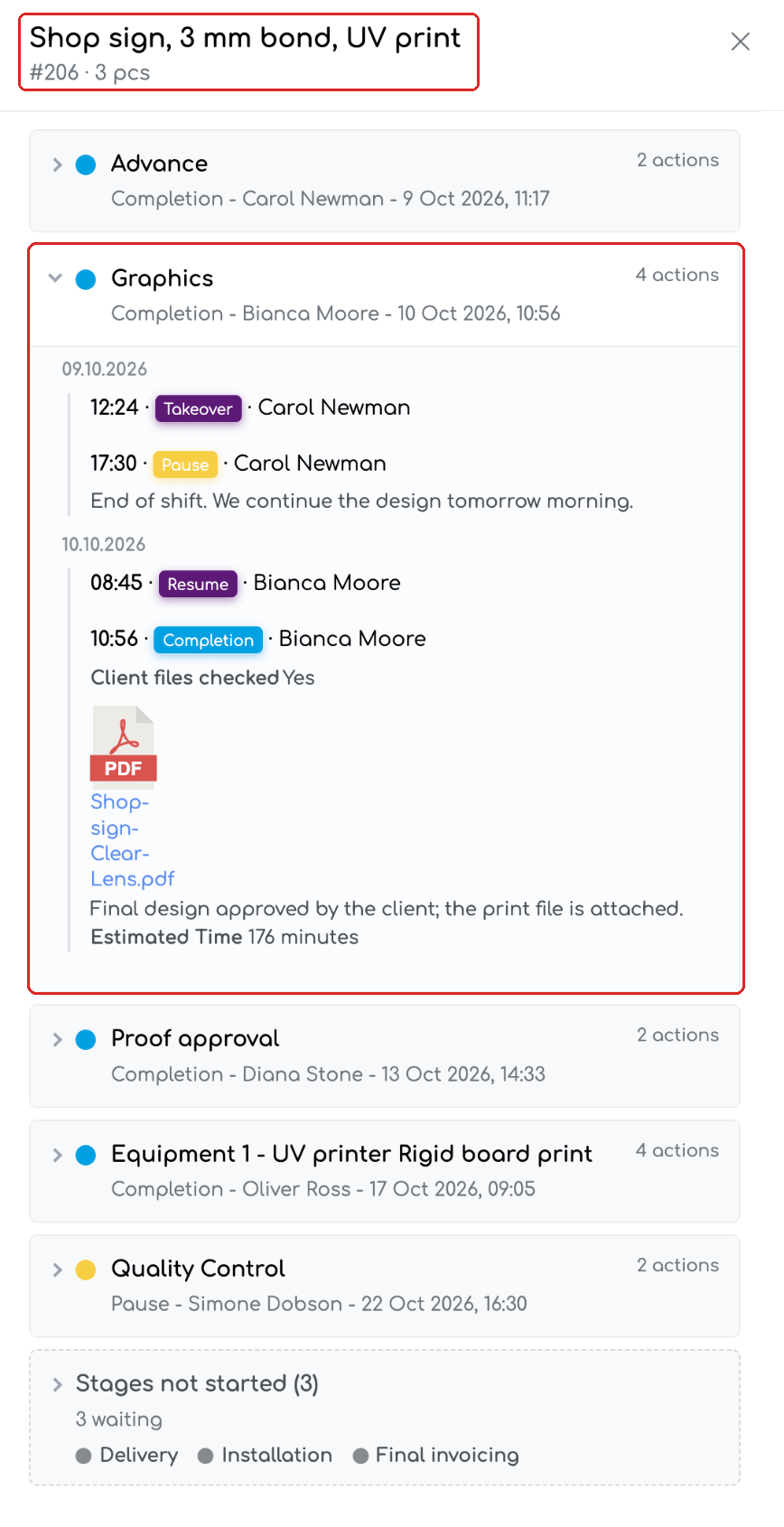
The log of the Shop sign product, with the Graphics stage open: the comments and the attached design proof.
Good to know
- The log always opens in the By stage view. The Timeline view is available in the order log.
- Grouping on a single row the actions saved on several products applies to actions saved after 30.09.2026.
- Stages disabled on the order do not appear in the log, except those that have recorded actions.
- The log uses the existing Workflow rights. The client name appears in the order log only for users who have the right to see the client name on orders.
Frequently asked questions
I saved an action by mistake. Can I correct it from the log?
No. The log is read-only and shows the actions exactly as they were saved in the Workflow.
Where do I find the file attached by my colleague from the graphics department?
Open the order log directly from the Workflow. In the By stage view, open the Graphics stage and the product; in Timeline, look for the completion of the Graphics stage. The file appears under the action and opens in one click.
Why does the same action appear on several rows on older orders?
Grouping on a single row the actions saved on several products at once applies to actions saved after 30.09.2026. Older actions appear once for each product.
What does “N days with no activity (to date)” mean?
It appears on unfinished orders and shows how many days have passed since the last action on the order. It helps you quickly spot orders that are waiting.