
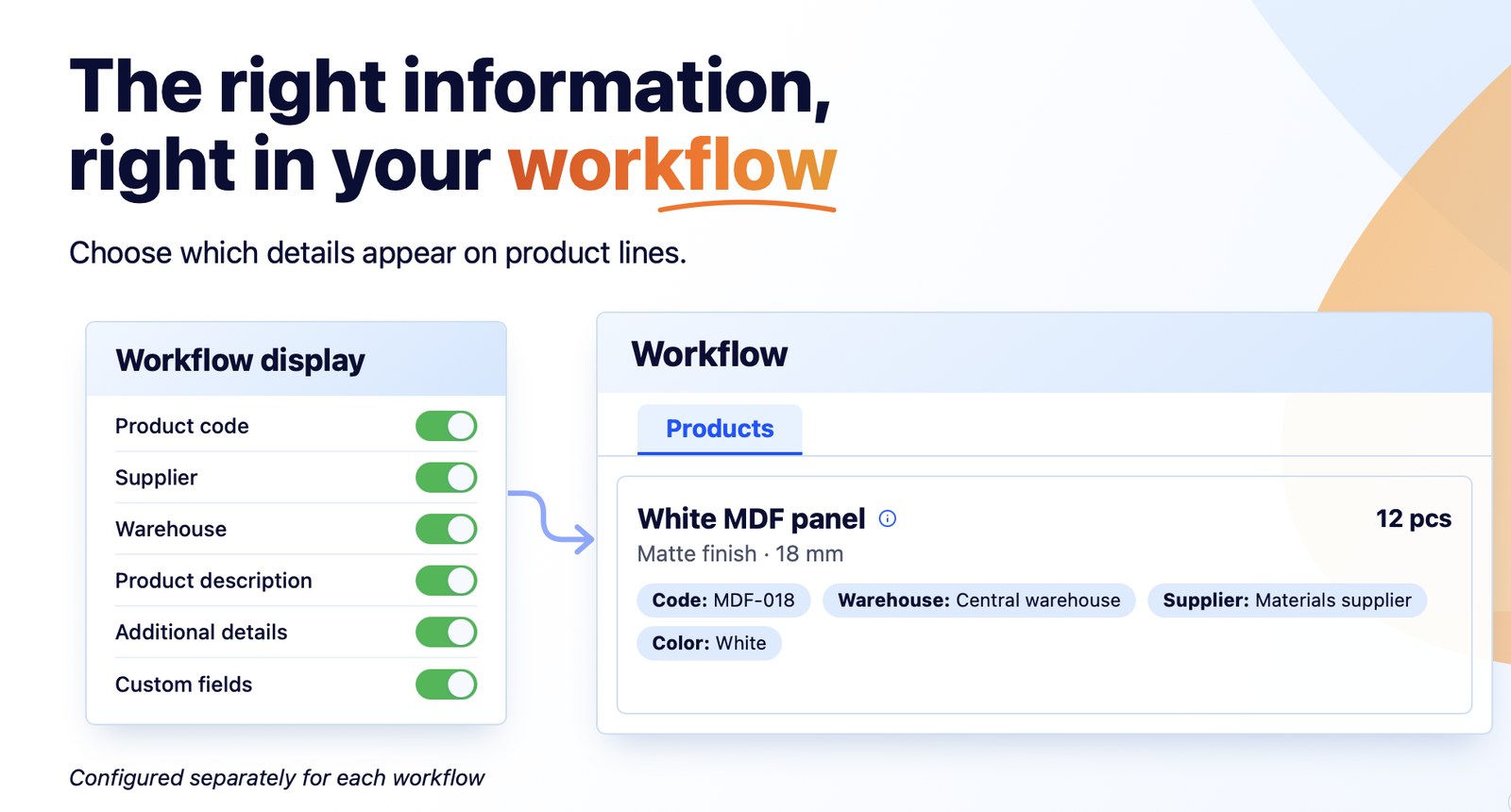
Each workflow can now show on its product lines exactly the information the people working in it need: the product code, the supplier, the warehouse the product is consumed from, the description, the additional details and the custom fields. Operators can see at a glance which material they use and where it comes from, without opening the order, while workflows that do not need this data can stay simple and uncluttered.
The result
The image below shows the same orders in the Products tab of the Workflow. On the left, all the information is displayed; on the right, in the same workflow, Product code, Supplier and Management have been turned off.
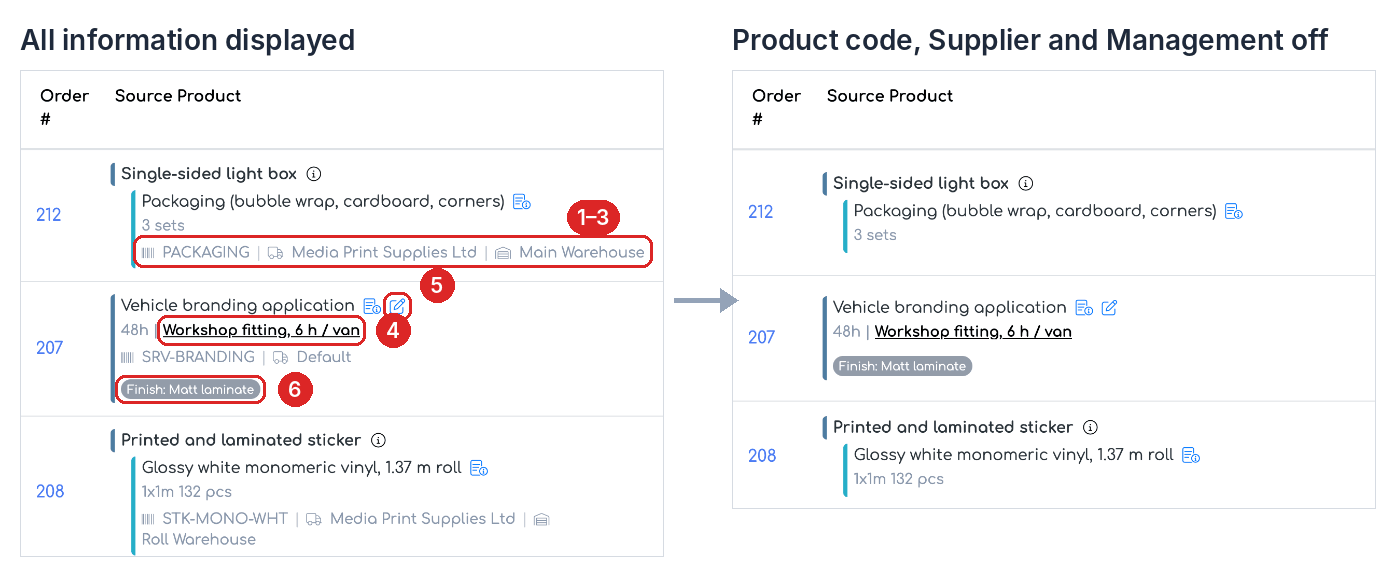
Workflow, Products tab: all information displayed (left) and the simplified view (right).
- 1–3. Product code, Supplier, Management — on a separate line, below the quantity, for simple products and for the components of superproducts. Management (the warehouse) is shown only for stock products.
- 4. Product description — after the quantity. Long descriptions are shortened; the full text appears when you hover over them.
- 5. Additional details — the icon next to the product name, when the order line has additional details filled in. Click the icon to open the details.
- 6. Custom fields — below the product line, in the form “Field name: value”.
The selected information applies everywhere in that workflow: in the Orders tab (expanded rows), the Products and Employee Allocation tabs, the action window and on mobile.
Before you start
- After the update, all six types of information are turned on in every workflow, including existing ones. This is why the product code now appears on workflow lines, before the supplier and the warehouse. If you do not need it, turn it off in the workflow settings, as shown below.
- The setting is made per workflow and is the same for all users who work in that workflow. Information that is turned off is hidden for everyone.
- To change the setting you need the Edit right on Workflow Settings.
How to choose the information displayed
Step 1. Open . On the row of the workflow you want, click the Edit button (the blue pencil).
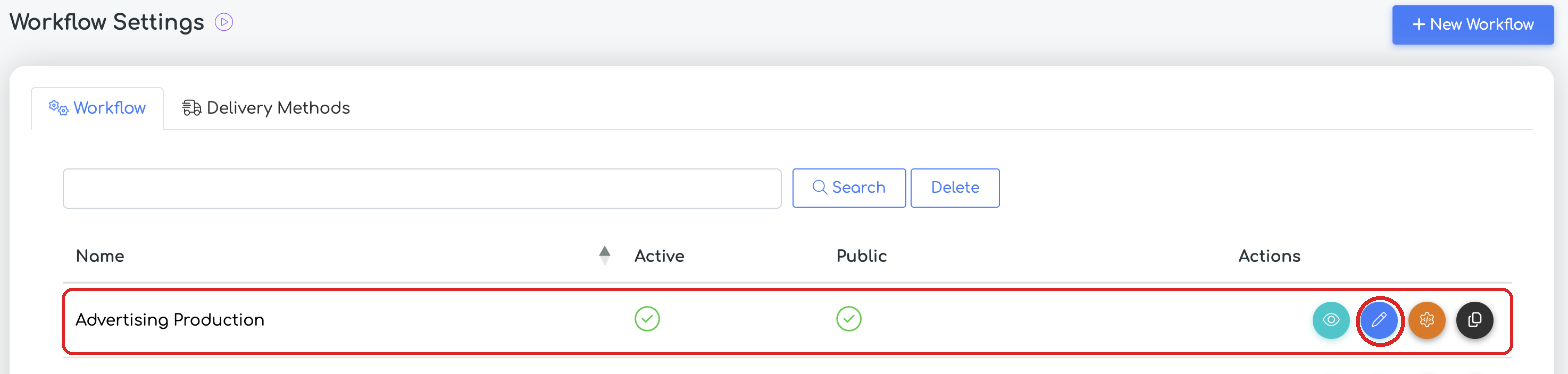
: the Edit button on the workflow row.
Step 2. In the Details section, under Order Sorting, find Display in workflow, with its six switches. A green switch means the information is displayed. The (?) icon next to each option explains what it shows.
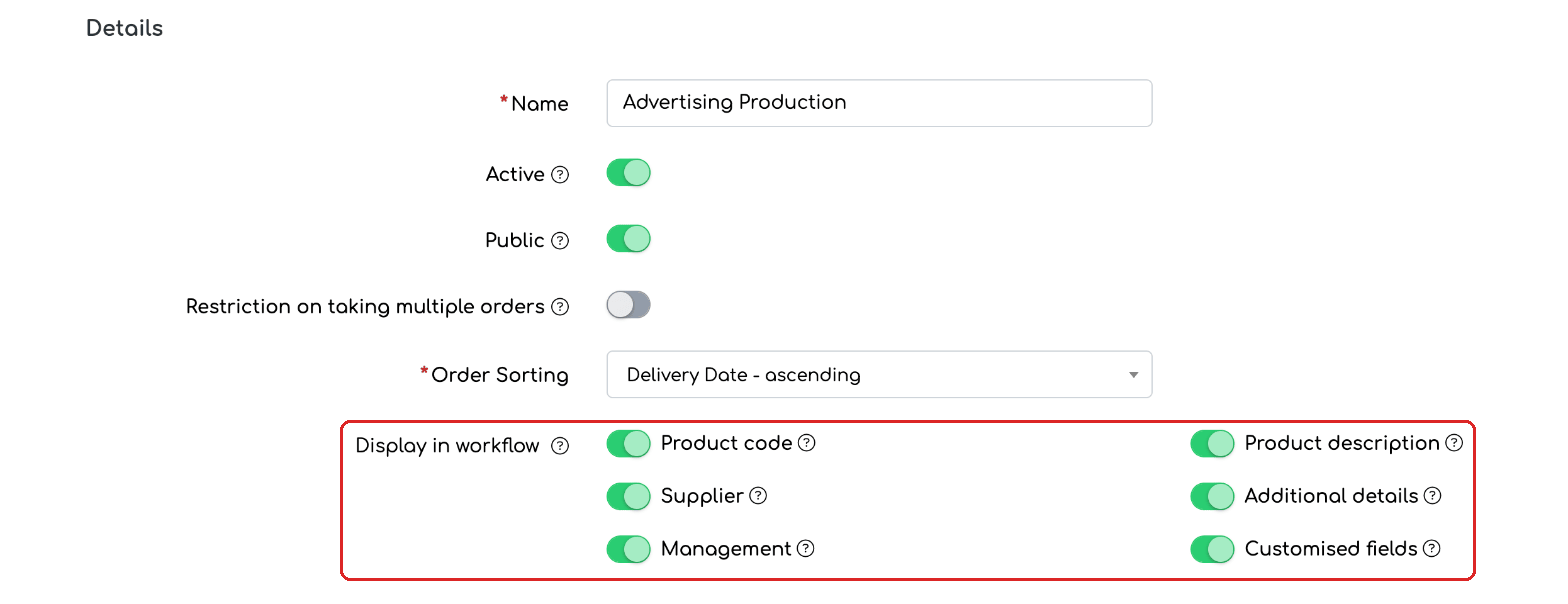
The Display in workflow section, with all information turned on (the default setting).
Step 3. Turn off the information that is not needed in this workflow. For example, if operators do not need the code, the supplier and the warehouse, turn off Product code, Supplier and Management.
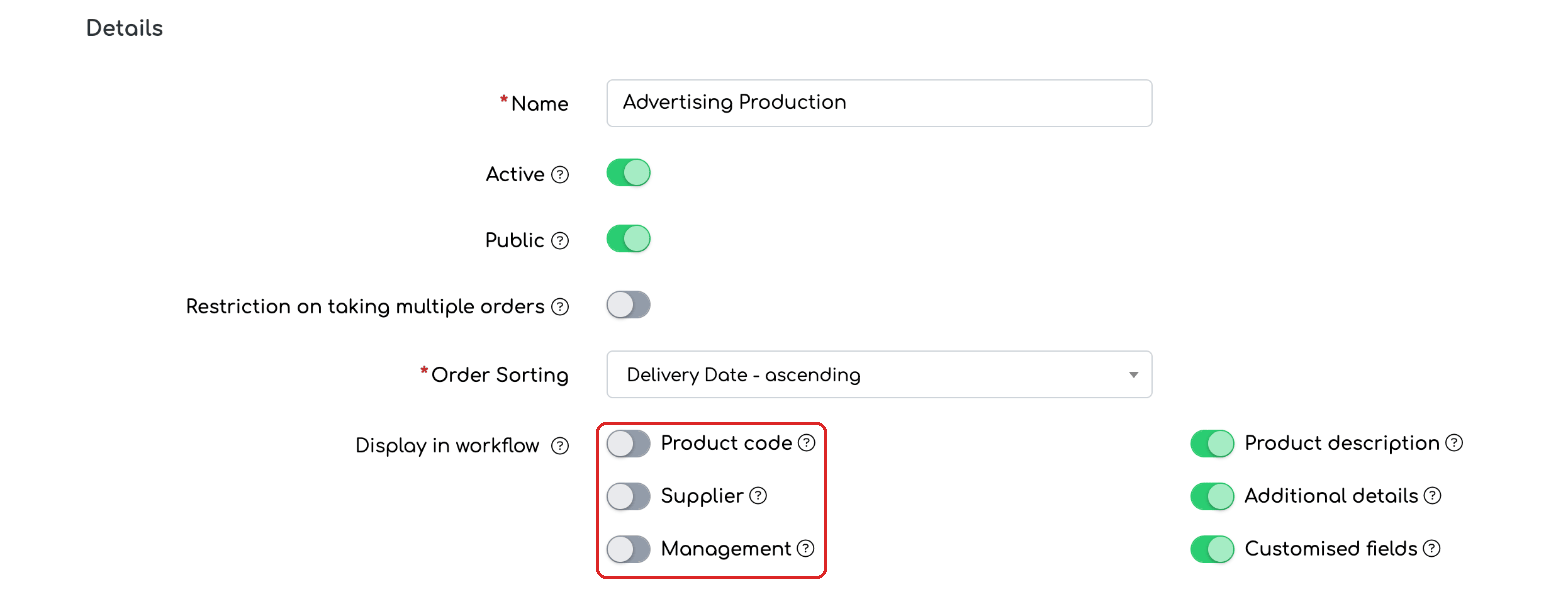
Product code, Supplier and Management turned off; the other information remains displayed.
Step 4. Scroll to the bottom of the page and click Save.

The Save button, at the bottom of the workflow page.
Step 5. To check the setting, open the workflow with the View button (the eye) in the workflow list. Under Display in workflow, displayed information has a green tick and hidden information has a grey X.
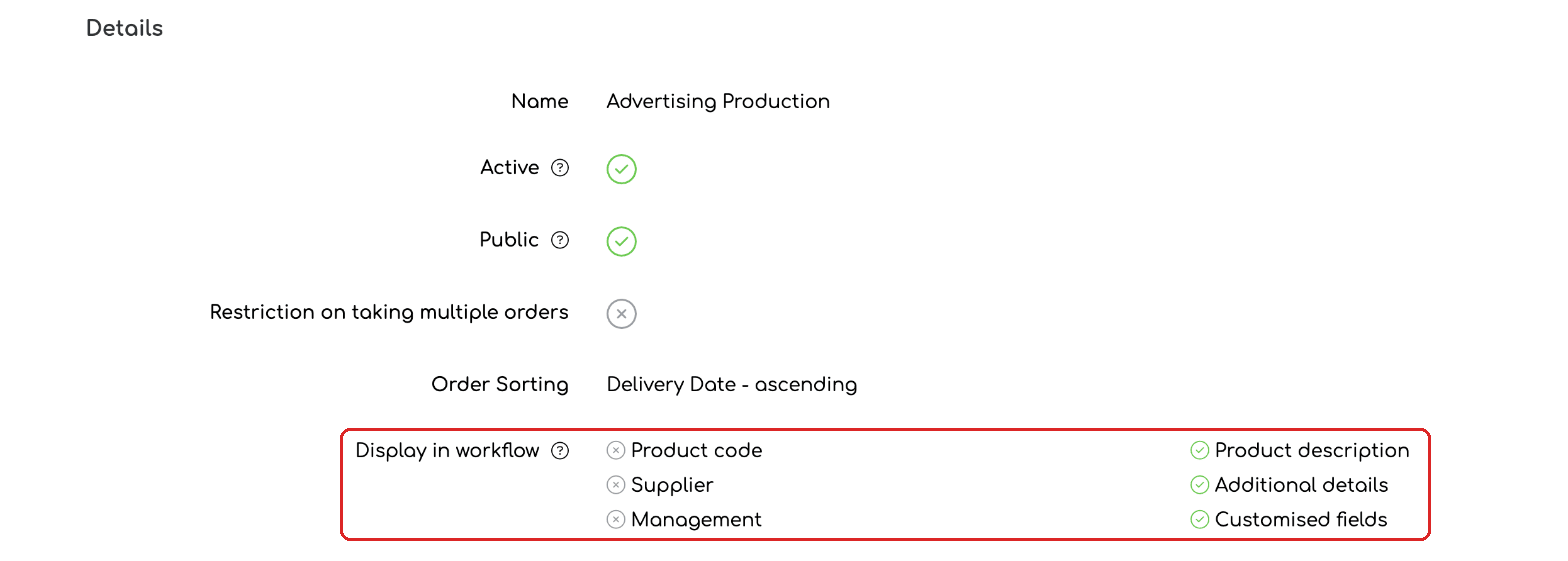
The workflow page: green tick for displayed information, grey X for hidden information.
Step 6. Open Workflow and choose the workflow. The product lines now show only the information that is turned on, as in the image at the beginning of this article.
Good to know
- If a product has no code or supplier filled in, that place stays empty, even if the option is turned on.
- The code, supplier and warehouse do not appear on the superproduct row, but on each of its components.
- Additional details and custom fields appear only on order lines that have them filled in.
- To return to the full display, turn the switches back on and save the workflow.
Frequently asked questions
Can I hide the product code only for operators, not for myself?
No. The setting is per workflow and applies to everyone working in it. If you need different displays, use separate workflows.
Can I display only some of the line's custom fields?
No. The Custom fields switch shows or hides all custom fields filled in on the line.
I filled in the supplier, but it does not appear on the line. Why?
Check that the Supplier option is on for that workflow. For superproducts, the supplier appears on each component, not on the superproduct row. The warehouse (Management) appears only for stock products.