
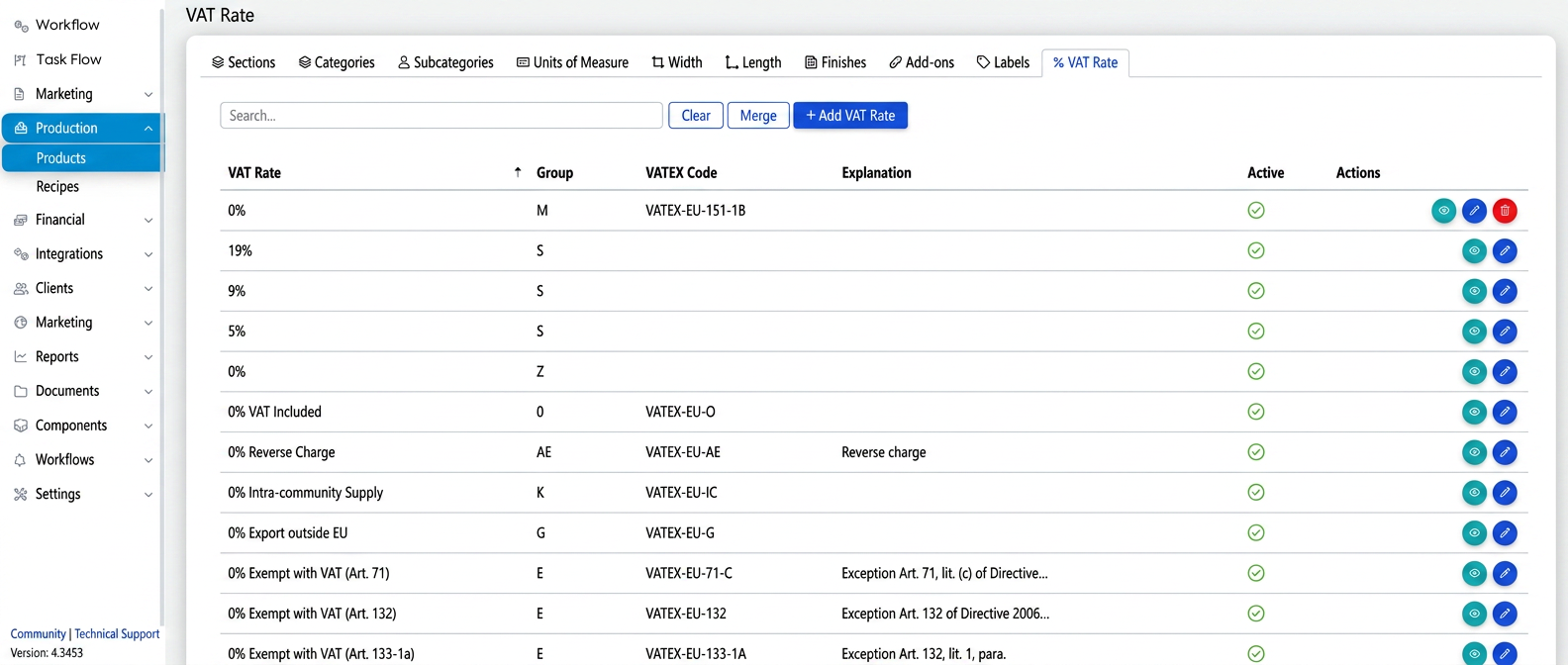
In the menu, there is a page called “VAT Rates”, which allows for the management of VAT rates used in accounting documents. Through this functionality:
- You can activate or deactivate predefined VAT rates (e.g., 19%, 9%, 5%).
- You have the possibility to manually add new 0% VAT rates where the legislation imposes additional exemptions that are not already found in the system.
How to Use
Accessing and Managing VAT Rates
- .
- In this section, you will find the list of all available VAT rates, along with their Group, VATEX Code, and related Explanation.
- Activating/Deactivating existing rates
- Standard rates (19%, 9%, 5%) are predefined and cannot be modified, but they can be deactivated when they are no longer needed.
- To reuse an inactive rate, reactivate it, and it will be available in documents.
2.2. Adding a new VAT Rate (only for 0%)
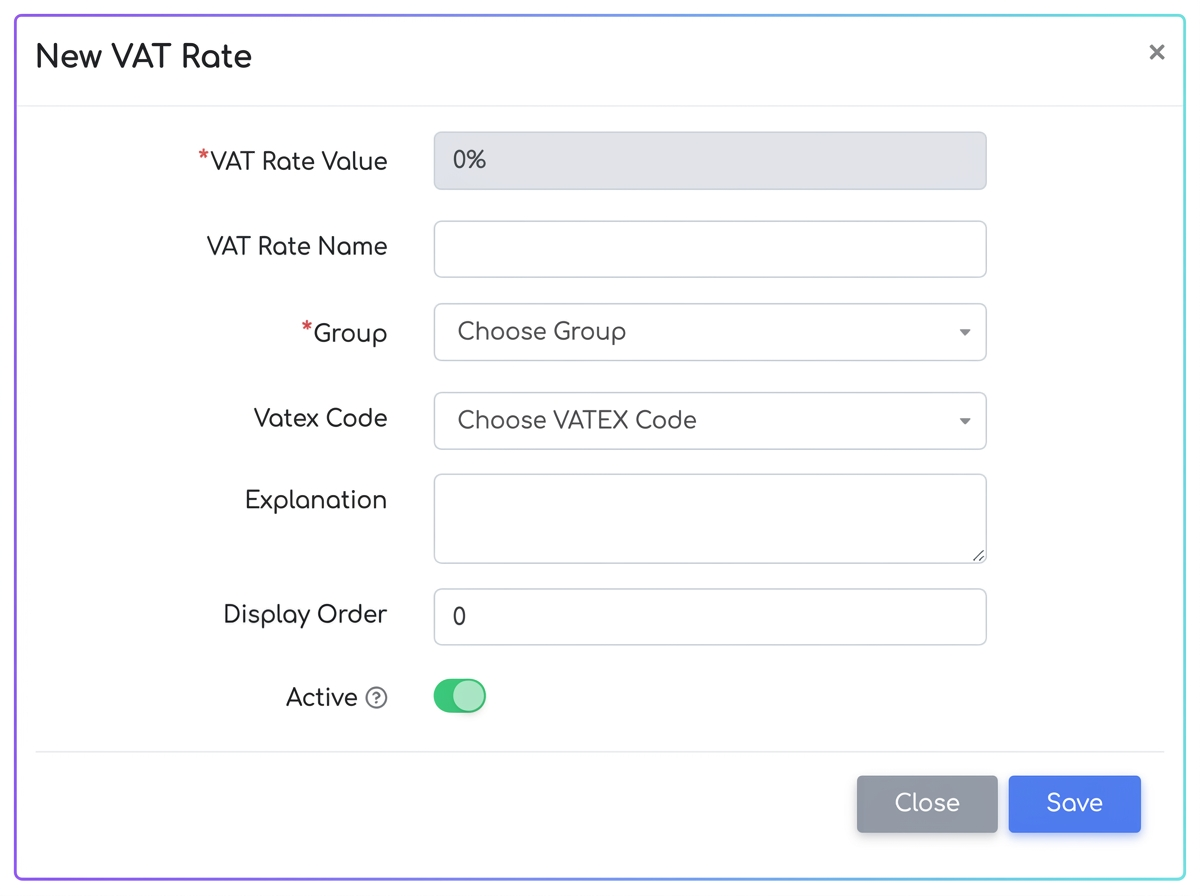
- Click “Add VAT Rate”.
- A form will open where you can set the Value (0%), Group, VATEX Code, and an optional Explanation.
- Fill in the identification and explanatory information.
- Save changes.
- The new 0% VAT rate will appear in the list under the “VAT Rates” tab and can be selected in documents.
2.3. Using VAT Rates in Products and Documents
- Product configuration: When adding or editing a product, you can select from the list of active VAT rates.
- Issuing documents (invoices, notices, proformas, etc.): In the VAT field of the document, you will only see the active rates from the “VAT Rates” tab.
- Once a rate is selected, the related VATEX Code and Explanation will be automatically filled in the document, ensuring correct reporting in accounting and fiscal systems.
Note: It is mandatory to select the Group and enter either an Explanation or a VATEX Code (or both). If you are unsure which VATEX code or explanation fits your legislative situation, we recommend discussing with your accountant or financial team to ensure you enter the correct information.