
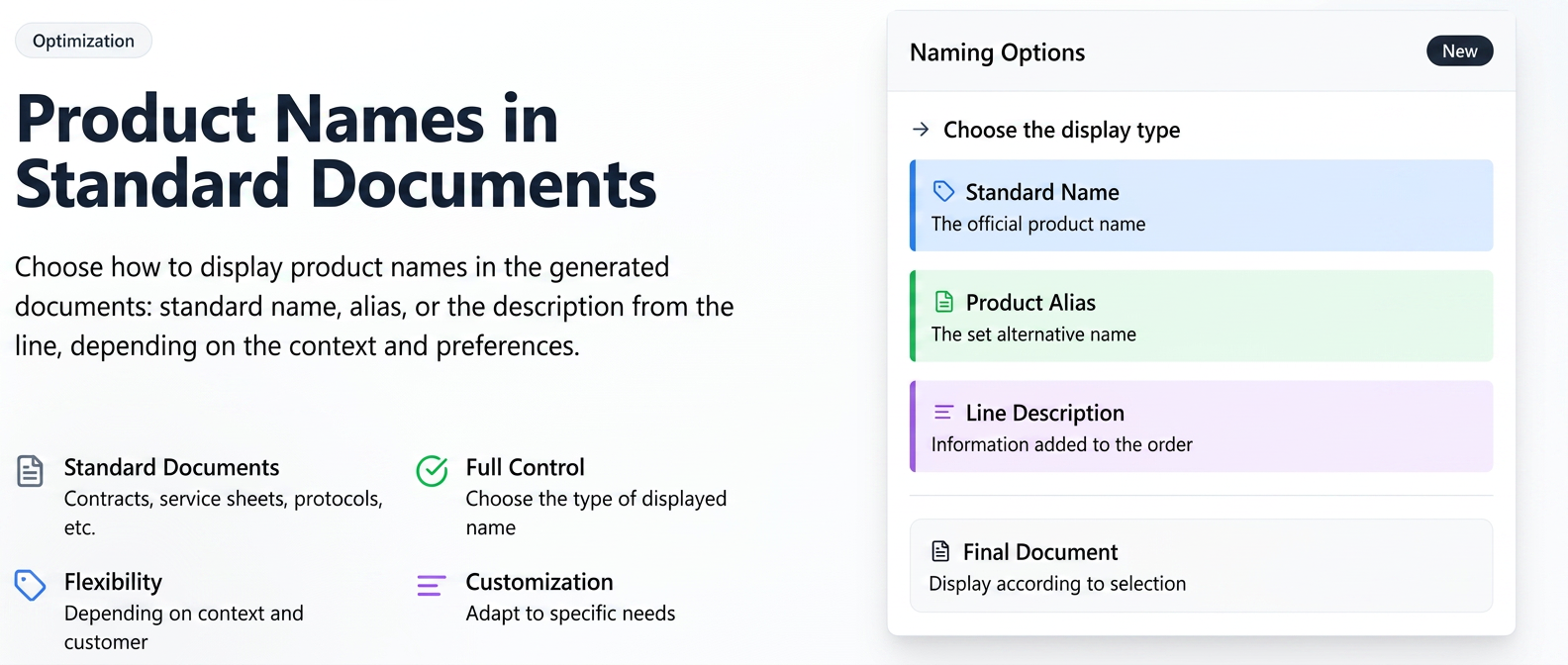
This optimization provides you with increased control over how product/service names are displayed in the standardized documents you generate (e.g., contracts, service sheets, minutes, etc.). Depending on the context or client preferences, you can choose to display in the final document:
- The standard Name of the product/service.
- The product/service Alias (the alternative name set in the dedicated profile).
- The product/service Description (the information added directly to the line in the order).
Step 1: Ensuring data for Name, Alias, and Description
- Product Name and Alias: These are defined in the profile of each product.
- Navigate to Products in the side menu.
- Add a new product or edit an existing one.
- In the form, the Name field represents the standard name, and the Alias field represents the alternative name. Fill in these fields as needed.
- Product Description: This is added at the order line level, being specific to a particular transaction.
- When you create an order, quote, or any other document containing products, in the products table, next to the field where you choose the product, there is a Product Description field. Fill in this field if you want to use a custom description for that specific line.
Step 2: Generating a Standardized Document
- Navigate to the section from which you want to generate the document (e.g., Sales > Orders).
- Identify the desired order in the list.
- In the Actions column, click on the red Generate Standardized Document icon.
- In the window that opens (Generate Standardized Document), select the document template you wish to use from the drop-down menu.
- Press the Generate button.
Step 3: Selecting the product name variant
- After generation, a new window named Document Tag Values will open.
- If the template you chose contains product-type variables, a new field will appear in this window: Product Name.
- Next to this field, you will find a drop-down menu. Click on it to choose which name variant to display in the final document:
- Name: Will use the standard product name.
- Alias: Will use the alternative name set in the product profile.
- Description: Will use the text entered in the "Product Description" field on the order line.
- After making your selection, press the Apply button.
Related articles
Centralization of Standardized Documents – Order and ClientTutorialsStandardized Documents: Custom fields with Selection List (Select) valuesTutorialsSending History and Visible Status for Standardized DocumentsTutorialsElectronic Signing of Standardized DocumentsTutorialsAdvanced Editor for Standardized DocumentsTutorials