- 'Accent' Template:
- A modern, airy, and elegant design for your documents (Quotes, Invoices, Orders, Proforma Invoices, Delivery Notes, Purchase Orders).
- A distinct structure, for example, with a footer optimized to include more of your company's contact details in a visually pleasing way.
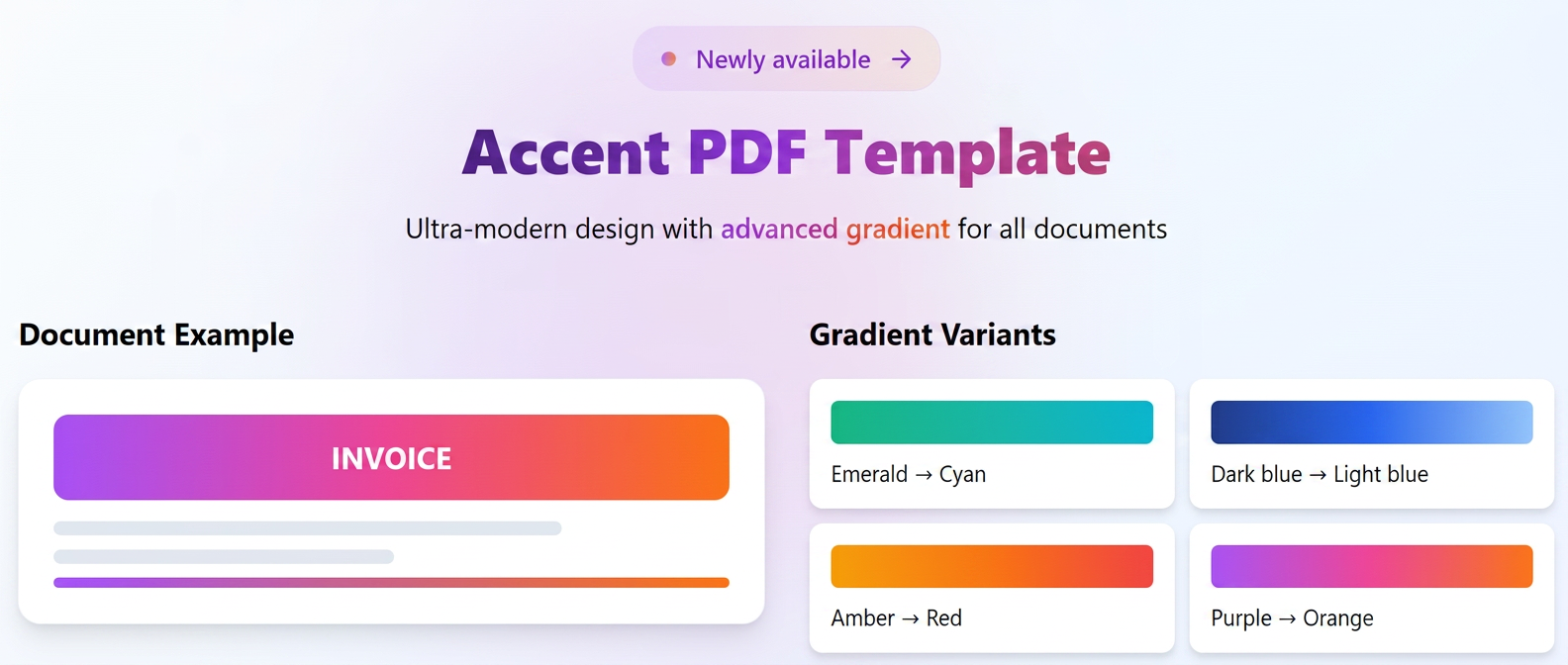
- Advanced Color Options - Gradient:
- Full Customization: Choose two distinct colors and define the gradient direction (e.g., left to right, top to bottom, etc.) to create a unique look.
- Predefined Gradients: For speed, you can choose from a selection of predefined, ready-to-use gradients.
- This option is available for the new 'Accent' style, but also for other template styles.
How to use?
A. Creating a new template with the 'Accent' style and gradient color:
- Navigate to Settings (from the main left menu, the last option) -> Templates.
- Select the PDF tab.
- Click the + New PDF Template button.
- In the creation form:
- Choose the Document type (e.g., Quote, Invoice, etc.).
- Under Template Style, select the new style: Accent.
- In the Color section:
- Click on the color field.
- Under Type, choose Gradient.
- Option 1 (Custom): Select the two desired colors and then choose the Gradient Direction.
- Option 2 (Predefined): Choose one of the predefined Gradients from the displayed palette.
- Fill in the Template Name and other required fields.
- Organize the variables in the new 'Accent' template layout.
- Click Save.
B. Updating an Existing Template to Use the 'Accent' Style:
You can update an existing template in two ways:
B1. By Cloning (Recommended to keep a copy of the original template):
- Navigate to Settings -> Templates -> PDF tab.
- Identify the template you wish to update.
- Click the Clone Template icon (the one with two overlapping files). This creates a new copy of the template, allowing you to keep the original as a reference should you wish to return to it later.
- In the cloned template form (which is now a new template):
- Under Template Style, change it to Accent.
- Modify the Color option to use Gradient, following the steps in point A.4.
- Update the Template Name if necessary (e.g., "Accent Gradient Quote").
- Click Save.
B2. By Direct Editing (If you wish to permanently change the style of the existing template):
- Navigate to Settings -> Templates -> PDF tab.
- Identify the template you wish to modify.
- Click the Edit Template icon (the pencil).
- In the editing form:
- Under Template Style, change it to Accent.
- Modify the Color option to use Gradient, following the steps in point A.4.
- Click Save.