
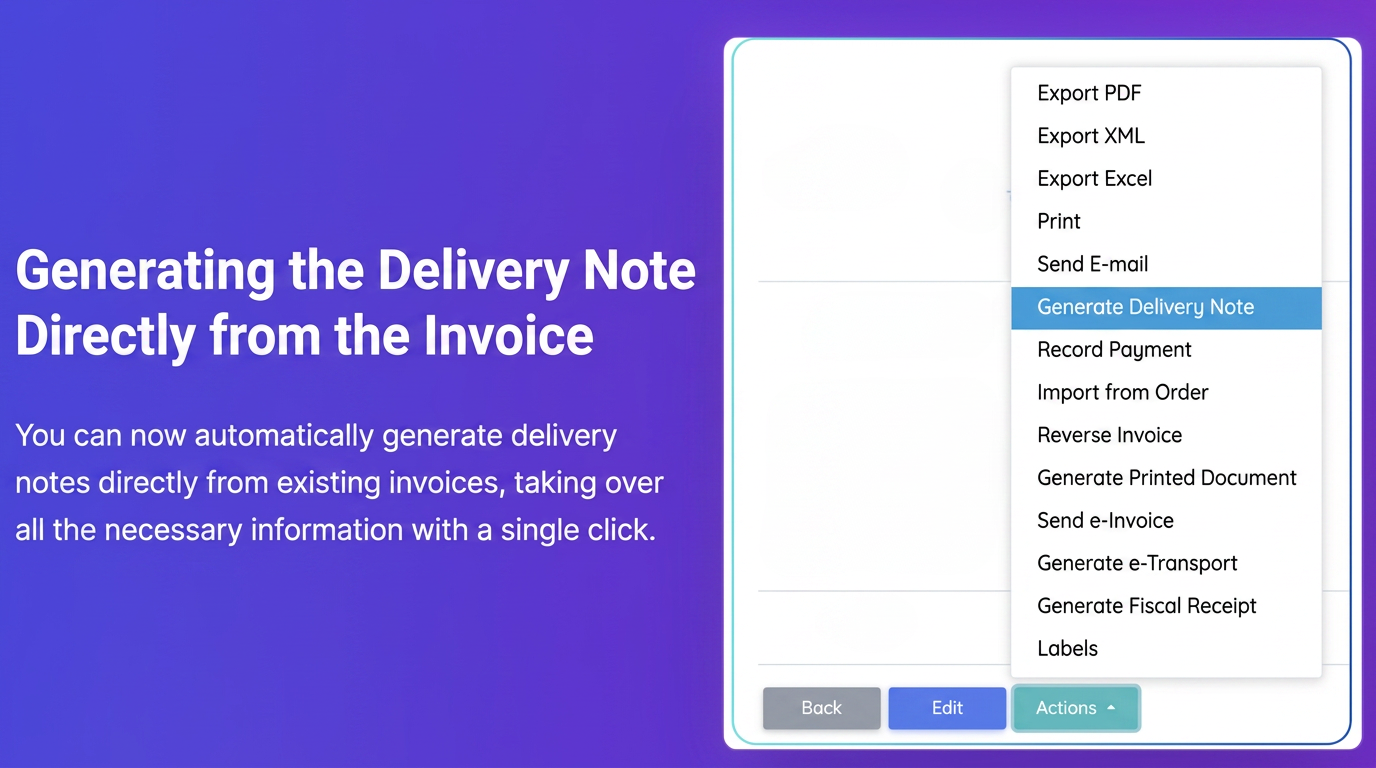
This function allows you to quickly create a delivery note (Aviz) based on information already existing in an invoice.
- Navigate to Invoices: From the main menu go to Sales -> Invoices.
- Select the Desired Invoice: Identify the invoice for which you want to generate the delivery note.
- Access Invoice Details: Click on the "Invoice Details" icon (the eye symbol) next to the respective invoice.
- Locate the "Actions" Button: On the invoice details page, scroll to the bottom and find the "Actions" button.
- Select "Generate Delivery Note": Click on the "Actions" button to open the dropdown menu. Select the option "Generate Delivery Note".
- Create New Delivery Note: You will be redirected to the "New Delivery Note" creation screen. Notice that the essential information from the invoice (Client, Products, Quantities, Prices) is automatically imported.
- Verify and Complete: Review the imported data. You can make adjustments if necessary (e.g., modify quantities if the delivery is partial) or fill in fields specific to the delivery note.
- Save the Delivery Note: Press the "Save" button.
- Confirmation: You will receive a confirmation message, and the new delivery note will appear in the list under the Sales -> Delivery Notes section.
Related articles
Adding and Retrieving the Title on the Delivery NoteTutorialsGenerating PDF Documents from the Inventory Module: Inventory Report and Inventory ListTutorialsGenerating Stock Purchase from Supplier OrderTutorialsIs it possible to generate a single invoice from multiple orders, even if they come from different workflows?ForumHow can I send an email to my colleagues regarding a specific order, directly from iFlows, to request additional information?Forum