
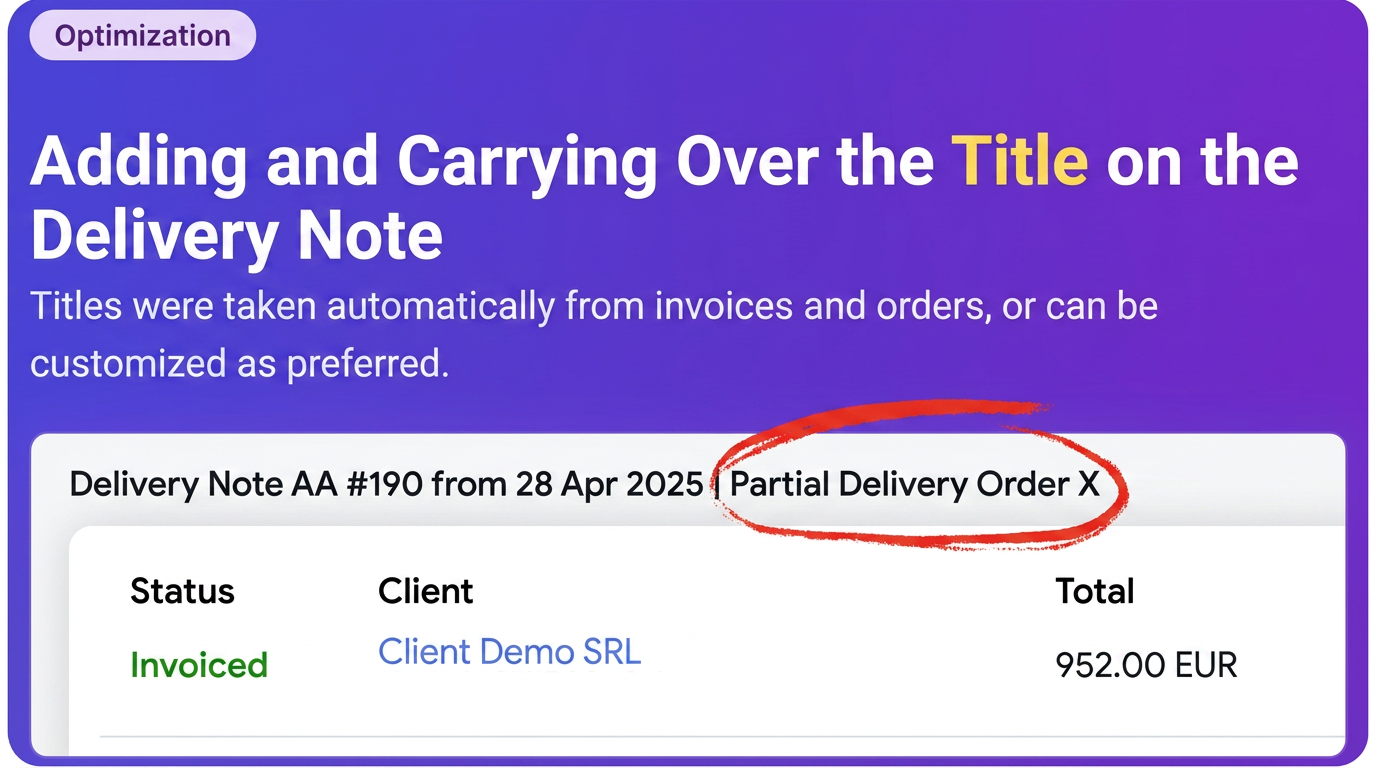
A. Manually Adding a Title:
- You can add a custom title to any delivery note, whether it is newly created or an existing one.
- For an existing delivery note: Navigate to Sales -> Delivery Notes, edit the desired delivery note.
- At the top of the delivery note page, next to its number, you will see an editable field: "Add Title...".
- Click in this field and enter the desired title (e.g.: "Partial Delivery Order X", "Goods for Project Y").
- Save the changes to the delivery note.
B. Automatic Retrieval of the Title from the Source Document:
- Condition: This feature is activated only if the document from which you generate the delivery note (Invoice or Order) already has a title filled in.
- Example (Generation from Invoice with Title):
- Ensure the source invoice has a title (open the invoice details and fill in the "Add Title..." field).
- Follow steps 1-5 above to generate the delivery note from this invoice.
- On the "New Delivery Note" creation screen, notice that in the "Add Title..." field, the title you set on the invoice will appear automatically. The title has been retrieved.
- You can keep the retrieved title or modify it before saving the delivery note.
- Similarity for Orders: The process is identical if you generate the delivery note from an Order that has a title filled in – the order title will be automatically retrieved on the new delivery note.