
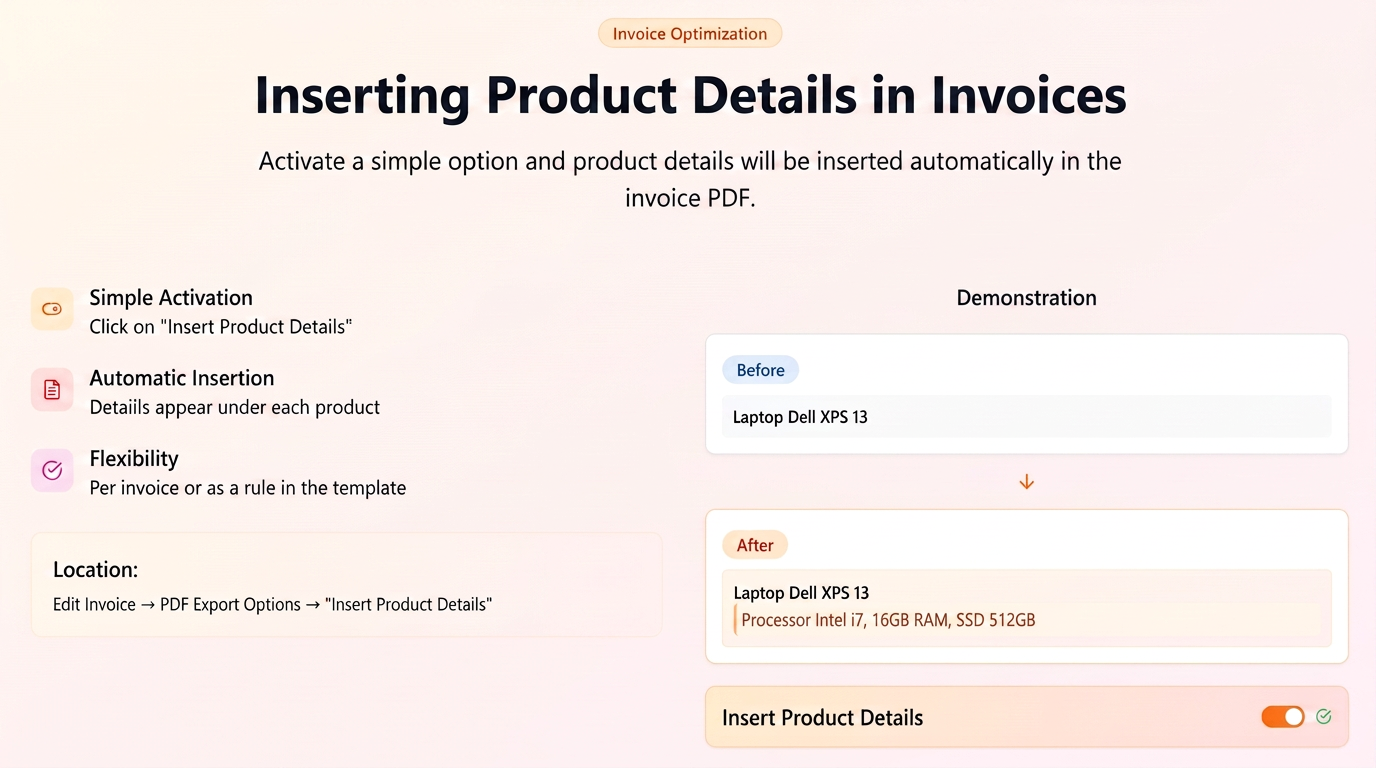
By enabling this option, the full product details will be automatically inserted into the PDF document under each listed product.
Prerequisite: Ensure that the products for which you want to display details have information filled in the "Details" field on the product page.
Step 1: Locating the PDF Export Options
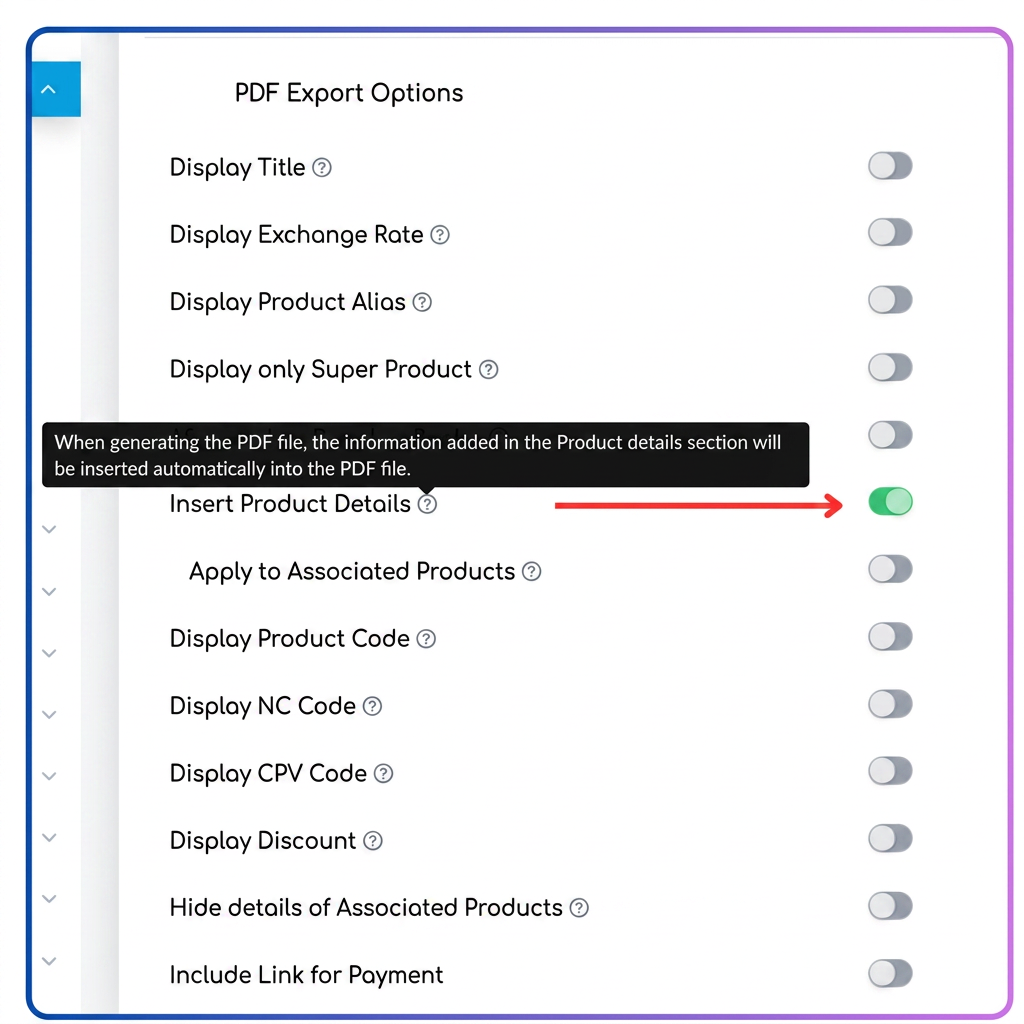
- On the invoice editing page, after the section with added products, scroll down until you reach the section titled "PDF Export Options".
Step 2: Activating Product Detail Display
- Within the "PDF Export Options" section, look for the option "Insert Product Details".
- Next to this option, you will see a toggle switch. Click on it to activate it.
Step 3: Saving and Generating the PDF Invoice
- After activating the option, save the invoice.
- Now, when generating the PDF document (either by downloading or sending via email), the iflows system will automatically insert the full text from the product's "Details" field under the name of each product on the invoice.
Note: This setting can be applied both individually for each invoice and as a rule by editing the PDF template used for invoices.