
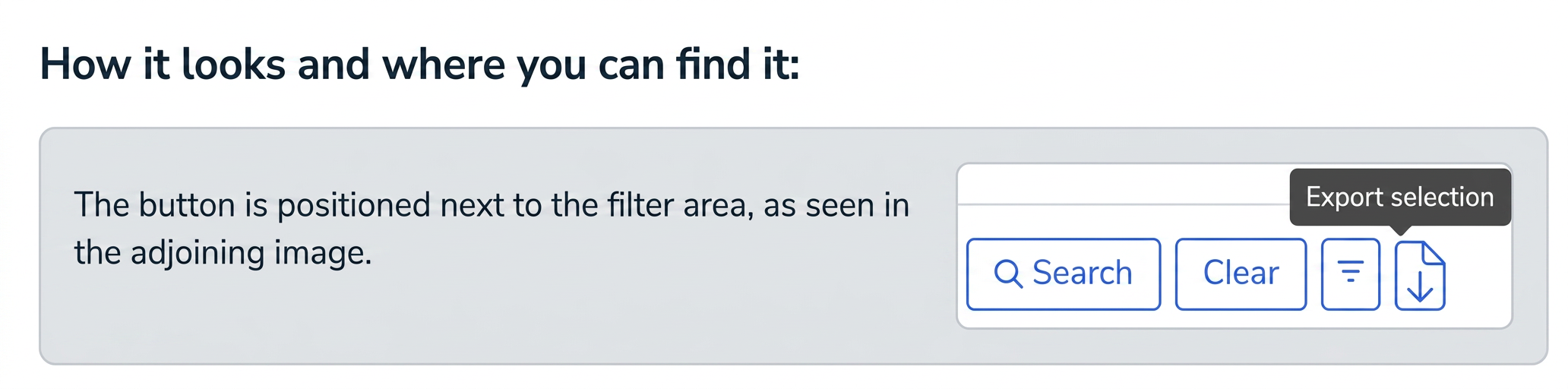
The functionality of this button is simple: it exports to an Excel file only the information displayed in the respective table, exactly in the form and filtering applied at that moment.
Thus, if you have applied a filter by date, client, or another criterion, only the data corresponding to that filter will appear in the exported file.
Important: This new button does not replace the classic option for exporting accounting data based on templates defined in the platform. The classic functionality remains available for detailed and personalized exports required in accounting or operational processes.
How to use it?
- Access a data page (e.g., Invoices, Opportunities, Offers, Products, etc.).
- Apply the necessary filters
- Use the search fields and filters at the top of the table to select the desired records.
- Only data matching these criteria will appear in the table.
- Identify the “Export selection” button
- Near the filter area, you will find the button labeled “Export selection”.
- Export the data
- Ensure the table displays the information of interest (following filtering).
- Click on “Export selection” to generate and download the Excel file, which will contain exactly the records visible at that moment.