
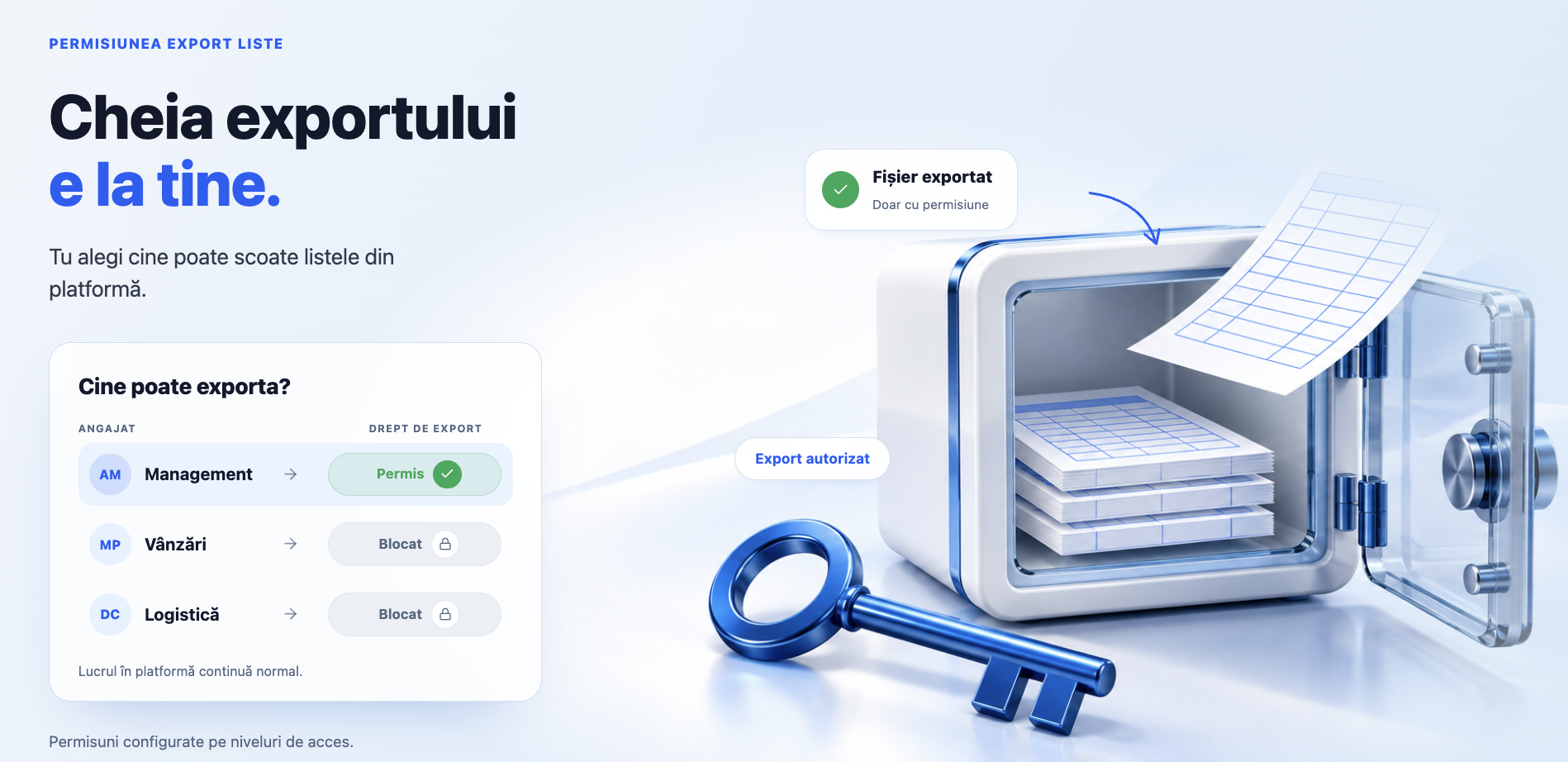
In short
You can now decide, for each access level, which employees are allowed to export data from the platform’s lists. The new Export Lists permission controls the Export Selection icon on pages with a table, as well as the export and bulk download buttons in the lists of documents, clients, suppliers, products, stock, employees, vehicles and in reports.
This way you can limit data extraction from the platform (for example, the complete list of clients or products) for employees who only need to work with this data in the interface. With the update, the permission was granted to existing access levels, so nothing changes until you untick it.
Where to find it
, the Permissions tab — the pencil icon (Edit Access Level) on the access level row; the Financial category, the Export subcategory, the Export Lists row.
The controlled buttons: the Export Selection icon (next to the search buttons) and the Export / Download buttons in the list headers.
Before you begin
You need the right to edit access levels (usually, administrators).
Decide which access levels need to be restricted.
The main administrator account can always export; for the other accounts, including those with the Administrator access level, the setting applies.
Restricting exports for an access level
Step 1. Open , the Permissions tab, and click the pencil icon (Edit Access Level) on the access level row. The access level window opens.
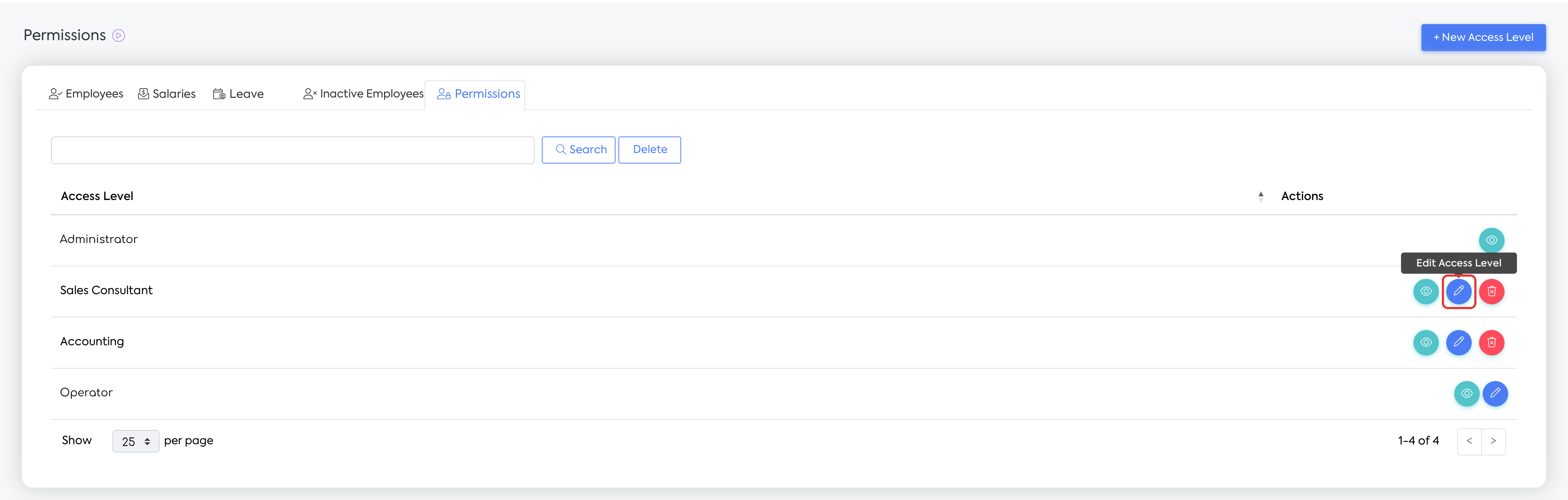
The Permissions tab: the Edit Access Level pencil icon on the access level row.
Step 2. Scroll to the Financial category, the Export subcategory, or search for “Export” in the Search... field. Export Lists is the first row of the subcategory, before Export Accounting Data and Export Database, and has only the View column.
Note: the “?” icon next to the name explains the effect: the permission allows exporting data from the platform tables, through the Export Selection button and through the export buttons in Clients, Suppliers, Products etc.; when disabled, the employee cannot extract data from the system through these options.
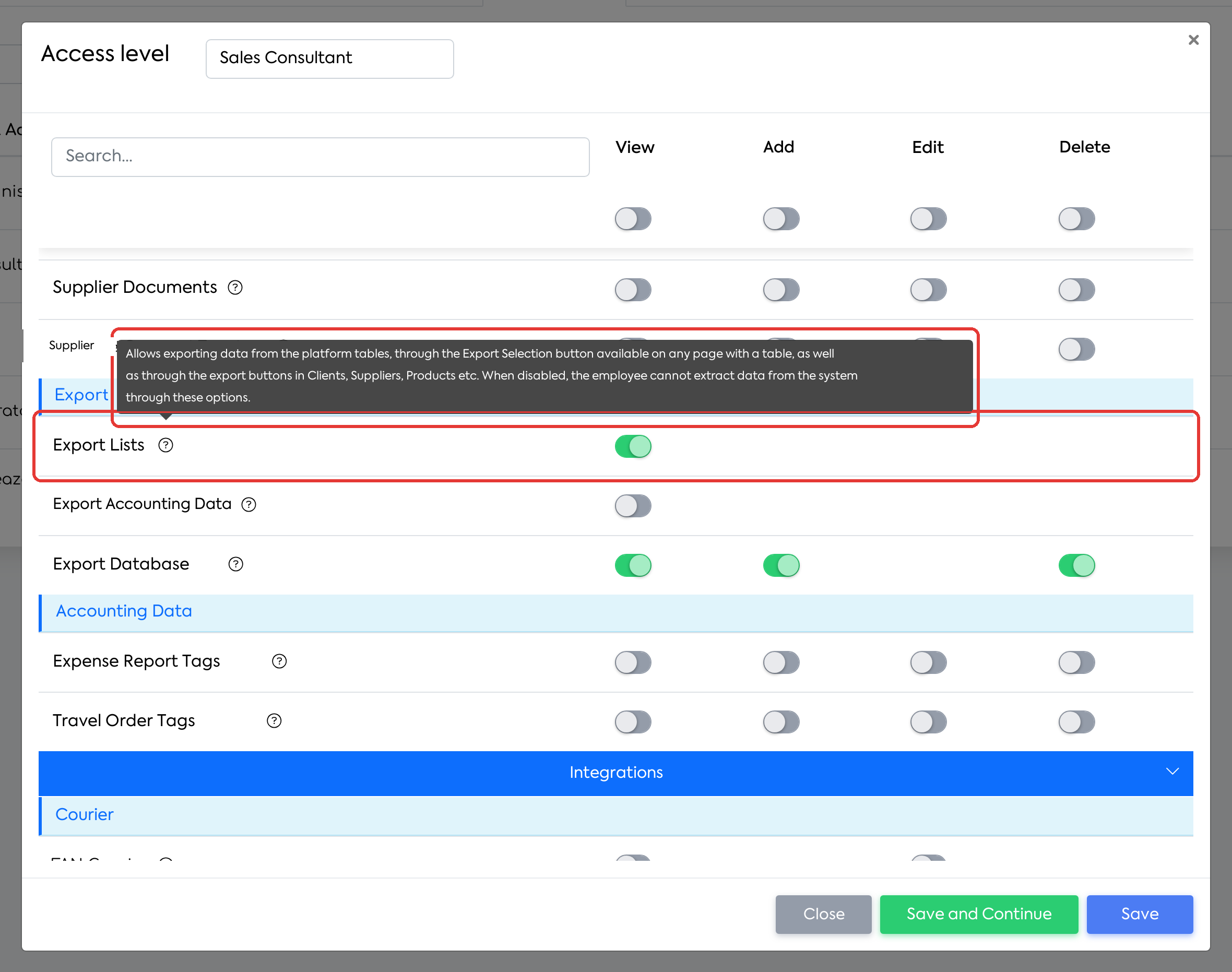
The Export Lists row, the first in the Export subcategory, with the explanation of the “?” icon.
Step 3. Turn off the switch in the View column to forbid exporting (or tick it to allow it).
Step 4. Click Save. Employees with this access level no longer see the export buttons after reloading the pages.
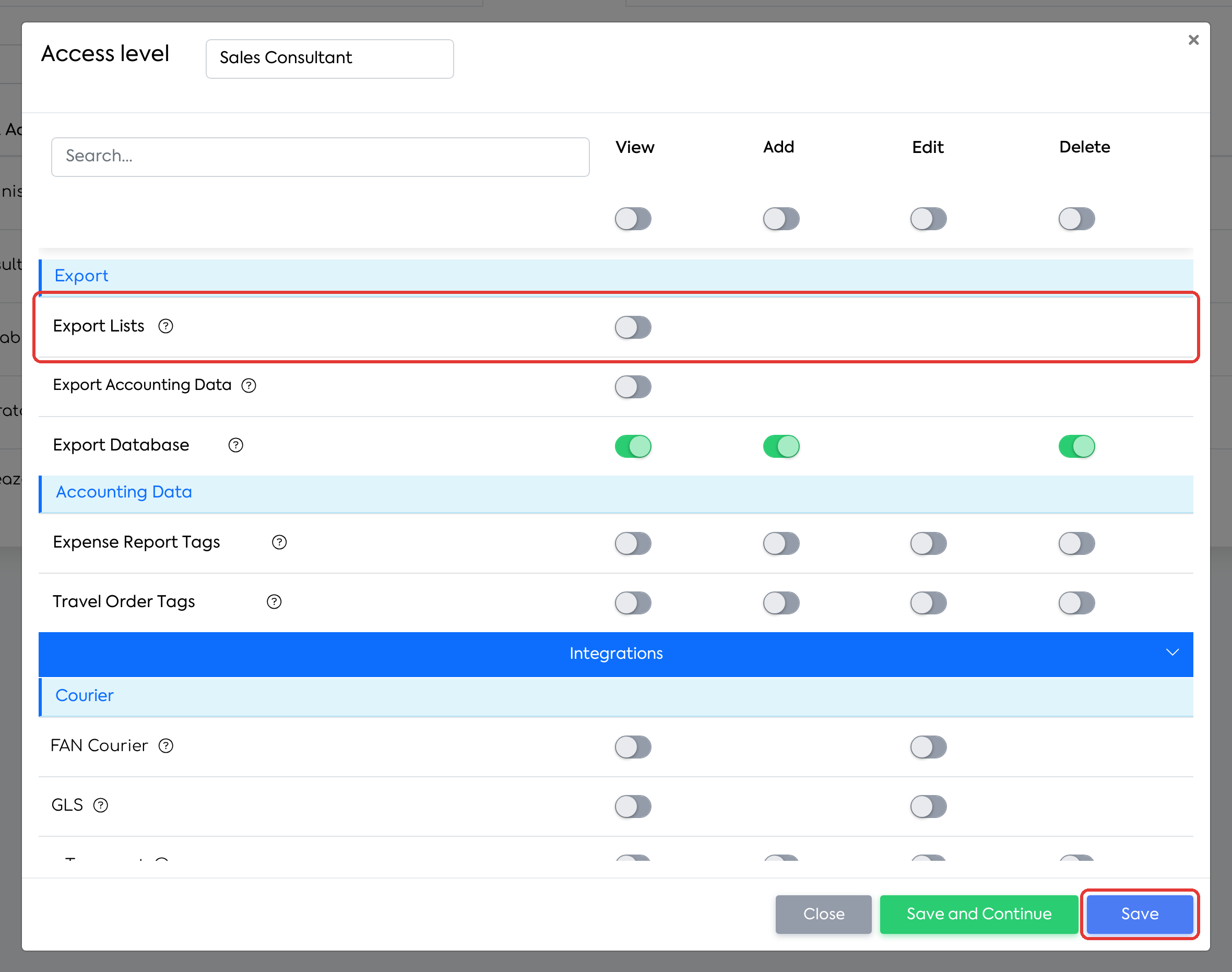
Export Lists disabled for the access level, then Save.
Controlled exports
Export Selection is the icon next to the search buttons, which downloads the displayed table to Excel, with the current filters. Download downloads the documents for a period; Export runs the accounting export by export profile or, where indicated, the list export.
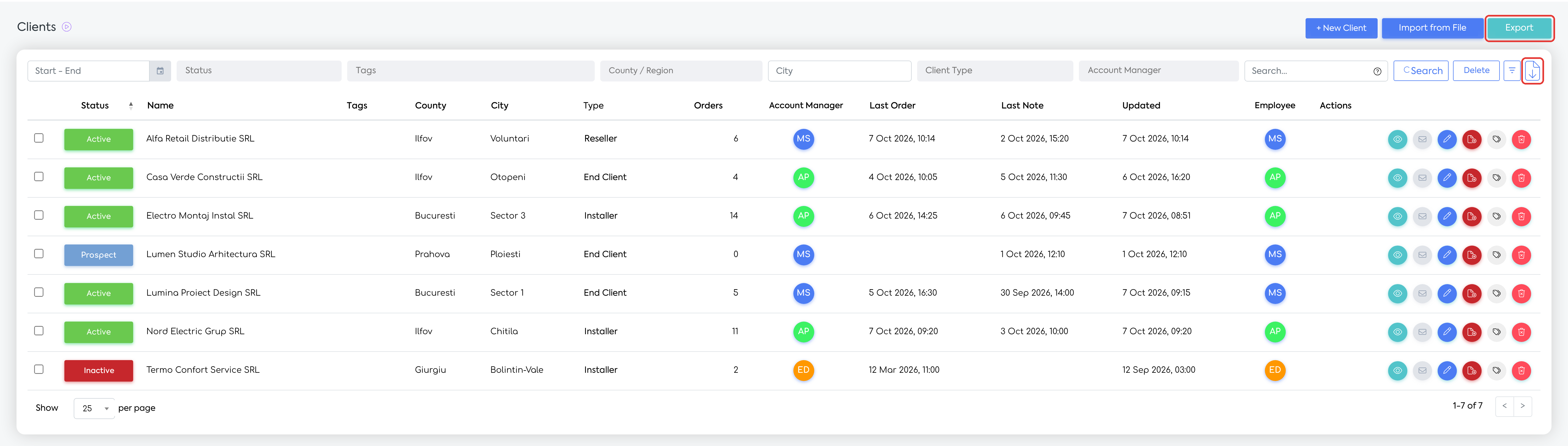
The client list, with the Export button and the Export Selection icon, both controlled by the Export Lists permission.
| Menu | Page / tab | Controlled buttons |
|---|---|---|
| Sales | Opportunities, Quotes, Orders, Proforma Invoices | Export Selection |
| Sales | Invoices | Download, Export, Export Selection; e-Invoice tab: Export Selection |
| Sales | Receipts | Download, Export, Export Selection |
| Sales | Delivery Notes | Download, Export Selection |
| Clients | Clients | Export (complete list), Export Selection |
| Clients | Client file, Client File tab | Export (Excel) |
| Clients | Client file, Service tab; Discounts; Service: Equipment and Reports tabs | Export Selection |
| Products | Products | Export (all fields, for the products in the current search), Export Selection |
| Products | Stock | Export (Export Stock window), Export Selection, the Export Stock History row action (Excel and PDF) |
| Products | Stock: Inventory and Transformation Notes tabs | Export Selection |
| Products | Stock: Transfer Notes tab | Export, Export Selection |
| Products | Stock: Consumption Notes, Production Notes, Return Notes, Disassembly Notes tabs | Download, Export, Export Selection |
| Financial | Transactions (Cash Register, Bank Register, Without Payment) | Export Selection |
| Financial | Purchases | Download, Export, Export Selection; e-Invoice tab: Export Selection |
| Financial | Suppliers: Suppliers list | Export (complete list), Export Selection |
| Financial | Suppliers: Orders tab | Export Selection |
| Financial | Supplier file, Supplier File tab | Export (Excel) |
| Financial | Accounting Data: Expense Reports and Travel Orders | Export Selection |
| Marketing | E-mail Flows | Export |
| Reports | Products, Profit, Purchases, Orders, Clients | Export Selection |
| Reports | Employees, Notes tab | Export Selection, including from the selection bar |
| Documents | Register; Standard Documents, Generated tab | Export Selection |
| Resources | Equipment, Employees | Export Selection |
| Resources | Vehicles | Export (all vehicles), Export Selection |
| Resources | Employees, Salaries tab; the employee’s salary page | Export |
| Integrations | e-Transport | Export Selection |
| Integrations | Phone exchange (DOTRO) | Export (icon) |
| Workflow | Appointments | Export |
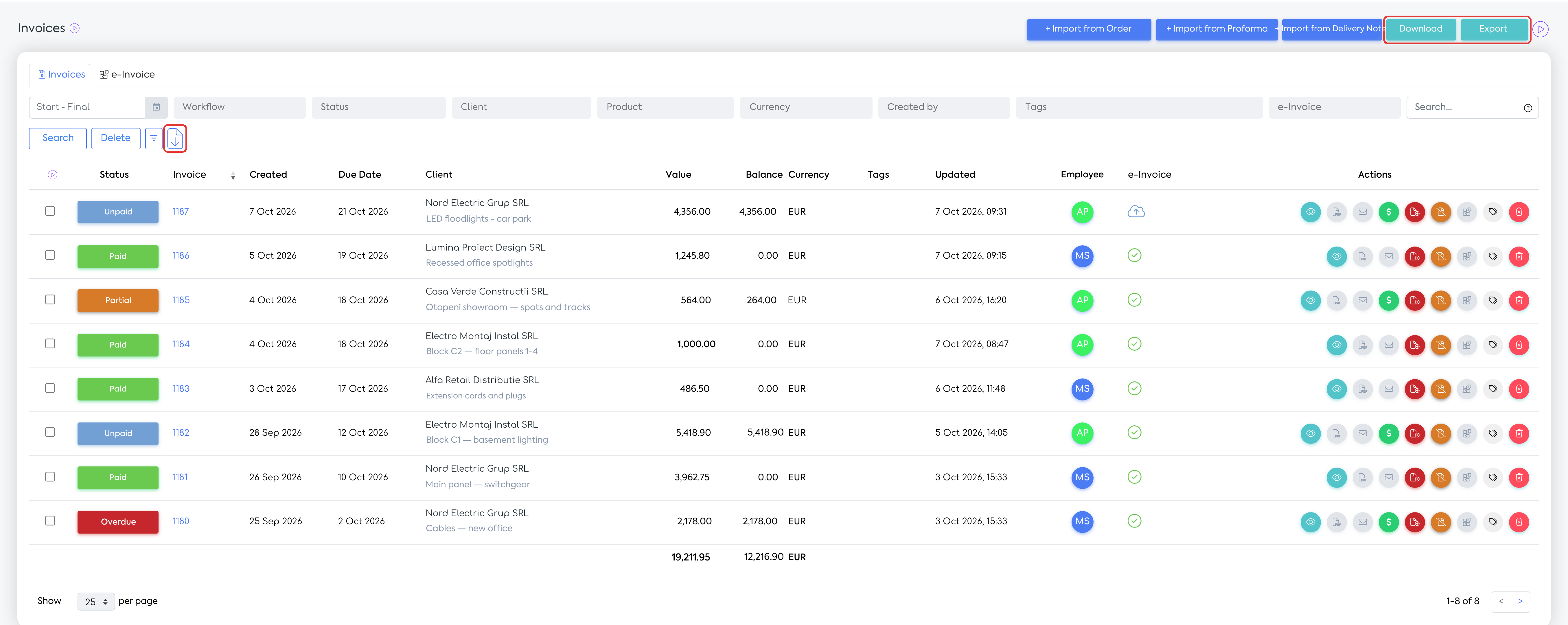
The invoice list: the Download and Export buttons and the Export Selection icon.
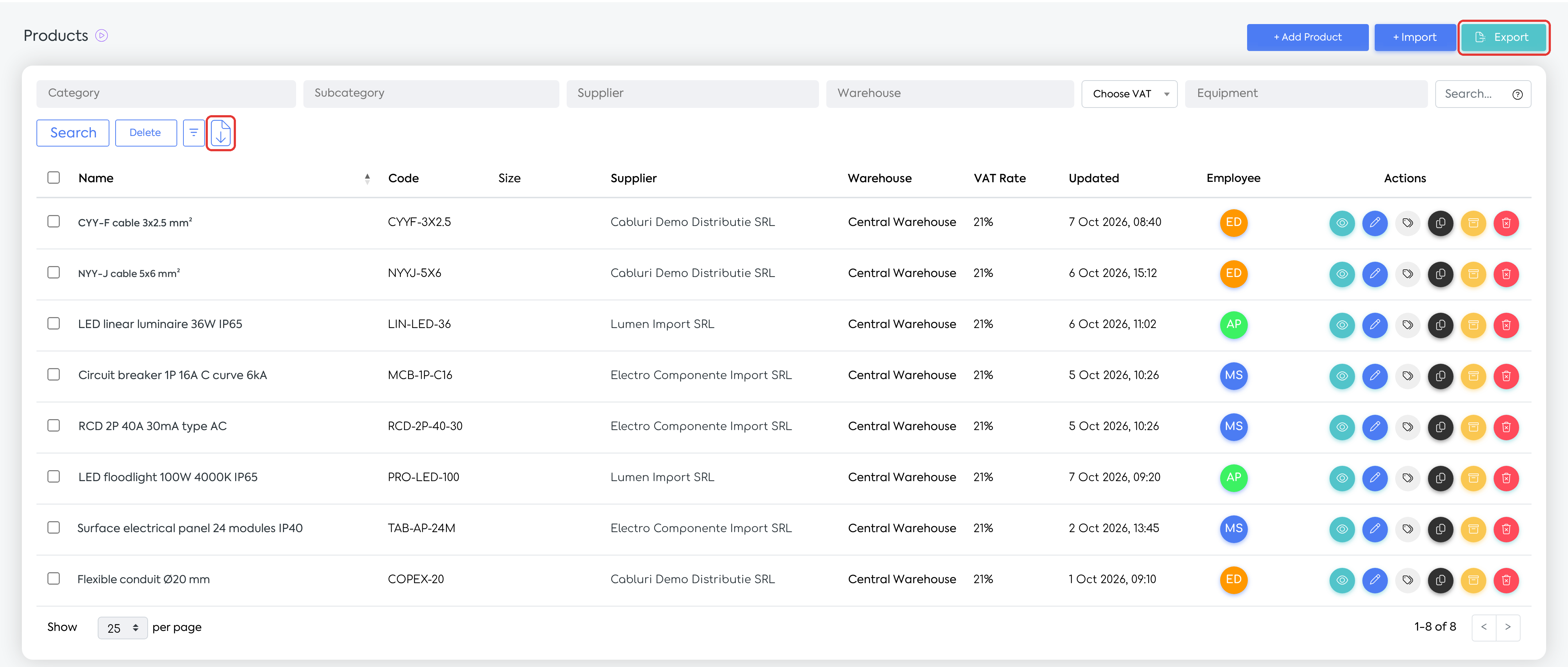
The product list: the Export button and the Export Selection icon.
What you see afterwards
For an employee without the permission:
the export buttons in the table above disappear, without any message on the page: the Export Selection icon, the Export and Download buttons in the page headers, the Export Stock History icon on the Stock rows and the export button in the selection bar in Notes;
the rest of the page works normally: search, filters, opening documents and exporting individual documents.
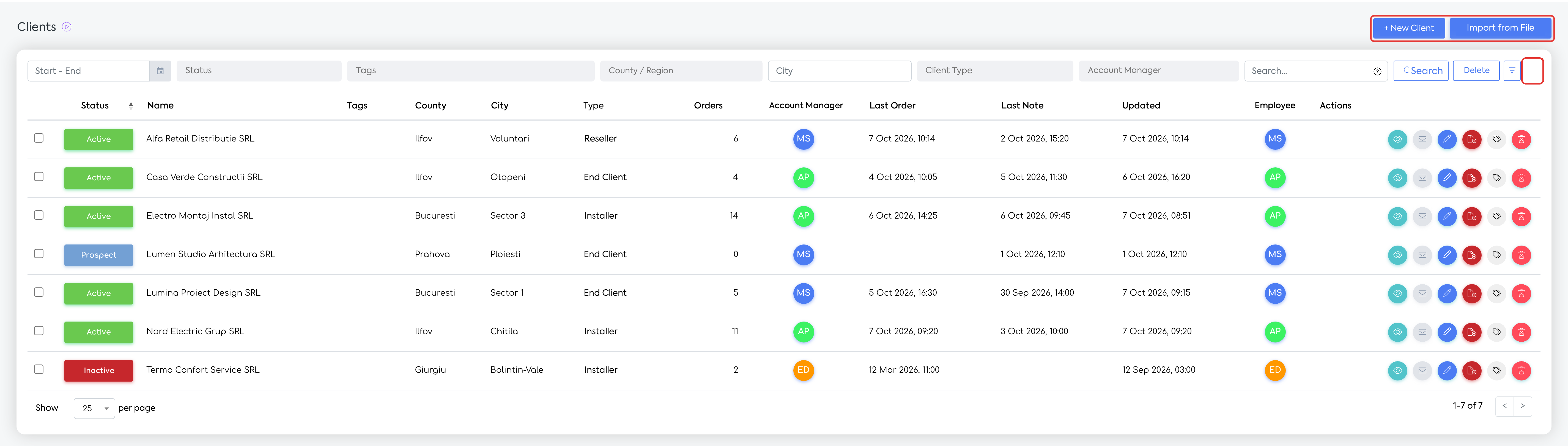
The same client list, for an employee without the permission: the Export button and the Export Selection icon no longer appear.
For employees with the permission, everything works as before.
Rules and limits
With the update, the permission was granted to existing access levels. It is set on each access level, from the access level window.
On a new access level, all rights start unticked, including Export Lists. Tick it manually or select all rights in the View column.
The main administrator account can always export; for the other accounts, including those with the Administrator access level, the setting applies.
If an export is started from a page opened before the right was withdrawn, or from a saved link, the export does not start. Depending on the page, the “Sorry, but you do not have permission to access this page.” page or an error message is displayed.
In Stock, the Export button also requires, as before, the Product Purchase Cost right.
Not dependent on this permission, and unchanged:
Exporting a single document — the PDF, Excel and XML export from an order, quote, proforma, invoice and delivery note, the quote cost export, the supplier order export and the e-Transport XML. For the order PDF there is, as before, the separate Generate PDF in order permission.
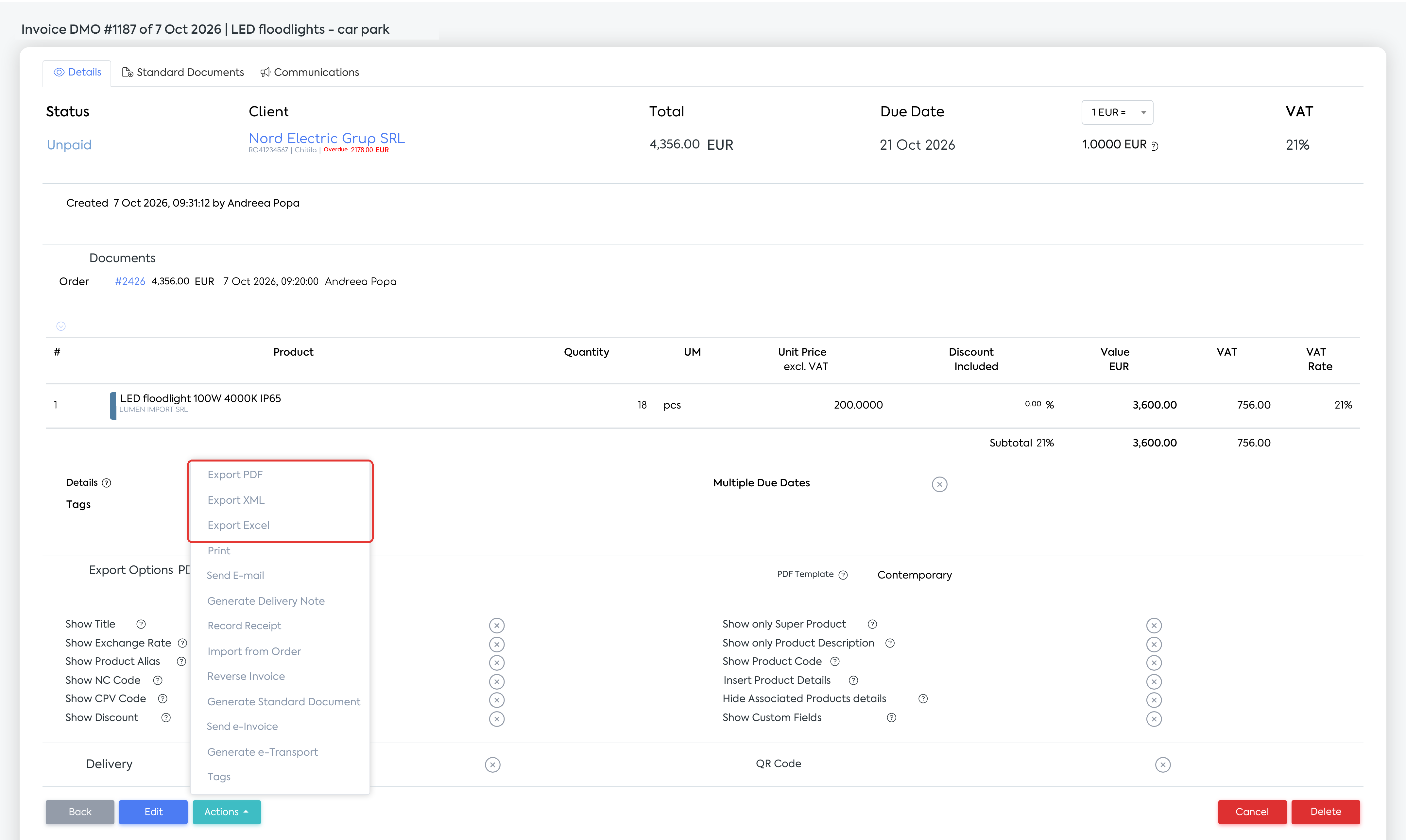
An invoice page: the Export PDF, Export XML and Export Excel options in Actions remain available even without Export Lists.
Accounting export — Export Accounting Data and the pages in Financial → Accounting Data remain under the Export Accounting Data permission. Exception: in Expense Reports and Travel Orders, Export Selection now also requires Export Lists. The Download button in Expense Reports does not depend on Export Lists.
Export Database and — have their own permissions.
PDF downloads of certain statements — Download in Client File, Supplier File, unpaid invoices and Transactions, the report download in , the CSV and .
e-Invoice — the Zip archive download from bulk actions.
Attached files and import templates — downloading files from Administrative Documents and from documents, downloading the sample file for imports, the ICS download.
Settings and permissions
| Permission | Where it is | Effect | Default value |
|---|---|---|---|
| Export Lists | , View column | Ticked: the employee can export lists. Unticked: the export buttons disappear | Ticked on access levels existing at the update; unticked on new levels |
There are no other new settings.