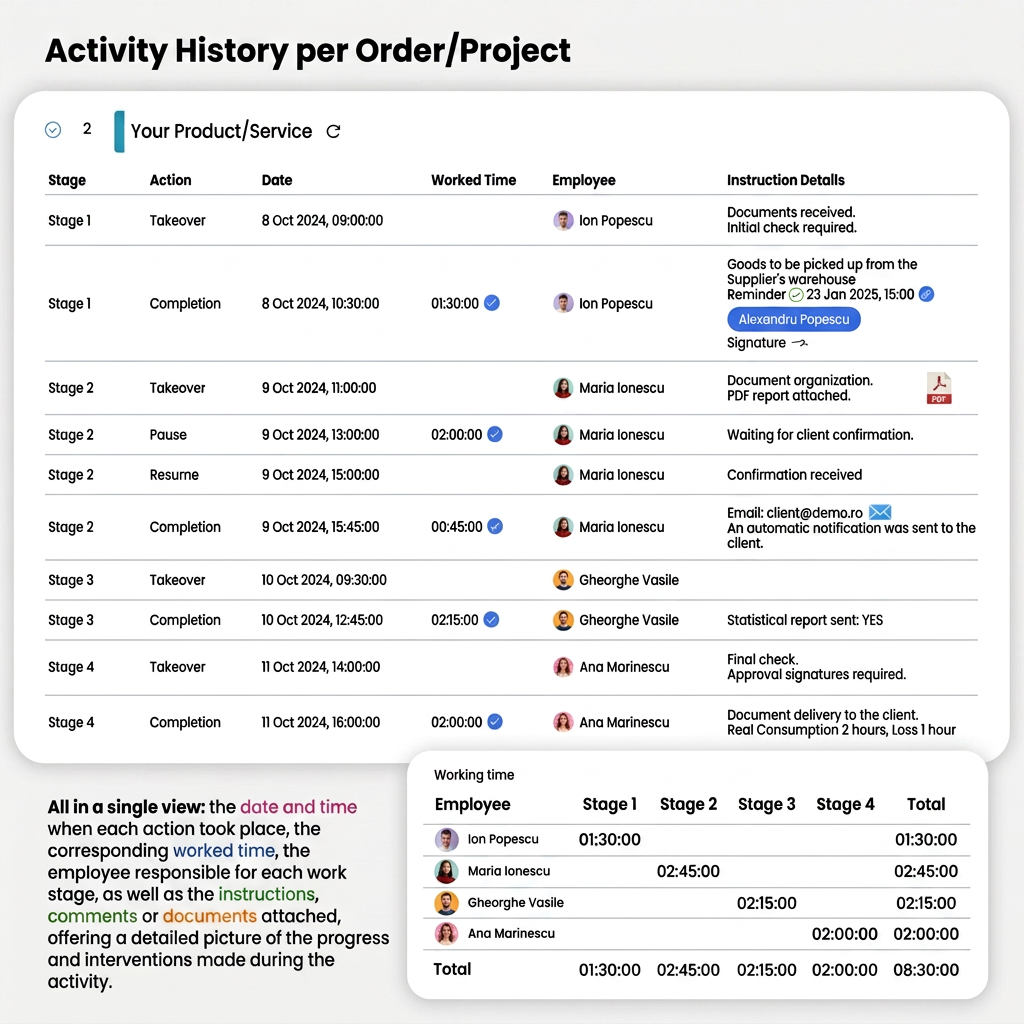
To view details (comments, instructions, files) entered in the order workflow, iflows provides two simple methods. Follow the steps below to quickly access the activity history:
Method 1: Accessing the order directly from the workflow
- Open the workflow and locate the desired order.
- The order number will be displayed as a hyperlink.
- Click on the order number.
- A window will open with the order details.
- Expand the history for the desired product or service:
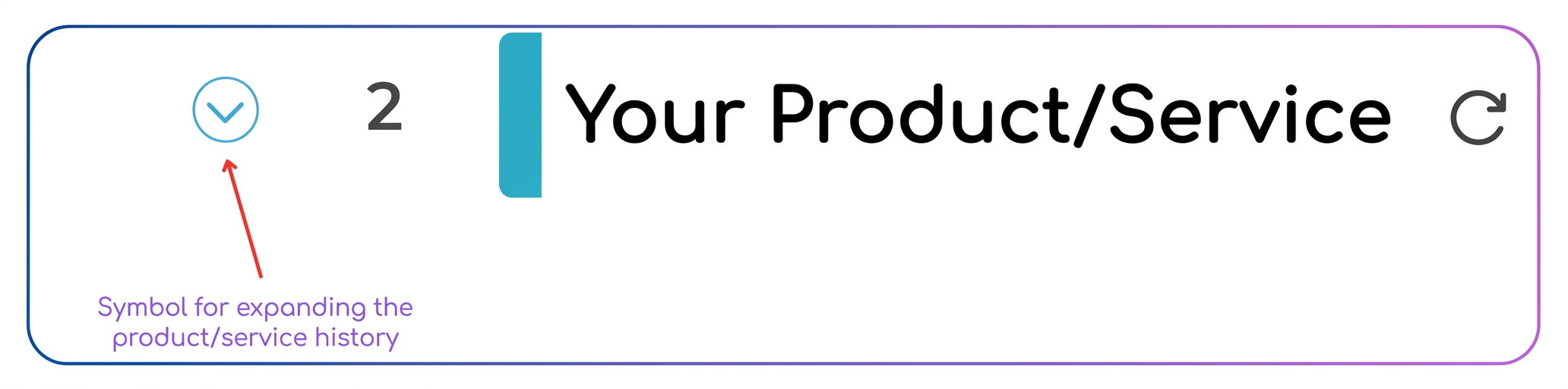
- Press the expand symbol (⬇️) to the left of the product/service
- This will display the full stage history, including:
- Comments;
- Attached files;
- Detailed instructions.
Method 2: Accessing orders from the "Sales" menu
- Navigate the main menu: Sales -> Orders.
- Identify the desired order in the displayed list.
- Press the "View" button in the "Actions" column.
- The order details will open.
- Expand the history of each individual product/service:
- Press the expand symbol (⬇️) to the left of each product/service.
Why must you expand each product/service separately?
- Each product/service can have a distinct workflow, which means that:
- Some products pass through all stages of the flow, while others do not;
- Stages can be completed at different times for different products/services.
By expanding each product, you will be able to track the unique details for each, including worked time, attached files, and personalized comments.
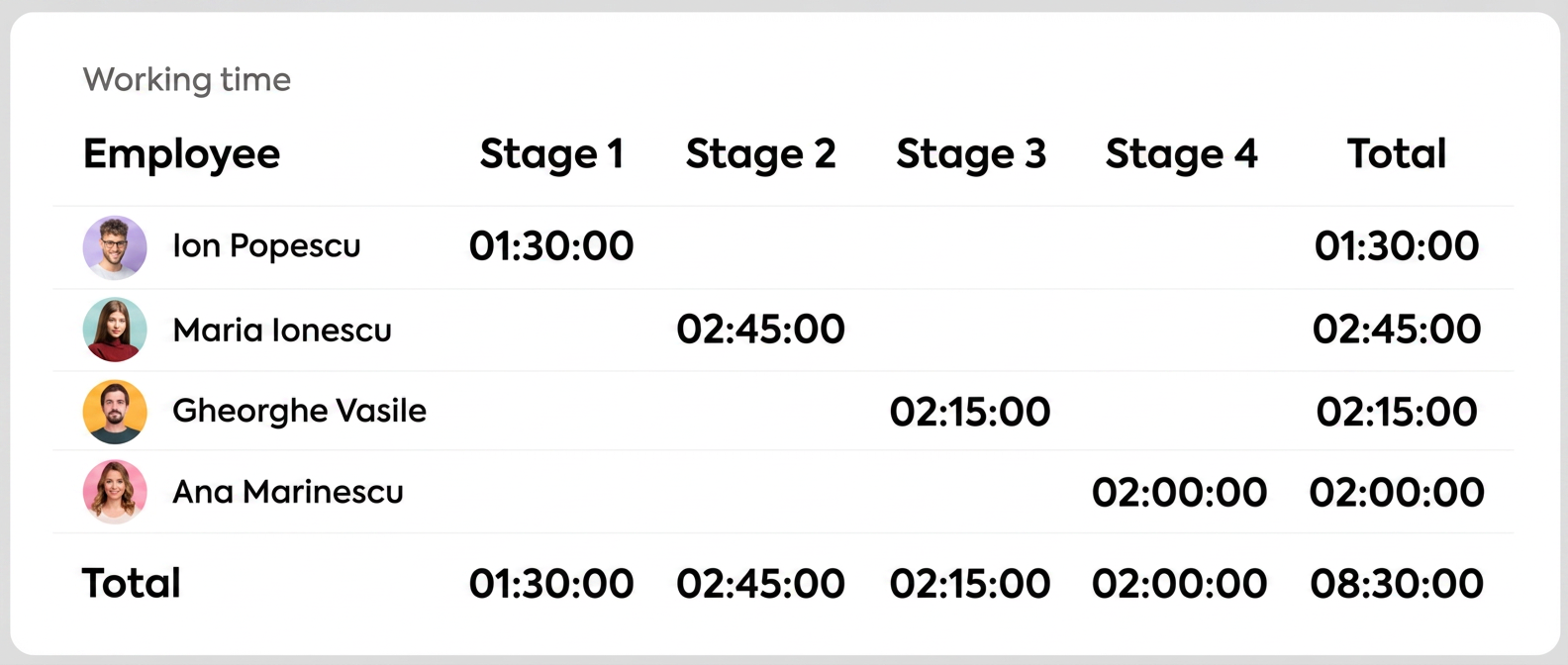
Working time table: Displays totals both at the level of each stage and for each employee and the entire order/project. Stage totals indicate the sum of time worked by all employees in each stage, while individual totals show the cumulative contribution of each employee across all stages. On the other hand, the overall total of the order/project reflects the total effort invested by all employees, providing a complete picture of allocated resources and involvement.