
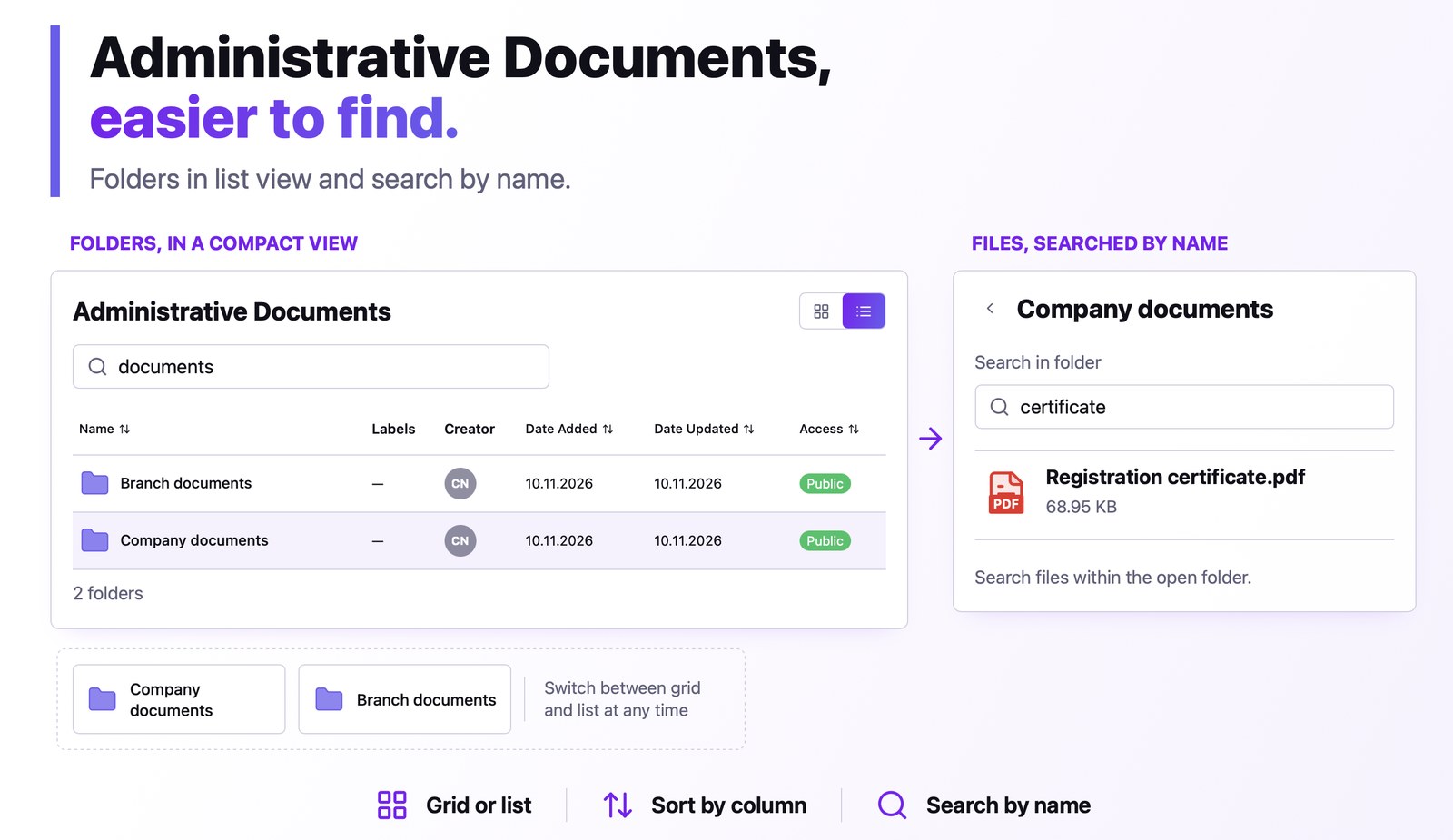
When you have many folders in Administrative Documents, the cards take up a lot of space and a folder is hard to find. You can now display folders as a table, with the creator, the dates and the access on the same row, and sort or search them by name. The search also works for files inside a folder, and working with folders has received several improvements that prevent errors and lost files.
The result
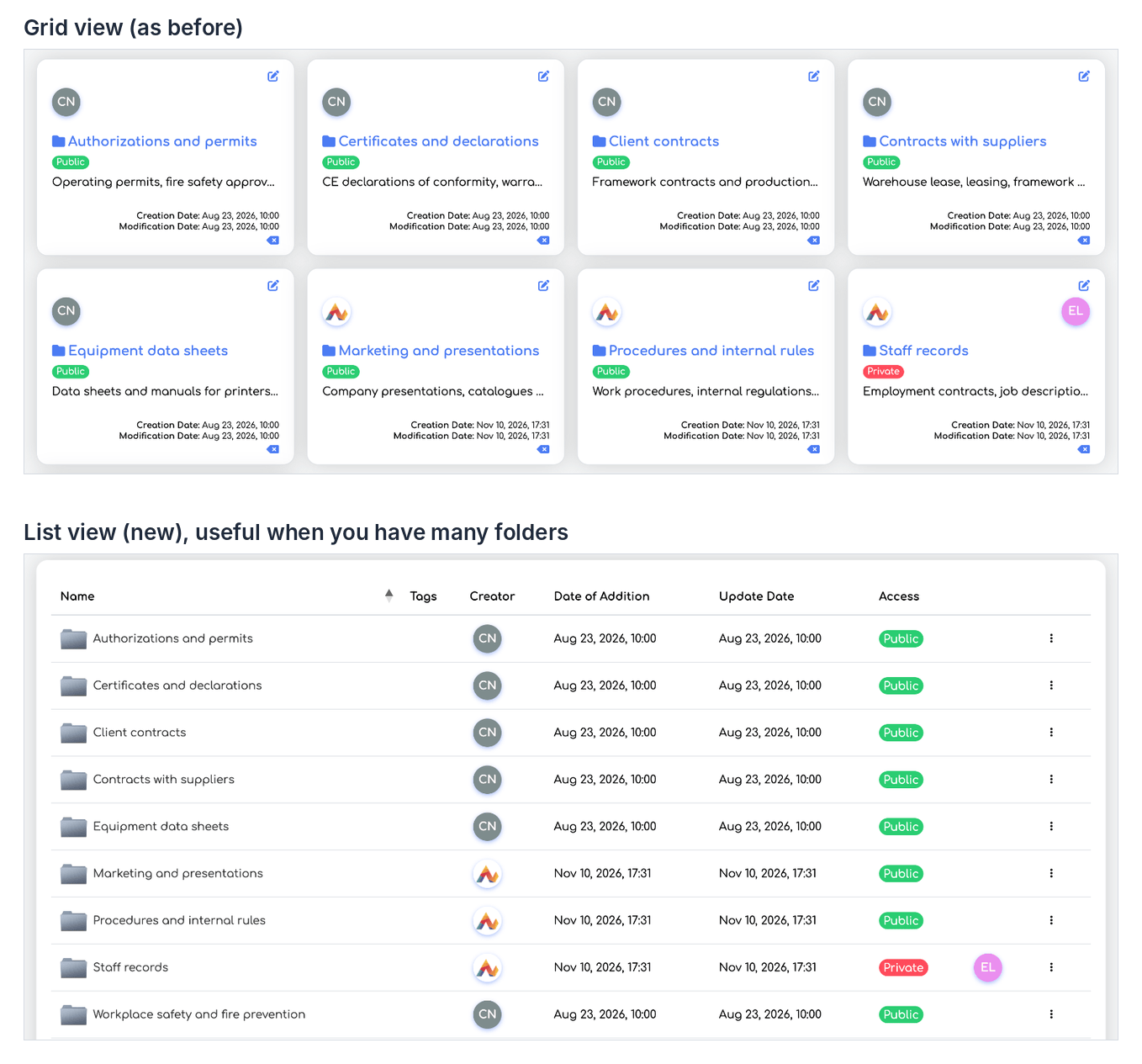
The same folders, in grid view and in the new list view.
Before you start
- The features are available to all users who have access to . There are no new settings or permissions.
Switching between grid and list
Step 1. Open . Next to the Clear Filter button there are two buttons: Grid view (default) and List view.
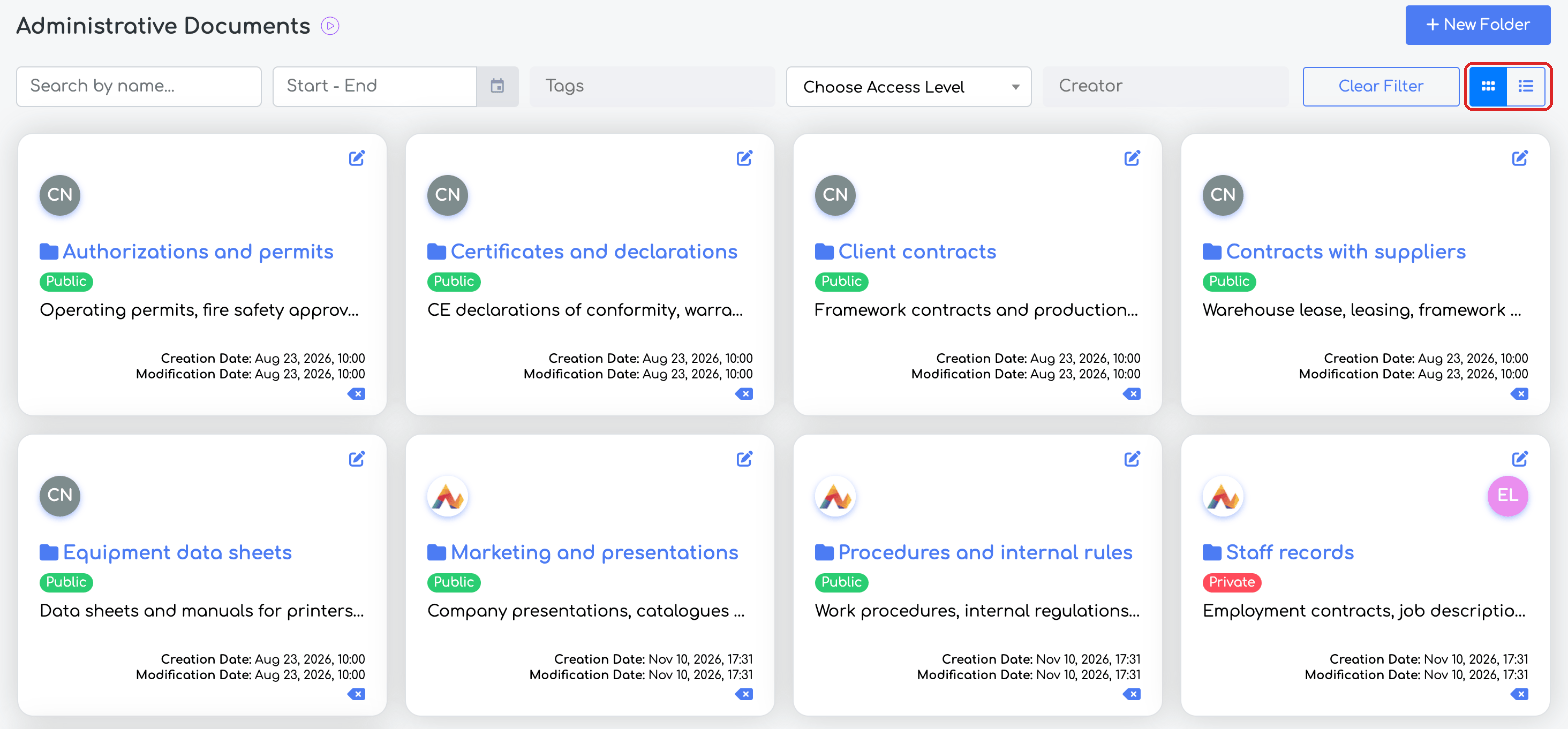
The main page, in grid view, with the two switch buttons.
Step 2. Click List view. The folders appear in a table with the columns Name, Tags, Creator, Date of Addition, Update Date and Access (Public or Private, with the users who have access). A click on the name opens the folder.
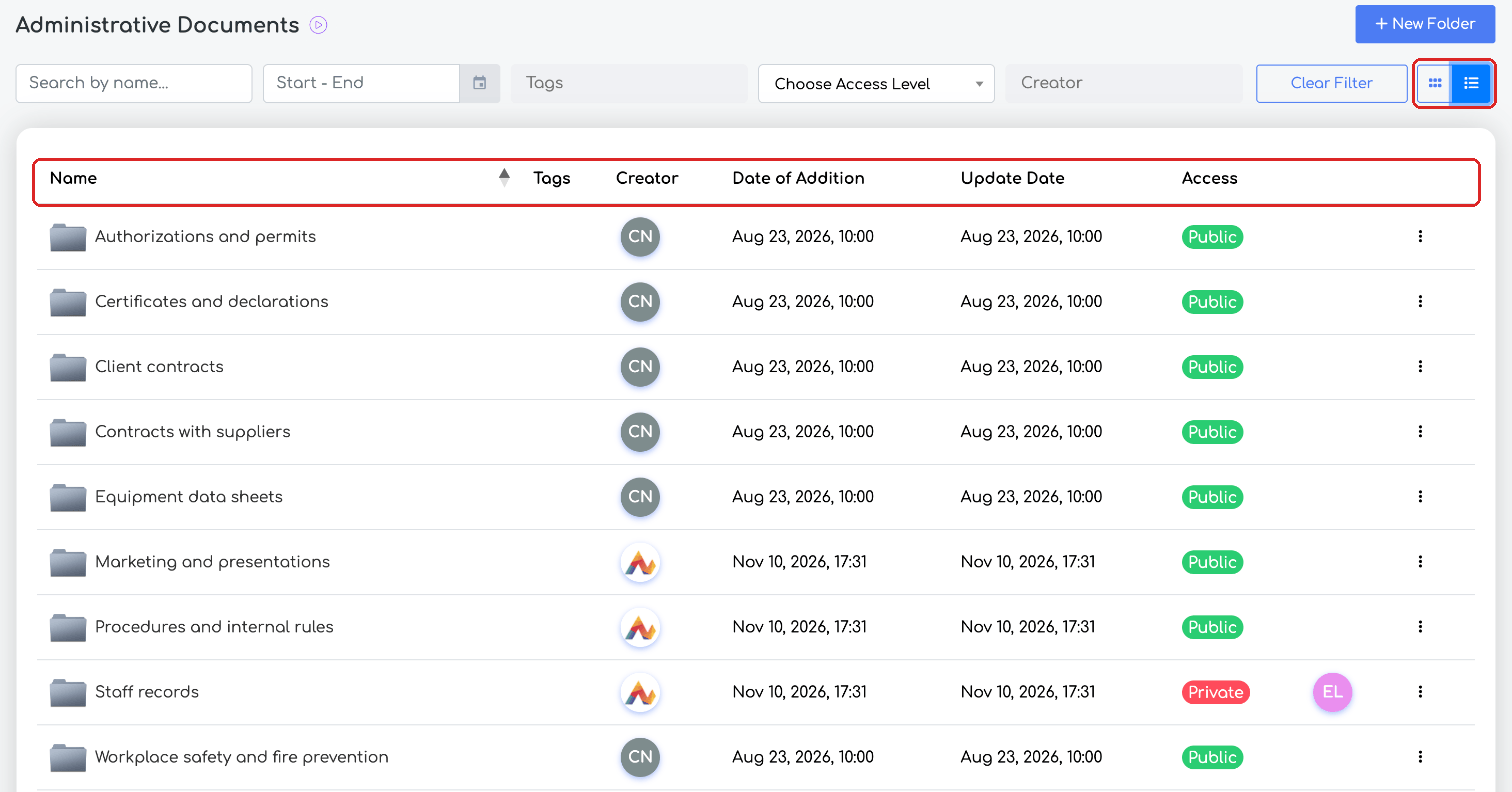
The list view.
- The list can be sorted by name (default), by date and by access, with a click on the column header.
- 25 rows are shown per page; the number can be changed at the bottom of the list.
- The filters (period, tags, access level, creator) apply in both views and are kept when switching.
- The choice is saved in the browser, so it applies on that computer.
Step 3. The ⋮ menu at the end of the row has the Edit and Delete options, depending on your rights.
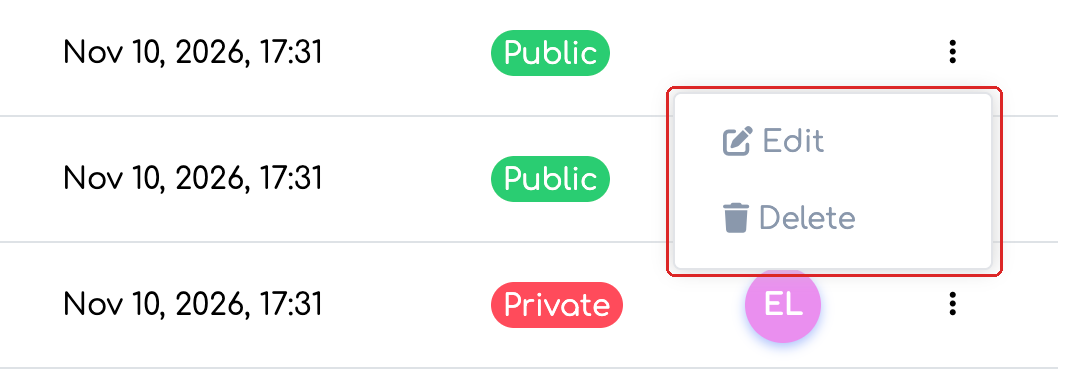
The action menu of a folder.
Searching by name
Step 4. On the main page, type any part of the name in the Search by name... field and press Enter. Only the folders that contain the searched text are shown.
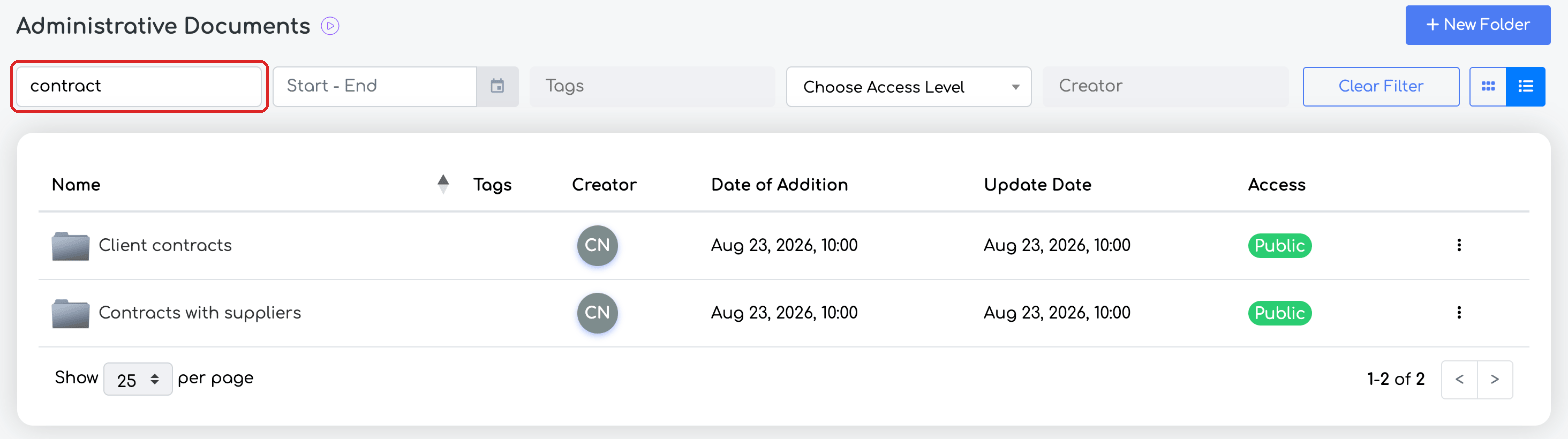
Searching folders by part of the name.
Step 5. Inside a folder, the same field searches files by name.
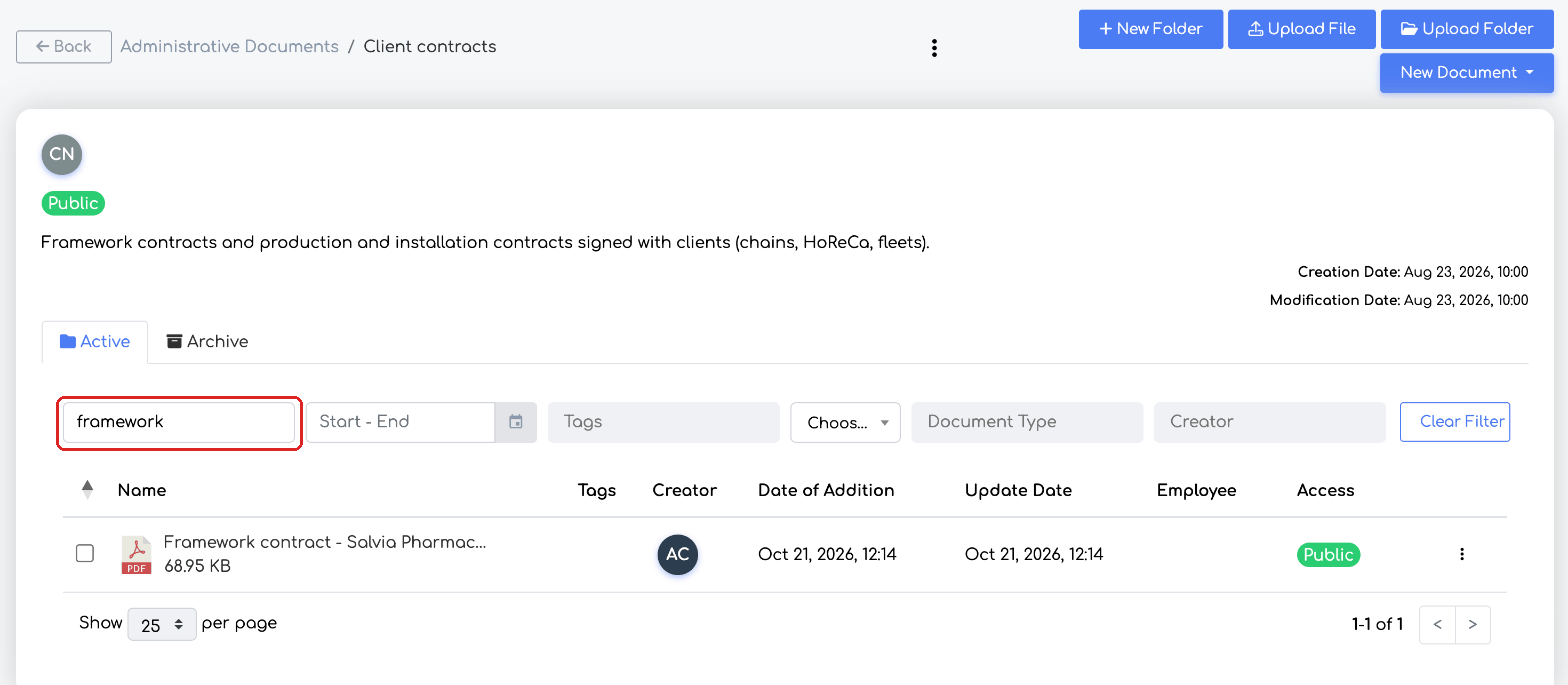
Searching files inside a folder.
Other improvements
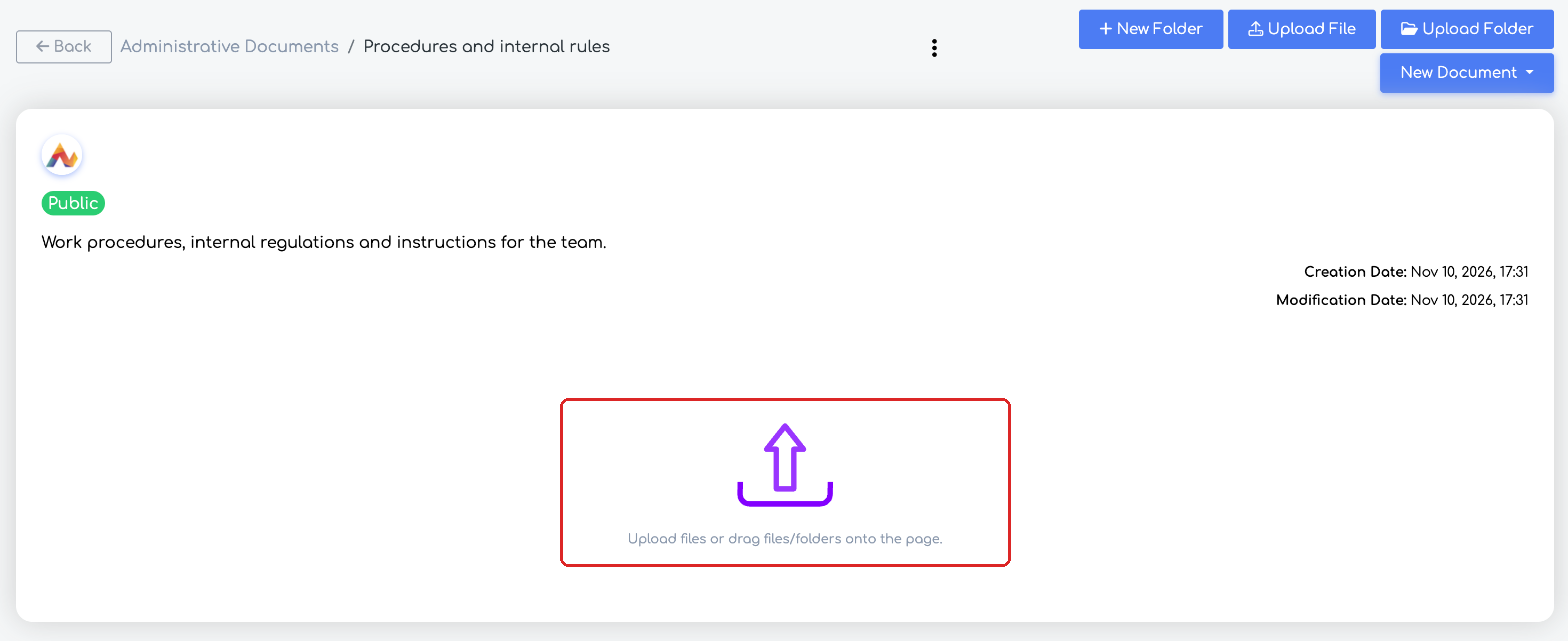
An empty folder shows the upload hint.
- An empty folder shows the hint “Upload files or drag files/folders onto the page.”
- The Back button in the folder form returns to the parent folder, not to the main page.
- When downloading several files as a ZIP archive, files with the same name are no longer lost: they get the suffixes _2, _3.
- A new document with a name that already exists in the folder automatically gets a suffix (_2, _3), instead of the previous error message.
- Files can no longer be moved to a folder the user has no access to.
Frequently asked questions
I search for a file from the main page and I can't find it.
On the main page the search is done in folder names. For a file, open the folder and search there.
Does the search also find text inside the files?
No. The search is done by the name of the folder or file.
On another computer the folders appear as a grid again.
The view choice is saved in the browser, so it is set separately on each computer.