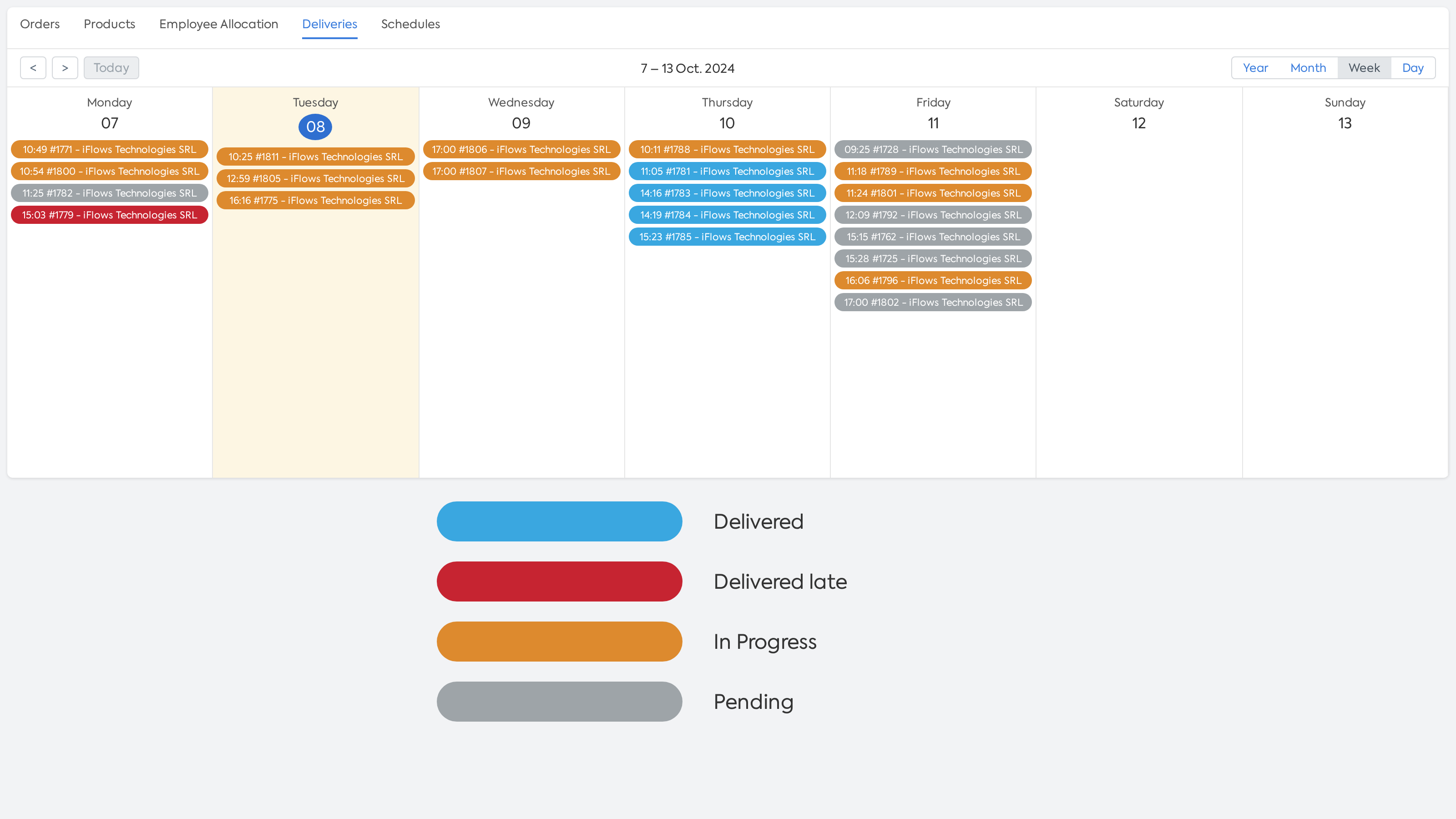
The delivery calendar allows you to centrally manage order deliveries, providing a clear overview of deadlines and statuses for each order over a set period of time.
Accessing the Delivery Calendar
- Access the Workflow section. Select the "Deliveries" tab.
Available View Types
- Day view
- Week view
- Month view: For long-term planning, you can choose the month view to observe trends and workload.
How orders appear in the calendar
Orders appear in the delivery calendar automatically as soon as they are created and have a delivery date set.
Meaning of color codes
Each order in the calendar is colored according to its status, so you can quickly visualize the stage of each delivery:
- Grey - Order pending: This color indicates that work on the order has not yet started. This may mean that resources have not yet been allocated or that necessary materials are not available.
- Orange - Order in progress: The orange color signals that work on the order is underway. The order is being processed but has not yet been delivered.
- Blue - Order delivered: The order was successfully delivered on time, according to the initially set deadline.
- Red - Order delivered late: The red color signals that the delivery was made, but after the set deadline.
Status update: As an order progresses through various stages (from "pending" to "in progress" and then "delivered"), its status will update automatically in the calendar.
Managing and monitoring orders
You can interact with orders in the calendar to obtain additional information:
- Click on an order: When you click on an order in the calendar, you will open a window with detailed information about that order. Here you can see:
- The date the order was created.
- The set delivery date.
- The actual delivery date.
- Other relevant operational details.
Important:
- Orders remain displayed in the calendar at the date initially set for delivery, regardless of any potential delays.
- For example, if an order was supposed to be delivered on October 4th, but the delivery process was not completed until October 6th, the order will continue to be displayed in the calendar on October 4th.
- The status of this order will be automatically updated to "delivered late" once the delivery is completed.