
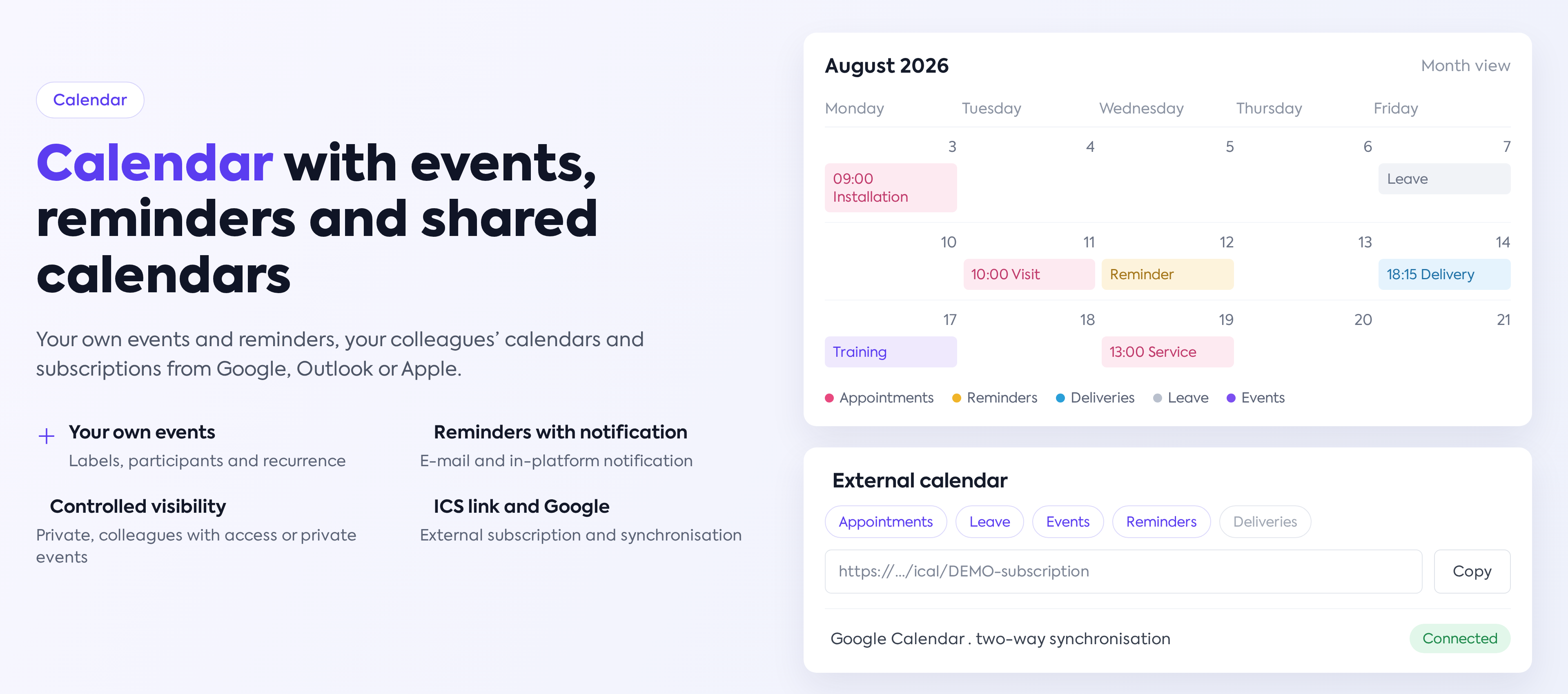
1. Overview
Calendar is the unified space where you can see, in one place, everything scheduled in your activity: appointments from orders, colleagues' time off, planned deliveries, personal events and reminders. In addition to viewing them, Calendar lets you create your own events and reminders, share your calendar with colleagues, subscribe from external calendar apps (through a subscription link or ICS file), and synchronize it both ways with Google Calendar.
It is useful to everyone: sales teams track appointments and client events, production sees planned deliveries, and managers get an overview of the team — within the access each colleague grants to their own calendar.
You can open it from the calendar icon in the top bar, next to notifications. The icon appears for users who have the Can Access Calendar permission.
2. Main page and views
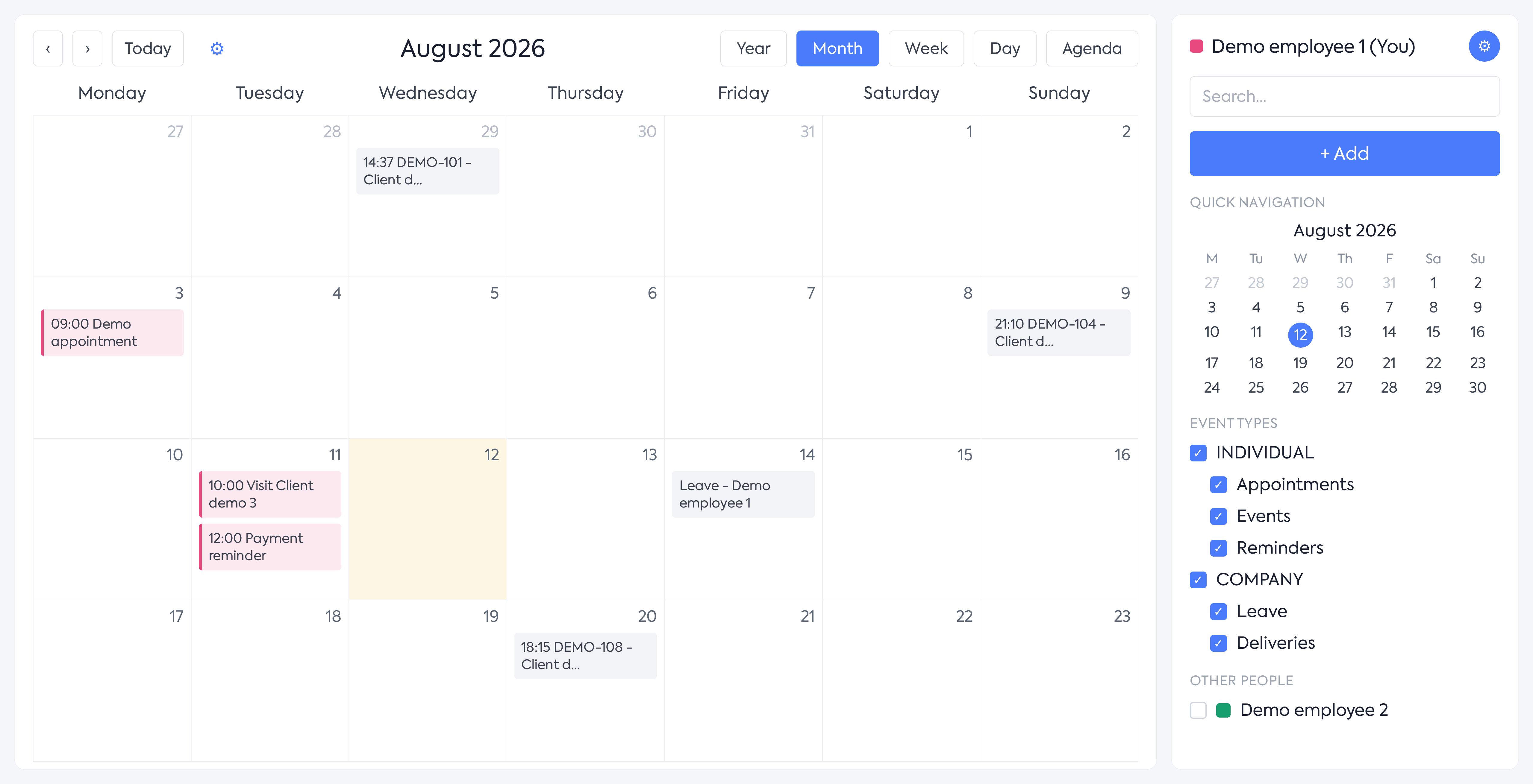
Calendar in Month view, with the sidebar.
Above the calendar you have navigation (previous/next arrows and the Today button), the period title and the view buttons: Year, Month, Week, Day and Agenda. Your selected view, filters and period are remembered automatically.
- Month — the default view. A busy day displays up to 5 items, followed by a “+N more” row that can be expanded directly in the day cell.
- Week / Day — an hourly grid focused on 06:00–19:00. Hours outside the working day are shown from the “Expand 00:00 - 06:00” and “Expand 19:00 - 24:00” bands.
- Agenda — a chronological list of the next 30 days, with navigation in 30-day steps. When nothing is scheduled: “No events in the next 30 days.”
- Year — an annual overview.
Hovering over an item displays a tooltip, while clicking it opens the details window. Selecting a free time slot (click or click and drag) opens the add window with the date and time prefilled. Multi-day events appear on every covered day.
3. Sidebar
- Current user — your name, marked “(You)”, with your personal color; the settings button is next to it.
- Search — filters by text in the title and description.
- + Add — opens the window for creating an event or reminder.
- Quick navigation — a monthly mini-calendar for jumping to any date.
- Event types — toggles in two groups: Individual (Appointments, Events — with filters for your own labels — and Reminders) and Company (Time Off and Deliveries).
- Other people — colleagues whose calendars you can view, each with their own color. A colleague appears only if their calendar is public or they have granted you access; otherwise “No employees available.” is displayed.
4. What appears in Calendar
Calendar automatically brings together items from several modules, with no additional setup:
- Appointments — appointments from orders (Workflow) involving the selected employees; details include the order and client, with a direct link.
- Events — individual events created by you or by colleagues who have granted you access; participating in an event automatically adds it to your calendar.
- Reminders — your own reminders, plus those set in other modules (client or supplier notes, comments on orders, quotes or opportunities, appointments, tasks, service and equipment revisions), with a link to the source record.
- Time Off — employees' time off, displayed as all-day items.
- Deliveries — orders with a delivery date from workflows you can access, including the time and order status.
Individual items use the color of the person they belong to; company items (time off and deliveries) use a neutral grey style.
5. Adding an event
Click + Add in the sidebar or select a free slot in the calendar. The What would you like to add? window opens, with Event and Reminder.
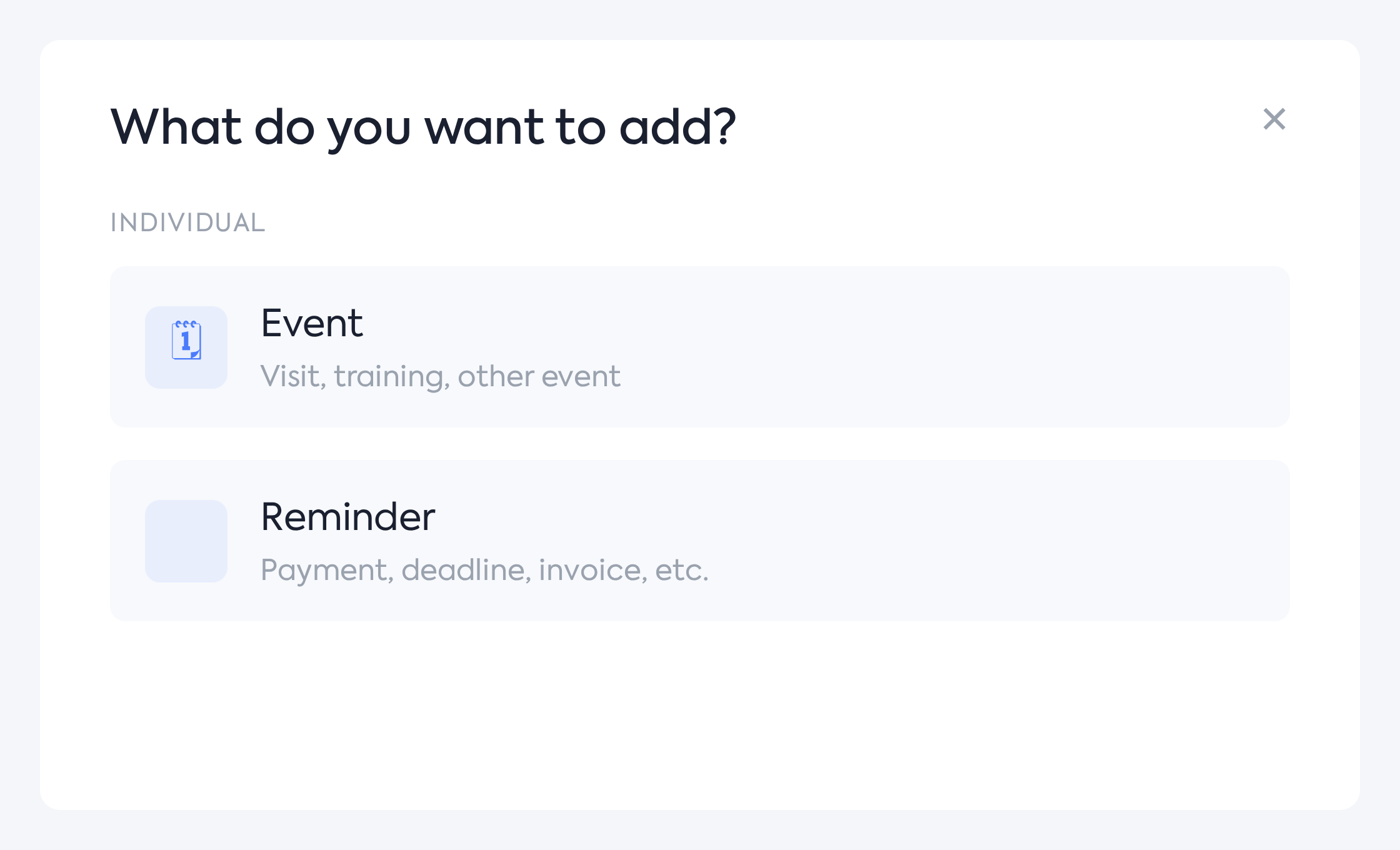
The window for choosing an item type.
Choose Event for the Individual Event form:
- Title — required.
- Labels — one or more personal labels; a new label can be created directly from the list.
- Date — start and end interval; required, with the end after the start.
- Description — free text.
The More options link expands the form:
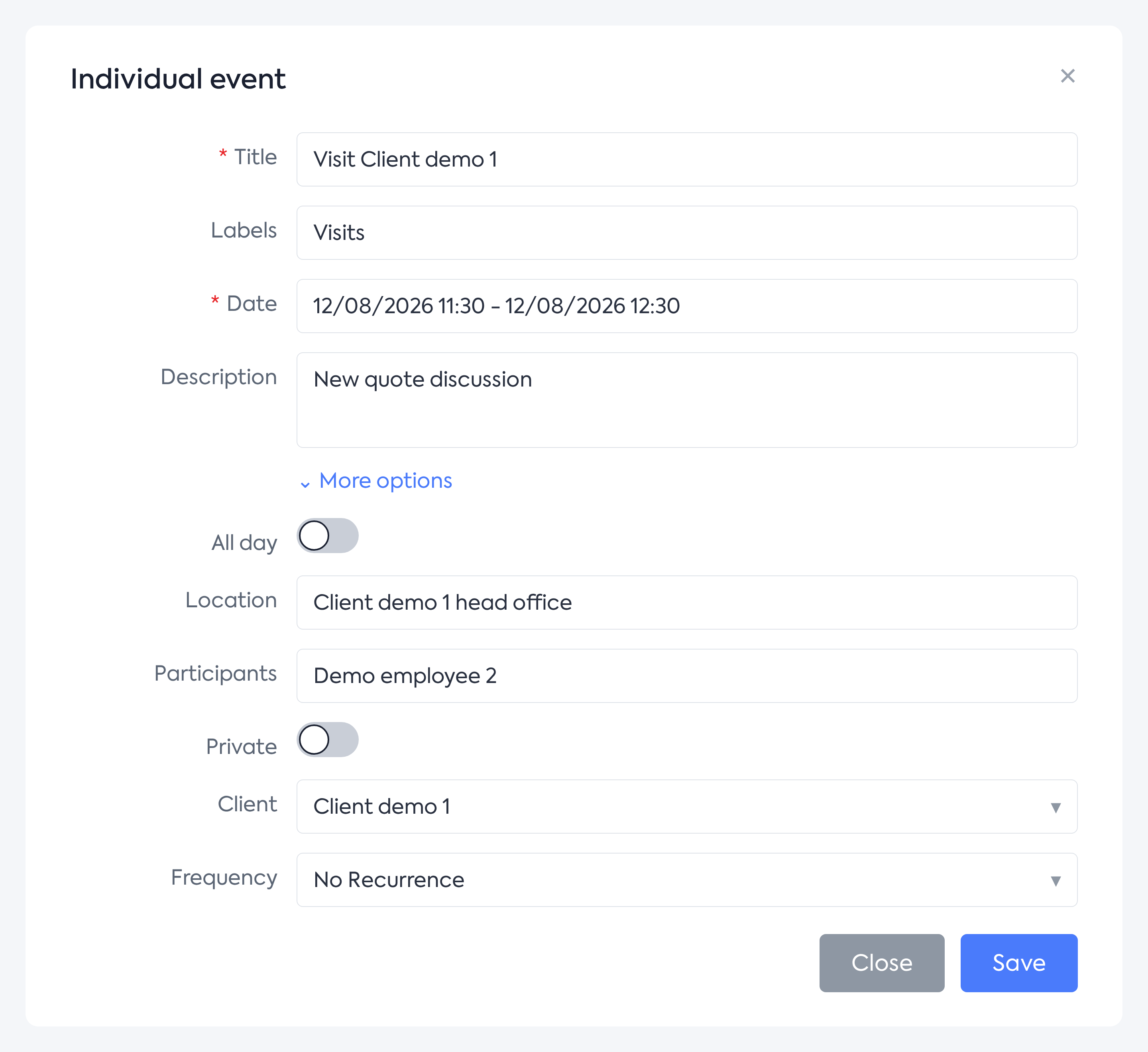
The event form with additional options displayed.
- All day — the event covers the entire day, without times.
- Location.
- Participants — invited colleagues; the event automatically appears in their calendars as well.
- Private — only you and the participants can see the event.
- Client — links the event to a client, with a link to their record.
- Frequency — No Recurrence (default), Daily, Weekly, Monthly, Quarterly, Half-yearly or Yearly, with the Next event and Recurrence end date fields.
Save with Save; validation errors appear at the top of the window.
6. Adding a reminder
A reminder is a bookmark with a notification: on the chosen date you receive an email and an in-platform notification.
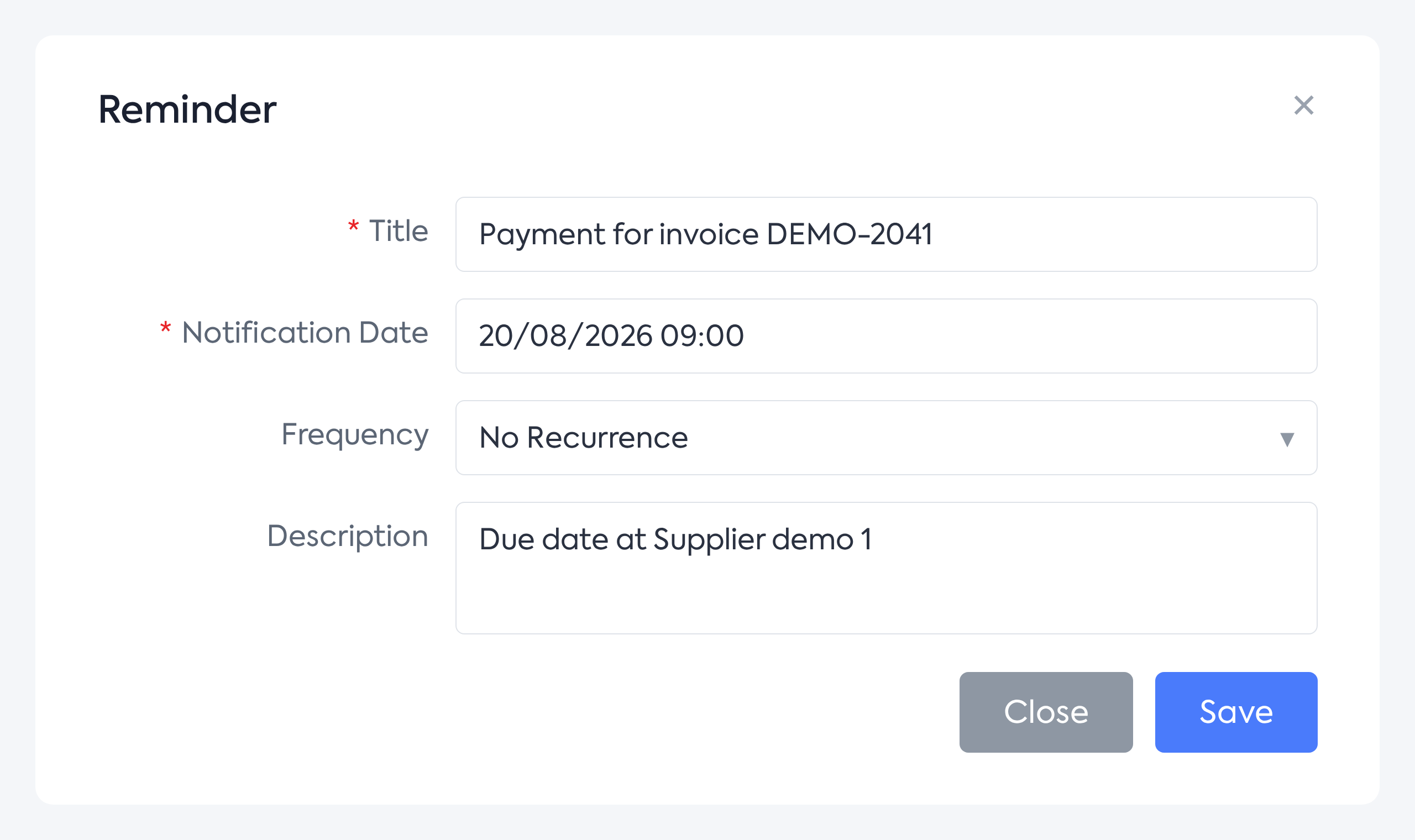
The reminder form.
- Title — required.
- Notification Date — required.
- Frequency — the same options as for events.
- Description.
Reminders created in Calendar are personal. The email contains the title, description and a link that opens the reminder in Calendar. Once a non-recurring reminder has been sent, it is marked Sent and can no longer be edited; recurring reminders are automatically rescheduled until the end date.
7. Details, editing and deleting
Clicking any item opens its details window, with information specific to its type: organizer, date, frequency and next occurrence, client, order, description, location, participants or involved employees, and the sending status for reminders.
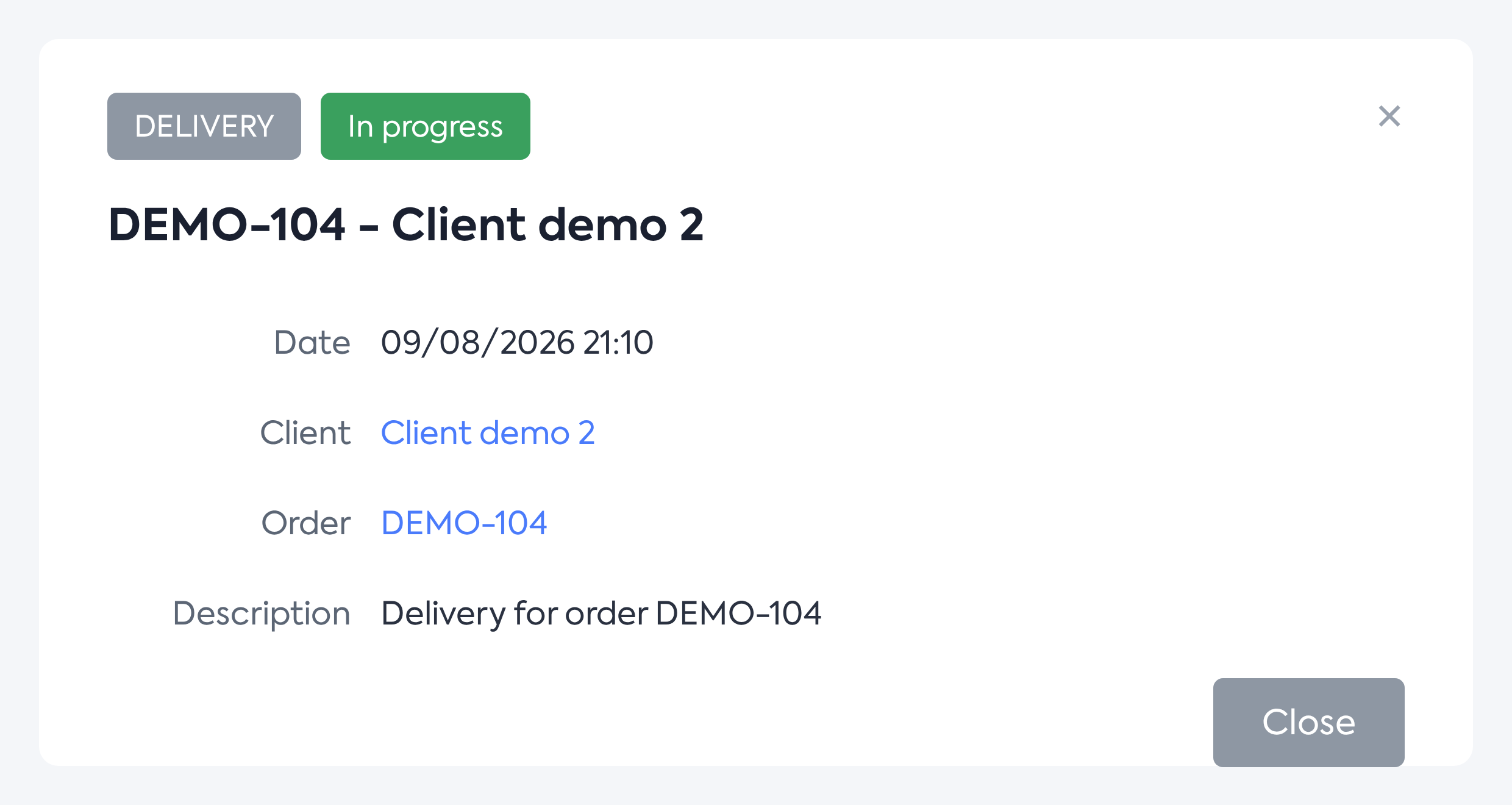
The delivery details window, with links to the order and client.
The Edit and Delete buttons appear only for your own items. Appointments, time off and deliveries are managed in their respective modules; the details window provides a link to the source.
Important: when deleting a recurring item, the platform asks “Would you like to delete all occurrences or only the current occurrence?”, with the options Only this occurrence and All occurrences.
8. Calendar settings
Open them from the cog button in the sidebar. They have two tabs: General and Event labels. All settings are personal.
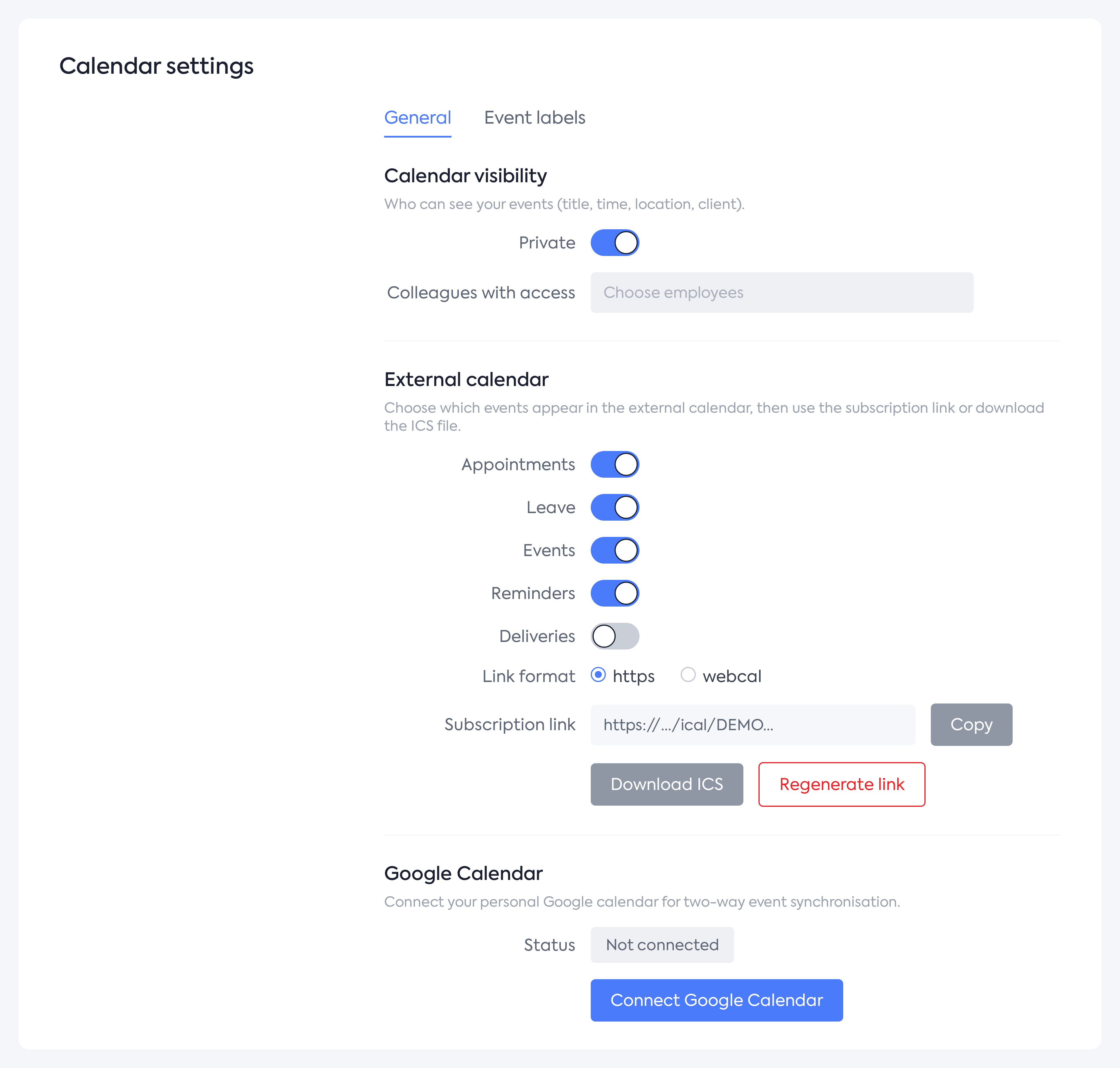
Calendar settings, General tab.
Calendar visibility
Controls who can see your events (title, time, location, client). The Private toggle is enabled by default: only colleagues selected in the Colleagues with access field can see your calendar. When disabled, all colleagues in the company can see it.
External calendar (ICS subscription)
Displays your iFlows calendar in Google Calendar, Outlook, Apple Calendar and other apps by subscribing to a personal link. The Event types section lets you choose what is published: Appointments, Time Off, Events and Reminders (enabled by default), and Deliveries (disabled by default). In the Subscription area you have: Link format (https or webcal), Subscription link (personal and secret, with a Copy button), Download ICS and Regenerate link (invalidates the old link). The external calendar contains only your own items and covers approximately 30 days in the past and 90 days ahead.
Google Calendar
Two-way synchronization. Click Connect Google Calendar and authorize your account. Once connected, you see the connection status, account, Google Calendar field and Active synchronization toggle, together with the Reconnect and Disconnect actions. Events and reminders from iFlows are sent to Google, while changes made in Google (including new events) return to iFlows. Appointments, time off and deliveries are only published to Google. The first synchronization may take a few minutes.
Event labels
Add, rename and delete the personal labels used for events; they appear in the sidebar as additional filters.
9. Permissions and visibility
Calendar access is controlled by the Can Access Calendar permission; administrator users have it by default. Your own calendar is always fully visible; colleagues' calendars are visible only if they are public or they have granted you access; events marked Private remain visible only to the owner and participants.