
The iflows platform is regularly updated with improvements and new functionalities.
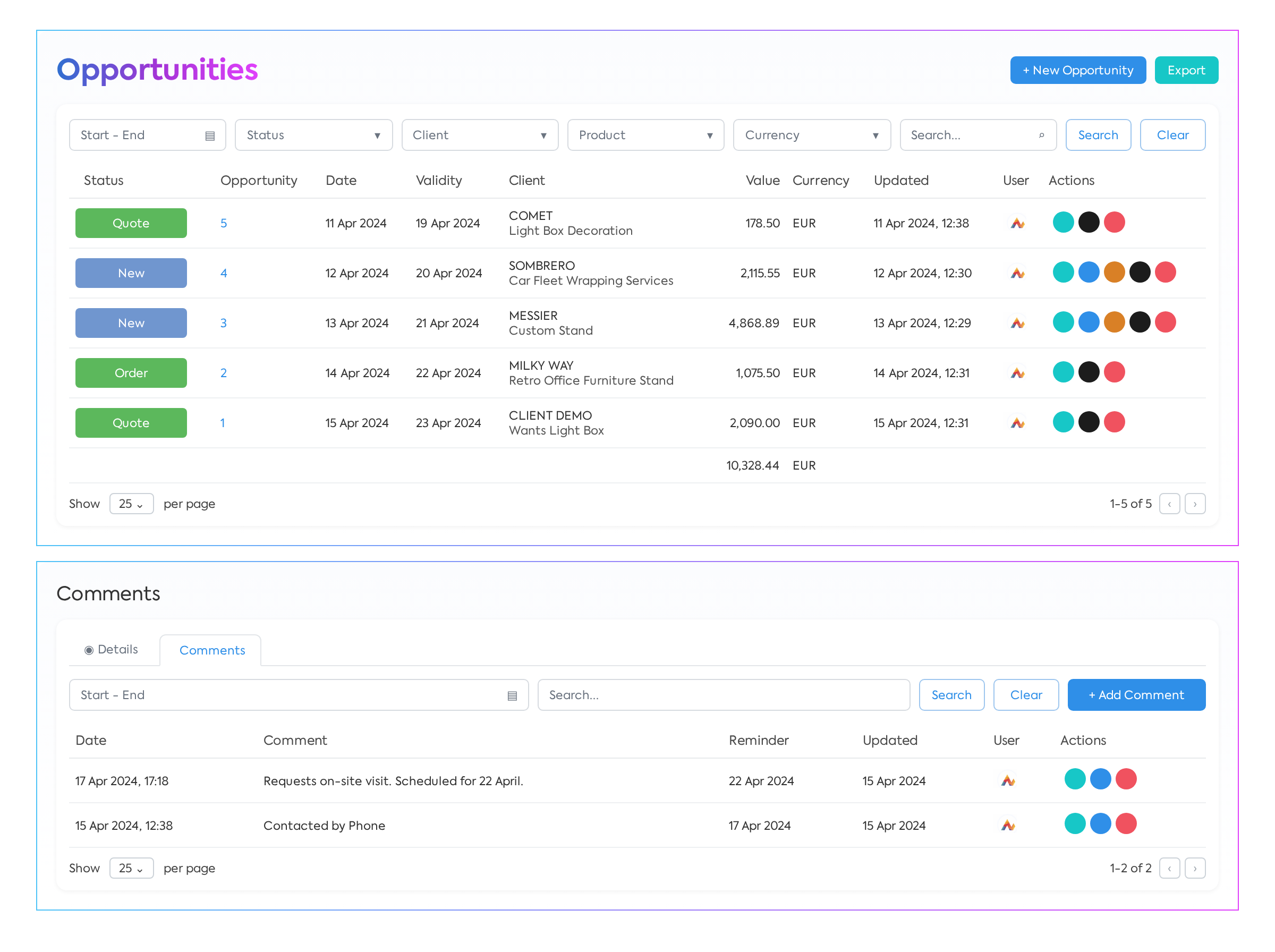
The new "Opportunities" section is designed to efficiently manage relationships with potential customers and optimize the sales process.
To start, access the "Sales" section and select the "Opportunities" option.
This will open the list of all leads registered in the platform. Each opportunity record in the list includes information such as its status (New, Quote, Order, or Expired), creation date, validity period, associated customer, estimated value, last update date, and the name of the user who performed that update.
On the right side of each opportunity, several actions are available:
- View: to access additional details.
- Edit: to modify the details of the opportunity.
- Generate Document: the possibility to transform the opportunity directly into a quote or an order.
- Clone: to duplicate the opportunity.
- Delete: to remove the opportunity from the system.
The section also includes filters that allow sorting opportunities according to various criteria, thus facilitating their efficient management.
To add a new opportunity, click the "New Opportunity" button. In this form, specify the Customer Name, the product for which the potential customer has expressed interest or that you wish to recommend, Value, Estimated Date for closing the sale, and additional Comments about the customer's requirements.
After filling in the necessary data and saving the opportunity, it will appear in the main list. By selecting the "View" option for an opportunity, you will access a new tab called "Comments". Here, you can add comments, such as "contacted by phone", attach documents, and set reminders for future actions. For example, to avoid losing track of an important opportunity, a representative can set a reminder to contact the customer again in two days to discuss offer details.
Any opportunity labeled as "NEW" can be converted into either a quote or directly into an order. To do this, the user must click the "Generate Document" button and select the desired option for generating the quote or order. The initial information from the opportunity is automatically included in the new document but can be modified as needed. After finalizing and saving the document, it will appear in the corresponding section, either "Quotes" or "Orders", depending on the type of document generated.
Instant Customer Addition: Only Name Required
To save a customer in the system, only their name is now sufficient - eliminating the need to fill in previously mandatory fields.
This new feature facilitates the rapid addition of leads into the system, allowing you to return and complete the rest of the information (such as contact details, addresses, and others) as they become available or necessary.
Important Warning: It is essential to remember that in order to place orders and issue invoices for a customer, all their necessary identification information must be completed. The iflows system requires these details to process and issue documents correctly. We encourage you to return to the customer profile to add missing information before initiating transactions or official documents.
Enhanced Visibility in Workflow: See who is processing each product at every stage
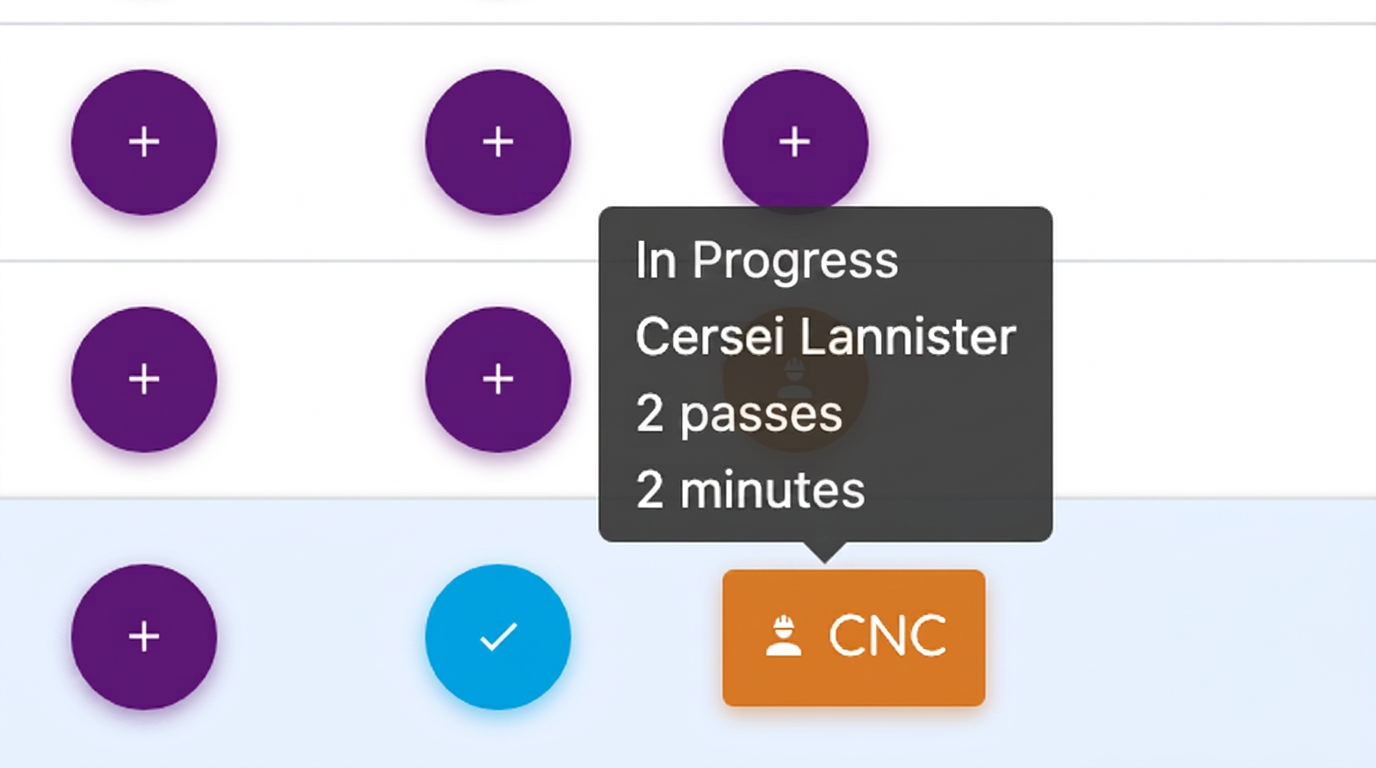
The new workflow optimization in iflows introduces the ability to see, directly and instantaneously, who is working on each product and stage in the workflow.
How to use this feature?
Open the workflow in iflows to see the list of active orders. Use the arrow located to the left of the order number to expand the order and see all products and services included in it.
Once the order is expanded, each listed product or service will display its stages with the corresponding progress. Hover over a specific stage of a product to see relevant details. An indicator will appear, displaying the status of that stage and the name of the operator or user managing the product at that moment.
In the case of stages marked as "Equipment", in addition to the stage status and the name of the person who took over, you will also see the working profile of the equipment and the estimated production time. The time is automatically pulled from the order, based on the quantity and specifications of the equipment involved.
Note: It is important to remember that this detailed information is not available at the global order level, but only at the level of each individual product within the order. Therefore, make sure to expand the order details to access the data specific to each individual product for a clear picture of the production stage and stage responsibilities.
Instant Receipt Generation: Efficiency at Collection
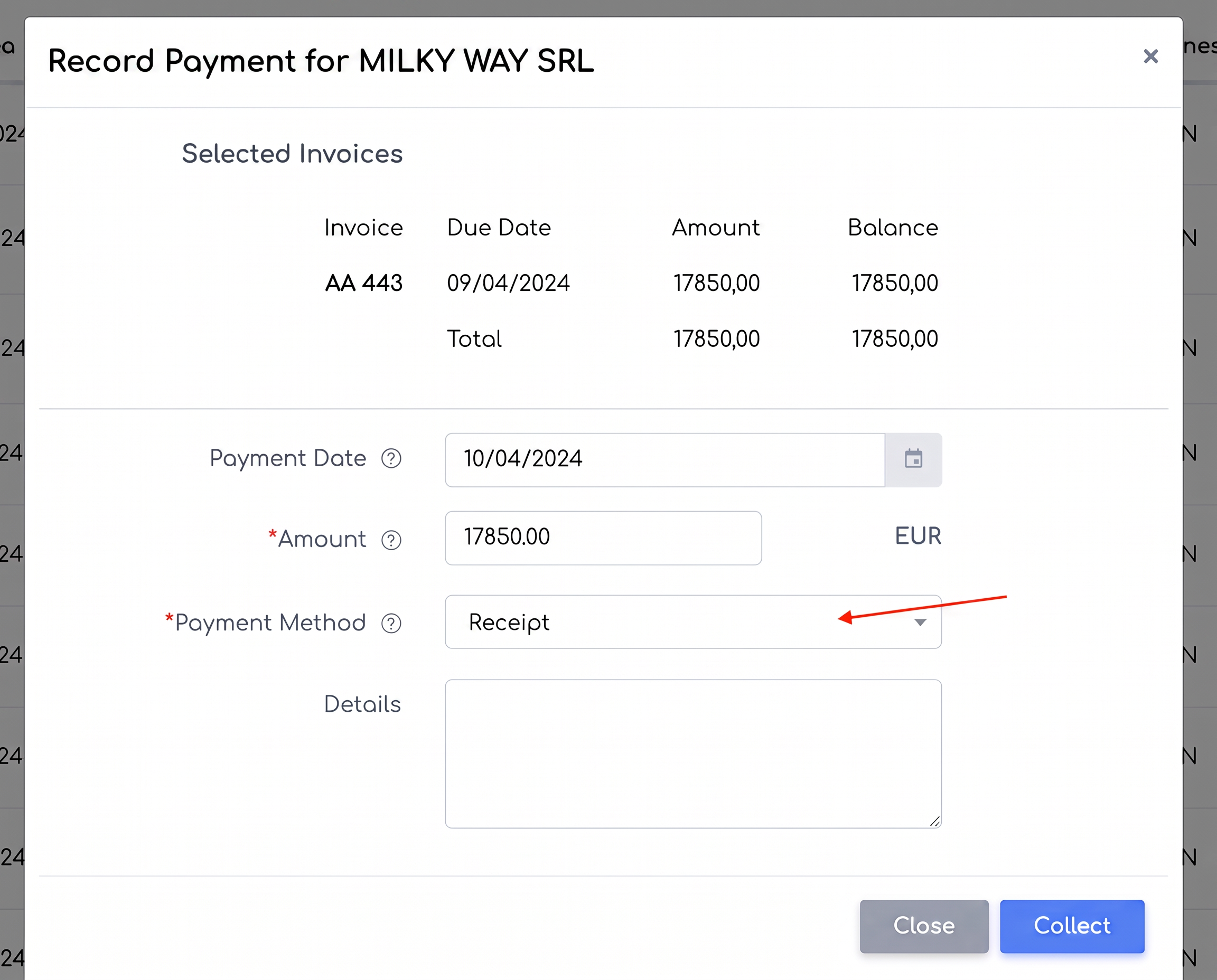
Now, when you register a receipt (chitanță) type payment for a transaction, the system automatically generates the corresponding document.
How to use?
Navigate to the "Sales" – "Invoices" section. Search for the desired invoice and select the green button with the dollar symbol to initiate the collection process.
Fill in the necessary information, such as the payment date and value.
Choose "Receipt" from the payment method options.
Once the information is completed and the option selected, press 'Collect'.
The system will automatically generate the receipt.

Preventing Deletion of Customers/Suppliers with Active Documents
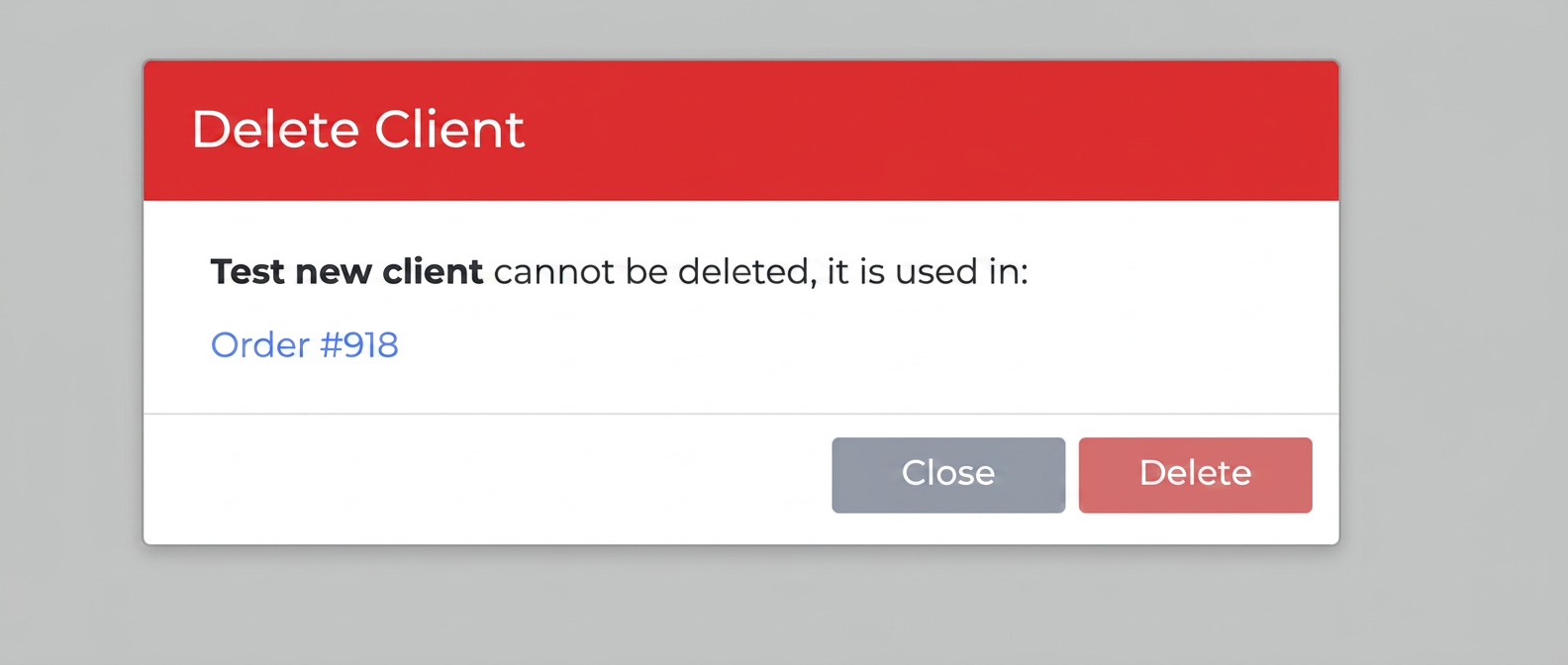
From now on, the system will not allow the deletion of a customer or supplier associated with active documents in the system, thus preventing potential errors that could result from the accidental removal of an entity for ongoing processes.
If you attempt to delete a customer or supplier associated with invoices, orders, or any other active documents, iflows will restrict this action. An error message will inform the user that there are active documents associated with that entity and that deletion is not permitted.
Efficient Synchronization: Instant Refresh of Customer Data
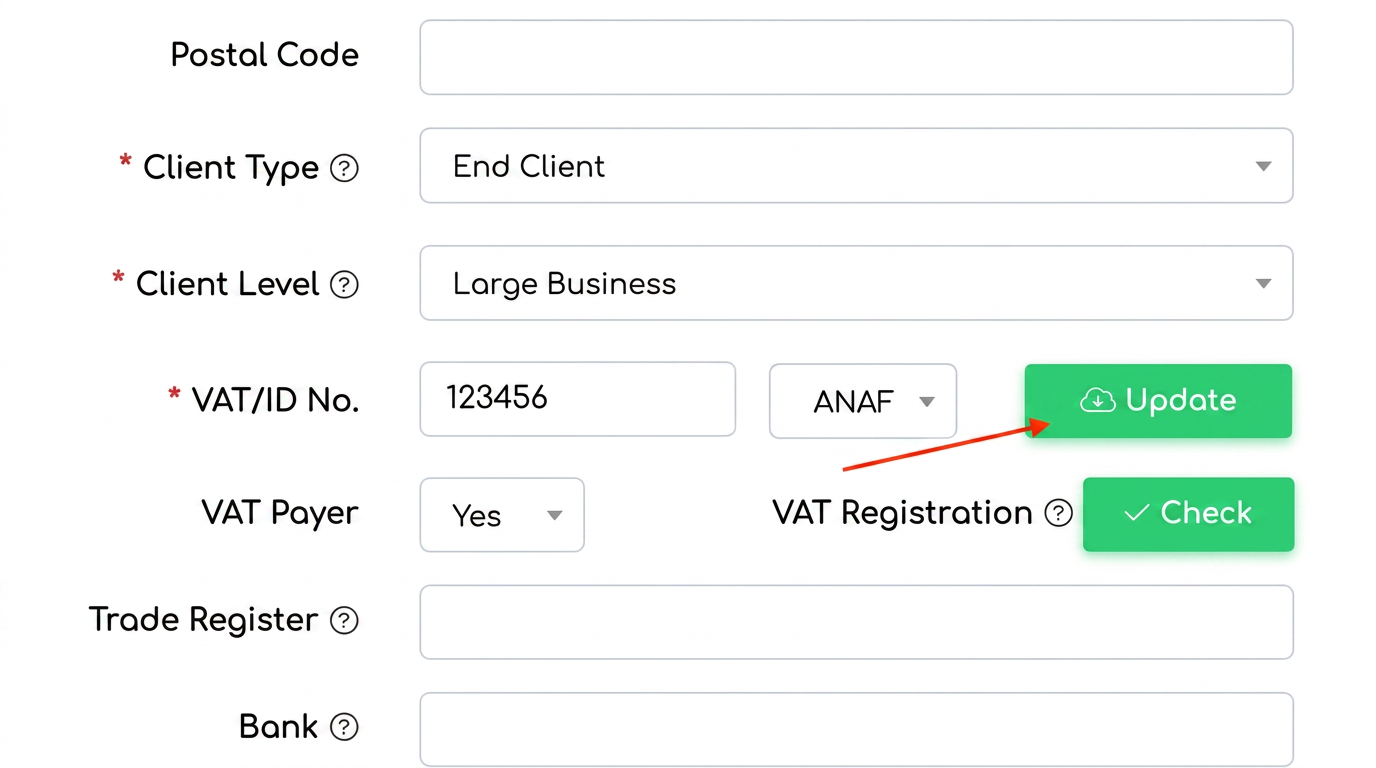
iflows allows for the automatic updating of an existing customer's information. This improvement is useful for maintaining data accuracy in customer records and ensures that critical information is always updated and reflects reality.
How does it work?
When reviewing a customer's details in iflows, you can use the "Update" option to automatically synchronize information with relevant databases, such as those of ANAF.
The system will check and update customer data without the need for manual entry.
Cloning Own Email Templates
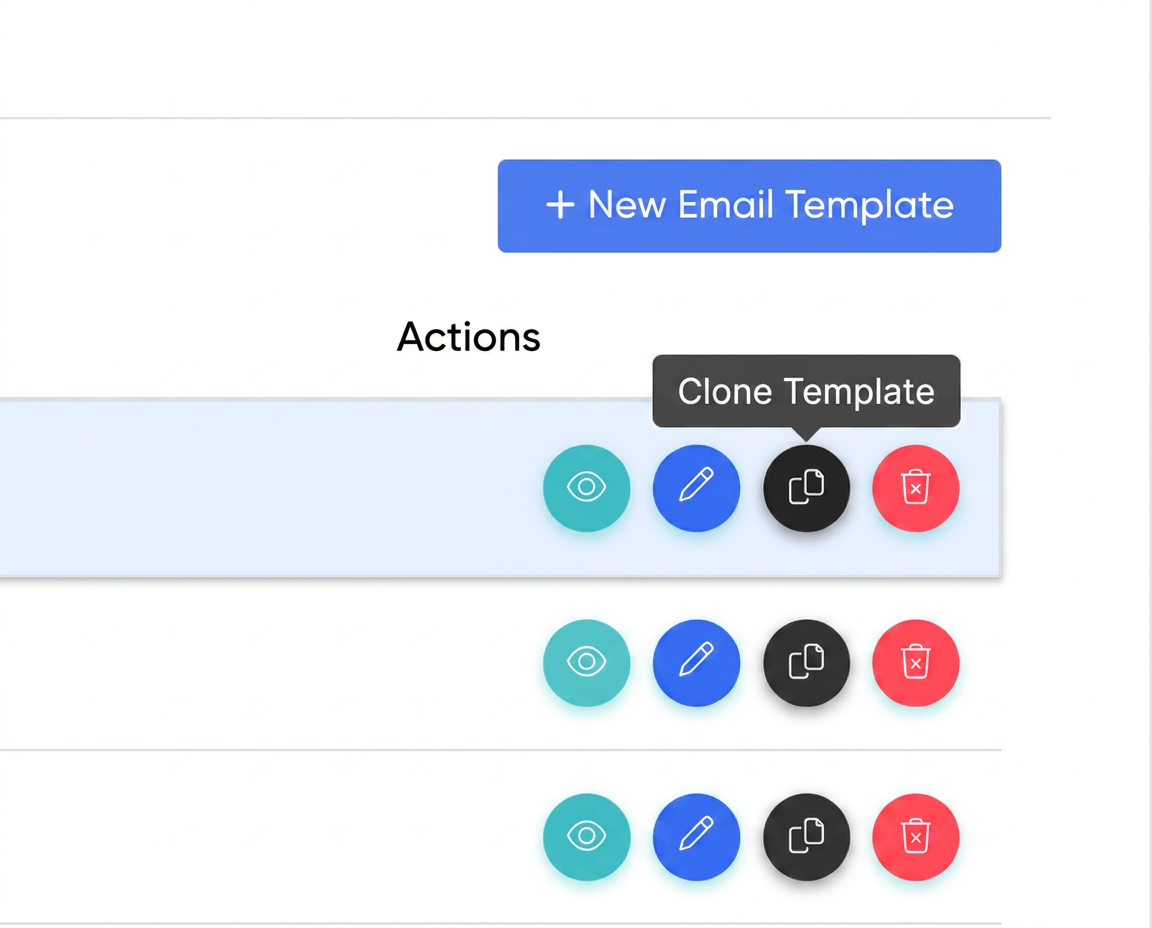
With the new cloning option, you can create a duplicate of any existing template, with all its settings and content, into a new editable template.
This is ideal when you want to use a successful format for different campaigns or messages, keeping a common base and personalizing only the necessary elements.
How to use?
Navigate to the "Settings" – "Templates" – "Own" section.
Use the "Clone Template" button to create a copy of the chosen template.
Edit the new cloned template as needed, saving time in creating new campaigns.
Fine Technical Details: Decimals in Equipment Speed
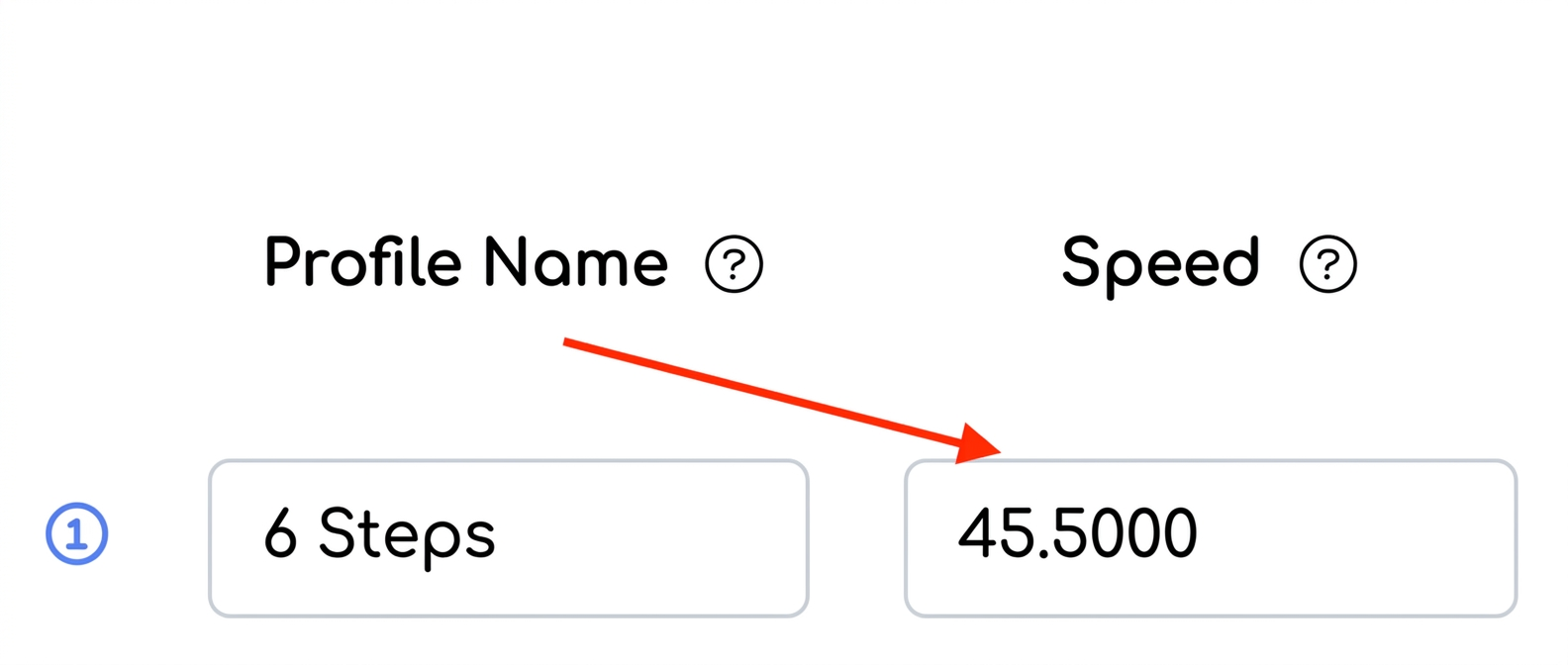
iflows now allows users to enter decimal values for equipment speed, thus providing a higher level of precision.
How to use?
Navigate to the "Equipment" section and choose the equipment you wish to edit.
In the "Working Profiles" section - the "Speed" field, you can now enter values with decimals, such as 45.5, to more accurately reflect the necessary settings.
The system will recognize and apply these values in its calculations, ensuring finer coordination of production.
Billing Flexibility: Import Orders into Existing Invoices
iflows now allows adding additional orders to an already existing invoice. Whereas previously, to include all of a customer's orders in a single invoice, you had to start from scratch if an order was omitted, now you can simply edit the existing invoice to include any initially omitted order.
The detailed usage process is as follows:
Access the "Sales" section and then "Invoices" in iflows. Open the invoice you wish to update by clicking to enter view mode, not edit mode.
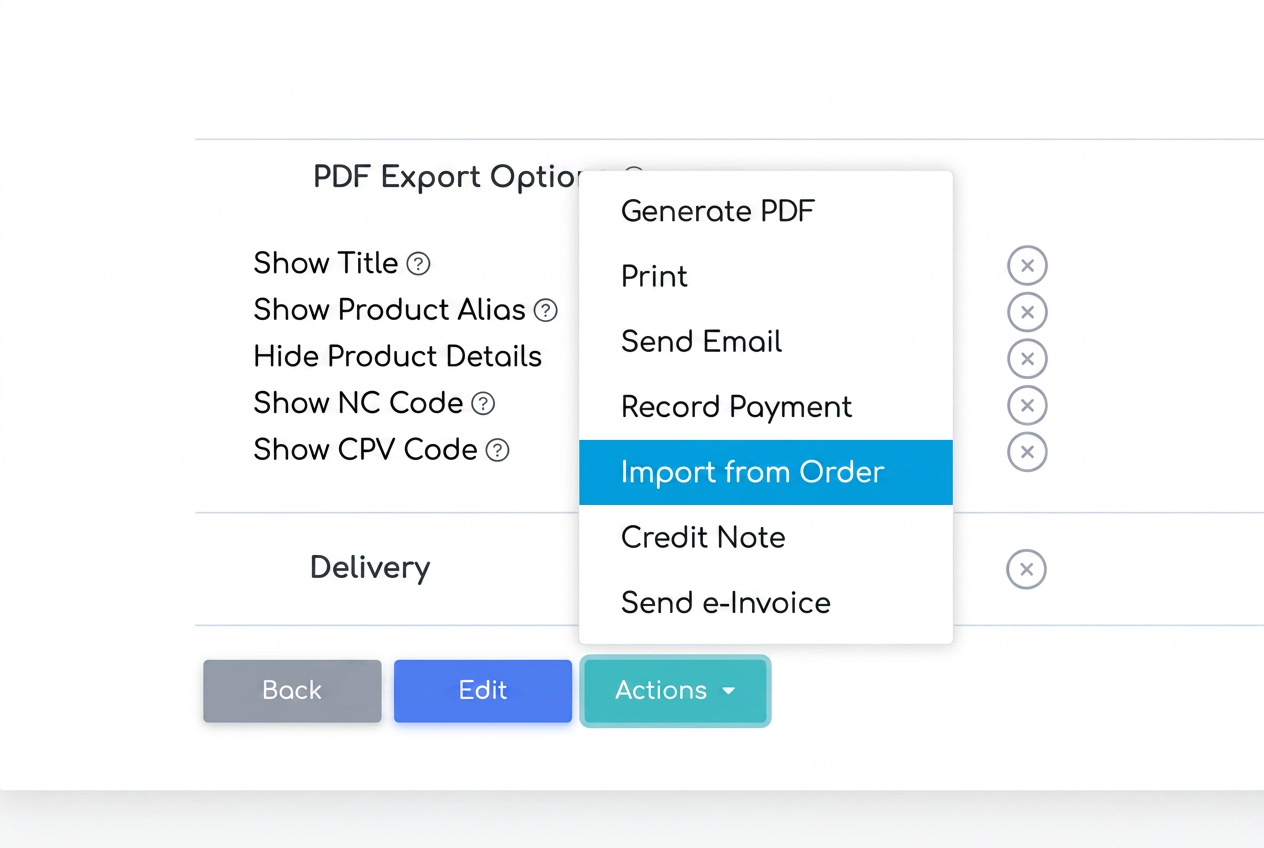
Scroll to the bottom of the page where you will find the "Actions" button. By clicking on it, the new option, "Import from Order", will appear.
Choose this function to add an additional order that was initially omitted. Select the order number you intend to insert in the box.
In this way, the invoice can be updated to include all relevant customer orders without needing to cancel or recreate the invoice from the start.
Customer Relationship Efficiency: Send Fast Email directly from the list
The iflows platform now facilitates communication with customers by offering the possibility to send emails directly from the customer list.
How to use this feature?
Navigate to the "Customers" section and identify the list with all customers.
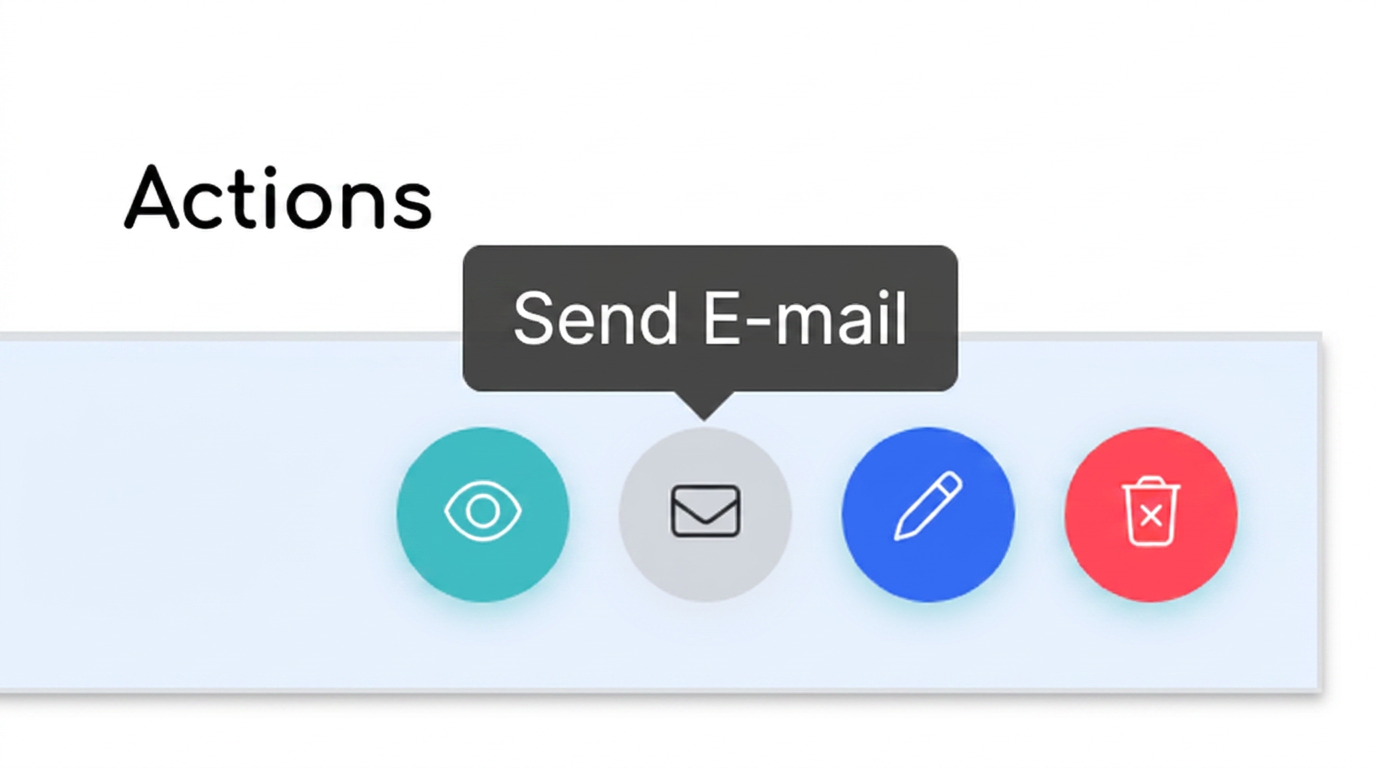
Next to the customer you wish to communicate with, select the "Send Email" icon.
Choose an email template from the existing ones to start composing the message.
If you want to add additional information to the template, enter these details in the "Message" box.
Ensure that the configured email template includes the "Information" variable to allow the insertion of additional text into the email body.
External Link Integration for Products: More Interactive PDF Quotes
Create Quotes with Immediate Access to External Resources! iflows introduces a new feature that allows you to make PDF quotes more interactive by adding external links directly to product names, thus transforming the names into hyperlinks.
How does it work?
Navigate to the "Sales" section and select "Quotes". Create a new quote or edit an existing one.
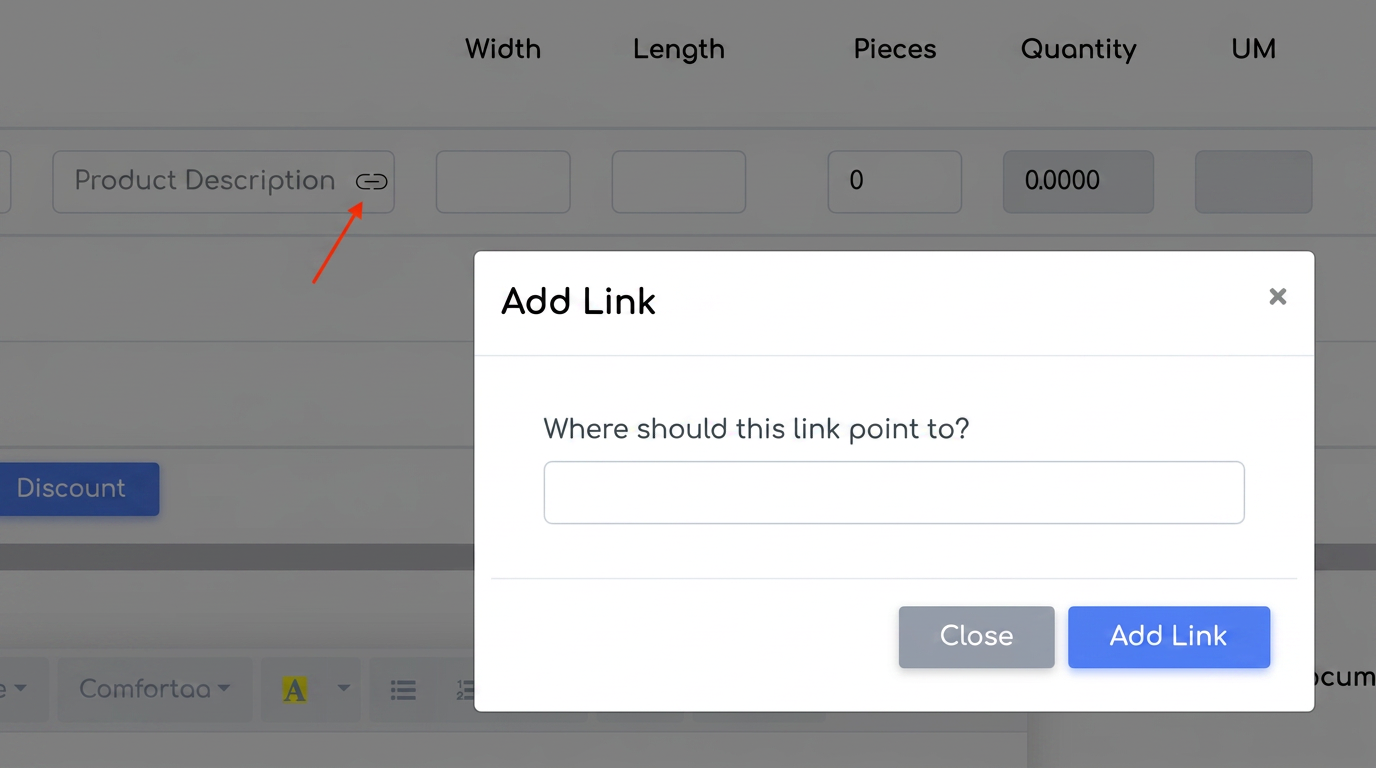
In the "Product Description" field, you will notice a new icon symbolizing the addition of a link.
Click on this icon, and a new tab will open where you can enter the desired URL.
After adding the link, it will be associated with the product name in the generated PDF document, allowing direct clicks to external resources (e.g., product page on a website).
Multiple Due Dates for Invoices
iflows introduces the "Multiple Due Date" function for invoices, offering users the possibility to set multiple payment installments directly from the billing interface.
How does it work?
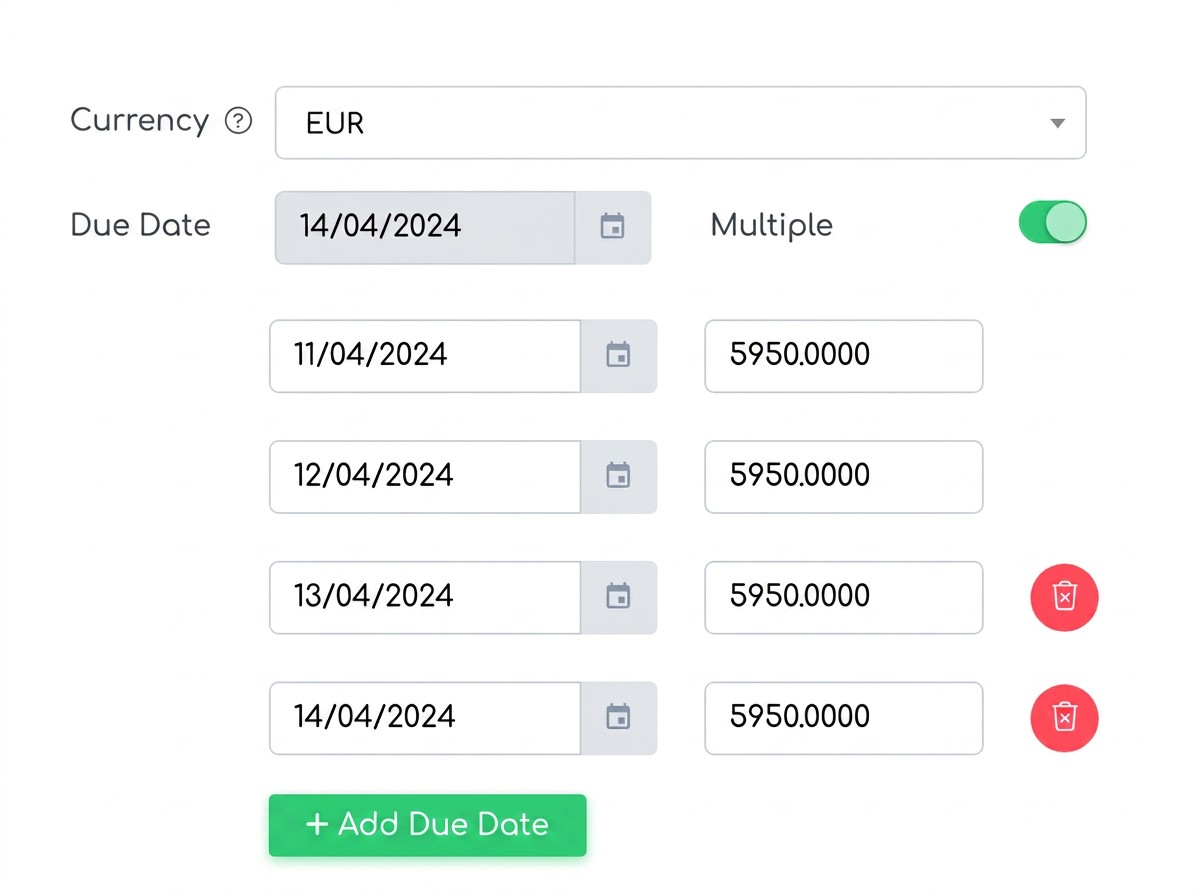
In the billing section, activate the "Multiple" button.
Once activated, the system will automatically create two equal payment installments.
To add additional installments, select "Add Due Date".
Personalize each added installment with the desired amount and due date.
Workflow loading speed optimization
If you have suggestions or ideas that could bring improvements to the iflows platform, we encourage you to send us feedback. We are dedicated to continuous improvement and assure you that all suggestions will be carefully evaluated.