
1. General Overview
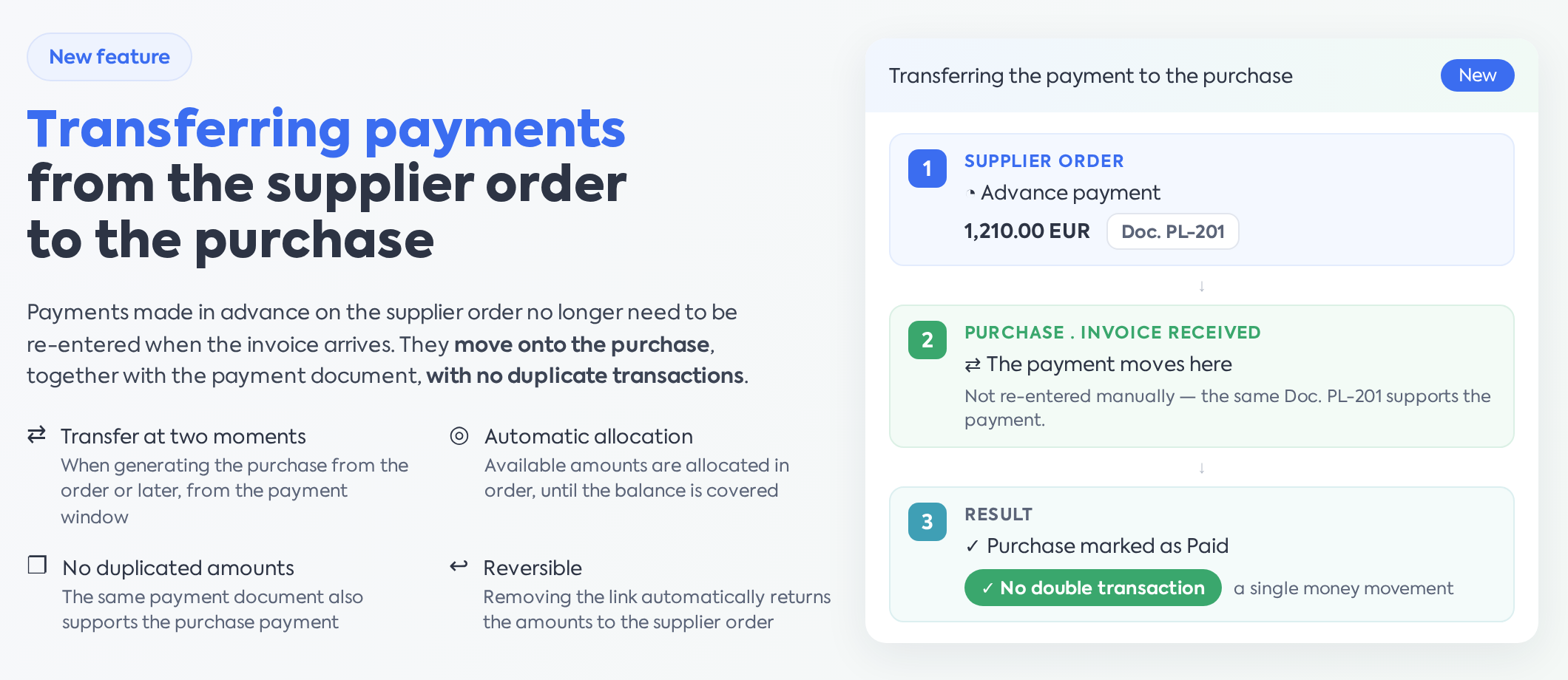
In practice, suppliers are often paid in advance, upon ordering, before the invoice arrives. Previously, payments recorded on a supplier order remained only there: when recording the purchase (the supplier's invoice), the payment had to be entered again, and the amounts appeared highlighted twice. This feature solves exactly this case: payments already recorded on a supplier order can be transferred to the associated purchase without duplicating transactions — the same payment moves, along with its payment document, from the order to the purchase.
The function is intended for procurement and finance teams. It links the Purchases (input documents), Suppliers (supplier orders and their payments), and Transactions modules. The transfer can be done at two moments: when generating the purchase from the supplier order, or later, from the purchase payment window.
2. Transfer upon purchase generation
From the supplier order, use the generate purchase action and choose Stock Purchase or Import Purchase. If there are payments with unused amounts on the supplier order, the platform asks:
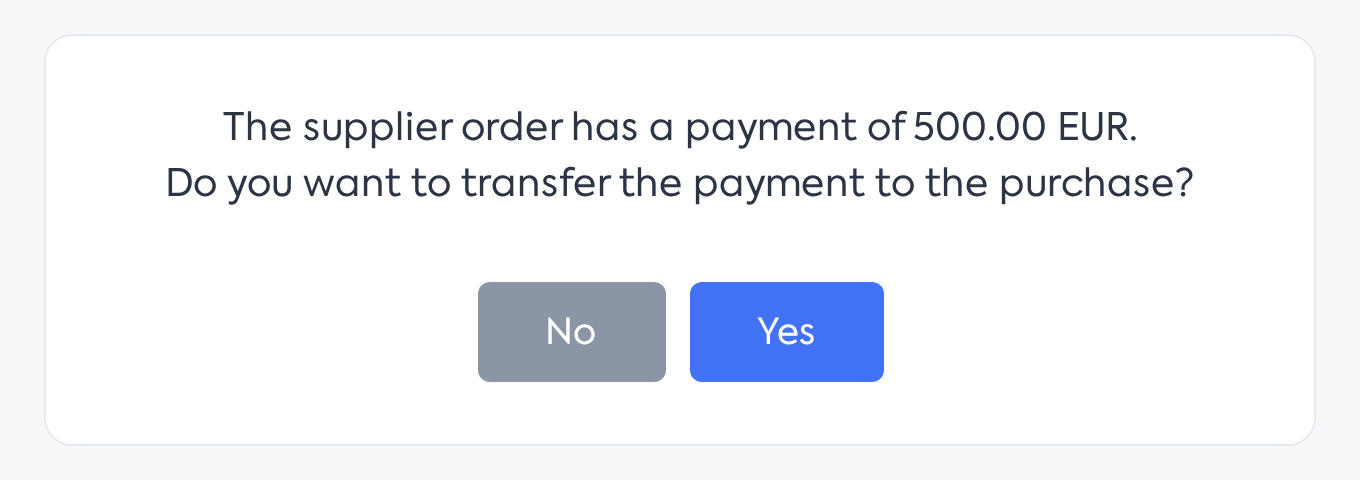
The question displayed when generating a purchase from an order with payments.
By choosing No, the purchase is created normally, and the payments remain on the order. By choosing Yes, the purchase form opens, pre-filled from the supplier order, and the warning appears under the associated order:
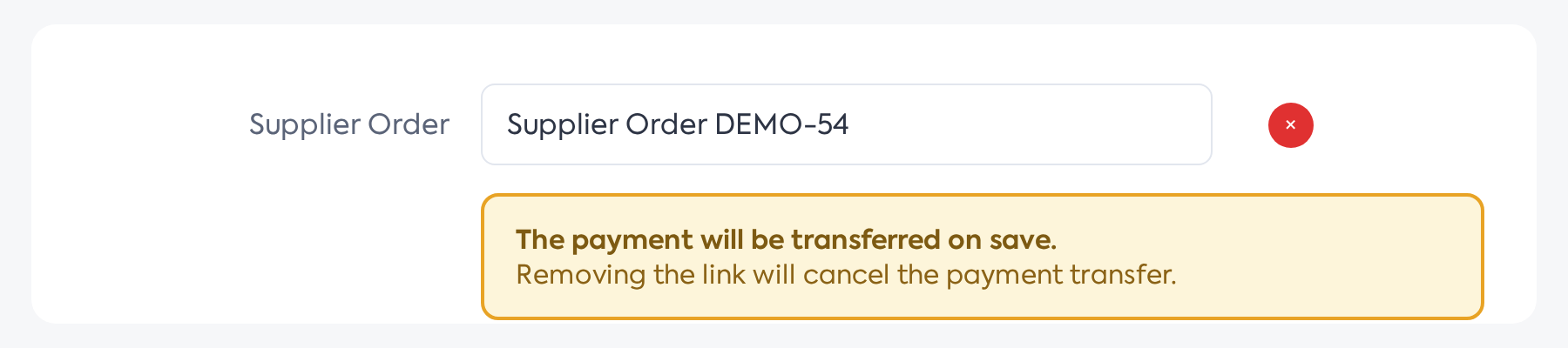
The warning displayed in the purchase form, under the associated order.
Upon Save, the order payments are automatically moved to the purchase — in the order they were made, until the purchase balance is covered — and the platform confirms: "Payment transferred from supplier order: X allocations, total Y.". Automatic transfer is done only once, upon creating the purchase from the order: if you delete the association in the form before saving, the transfer is cancelled, and during subsequent edits of the purchase, nothing is automatically transferred. Amounts are taken in order of payment date, as much as fits into the purchase value; if you want to control exactly what amount is transferred, use the payment window described below.
Important: Automatic transfer only works when the supplier order currency matches the purchase currency. Otherwise, the purchase is saved without transfer, with the message "Supplier order payment was not transferred: order currency differs from purchase currency.".
3. Transfer from the purchase payment window
For a purchase that has supplier orders associated with available payments, the payment registration window displays the Use supplier order payments switch (active by default) and the "Associated supplier order payments" section, with one row for each order: It also works for manually created purchases, not just those generated from an order: simply associate the supplier order with the purchase and save, and its payments become available in the payment window.
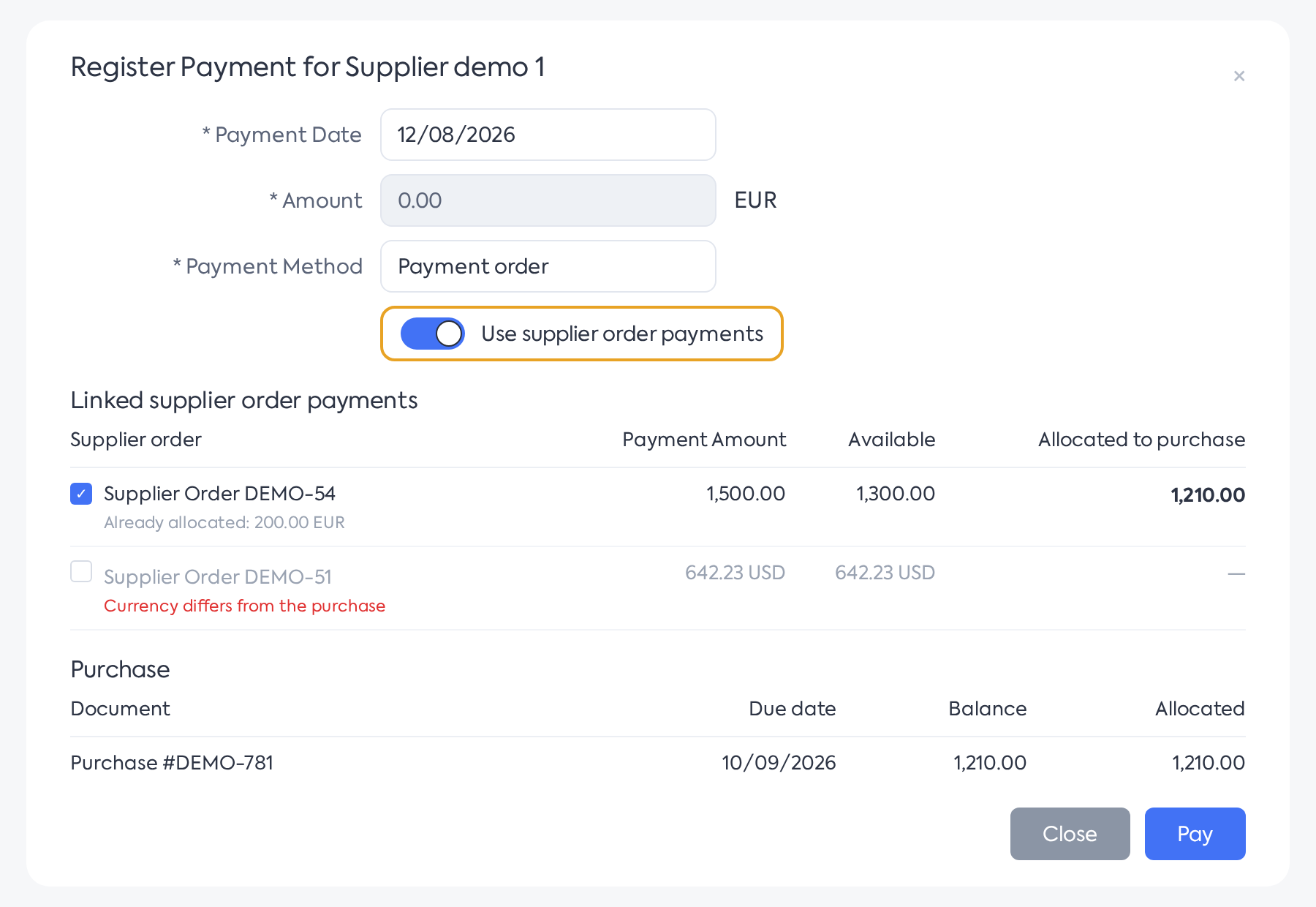
The purchase payment window, featuring the payments from supplier orders section.
- Supplier Order — the order number; below it, "Already allocated: [amount]" appears for previously transferred amounts and, where applicable, "Different currency from purchase".
- Payment Value — the total of payments recorded on that order.
- Available — the amount not yet used, which can be transferred.
- Allocated to purchase — the amount that will be transferred, automatically calculated when checked.
Check the orders whose payments you wish to use: amounts are automatically allocated from the available balance, in row order, until the purchase balance is covered. While the switch is active, payment is made exclusively from the order amounts: the new amount field is set to zero, and the document allocations become read-only. Orders in another currency appear disabled, and the option cannot be combined with using an excess balance in the same payment. Rows are ordered ascending by available amount, so orders with smaller availability are consumed first. A purchase can take from multiple orders, and an order can feed multiple purchases until the amount is exhausted.
Validations displayed in the window: "Select at least one supplier order with an allocated amount." when nothing is checked, or "Total allocated amount exceeds the purchase balance!" when the allocation would exceed the remaining payment.
4. What happens to transferred payments
- The transferred payment appears on the purchase, visible in the payment history, with the note "Purchase Payment #[number]"; the purchase status (Paid / Partial) updates automatically.

After saving, the purchase displays under the associated order a note that the payment was transferred.
- On the supplier order, the available payment amount decreases by the transferred value — partial transfers are possible — and a reference to the purchase is added to the payment details.
- No duplicate transactions are created: if the order payment had a payment document, the same document now also supports the payment on the purchase.
- Because the amount is effectively moved, the supplier order balance increases back by the transferred value: the order appears unpaid or partially paid again, and the money is found on the purchase. This is the expected behavior — the same amount no longer appears in two places.
- Amounts are allocated exactly, without rounding, but display is done with two decimals. Therefore, an order may remain in the list with Available 0.00 if an unallocated fraction of a cent remains.
5. Cancelling the transfer
Deleting the association between the purchase and the supplier order (from the purchase form) automatically returns the transferred amounts to the order, with the message "Payment returned to supplier order: X allocations, total Y.". The form warns in advance: "Payment transferred: deleting the association will remove the payment from the purchase."
Deleting a transferred payment from the purchase history does not eliminate it, but only breaks the link with the supplier order: "The payment remained on the purchase, without connection to the supplier order.". The amount thus remains on the purchase and does not return to the order; the only ways the money returns to the order are by deleting the association between the purchase and the order or by deleting the purchase.
Deleting the original payment from the supplier order (or its payment document) keeps the amounts already transferred to purchases, but without the link to the order.
6. Points to remember
A few situations not visible in the interface:
- A purchase cannot be deleted while it has recorded payments; first delete the payments, then the purchase.
- The payment document in Transactions cannot be deleted while it is linked to an invoice, a purchase, or a supplier order.
- If the order's payment document is deleted, the payment remains on the purchase, but without a source document to open.
- Transferred allocations are read-only: they cannot be modified or redistributed from the payment document, only returned by deleting the association.
- The platform does not verify if the order supplier matches the purchase supplier; misassociating an order allows for payment transfer, so check the order before checking the box.
7. Permissions
There is no separate permission for transferring payments; existing permissions are used, granted at the access level from the :
- Purchases — add, for generating a purchase from an order, and modify, for saving the purchase and returning payments when deleting the association.
- Supplier Orders — view, so the platform can verify available payments on the order.
- Invoices — add and modify, for the payment window and for deleting a payment.
- Transactions — delete, only if you wish to delete the payment document.