
1. What you can do
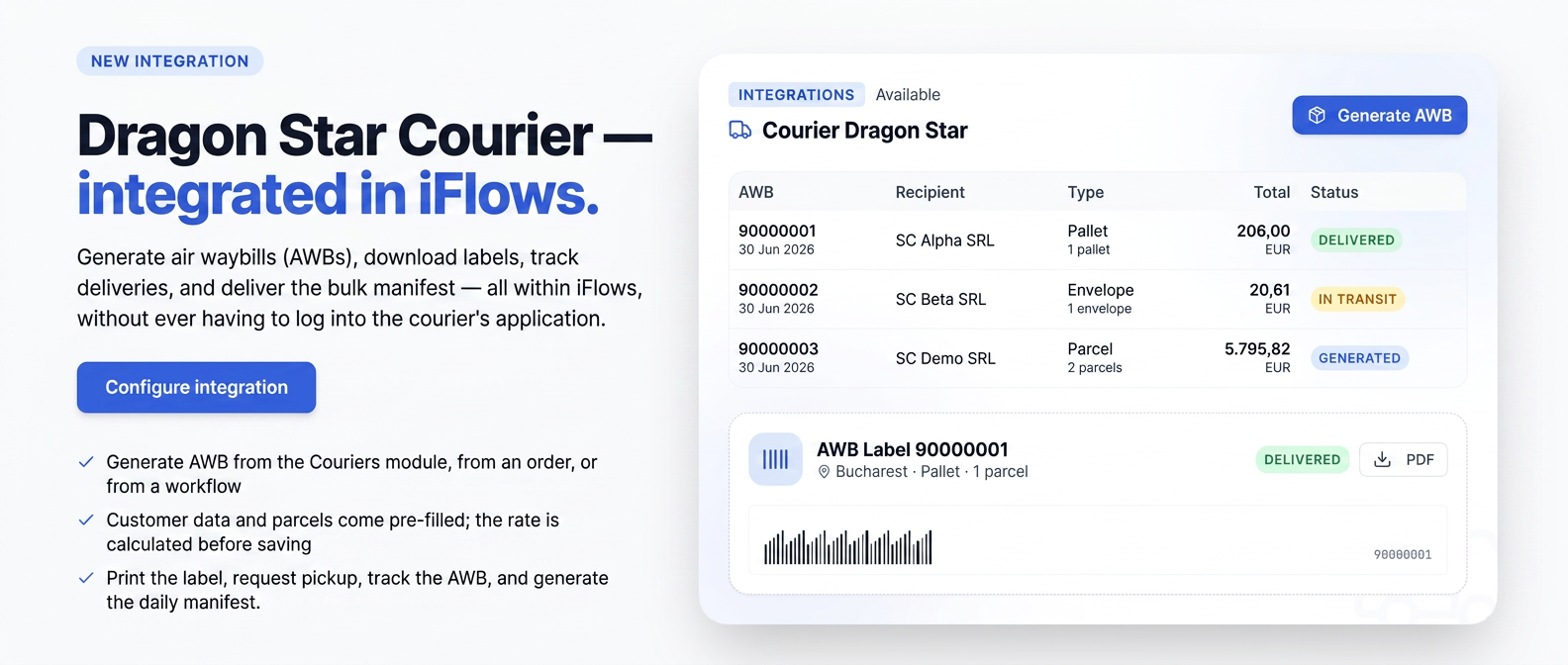
With the Dragon Star integration, you generate AWBs directly from iFlows: choose the recipient, packages, and options, and the shipment automatically reaches Dragon Star. Also from the platform, you can download and print the label, track the delivery, request a courier pickup, and generate the handover manifest — without having to work separately in the Dragon Star application.
2. Installation
From the Integrations menu, open the Available Integrations section. Find Dragon Star Curier in the list and press the "+" next to it.
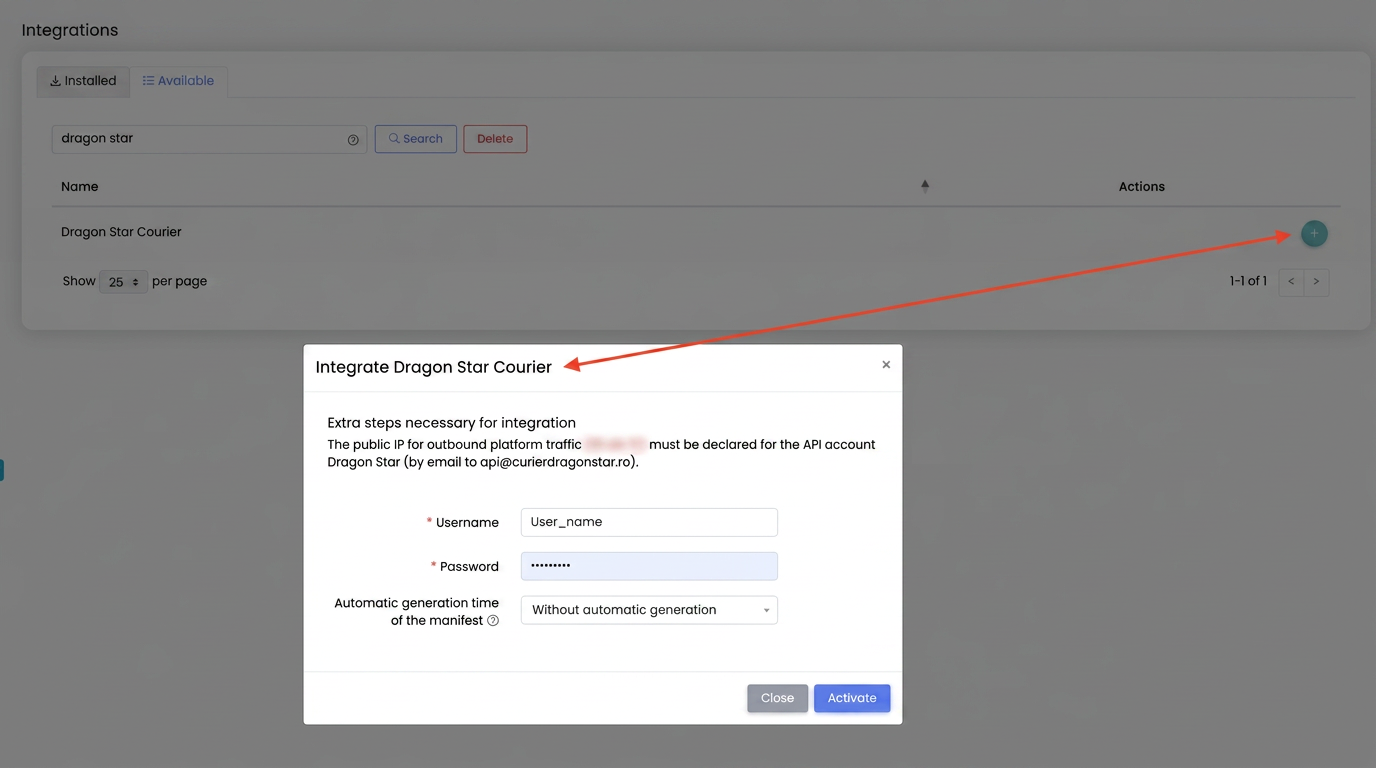
List of available integrations, featuring Dragon Star Curier.
The installation window will open. Copy the IP displayed at the top and send it to Dragon Star via email at api@curierdragonstar.ro to activate your access. Fill in the Username and Password from your Dragon Star account and, if you wish, choose the time for the daily manifest to be automatically generated. Press Activate.
Important: Without declaring the IP to Dragon Star, the integration cannot communicate, even if the username and password are correct.
To allow an employee to generate and manage AWBs, verify that they have the rights to view and edit the integration under modify the data in Integration Settings on the Dragon Star row.
3. Generating an AWB
An AWB is generated the same way from three places — all opening the same window, Dragon Star AWB:
- From the Couriers module — you manually select the customer.
- RECOMMENDED: From an order — from the order list or file, the Dragon Star AWB action; customer and package data are pre-filled from the order.
- RECOMMENDED: From the workflow — in the delivery stage choose Dragon Star, then Dragon Star AWB; the AWB number is automatically filled in the stage after generation.
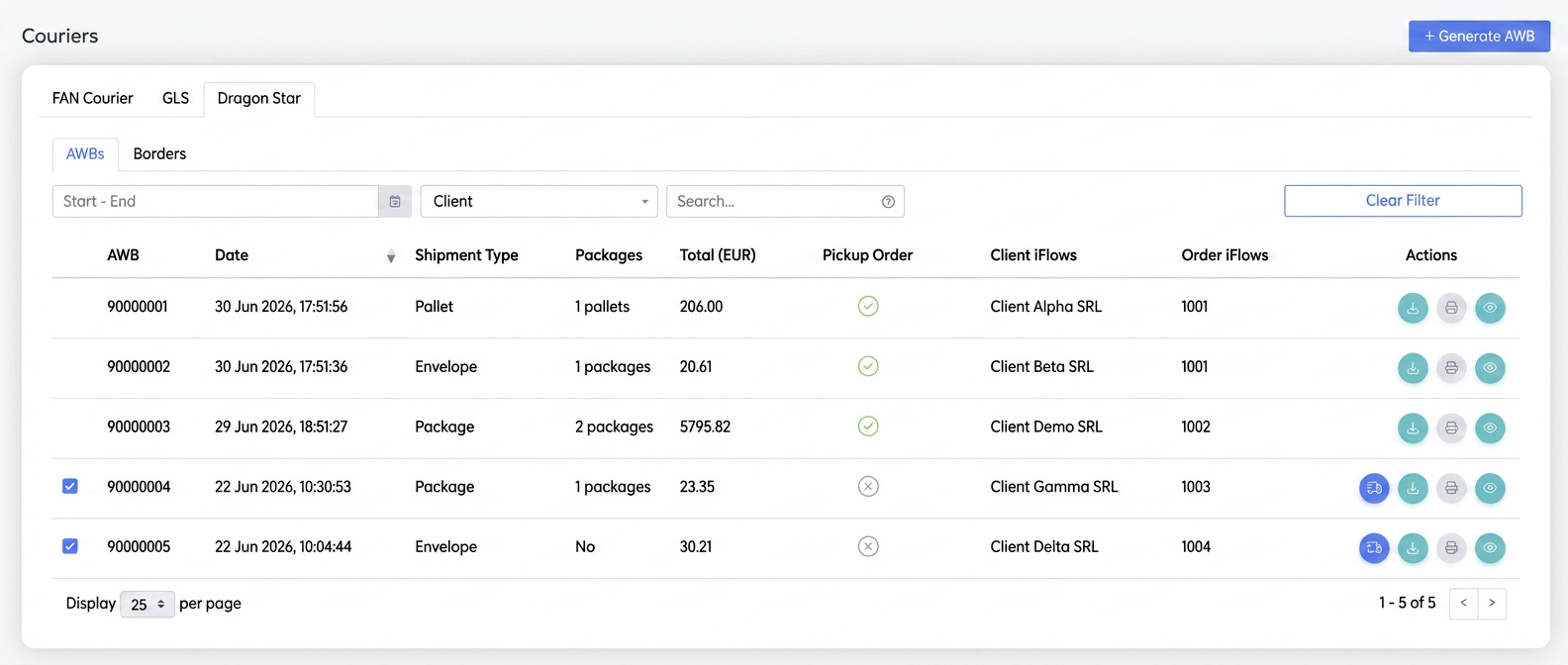
Dragon Star sub-section, with the AWB list and the Generate AWB button.
Filling in the form
Complete the recipient details (name, delivery address, and phone), then the shipment details: type (envelope, package, or pallet), number of packages, weight, and optionally, dimensions. If applicable, add the reimbursement value (cash on delivery amount collected by the courier) and the payment method, as well as desired options — Saturday delivery, SMS notification, return services, reverse shipping, and others.
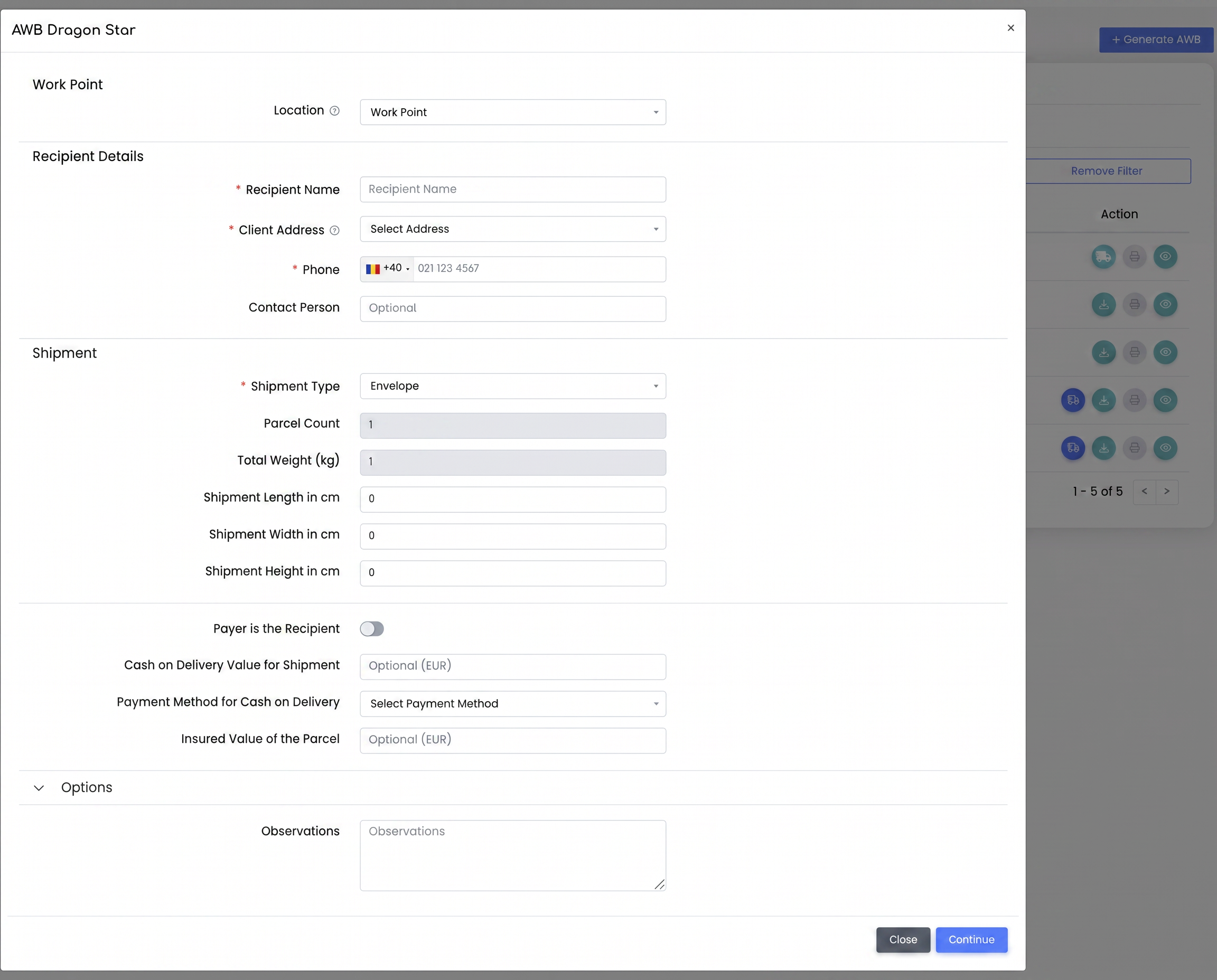
The AWB generation form.
Important: The shipment type automatically sets certain fields: for Envelopes, the number of packages and weight are fixed at 1; for Packages, you fill them in; for Pallets, the packages remain 1, and weight is mandatory. The phone number must be Romanian — the integration only delivers within Romania.
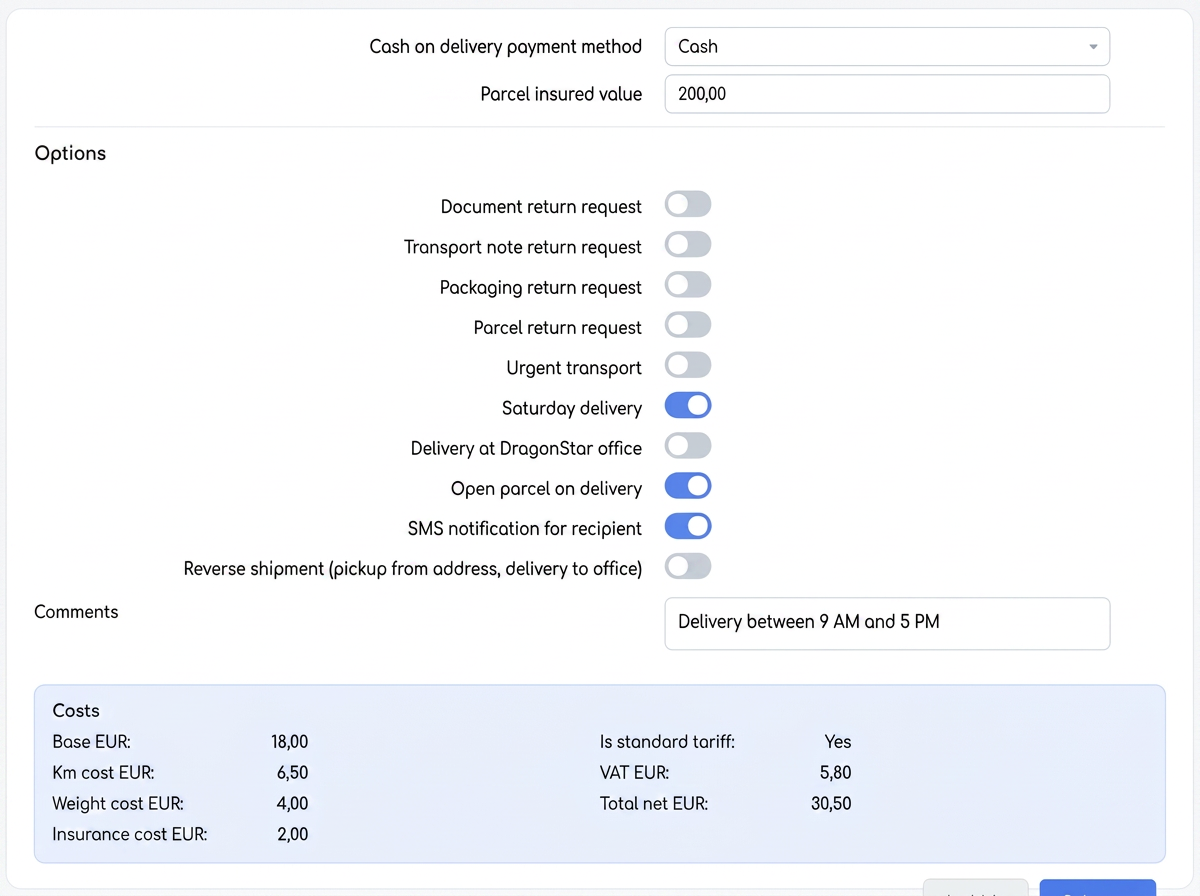
Shipment options and costs displayed after rate calculation.
Confirmation: Continue, then Save
The form is finalized in two steps. Press Continue: the platform calculates the rate and displays it (base rate, cost per kilometer and per weight, insurance, VAT, and total). After checking the cost, the button becomes Save; clicking it actually generates the AWB.
Important: If you change anything that affects the price (address, shipment type, weight, packages, dimensions, or options) after calculation, the button reverts to Continue and you must recalculate to see the correct cost.
For example, to send a package with cash on delivery: choose the customer and delivery address, set Shipment Type to Package, enter the weight and number of packages, fill in the reimbursement value and payment method, press Continue, check the rate, and then Save.