
 1. Overview
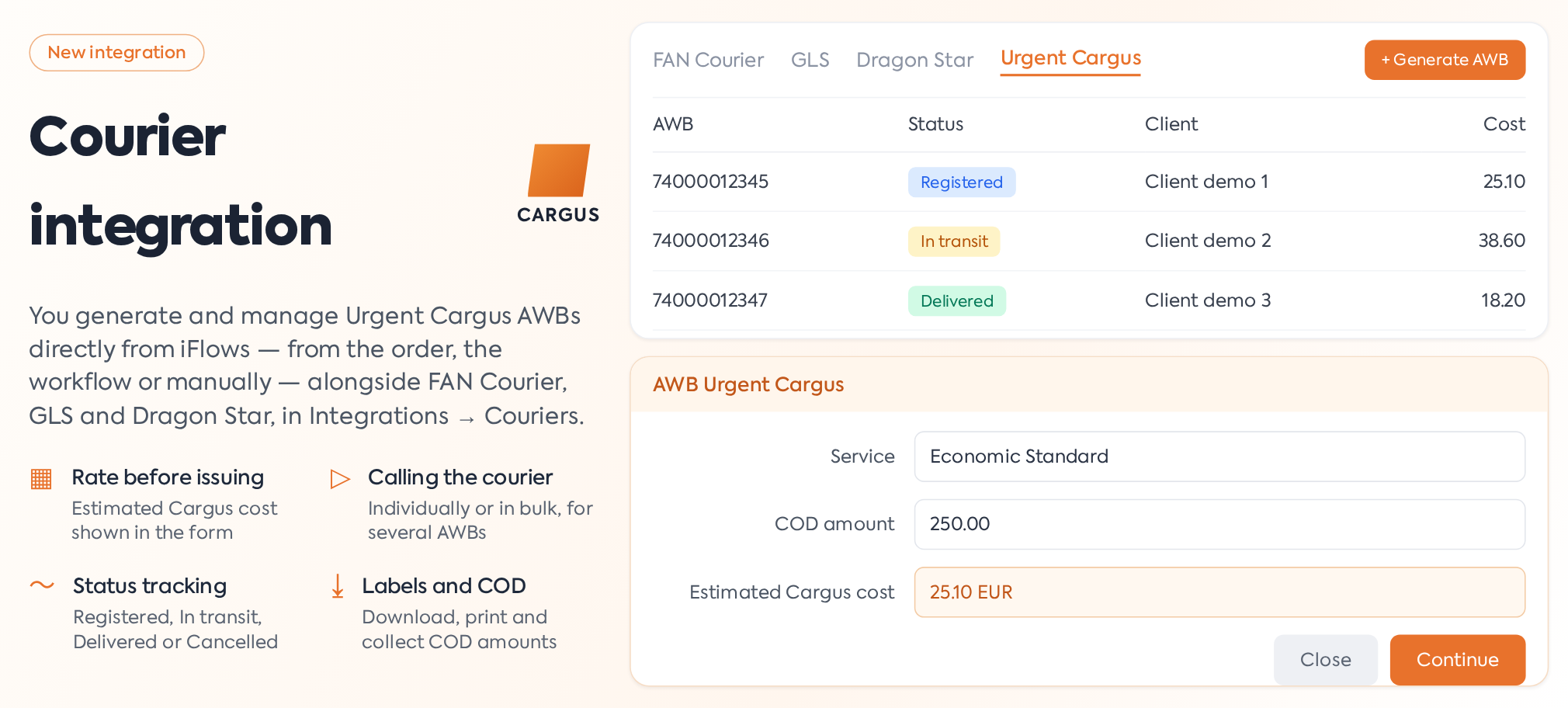
The integration with Urgent Cargus allows for the generation and management of AWBs directly from the platform, without accessing the courier's application. Shipment data is automatically transmitted to your Urgent Cargus account, and generated AWBs are tracked, downloaded, and canceled from the same place, alongside those from FAN Courier, Dragon Star, and GLS.
The integration allows for generating AWBs from orders, from the workflow, or manually, calculating rates before issuing the AWB, calling the courier for pickup (individually or in bulk), tracking statuses, downloading and printing labels, and collecting cash-on-delivery amounts. AWBs are managed from the main menu under , Urgent Cargus section.
2. Installation and Configuration
To use the integration, the company must have an active Urgent Cargus account with access to online services. "+" next to the Urgent Cargus integration.

Urgent Cargus integration in the list of available integrations.
In the activation window, complete three mandatory fields: Subscription Key (received from Urgent Cargus), Username, and Password (Urgent Cargus account credentials). Click Activate. After installation, these details can be updated anytime from integration. Data is verified immediately through a test authentication with Urgent Cargus: if incorrect, the integration will not install and the message "Authentication failed" will appear; if the service does not respond, "API connection failed" will be displayed.
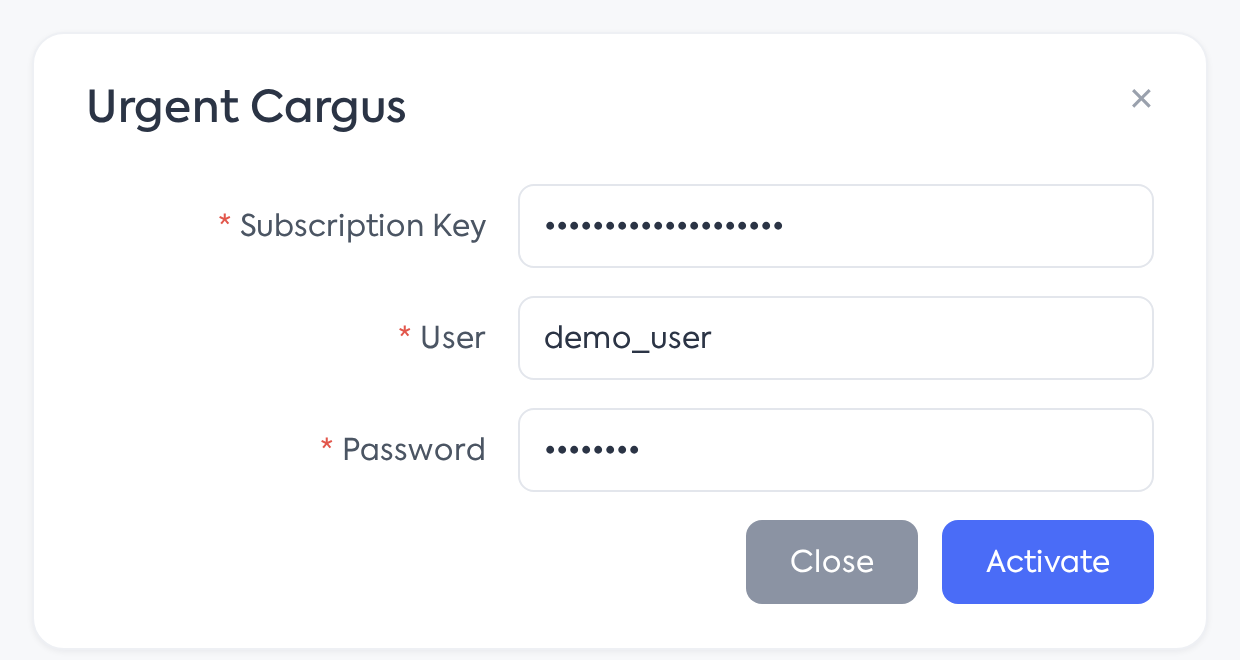
Integration activation window.
Important: Employee access is controlled via permissions under : the View option allows consulting the Urgent Cargus AWB list, while Edit allows generation, calling the courier, and cancellation. Without these permissions, employees cannot see the section or generate AWBs. In the permissions screen, the row is named "Urgent Cargus" and is located in the Integrations category, Courier subcategory.
3. Generating an AWB
An AWB can be generated from three locations—the form is the same, only the pre-filled data differs:
- — open the order's action menu and choose Urgent Cargus AWB; the form is pre-filled with order and customer details.
- From Workflow — in the Delivery Details instruction, choose the Urgent Cargus option and click the generate AWB button; after issuance, the AWB number appears directly in the instruction window, with a link to the list.
- Manually — from , the Generate AWB button opens the empty form for shipments without an order.
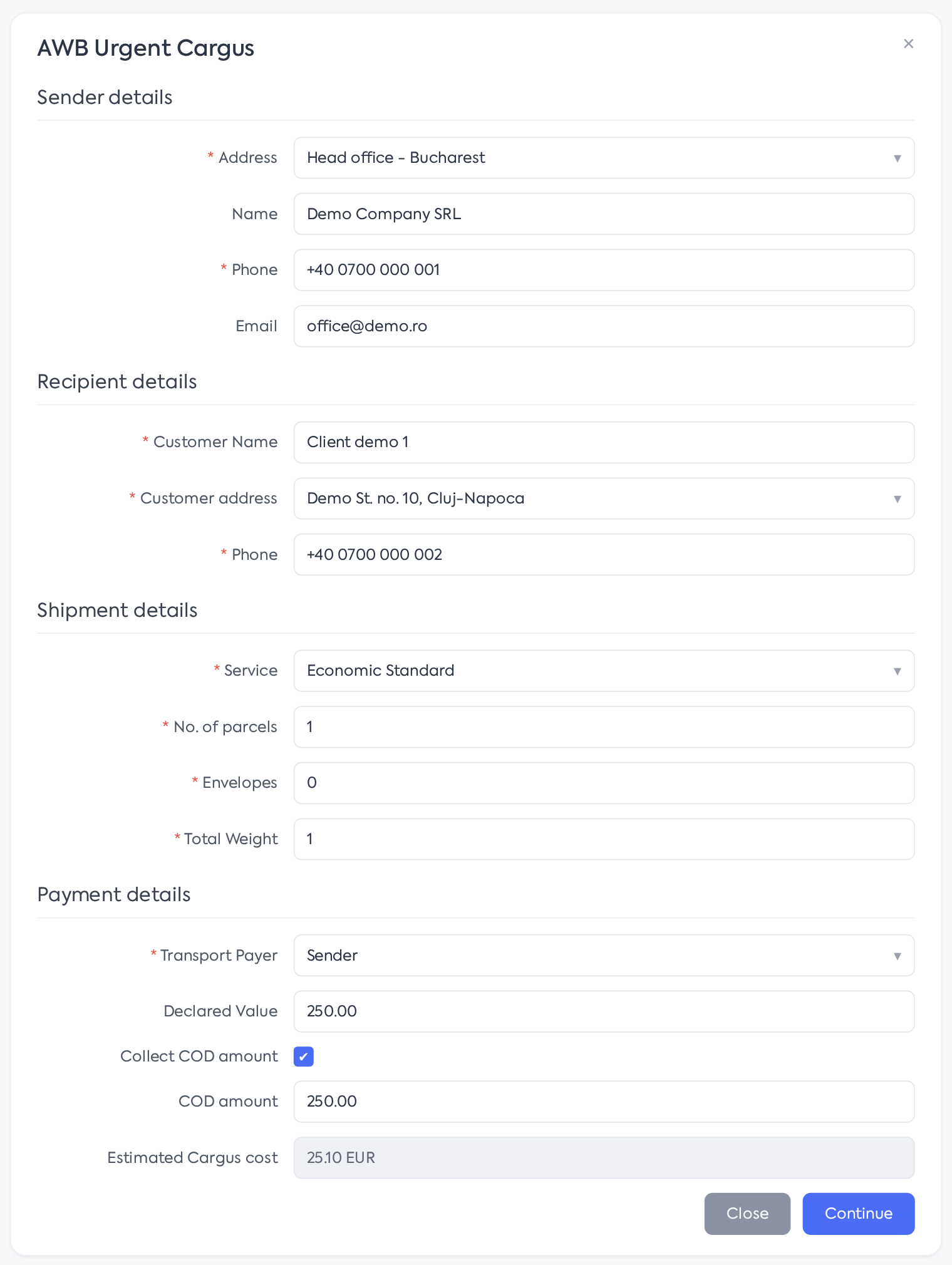
The Urgent Cargus AWB form, with its four sections.
The form is organized into four sections. Under Sender Details, choose the shipping address (mandatory, from the company's saved addresses, with the ability to add, edit, or delete one directly from the list), sender name, contact person, phone (mandatory, validated), and email. Under Recipient Details, complete the same fields for the customer; the customer's address is chosen from their saved addresses or added on the spot by typing a new name in the list, and the recipient's name can be searched in the existing customer list.
Under Shipment Details, choose the service—Economic Standard, Standard Plus, or Pallet—the number of envelopes, the number of parcels (at least one parcel or envelope; otherwise the message "There must be at least one parcel or envelope" appears), and the total weight. Under Payment Details, choose the payer of the shipping costs (Sender or Recipient), declared value, the cash-on-delivery toggle—which displays the field for the amount collected by the courier (must be greater than zero: "Reimbursed amount must be greater than 0")—shipment content, and remarks. The three services are fixed, and the platform does not verify if the weight fits the chosen service: if you choose an unsuitable service, the error comes from Urgent Cargus upon issuance. Weight is transmitted rounded to whole kilograms and divided per parcel, minimum one kilogram per parcel, and parcel dimensions are not required in the form.
Important: Issuance has two steps: click Continue—the platform validates addresses (county and address details must be fully completed) and requests the rate from Urgent Cargus, displaying it in the Cargus Estimated Cost field—then click Save to issue the AWB. Modifying any relevant field after calculation triggers the pricing step again.
After issuance, the AWB appears in the list under , if generated from an order, is linked to it.
4. Calling the Courier
Generating the AWB registers the shipment but does not automatically dispatch the courier. To have parcels picked up, use the truck icon (Call courier) next to the AWB or, for multiple AWBs simultaneously, select them in the list and use the action bar at the bottom of the screen. The courier can be called only once for the same AWB: after the pickup is recorded, the button disappears from that row, and if you select multiple AWBs where some have already been picked up, only the eligible ones are processed.
Important: Pickup uses the pickup points configured in the Urgent Cargus account, matched by the county and city of the sender's address. If no pickup point matches, the platform displays the message "No Cargus pickup point configured in the account"—points are defined in the Urgent Cargus account, not in the platform.
5. Status Tracking
Each AWB has a status displayed in color in the list: Registered (initial status), In Transit, Delivered, Canceled, or Unknown Status. The tracking icon (Detailed Tracking) queries Urgent Cargus and displays the shipment history, updating the status in the list. The status does not update automatically: it remains the one from the last check until someone clicks the tracking icon again.
6. Downloading, Printing, and Cancellation
From the AWB list, the download icon saves the PDF label generated by Urgent Cargus (to be attached to the parcel), and the print icon directly opens the print dialog. Cancellation is available for shipments that have not been delivered or already canceled; for these, the platform refuses the operation with the message "This shipment cannot be canceled." If the WhatsApp integration is active and the AWB originates from an order, a dedicated button sends the AWB label to the customer via WhatsApp. The cash-on-delivery amount listed on the AWB is for courier information only: it does not create a payment and is not linked to order collections within the platform.
7. AWB List

The Urgent Cargus AWB list, with statuses and actions.
FAN Courier, GLS, and Urgent Cargus sections. The Urgent Cargus list contains the columns AWB, Status, Date, Customer, Order No., Parcels, Envelopes, Weight (kg), Cost (VAT included), and Actions. Available filters: date range, status, customer (including "No customer" for manual AWBs), and text search by AWB, customer, or other details. Selecting multiple AWBs opens the bottom bar, showing the selected count and allowing bulk courier calls.
8. Address Management
Sender addresses are managed in the AWB form address list, with options to add, edit, and delete (with confirmation). Recipient addresses are saved per customer—either directly from the form by typing a new name, or from the customer file—and remain available for future shipments. When completing an address, the county, city, and other details are mandatory; incomplete addresses are rejected during rate calculation with the message "Incomplete address. Please fill in the county and other data."
9. Integration with Platform Modules
From the order list, the Urgent Cargus AWB action opens the form pre-filled with order data. In the workflow, the Delivery Details instruction offers the Urgent Cargus option, and after generation, displays the AWB number with a link to the list. AWBs generated from orders maintain a link to the order (the order number appears in the list), and through WhatsApp integration, the label can be sent to the customer directly from the list.
10. Important Particularities
- The AWB does not automatically order a pickup—the shipment is registered, but the courier must be called separately, individually or in bulk.
- Calling the courier requires pickup points configured in the Urgent Cargus account, matching the sender's county and city.
- Pricing precedes issuance—the cost is displayed in the form (Cargus Estimated Cost) and is recalculated upon any change to shipment data.
- Delivered or canceled shipments can no longer be canceled from the platform.
- Sender and recipient phone numbers are mandatory and validated as phone numbers.
- At least one parcel or envelope is required, and for cash-on-delivery, the amount must be greater than zero.
- Shipment status refreshes only on request, via the tracking icon; there is no automatic update.
- Multiple AWBs can be generated for the same order without warning; only the last one appears in the order file, but all remain in the AWB list.
- For Bucharest addresses, the sector is transmitted in the address text, and the locality is sent as "BUCURESTI"; diacritics are automatically removed from the county and city.
- Error messages display a short code at the end, in the format "(code: a1b2c3d4)"—it is useful to provide this to support for rapid identification of the call to Urgent Cargus.
- For manually generated AWBs without an order, the WhatsApp send button is not available.