
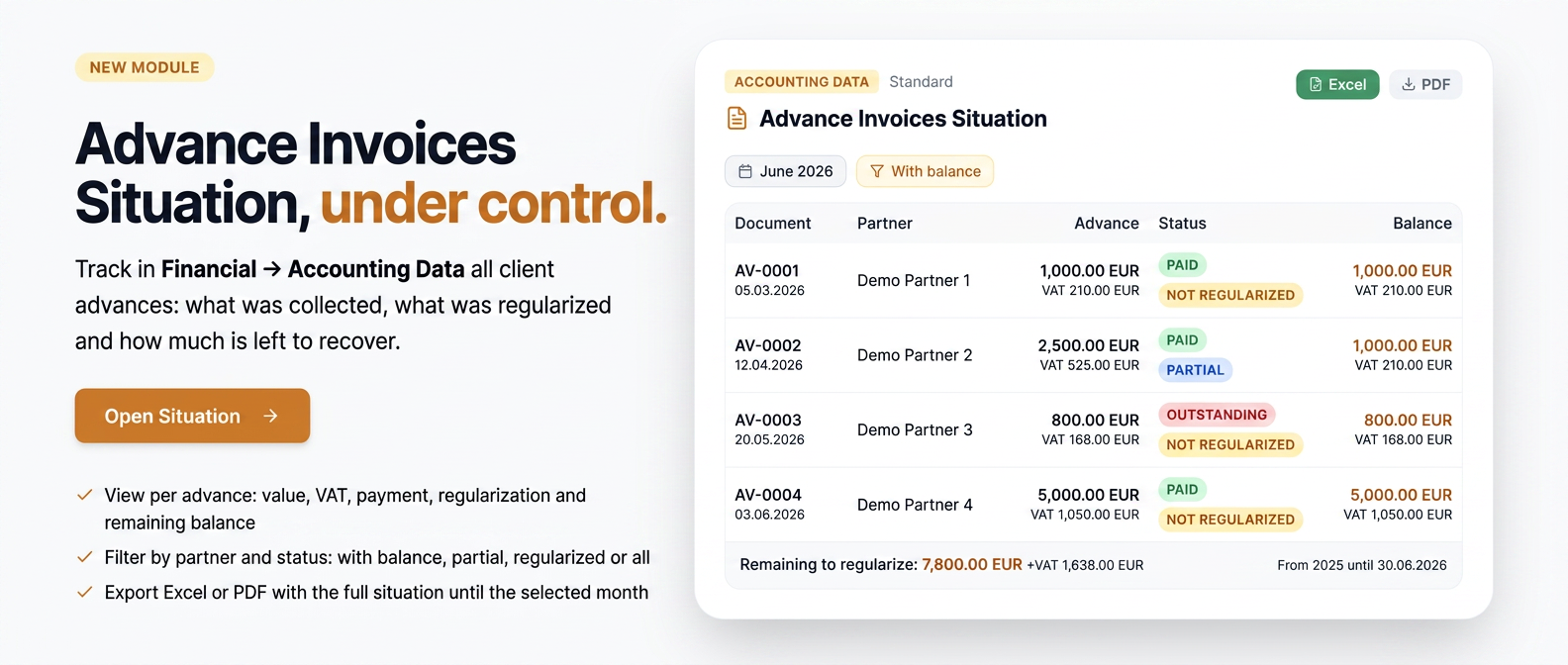
1. Overview
The Advance Invoice Status helps you track advance invoices and their settlement status: which advances have been collected, which have already been deducted from a final invoice, and how much remains to be settled. It is useful for the financial-accounting team that keeps track of customer advances.
For each advance, the document number and date, partner, advance value (excluding VAT and VAT), payment status, settlement status, the invoice through which it was settled, and the remaining balance to be settled are displayed.
The report is part of the Accounting Data section and can be downloaded in Excel or PDF format.
2. How to access
From the main menu, open Financial, then Accounting Data. In the Standard section, look for the Advance Invoice Status card and press Open. To return to the report list, use the Back arrow in the upper left corner.
3. Generating and downloading the report
At the top of the page, in the Filters and Export area, set the desired period and filters:
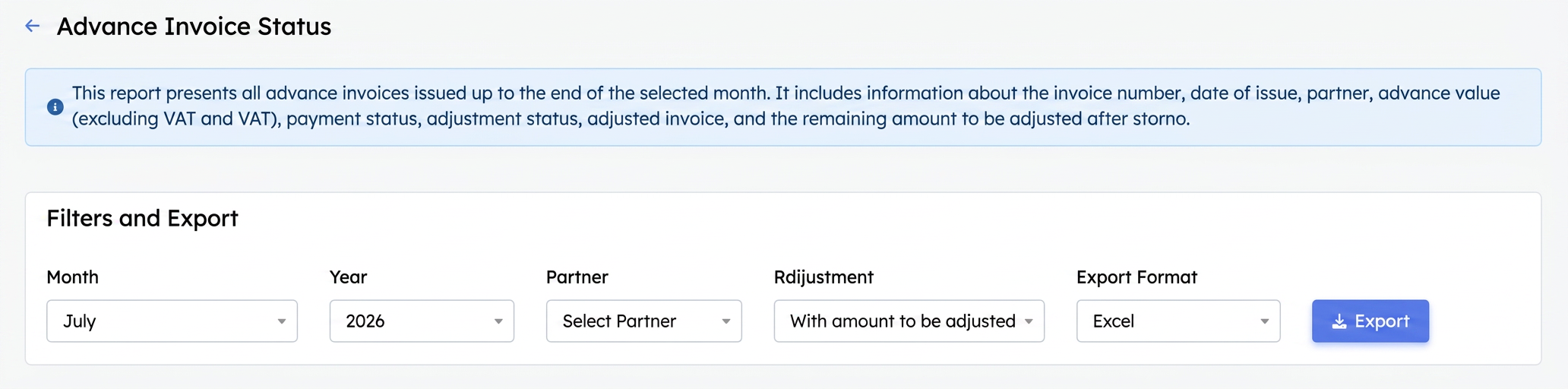
Filters and export area.
- Select the Month and Year up to which you want the report.
- Under Partner, choose a specific partner or leave the field empty for all.
- Under Settlement, choose which advance invoices you want to see (see below).
- Under Export Format, choose Excel or PDF.
- Press Export. The file downloads in the chosen format.
- Partner — restricts the report to a single partner; left empty, it displays all of them.
- Settlement — filters by settlement status: "With balance to settle" (default, only advances that still have something to be settled), "Partial", "Settled" or "All".
Important: The report is not limited to the chosen month: it displays all advance invoices issued from 2025 until the end of the selected month. Essentially, the Month and Year set the date up to which the report is generated, not just that specific month.
4. What the report contains
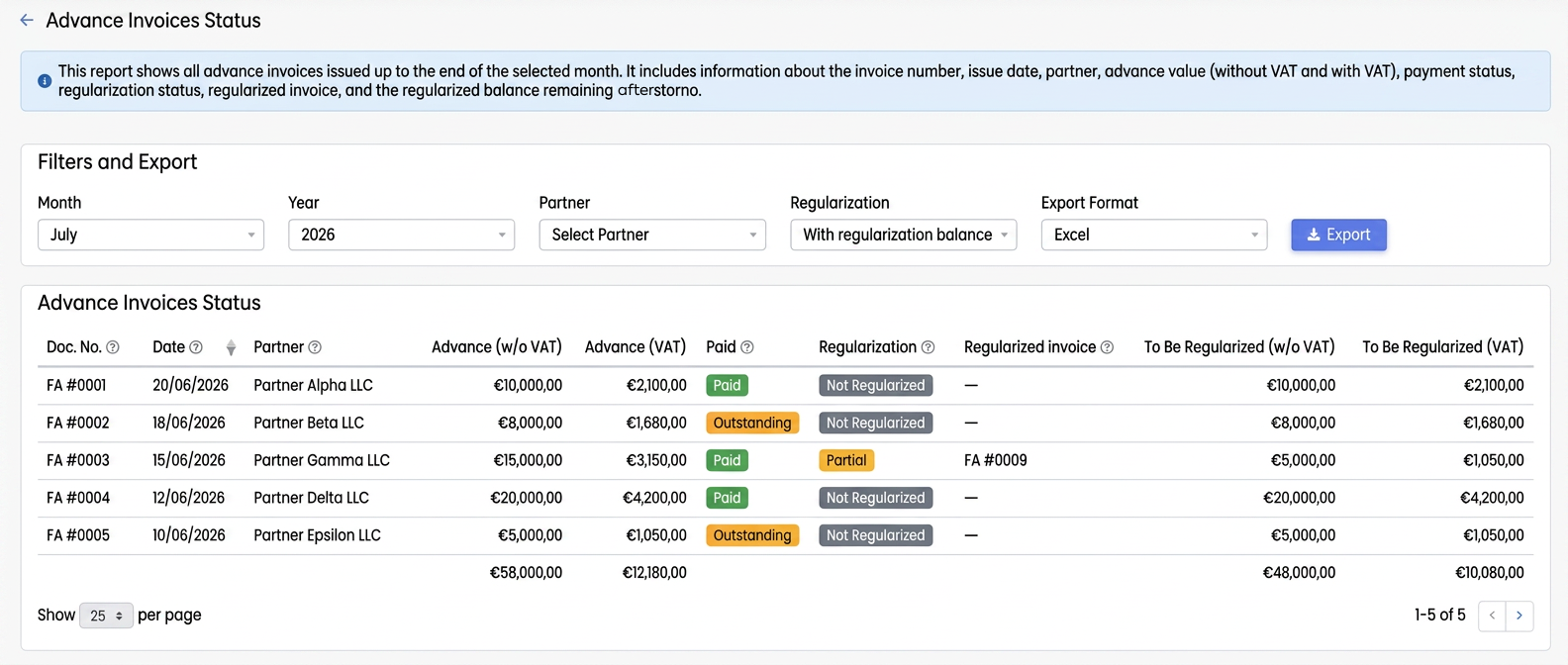
Example report, with advance invoices and settlement status.
Each row is an advance invoice. You can see the number and date, partner, advance value (excluding VAT and VAT), if the advance was collected, and the settlement stage. The Settled Invoice column shows the invoice through which the advance was deducted, and the last two columns show how much remains to be settled. The last row contains the totals.
Under Paid, an advance appears as Paid if it has been collected or Overdue if not. Under Settlement, Unsettled means the advance has not yet been deducted from a final invoice, Partial means it has been partially deducted, and Settled means it has been fully deducted.
- Report columns in detail
Each row represents an advance invoice. The columns have the following meaning:
| Column | What it displays |
| Doc. No. | Advance invoice number |
| Date | Document issuance date |
| Partner | The customer from whom the advance was collected |
| Advance (excl. VAT) | Original value of the advance, excluding tax |
| Advance (VAT) | Related VAT, calculated at the rate applicable to the document |
| Paid | Collection status: Paid or Overdue |
| Settlement | Deduction stage: Unsettled, Partial or Settled |
| Settled Invoice | Document through which the advance was deducted; "—" if none exists yet |
| To settle (excl. VAT) | Remaining balance to be deducted, excluding VAT |
| To settle (VAT) | VAT related to the remaining balance |
Note: For an unsettled advance, the "To settle" balance is equal to the original value of the advance. For a partial one, the balance is lower, reflecting the amount remaining after deductions and reversals.
6. Statuses explained
Paid
- Paid — the advance has been collected.
- Overdue — the advance has not yet been collected.
Settlement
- Unsettled — the advance has not yet been deducted from a final invoice.
- Partial — the advance has been partially deducted; a balance remains.
- Settled — the advance has been fully deducted.
7. Totals row
The last row sums the numeric columns for all displayed invoices:
- total Advance (excl. VAT) and total Advance (VAT);
- total To settle (excl. VAT) and To settle (VAT).
Totals always respect the active filters: if you restrict the report to a partner or a settlement stage, they are recalculated for the remaining rows.
8. Sorting, pagination, and page help
| Element | How to use |
| Sorting | Click on a column header (e.g. Date) for ascending/descending order |
| Show … per page | Choose how many invoices appear on the page: 10, 25, 50, or 100 |
| Arrows ‹ › | Navigate between pages when multiple records exist |
| X–Y of Z | Indicates which range you are viewing and the total number of invoices |
| Icons ⓘ | Hover over them with the mouse for a short explanation of the column |
9. How filters work
The Settlement filter is set by default to "With balance to settle", so you initially see only advances that still have something to be deducted.
- Can't find an invoice? It might already be fully settled → switch to "Settled" or "All".
- "Partial" displays only partially deducted advances.
The Period (Month + Year) sets the date up to which the report is generated:
- All advance invoices issued from 2025 (the year data starts) up to the end of the selected month are displayed.
- Month and Year do not limit the report only to that specific month.
10. Exporting the report
- Set the desired filters.
- Under Export Format, choose the format.
- Press Export — the file downloads to the browser's downloads folder.
| Format | When to use it |
| Excel | For further processing: filtering, calculations, custom tables |
| | For a fixed document, suitable for archiving or sending |
The exported content respects the filters applied at the time of export.
11. Frequently Asked Questions
| Situation | Probable Cause / Solution |
| I cannot find an advance invoice | Check the Settlement filter (it might already be settled) and if the month/year covers the issuance date |
| The total differs from expectations | Totals reflect only the displayed rows; remove partner/settlement filters |
| I don't see advances older than 2025 | The report includes data starting with 2025; previous documents are not included |
| A collected advance appears as "Overdue" | Check if the collection was correctly recorded on the advance document |