
Step 1: Accessing the Sales Module
Navigate to the main menu located on the left side of the screen. Select the Sales category, and from the expanding list, access the Invoices sub-module. At this point, you will view the general list of invoices issued by your organization.
Step 2: Defining the Time Range
To extract data for a specific period, it is necessary to apply a temporal filter:
-
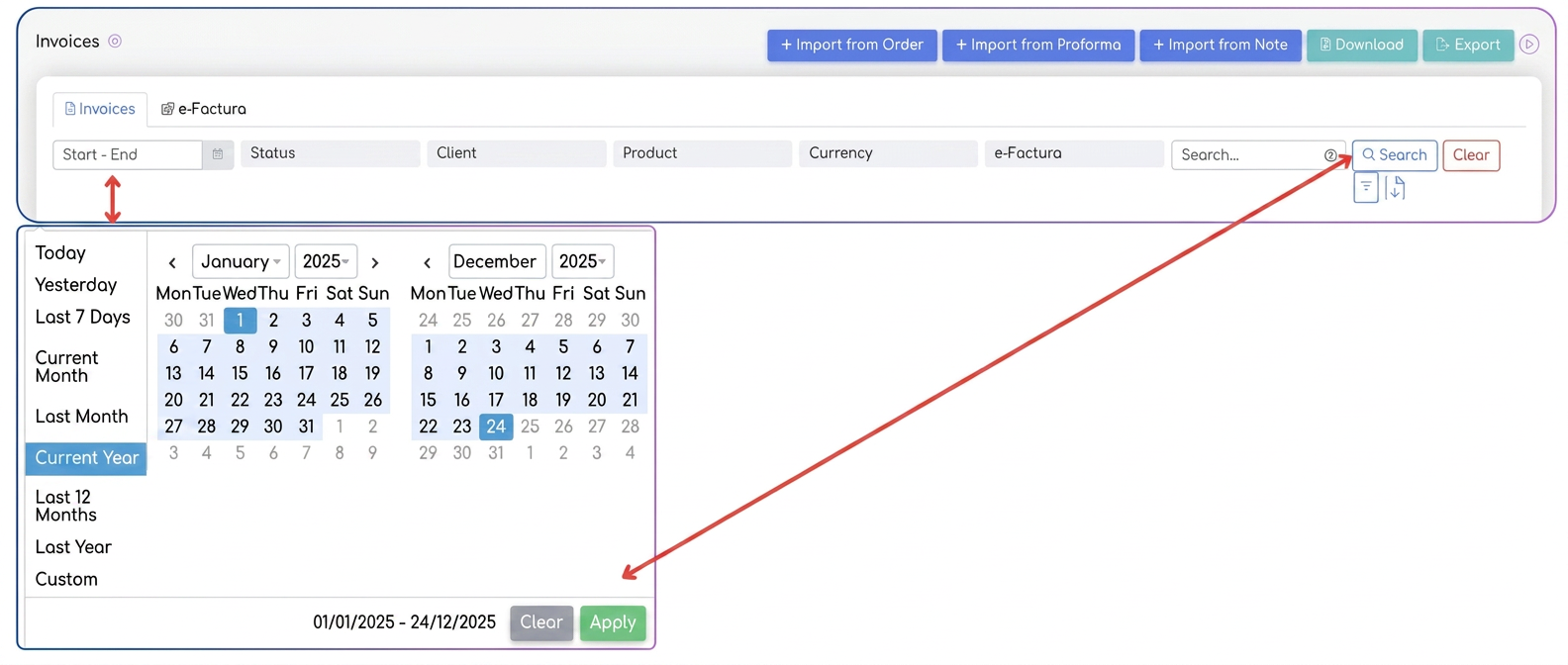
At the top of the table, identify the field titled Start - End.
-
Click on it to open the date selector. You can opt for quick presets like „Current Year” or manually define the interval using the „Custom” option (for example, from 01/01/2025 to 12/31/2025).
-
After selecting the period, press the green Apply button, followed by the blue Search button located on the right. The list will update automatically to display only documents within the chosen range.
Step 3: Customizing Columns for the Excel Report
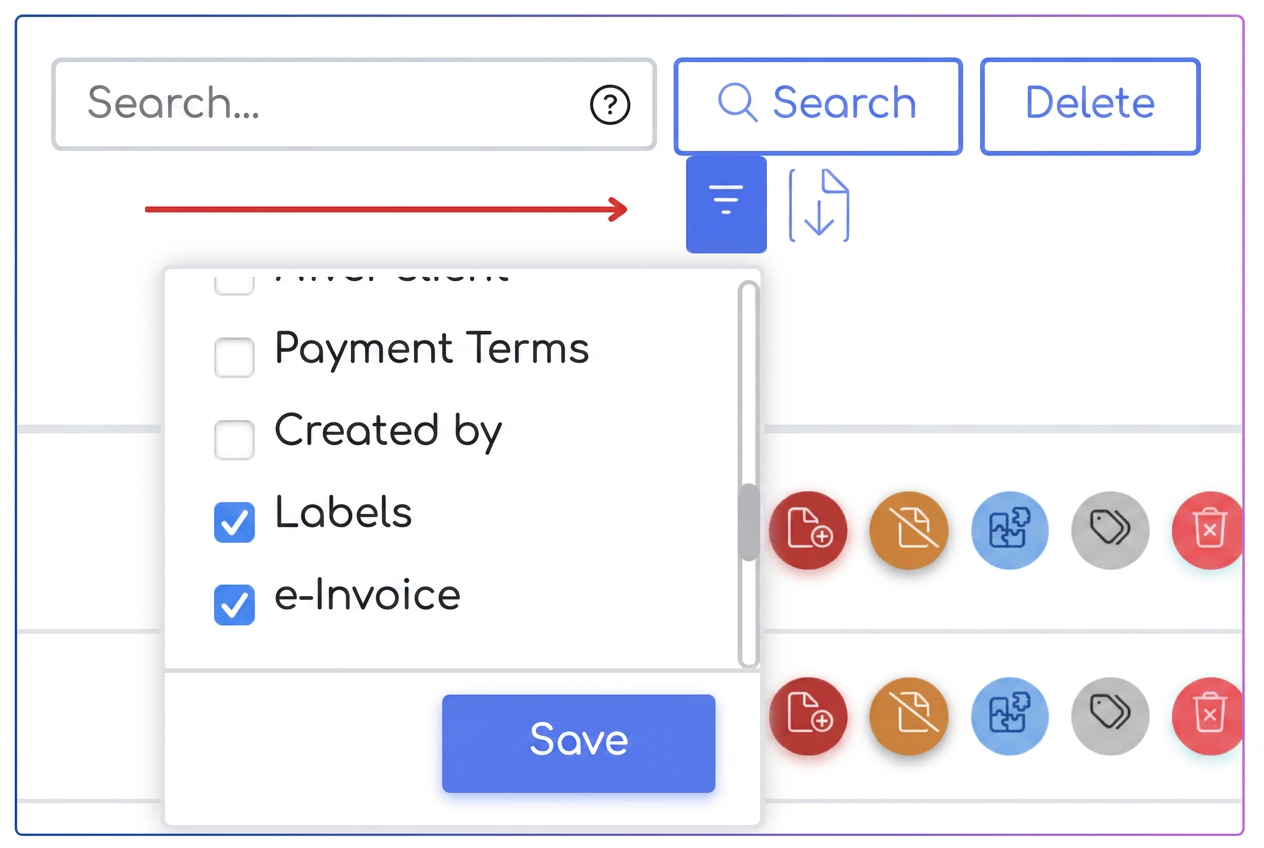
The iflows system exports exactly the columns that are configured to appear on your screen into the Excel file. If you want the file to contain the „Labels” or „Outstanding” columns, they must be activated as follows:
-
Identify the Filter Options button (represented by the horizontal lines icon, located next to the „Delete” button and the search bar).
-
In the configuration window that opens, check the boxes corresponding to the information you want in the report. For your request, ensure the desired columns are checked.
-
Press the Save button. The interface will refresh, now displaying the newly selected columns.
Step 4: Generating and Downloading the Export
Once the table is configured according to your needs, you can proceed to the actual export:
-
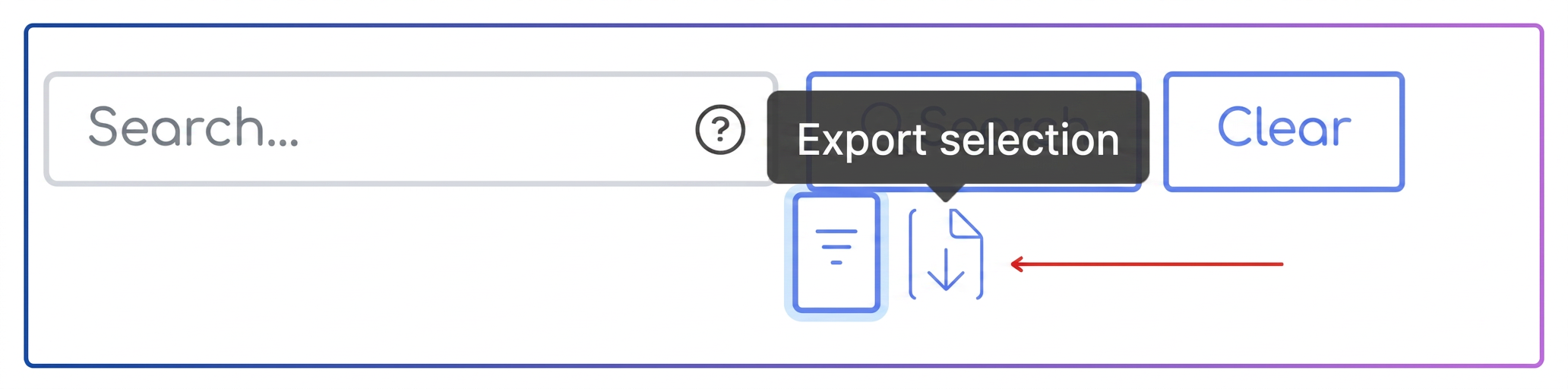
In the top area of the table, on the right side, you will find the Export selection button (marked with the specific Excel icon).
-
Click on this button. The system will compile the filtered data and automatically download a .xlsx file to your device.
Step 5: Verifying Exported Data
Upon opening the Excel file, you will notice that it faithfully preserves the order and content of the columns as seen in the application.
Clarifications regarding Export and Download functions
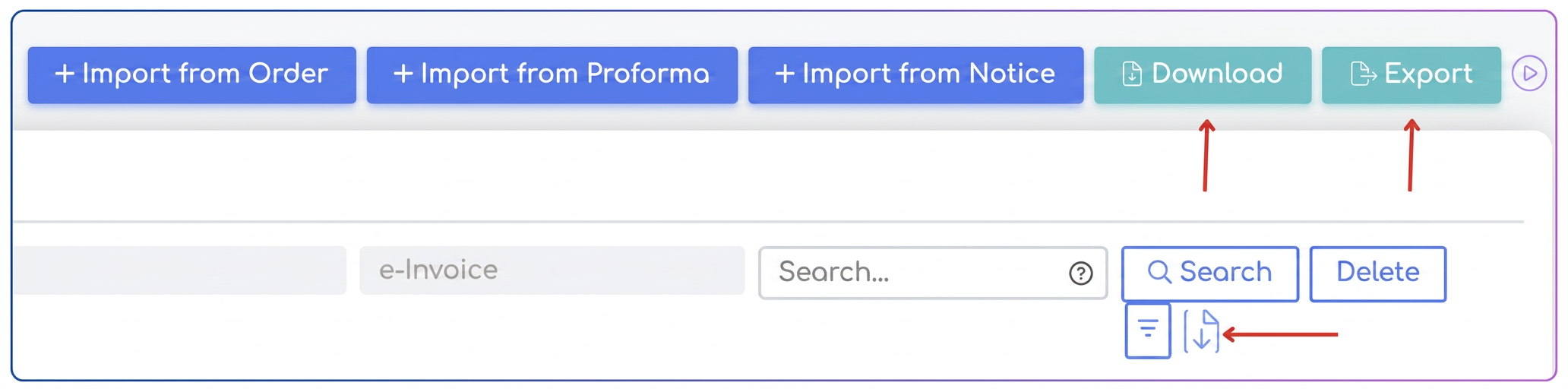
To efficiently manage your documents and data, it is essential to choose the right tool based on the current need:
1. The „Export selection” Button (Located on the right, above the table)
This is the button used in the tutorial above and is the ideal tool for internal management and custom reporting.
-
What it does: Exports to Excel format (.xlsx) exactly what you see on the screen at that moment.
-
Destination: Internal use. If you have activated columns such as Labels, Status, or Balance, they will appear in the file. It is the „What You See Is What You Get” method.
2. The „Download” Button (Located in the blue top bar)
This option is intended for archiving or transmitting physical documents to clients or partners.
-
What it does: The system will generate the actual PDF files of the invoices for the selected period and clients.
-
Destination: Since there may be dozens or hundreds of documents, the download will be performed as a compressed file (.zip archive). It is useful when you want to save invoices on external storage.
3. The „Export” Button (Located in the blue top bar, next to Download)
This button has a technical function, being dedicated to collaboration with the accounting department.
-
What it does: Exports invoice data in specific formats (Excel or CSV), but in a predefined structure agreed upon by accounting software (such as SAGA, WinMentor, etc.).
-
Destination: Importing data into external accounting software. Unlike „Export selection”, this file will not follow the columns you chose visually, but will respect the data standard required by the accountant so they don't have to enter invoices manually (previously defined in Settings - Export - Accounting Data).
Summary for a quick choice:
-
Do you want a report for your own analysis? Use Export selection.
-
Do you want the invoices in PDF format to print or archive them? Use Download.
-
Do you want to send invoice data to the accountant to import into their software? Use Export.