
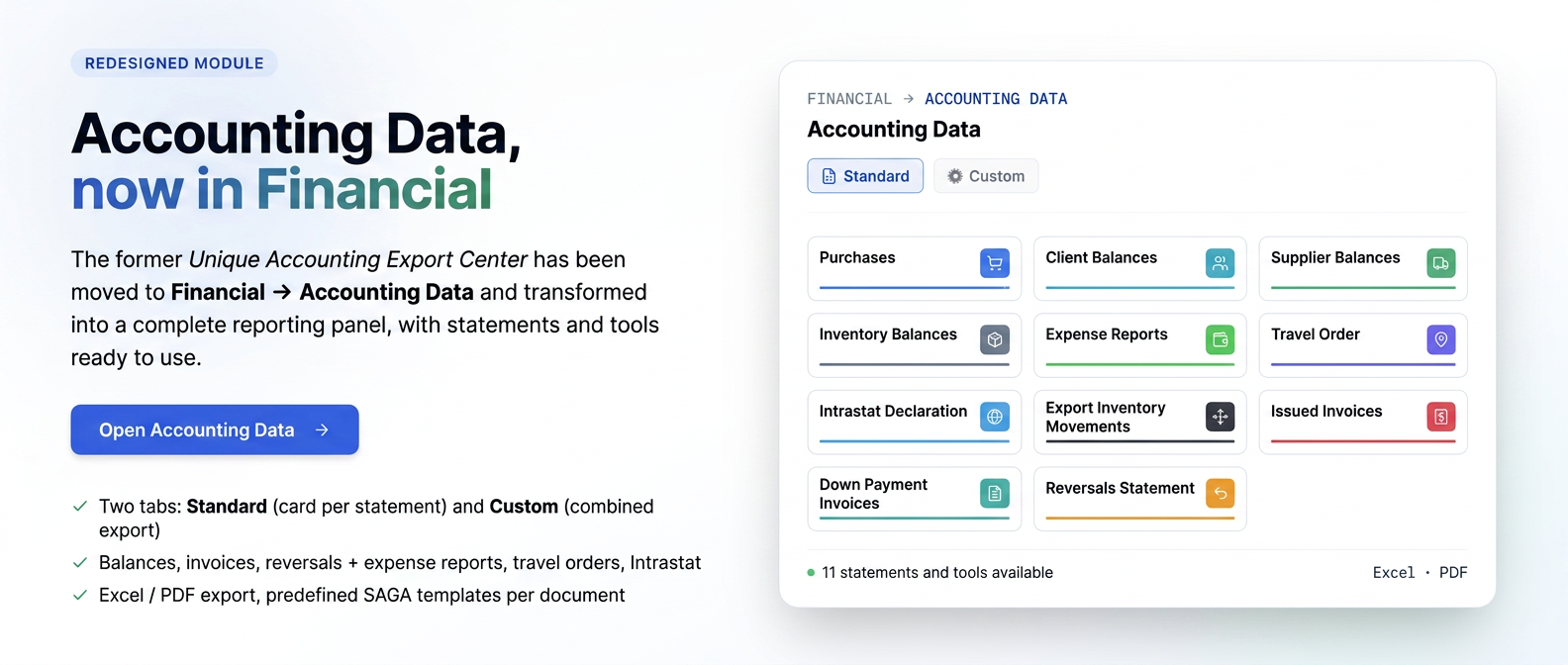
What has changed compared to the previous version
If you previously used the accounting export function, it was described as a Unique Accounting Export Center and was found in the menu, activated separately from . Starting with this version, the functionality has been redesigned, expanded, and moved to the Financial menu under the name Accounting Data.
In short, here is what is different and why:
It has been moved and renamed. The former "Unique Accounting Export Center" in Integrations is now called Accounting Data and is accessed via . The move brings the function closer to the rest of the financial-accounting tools you use daily (Transactions, Purchases, Employees, Suppliers), in a more natural place for accounting colleagues.
It's no longer just about export, but also about reports. The old version mainly generated export files for accounting. Now, in addition to export, the section includes ready-to-use statements and reports — customer, supplier, and inventory balances, advance invoice status, reversal status — and work tools that create documents (expense reports, travel orders, Intrastat declarations). Basically, the module has evolved from a simple export center to a complete accounting reporting dashboard.
The interface has been split in two: Standard and Custom. The old single screen — with period selection, document type checking, and real-time preview, followed by an export into a .zip archive — has not disappeared. It is now found in the Custom tab. Additionally, the Standard tab has appeared (the one documented here), organized as cards, where each statement or tool has its own dedicated page, with individual period selection and export to Excel or PDF. Thus, someone who wants a single statement opens it directly from Standard, and someone who wants a complex, combined export uses the Custom tab.
Export templates are now predefined and visible per document. Previously, SAGA templates were installed upon activating the integration and remained in the "background". Now, in the Custom tab, each document type has a settings icon (⚙️) next to it, through which you choose the desired template from a list that includes predefined templates (e.g., those for SAGA) alongside your own templates. There is also a Reinstall Saga templates button, with which you can restore the standard set of templates at any time without going through the integrations menu.
The list of document types is much more detailed. Compared to the general categories before (invoices, customers, products, stocks, suppliers, payments/receipts), the custom export now also covers fine distinctions such as Purchases - Inventory vs. Purchases - Expenses, stock movements, all types of management slips (consumption, production, return, disassembly, transfer), as well as notices, receipts, and payments — for a more complete handover to accounting.
Access is controlled by permissions. As before, the section is visible only to users with access rights to accounting data; if you do not see it in the menu, request permission from the administrator.
1. What it is and what it's for
The Accounting Data section, in the Financial menu, brings together the accounting statements and tools you need for financial reporting and for handing over data to accounting. From here, you can quickly generate balances, customer, supplier, and inventory statements, lists of invoices and movements, but also generate documents such as expense reports, travel orders, or Intrastat declarations.
It is designed for colleagues in the financial-accounting area: instead of manually centralizing documents, you choose the period, generate the desired statement, and download it in Excel or PDF, ready for use.
The section is visible only to users who have access rights to accounting data. If you do not see the option in the menu, it means you do not have this right and can request it from the administrator.
2. How to access and how it is organized
From the main menu, open Financial, then Accounting Data. The page has two sections: Standard — the cards below, each opening its own page — and Custom. This documentation covers the Standard section.
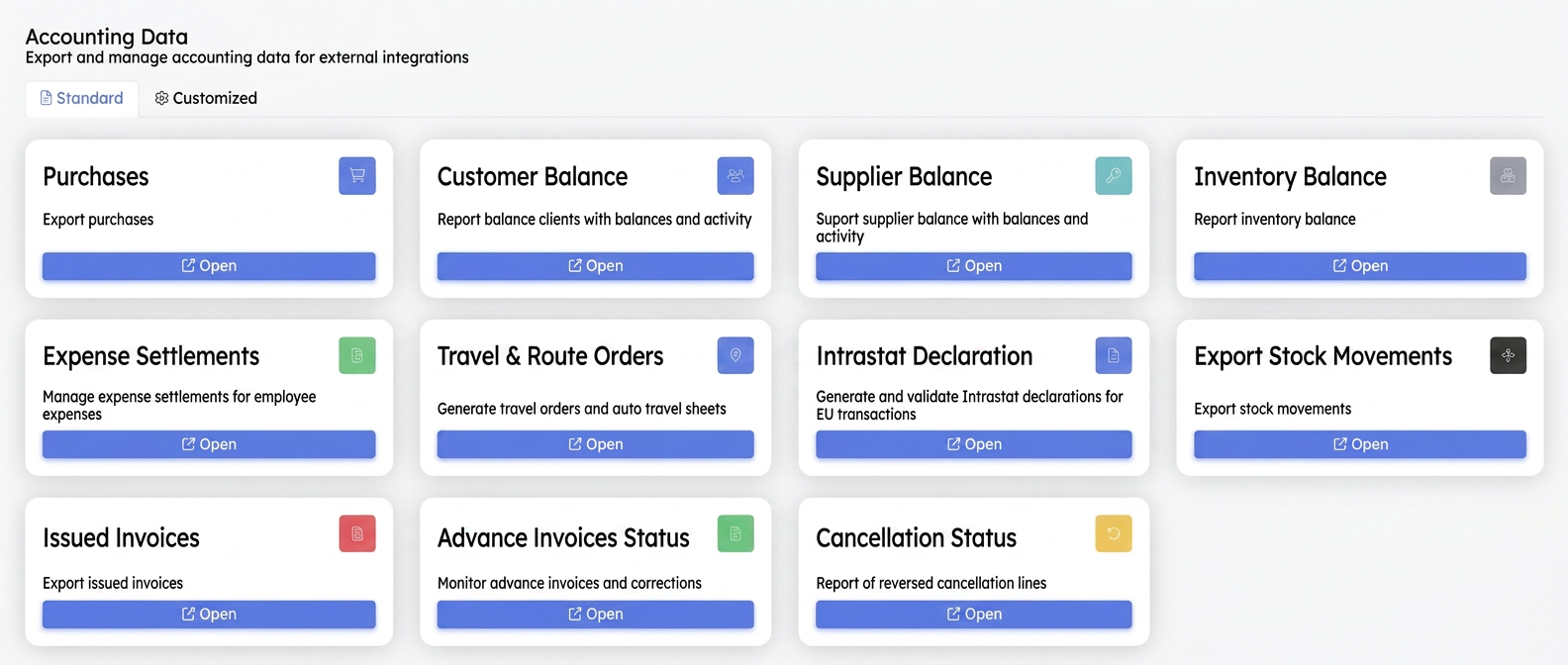
The Standard section, with available pages.
Each card has an Open button that takes you to that page. From within any page, the Back arrow in the upper left corner brings you back to this list.
3. Pages in the Standard section
Below, briefly, is what each page does. Each has a dedicated document with step-by-step procedures and images.
Statements and Reports
Filtered by period and downloaded in Excel or PDF:
- Purchases — a month's purchase situation, with values excluding VAT, VAT, and total, plus totals by currency.
- Customer Balance — balances and turnovers for each customer at the end of the chosen month — how much you have to collect.
- Supplier Balance — the same information for suppliers — how much you still have to pay to each.
- Inventory Balance — stocks and values by management and products, with inputs, outputs, and final stock.
- Export Stock Movements — all stock movements within a period, with the document that generated them.
- Invoices Issued — invoices issued to customers in a month, with VAT and totals.
- Advance Invoice Status — issued advances and their settlement status (paid, settled, remaining balance).
- Reversal Status — reversals performed in a month, by products and management units.
Work Tools
Allow the creation and generation of documents:
- Expense Reports — create and generate employee expense reports (Deconturi Cheltuieli) in PDF format.
- Travel Order and Path — generate travel orders (Ordin deplasare) and, optionally, vehicle logbooks with stops and kilometers.
- Intrastat Declaration — generate and validate Intrastat declarations for intra-EU transactions, then export them.
4. How you work, in general
Some common things so you know what to expect on any page:
- Period — almost all pages are filtered by Month and Year; choose the period before generating or exporting.
- Export — statements are downloaded in Excel or PDF; tools generate individual PDF documents or archives.
- Update and Archive — for balances, values come from a monthly archive; for up-to-date balances, press Update, and the recalculation is done in the background, with a notification at the end.
- Currency — where a currency filter exists, it does not perform currency conversion — the balance is kept separately for each currency.
For detailed steps, fields, and peculiarities of each page, consult the document dedicated to that specific module.