
1. General Overview
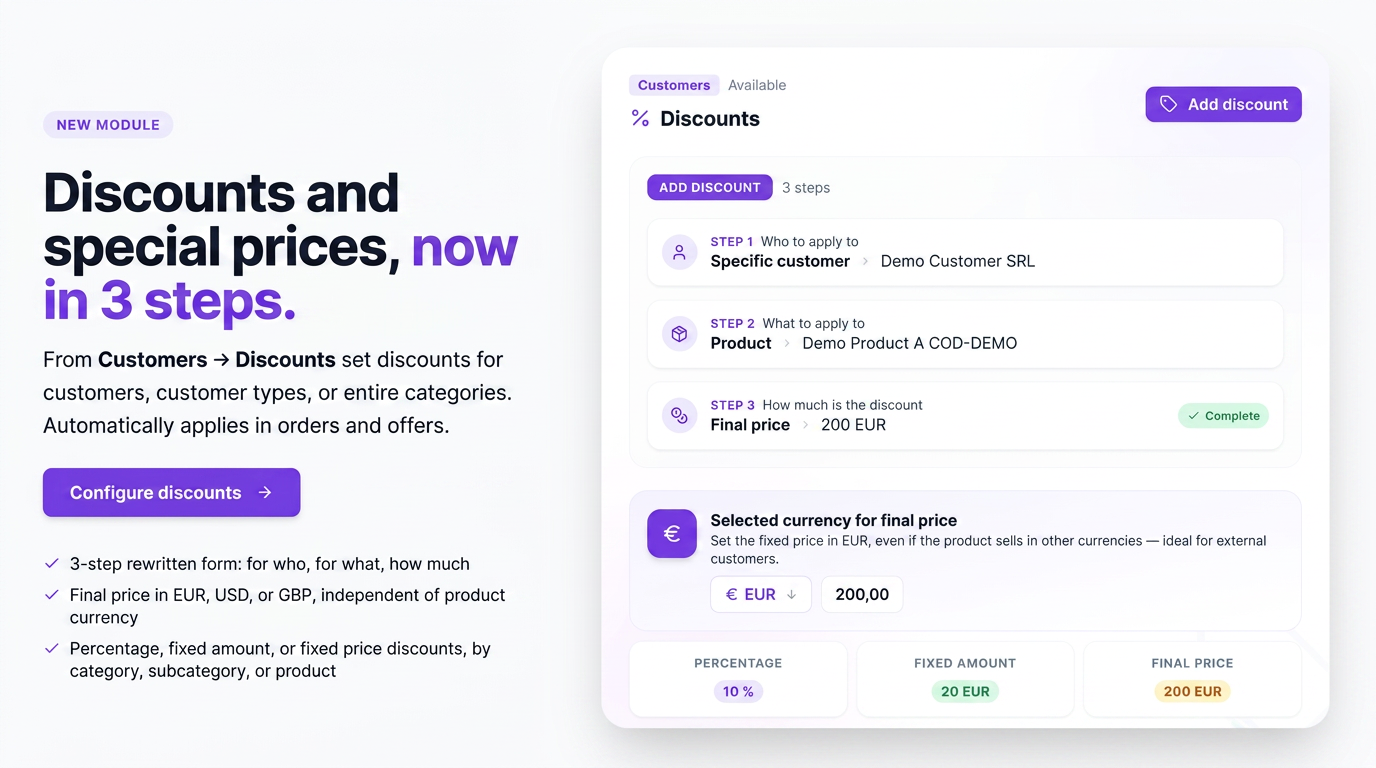
The Discounts page, within the Customers section, allows you to set discounts and special prices for customers, which are then automatically applied to orders and offers. A discount can target an entire category of customers or a specific customer and can be applied to a product category, a subcategory, or a specific product.
The addition form has been redesigned: instead of a long list of fields, you now complete three simple steps — who it applies to, what it applies to, and how much the discount is.
2. How to Access
From the main menu, open Customers, then Discounts. The list of all defined discounts will open.
3. Discounts List
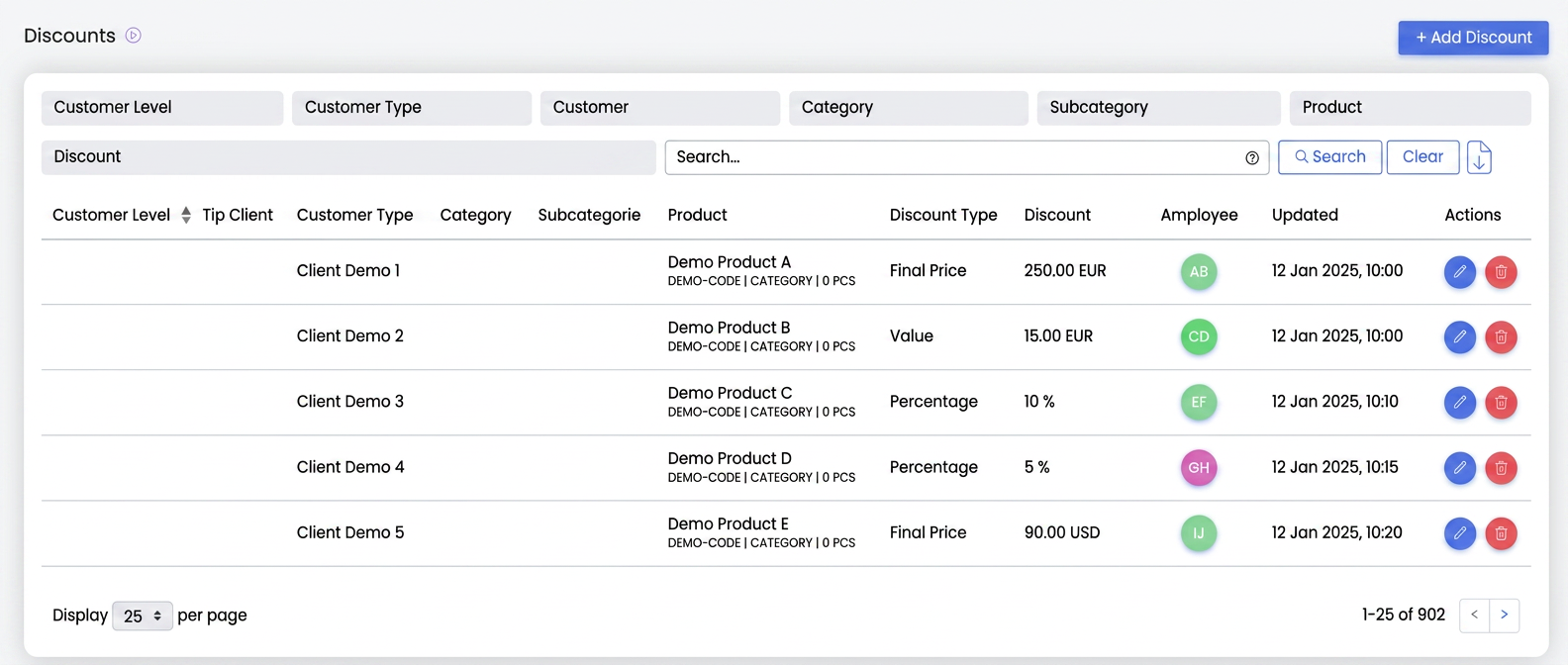
The list of discounts, showing the discount type and value in the chosen currency.
Each row represents a discount. The left columns show who it applies to (Customer Level, Customer Type, or a specific Customer) and what it applies to (Category, Subcategory, or Product) — only the relevant field is filled in. These are followed by Discount Type and Discount (value, with currency), then the employee who added it, the update date, and the row actions (edit and delete). Above the table, you have filters for each column and an export button.
4. Adding a Discount
Click Add Discount (top right). The three-step form opens:
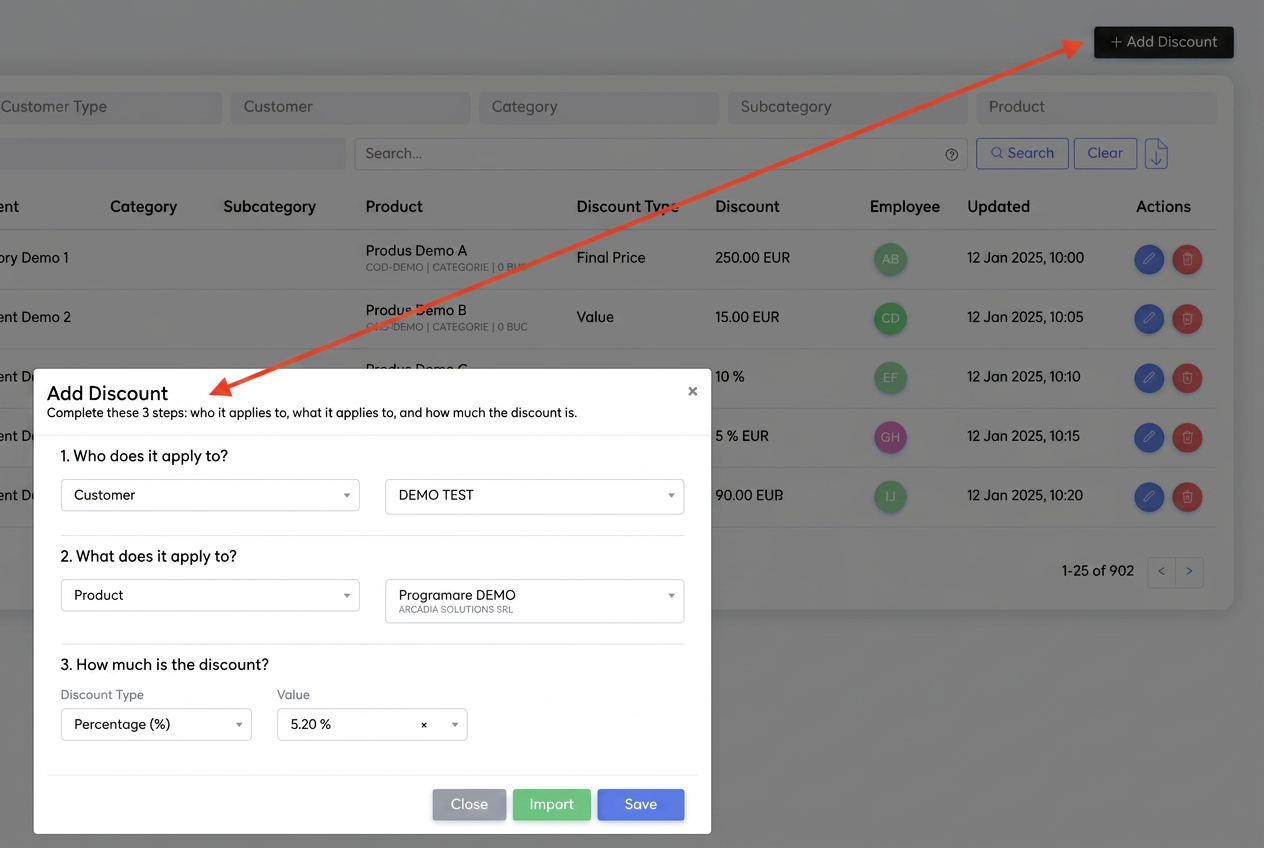
The add form, with the three steps and the currency highlighted.
At step 1, Who it applies to, first choose the type (Customer Level — Small, Medium, or Large Business; Customer Type; or specific Customer), then the specific value. At step 2, What it applies to, choose Category, Subcategory, or Product, then the desired item. At step 3, How much is the discount, choose the discount type and fill in the value. Finally, click Save. The Import button allows you to add multiple discounts at once from a file.
5. Discount Types and Currency
At step 3, choose one of the three discount types:
- Percentage (%) — a percentage deducted from the price (e.g., 10%).
- Fixed Value — a fixed amount deducted from the price. This applies in the product's currency and cannot be changed.
- Final Price — set the final price of the product directly for that customer, in the currency you choose (EUR, EUR, USD, or GBP).
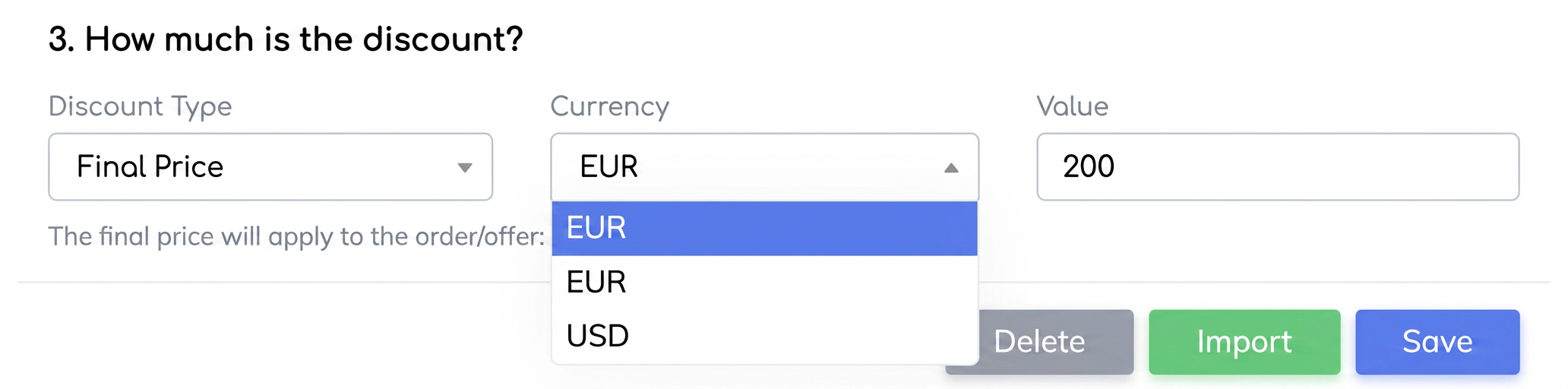
This is the new feature: for Final Price, you can choose the currency. Previously, a fixed value was automatically linked to the product's currency; now, even if you sell the product in EUR, you can set a fixed price in another currency — useful, for example, for foreign customers who have prices in foreign currency.
Important: For Fixed Value and Final Price discounts, you must select a specific Product in step 2 (the platform needs the product to link the currency). If you choose a Category or a Subcategory in step 2, only the Percentage discount is available.