
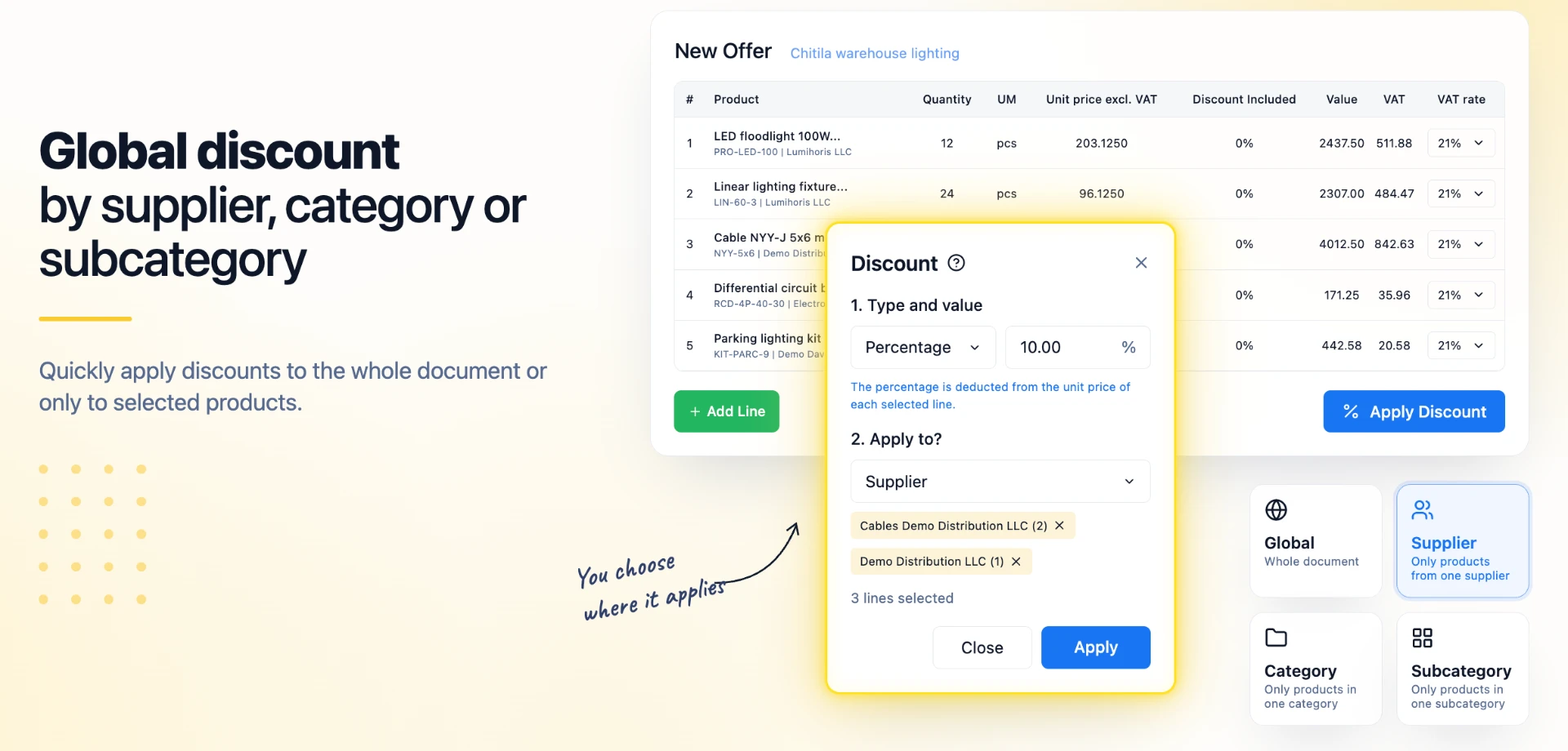
1. In short
The Apply Discount button below the product table now opens its own window. There you choose the discount type and value, then what it applies to: all lines (Global) or only the products of certain suppliers, categories or subcategories. A value-based discount is split only among the selected lines, proportionally to their value.
The feature is useful, for example, for a discount granted only on one supplier's products or on a category on promotion, without manually editing every line.
| Before | Now | |
|---|---|---|
| Window | Shared with the per-line discount | Its own window, with the steps “1. Type and value” and “2. What does it apply to?” |
| Targeted lines | All document lines | Global or only the products of certain suppliers, categories or subcategories |
| Superproduct components | Did not receive a discount | Receive a discount at Supplier, Category or Subcategory level; the superproduct is recalculated |
| Value-based discount | Applied to all lines | Split among the selected lines, proportionally to their value |
2. Where to find it
On opportunities, quotes, orders, invoices, proforma invoices and delivery notes, in the edit form: the Apply Discount button, below the product table, after the line-adding buttons (for example Add Line or Add Deposit). The adding buttons differ from one document to another; for example, on invoices and delivery notes Add Line appears only after the first save.
Hovering the mouse over the Apply Discount button shows an explanation of each option. The same explanation is visible at the “?” icon next to the window title.
3. Before you start
- You need edit rights on the respective document.
- The supplier, category and subcategory are taken from the product record, with the current values from the record (not the ones from when the line was added). Check that they are filled in for the targeted products.
- The global discount replaces existing manual discounts on the selected lines (see “Rules and limits”).
4. Applying a global discount
Step 1. Open the document for editing and press Apply Discount. The Discount window opens.
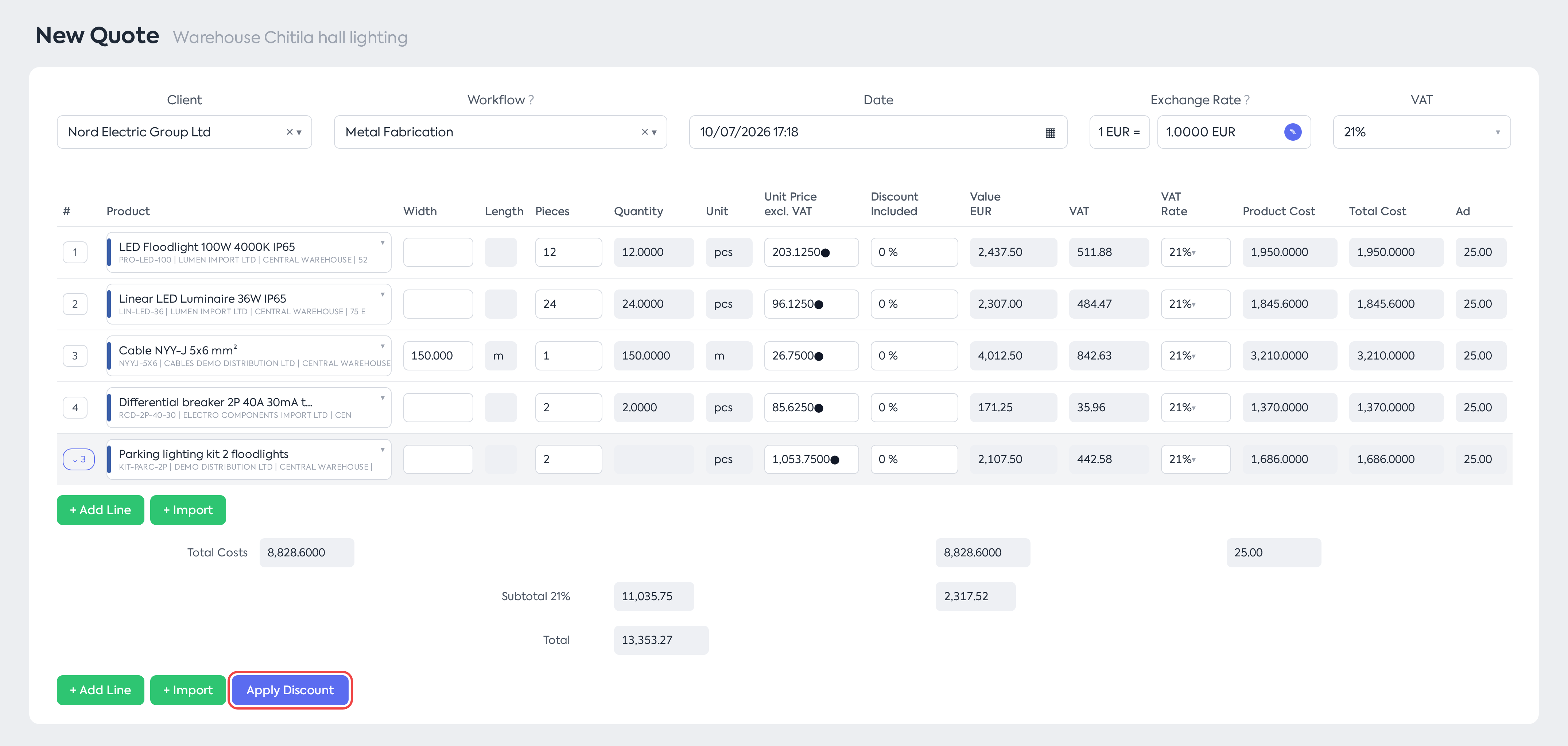
A quote in edit mode, with the Apply Discount button below the product table.
Step 2. At 1. Type and value, choose Percentage (default) or Value and fill in the percentage or the amount, with at most 2 decimals. Below the field, a text explains the calculation:
- for Percentage: “The percentage is deducted from the unit price of each selected item.”;
- for Value: “The amount is split among the selected items, proportionally to the value of each, and is deducted from the unit price of each item.”
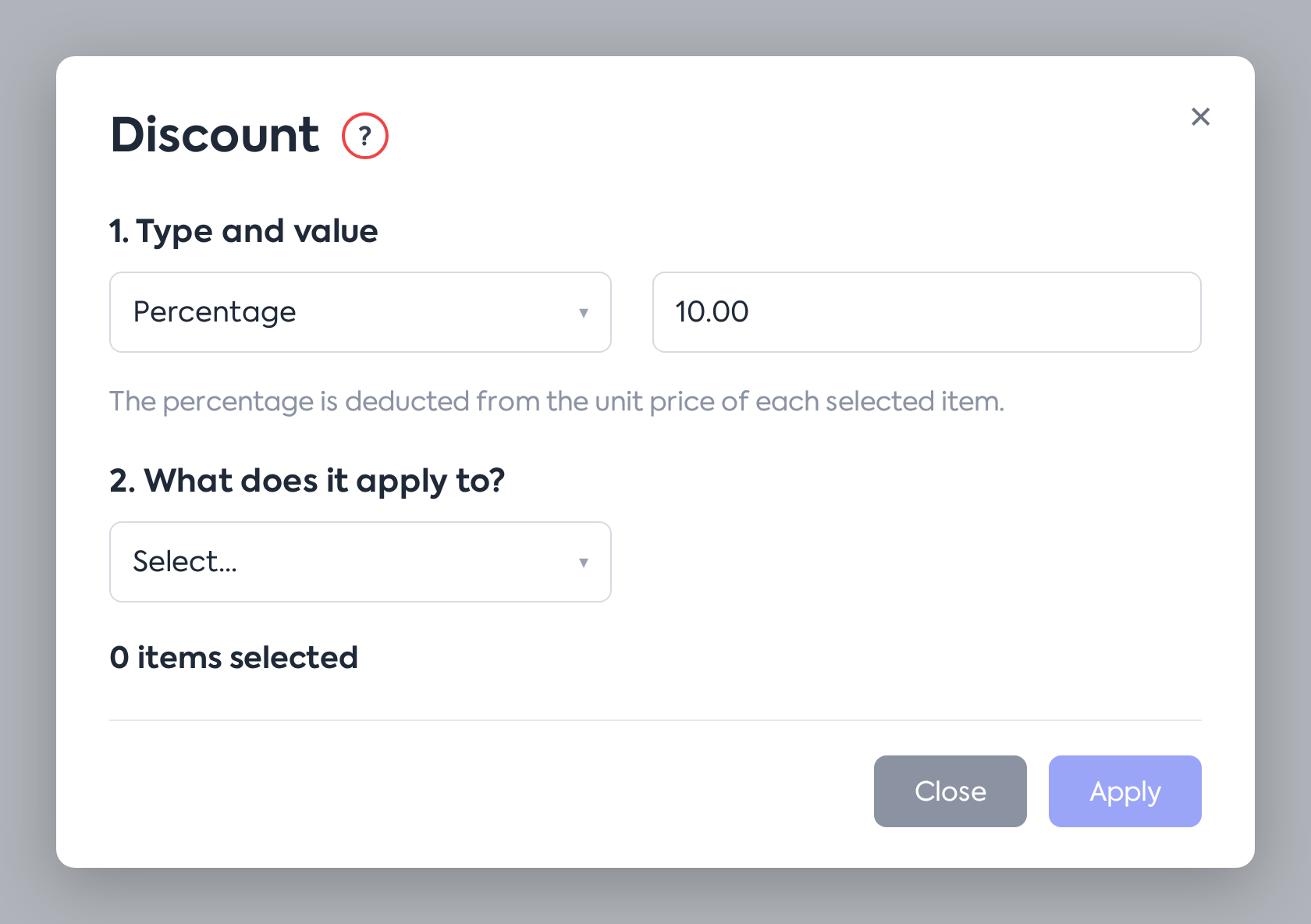
The Discount window: 1. Type and value (Percentage, 10%) and 2. What does it apply to?, with nothing selected yet; the Apply button is inactive.
Step 3. At 2. What does it apply to?, choose Global, Supplier, Category or Subcategory. The list starts with “Select...”. With Global there is nothing else to choose.
Step 4. For Supplier, Category or Subcategory, choose one or more values from the adjacent list. The list becomes active after you choose the criterion and contains only the values present in the current document, each with its number of lines. The values are in alphabetical order, and products without a supplier, category or subcategory are grouped under Unspecified, at the end of the list.
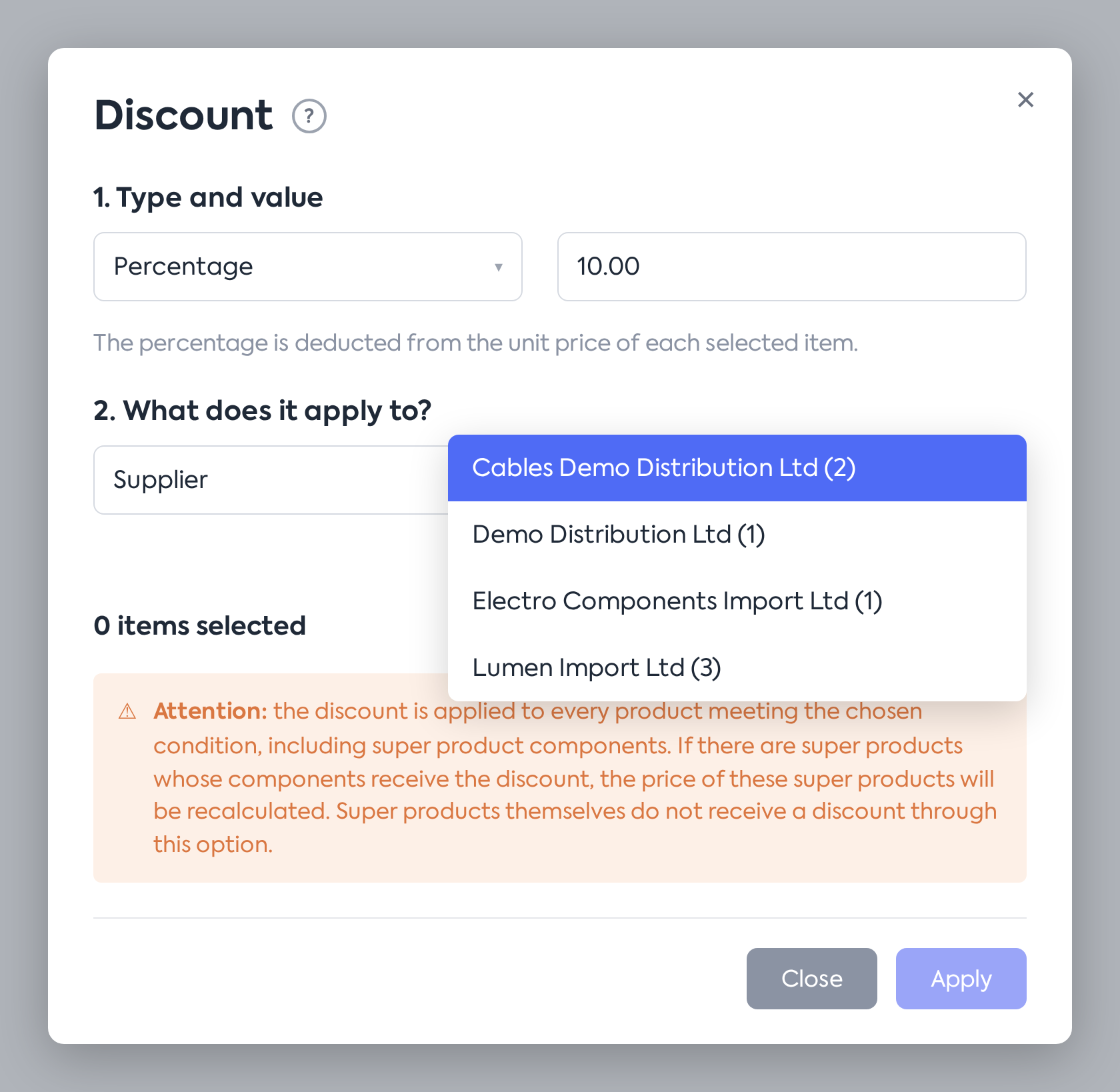
The Supplier criterion: the list of suppliers in the document, each with its number of items.
Note: if the document has very many distinct values for the chosen criterion, the message “Too many distinct values: the filter list is partial” appears below the list.
Step 5. Check the “N items selected” counter: it shows how many lines will receive the discount. The Apply button stays inactive while the counter is 0. For Supplier, Category and Subcategory, the window also shows a warning about superproduct components.
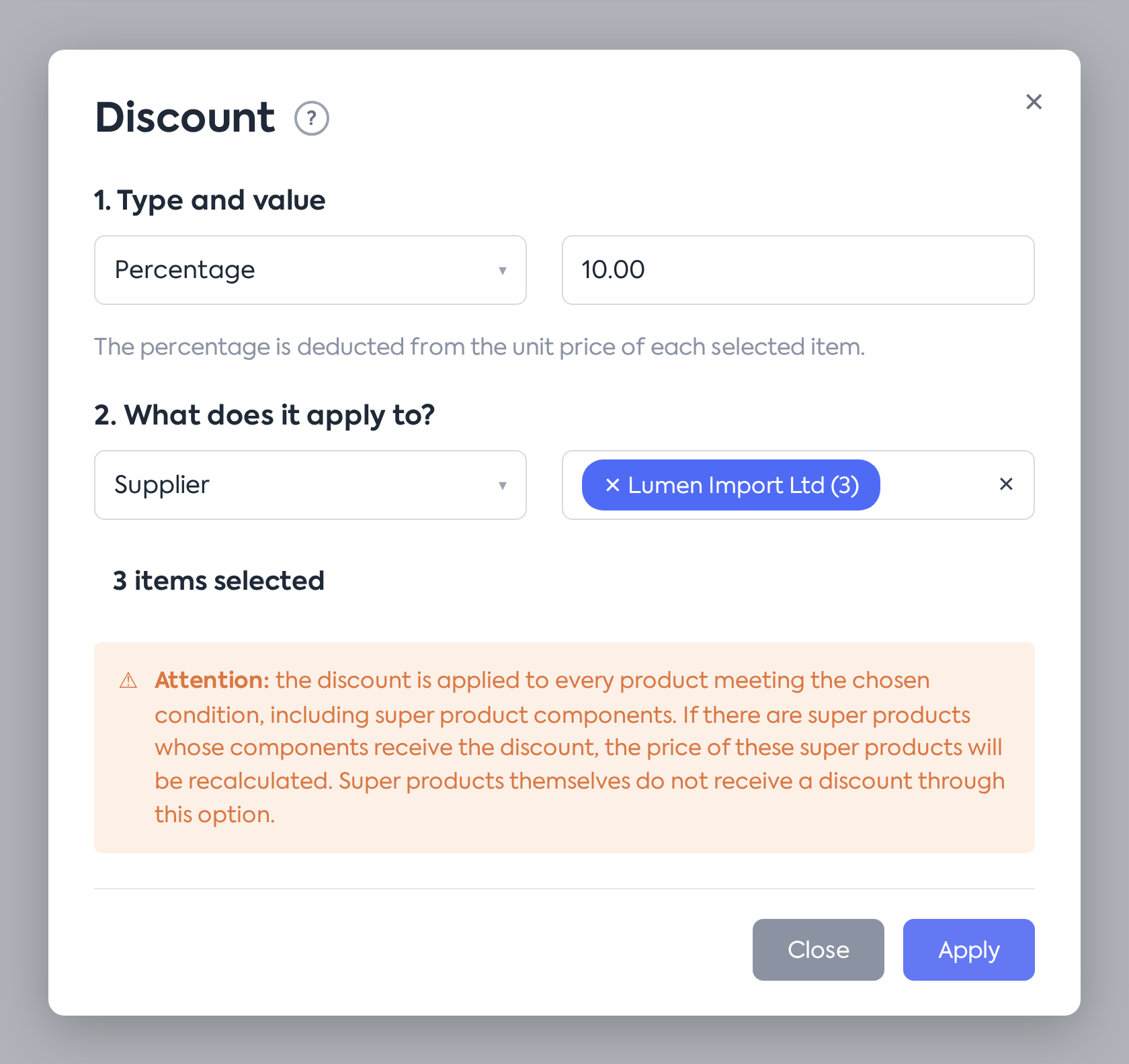
The chosen supplier, the “3 items selected” counter and the warning about superproduct components.
Step 6. Press Apply. The prices of the selected lines are reduced, and the document totals are recalculated. If superproducts were recalculated, the message “N super products recalculated” appears.
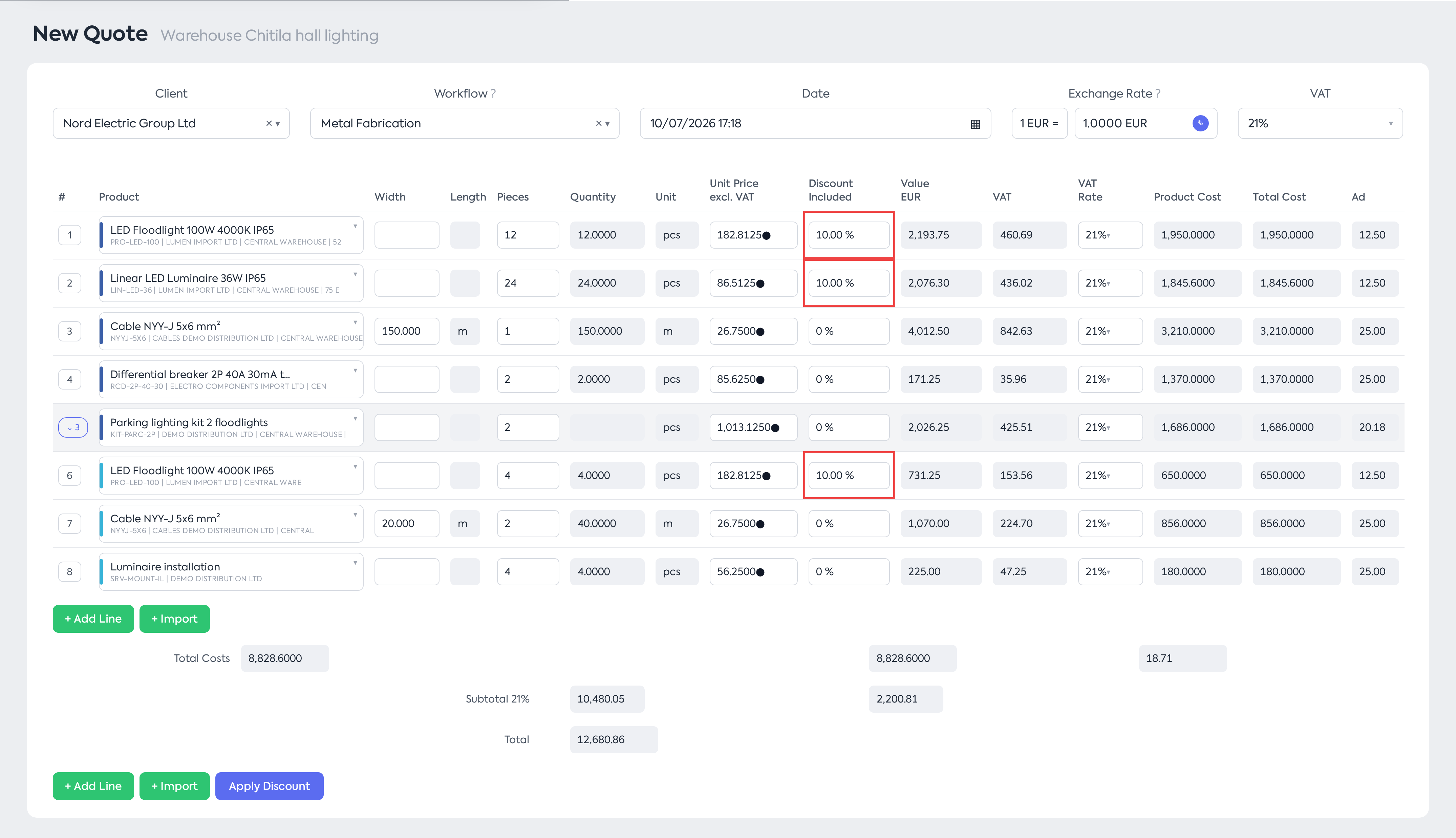
After applying: the chosen supplier's lines have Included Discount 10%, the others remain unchanged, and the message confirms the superproduct recalculation.
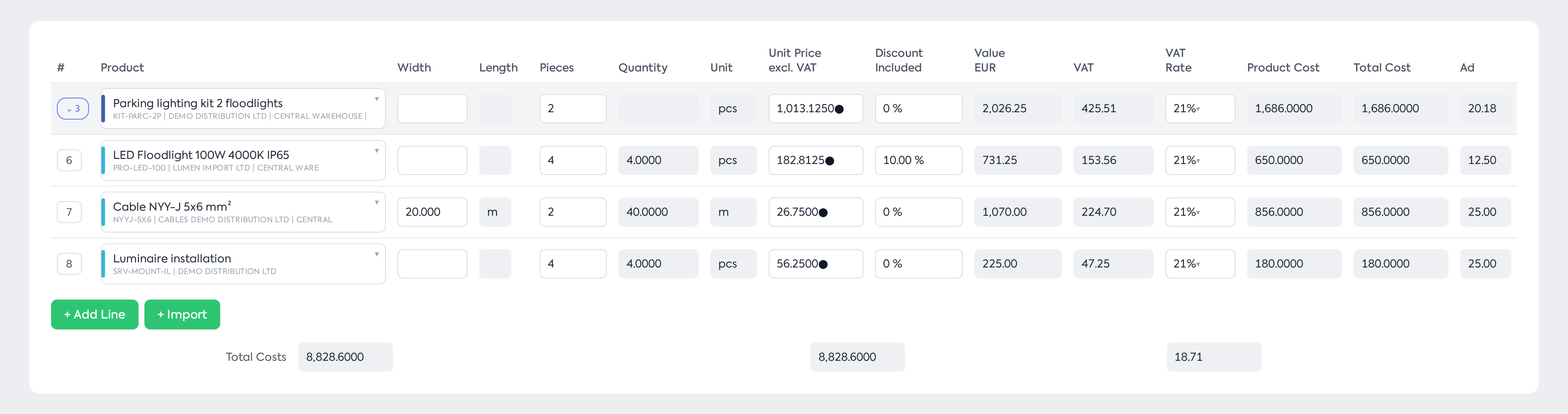
The superproduct: the component from the chosen supplier received the discount, and the superproduct's price was recalculated (1,013.1250 instead of 1,053.7500), with no discount of its own.
Step 7. Save the document.
Note: several selected values mean “any of them”. Criteria are not combined: choose a single criterion, with one or more values.
5. How it is calculated
Which lines receive the discount
- Global — all first-level lines. For superproducts, only the superproduct line is discounted; components are not modified.
- Supplier / Category / Subcategory — every product line that meets the condition, including superproduct components. The superproduct itself does not receive a discount, but its price is recalculated from the discounted components. The superproduct's own discount, if any, is applied on top of the new price.
| Line | Global | Supplier / Category / Subcategory |
|---|---|---|
| Superproduct | Receives the discount | Does not receive a discount; the price is recalculated |
| Component of a superproduct | Does not receive a discount | Receives the discount, if it meets the condition |
Percentage and Value
- Percentage — each selected line receives the entered percentage.
- Value — the amount is split among the selected lines, proportionally to their value before the manual discount (initial unit price × quantity). Thus, all receive the same percentage. The discount total equals the entered amount, with a few cents of rounding differences, larger on documents with many lines.
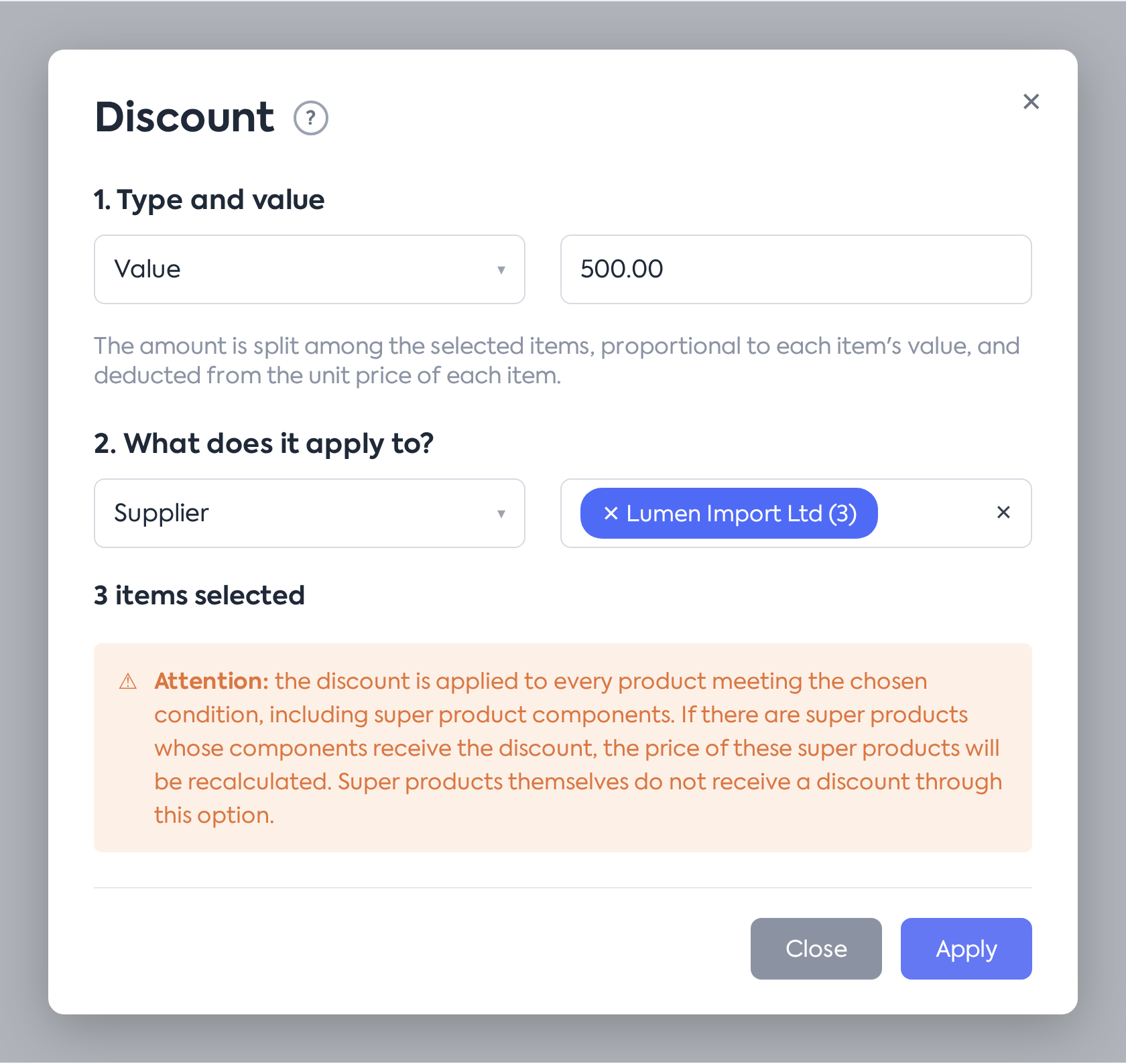
The Value type: the amount is split proportionally among the selected lines.
Example — a document with three lines, a Value discount of 300 applied to Supplier X:
| Line | Initial value | Discount | New value |
|---|---|---|---|
| A (supplier X): 3 × 150.00 | 450.00 | 40% (60.00 per unit) | 270.00 |
| C (supplier X): 4 × 75.00 | 300.00 | 40% (30.00 per unit) | 180.00 |
| B (supplier Y): 2 × 200.00 | 400.00 | — (not selected) | 400.00 |
| Total | 1,150.00 | 300.00 | 850.00 |
Return lines (with negative quantity) enter the calculation with a negative value, so the split is done on the net total. For example, for the lines 10 × 100.00 and -2 × 100.00 (return) with Value 80, both receive 10%: the positive line decreases by 100.00, the return line increases by 20.00, and the document total decreases by exactly 80.00.
On each line, the discount is kept as a per-unit amount, with 4 decimals, and cannot exceed the initial price. The percentage in Included Discount is displayed rounded to 2 decimals. This is where the few-cents differences can come from.
6. What you see afterwards
- On each selected line, the Included Discount column shows the applied percentage, and the unit price is the discounted one. No separate discount line appears.
- Superproducts whose components received a discount have their price recalculated.
- The discount of each line can then be edited individually, from the Included Discount column (see the documentation Discounts on documents — the line discount (Optimization)).
- On the PDF of the order, quote, invoice, proforma or delivery note, if the Show Discount print option is checked, the text “Included Discount {amount} {currency} ({percent}%)” appears below each discounted product, in the document's currency. On orders, quotes and invoices, on lines with multiple pieces (on invoices, with a quantity greater than 1), the row “Initial Unit Price ..., Discount ...” also appears.
- On orders, the discount does not appear on the PDF if the Hide Product Details option is checked. Opportunities have no discount display on PDF.
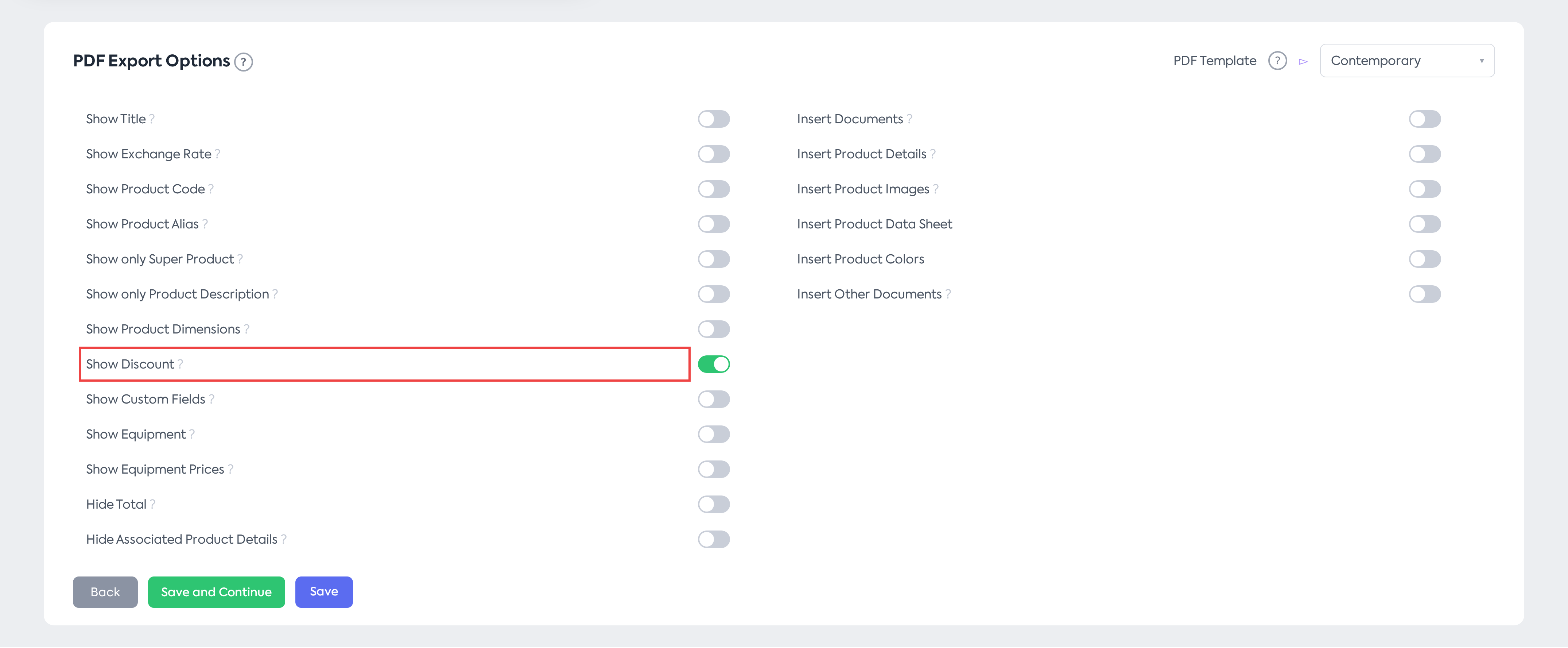
The Show Discount option, enabled in PDF Export Options.
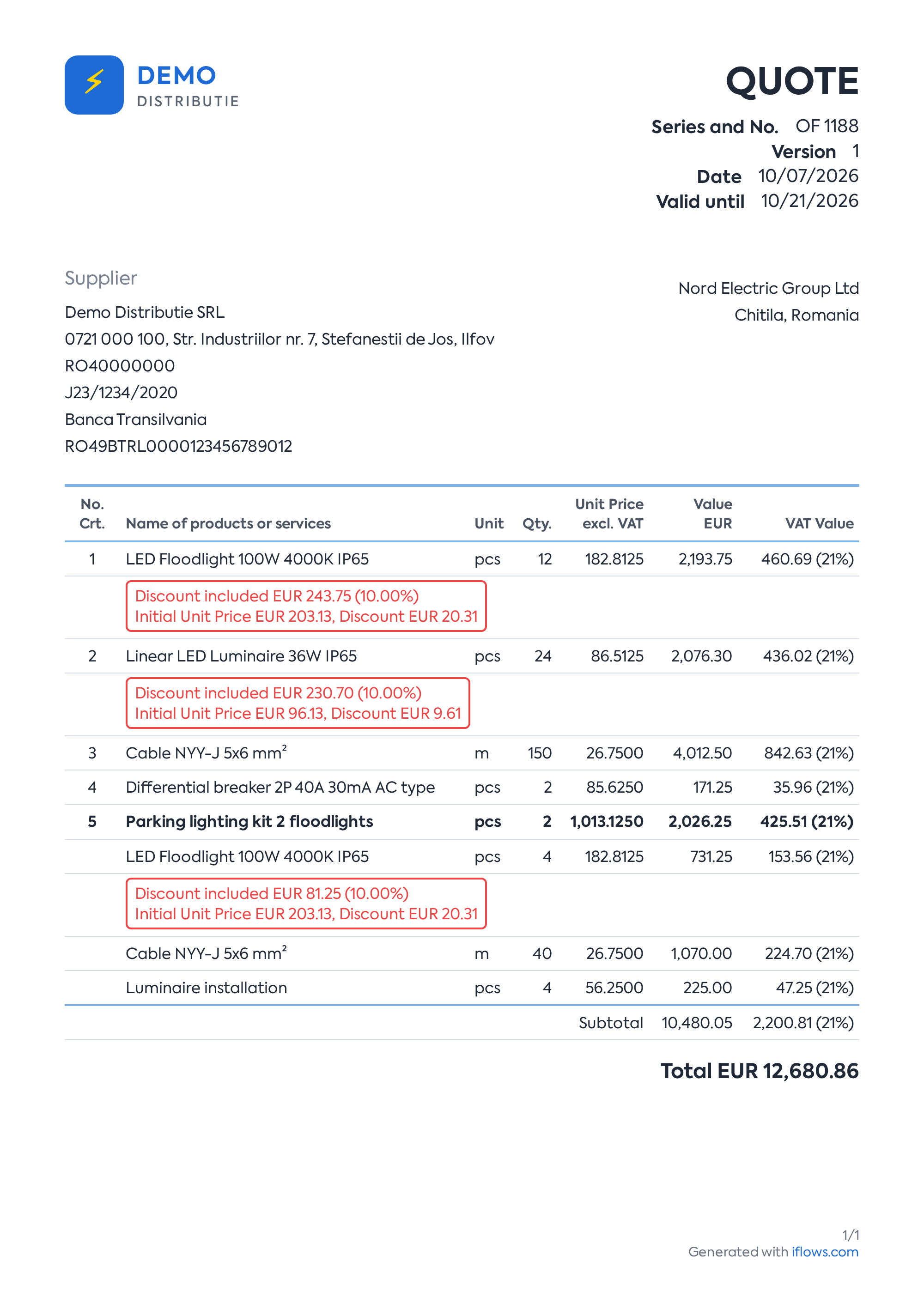
The quote PDF: below each discounted product, Included Discount and Initial Unit Price appear.
7. Rules and limits
- The value field is mandatory: if it is empty, pressing Apply shows “This field is required”.
- Negative values are not accepted: the minus sign cannot be typed, and a negative value is rejected with “The entered value cannot be negative!”. A percentage over 100 is rejected with “The entered value is too large!”.
- The global discount replaces the existing manual discount on the selected lines (from the line or from a previous global discount); it is not added on top of it.
- Automatic discounts from (per client, category, subcategory or product) remain unchanged and are applied before the manual discount.
- A price fixed manually on a superproduct is replaced by the price recalculated from the discounted components.
- After applying, each line's discount behaves like a per-line discount: when the quantity changes, the per-unit discount stays the same and the global amount is not re-split, so the discount total changes.
Possible messages after applying:
| Message | When it appears |
|---|---|
| “The amount exceeds the value of the selected lines. Prices have been reduced to zero.” | The entered amount is larger than the value of the chosen lines; their prices become 0 |
| “There are no eligible lines for the discount.” | No line meets the conditions (chosen product, price above 0, quantity different from 0) |
| “The value discount cannot be split: the net value of the selected lines is not positive.” | For example, on a reversal document; the percentage discount works in this case as well |
| “N super products recalculated” | Components of some superproducts received a discount |
Attention: on a final invoice with the deposit deducted, the deposit reversal line is included in the Global discount. It is also included at Supplier, Category or Subcategory, if you choose Unspecified or the supplier or category of the deposit product. The discount thus also modifies the deducted deposit. Check the deposit line after applying or choose values that do not include the deposit product.
8. Settings and permissions
- There are no new permissions or settings. The discount is applied by users who can edit the document.
- The Supplier option appears only to users who have view rights on suppliers; the others have Global, Category and Subcategory available.
- The discount display on PDF depends on the document's Show Discount print option.