
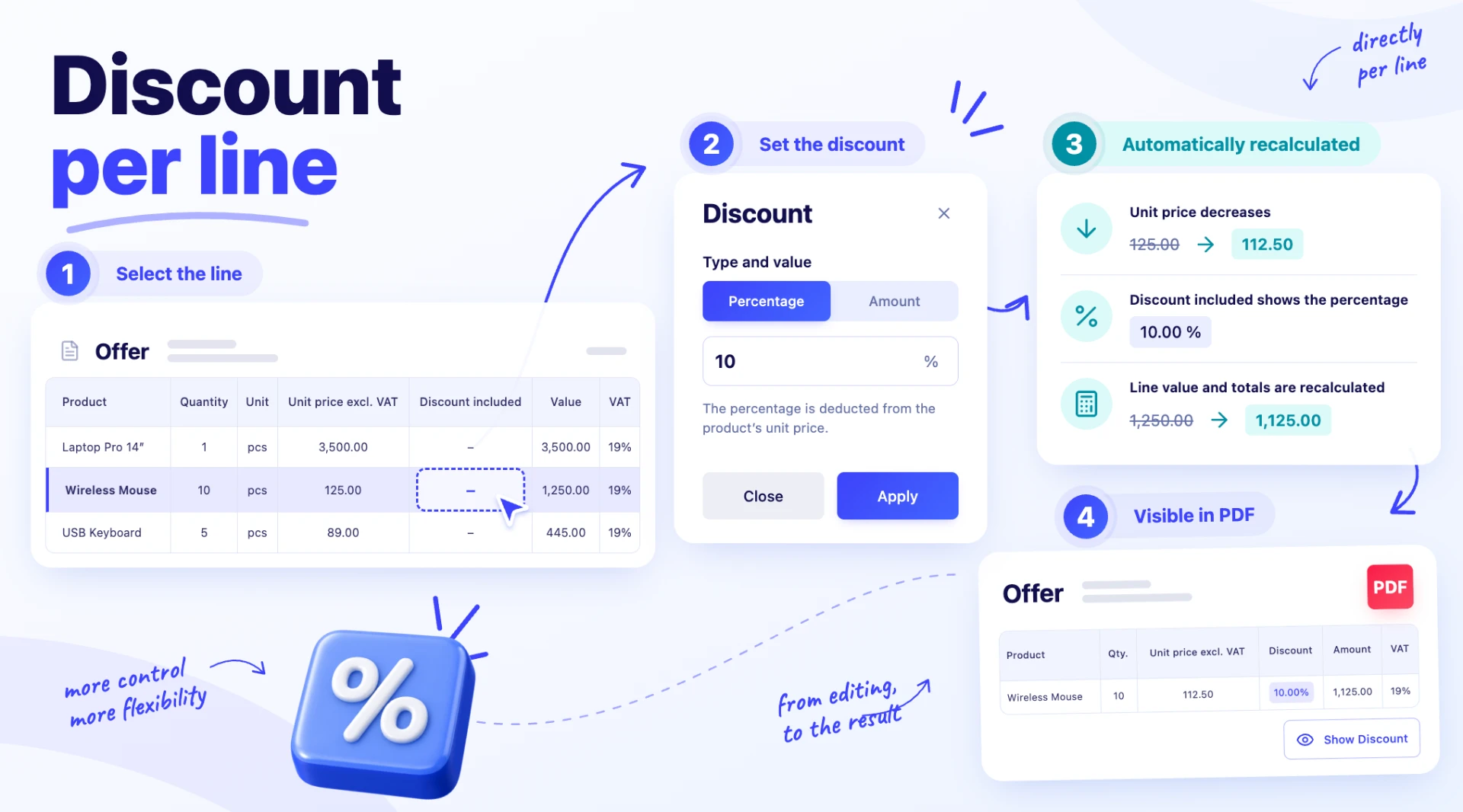
1. In short
The manual discount applied to a product line has a new window and a new rule for amount discounts. The amount entered under Value now means the discount per unit (per the line’s unit of measure) and is deducted exactly from the unit price.
The line discount is used on opportunities, quotes, orders, invoices, proforma invoices and delivery notes. Supplier orders and goods received notes are not affected. A discount applied to several lines at once (the Apply Discount button) is described in Discounts on documents — the global discount by supplier, category or subcategory.
| Before | Now | |
|---|---|---|
| Window | Shared by the line discount and the global discount | A window of its own for the line, with explanations under the field |
| Value | Amount for the whole line | Amount per unit, deducted exactly from the unit price |
| Negative values | Accepted | Rejected; a markup is applied from the Unit Price window |
| Quantity 0 | The window opened | The window does not open; a message is shown |
2. Where to find it
On opportunities, quotes, orders, invoices, proforma invoices and delivery notes, in the edit form: the field in the line’s Included Discount column opens the Discount window. On the document’s view page, the percentage is only displayed.
3. Before you start
- You need edit rights on the document.
- The line must have a quantity filled in (other than 0).
- Decide whether the discount is an amount per unit (Value) or a percentage (Percentage).
4. Applying a discount to a line
Step 1. Open the document for editing and click the field in the line’s Included Discount column. The Discount window opens.
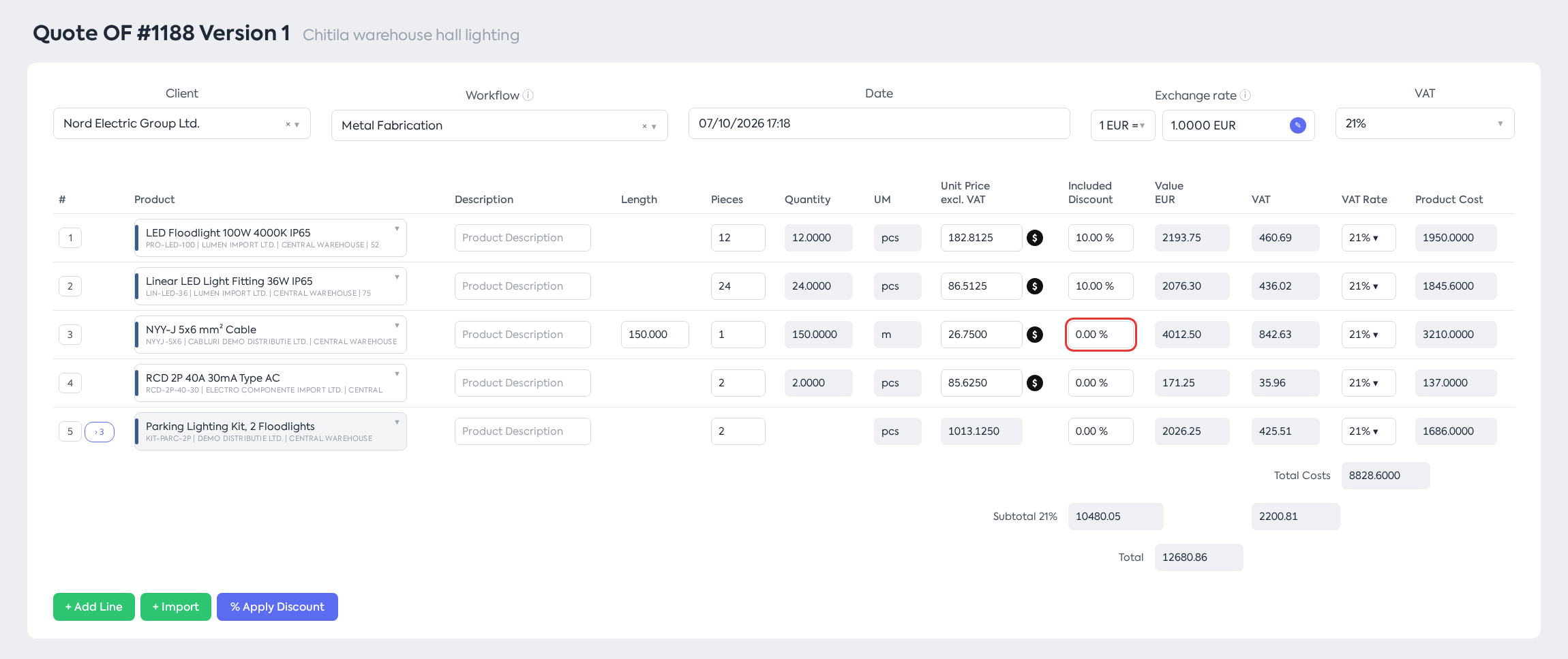
Quote in edit mode: the Included Discount field on the cable line.
Step 2. Choose the discount type and enter the value:
| Field | What to enter | Required |
|---|---|---|
| Value / Percentage | The discount type; Percentage by default | Yes |
| Value field | The percentage or the amount per unit, with up to 2 decimals. The effect is shown under the field: “The amount is deducted from the unit price of the product.” or “The percentage is deducted from the unit price of the product.” | Yes |
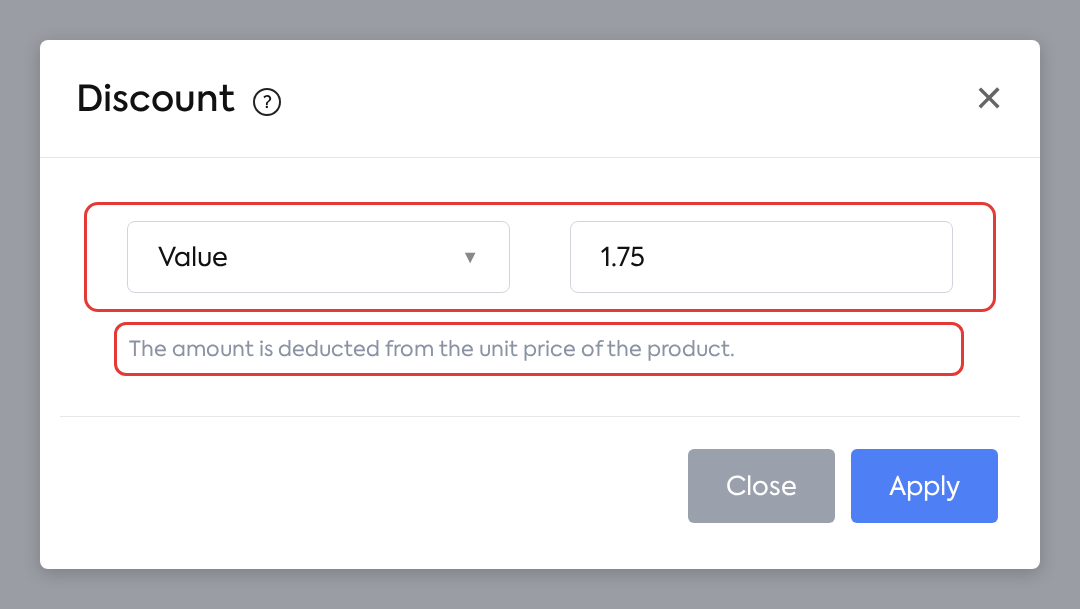
Value type: 1.75 EUR is deducted from the unit price (here, the price per metre).
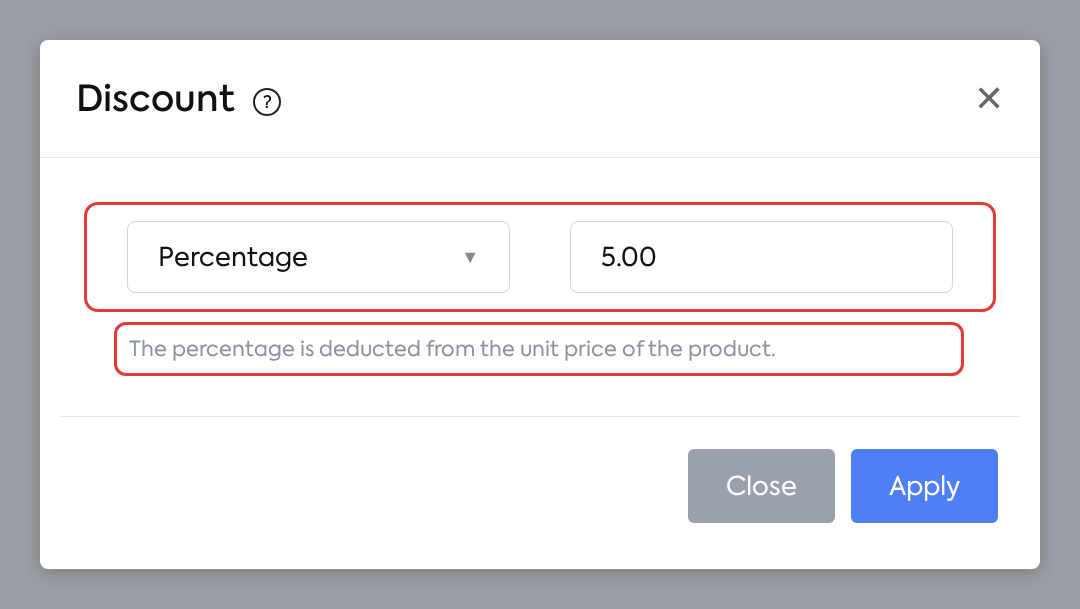
Percentage type: the percentage is deducted from the unit price.
Step 3. Click Apply. The unit price drops, the Included Discount column shows the percentage (for Value, the equivalent percentage, with 2 decimals), and the line value, VAT and document totals are recalculated.
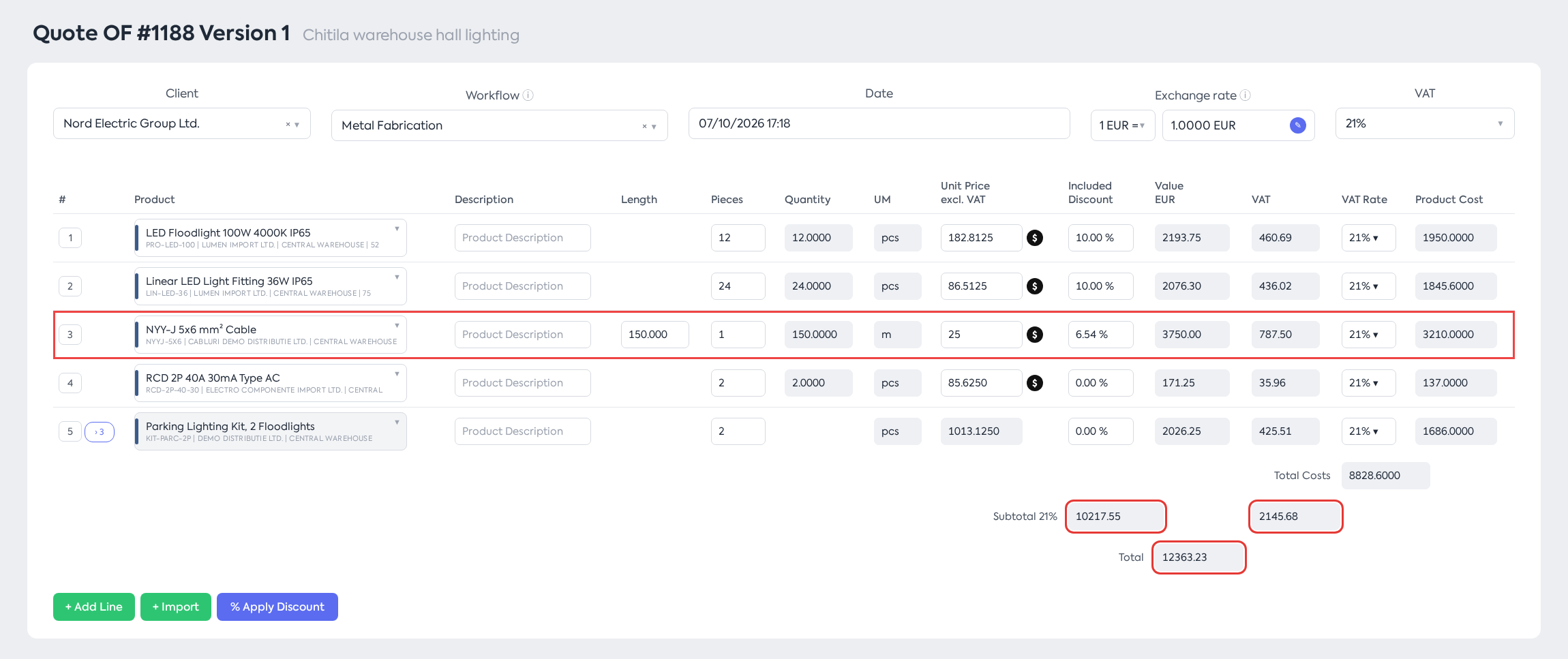
After applying: the unit price drops from 26.75 to 25.00, Included Discount shows 6.54%, and the line value and totals are recalculated.
Step 4. Save the document.
Note: the window always opens empty, on Percentage; the line’s existing discount is shown in the Included Discount column. The “?” icon next to the window title summarises the rule: “The discount applies to the unit price of this line and replaces the existing discount. For super products, it applies only to the parent.” To remove the discount, apply 0.
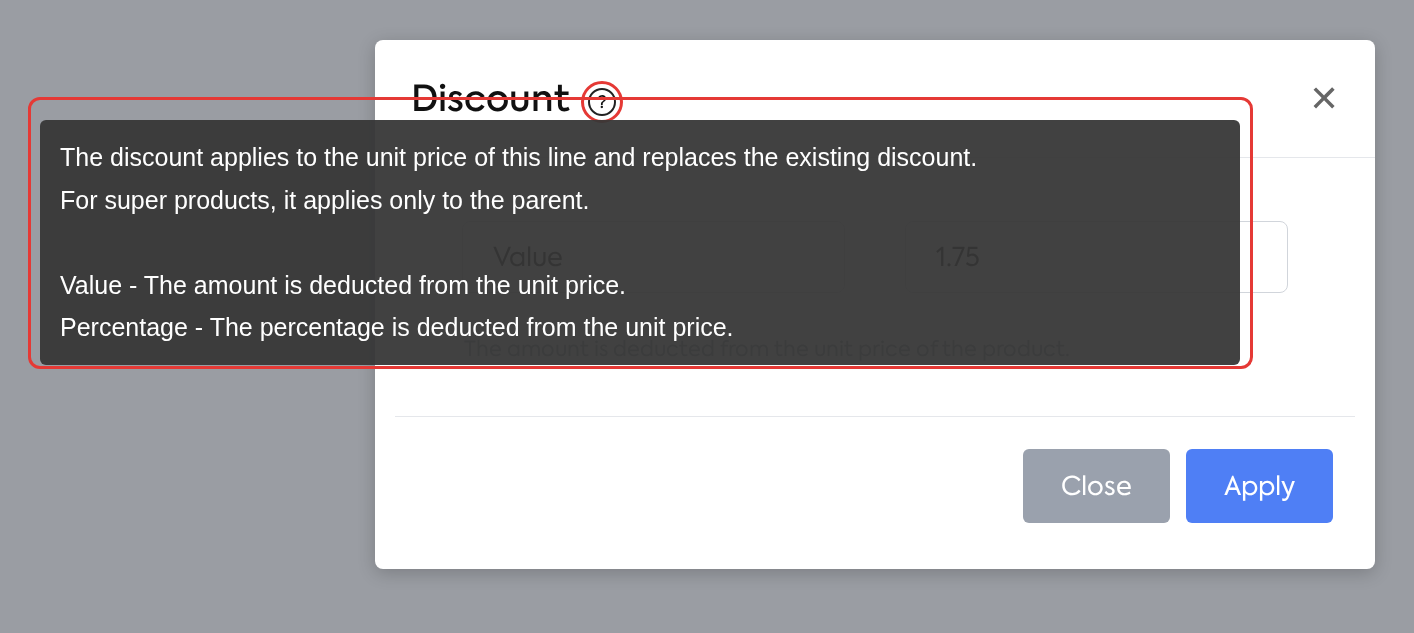
The explanation shown by the “?” icon in the Discount window.
5. How it is calculated
The discount is applied to the line’s initial unit price, excluding VAT. This is the automatically calculated price (from the product file, with the markup for the client type, production costs where applicable, and the automatic discount from the Discounts module) or the price entered manually on the line.
- Percentage — the unit price is reduced by the percentage entered.
- Value — the amount entered is deducted from the unit price, i.e. from the price per the line’s unit of measure. For a product sold per sq m, 10 under Value means 10 per sq m.
A new discount replaces the existing manual discount on the line and is added on top of the automatic discount from the Discounts module.
Example — a line with quantity 5 × 500.00, with a Value discount of 100 (VAT 21%):
| Included Discount | Unit price | Line value | |
|---|---|---|---|
| Before (100 for the whole line) | 4.00% | 480.00 | 2,400.00 |
| Now (100 for each unit) | 20.00% | 400.00 | 2,000.00 (VAT 420.00) |
For quantity 3 × 300.00 with Value 100, the price becomes exactly 200.00 (shown as 33.33%), and the line value 600.00.
Caution: on a line with a quantity greater than 1, the same amount entered under Value now produces a total discount multiplied by the line quantity. To reduce a whole line by a given amount, divide the amount by the quantity. Since the field accepts 2 decimals, inexact divisions may cause differences of a few cents (100 for quantity 3 means 33.33 per unit, so a total discount of 99.99).
6. What you see afterwards
- There is no separate discount line on screen: the Included Discount column shows the percentage, and the unit price is the discounted one.
- On the PDF of the order, quote, invoice, proforma or delivery note, if the Show Discount print option is ticked, the line’s total discount and percentage appear under the product name: “Included Discount {amount} {currency} ({percent}%)”, in the document currency. On orders, quotes and invoices the text is red.
- On orders, quotes and invoices, for lines with several pieces (on invoices, with a quantity greater than 1), the row “Initial Unit Price ..., Discount ...” also appears, with the initial unit price and the discount per unit. This row does not appear on proformas and delivery notes.
- On orders, the discount does not appear on the PDF if the Hide Product Details option is ticked. Opportunities do not show the discount on the PDF.
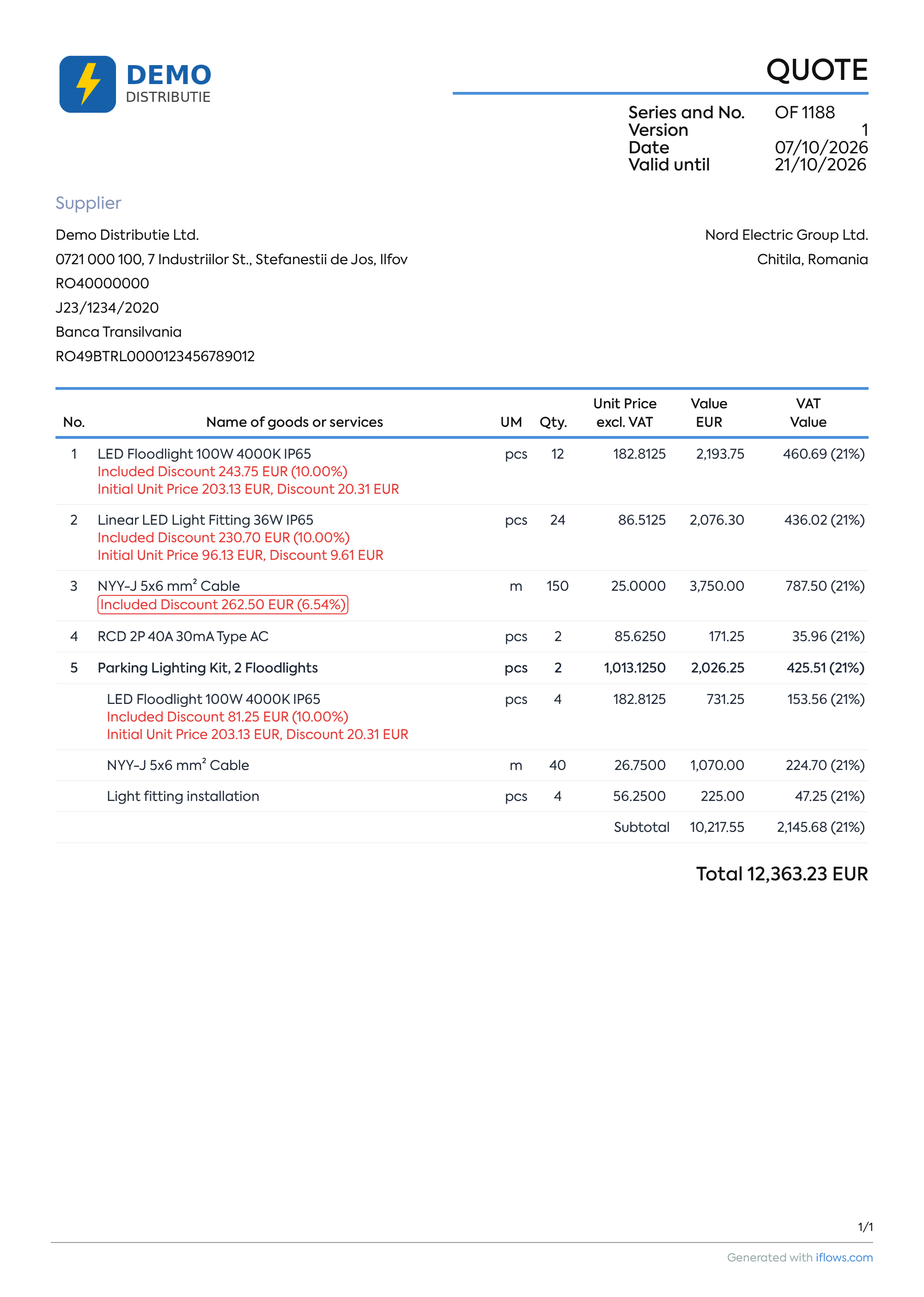
The quote PDF with Show Discount enabled: under the cable, Included Discount 262.50 EUR (6.54%) is shown. The Initial Unit Price row appears only on lines with several pieces.
- e-Invoicing receives the unit price after the discount, without a separate discount line, as before.
- The quote Excel export includes the Included Discount column, with 2 decimals. In the accounting export profile, the discount column (Line - Discount) is available for delivery notes. For amount discounts, the exported percentage is the equivalent percentage, rounded.
7. Rules and limits
Messages when applying
| Situation | What happens |
|---|---|
| Empty field | “This field is required” |
| Negative value | The minus sign cannot be typed; a pasted negative value is rejected: “The value entered cannot be negative!” |
| Percentage above 100 | “The value entered is too large!” |
| Amount greater than the unit price | The price becomes 0 (Included Discount 100%), with no warning |
| Quantity 0 or empty | The window does not open; the “Warning!” alert appears with the message “The discount cannot be applied: the line quantity is 0.” |
| Negative quantity (return, reversal) | The discount applies normally and lowers the unit price, and therefore the returned amount |
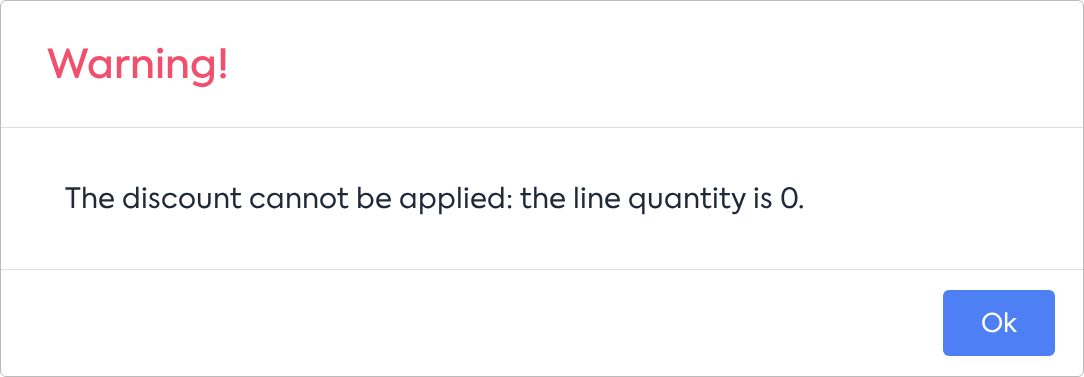
The alert shown when the line quantity is 0.
- A negative discount can no longer be used as a markup. A markup is applied from the Markup field of the Unit Price window (the $ icon on the line, available for products with Editable Price).
Later changes to the line
- Quantity — the per-unit discount (or the percentage) is kept, and the line value is recalculated.
- Unit price changed manually or product replaced — the manual discount is cancelled, as before, and the new price becomes the initial price. Likewise, a markup or price applied from the Unit Price window cancels the manual discount: the manual discount and markup are not combined.
- Super products — a discount placed on a component is combined with the super product’s discount. When the super product is recalculated (from components or with Recalculate Unit Price), an amount discount stays the same amount per unit, and the displayed percentage adjusts to the new price.
- Document currency or exchange rate — the per-unit discount is converted to the new currency; percentage discounts remain unchanged.
Generated documents and clones
The discount is kept exactly, and the per-unit amount is converted if the new document has a different currency. The rule applies to: opportunity → quote or order, quote → order or proforma, order → invoice, proforma or delivery note, automatic invoicing and proforma generation, proforma → order or invoice, delivery note → invoice or proforma, invoice → delivery note, new quote version, clones and reversals.
Existing documents
- Documents issued before the update remain unchanged.
- Exception: old lines with a negative discount (used as a markup) lose the markup on any recalculation of the line.
8. Settings and permissions
- There are no new permissions or settings. The discount is applied by users who can edit the document.
- Showing the discount on the PDF depends, as before, on the Show Discount print option.