
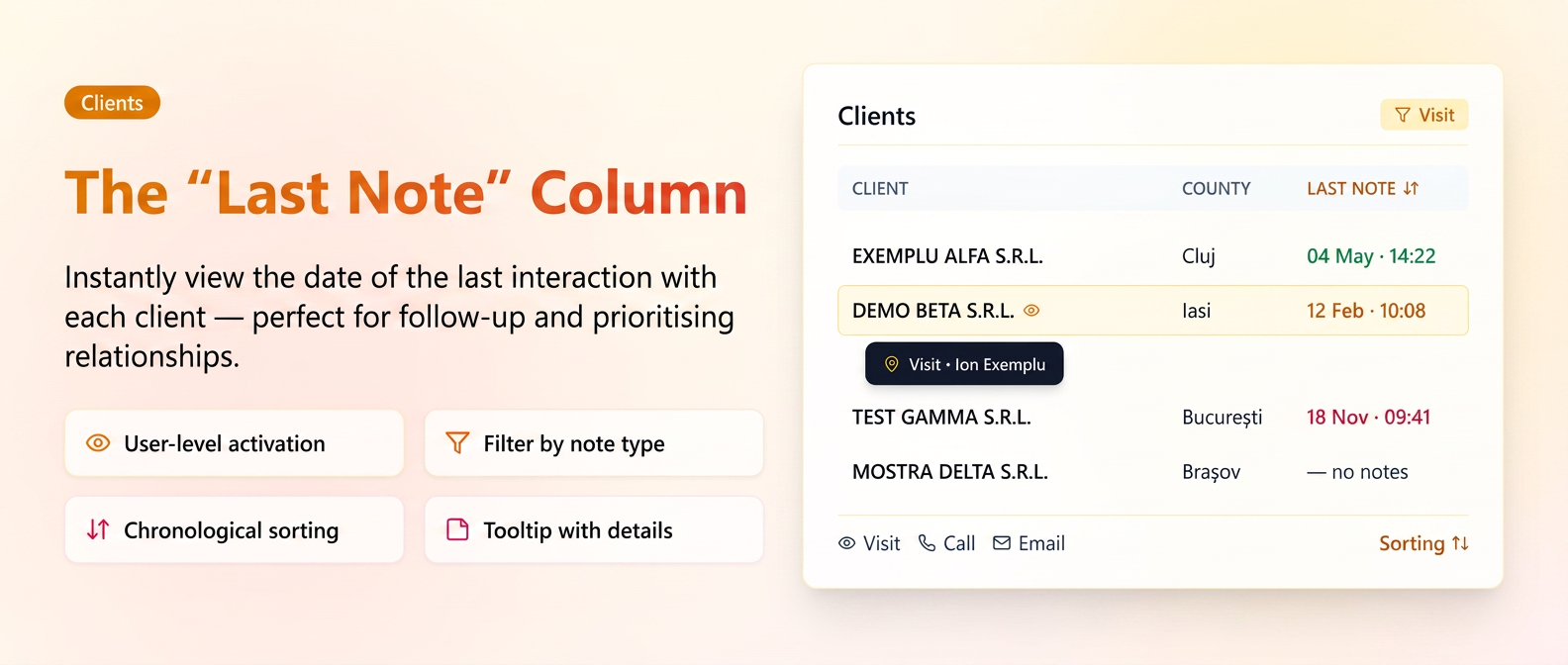
A new column available in the client list that displays the date and time of the last note added to each client's file. It allows for quick identification of clients with recent activity or, conversely, those who haven't been interacted with for a long time — useful for organizing follow-ups and prioritizing relationship actions.
News and functionalities
- Optional column, activated per user — each user can activate the column from the table settings panel. The setting is saved individually and remains active for future page visits.
- Information displayed on hover — in addition to the date and time of the last note, a tooltip shows the name of the user who added the note and its type (Visit, Phone Call, Email, etc.).
- Column sorting — clicking on the column header sorts the list from the most recent note to the oldest or vice versa. Useful for instantly identifying clients without notes (appearing at the end) or neglected ones (old dates).
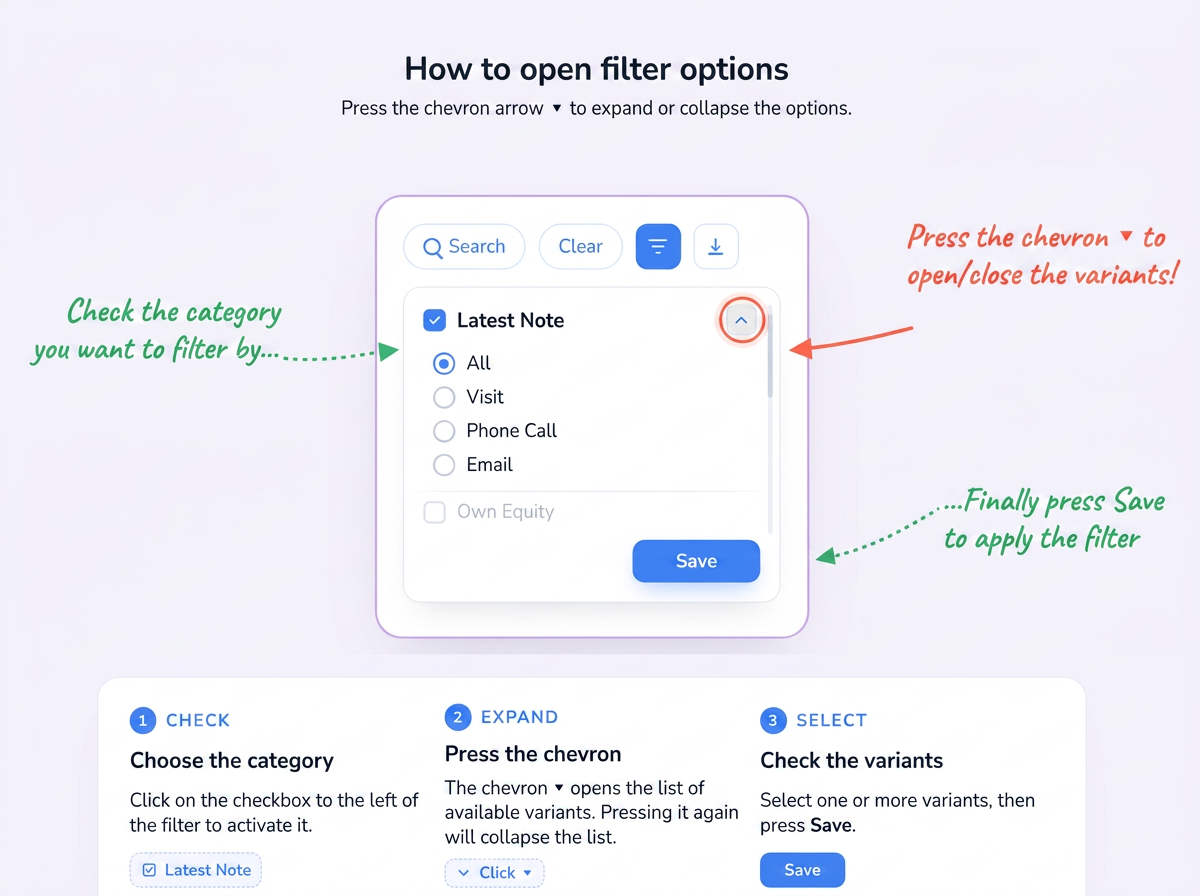
- Filtering by note type — in the settings panel, next to the Last Note column, there is an expandable sub-option that allows choosing which note type to consider: All (default), Visit, Phone Call, or Email. For example, choosing "Visit" ensures the displayed date reflects only the last visit — a client called yesterday but visited 3 months ago will show the visit date, not the call date.
- Empty column for clients without notes — clients who have no recorded notes appear with an empty column — making it visible at first glance that they need to be contacted.
- Combinable with other filters — sorting by Last Note works in parallel with all other page filters (client type, responsible person, tag, county, etc.) for more precise segmentation.
How to use
- In Clients → client list, click the options button in the top bar to open the table settings panel.
- In the Columns section, check Last Note.
- Optionally, click the arrow next to the checkbox to choose the note type to consider (All, Visit, Phone Call, Email).
- Click Save — the column appears immediately in the table.
- Sort by the column by clicking its header to see clients ordered by activity.
Practical example
A sales team wants to quickly identify clients who haven't been visited for a long time, regardless of whether they were contacted through other channels (phone or email) in the meantime.
→ The operator activates the Last Note column and chooses the Visit type filter
→ Sorts the list ascending by column — clients with the oldest visits appear first, and those without any visit appear at the end with an empty column
→ Combining this with the filter by responsible person, each agent instantly sees their own list of clients requiring a new visit