
1. Overview
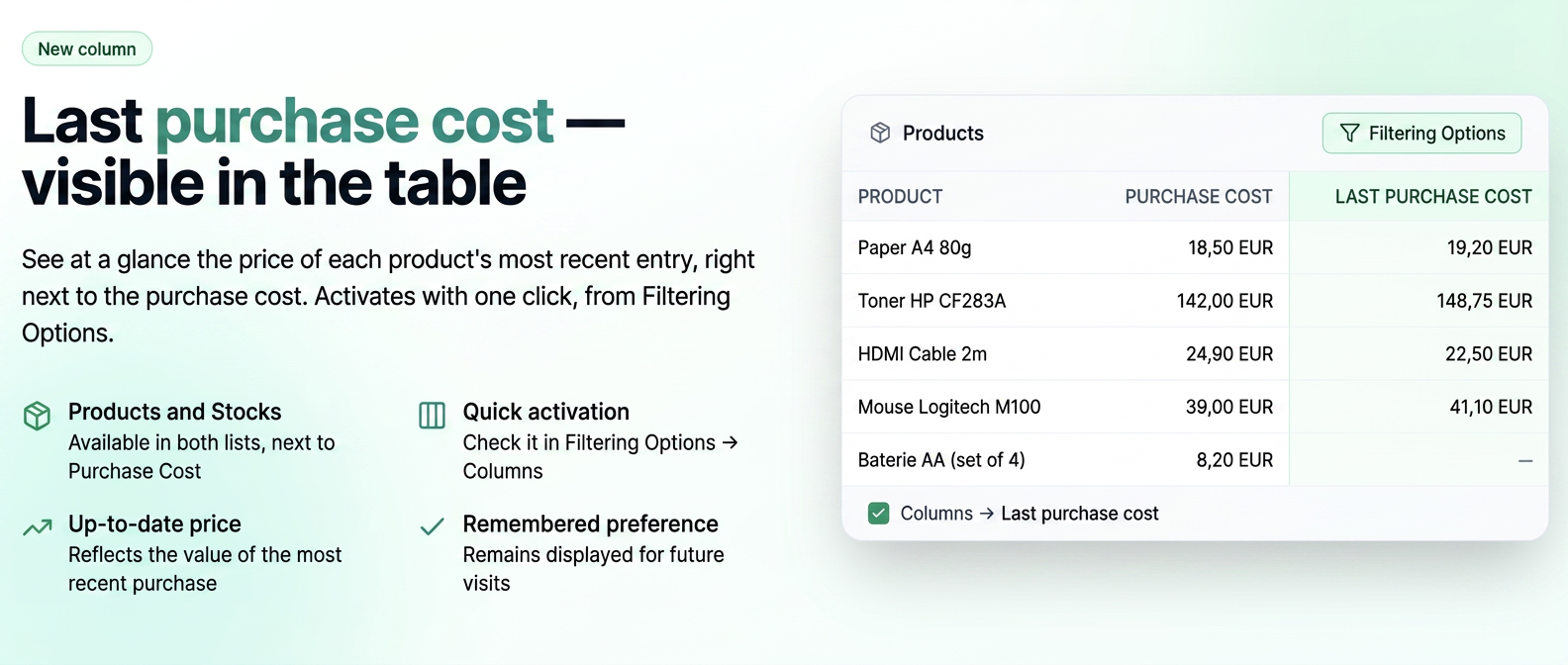
The Last purchase cost column shows, for each product, the cost from the last recorded purchase of that product. It is an activatable column: it does not appear by default, but you display it when you need it.
You can find it in the , alongside the Acquisition Cost column. This way, you can see at a glance both the acquisition cost of the product and the price from the most recent entry.
2. How to activate
The column is activated the same way in both lists (Products and Stocks), from the Filter Options button located next to the search field.
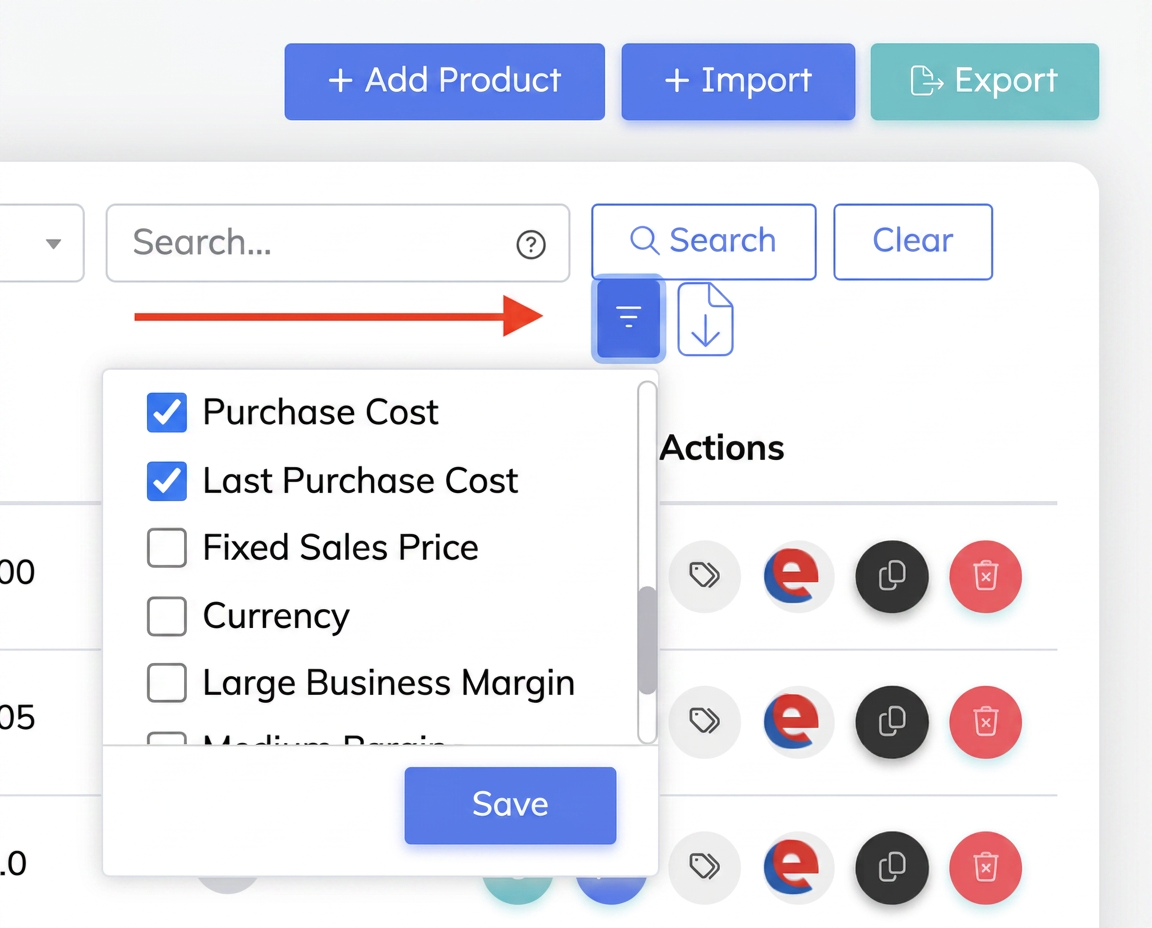
The Filter Options panel, Columns section, with the Last Purchase Cost option checked.
- Open the Products (or Stocks) list and click the Filter Options button.
- In the panel that opens, go to the Columns section.
- Check Last purchase cost.
- Click Save. The column appears immediately in the table.
The option remains saved, so the column will be displayed during subsequent visits until you uncheck it. To hide it, return to the same Columns section, uncheck it, and click Save again.
3. What the column displays
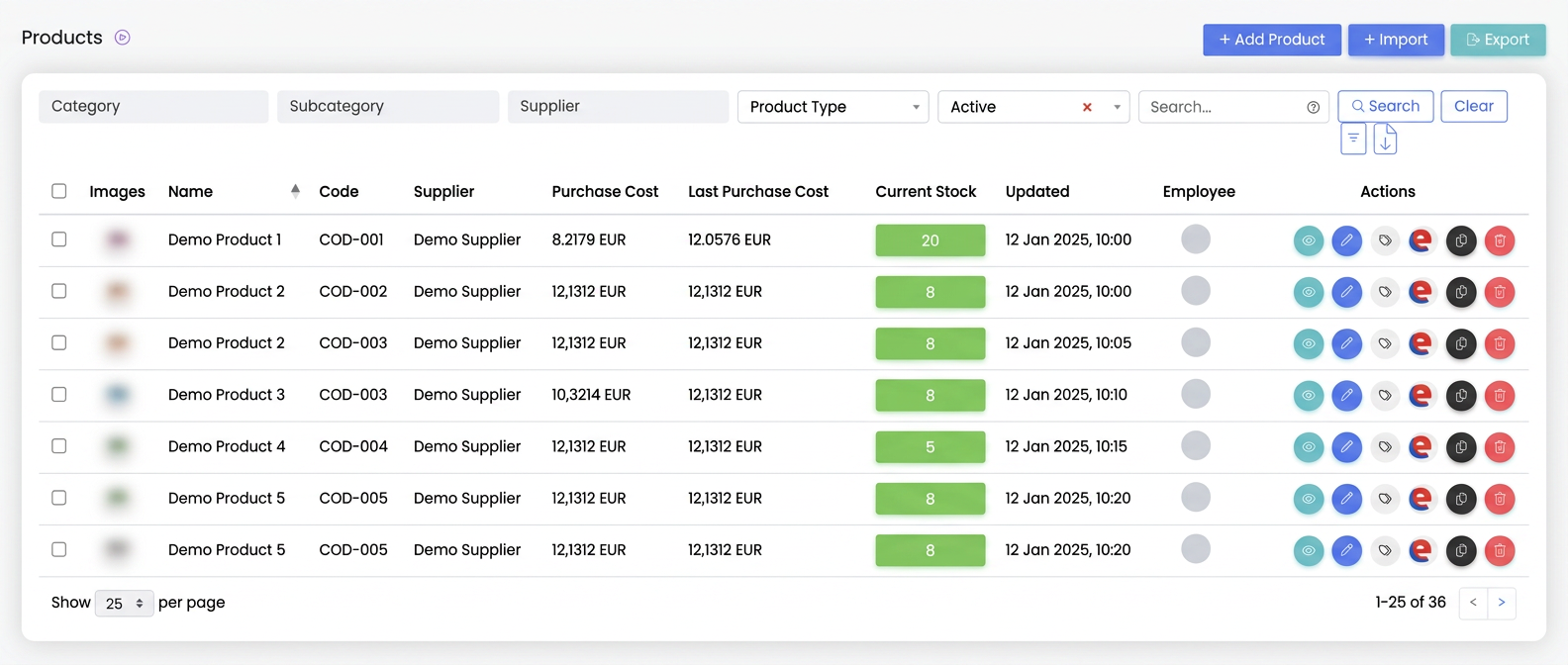
Products list, with the Last Purchase Cost column displayed next to Acquisition Cost.
In the table, the Last purchase cost column displays the cost from the last purchase of each product, next to the Acquisition Cost column. If a product has not yet been purchased, the field remains empty.