
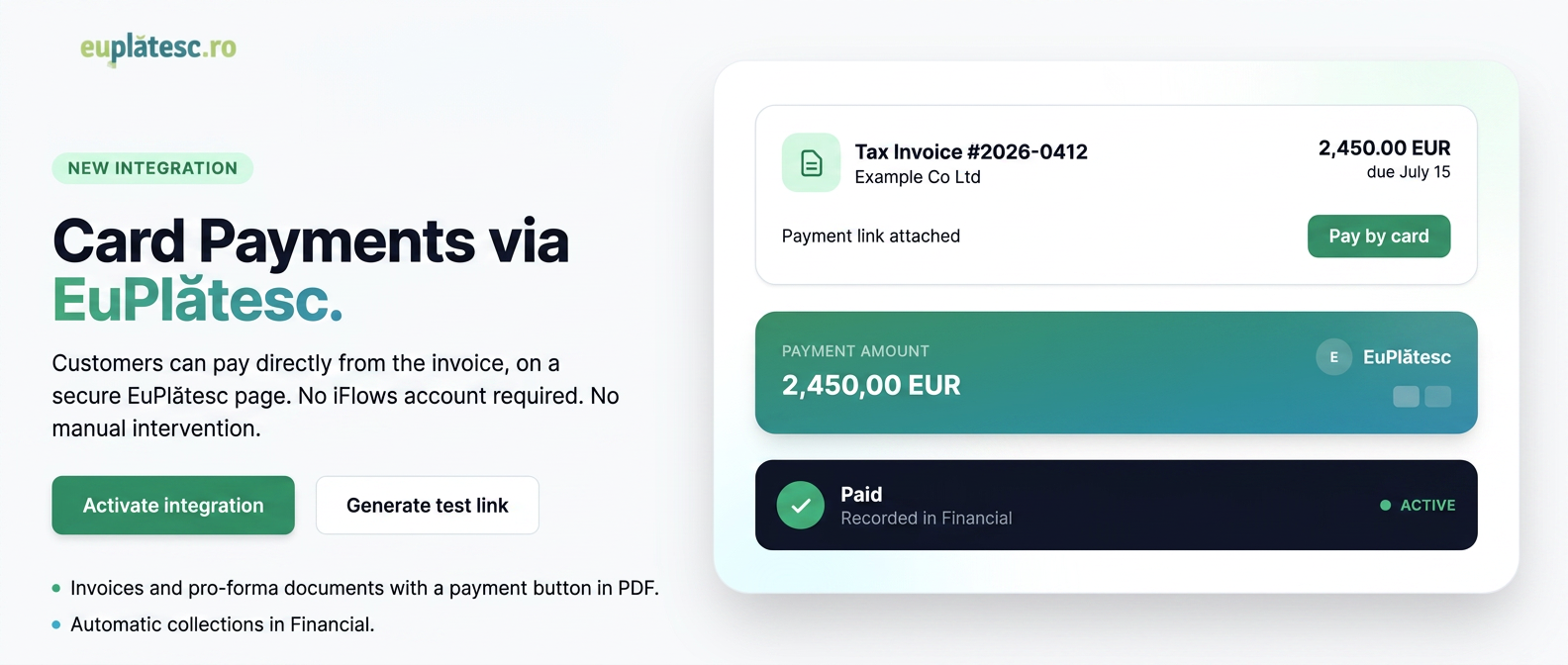
The integration with EuPlătesc allows you to attach a "Pay by card" button to tax invoices and proformas sent to customers. Upon completion of the payment, the invoice is automatically marked as paid, and the collection is recorded in Financials without manual intervention.
The customer pays on the secure EuPlătesc page, without needing an iFlows account.
Features and Functionalities
- Card payment directly from the invoice — the customer opens the PDF and clicks the Pay by card button.
- Automatic marking as paid — upon payment confirmation, the invoice receives the paid status and the collection appears in , in the bank register.
- Support for tax invoices and proformas — for proformas, the payment is recorded as a customer advance.
- Dedicated bank account — upon activation, you can choose the bank account for collections or let a new one be created automatically.
- Dedicated payment method — the EuPlătesc Payment method is automatically created upon activation, where all collections will appear.
- Test link — after activation, you can verify the integration with a test payment link for the amount of 1.00.
- Pre-filled customer data — if the customer file contains name, email, and phone, these are automatically transmitted to the payment page.
Configuration
Activation is done from the Integrations menu by choosing EuPlătesc from the list of available integrations.
- Click Activate in the EuPlătesc Integration window to open the form.
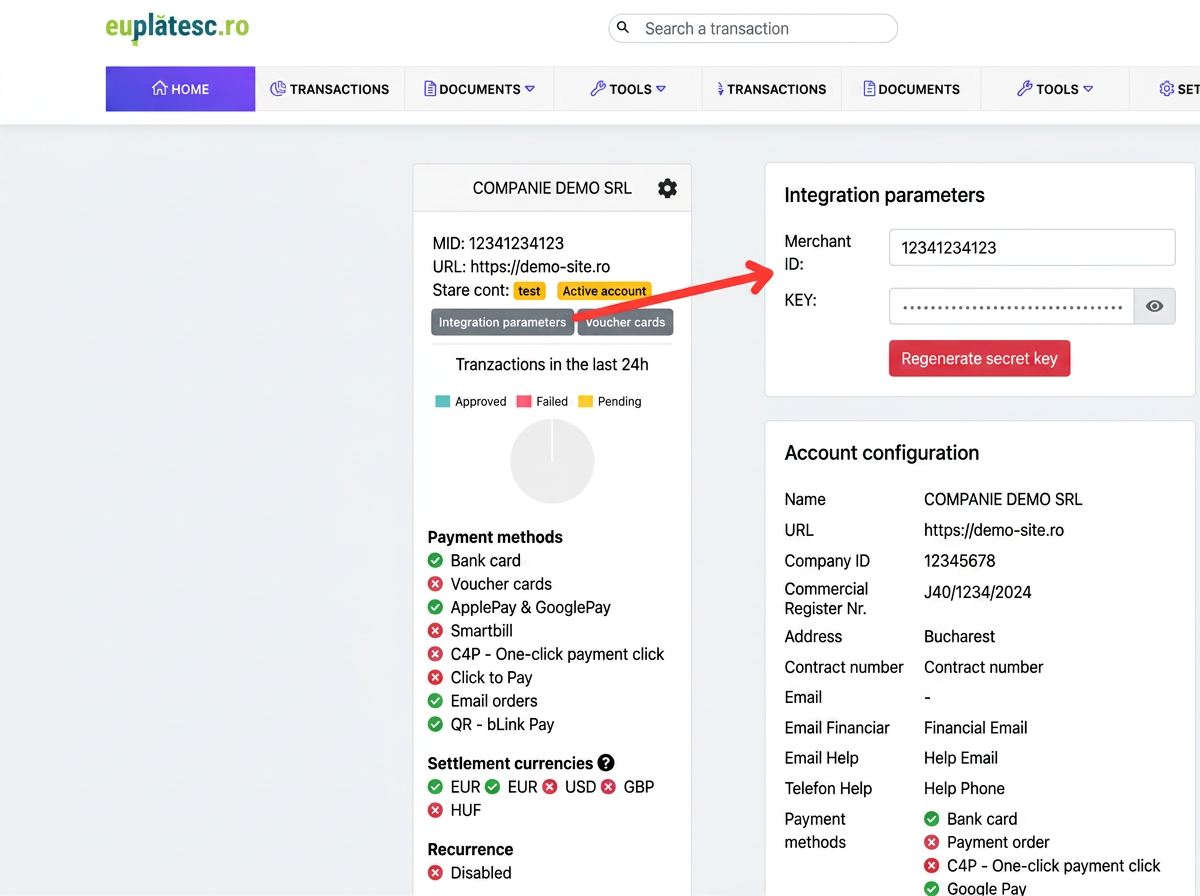
- Fill in Merchant ID — the merchant code assigned by EuPlătesc. It is retrieved from EuPlătesc Manager, the Integration Parameters button on the Home page, MerchantID field.
- Fill in Merchant KEY — the secret key (hex). It is retrieved from the same place, KEY field. Click the eye icon to reveal it, then copy it. It must have at least 32 characters; otherwise, the platform will reject it.
- Select the Transactions Bank Account or leave the field empty for a new account to be created automatically.
- Click Activate — the integration is ready immediately, along with the EuPlătesc Payment method.
Where to retrieve Merchant ID and Merchant Key:
To verify the entered data, click the Generate test payment link button (link icon) next to EuPlătesc in the list of installed integrations. The system generates a link for the amount of 1.00 which you can open in a new tab or copy.
Editing or Disabling the Integration
From the list of installed integrations, the Integration Settings button (gear icon) opens the editing page, where you can modify the Merchant ID, Merchant KEY, and Transactions Bank Account. To keep the current key, leave the Merchant KEY field blank. The IPN URL address is displayed for informational purposes only.
Disabling is done by deleting the integration from the same list. After disabling, new links can no longer be generated, and the EuPlătesc option no longer appears when choosing a processor. Already recorded transactions remain in the records.
Only one EuPlătesc account can be associated per iFlows instance.
How to Use
After activation, the payment button is attached to every invoice or proforma for which you wish to offer card payment.
- Open the tax invoice or proforma you want to send to the customer.
- Check the Include Payment Link option in the document form.
- Select EuPlătesc as the payment processor — the option appears only if you have multiple processors active. If EuPlătesc is the only one active, it is used automatically.
- Send the document to the customer — via PDF export or email. The Pay by card button appears in the PDF.
- The customer clicks Pay by card — they are redirected to the secure EuPlătesc page, where the amount, document description, and contact details are already filled in.
- After payment confirmation — the tax invoice receives the paid status, and the collection automatically appears in , under the EuPlătesc Payment method and the bank account configured during integration.
For proformas, the payment is recorded as a customer advance. The tax invoice is not generated automatically and remains a separate operation.