Section 1: Initial Integration Setup
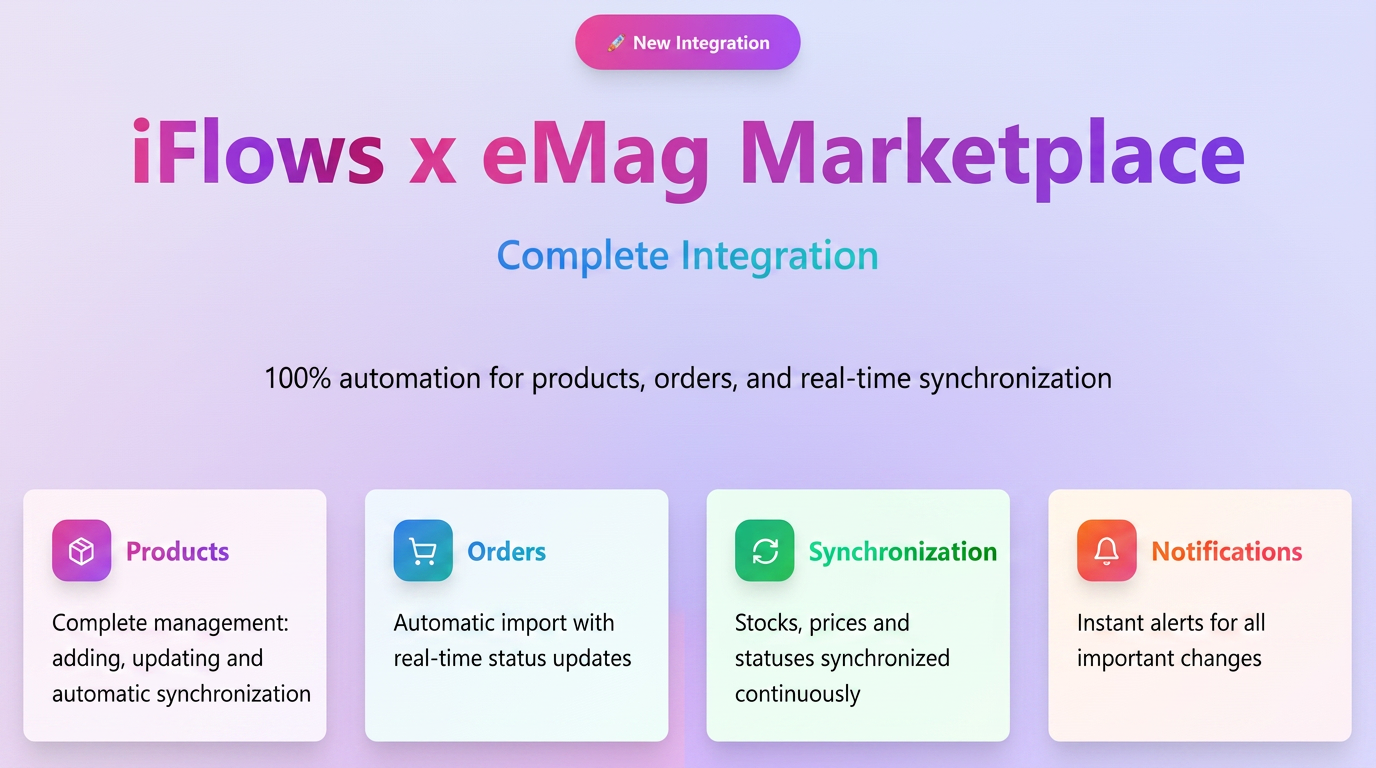
To begin, it is necessary to activate and configure the connection between iFlows and your eMAG Marketplace account.
Configuration Steps:
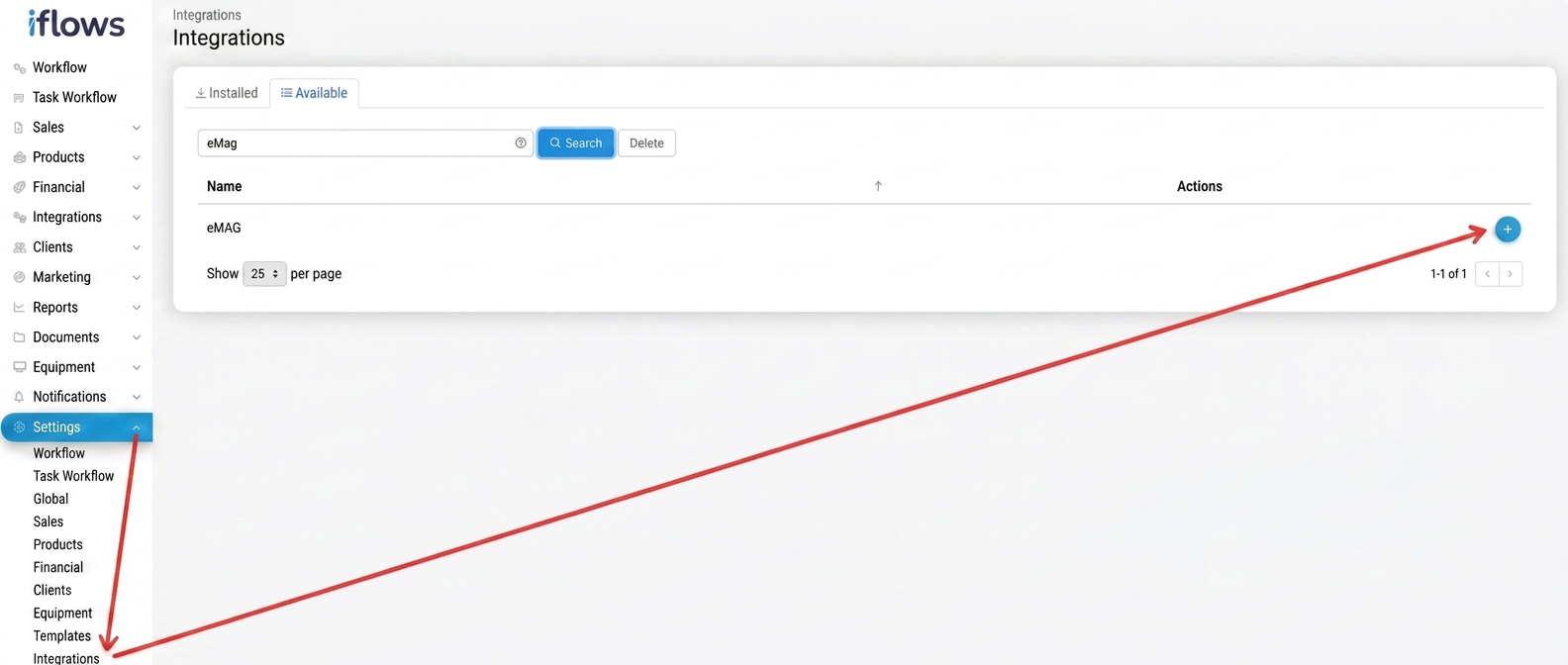
- Navigate to the Integrations section:
From the main menu, go to . - Activate the eMAG integration:
- Select the Available tab.
- Find eMAG in the list and click the install button +.
- Technical Configurations in the eMAG Platform:
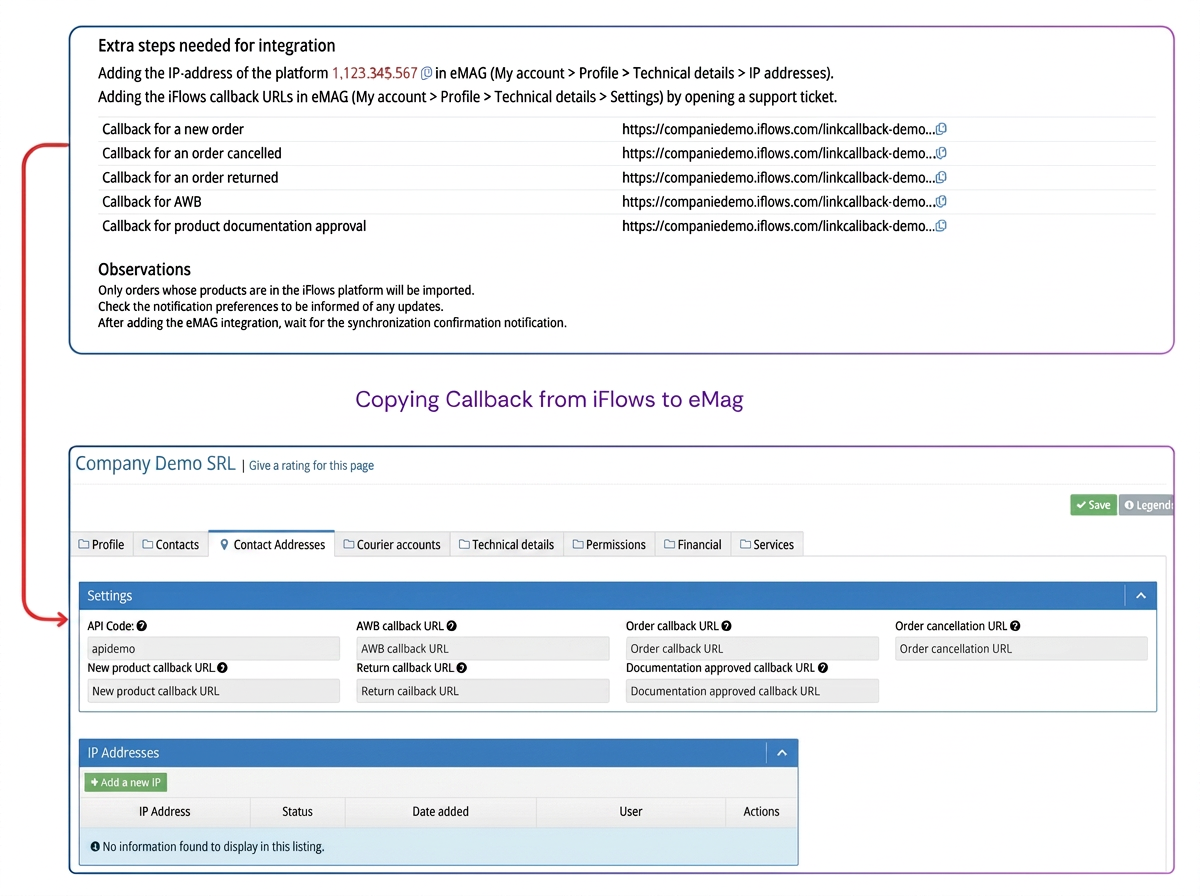
- Adding the IP Address (Mandatory): It is essential to add the iFlows server IP (displayed in the integration form) to the Technical Details section in your eMAG account (My Account menu) to allow initial communication.
- Adding Callback URLs (Mandatory for real-time updates): To benefit from real-time updates (e.g., order cancellation), callback URLs must be added. This operation is performed by opening a ticket with the eMAG Marketplace team, and they will complete the corresponding fields with the links provided from the iFlows integration form.
- Complete the integration form in iFlows:
- Username and Password: Enter the login credentials used for your eMAG Marketplace account.
- API Code: This is obtained from the eMAG platform, My Account > Profile > Technical Details > Settings section.
- Shipping Product: Select a predefined product in iFlows to be used for adding the shipping cost to invoices generated for eMAG orders.
- Workflow: Choose the iFlows workflow that new orders received from eMAG will automatically enter.
- Acceptance Stage: Select the stage in the workflow which, once completed in iFlows, will automatically update the order status in eMAG to "Picked up".
- Preparation Stage: Select the stage in the workflow which, once completed in iFlows, will automatically update the order status in eMAG to "In preparation".
- Finalization Stage: Select the stage that, upon completion, will change the order status in eMAG to "Finalized".
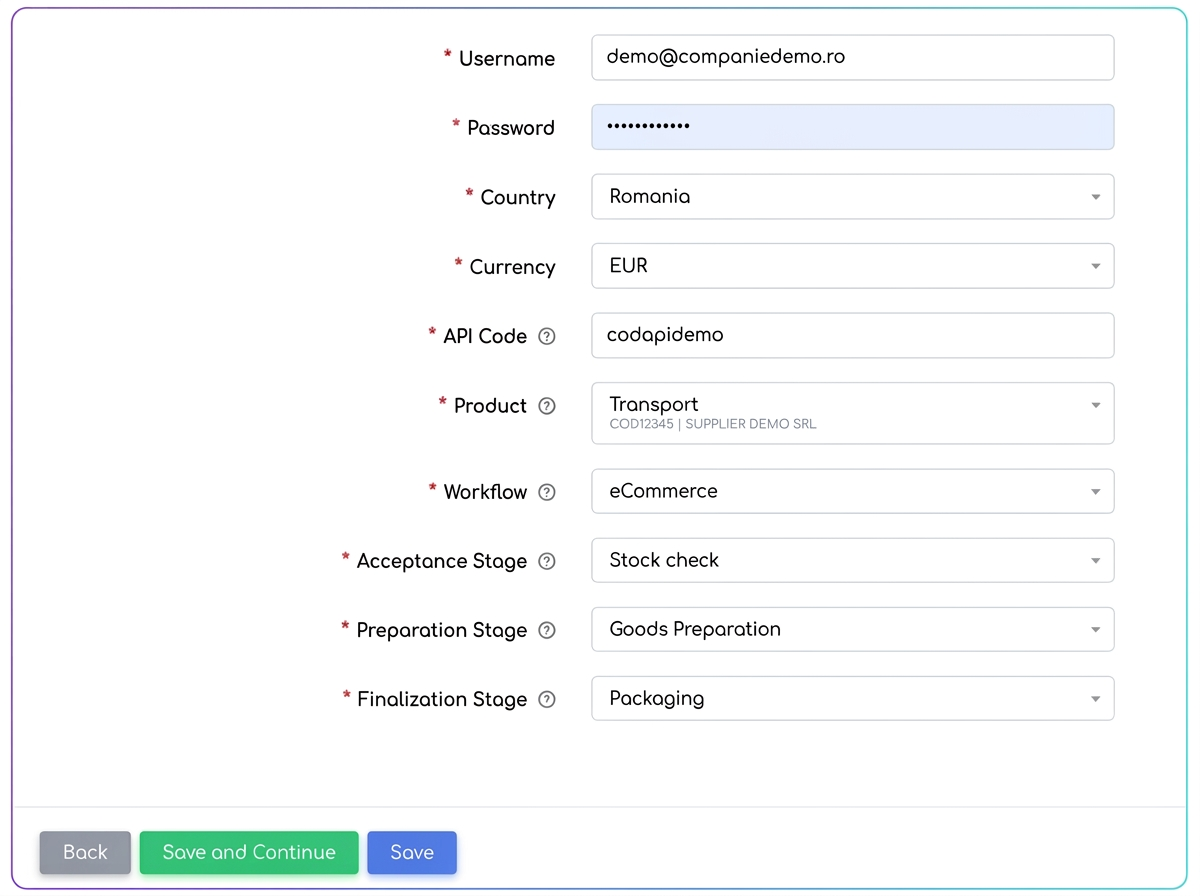
⚠️ Note: After saving the integration, it is not immediately available. Sync time is required, and the status "Syncing" will appear in the integrations list until the connection is fully active. Also, at the end of this process, you will receive a notification in the platform with the message "Synchronization completed successfully".

- Activating Notifications🔔:
- Navigate to .
- Activate the desired notifications to be informed about:
- New orders received from eMAG.
- Cancelled or updated orders.
- Completion of eMAG synchronization.
Section 2: Managing Products and Offers on eMAG
After activating the integration, you can add and manage products directly from iFlows.
Linking an Existing Product:
- If the product already exists on eMAG and you only want to link it to the one in iFlows for stock and order synchronization:
- Ensure the Product Code in iFlows is identical to the one in eMAG.
- On the product edit page, press the Import from eMAG button.
Adding a Product to eMAG:
- Navigate to .
- Edit an existing product or create a new one.
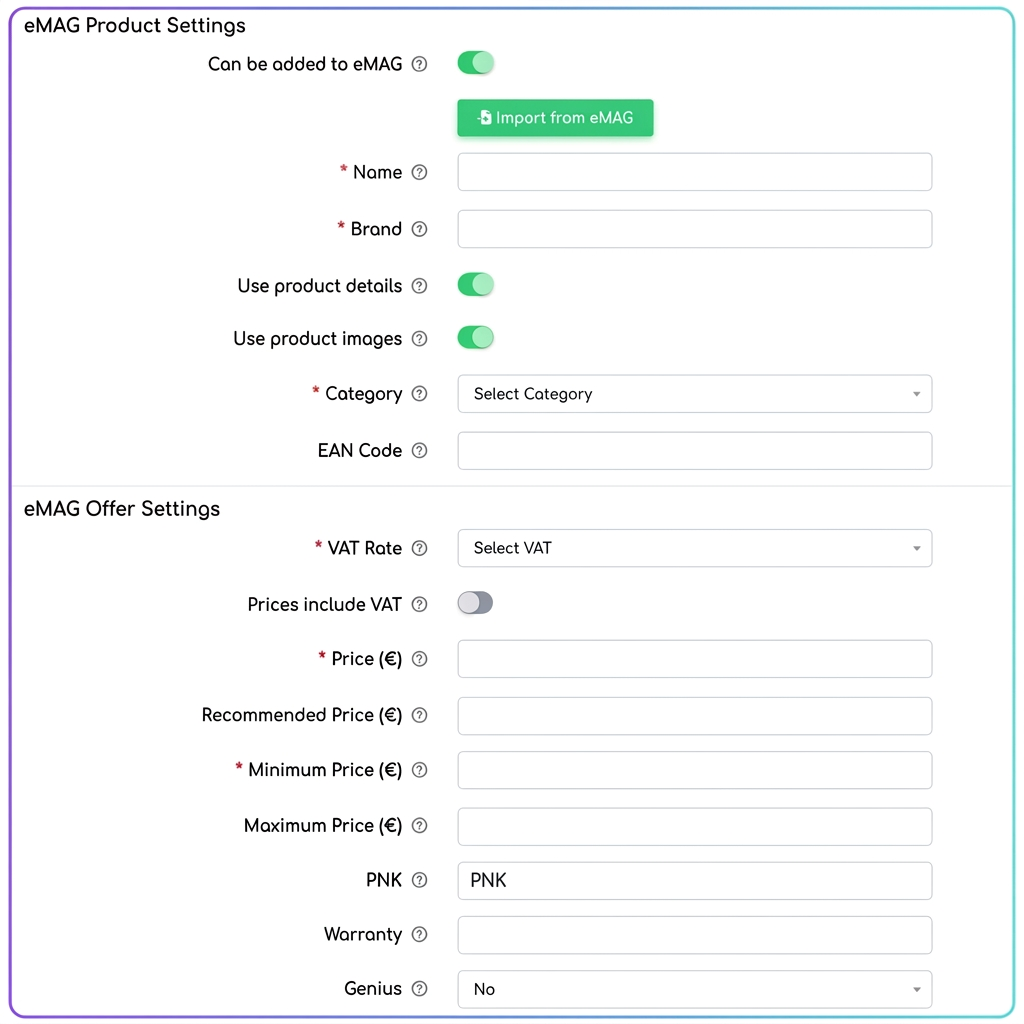
- Activate the product for eMAG: on the product edit page, scroll down to the eMAG Product Settings section and check the option "Can be added to eMAG".
- Fill in the following details:
- Name and Brand
- Category (mandatory for displaying specific characteristics)
- EAN Code (mandatory for most categories)
- Price, VAT, Recommended Price, Minimum, Maximum
- Warranty (months)
- Details, Images, Technical Sheet
- PNK:
- Represents the unique identifier of an offer associated with a product existing in the eMAG catalog.
- If the product already exists in eMAG, you have two options:
- Manually fill in the PNK field to attach your offer to that product.
- Use the Import from eMAG option, in which case the PNK will be automatically retrieved from the active offer.
- If you are adding a new product, leave the PNK field empty. After the offer is processed and approved, you will be notified when it receives a PNK from eMAG.
Updating and Synchronizing Products:
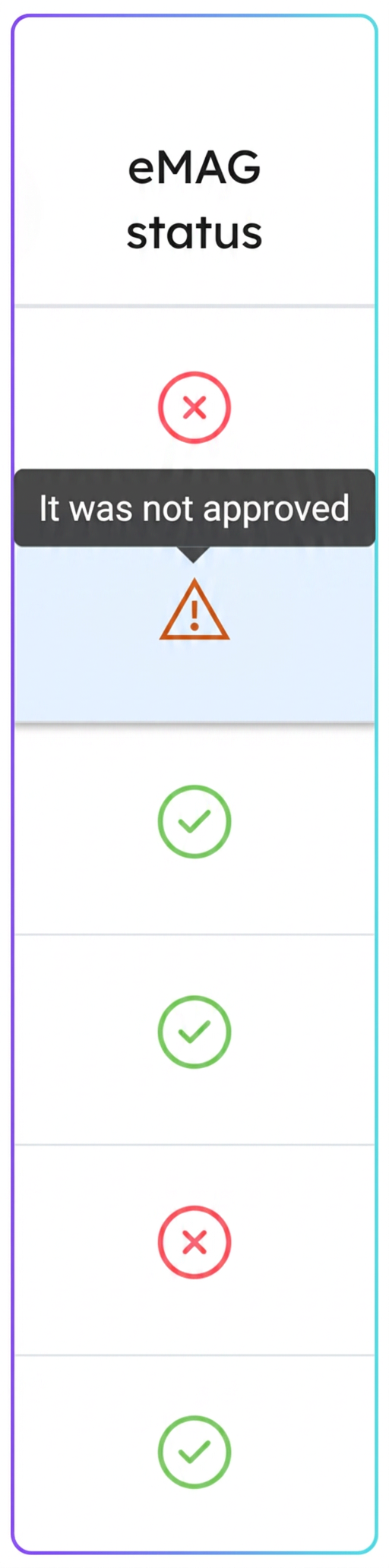
- In the product list, the eMAG status column indicates the state of each product:
- "Pending approval"
- "Approved"
- "Not approved"
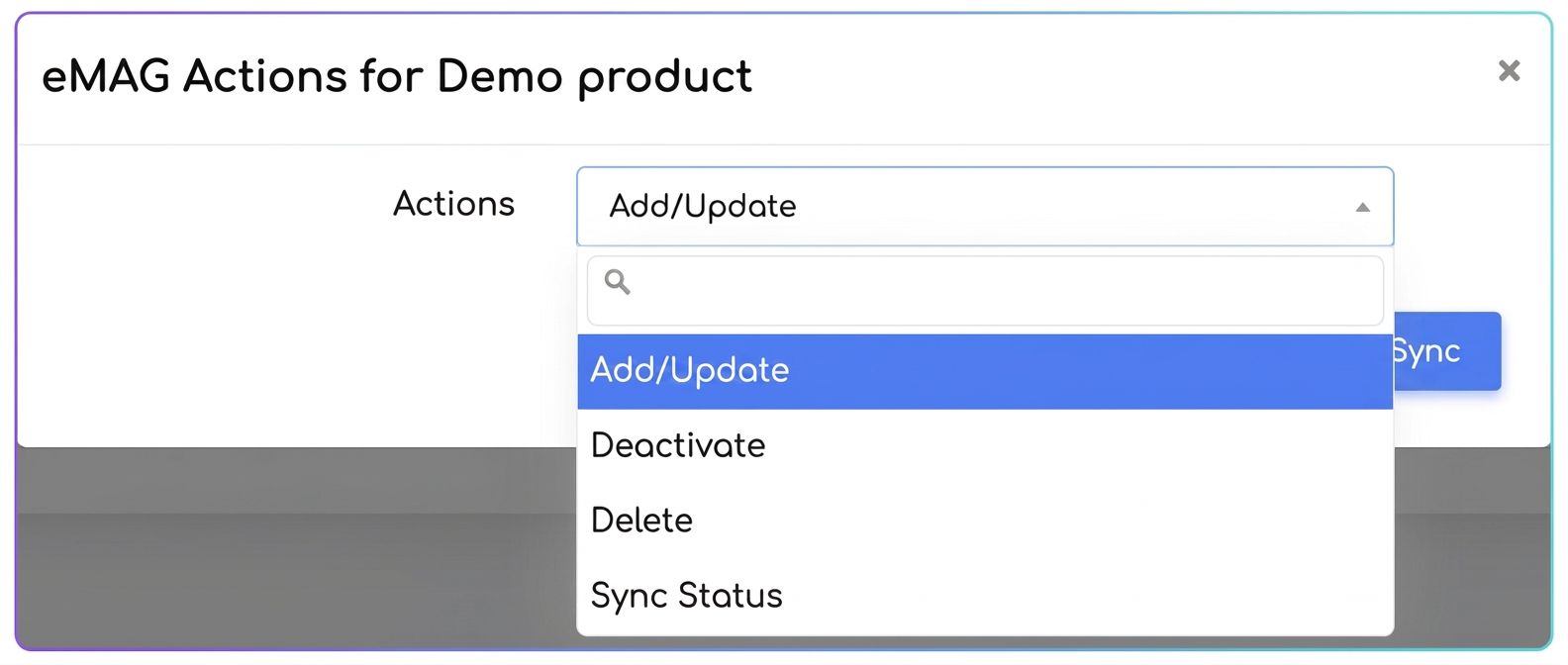
- Quick actions available:
- Add/Update - Adds the product to eMAG Marketplace or updates its information if it already exists in the platform.
- Deactivate - Deactivates the product in eMAG Marketplace – it will no longer be displayed in the public catalog.
- Delete - Completely removes the product from eMAG Marketplace.
- Sync status - Updates the product status in iFlows based on the one in eMAG Marketplace (active/inactive).
Section 3: eMAG Order Management
Once the integration is fully functional, orders placed on eMAG Marketplace will be automatically imported into iFlows.
Order Management Flow:
- Order Receipt:
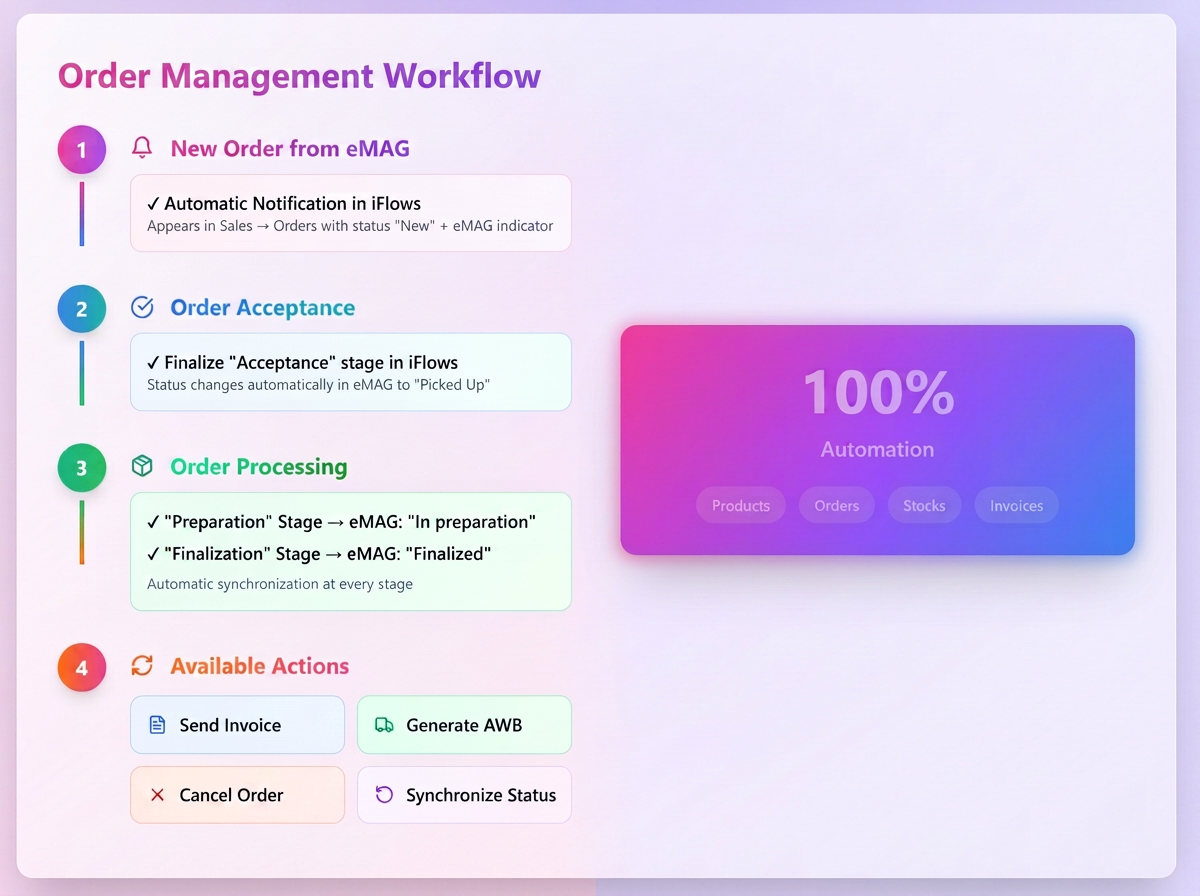
- Upon receiving a new order from eMAG, you will receive a notification in iFlows.
- The order will appear in the section with the status "New" and will have a specific eMAG visual indicator.
- Order Acceptance:
- Once the stage associated with Acceptance is completed in iFlows (stage established during eMAG integration configuration), the order status is automatically updated in eMAG Marketplace as "Picked up".
- Order Processing in iFlows:
- Upon completion of the Preparation stage, the order will be automatically updated in eMAG with the status "In preparation".
- Upon closing the Finalization stage, the status will change in eMAG to "Finalized".
4. Additional actions available in iFlows
After the order reaches the "Finalized" stage, several additional actions will become available in the iFlows platform, which can be sent to eMAG Marketplace. These actions are accessible from the orders menu and allow full management of the post-sale process:
- Send Invoice
Sends the invoice issued from the platform for this order to eMAG. - Generate AWB
Initiates the process of generating the transport document (AWB) for the selected order. - Move to preparation
Marks the order as being in the preparation stage in the eMAG system. - Move to finalization
Updates the order in the eMAG system as finalized. - Cancel
Sends the order cancellation request to eMAG. - Move to credit note
Marks the order as a credit note (storno) in the eMAG system (useful for initiating returns for finalized orders). - Synchronize
Checks and aligns the order status in iFlows with the current one in eMAG Marketplace to ensure consistency between the two systems.