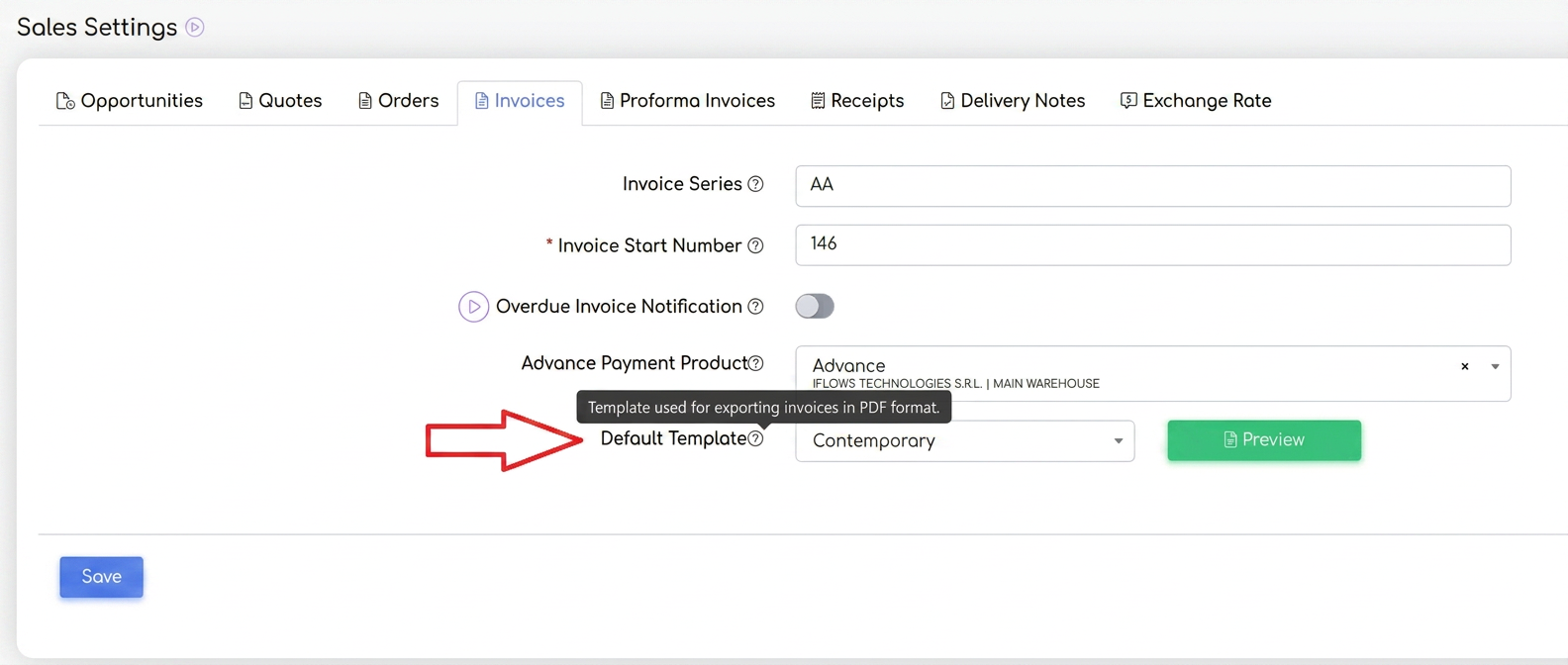
To display CPV and NC codes on invoices in iflows without setting them manually each time, you can configure a custom invoice template that automatically includes this information. Here are the detailed steps to achieve this:
1. Configuring a custom invoice template:
· Access the "Settings" section in the iflows platform.· Navigate to "Templates" and select the "PDF" option to create or modify document templates.
· Click the "New PDF Template" button to create a template from scratch or clone an existing template using the "Clone" option. Choose the document type.
· At the bottom of the template configuration page, you will find the export options section. Here, you can enable the display of CPV and NC codes for products in the invoice.
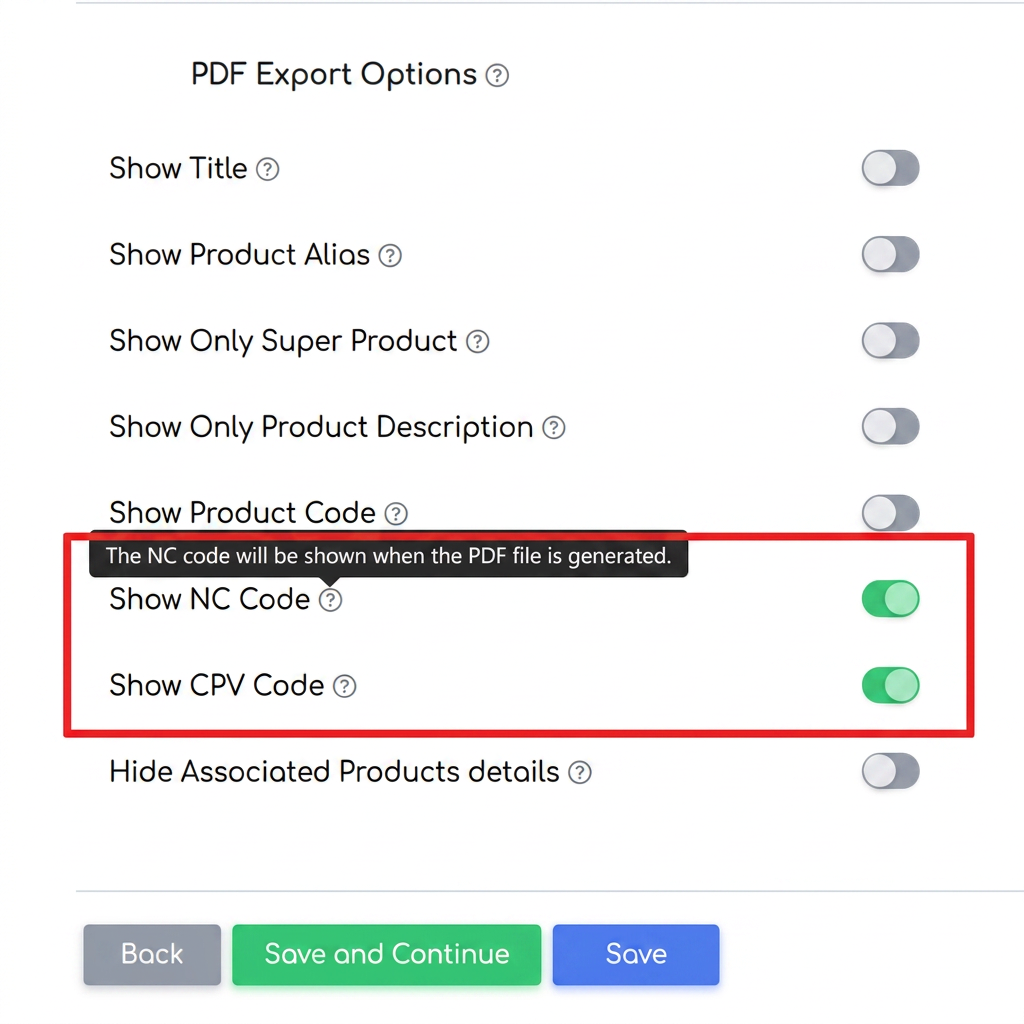
· Save the template once you have enabled this option.
2. Setting the custom template as default:
After configuring and saving the invoice template, you can set this template as the predefined one for all generated invoices, thus ensuring the automatic use of CPV and NC codes on every invoice:
· Go to "Settings" again.· Select the "Sales" section and then access "Invoices".
· In the "Default Template" column, select the newly configured template to set it as the predefined one.