
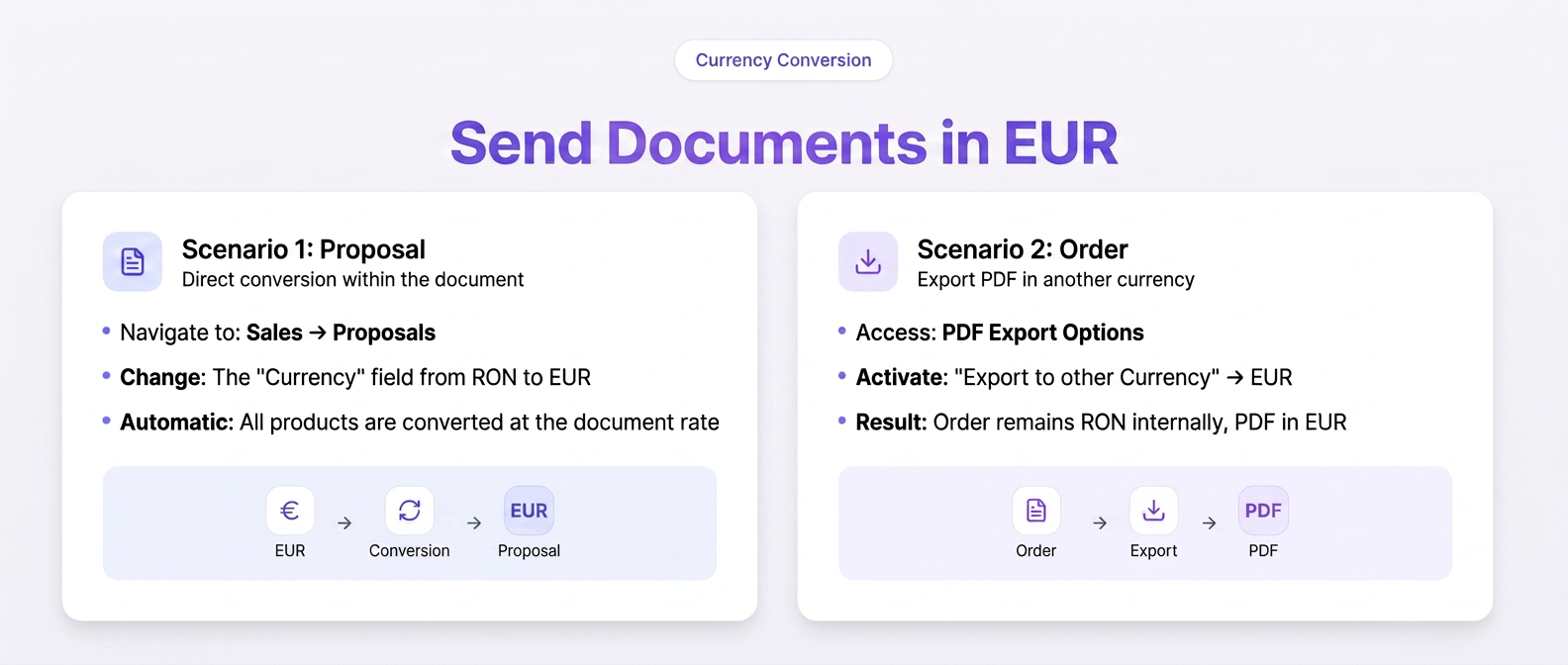
It is not necessary to fill in the currency and value at the line level. The conversion is done automatically, at the document level, depending on its type.
There are two distinct scenarios, depending on the desired document.
🟦 Scenario 1: Offer
Steps:
- Go to (or edit an existing offer).
- In the middle part of the document, identify the “Currency” field.
- Change the currency from EUR to EUR.
- Save the document.
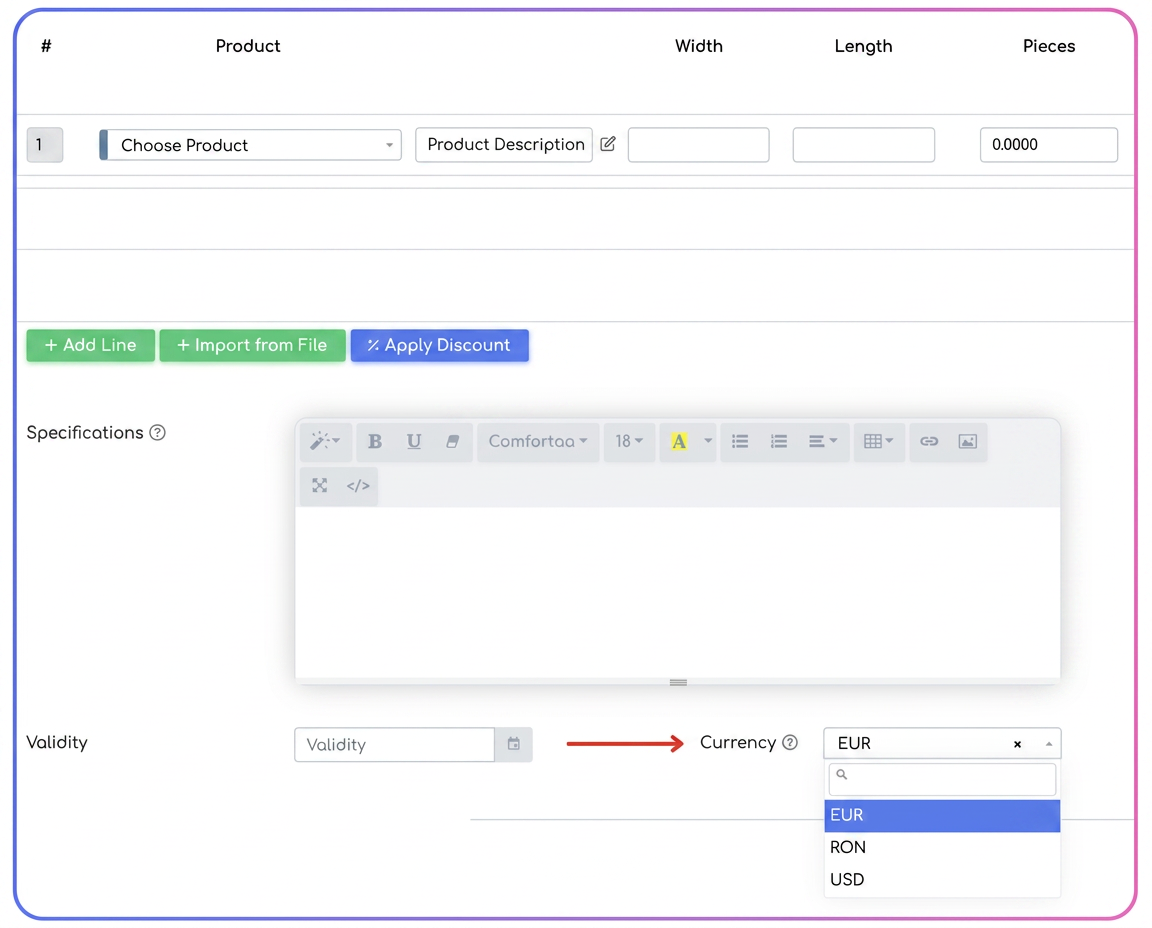
What the system does:
- All products in the offer are automatically converted to EUR
- The conversion is performed based on the document exchange rate
- No intervention is required at the product line level
📌 Result: The offer sent to the customer is in EUR.
🟦 Scenario 2: Order
In the case of orders, the document currency remains the one set in the platform (in your case, EUR).
For display in EUR, a dedicated export option is used.
Steps:
- Open the desired order.
- Access PDF Export Options.
- Enable the “Export to another Currency” option.
- Select EUR from the list.
- Generate the PDF or send the order using the platform's email option.
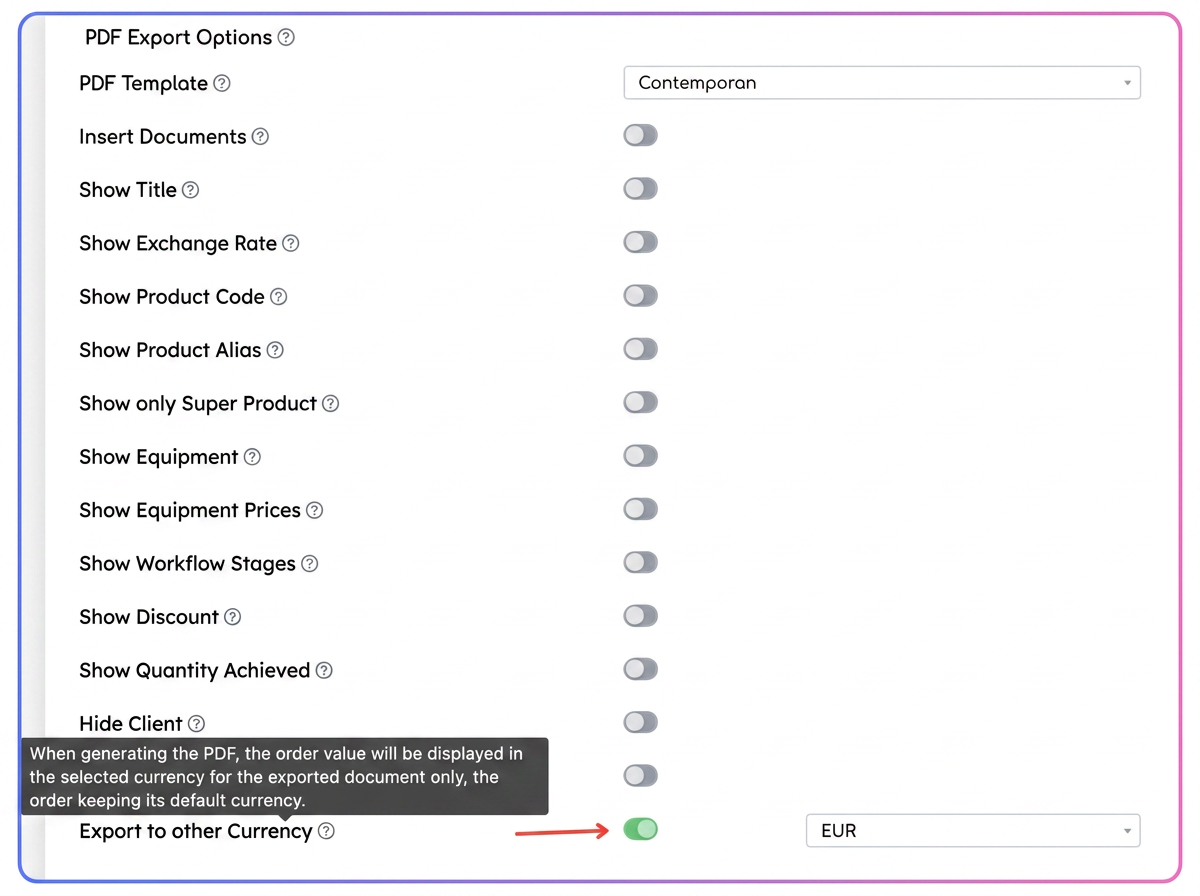
What the system does:
- The conversion applies only to the exported document
- The order remains in EUR within the platform
- Operational or accounting data are not modified
📌 Result: The customer receives the document in EUR, without affecting the internal structure of the order.
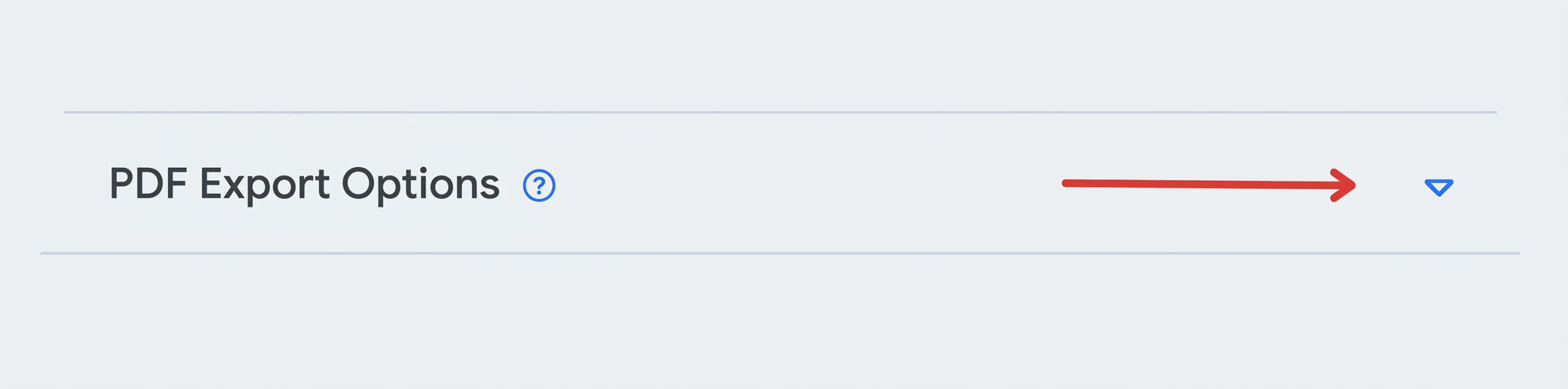
Note: If you do not see the content of the “PDF Export Options” section, it is most likely collapsed.
On the right side of the section title, there is an expansion arrow. Click on it to display the available options.
iflows remembers this setting at the account (user) level:
-
if the section is expanded, it will remain visible during subsequent accesses;
-
if it is collapsed, it will continue to be displayed collapsed until it is manually expanded again.
Thus, it is possible to see only the section title, without content, until it is expanded.