
1. Re-invoicing rent – the ideal solution: Recurring Order
In this case, rent usually has a fixed value and a constant frequency (monthly). The recurring orders module was created specifically for this type of scenario.
How it works:
- At a date set by you, the system automatically generates a rent order.
- This order is automatically invoiced, without manual intervention.
- The invoice can be sent directly to the client via email, also automatically, at the chosen date and time.
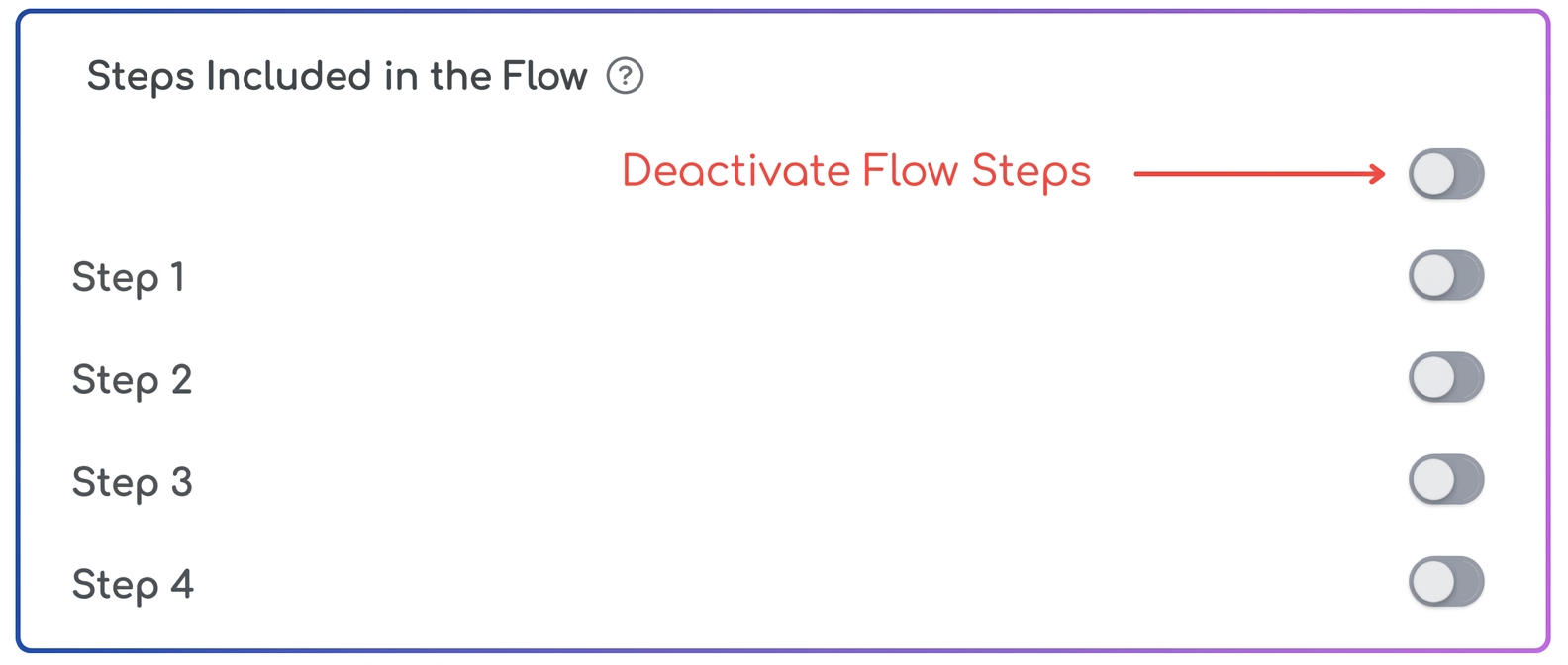
For the workflow, you can exclude all stages and keep only the last mandatory stage. Thus, for each order, you will only have to check one single stage (minimum effort).
Practical steps for setup (example: rent):
- Access the menu .
- Select the client for whom you want to create the recurrence.
- Add the product "Space Rent" (or the name you use).
- Fill in the Details field (e.g., "According to lease agreement no. X").
- Optionally, in Order Title, you can write "Rent" to make it easy to identify in the workflow.
- In the Stages Included in Workflow area, remove all stages, keeping only the last one.
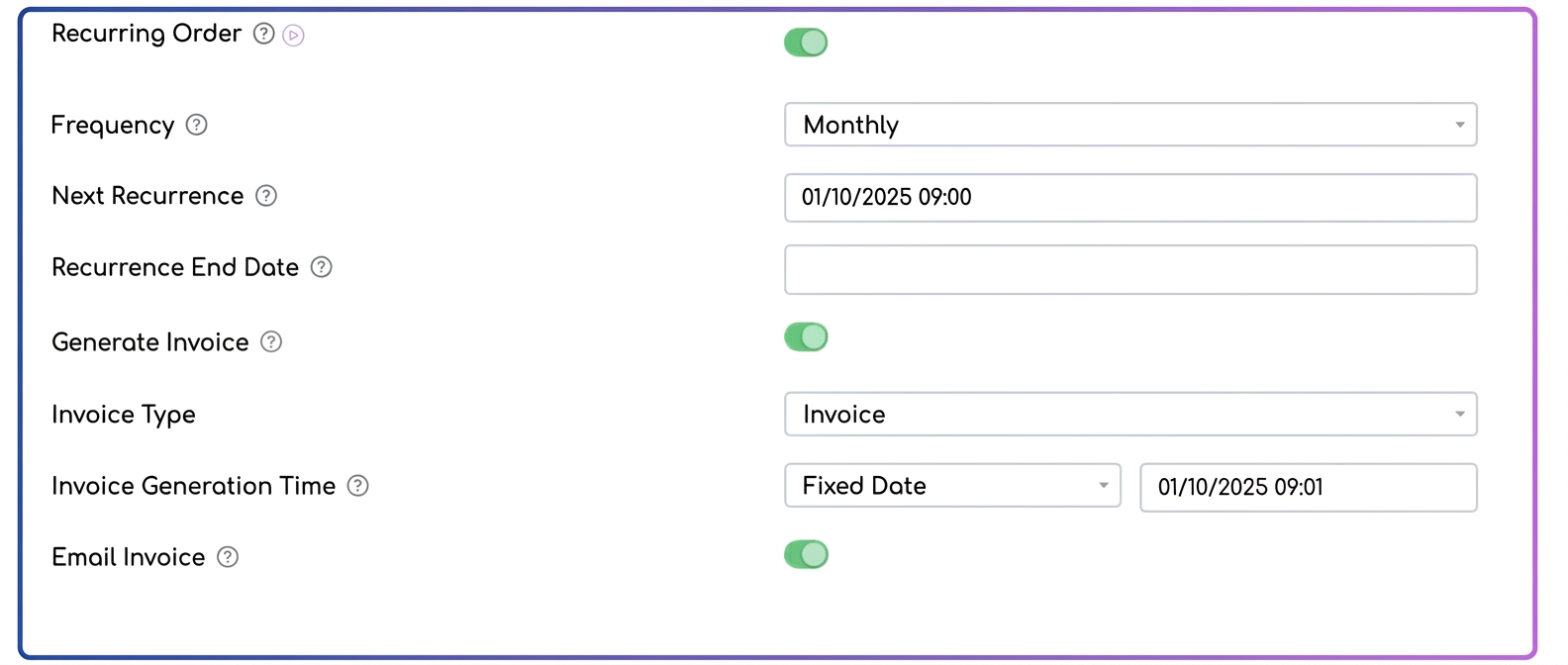
- At the bottom, activate the Recurring Order option and fill in:
- Frequency – select "Monthly".
- Next Recurrence – the date on which you want the first recurring order to be issued.
- Recurrence Stop Date – enter the contract end date (so that no more orders will be generated after that date).
- – select "Invoice".
- – set the day of the month when the invoice will be generated (e.g., the 1st or the 5th).
- Send Invoice via Email – check this if you want automatic sending to the client.
- Save the order.
- Now you only need to process the order in the workflow by checking only the last stage.
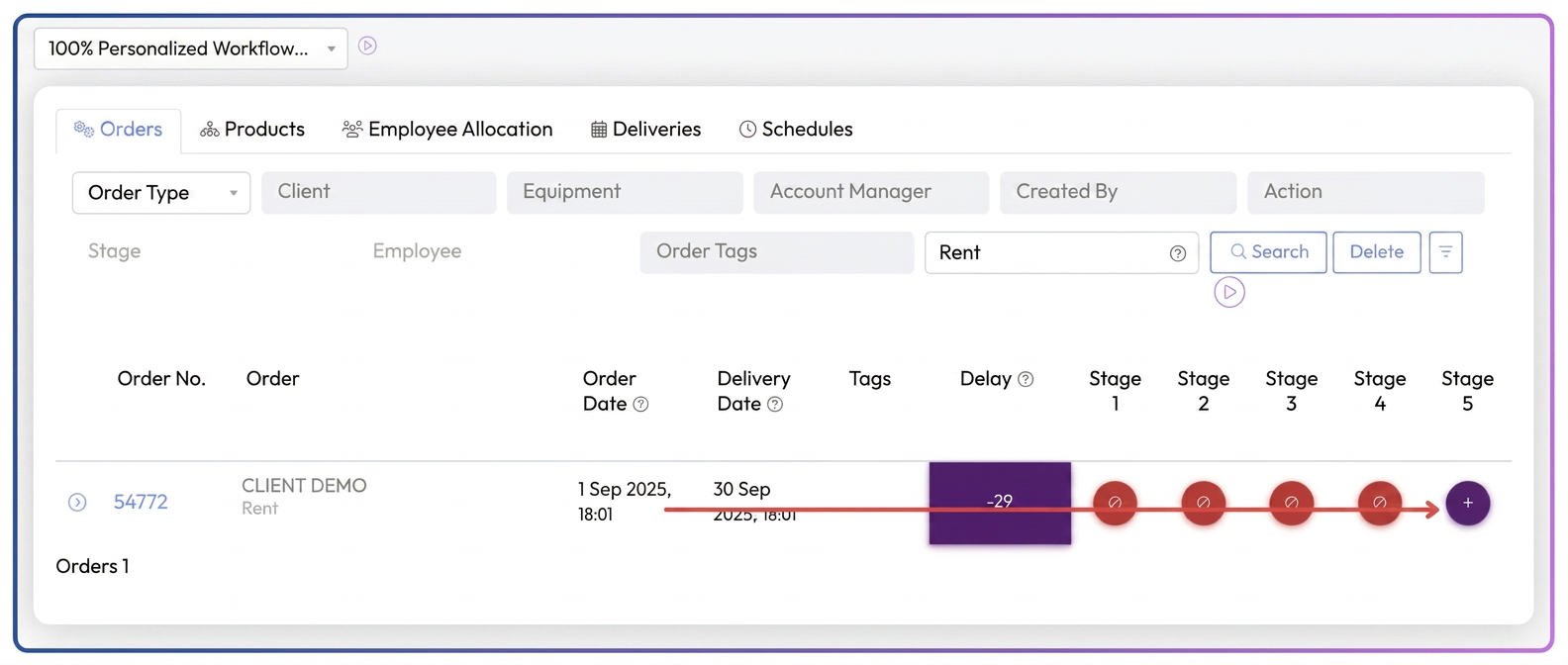
⚠️ The first invoice (the one related to the base order) must be generated manually. Subsequently, the system will automatically create monthly orders and invoices and send the invoice to the client via email.
2. Re-invoicing utilities – variable amount
In the case of utilities, the value changes from month to month. For this reason, the recurring order is not suitable (it has no way of knowing the correct amount).
How to proceed:
- You will create a new order manually each month.
- To reduce effort, just like with rent, you can remove all stages from the workflow and keep only the last one.
- Once the order is created, you will enter the exact amount for utilities, then generate the invoice.
Conclusion
- For rent: complete automation via recurring order.
- For utilities: manual entry, but with a simplified workflow (a single stage).
Thus, for rent you save time through automatic generation and invoicing, and for utilities you ensure the amount is correct, with minimal effort.
3. Stopping a recurring order
If, for example, the contract is terminated early or the client leaves sooner and there is no longer a need to issue invoices, the recurrence can be stopped at any time.
Steps to stop the recurrence:
- Access the menu .
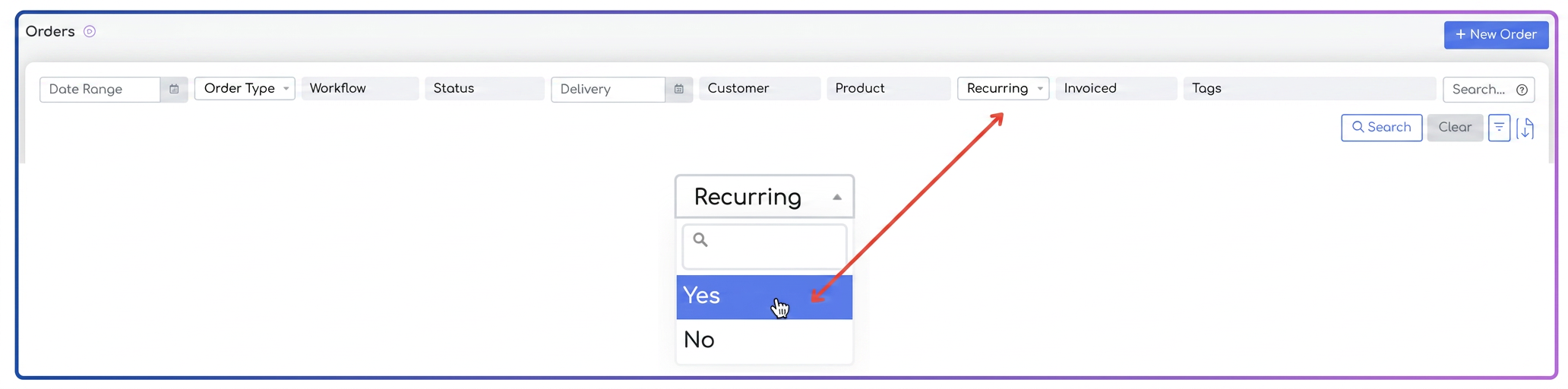
- In the filter bar, in the Recurrence field, select "Yes".
- This way, only recurring orders will be displayed.
- Note: the system only displays the "parent" order, i.e., the one from which the recurrence was created (not the subsequently generated orders).
- Next to the desired order, you will find the Edit Recurrence button (the dedicated icon).
- The recurrence configuration window opens.
- In the Status field, set it to "Stopped".
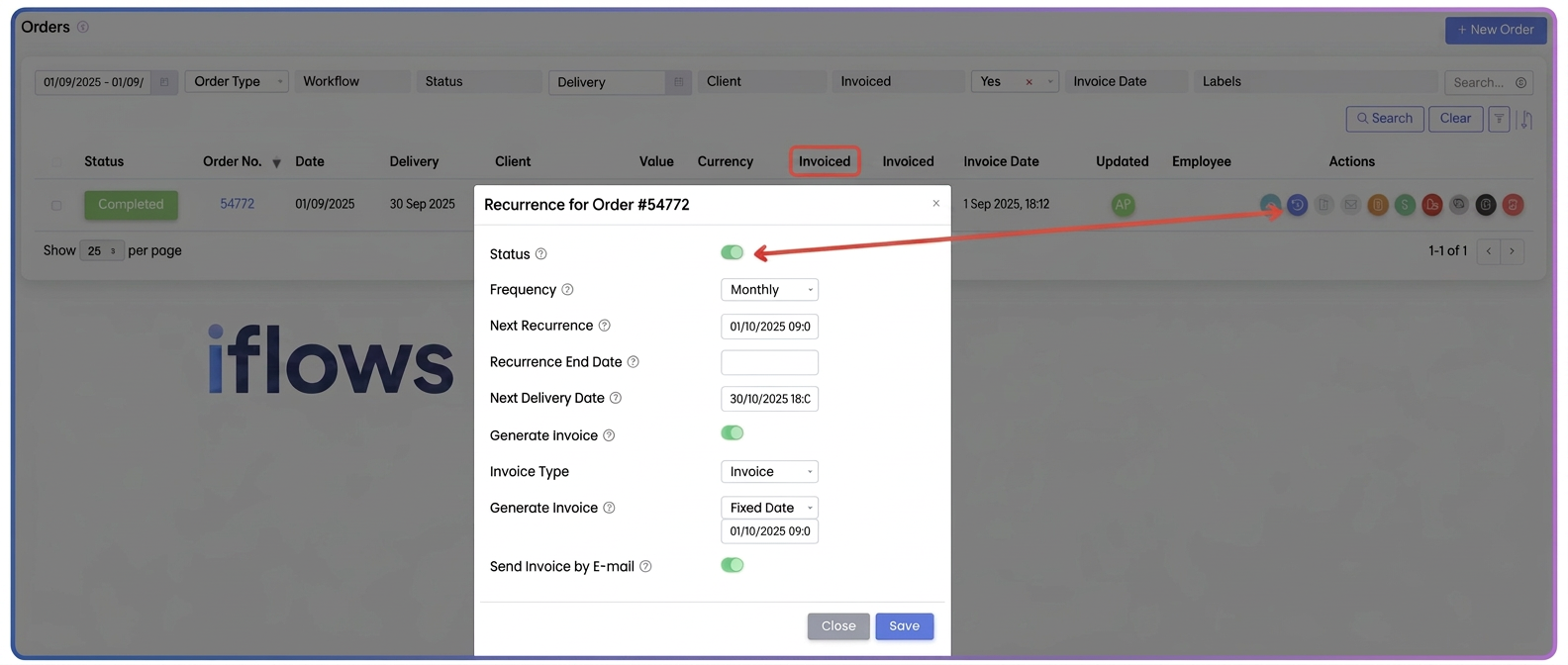
- Save the changes.
➡️ From that moment on, the system will no longer generate new orders and invoices for that recurrence.