-
Access the "Sales" – "Invoices" section
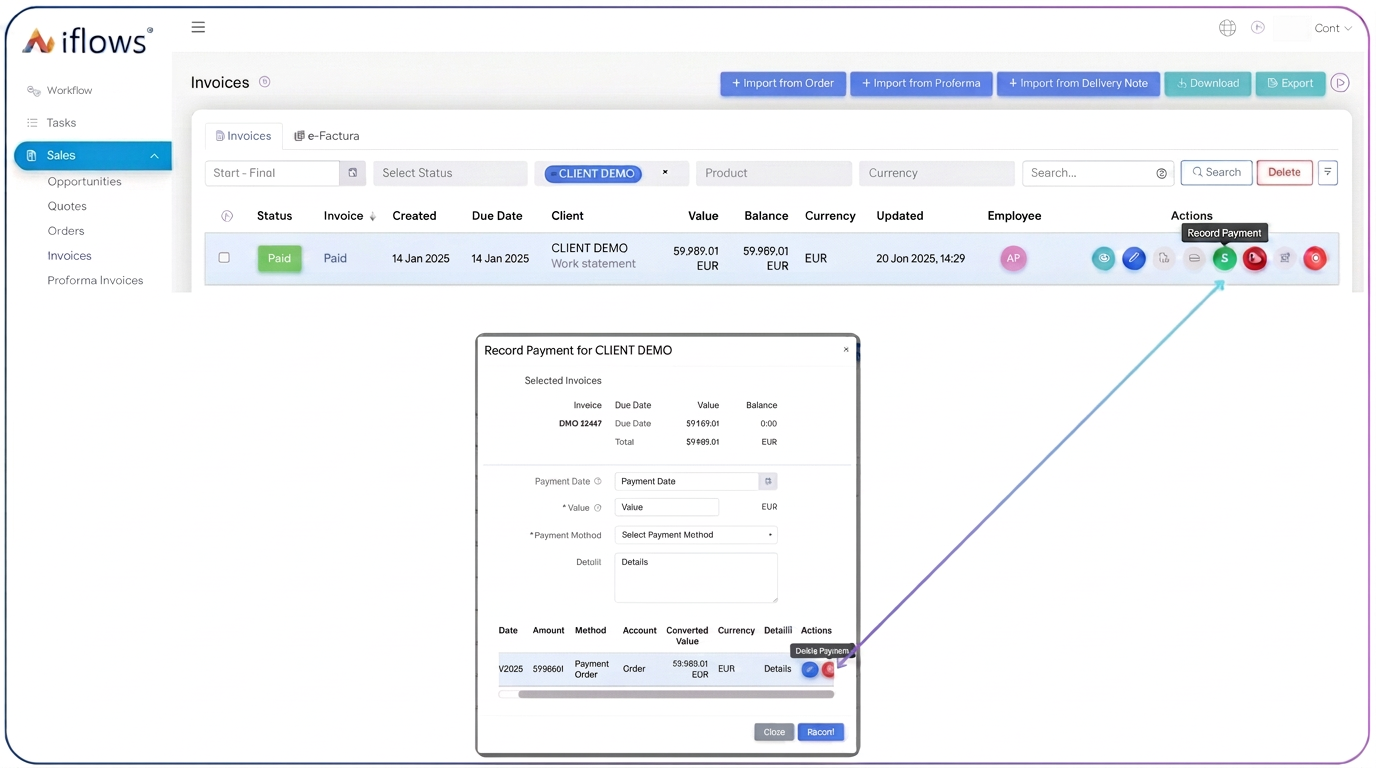
- From the main menu, navigate to the "Sales" module, then select "Invoices".
- The list of all existing invoices will be displayed.
-
Identify the invoice with the incorrect payment
- Search the list for the invoice where you recorded the incorrect payment.
-
Access the payment details
- In the "Actions" column (on the right side of the invoice), click the green "Record payment" button.
-
Locate the erroneous payment
- At the bottom of the window, you will see all payments previously recorded for that invoice.
- Identify the payment you wish to modify or delete.
-
Edit or delete the payment
- Edit: If only the amount or payment details are wrong, click the "Edit" button and enter the new values/corrections.
- Delete: If the payment is completely wrong, click the "Delete payment" button and confirm the operation.
-
Save changes