
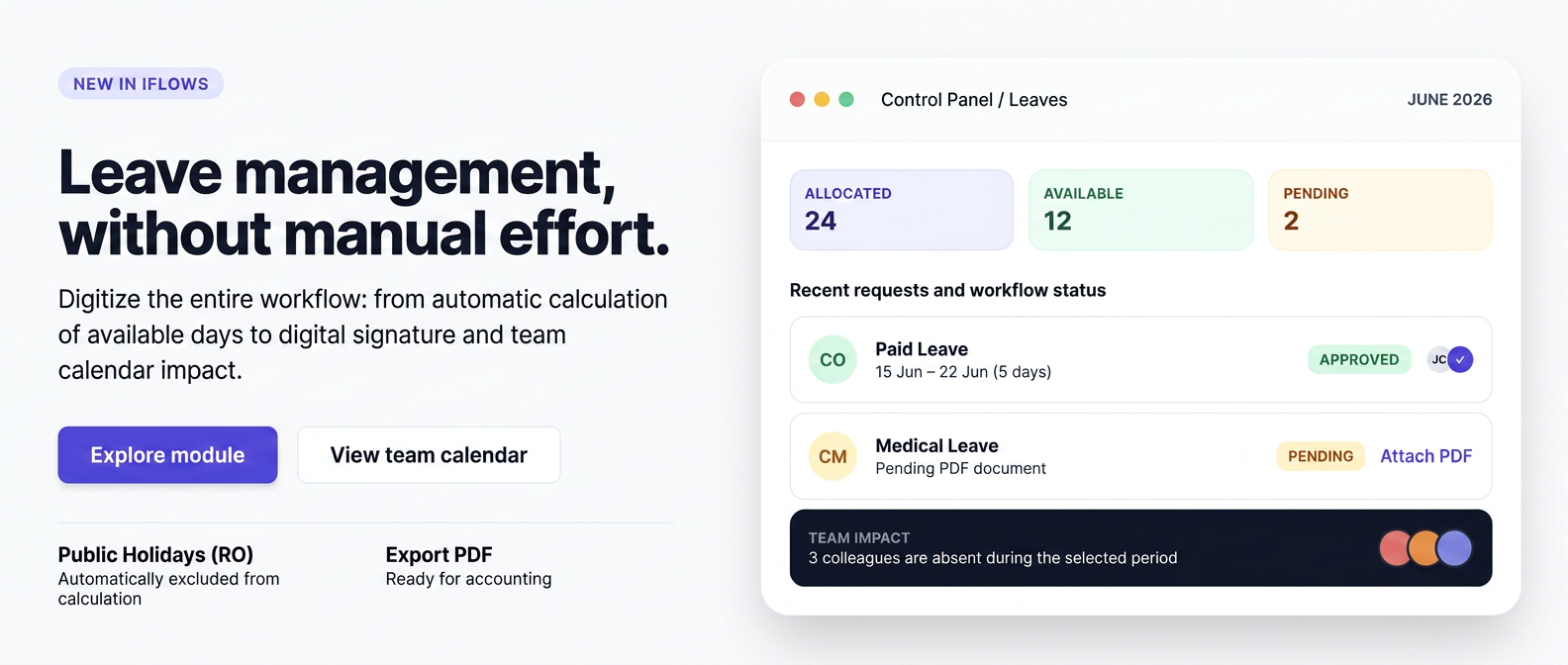
1. General Overview
The Leave Management module manages the entire cycle of leave requests within the iflows platform: request submission, approval flow, day balance tracking, and public holiday configuration. Requests follow a clear state flow, and annual leave days are deducted from the employee's balance only after approval.
The module has two separate perspectives:
- Employee's personal page — balance, calendar, and history of own requests, accessible from the account menu.
- Manager / Administrator management area — centralized request list, team impact indicator, annual centralization, and public holidays.
The diagram below summarizes the entire request flow, by roles:
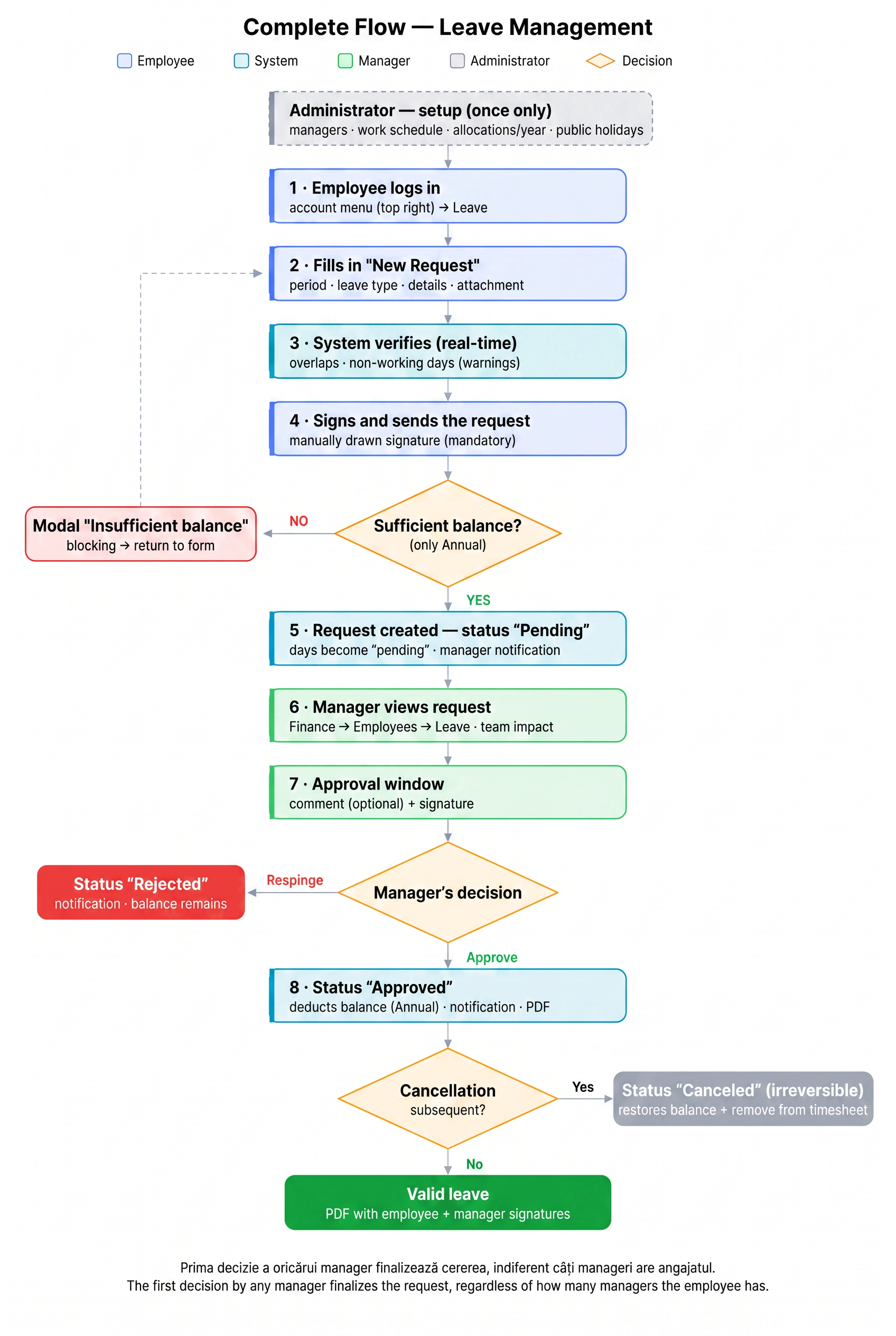
Fig. — Complete leave request flow — from submission to approval/cancellation.
1.1 What the module provides
- Approval flow with mandatory signatures for both employee and manager.
- Automatically calculated balance: allocated, consumed, available, pending, and carried-over days.
- Automatic carry-over of unused days on January 1st (for configured years).
- Team impact indicator, to avoid leave overlaps within the same department.
- Correct day counting: weekends, public holidays, and days outside working hours are automatically excluded.
- Public holidays managed from a dedicated tab, with automatic import of Romania's national holidays.
- Automatic notifications in the platform and via email at each step of the flow.
- PDF document with signatures for approved requests.
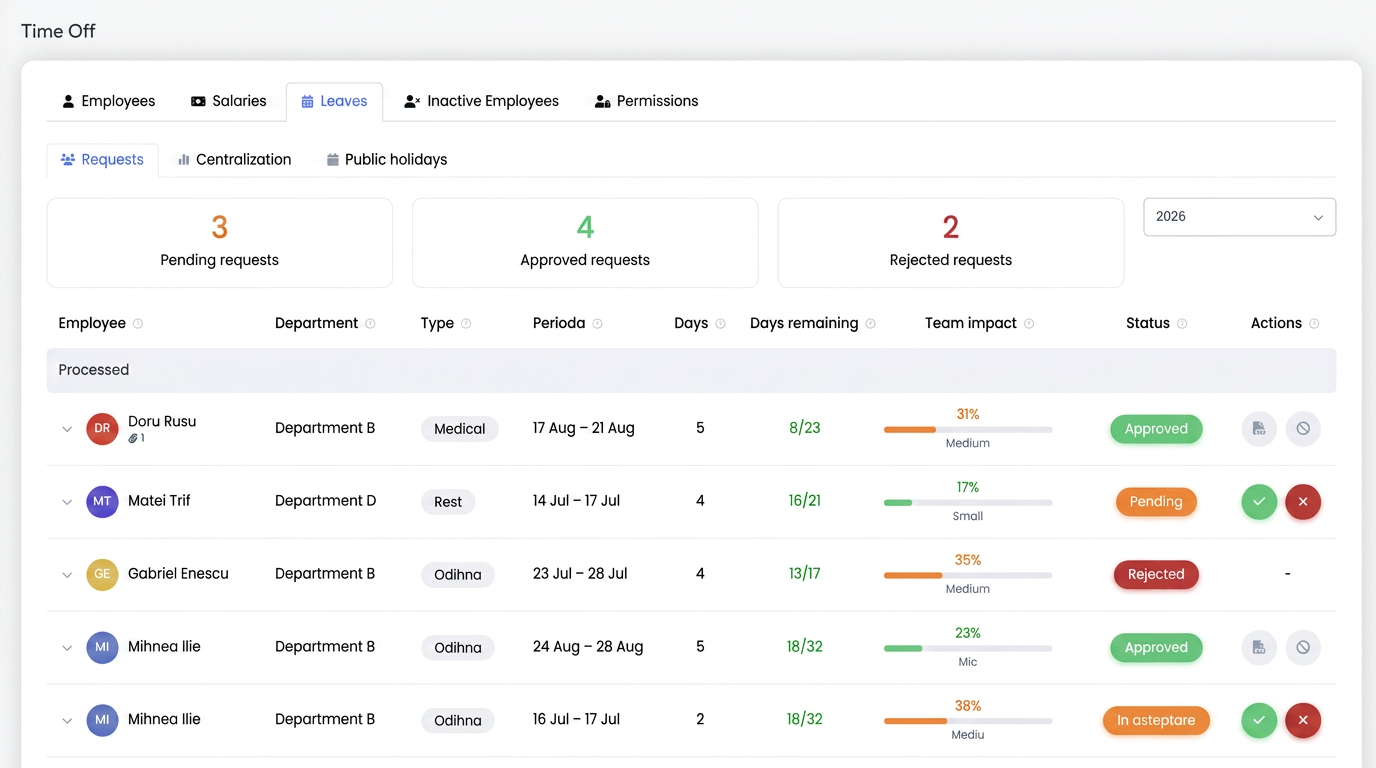
Fig. — Manager's main view — request list with team impact and status.
2. Key Concepts
This section explains the terms and indicators appearing in the interface. We recommend reading it before the operational tutorials.
2.1 Request Statuses
| Status | Meaning | Available Actions |
| Pending | Request submitted, not yet processed by the manager. | Manager: approve / reject. Employee: edit / cancel. |
| Approved | Request accepted; annual leave days have been deducted from the balance. | Manager: download PDF / cancel leave. Employee: download PDF. |
| Rejected | Request refused by the manager. | No actions (—). |
| Cancelled | Approved leave, subsequently cancelled; balance has been restored. | No actions (—). |
2.2 Leave Types
| Type | Consumes balance? | Observations |
| Annual Leave (Odihnă) | YES | The only type that deducts from available days. |
| Medical (Medical) | NO | Tracked separately; does not reduce available days. |
| Unpaid (Fără plată) | NO | Tracked separately; does not reduce available days. |
2.3 Day Balance
On the employee's personal page, the balance is displayed in 5 colored boxes. Values are automatically calculated for the current year:
| Box | Formula | Explanation |
| Allocated days | allocated + carried-over | Total pool; already includes carried-over days. |
| Consumed days | approved annual leave days | Annual leave days already approved in the current year. |
| Available days | (allocated + carried-over) − consumed | Days you can still take. |
| Pending days | days from pending requests | Informative; all types, all years. |
| Carried-over days | balance brought from the previous year | The carried-over component from «Allocated days». |
| NOTE «Pending days» DOES NOT decrease «Available days». The pending status is purely informative — availability only decreases upon approval. E.g.: you can have 8 available days and 5 pending; availability remains 8 until the manager approves. |
| ATTENTION The «Allocated days» box already includes carry-overs. «Carried-over days» is only the component brought from the previous year — it is not added a second time to «Allocated days». |
2.4 Team Impact
Operational risk indicator displayed in the manager's list. It shows how much the employee's absence during the request period affects the team — specifically, what fraction of colleagues from the same department are absent simultaneously.
Calculation method:
- Take all active colleagues from the same department (including the employee) → this is the total.
- For each working day of the leave, count how many are absent simultaneously: day_percentage = absent / total × 100.
- Displayed value (and bar size) = average of daily percentages, rounded.
Thresholds and bar colors:
| Level | Bar color | Interval |
| Low | Green (#22C55E) | ≤ 30% |
| Medium | Orange (#F59E0B) | 31 – 60% |
| High | Red (#EF4444) | > 60% |
| NOTE If the employee has no department set, the impact is automatically 0 / «Low» / green. For requests with overlaps, a tooltip shows colleagues with common days, «Peak: X absent out of Y» and «Average impact: Z%». The indicator is informative and DOES NOT block approval. |
2.5 «Remaining days» Column
In the manager's list, the format is available / total — for example 8/23 means 8 available days out of a total of 23 (allocated + carried-over). It is not consumed/allocated.
2.6 Day Counting
When calculating leave days, the following are automatically excluded: weekends, public holidays, and days outside the employee's working hours. A holiday included in an interval is not deducted from the balance.
2.7 Automatic Carry-over
Unused days are automatically carried over on January 1st for years configured with active carry-over. Carry-over is recalculated automatically and can be negative if more days were consumed in the previous year than were available.
3. Configuration — Administrator
Configuration is done on each employee's file, accessible from submit requests, their file must contain the working schedule, leave managers, and annual day allocation.
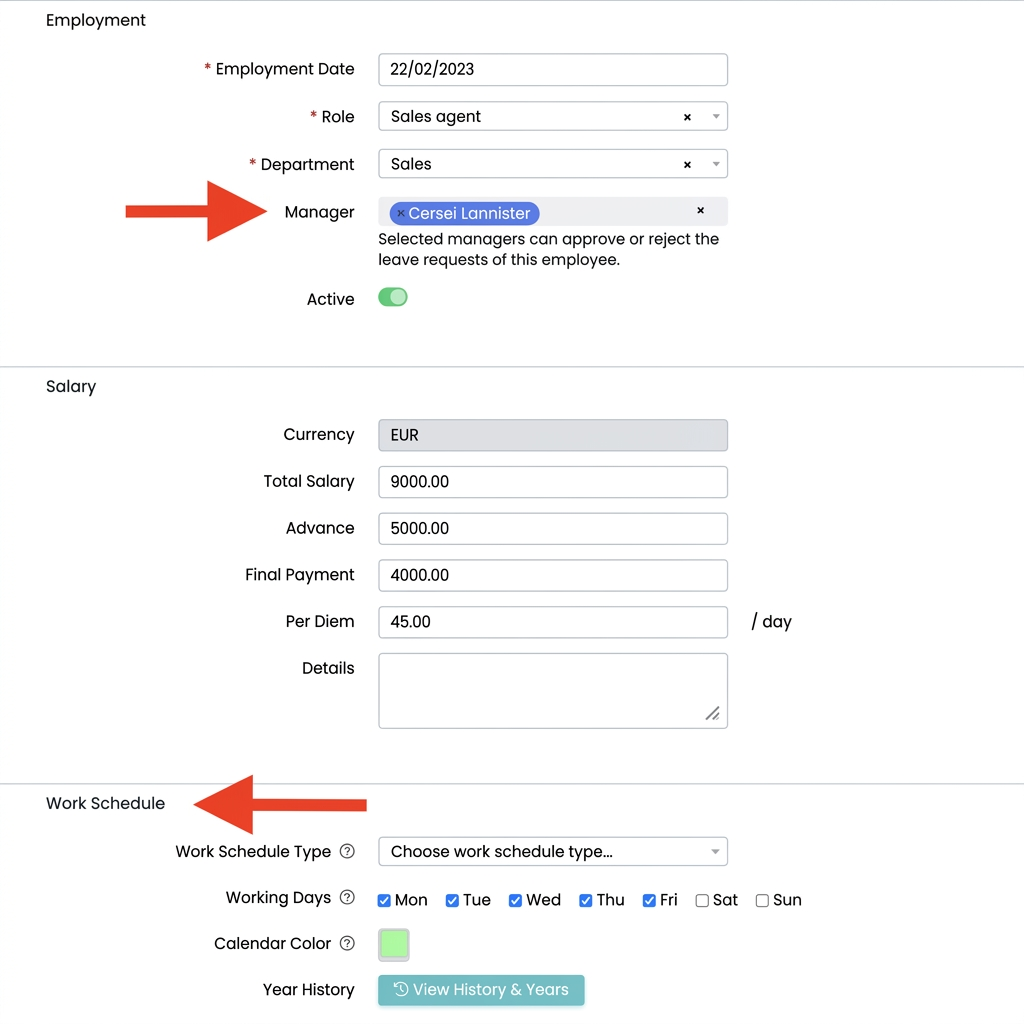
Fig. — Employee file — where leave settings are configured.
3.1 Employee File Structure
The file contains the sections: Contact, Employment (Position, Department, Manager), Salary, Details, Working Schedule, View history & years, and Access.
3.2 Configuration Steps
Step 1. Set leave managers — in the Manager field (Employment section), choose one or more persons who can approve or reject the employee's requests. The first decision finalizes the request, regardless of how many managers the employee has.
Step 2. Define the working schedule — establish the Schedule Type (Time interval or Fixed number of hours), Working Days, and Calendar Color. Only the employee's working days are deducted from the balance.
Step 3. Establish annual allocated days — when creating the employee, fill in the Leave days (default) field.
| ATTENTION The «Leave days (default)» field only appears when creating the employee. For an existing employee, allocations are made exclusively from the «View history & years» dialog (see step 4). |
Step 4. Manage allocations by year — the View history & years button opens the «Leave allocation history» dialog, where you add or edit allocations for each year.
The «Leave allocation history» dialog has the columns:
| Column | Role |
| Year | Allocation year (with «Current Year» badge for the ongoing year). |
| Allocated days | Number of days allocated for 그 year. |
| Days carried over from prev. year | Days brought from the previous year. |
| Carry over days | Checkbox = the toggle for carry-over to the next year. |
| Actions | Edit allocation. |
The «Add year» button creates a new allocation. Carry-over is recalculated on January 1st and can be negative.
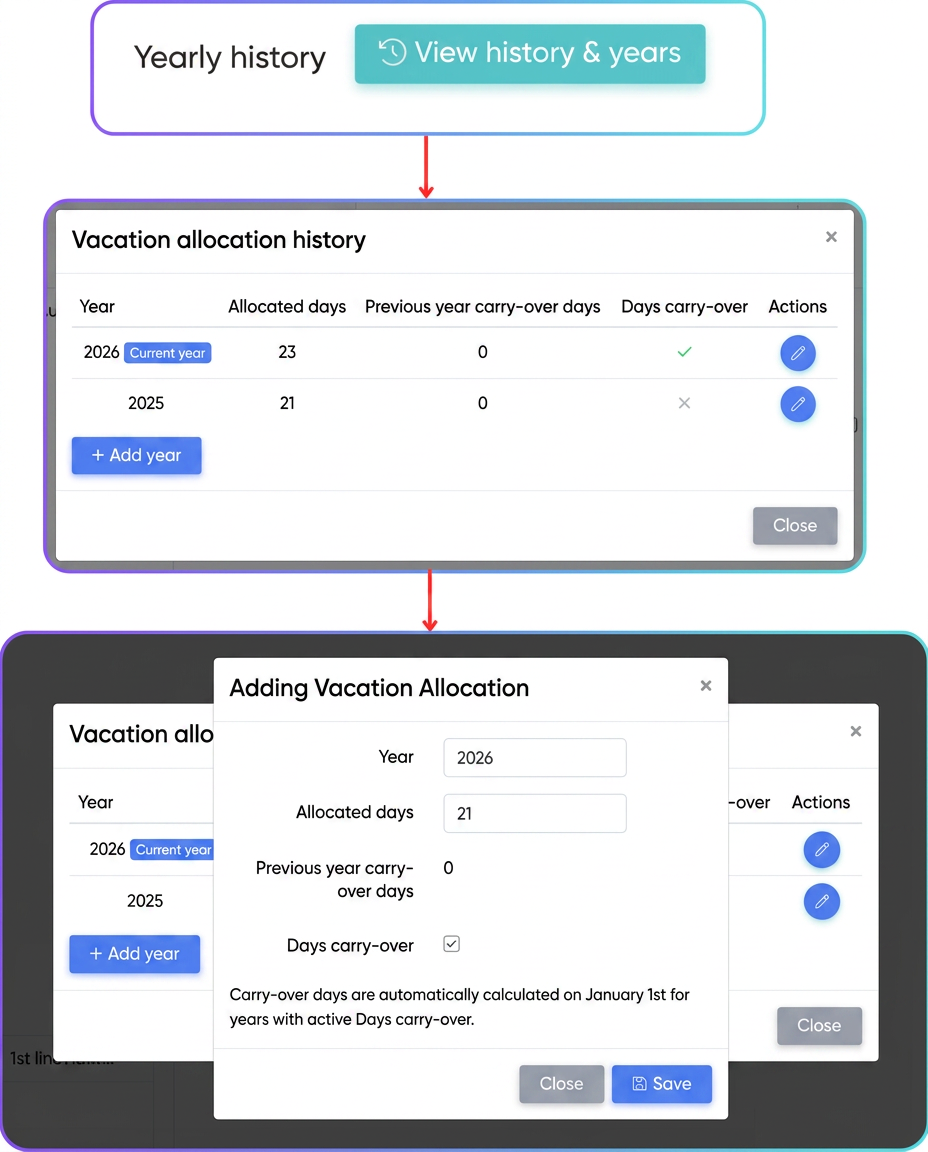
Fig. — Allocation history by year and carry-over toggle.
Step 5. Configure public holidays — from , the Public Holidays tab (detailed in section 6).
4. Tutorial — Employee
The personal leave page is accessed from the account menu (top right) → Leaves. It contains balance boxes, the calendar, and your own request history.
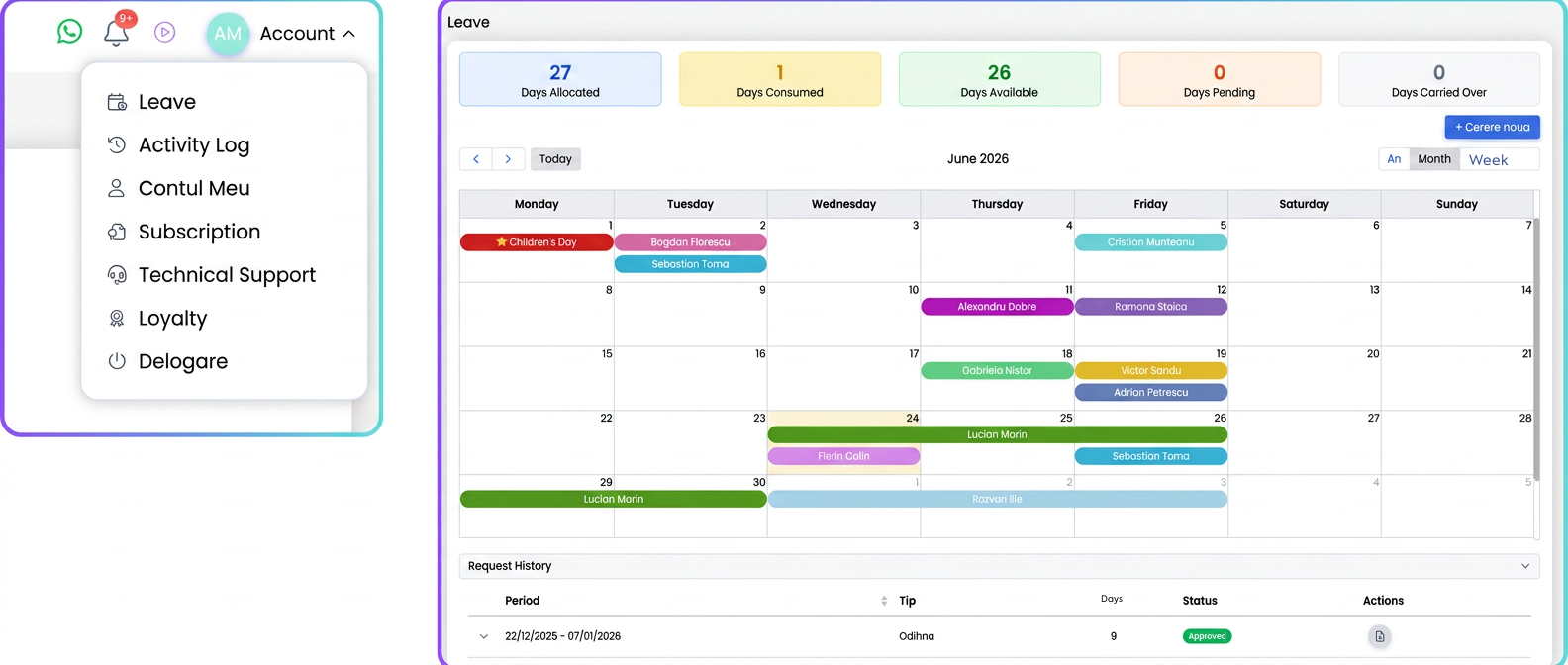
Fig. — Personal page — balance, calendar, and history.
4.1 Balance Boxes
The 5 boxes (Allocated days, Consumed days, Available days, Pending days, Carried-over days) are explained in section 2.3. Remember: pending days do not reduce availability until approval.
4.2 Submitting a Request
Step 1. Open the form — press the New Request button.
Step 2. Choose period type — Interval (start date and end date) or Individual Days.
For «Individual Days», the date fields disappear and a «Select days» mini-calendar appears, where you check specific days (with a «No days selected» indicator until the first check).
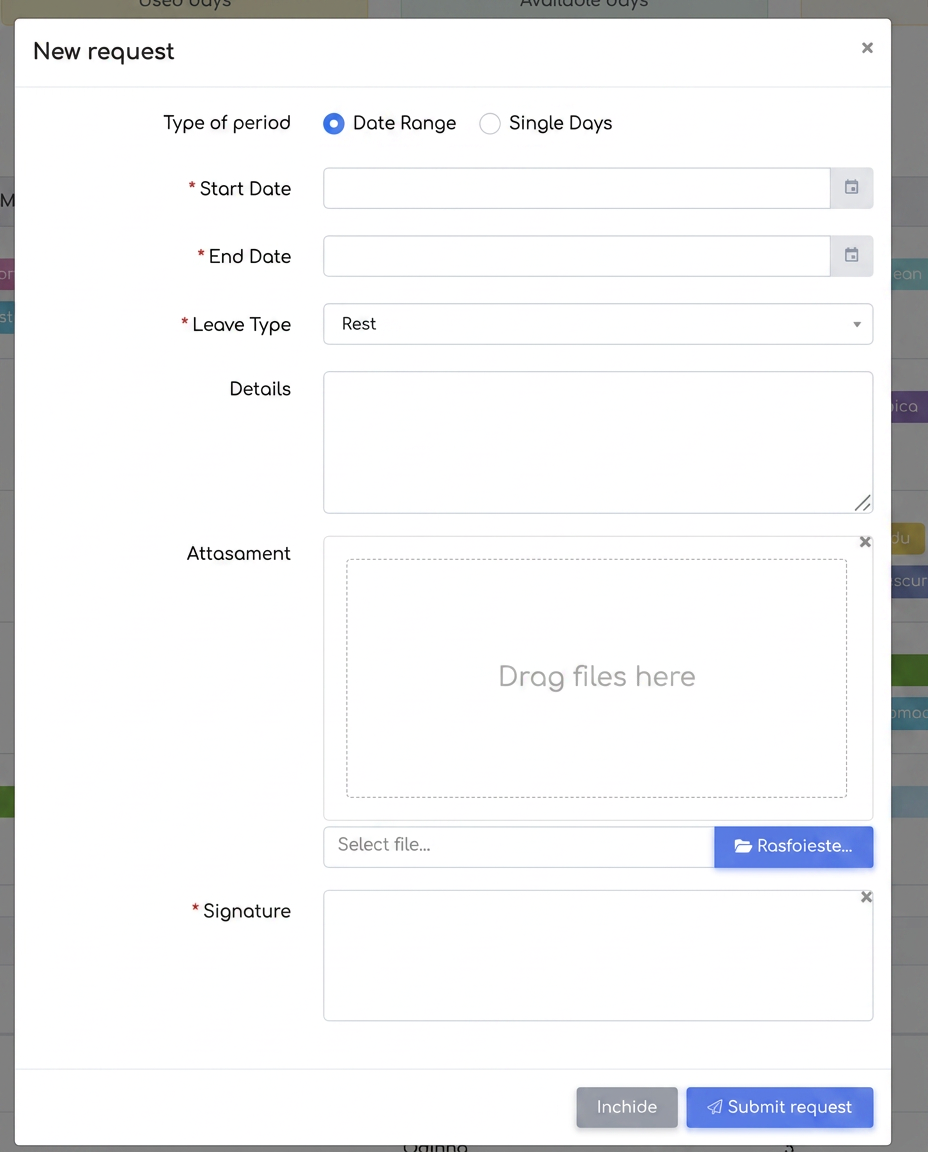
Fig. — Selecting individual days in the request form.
Step 3. Select leave type — Annual Leave, Medical, or Unpaid. Only Annual Leave consumes the balance.
Step 4. Fill in details — optionally you can attach a file (for example, a medical certificate).
| NOTE Only one file can be attached per request, with no type restrictions (any extension). |
Step 5. Sign — in the signature box. The signature is drawn manually every time and is mandatory; there is no saved signature in the profile.
Step 6. Send request — press Send Request. The system checks the balance and any overlaps with your other requests, then sends the request to your managers.
4.3 Warnings and Errors
The system warns you in three situations:
- Overlap — inline warning (⚠, red text) under date fields, in real-time. It names the conflicting request, e.g.: «Period overlaps with an existing request (Jun 24 (1 days), Pending): 24/06/2026.» Does not block the button.
- Non-working days — informational inline warning: days outside the schedule and public holidays in the interval will NOT be counted in the leave balance, with a list of excluded days.
- Insufficient balance — upon pressing «Send Request», a blocking «Attention!» modal pop-up appears, e.g.: «Insufficient balance in 2026. Available: 21 days.» The request IS NOT sent.
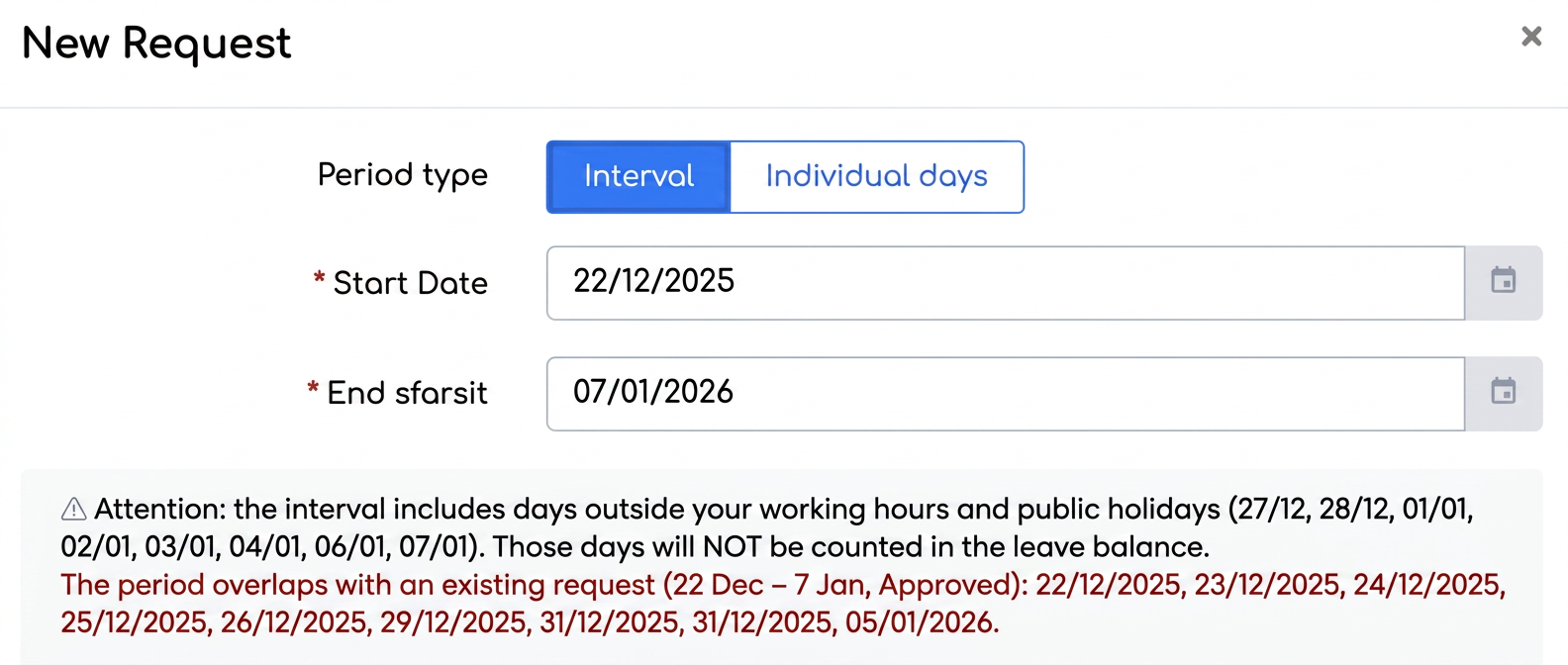
Fig. — Real-time warnings displayed under date fields.
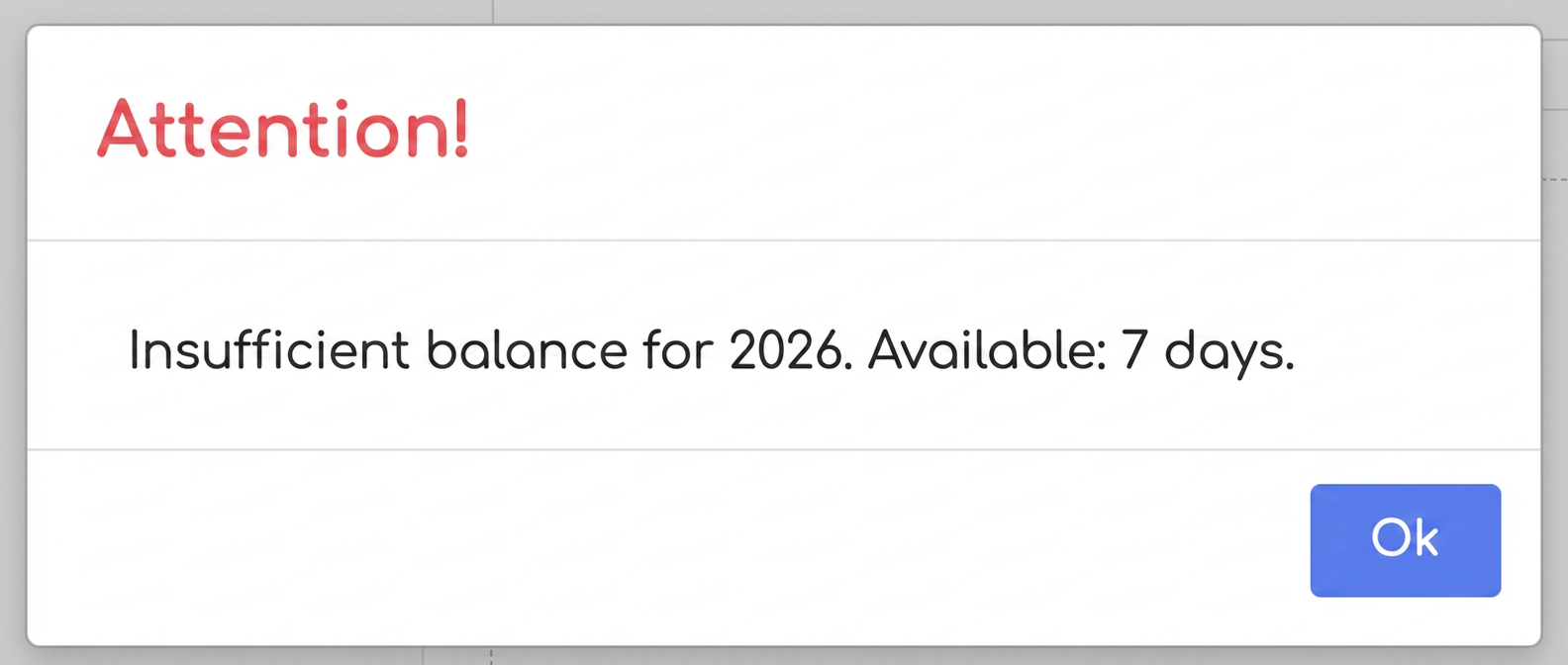
Fig. — Insufficient balance alert blocks request submission.
4.4 Managing Requests from History
- Pending requests can be edited or cancelled.
- Approved requests can be downloaded as PDF (with signatures).
- Balance boxes show pending days separately, which do not reduce availability until approval.
5. Tutorial — Manager
The management area is accessed from into the tabs Requests, Centralization, and Public Holidays.
5.1 Requests Tab
Displays employee requests, grouped into New Requests and Processed, with team impact indicators. At the top, three cards show the number of pending, approved, and rejected requests, plus a year selector.
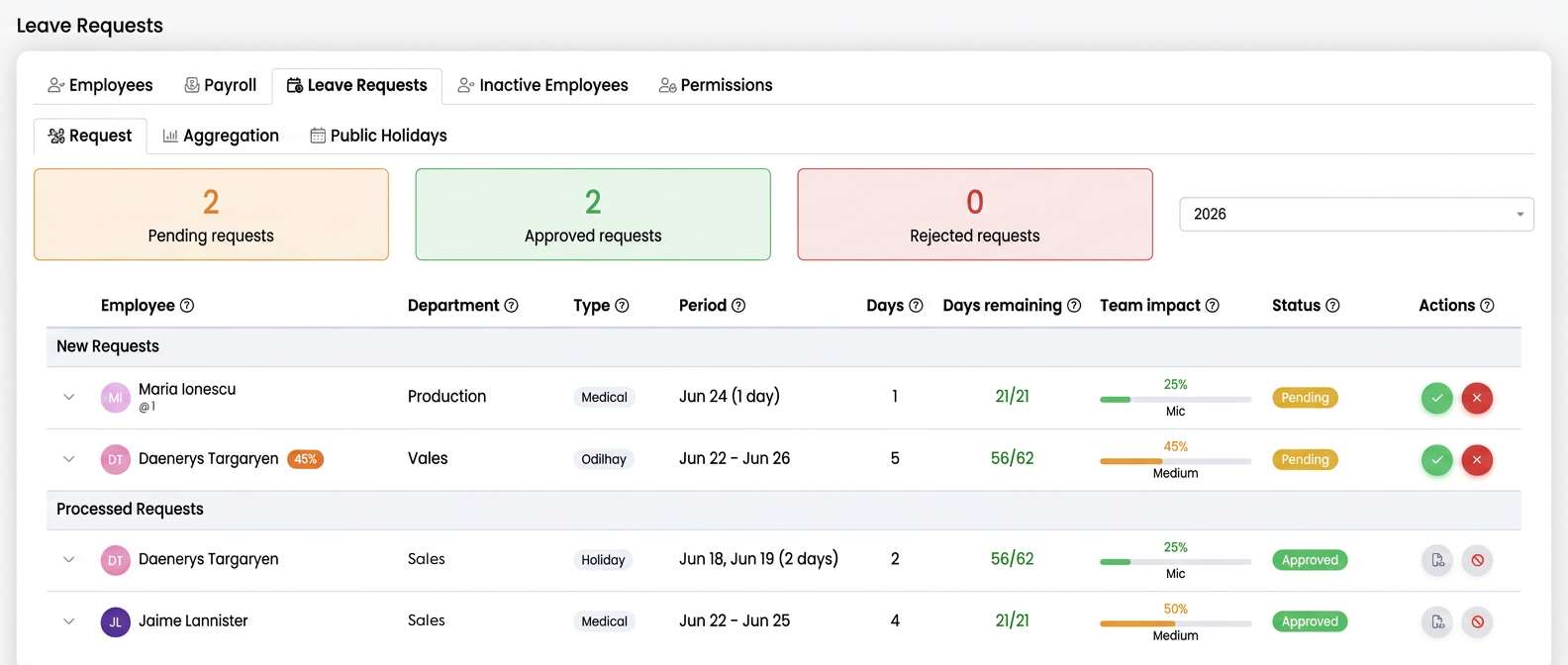
Fig. — Request list, grouped by new vs. processed.
Reading the Team Impact column (see 2.4): the higher the percentage/bar (towards red), the more colleagues from the department are absent concurrently — useful for the approval or rescheduling decision.
5.1.1 Expanding a Request (details and attachments)
Any request in the list can be expanded by pressing the arrow (chevron) next to the employee's name. The row unfolds to display "Request Details" (motivation written by the employee) and "Attached Files" (uploaded documents — for example, a medical certificate), with the option to download them. Pressing the arrow again collapses the row. The same expansion is available in the employee's request history.

Fig. — Expanding a request shows motivation and attached documents.
5.2 Processing a Request
Step 1. Open the approval window — press the decision action on a «Pending» request. The «Leave Request» modal opens.
The approval window contains: request summary (Leave type, Period, Working days, Details), a conditional warning area, an «Optional comment» field, the Signature box, and in the footer the buttons Close, Reject (red), and Approve (green).
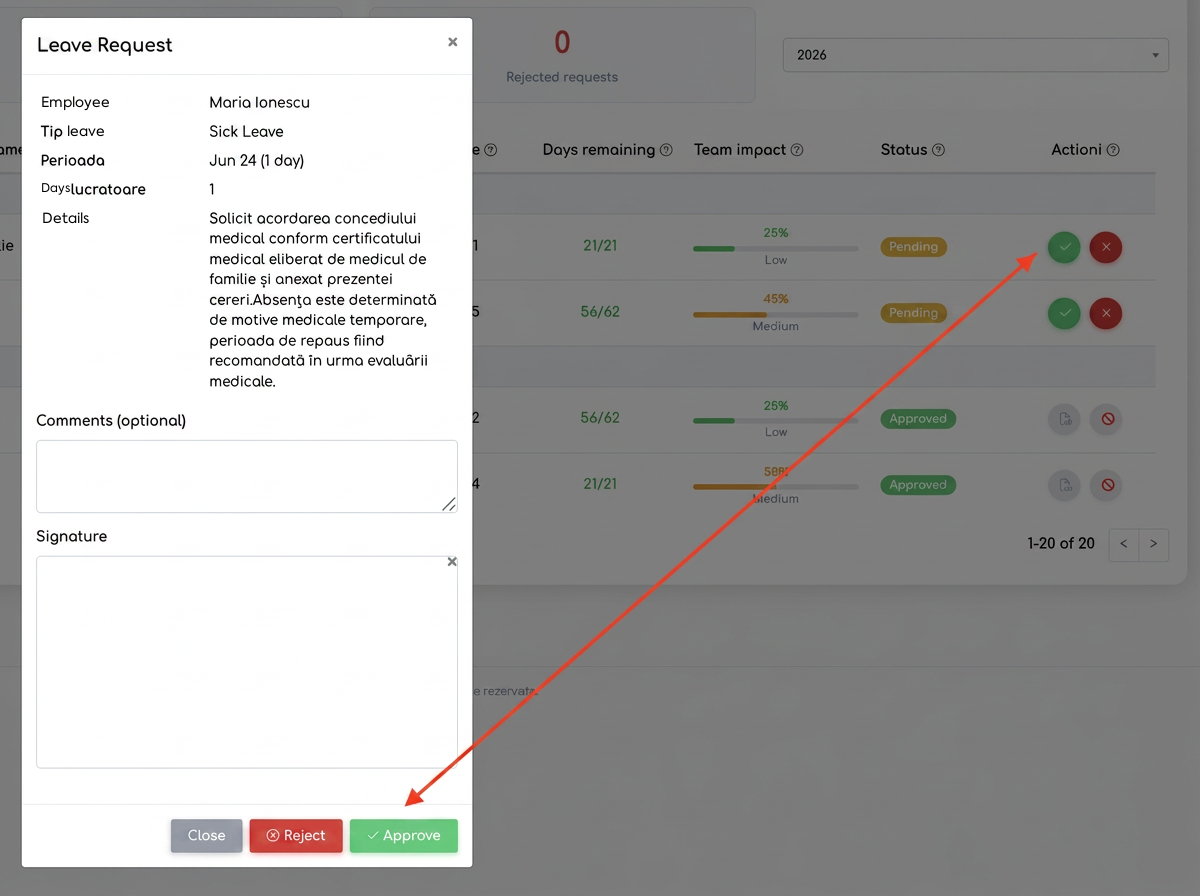
Fig. — Manager's approval window.
Step 2. Add a comment — optional, especially useful for rejection.
Step 3. Sign — in the signature box (mandatory for approval; drawn manually).
Step 4. Decide — press Approve or Reject. The employee receives an automatic notification; upon approval, days are deducted from the balance.
| NOTE The manager's comment can be read later from a read-only «Manager Comment» modal (status + author + comment text). |
5.3 Cancelling Approved Leave
For an already approved request, the Cancel Leave action restores the employee's balance and removes the days from the timesheet.
| ATTENTION The action is irreversible and has a double impact: it removes days from both the employee's record and the timesheet register. The button only exists for requests with «Approved» status. |
5.4 Centralization Tab
Provides the situation by employee and year, one row per employee for the selected year. The columns are:
| Column | Content |
| Employee | Employee name. |
| Department | Employee department. |
| Total days | Total pool (allocated + carried-over). |
| Used days | Consumed days. |
| Annual Leave | Breakdown — annual leave days. |
| Medical | Breakdown — medical days. |
| Unpaid | Breakdown — unpaid days. |
| Remaining days | Days remaining available. |
Data can be exported to CSV and PDF. Note: this tab does not contain a «Carried-over» column.
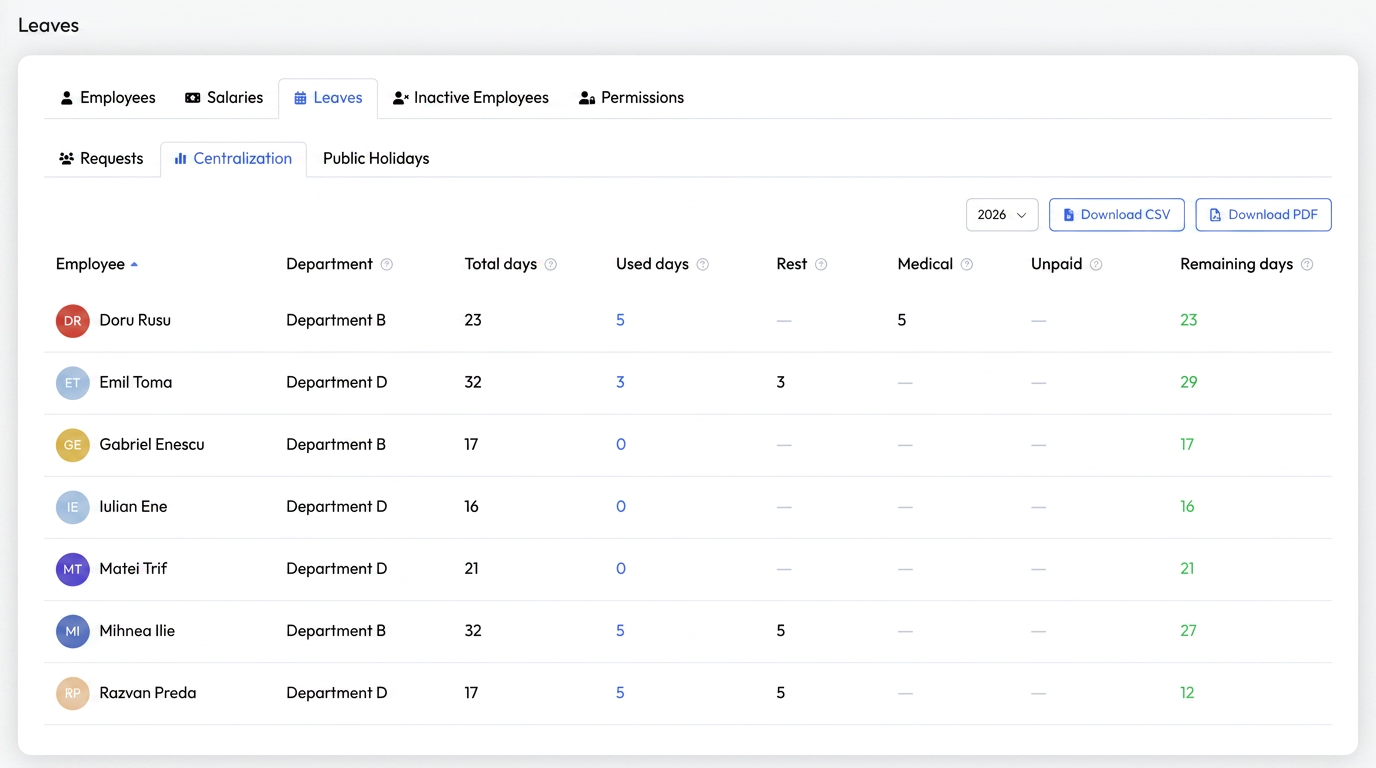
Fig. — Annual centralization by employee.
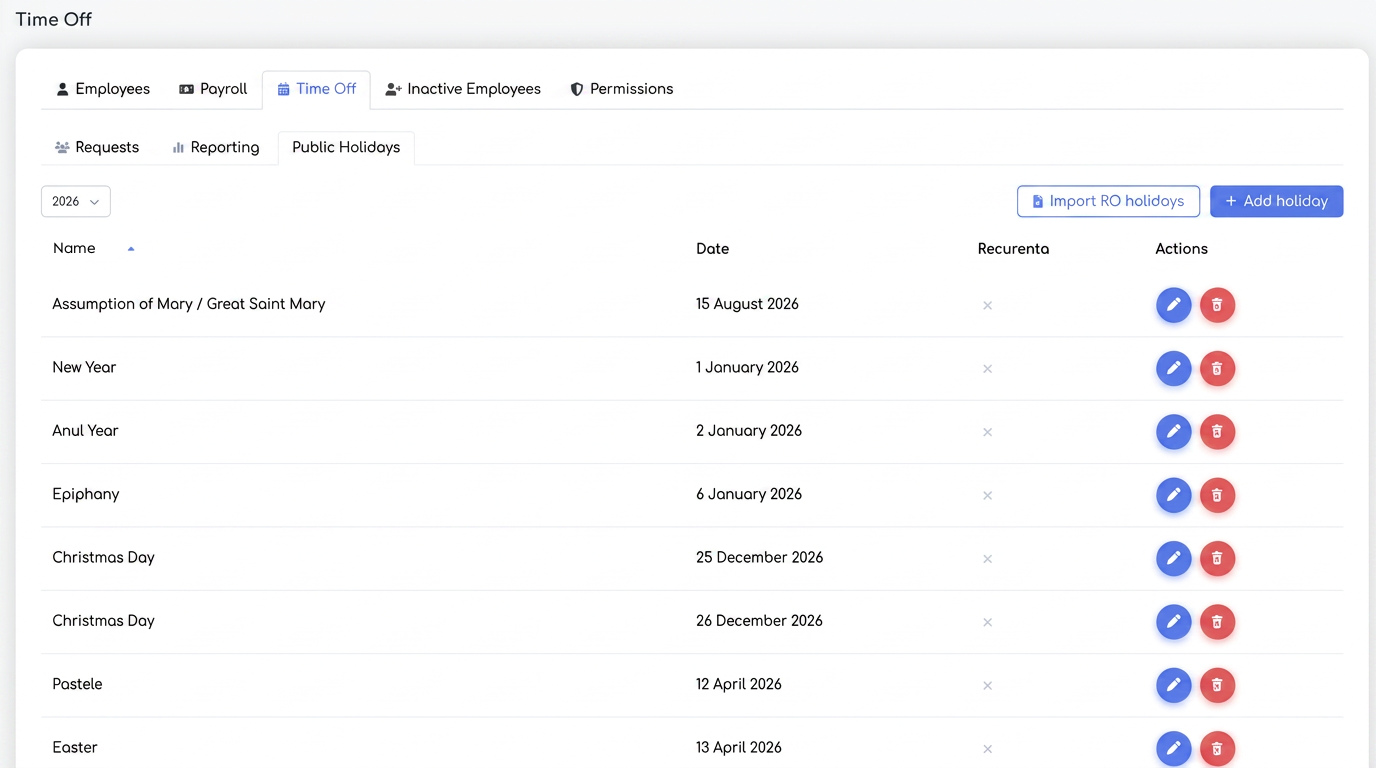
6. Public Holidays
, Public Holidays tab. The list can be filtered by year and allows adding, editing, and deleting.
6.1 Manual Addition
Under «Add holiday», fill in the Name, Date and, optionally, the Recurrent checkbox. A recurrent holiday applies every year on the same date; a non-recurrent one applies only in the indicated year.
6.2 Romania Automatic Import
The «Import RO public holidays» button automatically retrieves Romania's national holidays for the chosen year. At the end, a summary appears with the number of imported, skipped (already existing), and ignored days. Only national public holidays are brought in; regional or optional ones are ignored, and existing ones are not duplicated.
| NOTE Public holidays appear in the calendar marked with a star, in red, and are automatically excluded from the leave day count. |
7. Notifications and PDF Document
- Automatic notifications at every step of the flow, in the platform and via email, to the manager or employee.
- Approved requests can be downloaded as a PDF, with employee and manager signatures.
8. Frequently Asked Questions
Q: Why don't «pending» days decrease my availability?
A: Because pending status is informative. Days are deducted from availability only upon approval, when they move to «consumed». Thus, an available balance is not blocked by undecided requests.
Q: Why is «Allocated days» higher than my annual allocation?
A: Because «Allocated days» already includes carried-over days from the previous year. «Carried-over days» is only the carry-over component of that total — it is not added a second time.
Q: Do Medical and Unpaid leave consume my leave days?
A: No. Only Annual Leave consumes the balance. Medical and Unpaid are tracked separately.
Q: What happens to weekends and holidays within an interval?
A: They are automatically excluded from the leave day count, along with days outside the working schedule. They are not deducted from the balance.
Q: Can I cancel an already approved request?
A: The manager can, via «Cancel Leave». The action is irreversible and restores the balance, removing the days from the records and timesheet.
Q: Who can approve my request?
A: The leave managers set on your file. The first decision finalizes the request, regardless of how many managers you have.
Q: Can I attach multiple files to a request?
A: No, only one file can be attached per request (any type).