
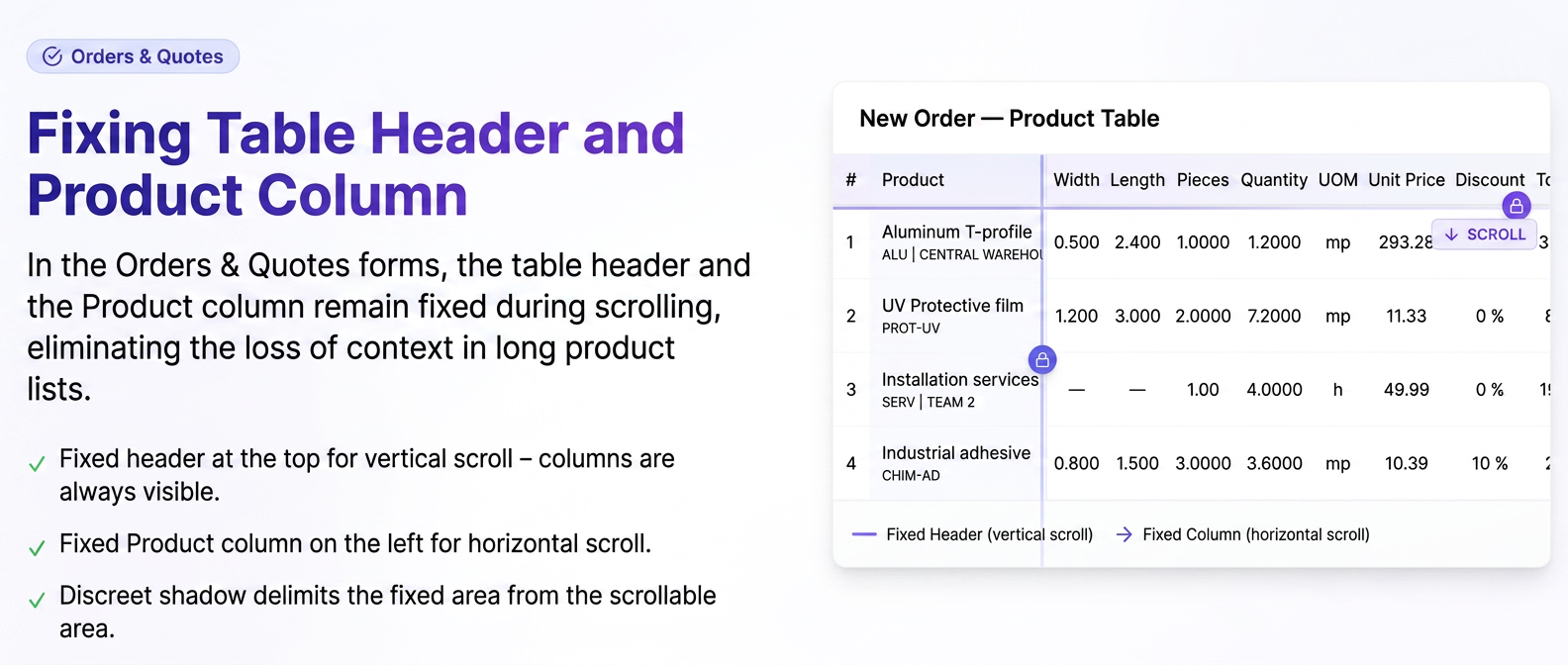
Managing long lists of products in a quote or order can be challenging. To make your navigation easier, there is an interface feature that "freezes" essential navigation elements.
1. When is this feature activated?
The system automatically detects the volume of data. The functionality becomes active when you have a larger number of products or columns that exceed your screen size.
2. Vertical Navigation (Without losing the table header)
When you scroll down the page:
- The table head (Header) remains fixed at the top.
- Benefit: You always know what each cell represents (e.g., which column is for Width, which for Quantity or Unit Price), without needing to scroll back to the start of the list.
3. Horizontal Navigation (Without losing the product)
When the table is wide and you need to scroll to the right to reach the action buttons:
- The "Product" column remains fixed on the left side.
- Benefit: Even if you reach the right end of the table, you will still see the name of the product you are working on. This ensures you click the Edit, Delete, or Equipment button for the correct product.
4. Visual Delineation Indicator
To clearly distinguish the fixed area from the mobile area, we have added a discreet visual indicator (a light shadow). This appears as soon as you start scrolling, providing you with a clear visual separation between the "anchored" product and the rest of the specifications that slide.