
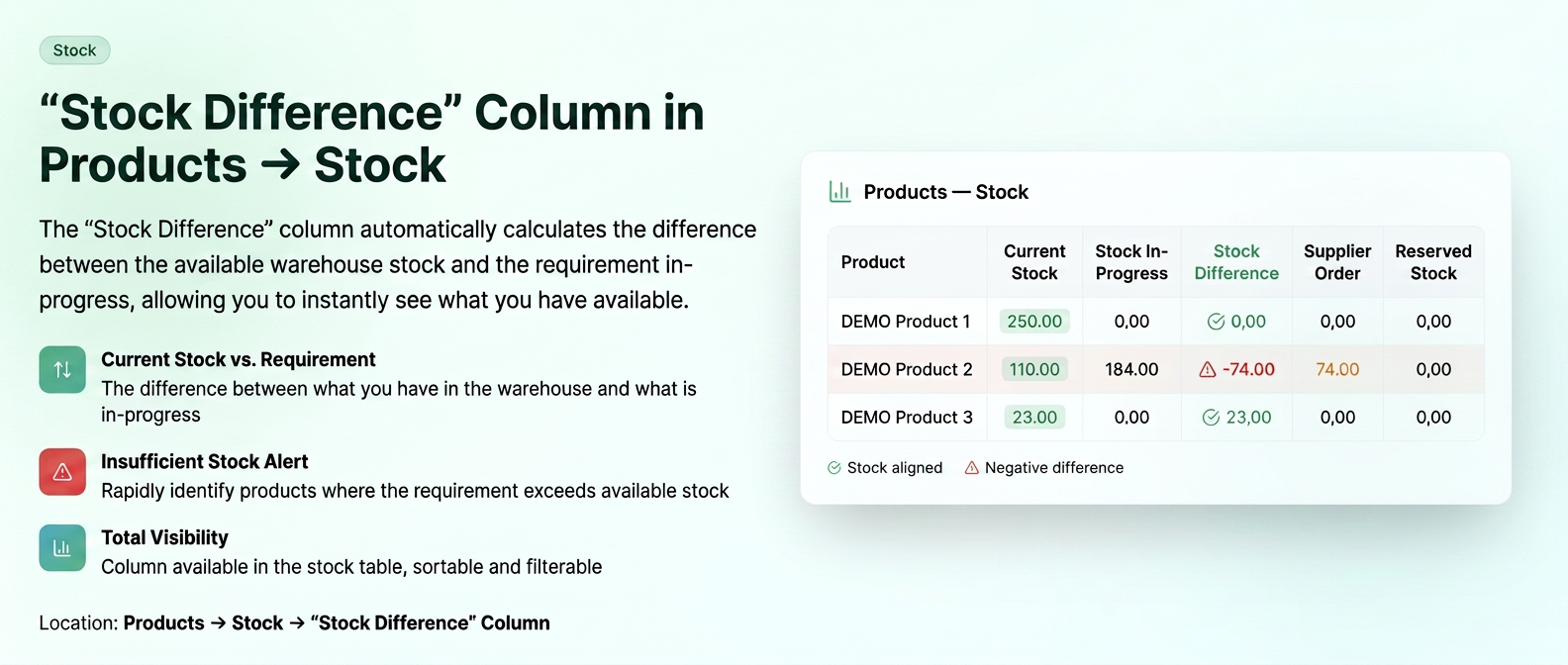
The “Stock Difference” column allows for an instantaneous evaluation of the actual capacity to fulfill work-in-progress orders.
It answers the question: “Can we deliver active orders with the available stock?”
1. Activating the column
- Access the section
- Press Filter Options (the three horizontal lines icon)
- Check Stock Difference
- The column will be displayed in the table, after Stock in Progress
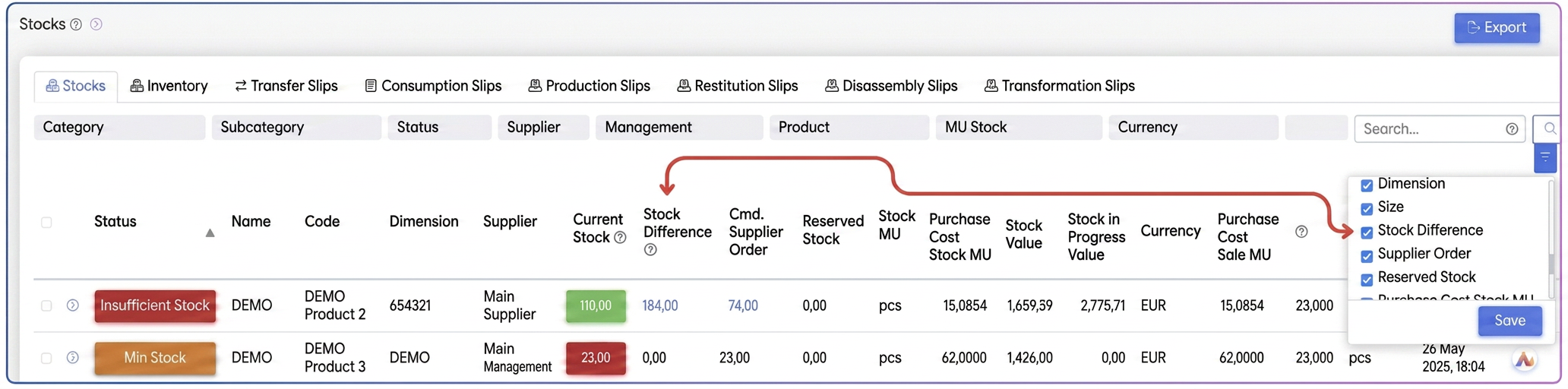
Recommendation: also keep the following columns active:
- Current Stock
- Stock in Progress
2. Calculation logic
Formula used:
Stock Difference = Current Stock – Stock in Progress
Where:
- Current Stock = quantity physically available in inventory
- Stock in Progress = quantity in active orders
3. Interpreting values
► Positive value (e.g.: +125)
- Stock is sufficient.
- There is a surplus after covering active orders.
► Negative value (e.g.: -70)
- There is a deficit.
- Current orders cannot be fully fulfilled.
- Restocking or rescheduling is required.
► Value 0
- Stock exactly covers orders.
- There is no safety buffer.
4. Applied example
Product: 18mm MFC Board
- Current Stock: 25 pcs
- Stock in Progress: 95 pcs
Calculation:
25 − 95 = −70 pcs
Interpretation:
- 70 pcs are missing for active orders.
- Requires an urgent order to the supplier.
Reminder - Quick supplier order
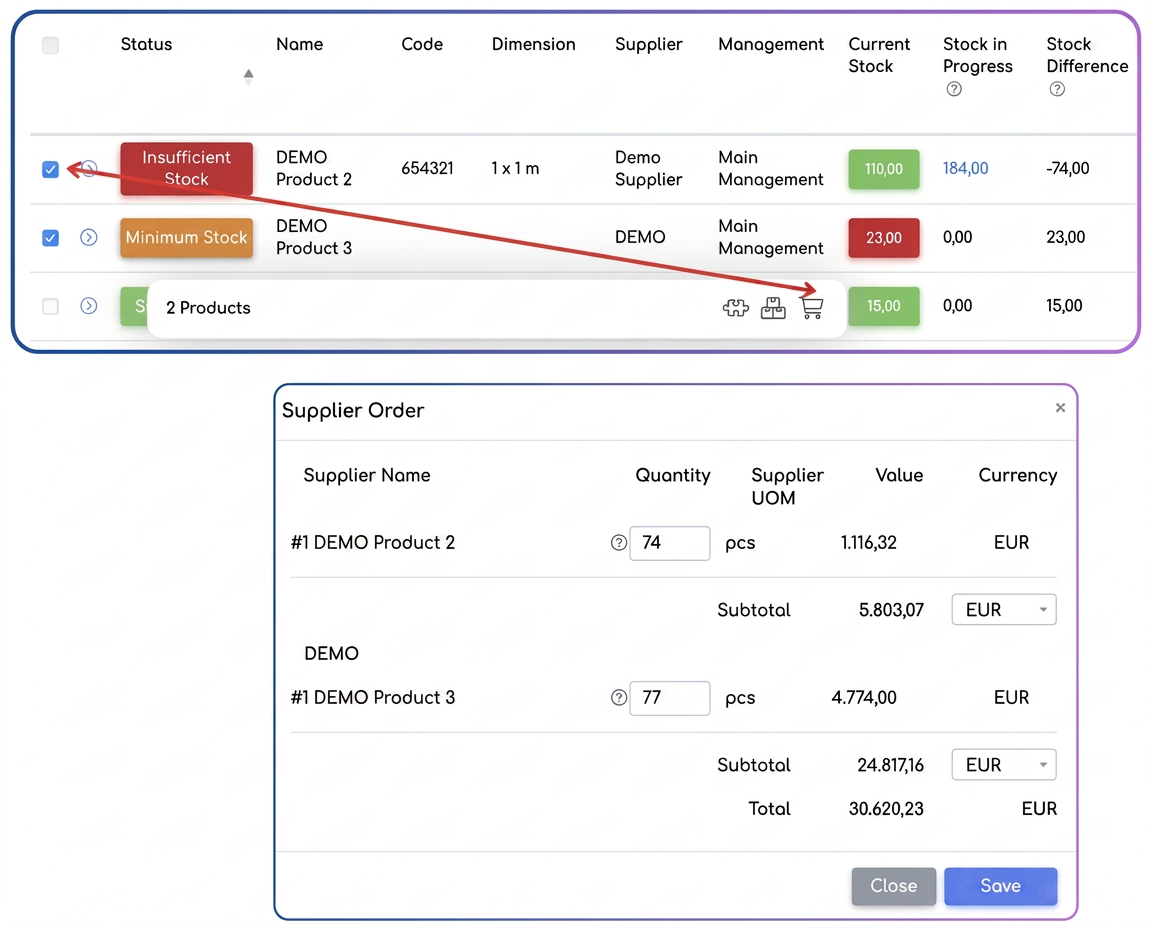
To save time, you can generate a supplier order directly from this window, without having to manually enter the missing quantities.
How to proceed?
- Select the product: Check the box (checkbox) to the left of the product showing a deficit or minimum stock.
- Access the bottom menu: Once checked, an action bar will appear at the bottom of the screen. Click on the Supplier Order button.
- Check the automatic proposal: The system will open a pop-up window where the quantity is automatically calculated to optimize stock:
- Cover deficit: If you have a negative difference, the system proposes exactly the quantity needed to bring the stock to zero after fulfilling work-in-progress orders.
- Reach Maximum Stock: If you have set a "Maximum Stock" threshold in the product file, the system will propose the quantity needed to fill the stock up to that limit (e.g.: you have 23 pcs, maximum stock 100 => the system automatically sets 77 pcs).
- Finalize: Press Save and the supplier order is instantly generated with the calculated values.
Related articles
Why are only a few products displayed in the "Stocks" section? Shouldn't all of them appear, including those with available stock?ForumStock Export: Consolidate product stocks from multiple management unitsTutorialsAssociating an Order to a Stock TransformationTutorialsAdvanced stock transformation function (Increase/Decrease, Assembly/Disassembly, Transformation)TutorialsExport Stock Movement History per ProductTutorials