
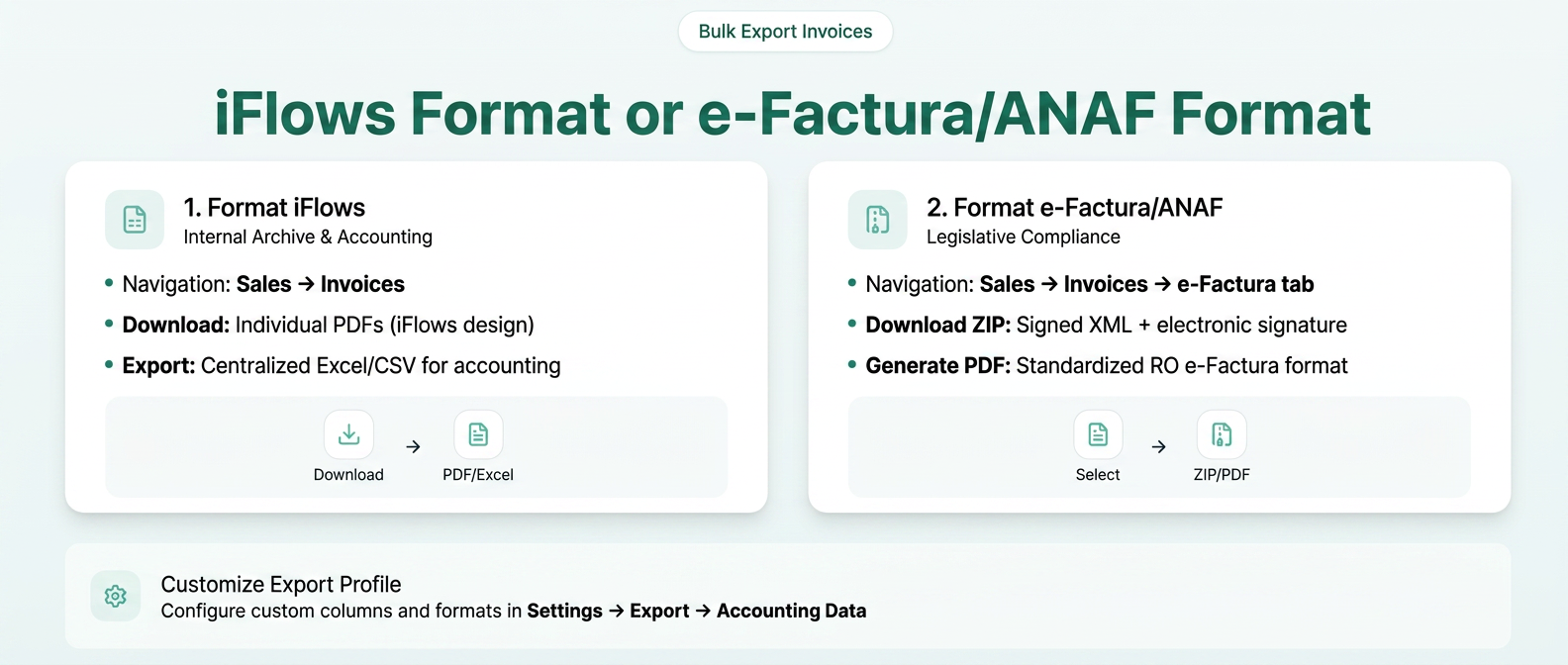
You can download invoices using two main methods, depending on your purpose: for internal archives (iFlows format) or for legislative compliance (e-Factura format).
Please follow the steps below for each specific situation:
1. Downloading Invoices in iFlows Format
This section is useful when you want to download invoices with the design you chose in the platform or when you need an Excel summary for your own records.
Steps to follow:
-
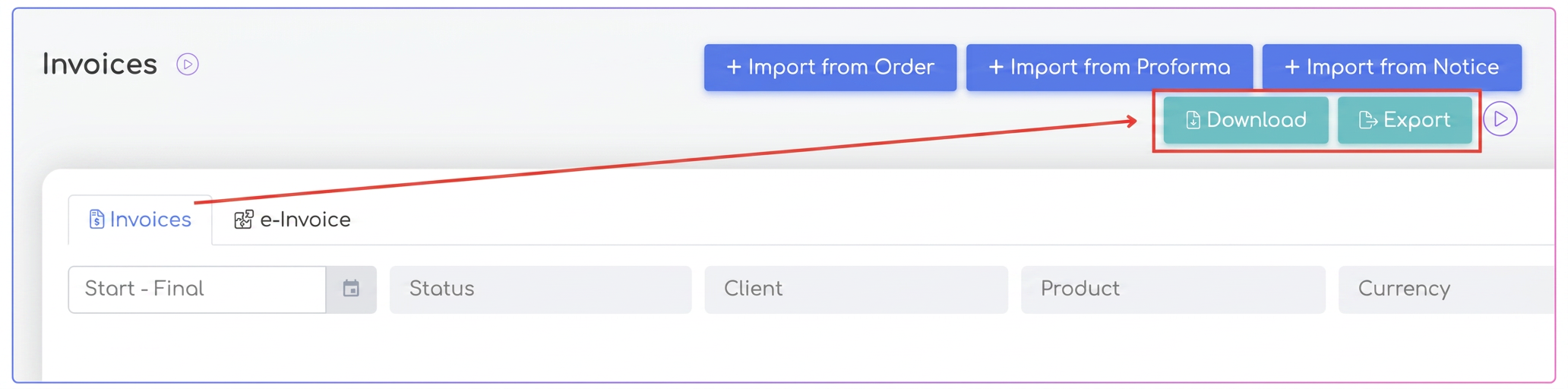
Navigation: From the main menu on the left, access the Sales module, then select the Invoices module.
-
Identifying tools: In the upper-right corner of the screen, you will notice the action buttons: "Download" and "Export".
-
Option A: Downloading individual PDFs ("Download" button)
-
Click the Download button.
-
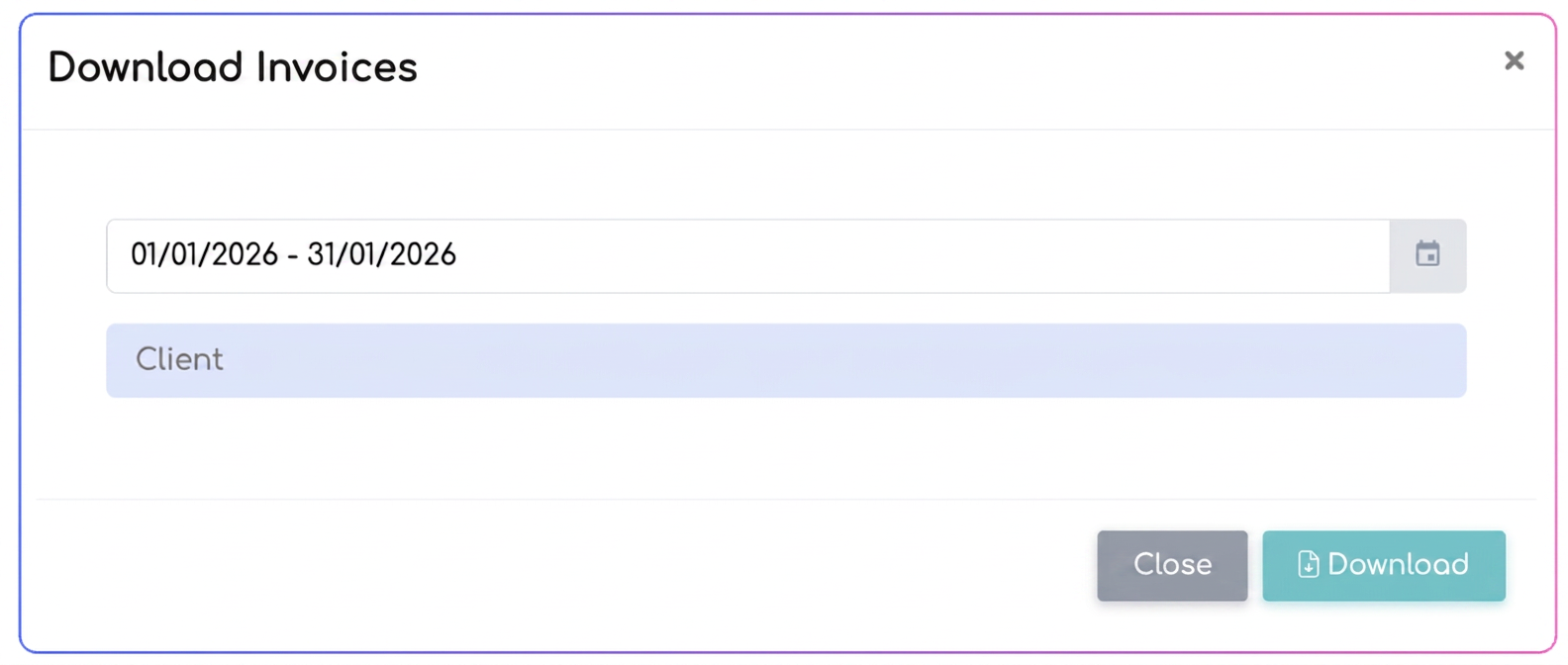
In the new window, select the date range (Start - End) for which you want the documents.
-
-
-
Client Filter: In the "Client" field, you can select one or more partners.
– If you leave the field blank, all invoices from the selected period will be included, regardless of the client.
– If you fill in the field, you can perform a multiple selection of clients: start typing the client's name, select it from the list by clicking, and it will be added automatically. This procedure can be repeated to add other clients. This works similarly to the selection mechanism used for tags, allowing simultaneous filtering by multiple partners. -
Press the final Download button. The system will automatically generate a folder containing all individual invoices in PDF format.
-
-
Option B: Exporting data in tabular format ("Export" button)
-
If you need an Excel file (or another data format), click on Export.
-
Choose the targeted time period, similar to the previous option.
-
Export Profile: Select the desired profile (e.g., Nexus, SAGA, or a previously created custom profile).
-
Click on Export. You will download a summary file containing data for all issued invoices, ideal for importing into accounting software.
-
2. Managing and Downloading from the e-Factura Section (ANAF Format)
If you need XML files signed by ANAF or the standardized PDF, follow these steps:
-
Navigation: Within the Sales -> Invoices page, click on the secondary e-Factura tab (located at the top of the list).
-
Filtering: Select the desired range using the date picker (Start - End) and press the Search button.
-
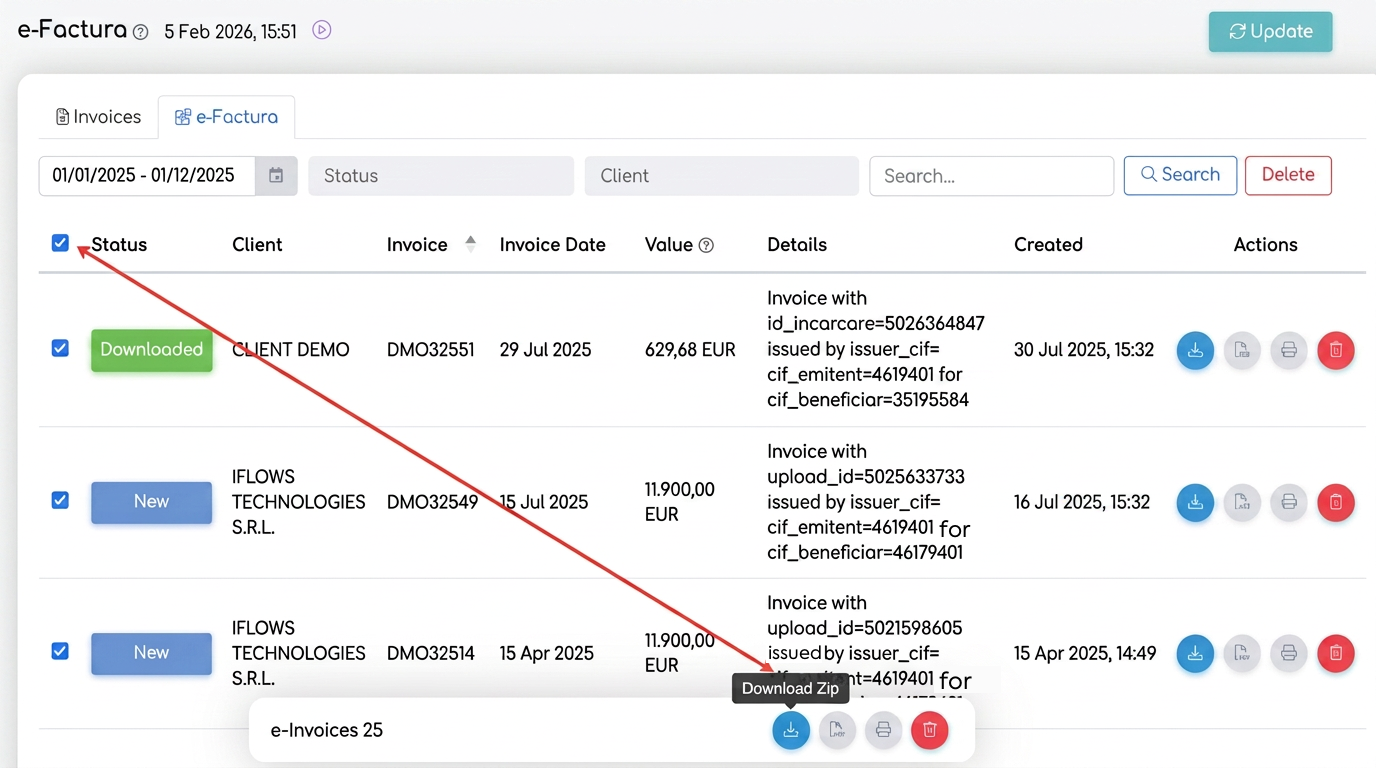
Selection: Check the general checkbox next to the "Status" column to select all invoices displayed on that page.
Note: Checking the general selection box (located next to the "Status" column) will mark for download only the invoices that are currently visible on the screen. If you have multiple pages of results, invoices on pages 2, 3, etc., will not be included in the current action.
To process as many documents as possible in one go, we recommend changing the default display setting:
-
Navigate to the bottom of the invoice table.
-
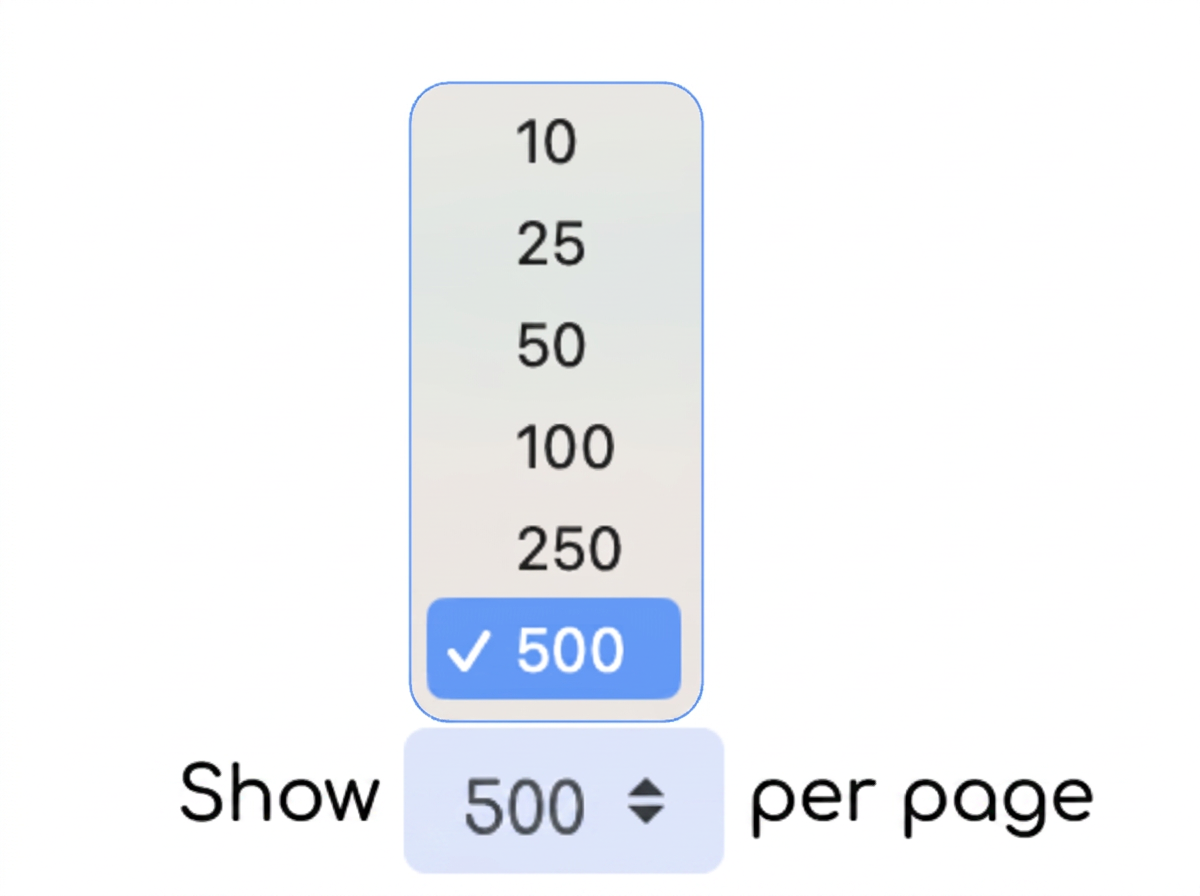
In the "Show [X] per page" section, click on the selector and choose the maximum value of 500.
-
This way, the list will reload, and you will be able to select up to 500 invoices at once using the general checkbox at the top.
If your selected time interval contains more than 500 documents:
-
Perform the first download for the first 500 invoices on Page 1.
-
Navigate to Page 2 using the pagination buttons at the bottom of the table.
-
Repeat the selection and download procedure for the remaining documents.
4. Bulk Actions: Upon selection, a floating menu will appear at the bottom of the screen. The following functions are available:
-
"Download ZIP" Icon: This command will provide a folder containing sub-folders for each individual invoice. In each sub-folder, you will find the original XML file and the electronic signature file.
-
"Generate PDF" Icon: This command will generate and download invoices in the standardized PDF format of the RO e-Factura system.
-
Important note: These PDFs will have the technical appearance required by ANAF, not the personalized visual design from iFlows.
-
3. Customizing the Export Profile
In case you want the downloaded Excel file to have a specific structure (specific columns, custom names), please configure an export profile:
-
Go to Settings -> Export -> Accounting Data (Date Contabile).
-
Here you can add a new profile or edit an existing one.
-
You can define the file format (Excel, CSV, XML, PDF) and map the fields from iFlows to your desired columns.
-
Once saved, this profile will be available whenever you press the Export button mentioned in point 1.