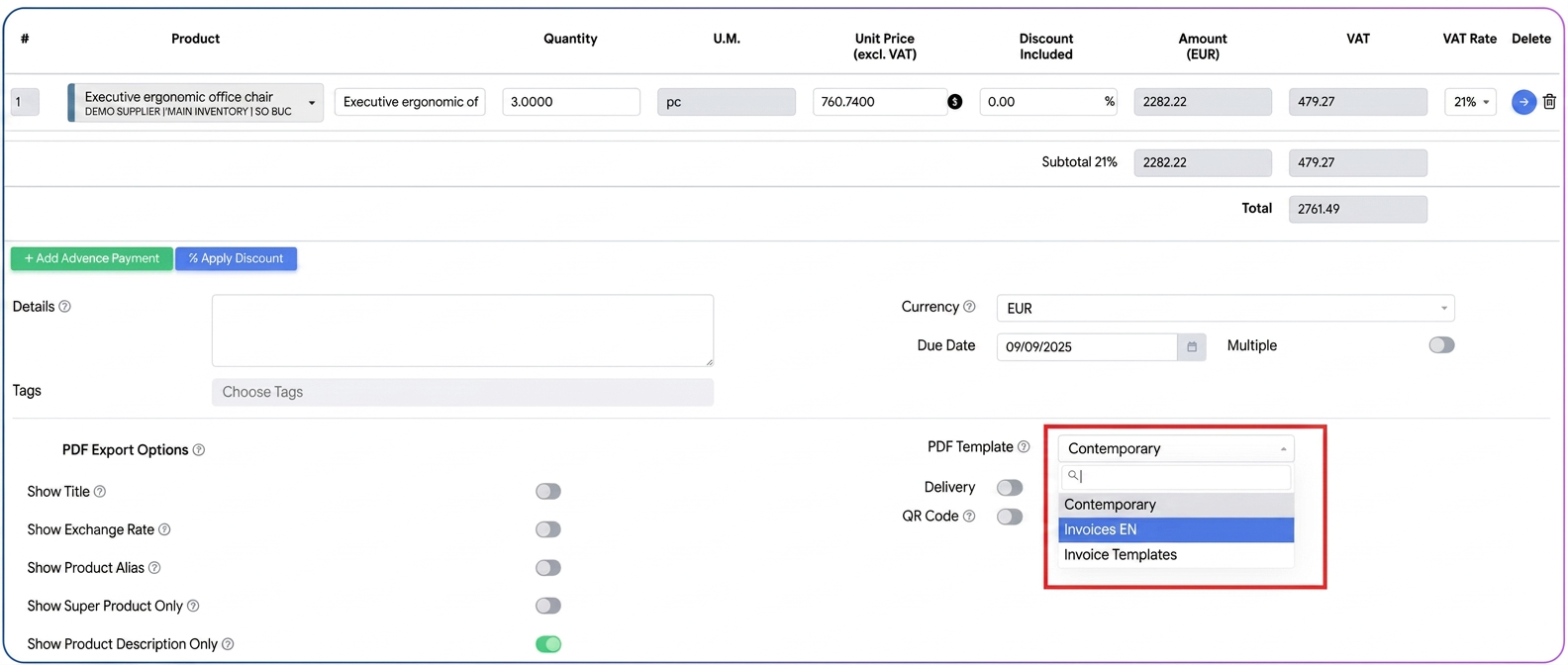
There is no need to edit the invoice outside of iflows to translate it. Directly from the platform, by using PDF templates, you can generate the same invoice in both Romanian and English. Everything is done with a single click by choosing the right template, without additional editing effort.
Let's go through it together step by step:
Step 1: Accessing PDF templates
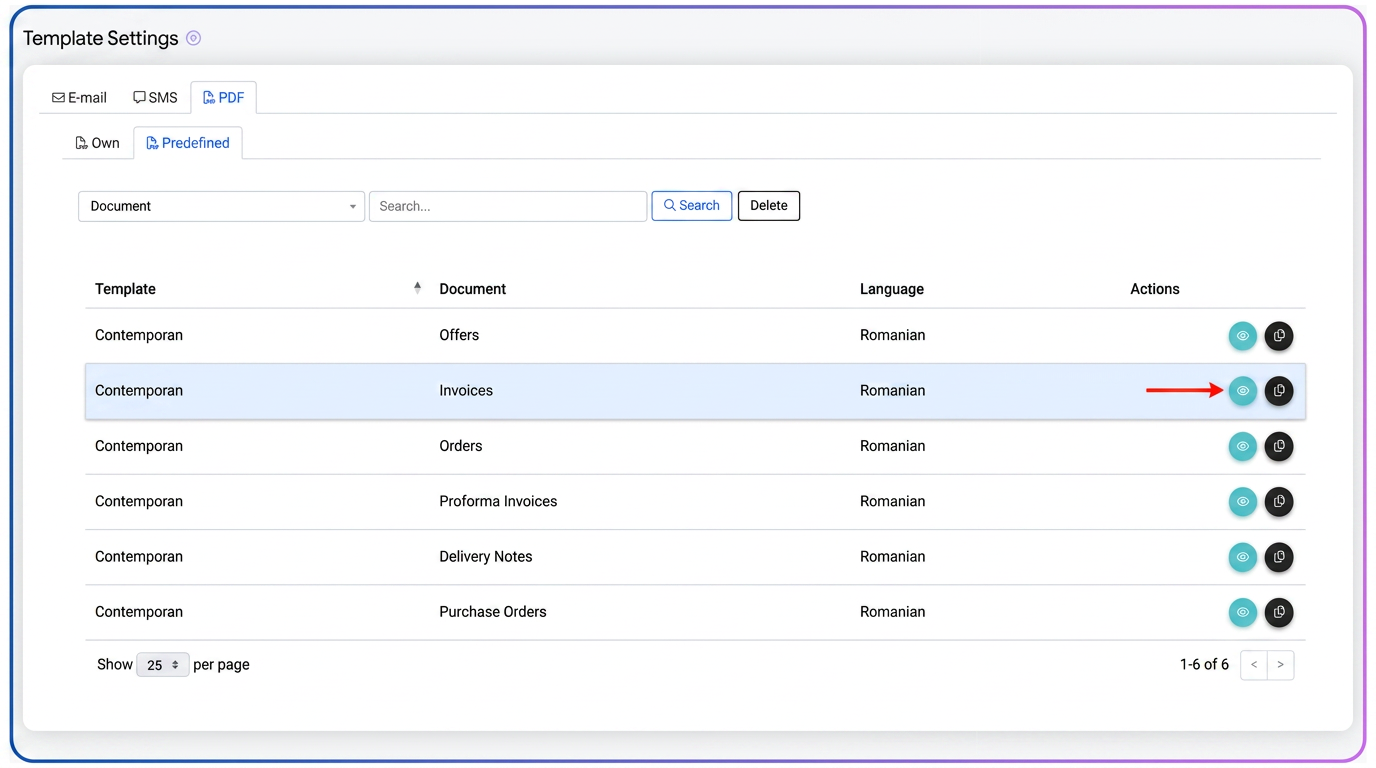
- Navigate to .
- Here you will find two sections:
- Own (templates customized by the internal team).
- Predefined (standard models provided by the system).
🔎 Identify the template you are currently using and click the Clone button.
Step 2: Creating a new template in English
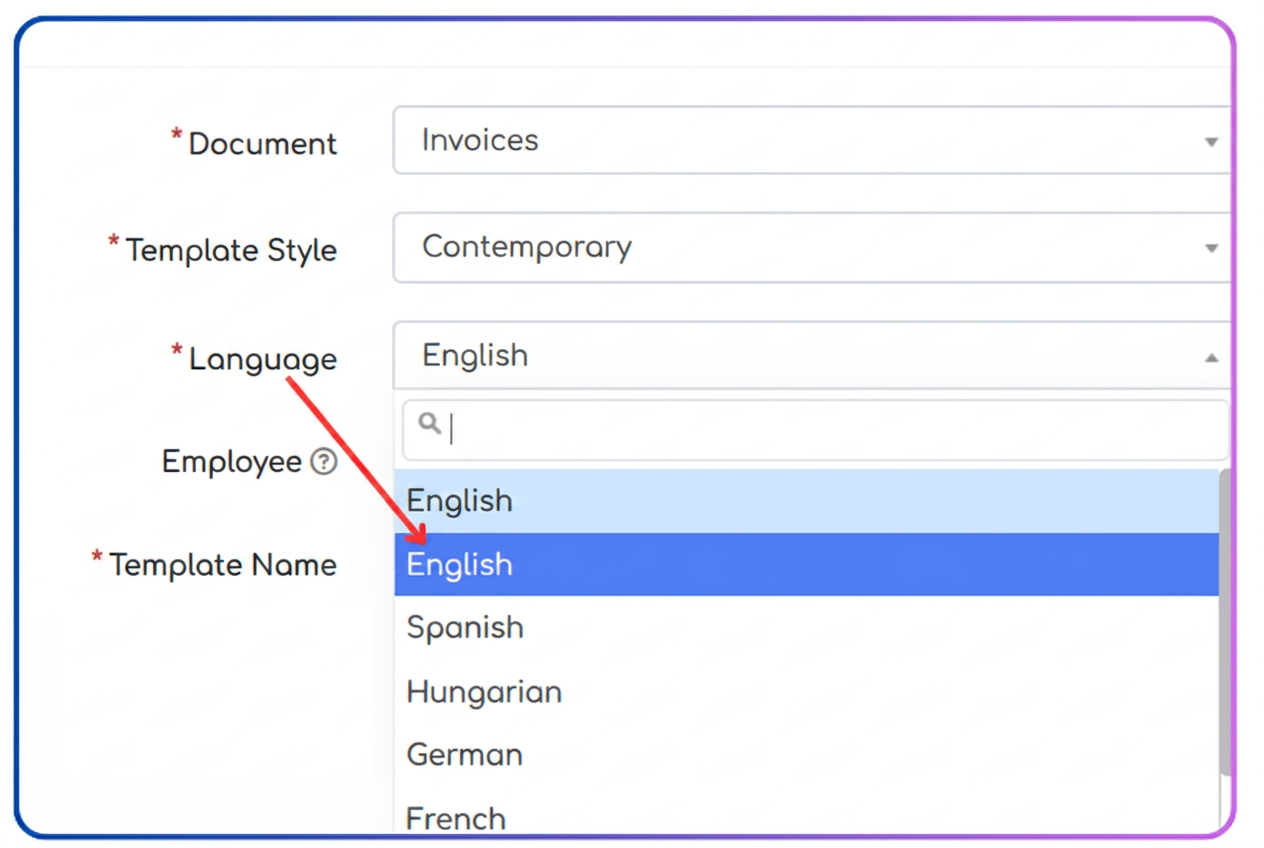
- After cloning, enter the settings of the new template.
- In the Language field, select English.
- In the Template Name field, write something suggestive, such as: Invoices EN.
This way you will have:
- Invoices – for exporting invoices in Romanian – the base template.
- Invoices EN – for exporting invoices in English.
Step 3: Customizing export settings
At the bottom of the template, you will find PDF Export Options (images 5 and 6).
Here you decide:
- whether to display the Product Alias;
- whether to use only the Product Description;
- whether to show the price in EUR as well, CPV/NC codes, discounts, etc.
⚠️ The system will automatically translate only the invoice fields (Invoice, Date, Supplier, Client, Quantity, Unit Price, VAT, etc.), not the product names.
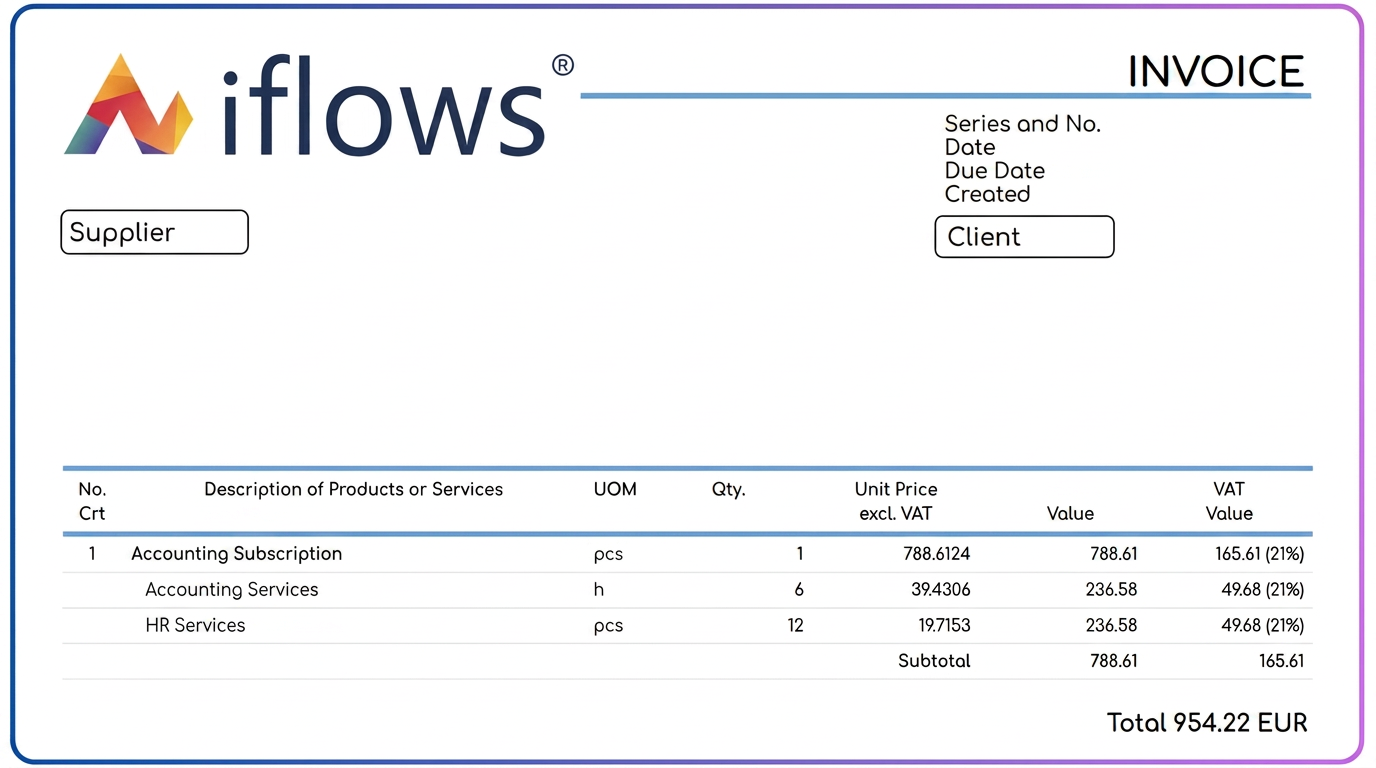
Step 4: Translating product names
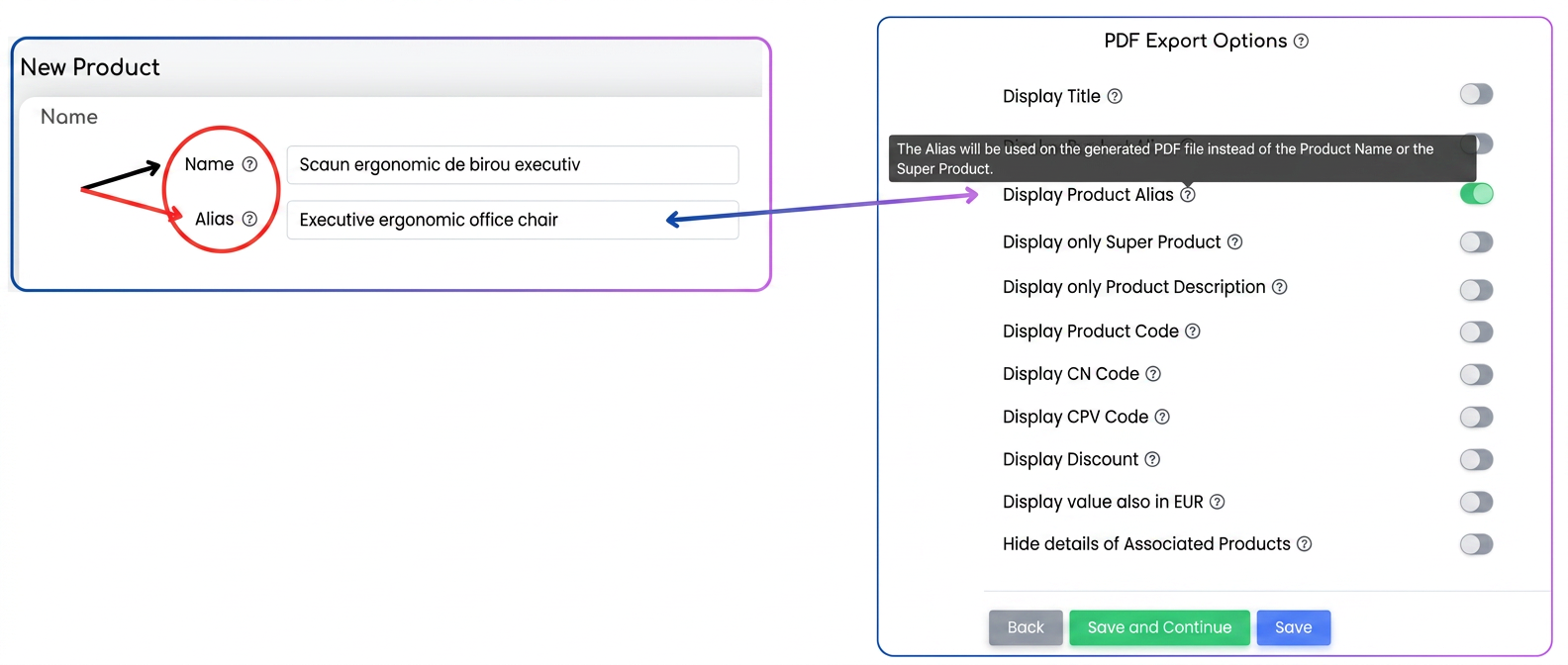
✅ Option 1 – Product Alias (ideal for the long term)
- Access the product from the catalog.
- Fill in:
- Name: „Scaun ergonomic de birou executiv”
- Alias: „Executive ergonomic office chair”
- In the Invoices EN template, enable the Show Product Alias option.
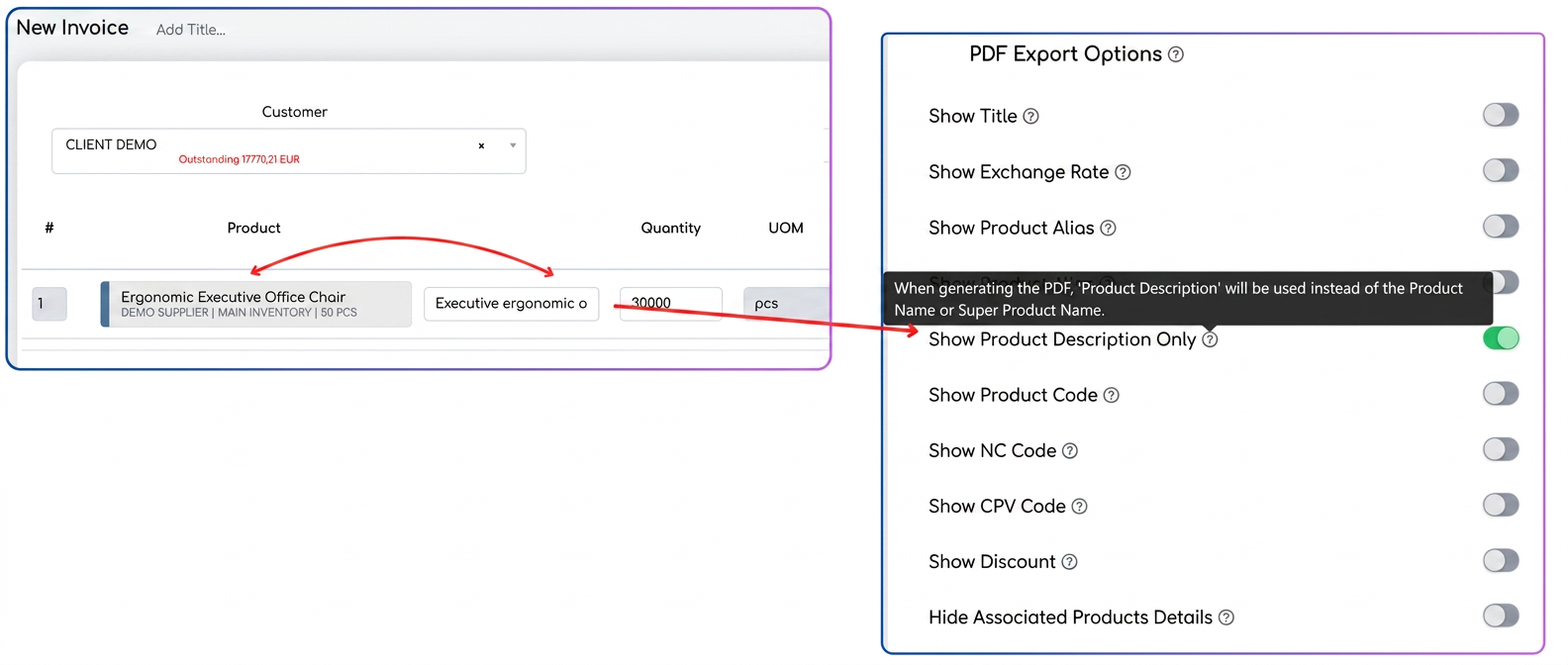
✅ Option 2 – Product Description (fast, specific)
- In the invoicing screen, add the product.
- In the Description field, enter the desired translation.
Ex: „Executive ergonomic office chair”. - In the Invoices EN template, enable the Show only Product Description option.
🔹 Step 5: Usage
- For domestic invoices or Romanian clients → use the regular Invoices template.
- For invoices intended for international clients → use Invoices EN.
This way, it is no longer necessary to manually edit the PDF and you avoid translation errors.
🔹 Conclusion
When you choose a template during export, it automatically comes with the settings you defined during creation and will generate the PDF exactly in the desired form.