
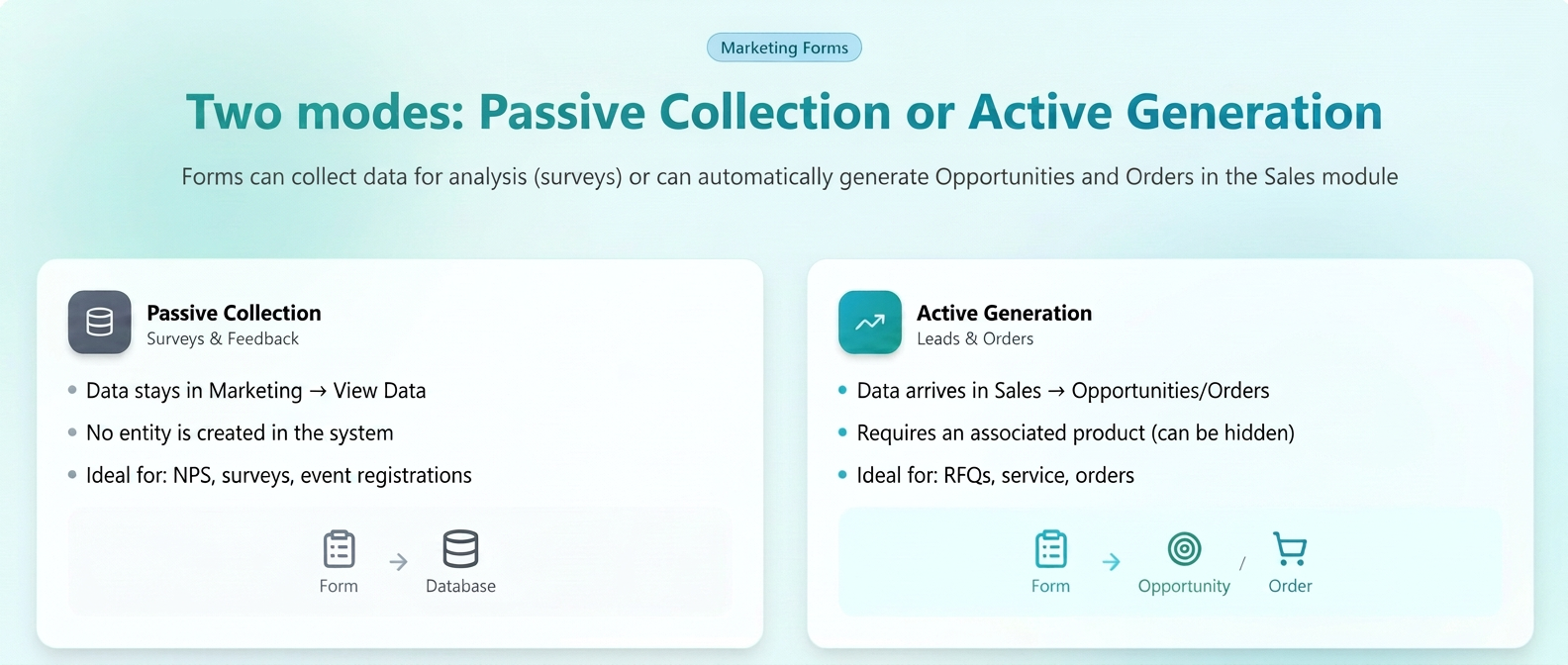
This module has two roles: passive data collection (surveys) and active business generation (lead/order capture).
1. Conceptual Difference: Passive Collection vs. Active Generation
A. Passive Collection ("Survey / Feedback" Mode)
- What it is: Data is collected and stored in a raw database.
- System Behavior: NO entity is created (no Opportunity appears in Sales, no Order, no Task).
- Where data goes: It remains exclusively in the Marketing module -> Forms -> View Data.
- When to use it: For customer satisfaction forms (NPS), market surveys, or event registration forms where you just want a list of names.
- Advantage: It does not clutter the sales team's workflows with "noise" if it's not a sales case.
B. Active Generation (Opportunity or Order Mode)
- What it is: Data is processed instantly and transformed into a working document.
- System Behavior: The system automatically creates an entity (Opportunity or Order).
- Where data goes: Data appears directly in Sales, either in the Opportunities module or in Orders.
- When to use it: Requests for quotation, service intervention requests, orders, leads from trade fairs, etc.
- iFlows Golden Rule: For this mode to work, the form must have an associated Product (even if it is invisible to the customer), because in iFlows an "empty" Opportunity or Order cannot exist.
2. Detailed Configuration for Each Mode
A. How to set up Passive Collection (Survey)
If you just want to gather data without generating processes:
- Go to Marketing -> Forms.
- Create the template, add the desired fields.
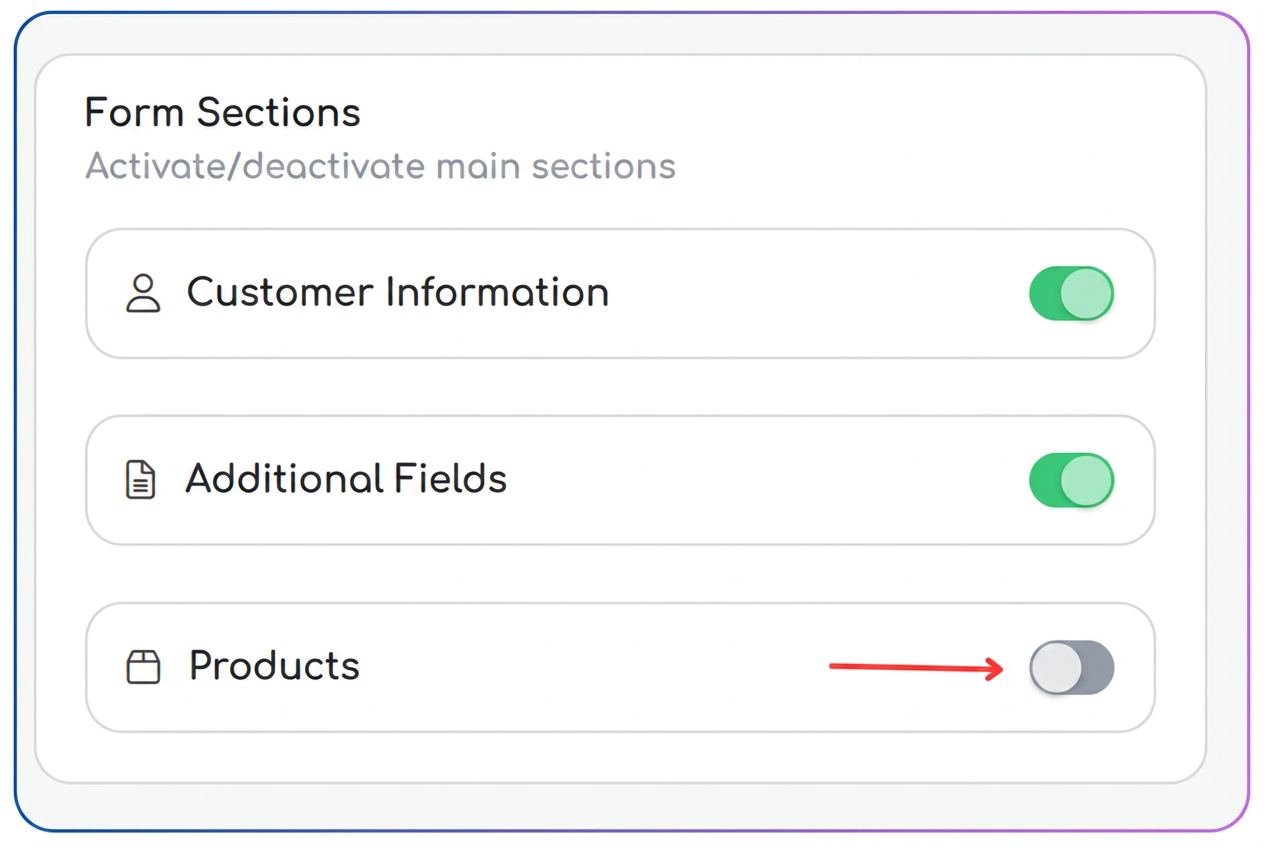
- IGNORE the "Products" section (leave it disabled).
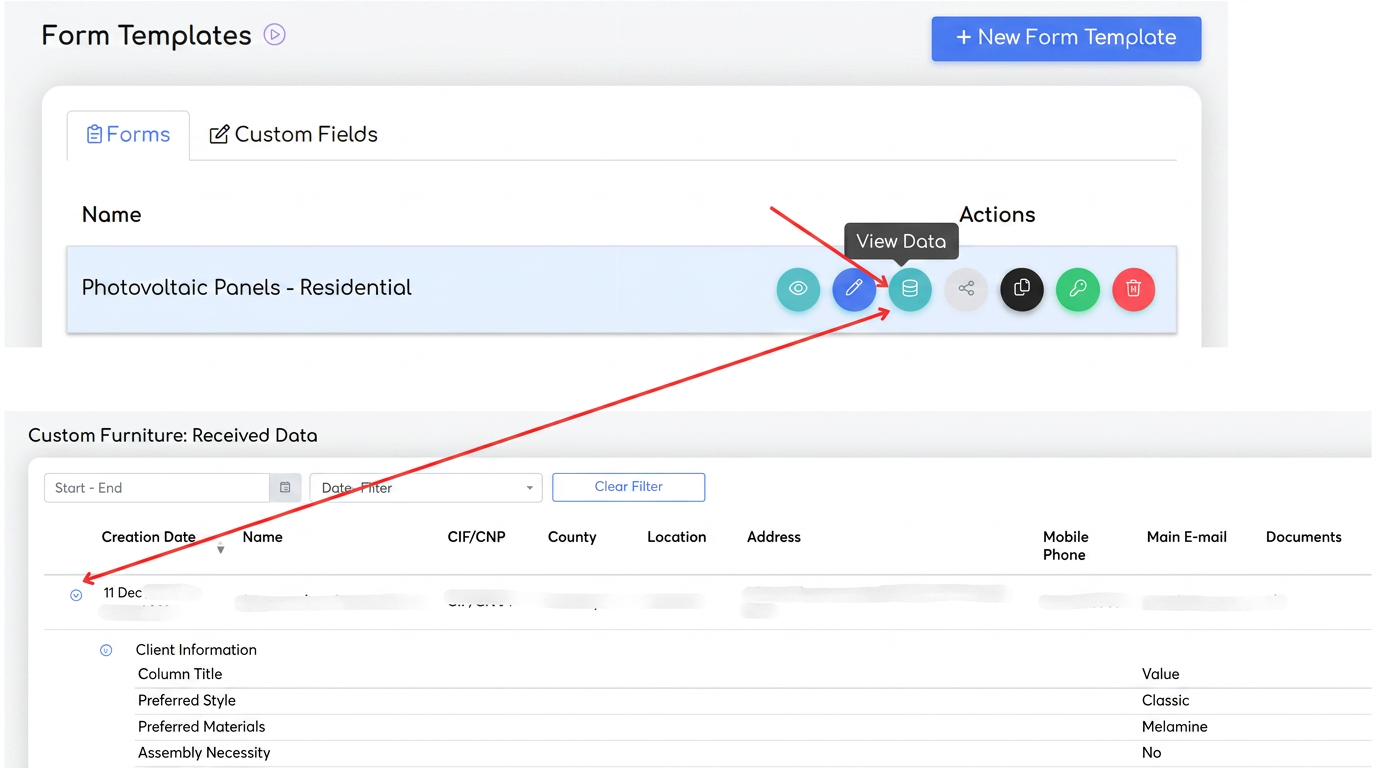
- Viewing results: Go to the form list -> Actions column -> blue View Data icon. Here you will see a table with everyone who responded.
How to set up Active Generation (Opportunity/Order) – STEP BY STEP
If you want the form to trigger an action, you must follow these 3 mandatory technical steps:
Step 1: Activating the Entity Engine
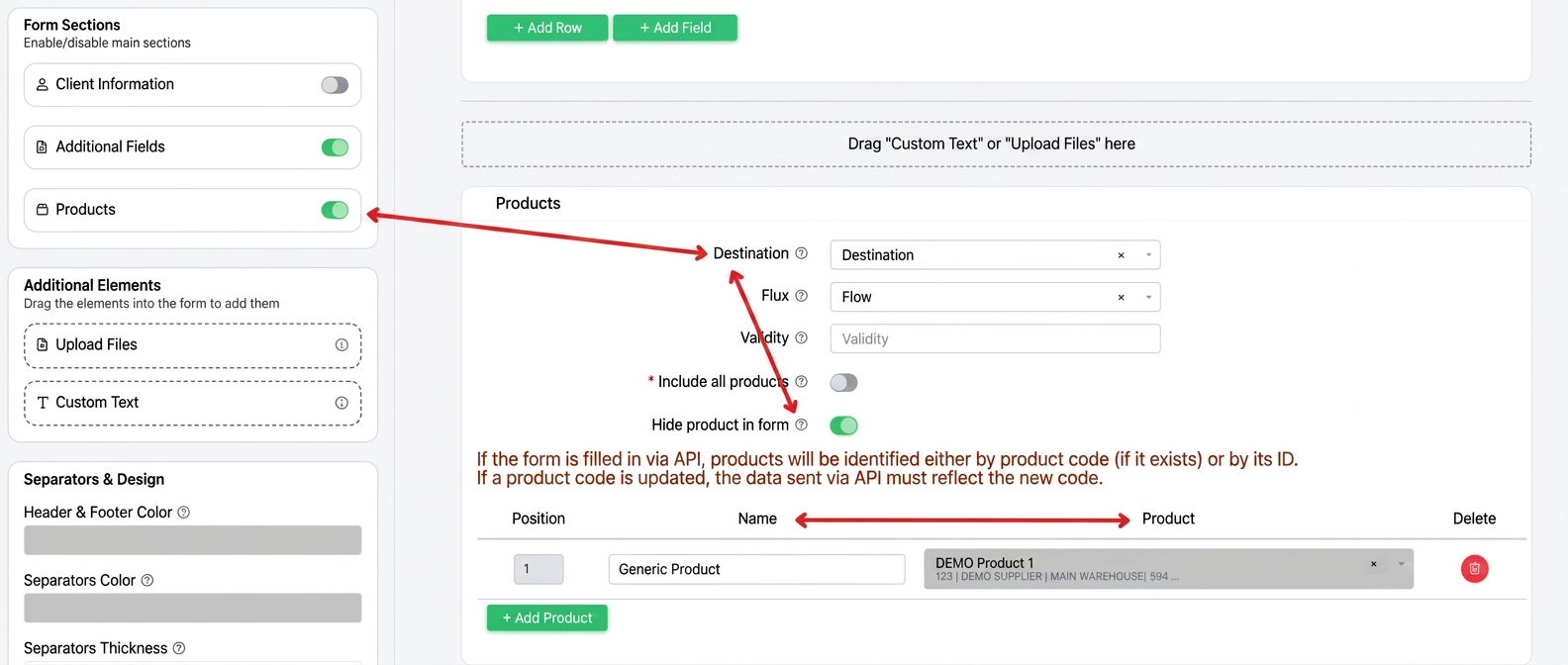
In the form editor, go to the Products section and activate the toggle (so it turns green). Here you instruct the system not to be just a data collector, but a document generator.
Step 2: Defining Destination and Workflow
- Destination:
- Choose Opportunity if it is a lead that needs to be convinced (enters the sales funnel).
- Choose Order if it is a firm request (enters processing/invoicing directly).
- Workflow: Select exactly where you want it to appear (e.g., "Service Workflow" if it is a repair request).
Step 3: Product Mapping (The missing puzzle piece)
Here, two strategies appear:
Strategy 1: The "Invisible" Product (Automatic Lead)
- Add a product (e.g., "Technical Consulting" / "Quote Request" / "General Product").
- Check "Hide product in form".
- Why? The customer will not see any list of products; they only see your contact form. However, when they press "Send", iFlows knows to create the Opportunity/Order for that "hidden" product. Without this, the system would not know what that opportunity/order is selling.
When to use a "Generic Item"
This strategy is essential when the sales process requires a consulting stage or technical analysis.
- Usage Context: Use this method if the project is complex and the customer cannot identify the solution they need on their own. They send you the project specifications (through text fields or attached files), and you follow up by analyzing the request and making a personalized offer.
- Preliminary Action: Before configuring the form, you must go to the Products module in iFlows and create a generic product such as "Quote Request", "Project Analysis", or "Generic Item".
- Implementation: In the form, associate this generic product and check "Hide product". Thus, the system will automatically generate the Opportunity for this product, allowing you to start the workflow, even if the final product will be determined later.
Segmentation by service types (Multiple Forms)
If your company sells very different categories of services, you don't have to use a single generalist form. You can create specific forms for each type of service/product.
Finalizing the process: Replacing the generic product
It is important to understand that the "Quote Request" or "Generic Item" product only serves to open the way (to allow the creation of the document in the system).
- Sales Team Action: After you have analyzed the specifications sent by the customer and determined exactly what fits them, you must enter the newly created Opportunity or Offer, delete the generic placeholder product, and replace it with the real product/service, the one that will actually be invoiced and delivered.
Thus, you transform a simple intent for collaboration into a concrete commercial transaction, with correct prices and stocks.
Strategy 2: The "Customer Chosen" Product
- Add multiple products (e.g., Product A, Product B).
- DO NOT check the box to hide them.
- Why? The customer will see a section where they can select exactly what interests them from your selection. The Opportunity/Order created will contain exactly the products they checked.
When you choose to make products visible to the customer, you must understand the difference between the two columns in the mapping table:
- "Name" Column: Here you write the name as you want it to appear to the customer on the web page (e.g., "Gold Maintenance Package"). It is a friendly, commercial name.
- "Product" Column: Here you select by searching for the corresponding product from the iFlows database. This is the technical mapping.
- Why is it important? If you check to make products visible, the customer will see what you wrote in "Name", but the system will record the code and characteristics of the product you mapped from iFlows in the background. If the product is hidden, the "Name" column is relevant only for your internal records in the configuration.
3. Summary: How to choose?
| Feature | Passive Mode (Survey) | Active Mode (Lead/Order) |
| Data Destination | Marketing Module (Raw table) | Sales/Production Module (Entity) |
| Product Configuration | Disabled | Mandatory |
| Impact in Workflow | None | Creates a new task/document |
| Visibility | Only those with access to Marketing | Entire sales team |
| Main Purpose | Analysis, Feedback, Statistical Data | Sales, Intervention, Profit Generation |