An order can be canceled at any time, unless it is already Finished.
The operation is performed from Sales → Orders, by selecting the 🗑️ (trash can) icon next to the order.
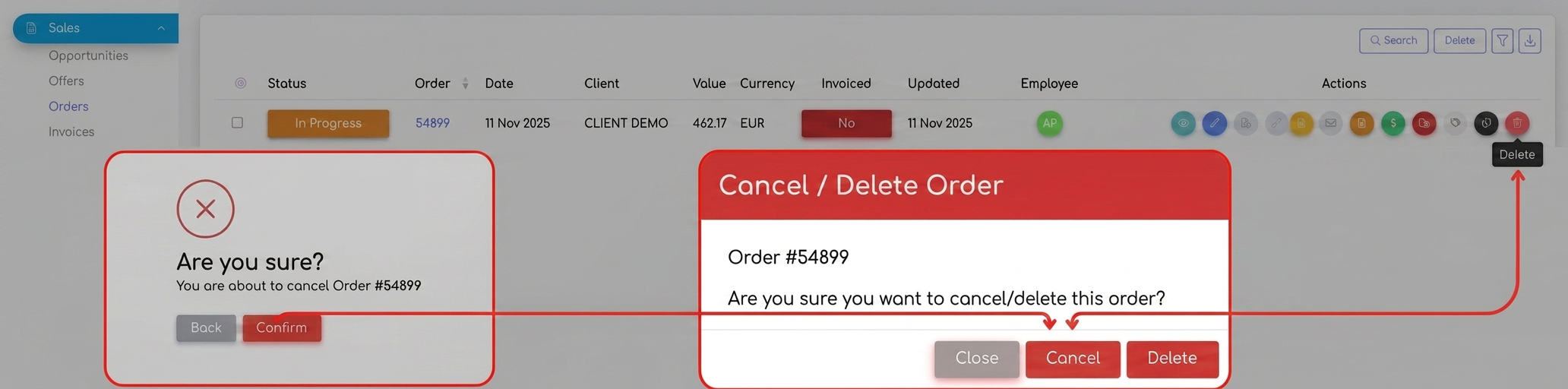
Upon clicking, the system opens a confirmation window where the user can choose one of the options:
1️.Cancel order
- Removes the order from the operational workflow.
- The order remains visible in the Sales – Orders section with the status Canceled, for traceability.
- The associated history is preserved.
- This is the recommended option when the customer cancels the order during production, but not at an advanced stage.
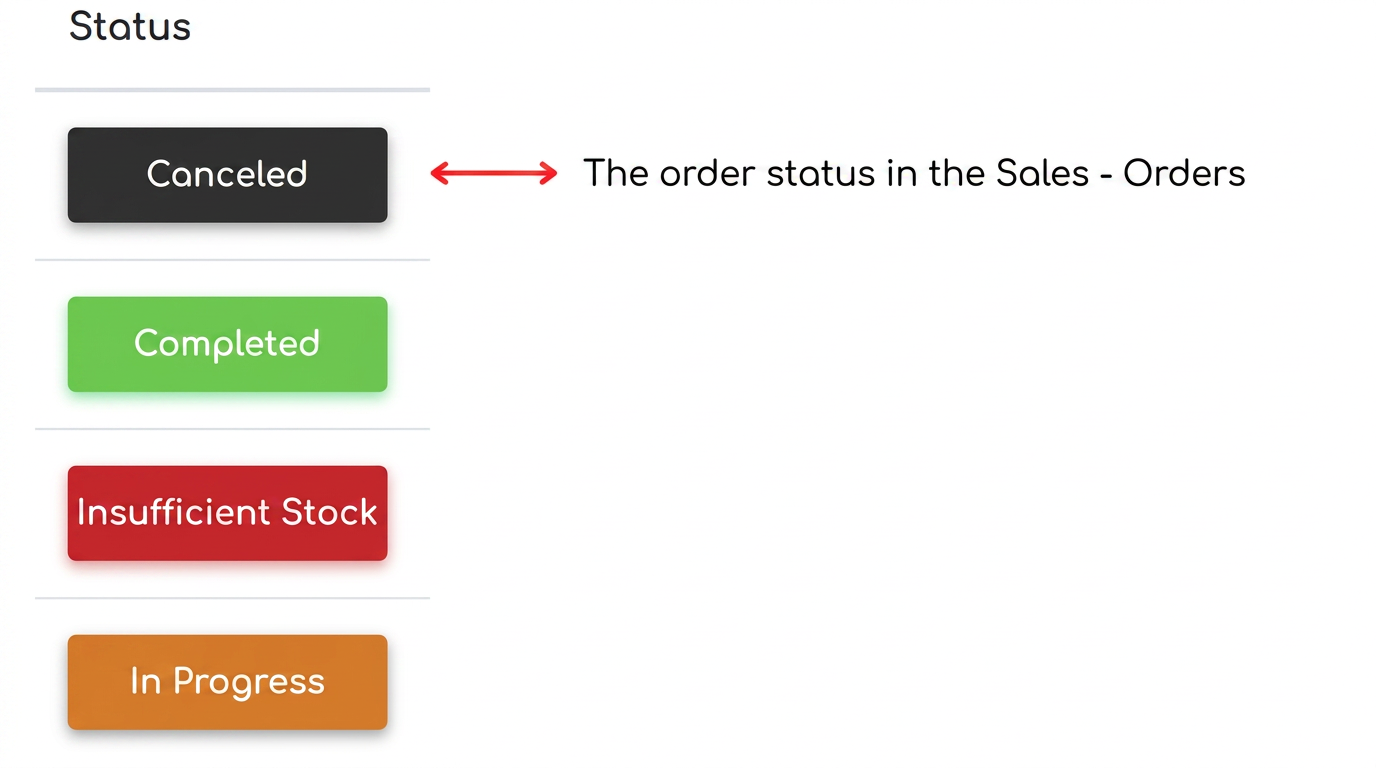
After confirmation, the order status becomes Canceled, visible in the order list:
2️.Delete order
- Completely removes the order from the system.
- Available only if there are no associated documents (invoices, notice of shipment, consumption vouchers, etc.).
- Used exclusively for data entry errors.
🔹 What to do if the order is already finished
If an order has been finished and the customer later requests a cancellation, it can no longer be removed directly from the workflow; instead, you proceed by generating a storno order (reversal/credit order):
- Go to Sales → Orders.
- Next to the order, select Generate document → Storno order.
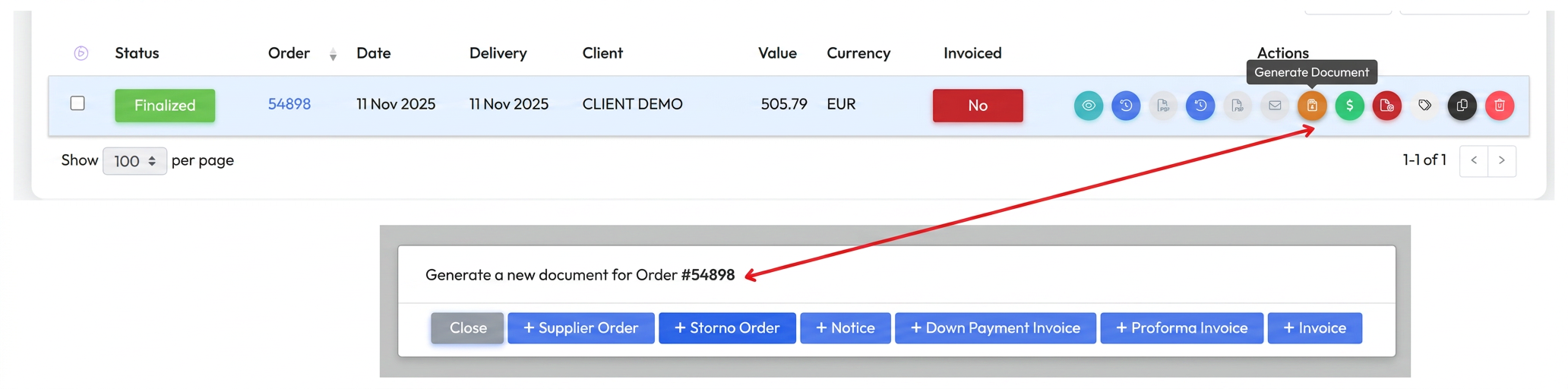
- In the new order:
- There is no need to deactivate the workflow stages - they will be automatically excluded for storno orders (thus, the storno order does not pass through the workflow stages);
- If the return/refusal is only partial, enter only the items or quantities being canceled (to reflect the corresponding negative value).
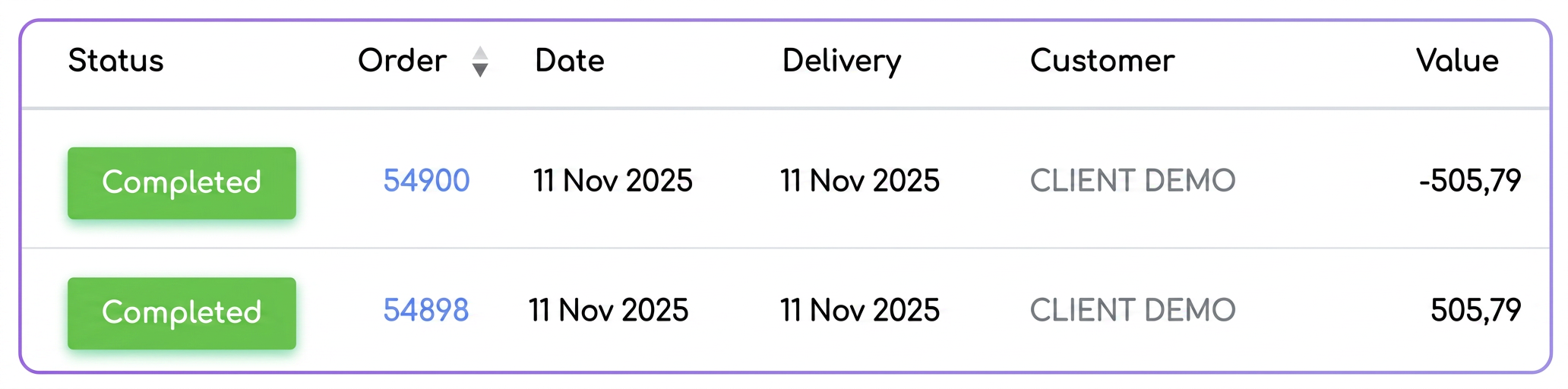
In the order list, both the initial order and the storno order will appear.
🔹 Returning products to stock (for superproducts)
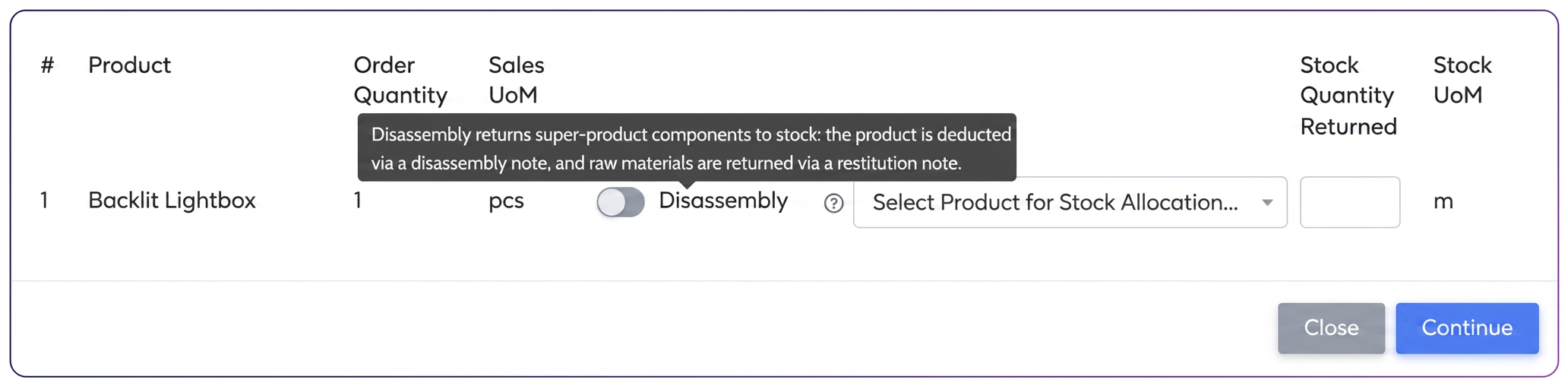
If the finished order contains a superproduct, when saving the storno order, the system requests the selection of the stock return method:
- As finished product → the product returns entirely to stock in the form it was sold;
- By components → the system performs disassembly, bringing the corresponding raw materials back into stock via a return voucher.
🔹 Generating a storno invoice
If an invoice was issued for the initial order, a Storno invoice (credit note) can be generated from the storno order:
→ Sales → Orders → Generate document → Invoice
The storno invoice pulls items from the storno order, with negative quantities and values.
The result:
- Initial order – positive value;
- Storno order – negative value;
- Storno invoice – corresponding negative value.
✅ Operational Summary
| Situation | Recommended Action | System Effect |
| Order in progress, no invoice | Cancel | Disappears from workflow, remains in the orders section with "Canceled" status. |
| Order finished, customer cancels | Generate Storno order | A new order is created with a negative value |
| Superproduct included in order | Select return to stock | Finished product or components, based on user choice |
| Invoice issued for initial order | Generate Storno invoice from Storno Order | |
