
1. General Overview
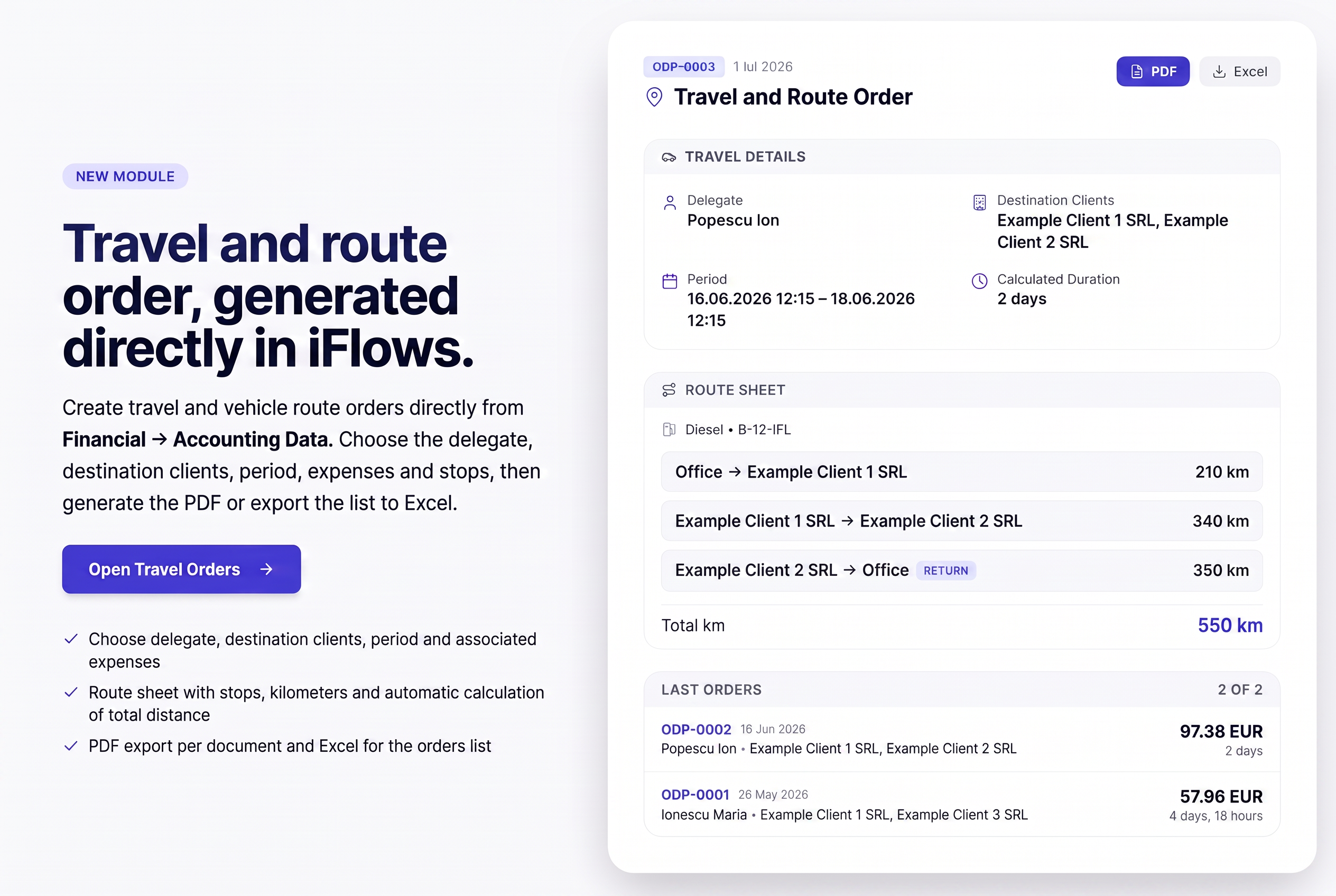
Travel Order and Roadmap (Ordin deplasare și parcurs) allows you to generate travel orders (delegations) and, optionally, the associated vehicle roadmaps. For each order, you choose the delegate and destination clients, set the period, add expenses and, if applicable, a roadmap with stops and kilometers, then generate the PDF document.
The module also maintains automatic numbering of orders. It is intended for the financial-accounting team and individuals who organize employee business trips.
It is accessed from the Accounting Data section. Each order is generated in PDF format, and the list of orders can be downloaded into an Excel file.
2. How to Access
From the main menu, open Financial, then Accounting Data. In the Standard section, look for the Travel Order and Roadmap card and press Open. The list of existing orders opens.
3. The List Page
Upon opening, you arrive at the list of orders. Each row shows the document number and date, the delegate, clients, expenses, value, departure and return dates, duration, plus an actions column.
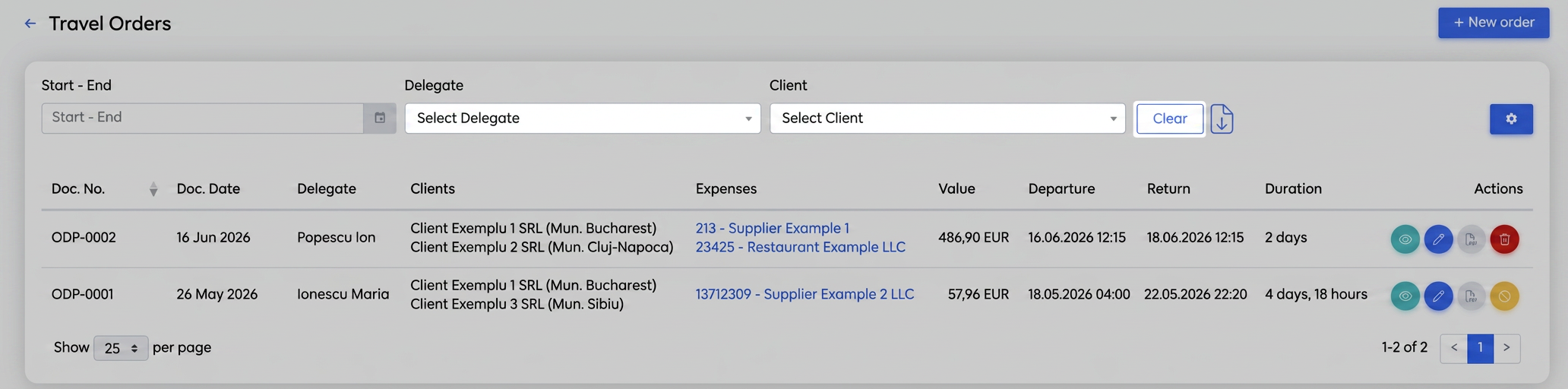
The list page for travel orders.
The New Order button (top right) opens the creation form. Next to the filters, you have the export button (down arrow icon) which exports the filtered list to Excel, and the Settings button (gear icon, highlighted in the image). The filters are date range (Start – End), Delegate, and Client, and the Clear button empties them. On each row, depending on the order status, you have actions for PDF preview, PDF download, editing, deletion, and cancellation.
4. Creating an Order
- In the list, press New Order.
- Choose the delegate and complete the form.
- Add at least one destination client.
- Optionally, add companions, expenses, and a roadmap.
- Press Save. The system automatically assigns the order number.
Delegated Person
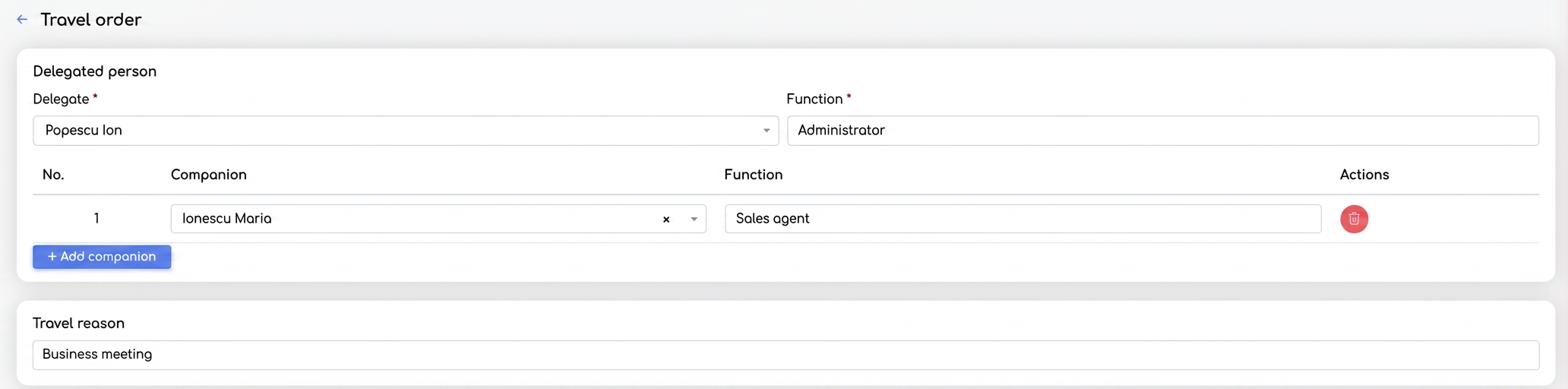
The Delegated Person, Travel Reason, and Destination Clients sections.
- Delegate — the employee going on delegation, chosen from a searchable list (mandatory field).
- Job Title — the delegate's job title (mandatory field).
- Companions — optional; with Add companion, you can add people accompanying the delegate (each with number, name, and job title).
Important: If you leave the Job Title empty, it is automatically pulled from the employee file; if no job title exists there either, saving will result in an error.
Under Travel Reason, enter the purpose of the trip in free text (e.g., technical audit, business meeting).
Destination Clients
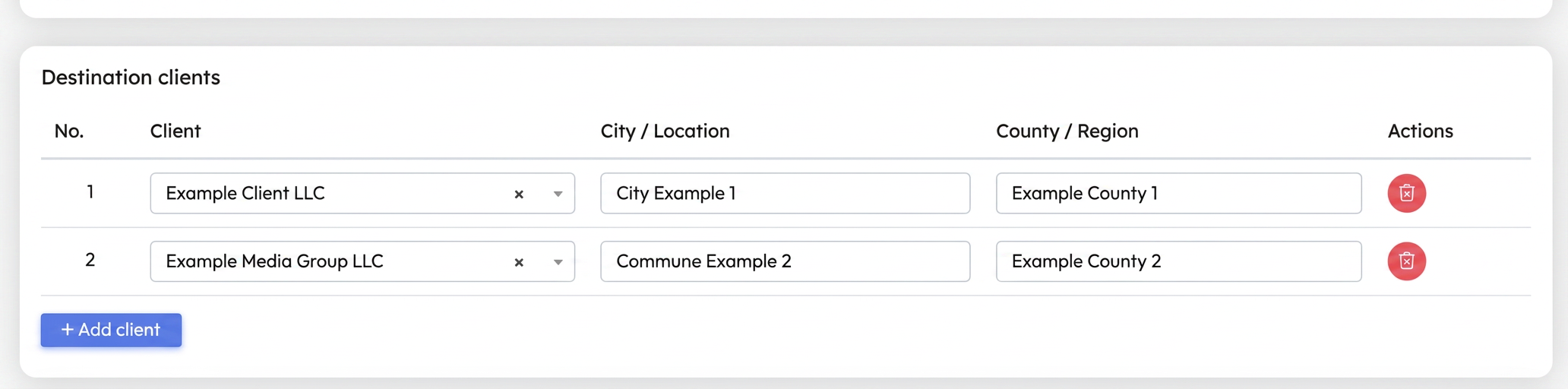
With Add client, choose the destination clients from a searchable list. For each client, the number, name, city, and county or region are displayed.
Important: At least one destination client is mandatory; without it, the order cannot be saved.
Travel Period
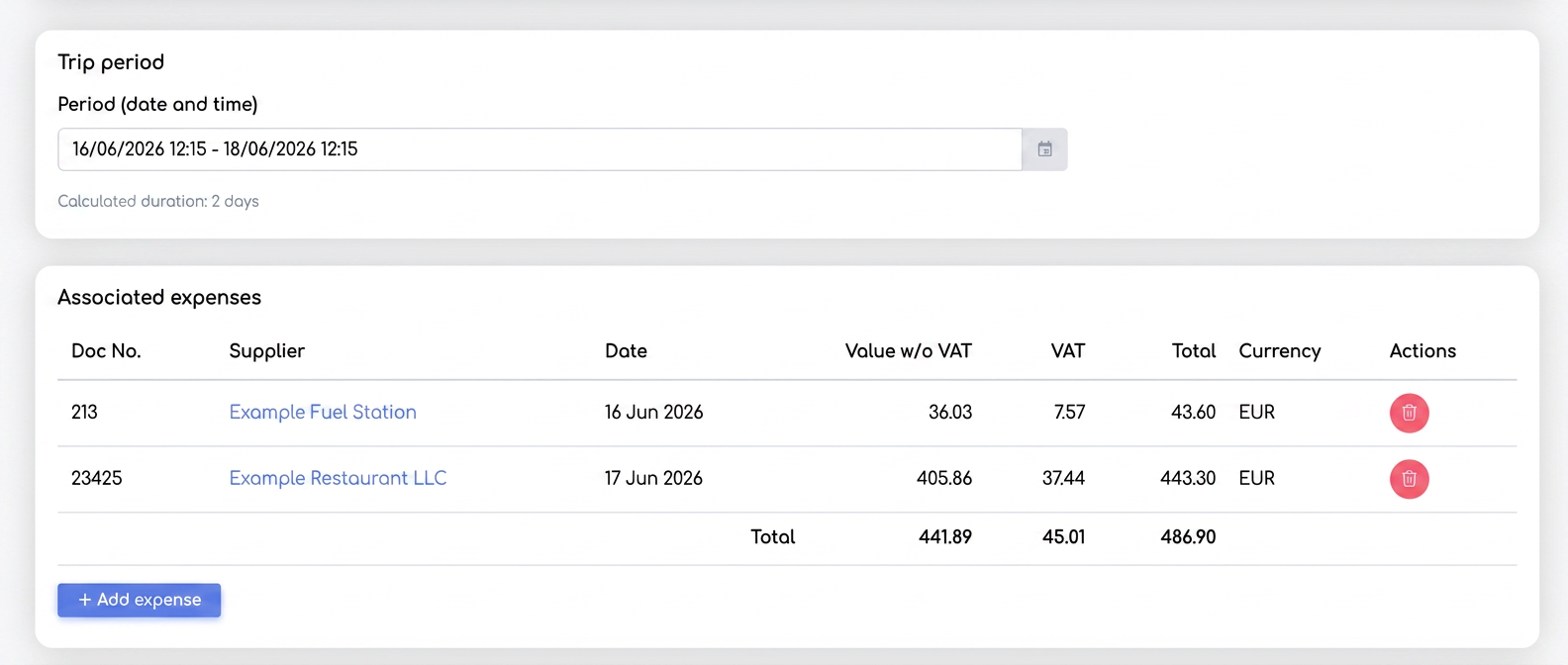
The Travel Period and Associated Expenses sections.
At Period (date and time), choose the interval with the departure and return date and time from the calendar. The calculated duration automatically appears below the field.
Important: The end date must be after the start date.
Associated Expenses
Optional section. With Add purchase, search for the expense document (by supplier, series, or number). Each purchase appears with the document number, supplier, date, value without VAT, VAT, total, and currency, and the totals appear below the table.
Important: If a purchase is already used in another settlement or order, a warning appears when you add it.
Roadmap
Optional section. Press Add roadmap to display it (pressing again hides it). In the header, fill in the fuel type, license plate number, driver, vehicle consumption, as well as the starting point with the city and county. In the Stops table, add one stop for each road segment (date and time, starting point, destination client, city, and number of kilometers).
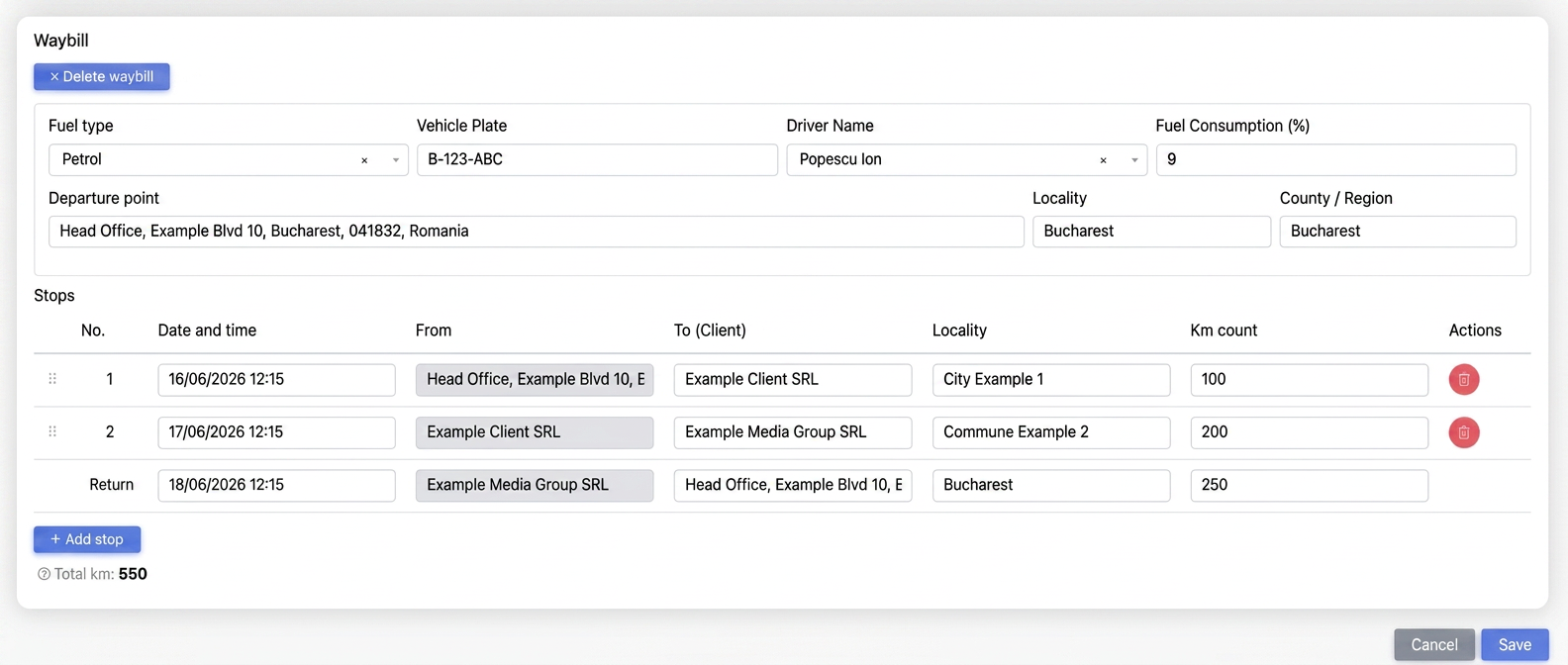
The Roadmap section, with stops and kilometers.
Important: The roadmap is only saved if it is activated and must contain at least one stop. Total Km is calculated automatically as the sum of all segments, including the return journey to the headquarters (Return row). The distance between points can be filled in automatically based on addresses or edited manually.
5. Generation, Editing, Deletion, and Cancellation
After saving, from the list you can preview the order (the PDF opens in the page) or you can download it in PDF format. The list of orders can also be exported to Excel (the export button next to the filters). Editing is done from the row action.
Important: Only the last order in the series (the one with the most recent number) can be deleted. Orders that are not the last in the series can only be canceled — they remain recorded but marked as canceled. A canceled order can no longer be modified.
6. Settings
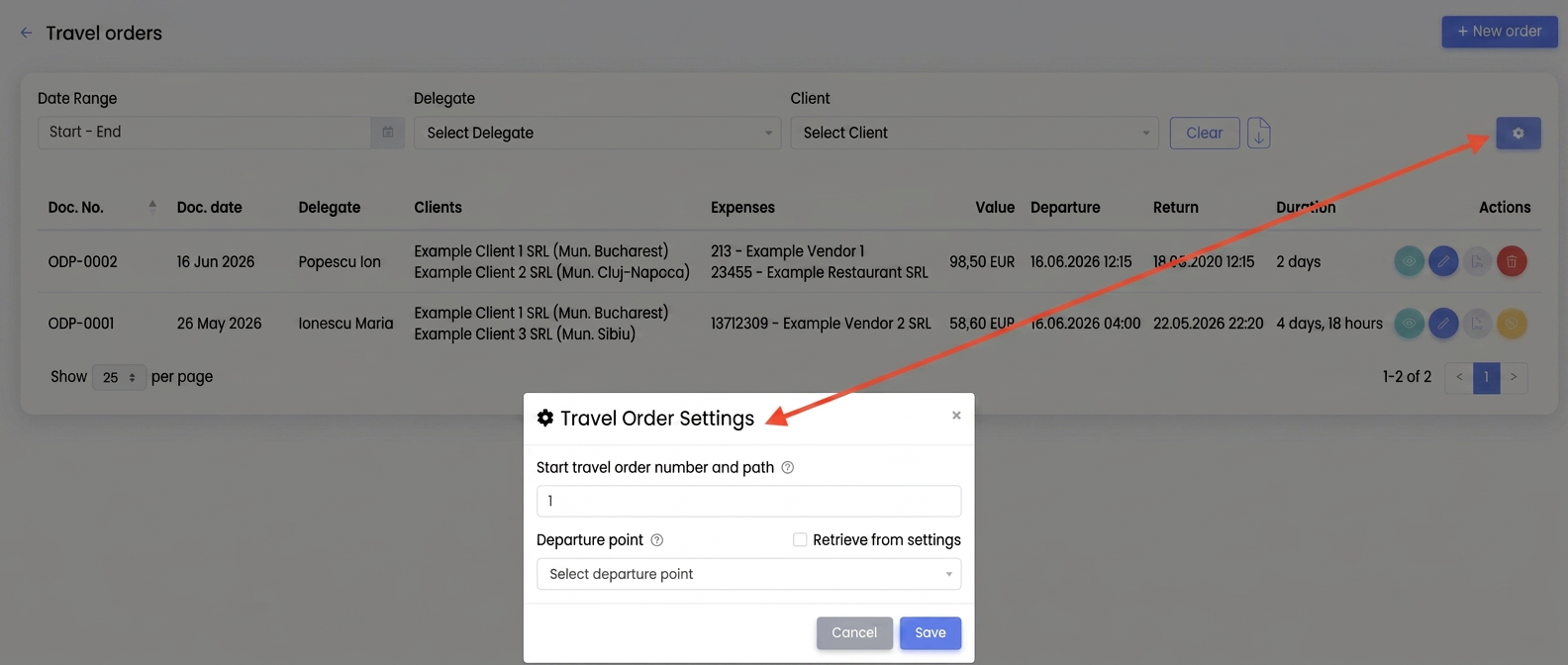
The settings window for travel orders.
The Settings button (gear) opens a window with Start No. for travel order and roadmap (the number from which automatic numbering starts) and Starting Point (the address used as the start and return point in roadmaps). Press Save to keep the settings.
Important: The Pull from settings switch decides if roadmaps automatically use the address from Starting Point. When active, the starting point of the roadmaps is automatically filled with this address.