
Optimization: Quick View of Purchase Order Details from the Stock List!
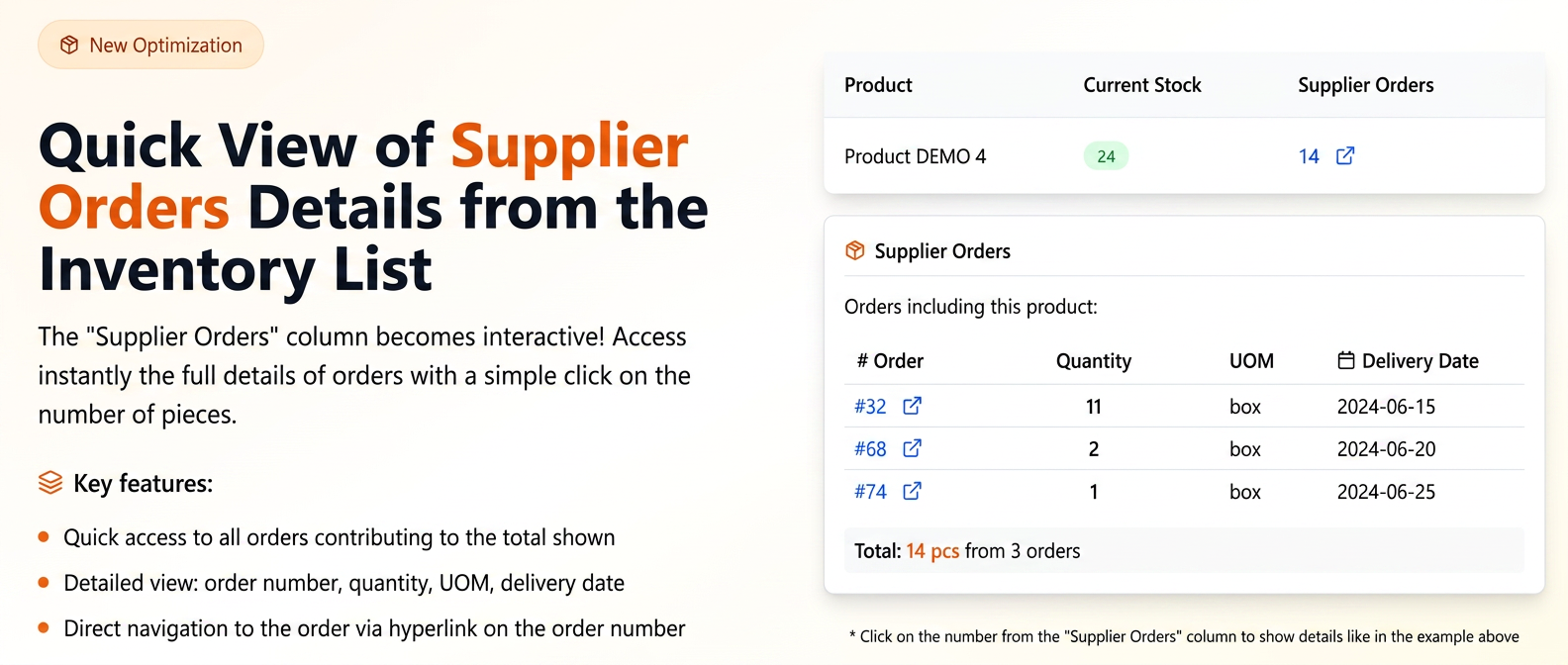
In the stock list, in addition to existing information (Current Stock, Stock in Progress, etc.), the "Cmd. Furnizor" (Supplier Order) column – which displays the total number of units ordered for a specific product – has been improved.
Key new feature: The number of units in this column is now an active hyperlink.
How it works and what are the benefits?
- Quick Access to Details:
- Navigate to Products -> Stocks.
- In the Cmd. Furnizor column, click on the number of units associated with a product (e.g., on "14" for "DEMO Product 4").
- Informative Pop-up:
- A pop-up will appear instantly, displaying a detailed list of all purchase orders that include that product and contribute to the displayed total.
- For each order in the list, you will see:
- Purchase Order Number (also a hyperlink that can take you directly to that order, if necessary).
- Quantity of that product included in that order.
- Unit of Measurement (UM).
- Delivery Date estimated for the products in that order.
- Transparency and Efficiency:
- This functionality allows you to quickly and clearly see which specific orders the expected quantities for a product come from.
- Facilitates delivery tracking and stock planning, having the estimated delivery dates for each batch at hand.
New: "Accent" PDF Template Style and Gradient Color Options!
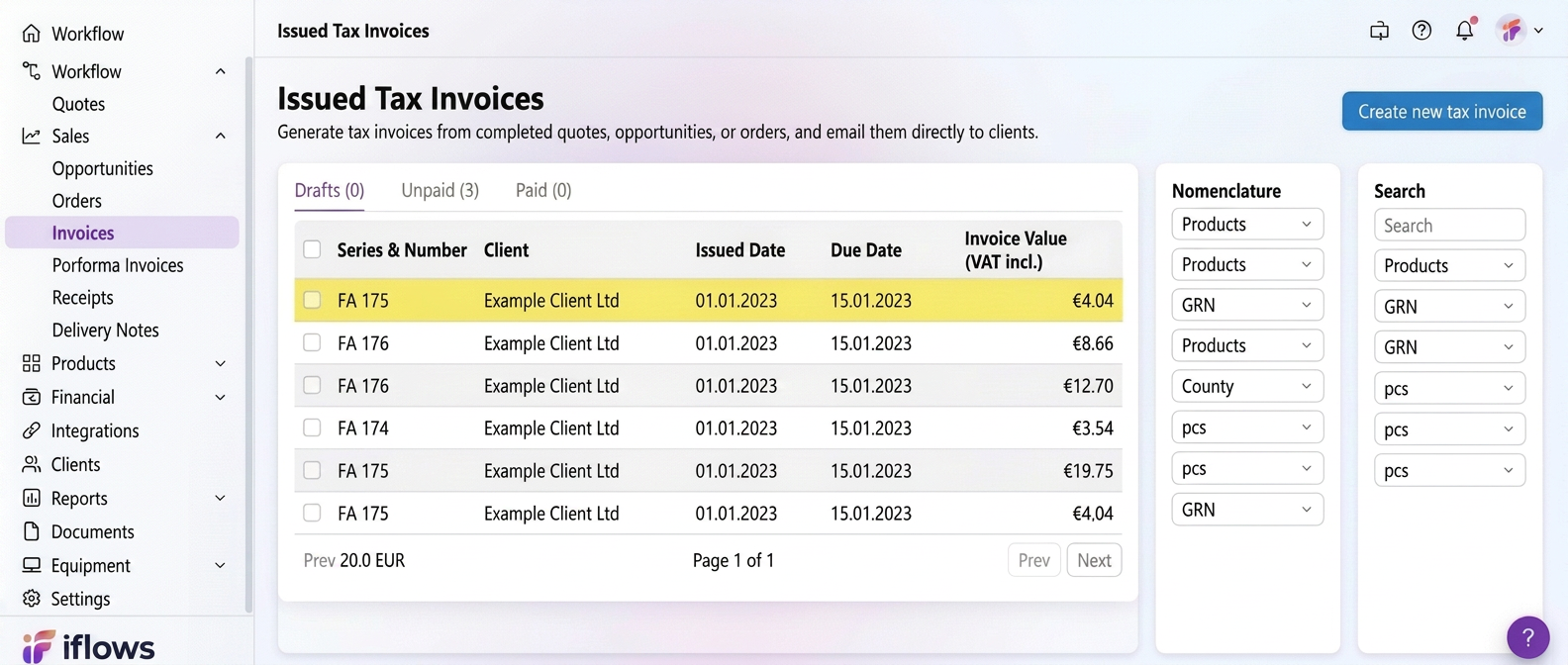
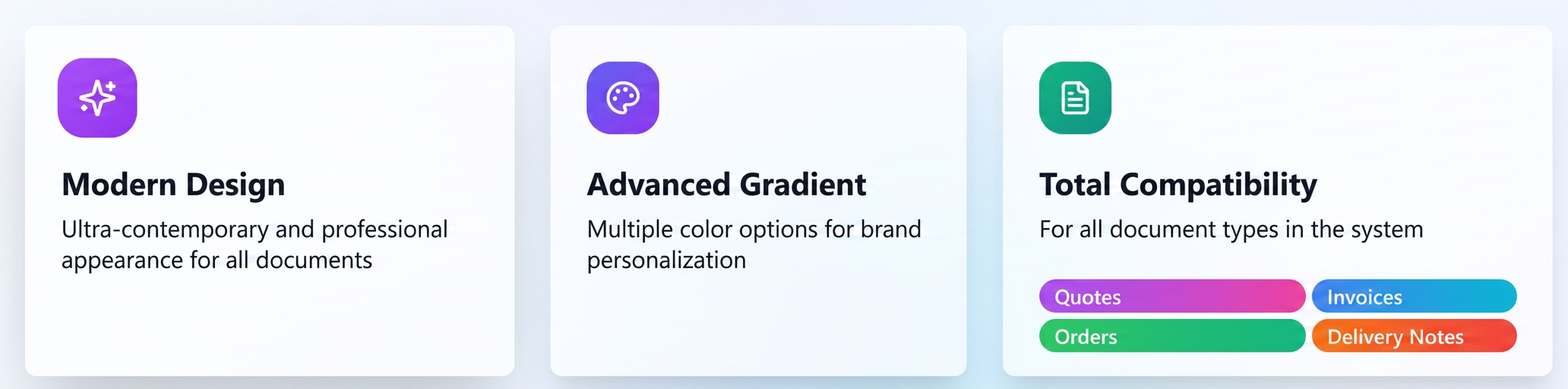
We have launched a new PDF template style, named 'Accent', along with color gradient functionality.
- New 'Accent' Template Style:
- A modern, airy, and elegant design for your documents (Quotes, Invoices, Orders, Proforma Invoices, Delivery Notes, Purchase Orders, etc.).
- A distinct structure, for example, with a footer optimized to include more contact details of your company in a visually pleasing way.
- Advanced Color Options - Gradient:
- Full Customization: Choose two distinct colors and define the gradient direction (e.g., left to right, top to bottom, etc.) to create a unique look.
- Predefined Gradients: For speed, you can choose from a selection of predefined gradients, ready to use.
- This option is available for the new 'Accent' style, as well as for the other template styles.
How to use the new features?
- Creating a new template with 'Accent' style and gradient color:
- Navigate to Settings (from the main left menu, last option) -> Templates.
- Select the PDF tab.
- Click the + New PDF Template button.
- In the creation form:
- Choose the Document type (e.g., Quote, Invoice, etc.).
- Under Template Style, select the new style: Accent.
- In the Color section:
- Click on the color field.
- Under Type, choose Gradient.
- Option 1 (Custom): Select the two desired colors and then choose the Gradient Direction.
- Option 2 (Predefined): Choose one of the predefined Gradients from the displayed palette.
- Fill in the Template Name and other required fields.
- Organize the variables in the new 'Accent' template layout.
- Click Save.
- Updating an Existing Template to Use the 'Accent' Style:
You can update an existing template in two ways:
B1. By Cloning (Recommended to keep a copy of the original template):
- Navigate to Settings -> Templates -> PDF tab.
- Identify the template you want to update.
- Click the Clone Template icon (the one with two overlapping files). This creates a new copy of the template, allowing you to keep the original as a reference in case you want to revert to it later.
- In the cloned template form (which is now a new template):
- Under Template Style, change to Accent.
- Modify the Color option to use Gradient, following the steps from point A.4.
- Update the Template Name if necessary (e.g., "Accent Gradient Quote").
- Click Save.
B2. By Direct Editing (If you want to permanently modify the existing template style):
- Navigate to Settings -> Templates -> PDF tab.
- Identify the template you want to modify.
- Click the Edit Template icon (the pencil).
- In the editing form:
- Under Template Style, change to Accent.
- Modify the Color option to use Gradient, following the steps from point A.4.
- Click Save.
Optimization: Changes in the Display of "Invoiced" Status in Orders
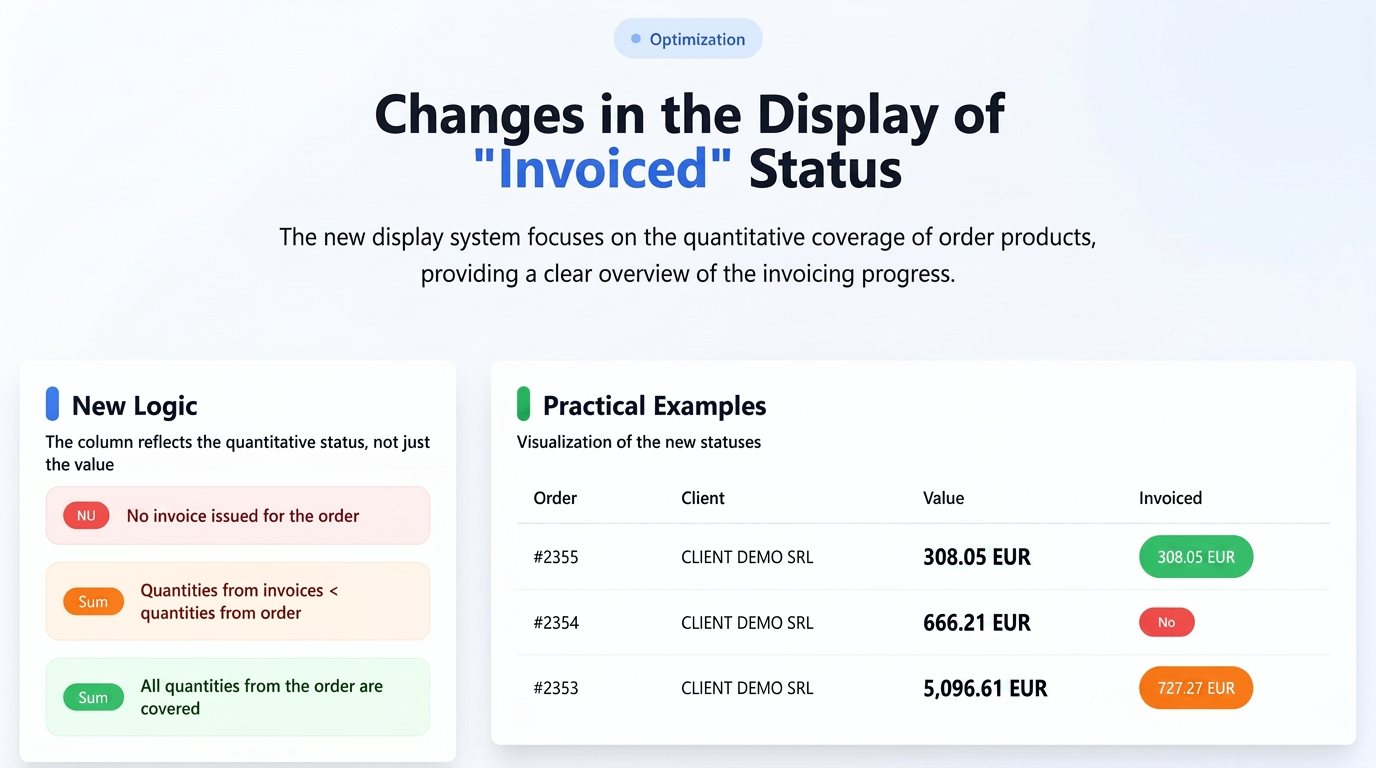
What's new? A smarter approach to the "Invoiced" status!
We have refined how the "Facturat" (Invoiced) column reflects the status of an order, emphasizing the quantitative coverage of products in the order by the issued invoices. Here is how it will work from now on:
- RED BORDER ("NU"):
- Meaning: No invoice has been issued for that order.
- Visual: The text "NU" (NO) on a red background.
- (Unchanged behavior)
- ORANGE BORDER (Invoiced amount):
- Meaning: One or more invoices have been issued for the order, but the total quantity of products on the invoices is less than the total quantity of products in the order. This indicates a partial invoicing from a quantitative point of view, even if, for example, a down payment was invoiced covering the full value.
- Visual: The total amount invoiced to date, displayed on an orange background.
- Example: An order contains 10 units of a product. An invoice is issued for 5 units. The "Invoiced" column will display the value of those 5 units on an orange background.
- GREEN BORDER (Invoiced amount):
- Meaning: One or more invoices have been issued for the order, and the total quantity of products on the invoices fully covers the quantity of products in the order. This indicates a complete invoicing from a quantitative point of view.
- Visual: The total invoiced amount, displayed on a green background.
- Important: Even if there may be small value differences (e.g., exchange rate, discounts applied later on the invoice), if ALL quantities in the order are covered by invoices, the background will be green.
Optimization: Inventory Module: PDF Document Generation – Minute and Inventory List
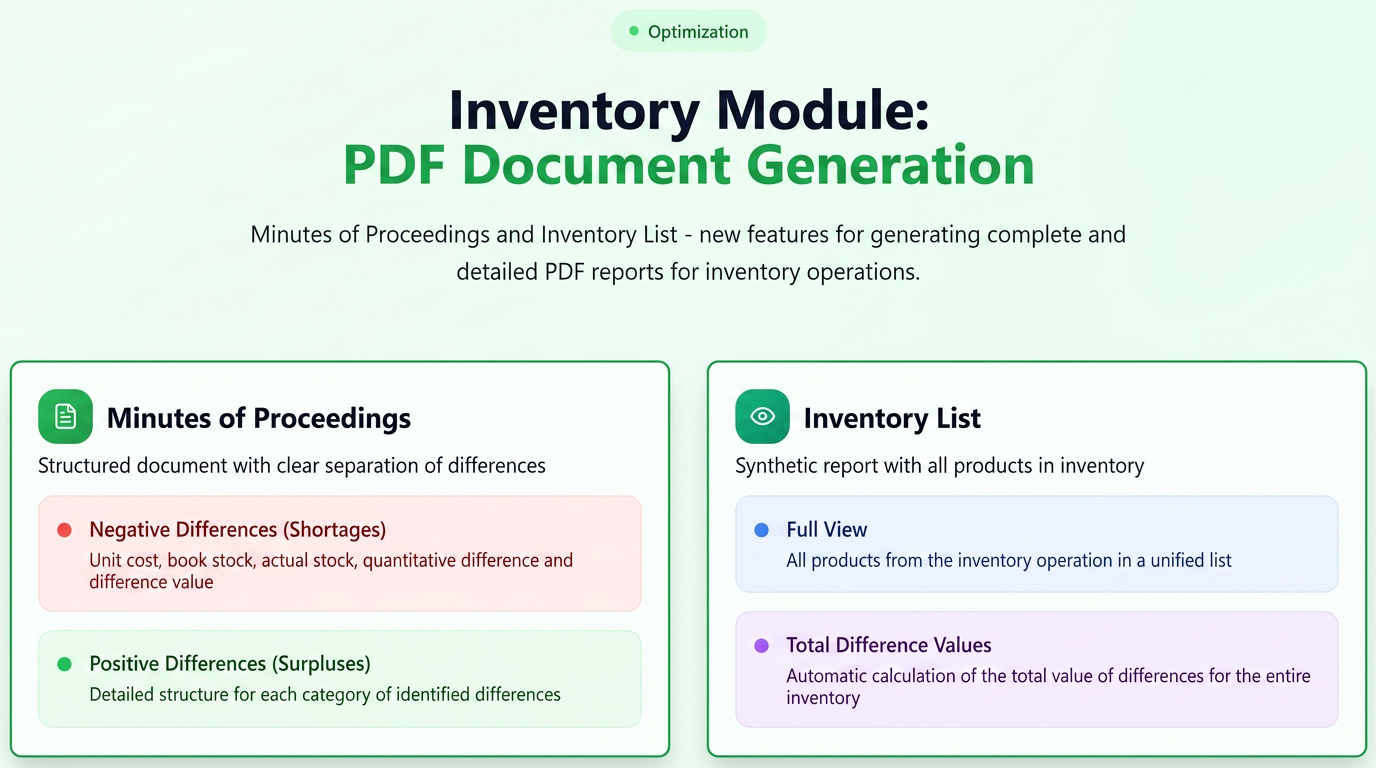
Until now, after completing an inventory, the data was saved and accessible in the system. Now, for each inventory document created (found in the Products -> Stock -> Inventory tab), dedicated options have been added to generate two distinct types of PDF documents:
- Proces Verbal de Inventariere (Inventory Minute):
- Its structure separately presents products with negative differences (shortages) and products with positive differences (surpluses), specifying for each: unit cost, book stock, physical stock, quantitative difference, and the value associated with the difference.
- Listă de Inventariere (Inventory List):
- This report provides a synthetic overview, in list form, of all products included in the inventory operation.
- For each product, the following are displayed: unit cost, book stock, physical stock, quantitative difference, and the difference value.
- The report also includes the Total Value of Differences for the entire inventory.
The new PDF generation options become available after an inventory document has been created and saved. These are found as distinct icons in the "Actions" column of the inventory documents list (accessible in Products -> Stocks -> Inventory). A click on the corresponding icon will initiate the download of the desired PDF document.
Optimization: Simplified Association of Existing Purchases with e-Factura
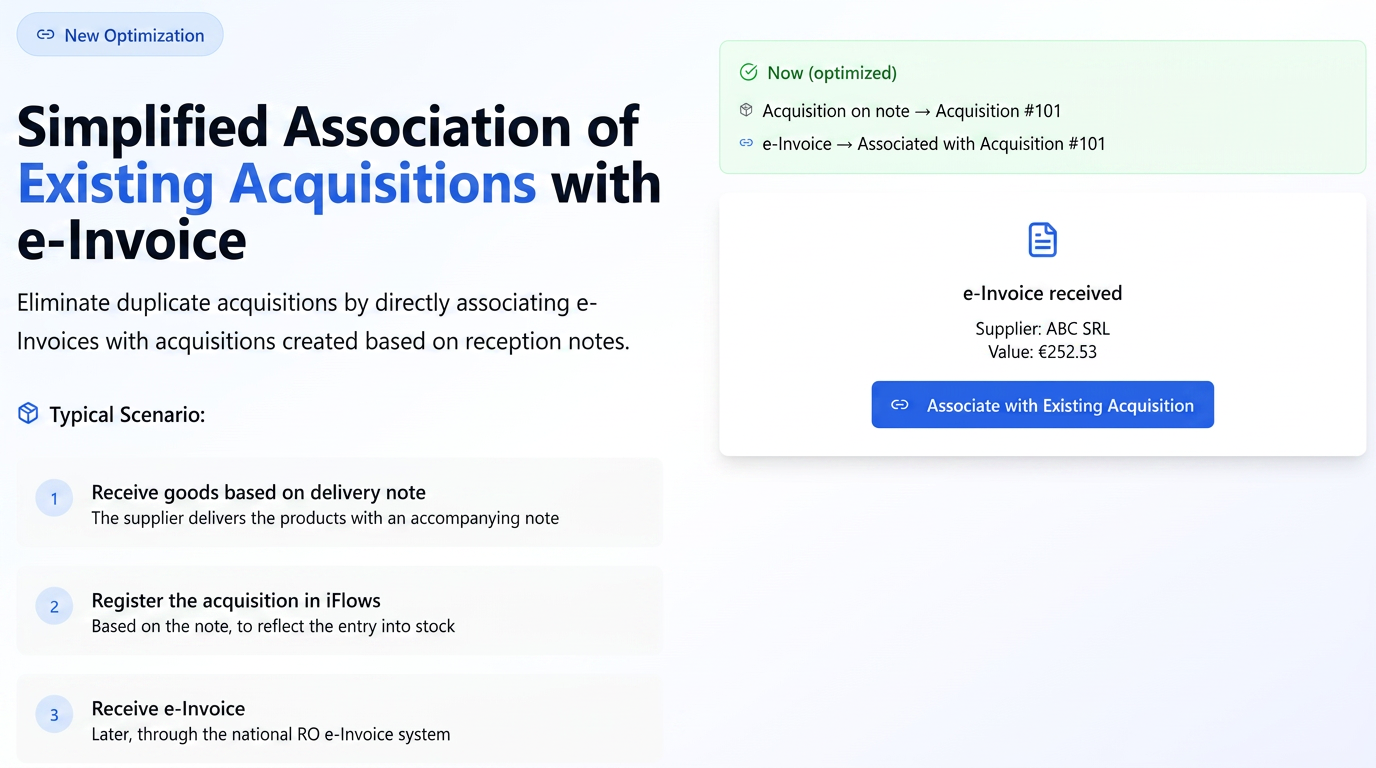
The optimization was designed to streamline the process of associating received electronic invoices (e-Factura) with purchases already registered in the system.
What's new in this optimization?
- "Associate Purchase" Button:
- In the Financial -> Purchases section, in the e-Factura tab, a new button has been added to the action list for each e-Factura: "Associate Purchase".
- This button allows for the direct linking of a received e-Factura with an existing purchase in your system.
- Automatic Update of e-Factura Status:
- After successfully associating an existing purchase, the e-Factura status will automatically change to "Achiziție" (Purchase).
- Visually, the "Achiziție" status will be marked in green.
- Optimization of the Action List for e-Factura:
- Once an e-Factura has been associated with a purchase, the "Create Purchase" button (which allowed for the generation of a new purchase based on the e-Factura) will disappear from the action list for that e-Factura to prevent the creation of duplicate purchases.
- Smart Alerts for Data Correctness:
- In case the supplier on the e-Factura differs from the supplier registered on the purchase selected for association, the system will display an alert. This check helps prevent erroneous associations, similar to the alerting functionality when associating orders with different clients in the Quotes section.
- Visual Consistency of e-Factura Statuses:
- The "Descarcată" (Downloaded) status for e-Factura will be marked in orange.
- The "Achitată" (Paid) status will be marked in green.
The Association Process:
- Navigate to Financial -> Purchases.
- Select the e-Factura tab. Here you will see the list of received e-Factura.
- Identify the e-Factura you want to process.
- Next to the desired e-Factura, in the "Actions" column, click on the new button/icon "Associate Purchase".
- In the pop-up window that appears:
- Search for the existing purchase you want to associate (you can search by the purchase document number)
- Select the correct purchase from the search results.
- Click the "Associate" button.
- If the suppliers do not match, you will receive an alert. You can choose to continue (if you are sure) or cancel.
After successful association, the e-Factura status will update to "Achiziție" (green), and the "Create Purchase" option will be removed for that e-Factura.
Optimization: New Units of Measurement for Volume
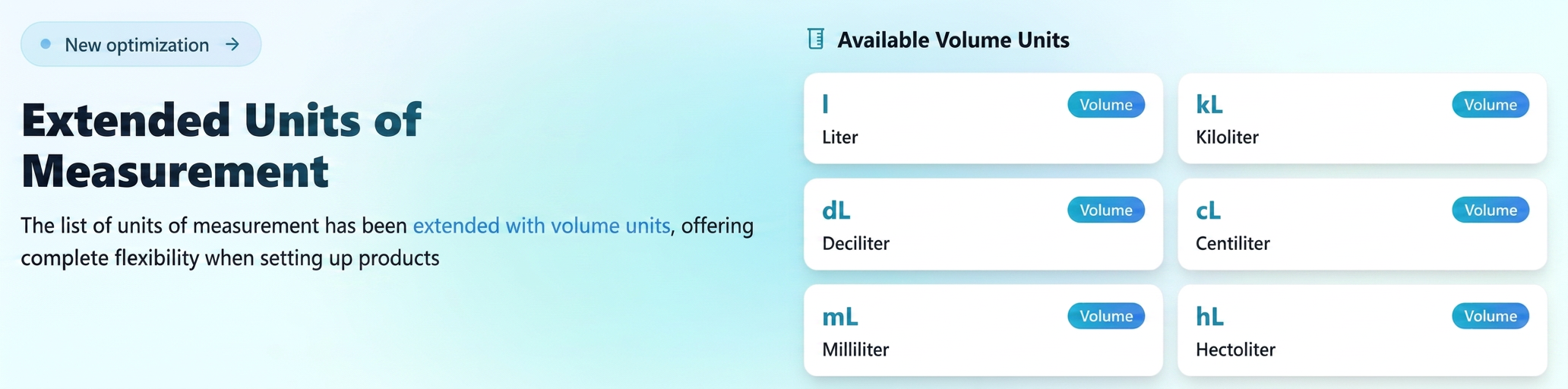
We have expanded the list of available units of measurement for product settings, now including a full range of units for Volume:
- l (Liter)
- kL (Kiloliter)
- dL (Deciliter)
- cL (Centiliter)
- mL (Milliliter)
- hL (Hectoliter)