New: GLS Courier Integration
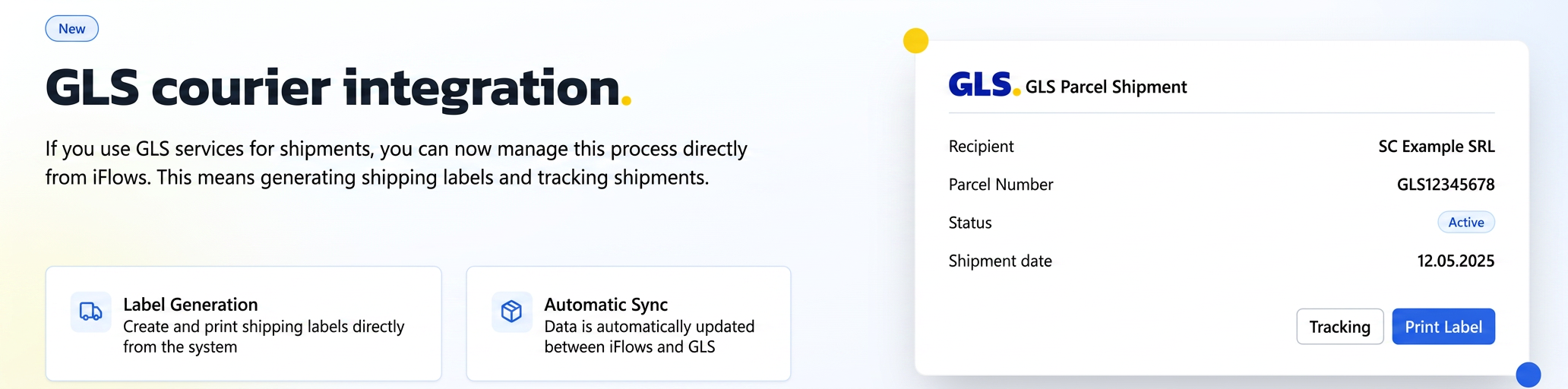
If you use GLS services for shipments, you can now manage this process directly from iflows. This means generating shipping labels and tracking shipments.
How to use:
- Activate Integration:
- Navigate to "Settings" (gear icon) in the side menu.
- Select "Integrations".
- Go to the "Available" tab.
- Identify "GLS" in the list of available integrations and click the installation icon "+" (plus) next to it.
- Configuration:
- After clicking install, a configuration window will appear.
- Enter your GLS credentials: "Client ID", "Username", and "Password". These details are obtained from your GLS client account.
- After completing the data correctly, press the "Activate" button.
- Usage:
- Once activated and configured, the GLS integration will be accessible from the "Integrations" -> "Couriers" menu.
- A new dedicated "GLS" tab will appear here, similar to the one for FAN Courier (if active).
- From this tab, you can generate labels for GLS shipments. The label generation process is similar to the one for FAN Courier: https://www.youtube.com/watch?v=F64TJBkZuuw
- Important to note: The GLS integration allows for generating shipping labels. Unlike FAN Courier, GLS does not automatically return the approximate shipping cost or the shipment status.
Important: For users to be able to use the integration, the administrator must grant them permission from Financial -> Employees -> Permissions, editing the desired access level, searching for "GLS" and enabling "View" (and optionally "Edit").
Notification: "Supplier Order Delivered": Inventory
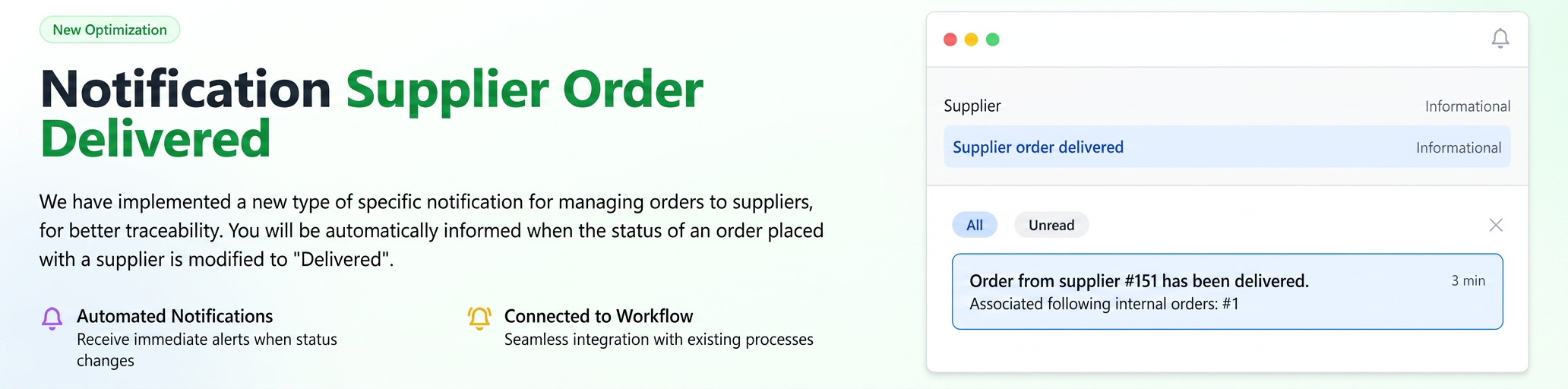
We have implemented a new specific notification type for managing supplier orders for better traceability: Supplier Order Delivered.
You will be automatically informed when the status of an order placed with a supplier is changed to "Delivered". Concrete notification example: "Supplier order #83 has been delivered. Associated internal orders: #54573"
- How to use:
- Activate Notification:
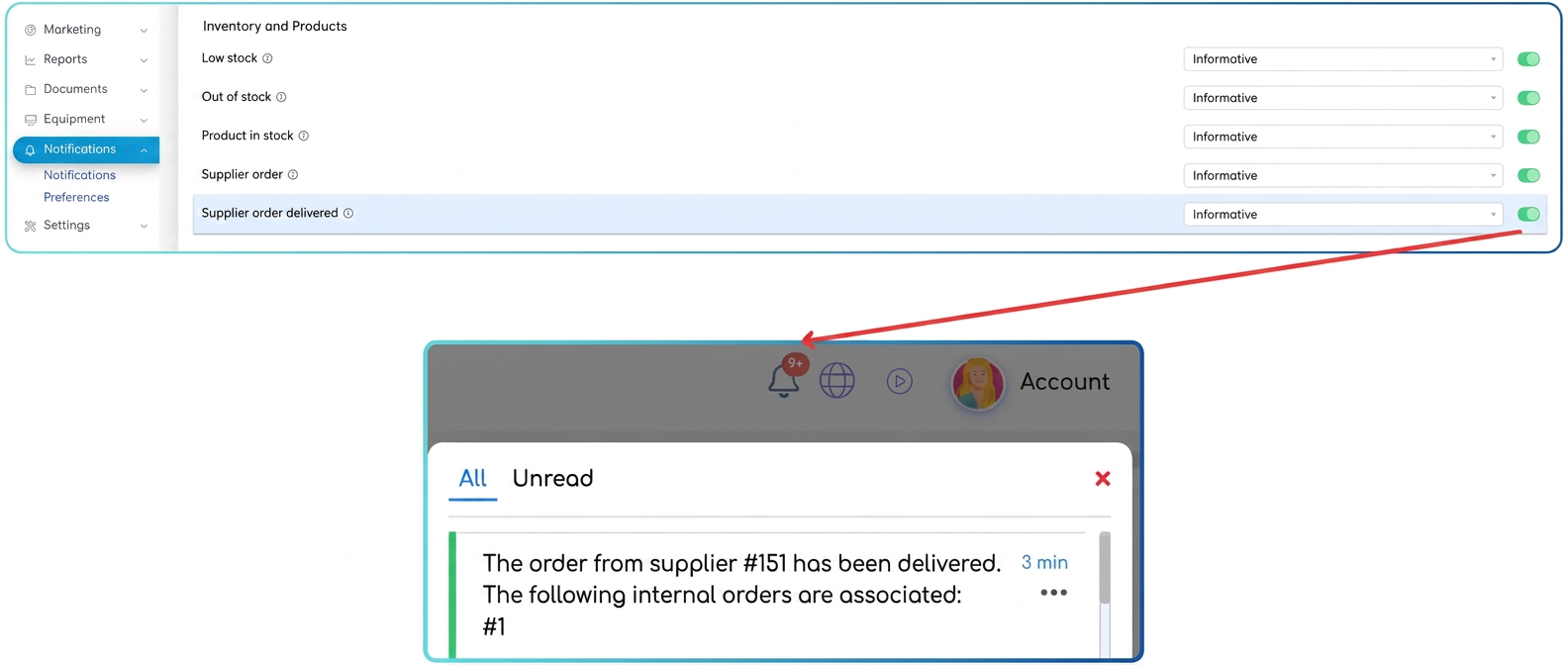
- Navigate to "Notifications", then the "Preferences" option.
- Scroll down to the "Stocks and Products" section.
- In the notification list, find the "Supplier Order Delivered" option and activate the switch next to it. You can also set the priority of this notification.
- Trigger:
- The notification is activated when the status of a supplier order is changed to "Delivered".
- Important: At this time, to trigger the notification, the supplier order status must be changed manually to "Delivered". This can be done from the "Financial" -> "Suppliers" -> "Orders" module, identifying the desired order, accessing its details (click on the "eye" icon), then using the "Actions" button and selecting "Change Status", where you choose "Delivered".
- Future optimization: We plan for the supplier order status to be updated automatically to "Delivered" upon completing a Stock Purchase (NIR - Note de Intrare Recepție / Goods Received Note) generated from that order, which will also automate the triggering of this notification.
- Linking internal orders: For the [LIST_OF_INTERNAL_ORDERS] variable to be populated in the notification, ensure you have linked the relevant internal orders within the supplier order.
Optimization: Visual Notifications in the Browser Tab Title (Favicon Badge)
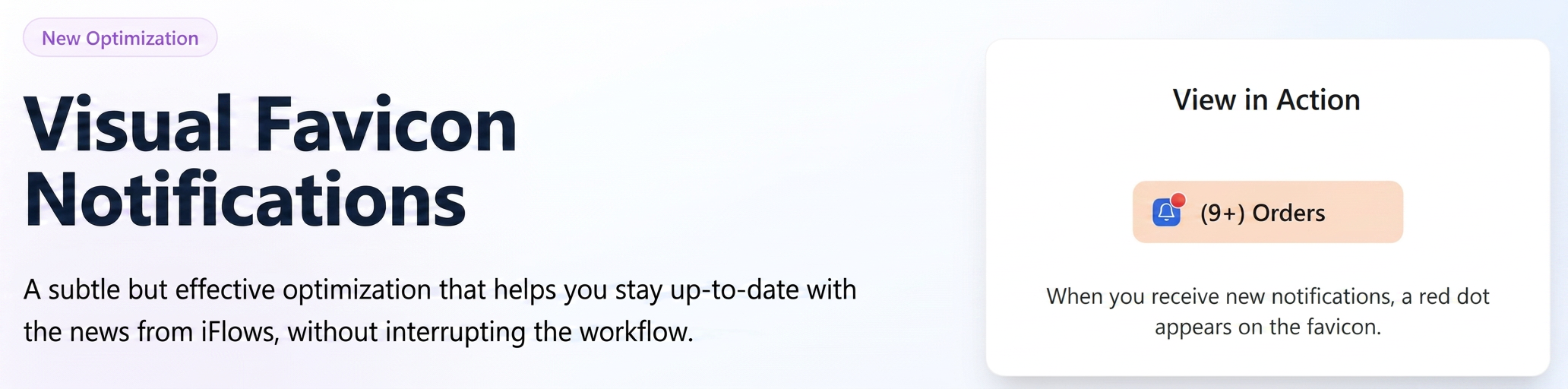
This optimization brings a discrete visual indicator directly to the icon (favicon) of the iflows tab in your browser. When you have new unread notifications, a small red dot will appear on the favicon. This helps you quickly notice if you have new alerts in iflows, even when working in other tabs or applications, without needing to constantly switch to the iflows tab for checks.
Appearance of the indicator: When you receive a new notification in iflows and it remains unread, a red dot will automatically appear on the iflows tab favicon.
Disappearance of the indicator: The red dot will automatically disappear when:
- You access the notification center (by clicking on the bell symbol) and open the notification.
- You manually mark the notifications as read.
Optimization: Attached Files Display Mode
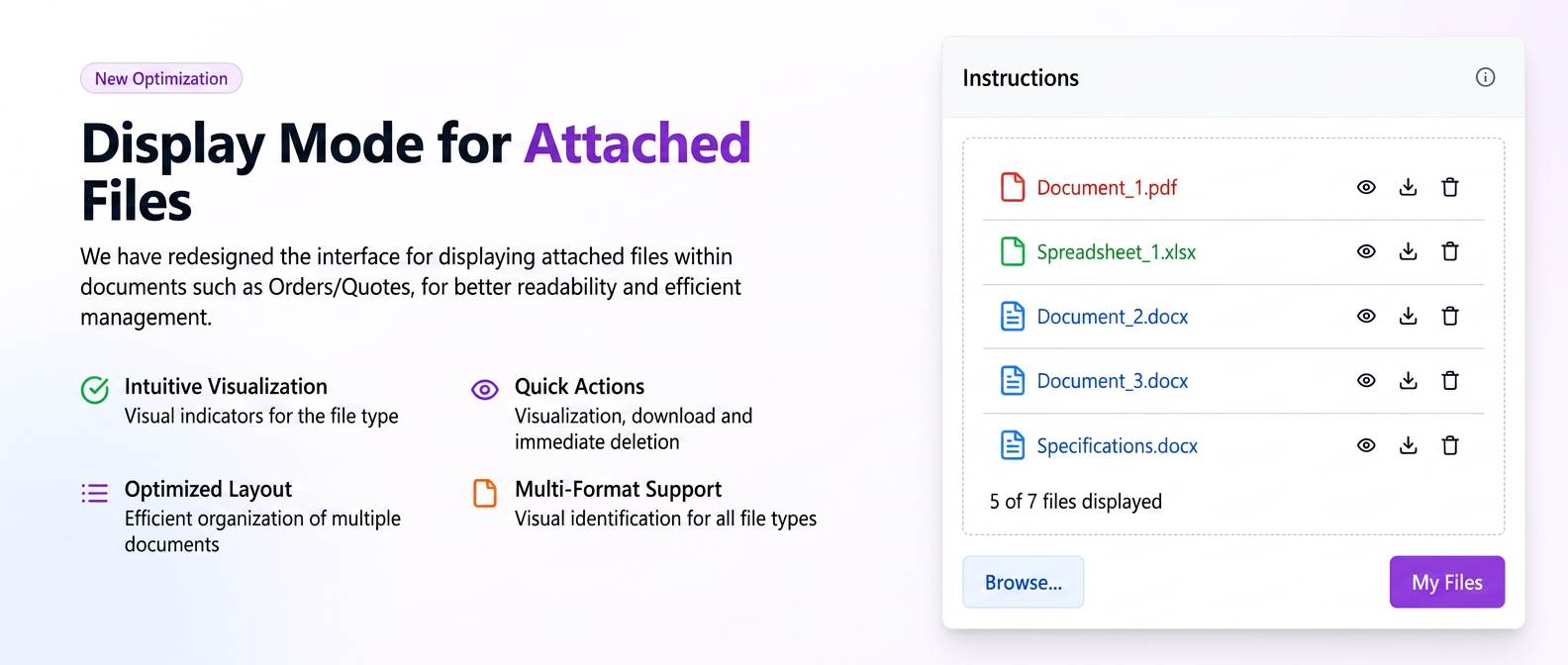
We have redesigned the interface for displaying attached files within documents such as Orders/Offers (e.g., in the page section named "Instructions" or "Documents"), for better readability.
The filename is now displayed in full and clearly, horizontally, in a list format. The icon size has been reduced while maintaining the visual suggestion of the file type. Whenever you add files (via drag & drop or the selection button), they will be displayed in the new list format. For each file you will see:
- The file type icon.
- The full filename.
- The file size.
New: "Additional Quantity" Instruction
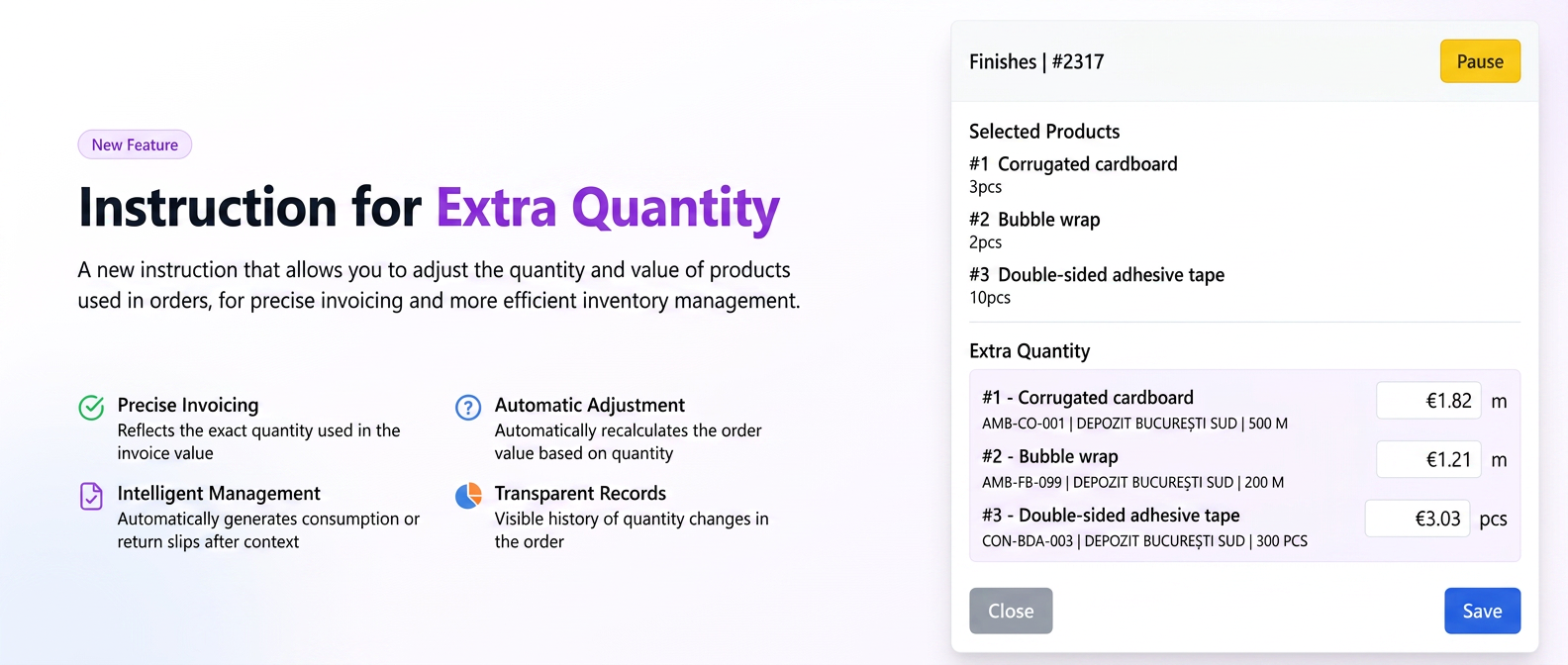
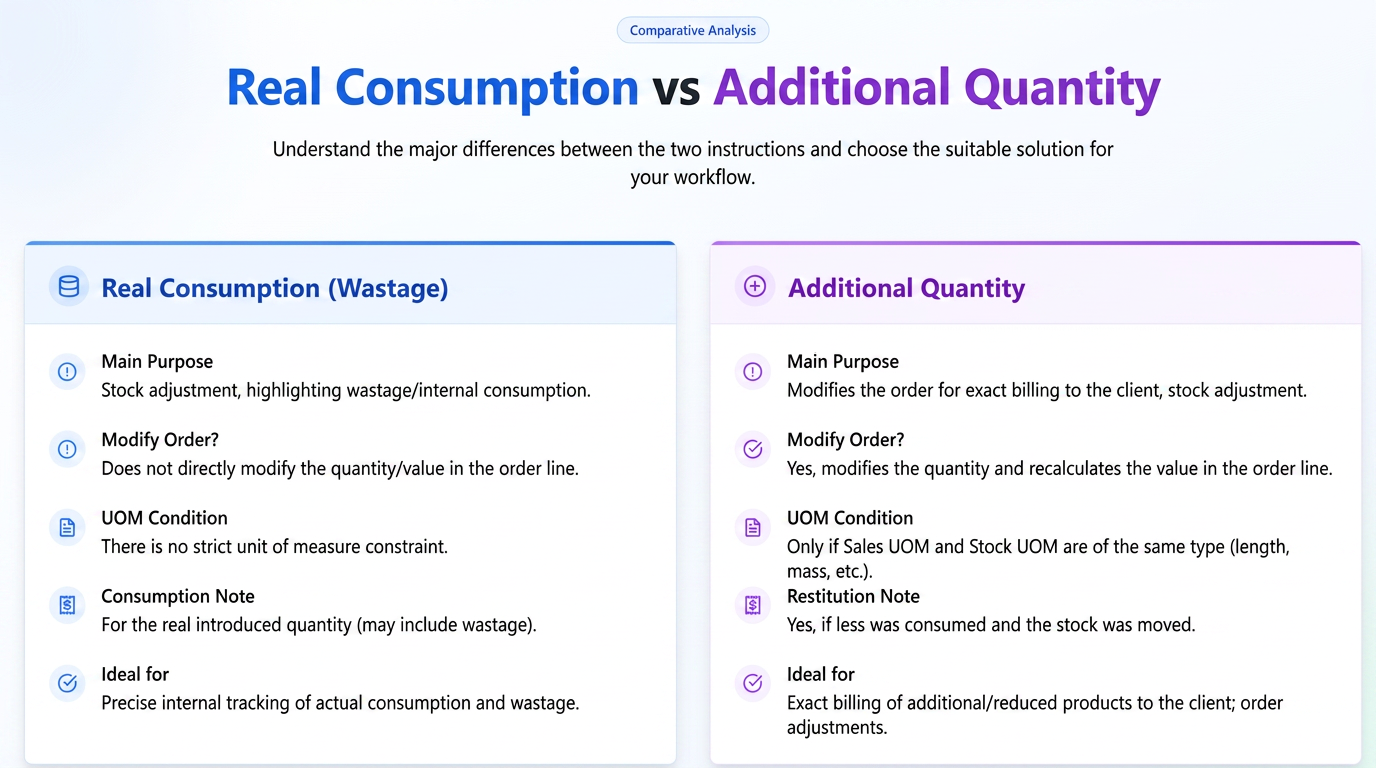
This instruction was created to provide flexibility in situations where it is necessary to invoice the client for the exact quantity of product used (especially when it exceeds the initial estimate) or when you want to adjust the order (quantity and value) if less product was used than planned. Unlike "Real Consumption (loss)", the "Additional Quantity" instruction directly modifies the quantity and implicitly the product value in the order line.
- Detailed Functionality and Conditions of Use:
- Essential Condition of Use (UoM Compatibility):
The "Additional Quantity" instruction is functional only if the Sales Unit of Measure (UoM) and the Stock Unit of Measure (UoM) are of the same type. This means that both must represent the same measurement category (e.g., both are length units, both are area, both are mass, both are pieces, etc.). - Unaccepted examples: Sales UoM = sqm (area) and Stock UoM = pcs; Sales UoM = sqm (area) and Stock UoM = m (length).
- Important: The instruction acts on an existing product line in the order and does not have the function of creating new order lines.
- Implications in Order and Invoicing:
- Modifying the Quantity in the Order: The quantity of the product specified in the order line will be updated to reflect the new total quantity actually used, entered by the operator through this instruction.
- Recalculating the Value in the Order: The "Value" column for that product line will be automatically recalculated based on the new quantity and unit price, directly influencing the total value of the order and, implicitly, the amount to be invoiced.
- Super-Products: If the modified product is part of a super-product, the value of the super-product will not automatically recalculate immediately. However, a special button will be displayed on the order editing interface that will allow manual recalculation of the super-product value to include the changes.
- Detailed Operating Scenarios for "Additional Quantity":
The instruction intelligently manages stock movements, generating consumption or return notes depending on the context: - a. Exceeding the quantity in the order (stock not yet moved for the initial order):
- iflows Action: The product quantity in the order updates to the new entered value (higher). The product line value is recalculated accordingly.
- Stock Movement: A single Bon de Consum (Consumption Note) will be generated for the new total quantity.
- Example: Initial order: 6m. Operator enters via instruction: 8m. The customer order will update to 8m. A consumption note will be generated for 8m.
- b. Exceeding the quantity in the order (stock already moved for the initial quantity in the order):
- iflows Action: The product quantity in the order updates to the new entered value (higher). The product line value is recalculated.
- Stock Movement: A consumption note will be generated only for the additional difference.
- Example: Initial order: 6m (for which a consumption note was already generated and stock was moved). Operator enters via instruction: 8m. The customer order will update to 8m. A new consumption note will be generated for 2m (the difference between 8m and 6m).
- c. The entered quantity is smaller than the one in the order (stock not yet moved for the initial order):
- iflows Action: The product quantity in the order updates to the new entered value (smaller). The product line value is recalculated.
- Stock Movement: Implicitly, upon finalizing the order, the consumption note that will be generated automatically (if the flow is so configured) will be for this smaller quantity.
- Example: Initial order: 6m. Operator enters via instruction: 4m. The customer order will update to 4m.
- d. The entered quantity is smaller than the one in the order (stock already moved for the initial quantity in the order):
- iflows Action: The system will issue a warning to the operator, informing them that the stock for the initial quantity has already been processed. The product quantity in the order updates to the new entered value (smaller). The product line value is recalculated.
- Stock Movement: A Bon de Restituire (Return Note) will be generated for the unused material difference.
- Example: Initial order: 6m (stock moved). Operator enters via instruction: 4m. The customer order will update to 4m. A return note will be generated for 2m.
- Display in the Order Interface:
For transparency, information about the adjusted quantities will be visible on both the order details and editing pages, at the level of each affected product line. When hovering the mouse cursor over the modified quantity, a tooltip will display details about the movements: - Example for excess: "Additional Quantity 8m, Initial Quantity 6m"
- Example for lower consumption: "Quantity 4m, Initial Quantity 6m"
- Implementation in the Stocks Page:
Return notes generated through this instruction will be visible and manageable in the "Stocks" module, similar to consumption notes, but will bear the distinct name "Bon de Restituire", allowing for clear records of materials reintroduced into stock. - How to use:
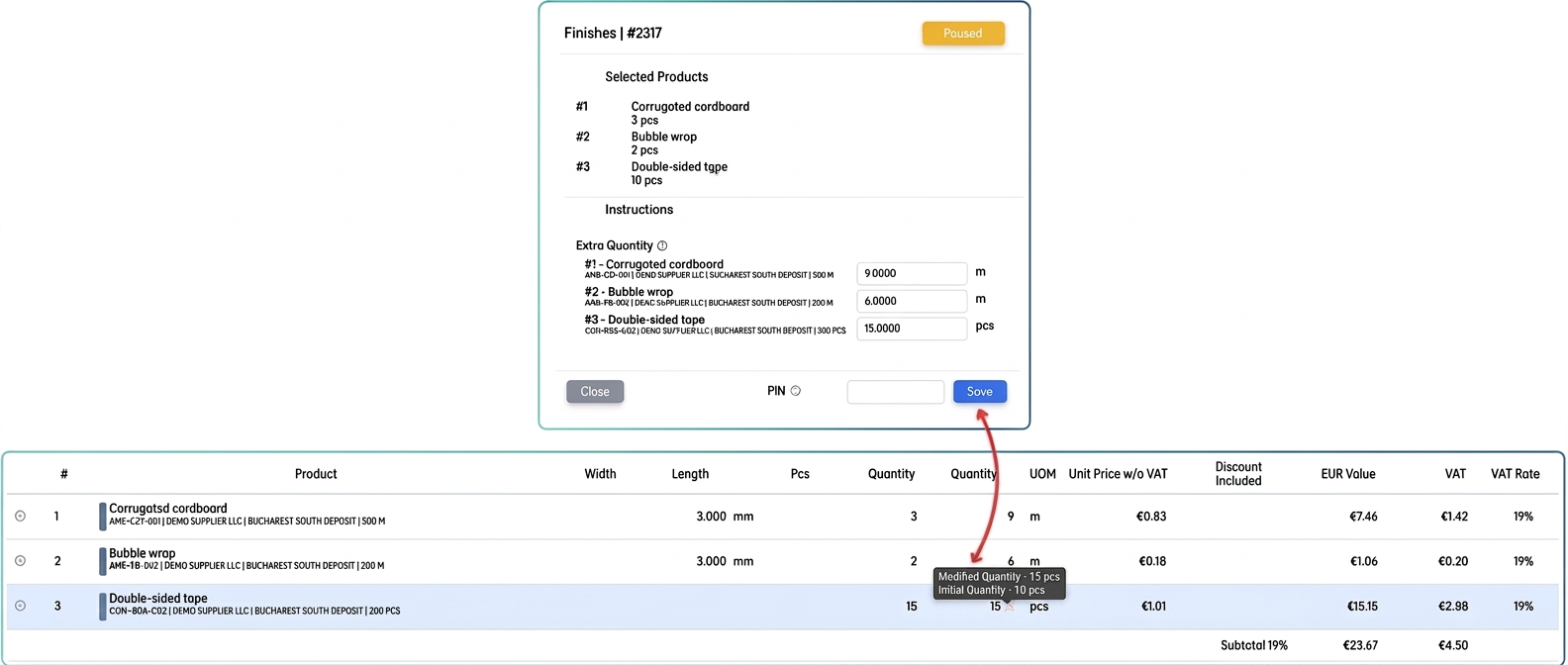
- In "Settings" -> "Workflow", add the "Additional Quantity" instruction via drag & drop to the desired action (e.g., Finalize) of the relevant stage in the production flow.
- During the production process, when reaching that stage and action, the operator will have the option to enter the total quantity actually used for that product.
- The system will automatically process the changes in the order and generate stock documents (consumption/return note) according to the scenarios described above.
- When is the "Additional Quantity" Instruction Useful?
This new instruction is ideal in the following situations:
- When it is essential to invoice the client for the exact quantity of material used, especially if it is higher than the one initially estimated in the order.
- When you want a precise adjustment of the order value (and implicitly the invoice) in case less material was used than planned.
To provide flexibility in the production process, allowing for fine adjustments of consumption directly in the workflow, with immediate impact on the quantity and value in the order and, subsequently, on the accuracy of stock records.