
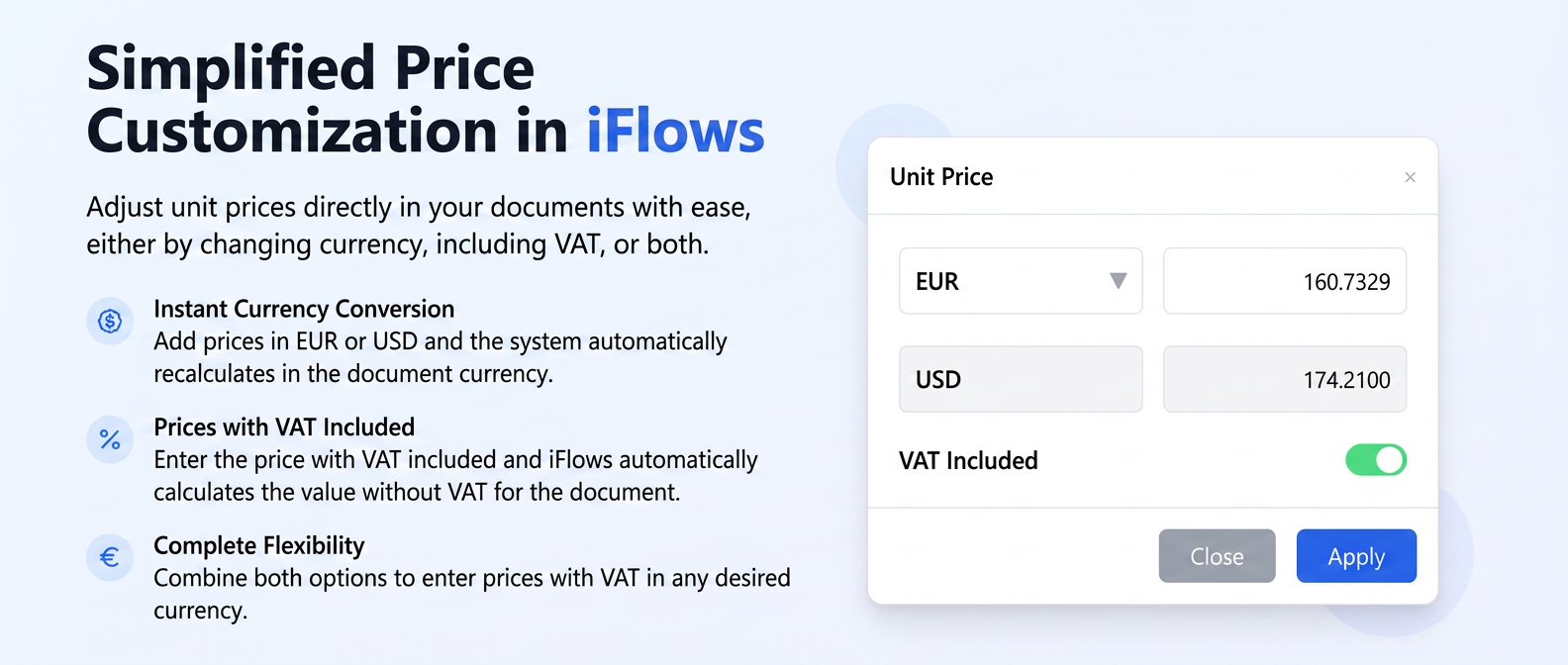
In iFlows, each product will have a predefined purchase and selling price. When you add a product to a document (Order, Quotation, Proforma Invoice, etc.), the system will automatically populate the "Unit Price without VAT" field with the standard selling price configured for that product.
However, situations may arise that require a one-off adjustment of this standard price following a negotiation. In addition to the possibility of editing the price directly in the document, there is a setting that allows you to overwrite the default unit price in several ways:
- You can add the price in another currency (EUR, EUR, USD), and the system will automatically recalculate the value in the document's currency.
- By specifying that the entered price already includes VAT, the system will automatically calculate the price without VAT.
- By applying a combination of the two methods.
This tutorial will guide you step-by-step through using this price adjustment function.
Step 1: Accessing the Price Adjustment Functionality
- Navigate to the relevant section where you create or edit a document, for example, Sales -> Orders.
- Create a New Order or open an existing one for editing.
- In the products section, add the desired product.
- Notice that once the product is selected, the "Unit Price without VAT" field is (normally) automatically filled with the selling price predefined in the product file.
- Locate the small dollar icon ($) that appears immediately to the right of the "Unit Price without VAT" field, next to the already filled value. This icon is your tool for modifying the default price.
Step 2: Using the "Unit Price" Recalculation Window
Click on the dollar icon ($). The "Unit Price" pop-up window will open. This allows you to enter data for the price recalculation that will overwrite the default value:
- Currency Selector (top): Choose the currency in which you want to enter the new negotiated/specific price (EUR, EUR, USD).
- Value Field (top): Enter the numeric value of the new price in the currency selected above.
- Document Currency Indicator & Converted/Calculated Value (bottom): Displays the main currency of the current document (e.g., EUR) and the resulting unit price without VAT that will actually be written in the document AFTER you press "Apply". This updates automatically.
- "VAT Included" Switch: Specify whether the numeric value entered above contains or does not contain the VAT corresponding to the rate in the document.
- "Close" and "Apply" Buttons: "Close" cancels the adjustment, "Apply" performs the recalculation and overwrites the unit price in the document line.
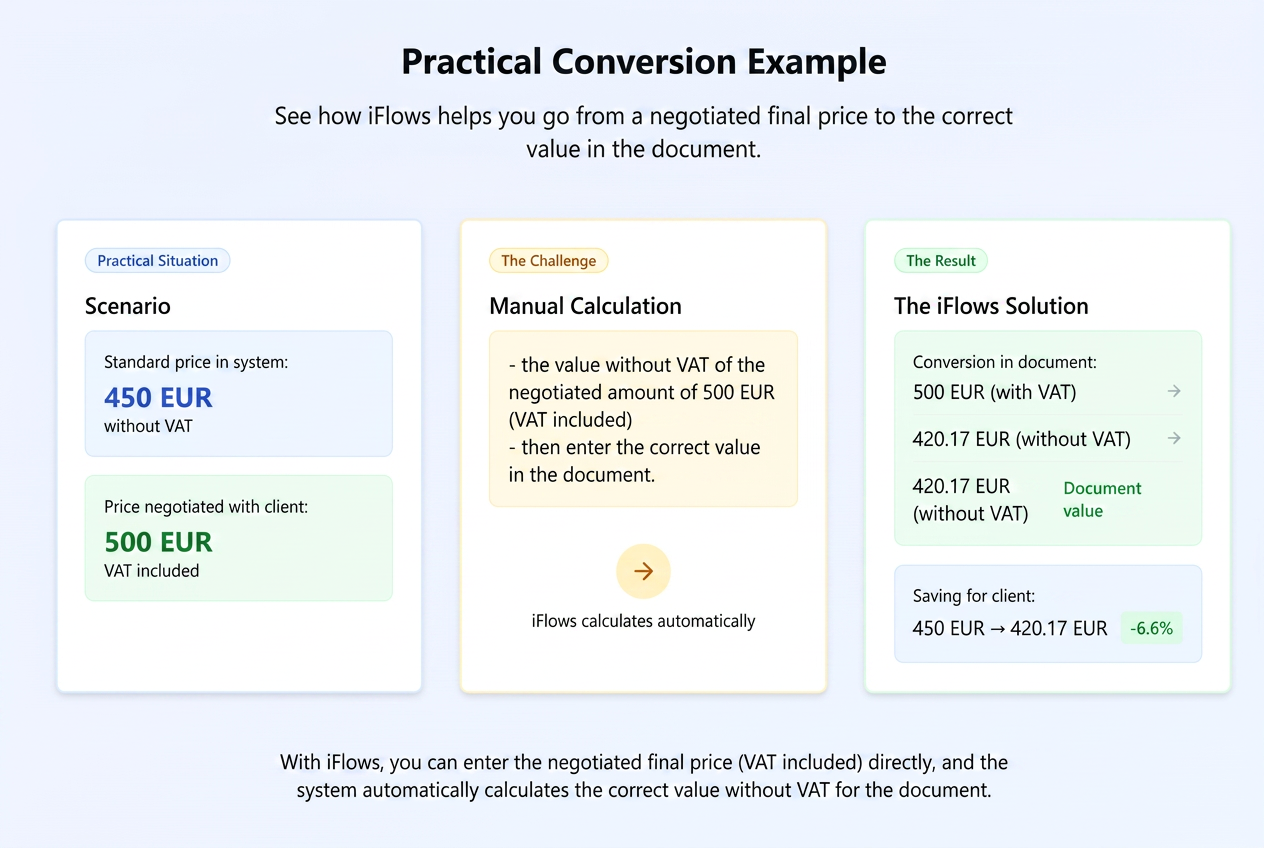
Let's exemplify a scenario:
- Situation: The standard price of the product is 180 EUR without VAT. You have agreed with the customer on a final price, including VAT, of 500 EUR. You want iFlows to calculate the correct net unit price in EUR (the document currency) starting from this agreed final price.
- Steps:
- Click on the ($) icon.
- Select EUR (the currency of the agreed final price).
- Enter 500 (the agreed final price).
- Activate the "VAT Included" switch.
- Observe the recalculated value in EUR (bottom). The system:
- Calculates the taxable base in EUR (500 / 1.19 ≈ 420.17 EUR).
- Converts this base (420.17 EUR) into EUR (~84.48 EUR in the video example, where the entered value was likely different, but the logic is identical).
- Click "Apply".
- Result: The "Unit Price without VAT" field in the order is overwritten with ~84.48 EUR. The system will correctly calculate the VAT and the total so that the final line value (price + VAT) reflects the EUR equivalent of the 500 EUR initially agreed upon.