
You can print the receipt directly from iflows. Follow these steps:
-
Accessing the “Receipts” section
- From the side menu, go to Sales → Receipts.
- The list of all registered receipts will be displayed.
-
Viewing the desired receipt
- Identify the receipt you wish to print.
- Click on this receipt to enter its details (view mode).
-
Selecting the print option
- At the bottom of the screen, look for the “Actions” button.
- Click to open the dropdown menu and choose “Print”.
-
Confirmation and printing
- After selecting the “Print” option, the receipt will open in a print-ready format.
- Choose your preferred printer and confirm the print job.
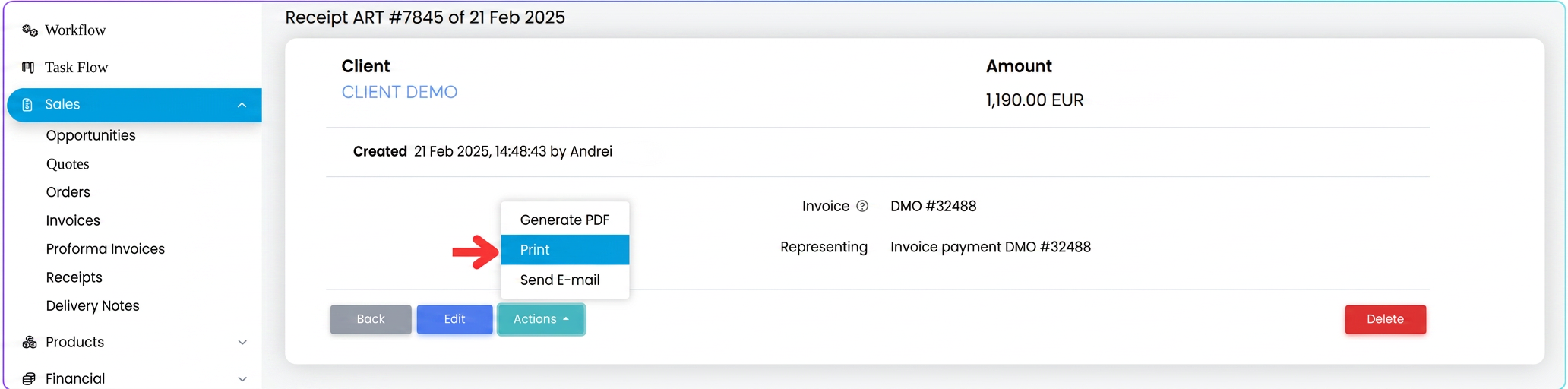
Note: In the same “Actions” section, you can find options such as “Generate PDF” or “Send Email”, in case you wish to save the receipt in electronic format or send it directly to the client.