New: Deadline per Order Stage
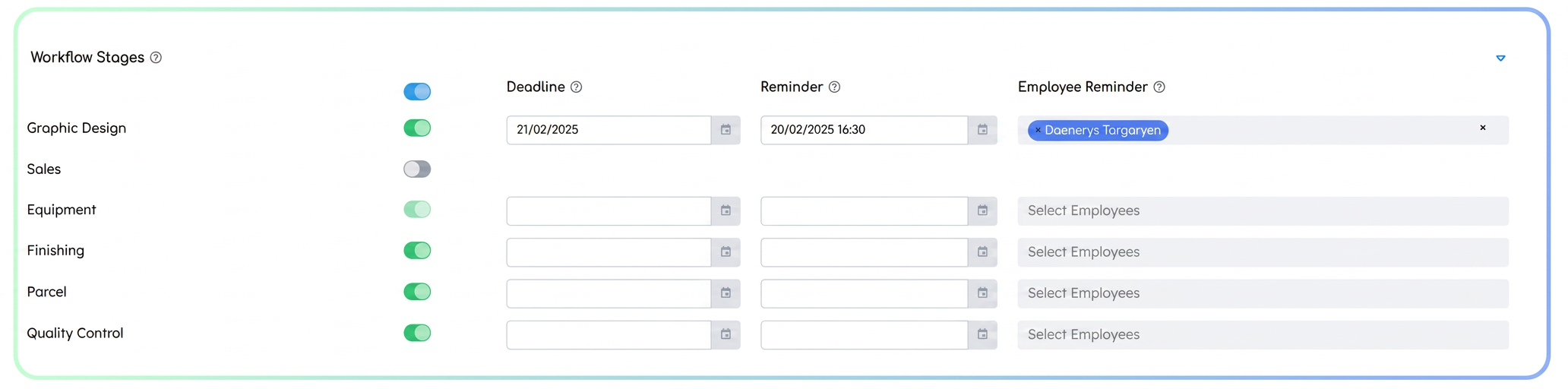
You can now assign a completion date to each stage, so the team knows exactly when each stage associated with an order must be finished. Additionally, you have the possibility to set notifications to remind employees that the deadline is approaching.
User Guide
- Setting the deadline and reminder
- Add a new order or edit an existing order.
- In the Stages included in Workflow section, enter the desired completion date in the "Deadline" field for each selected stage.
- (Optional) Enable a reminder (date and time) to send notifications before the set deadline.
- Add one or more employees who will receive the notification at the chosen date and time.
- Viewing the deadline in the Workflow
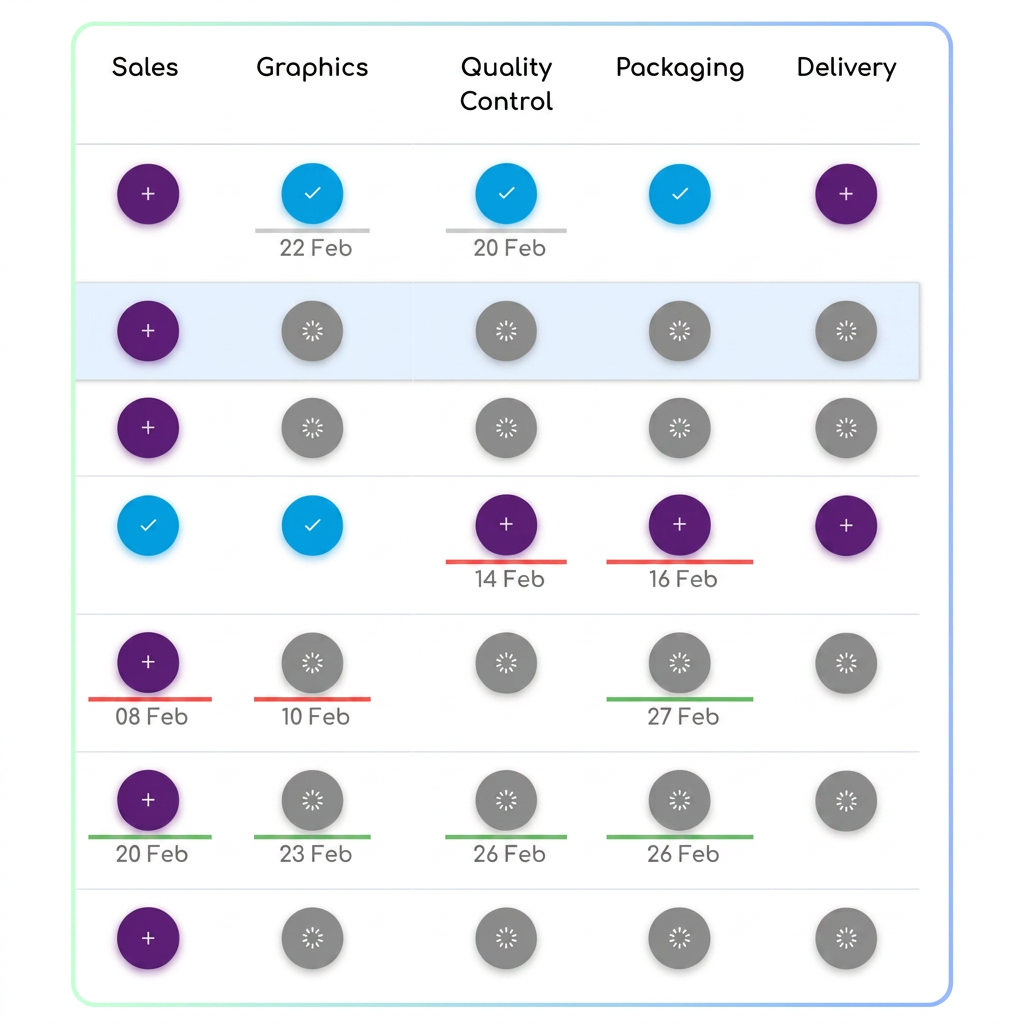
- In the Workflow, the deadline is displayed next to the stage.
- Visual indicators facilitate progress tracking:
- Green: The stage is on schedule.
- Red: The deadline has passed.
- Grey: The stage has been completed.
Notes:
Setting a deadline is not mandatory for all stages; you can choose only specific stages or none at all.
If no deadline is filled in, the workflow remains unchanged (without specific indicators).
Optimization: Multiple VAT Rates in a single document
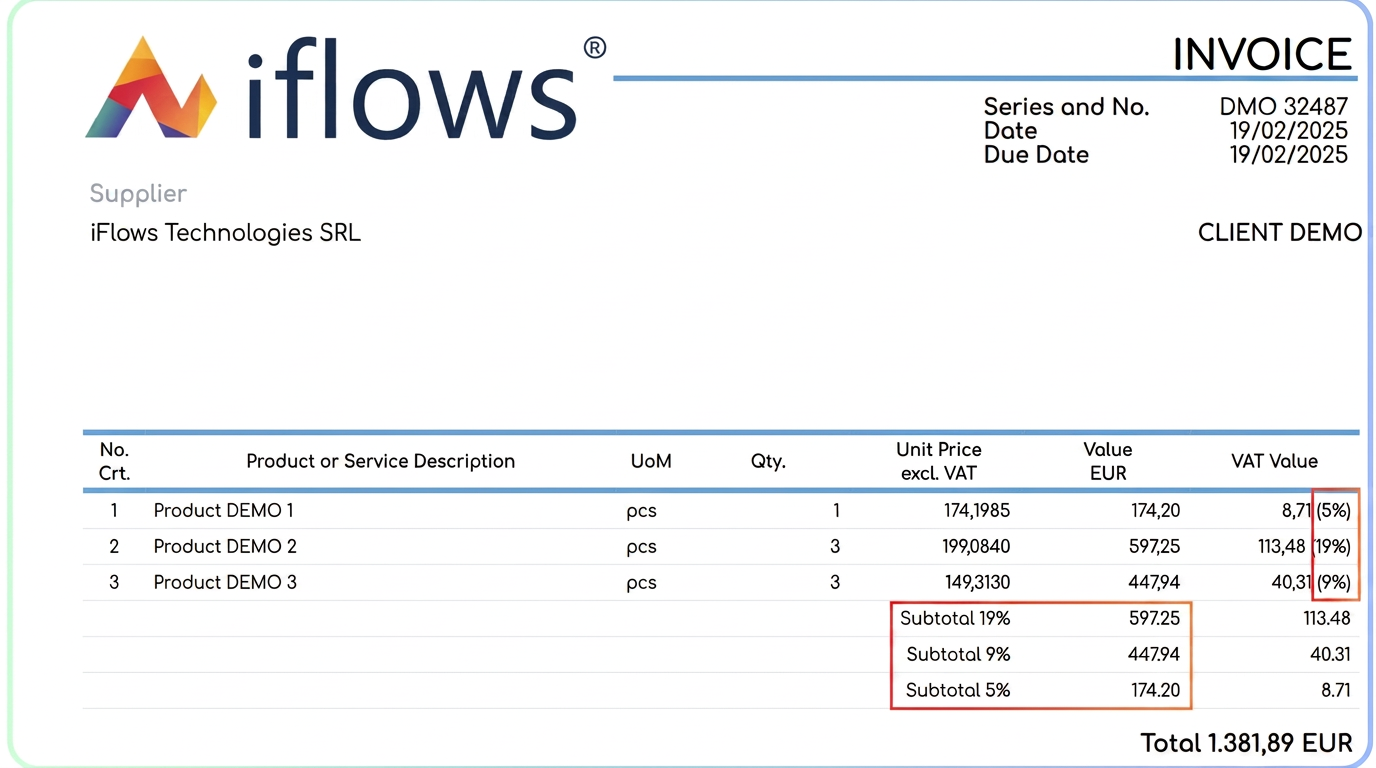
By being able to assign distinct VAT rates to each product, a complete solution is provided for situations where products in the same order, offer, or invoice are subject to different tax regimes.
User Guide
- Configuring the VAT rate at product level
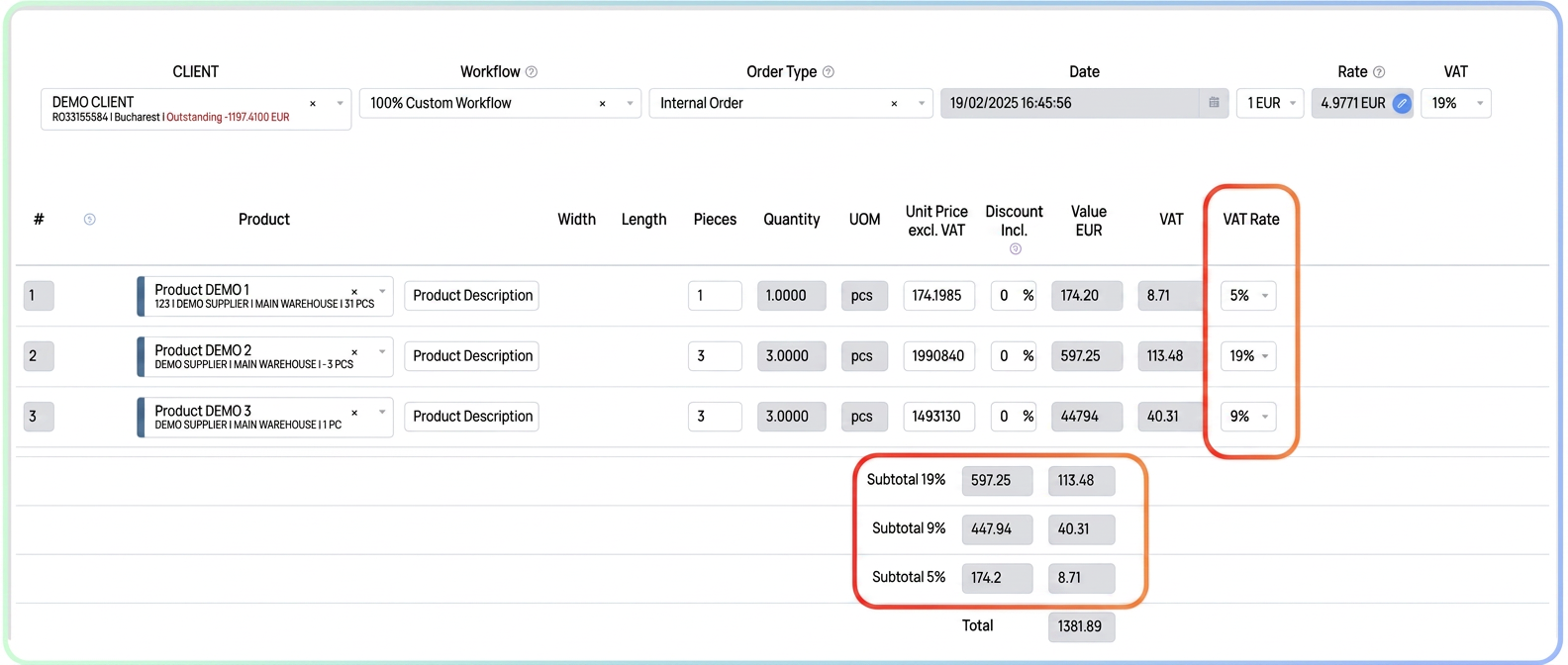
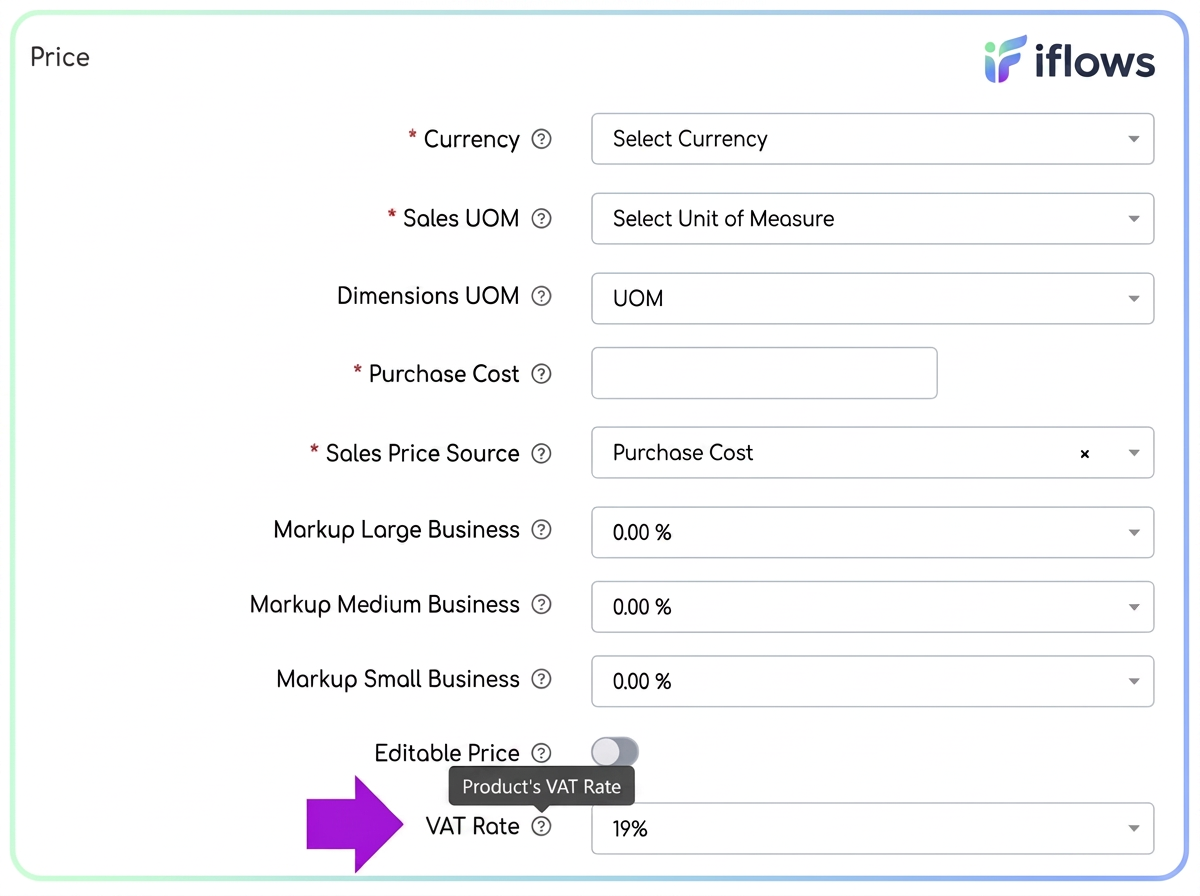
- When creating or editing a product, fill in the new VAT Rate field with the value corresponding to the applicable tax regime.
- All existing products in the system are, by default, set to 19%. Adjust manually where applicable.
- Automatic retrieval of the VAT rate in documents
- Add the product to a document (Offer, Order, Invoice, etc.).
- The VAT rate defined in the product file is automatically applied, facilitating the quick and correct completion of the document.
- Modifying the VAT rate at product line level
- If certain products require a different rate, access the VAT Rate field on the product line and choose the new value.
- The change made affects only the current document, without modifying the original product file.
- Choosing a general VAT rate
- In the right corner of the document, you can quickly modify the VAT rate for all products in the document.
- The system will display a confirmation message; the modification becomes effective only after manual user validation.
- Rules for superproducts
- If superproducts are added to a document, they maintain their own VAT rate, which will be applied to the entire superproduct.
- Component products do not influence the final VAT rate of the superproduct.
- Displaying VAT rates in documents and exports
- When multiple VAT rates exist, subtotals are displayed separately for each rate, both in the platform interface and in the PDF.
- On each product line, the corresponding VAT percentage is indicated.