Optimization: Optional display of the “Warehouse” field in Opportunity, Quote, Order, and Proforma Invoice forms
You can optionally display an additional field called “Warehouse” (Gestiune) in the Opportunity, Quote, Order, and Proforma Invoice forms.
- How the “Warehouse” field works
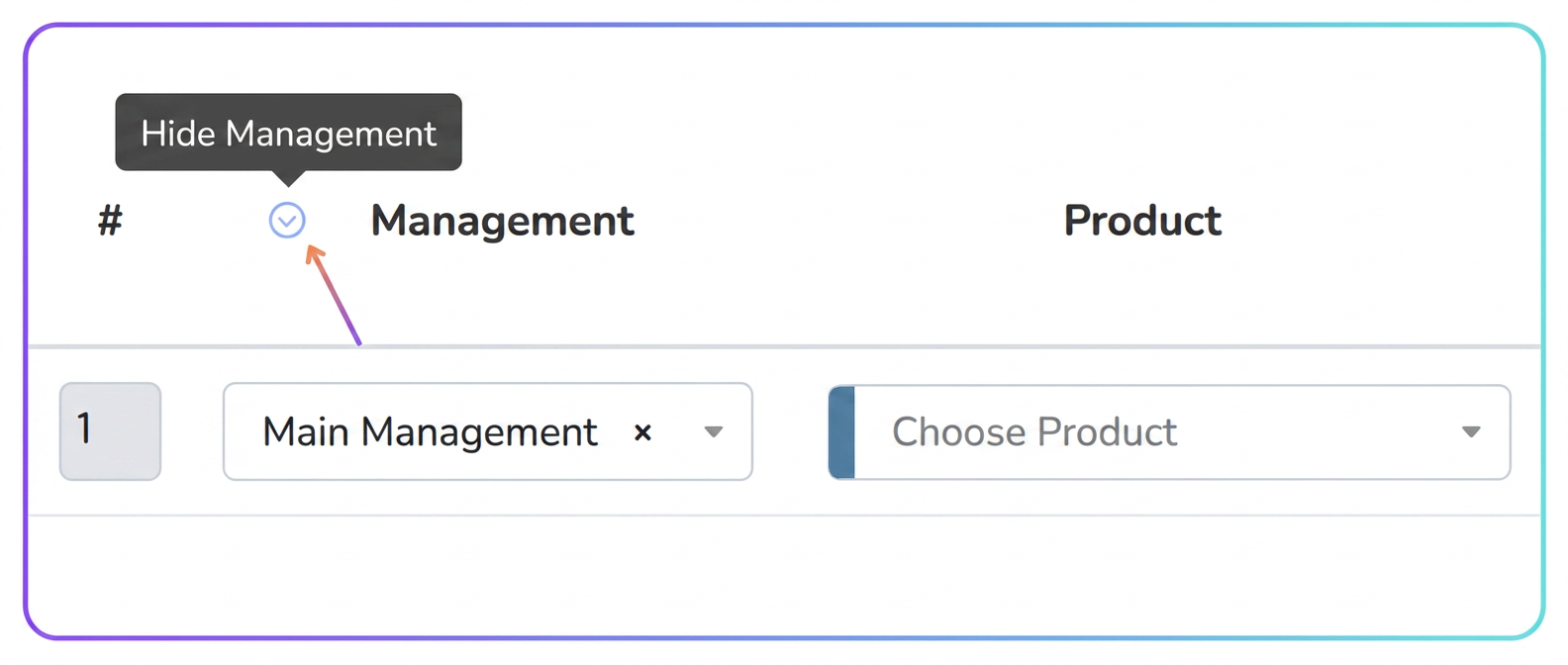
- A new column dedicated to the warehouse will appear in all mentioned forms.
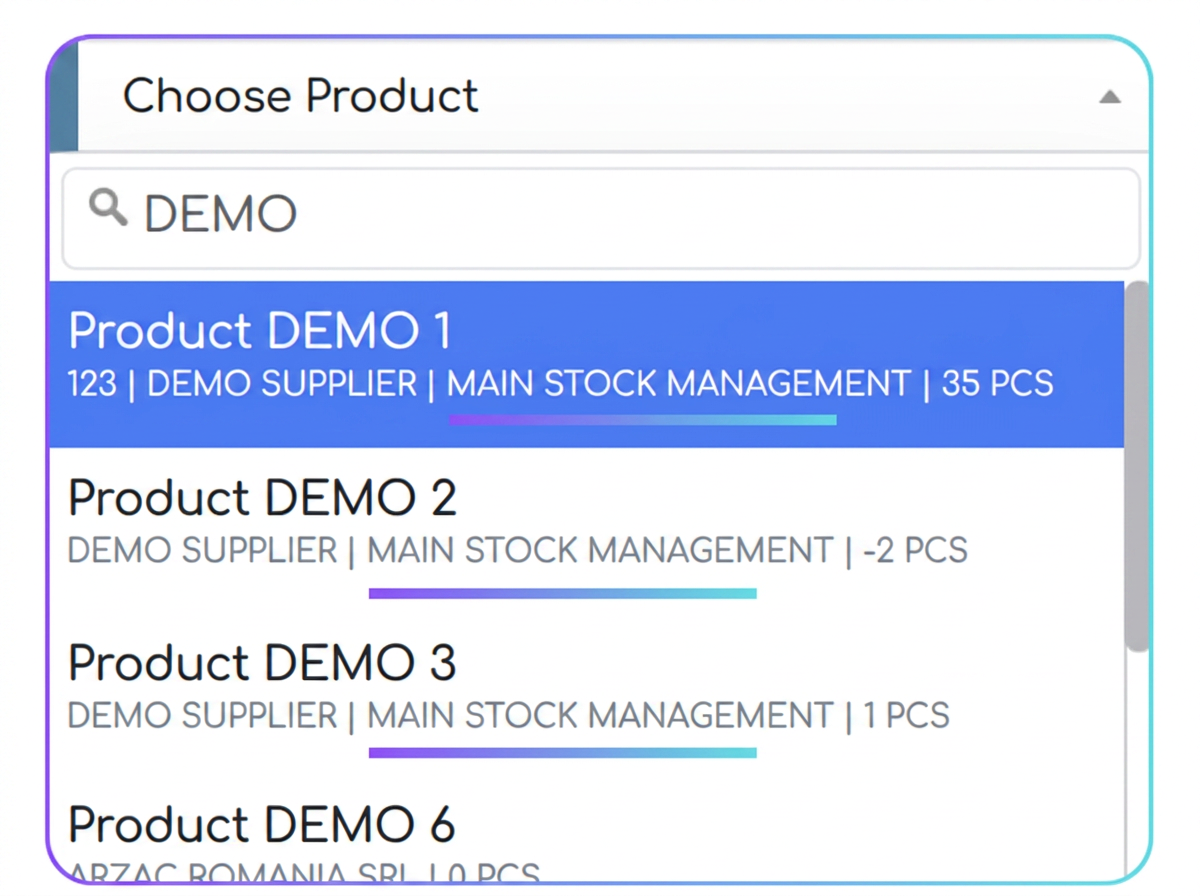
- Selecting a warehouse will filter the displayed products so that only those corresponding to the chosen warehouse are available.
- If you wish to hide this column, click on the dedicated symbol (a hide button) within the form.
Note: This column will not be displayed in exported PDF documents, only internally.
- Activating the new field
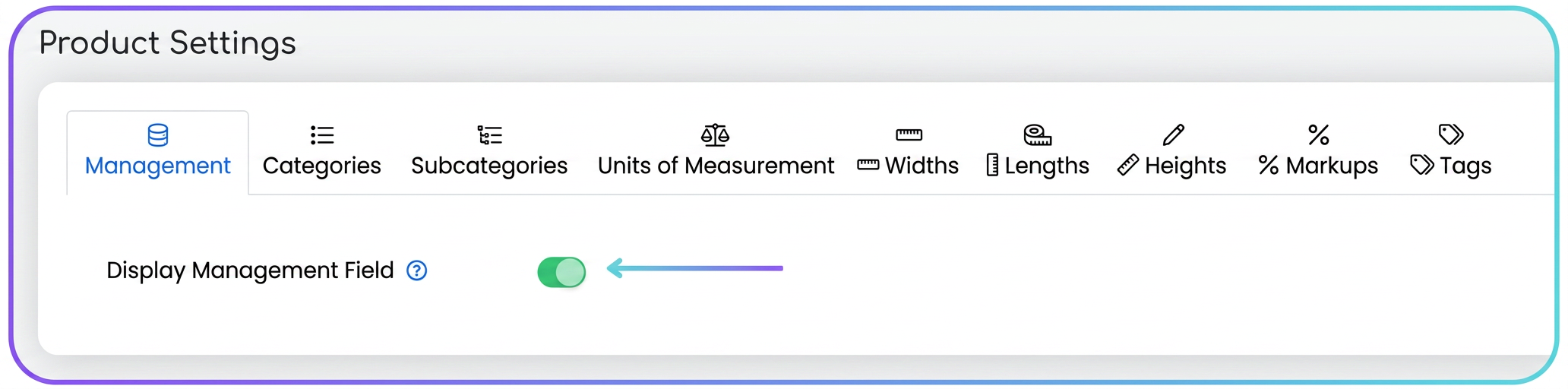
- To enable the “Warehouse” display in forms, go to:
- Enable the “Display Warehouse Field” switch.
- To enable the “Warehouse” display in forms, go to:
- Compatibility with previous display mode
- If you prefer not to use this feature, the system will continue to display the warehouse in the product description, as it has done until now, without affecting the existing workflow.
Optimization: Stock Entry Date in Purchases
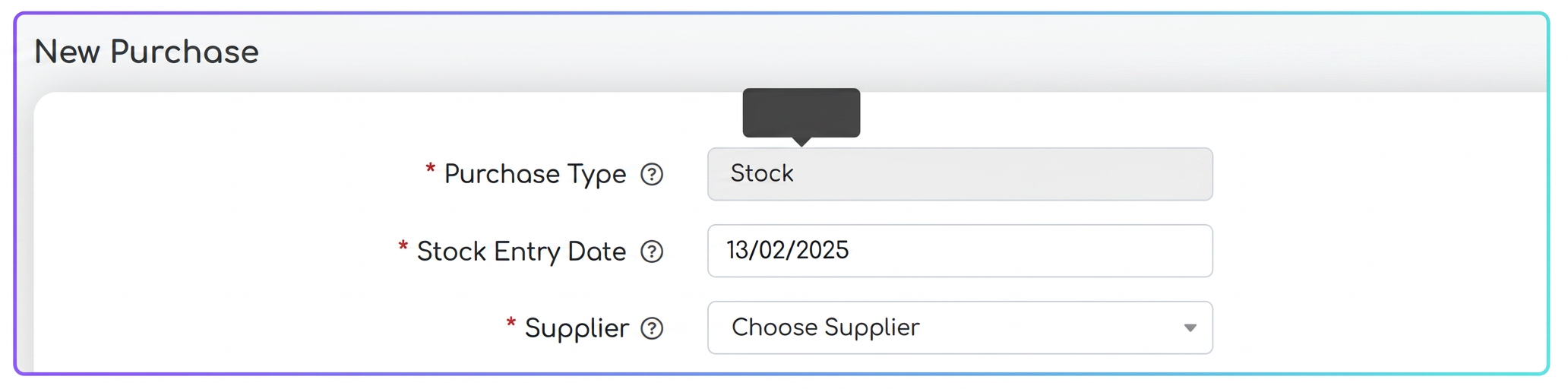
We are announcing the introduction of a new field, “Stock Entry Date”, in Stock type purchase forms. This functionality allows configuring the date on which products will actually be processed into stock, providing support for scenarios where products have not yet been physically received and will arrive at a later date.
By setting this field, you will be able to keep an accurate record of when they effectively become available in the system.
Optimization: e-Transport Button in Purchases
A new dedicated button for generating e-Transport has been introduced within the section. It is located in the actions column for each purchase and, once pressed, will automatically fill in the relevant information.
How it works:
- Navigate to .
- Identify the desired purchase and, in the actions column, press the e-Transport button.
- Product data and other related information will be automatically pulled into the e-Transport form.

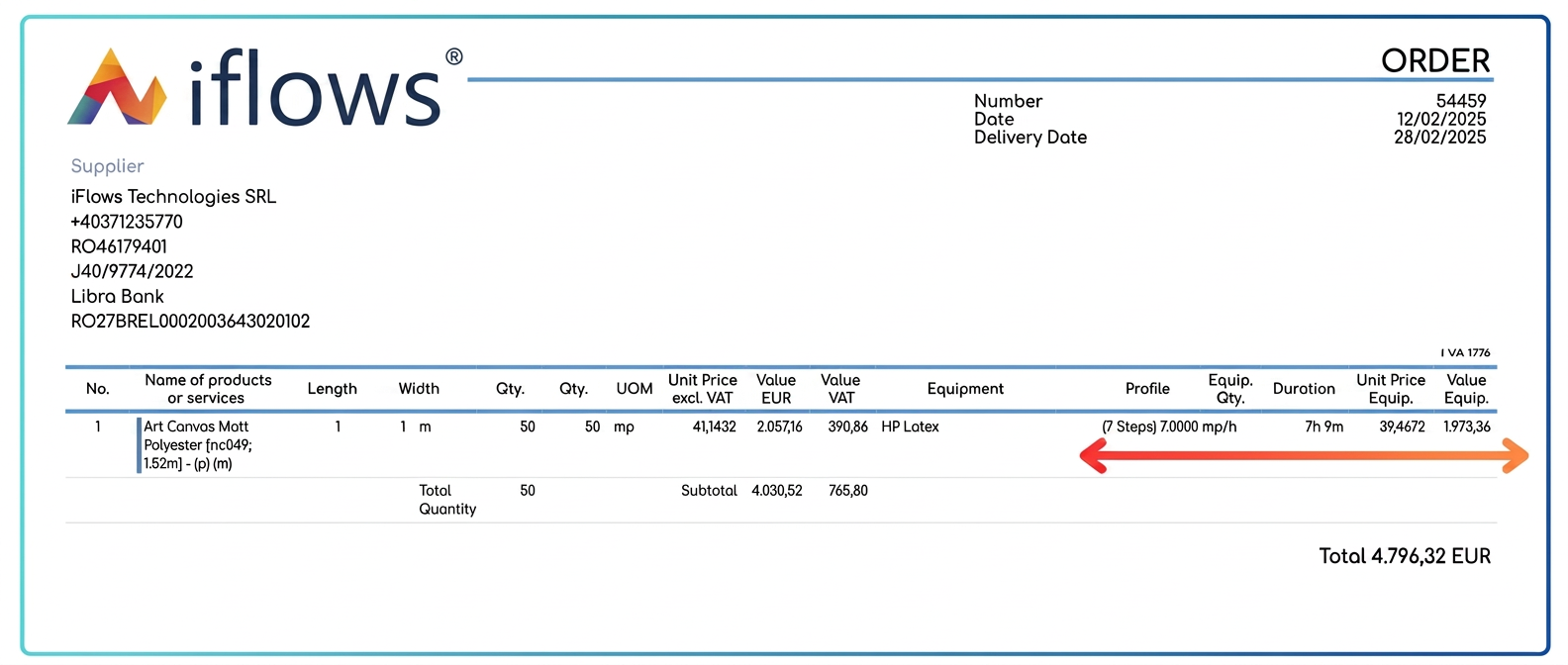
Optimization: Order PDF Export: Extract Equipment Prices from Product Price
Allows the separation of raw material prices from equipment processing costs within PDF files generated from orders.
Activating equipment price display
- Before exporting an order to PDF format, enable the “Display Equipment Prices” option.
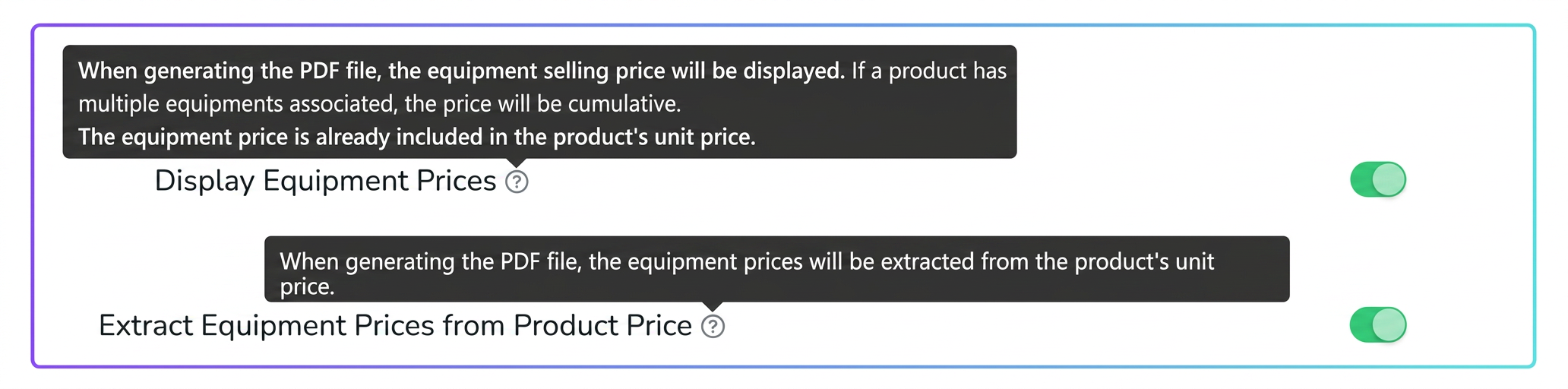
New option: “Extract Equipment Prices from Product Price”
- Once equipment price display is active, a new option will become available: “Extract Equipment Prices from Product Price”.
- By enabling this, equipment prices will be automatically deducted from the product unit price, highlighting separately:
- Raw material price (remaining in the product unit price).
- Equipment processing price (displayed in equipment-specific columns).
Details in the PDF file
- In the PDF, the “Equip. U.P.” (Unit Price) column will show the unit cost for each piece of equipment.
- The “Equip. Value” column indicates the total value obtained by multiplying the unit price by the equipment quantity.