
FiscalNet is an integrating solution that, by connecting to the iflows platform, centralizes and automates the management of various cash registers and fiscal printers.
IMPORTANT: For the integration to function properly, its installation and use must be carried out on the same computer on which the FiscalNet application, connected to the cash register, is running.
1. Installing the FiscalNet Integration
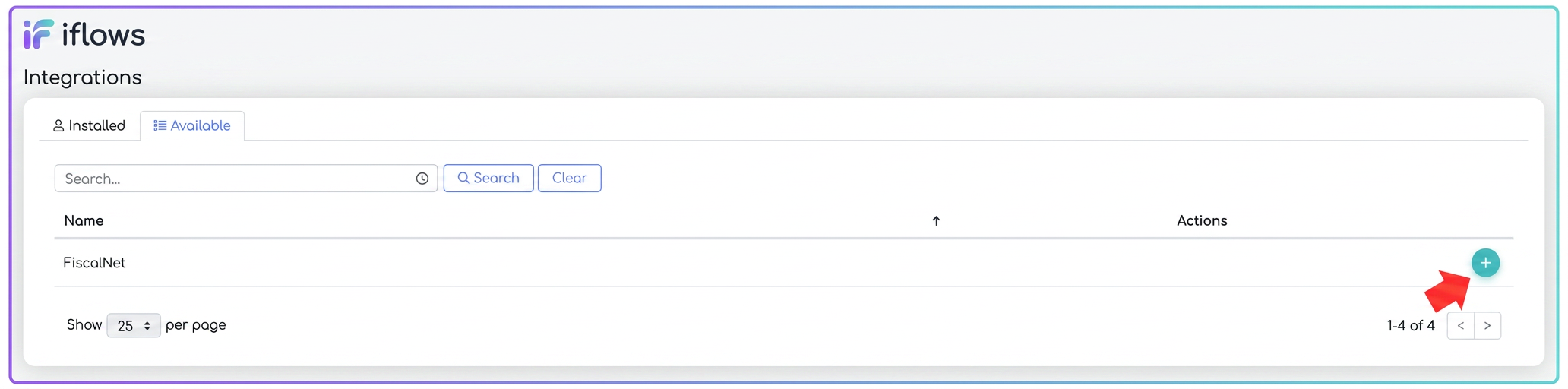
- Navigate to the menu: .
- Select the tab "Available".
- Identify the row named "FiscalNet".
- In the Actions column, click the "Install Integration" button.
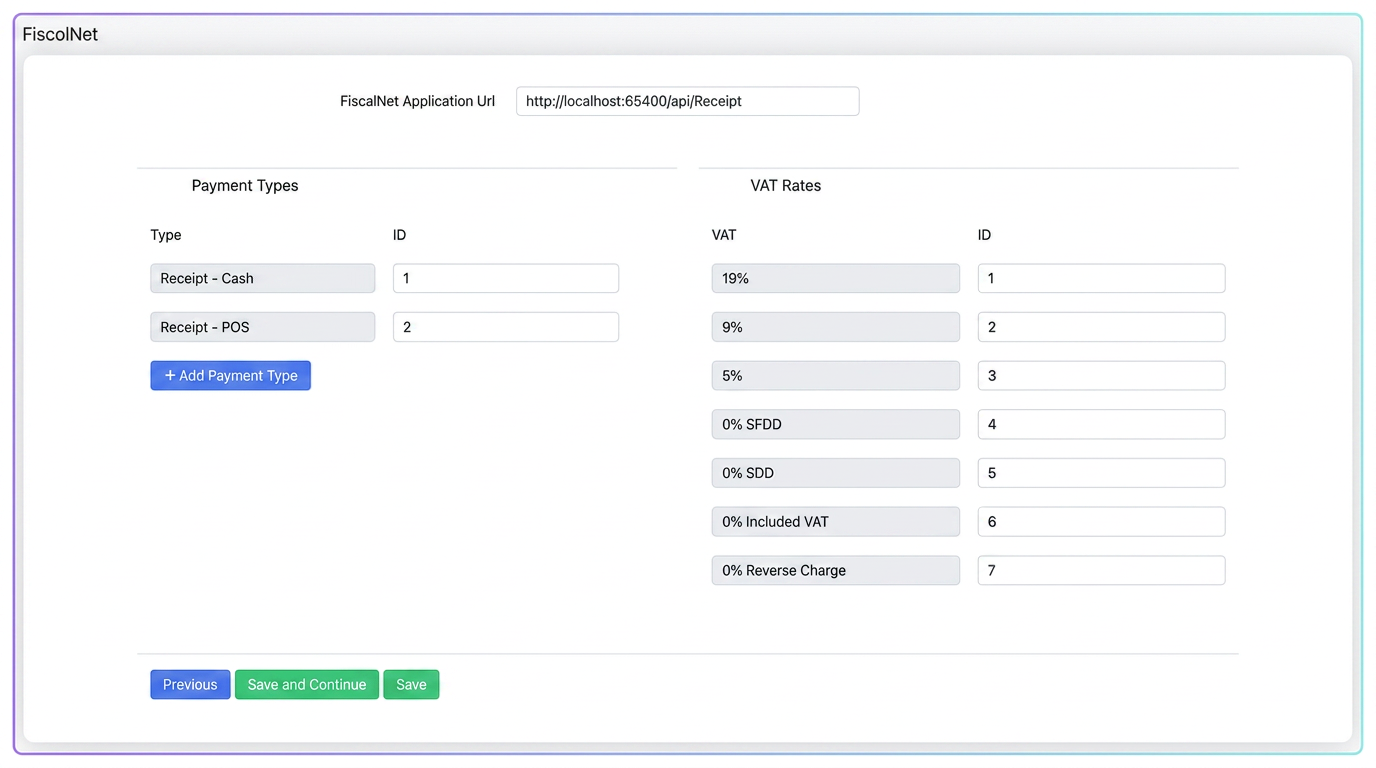
After installation, a page with predefined settings will be displayed for:
- Payment Types (e.g. Fiscal Receipt Cash, Fiscal Receipt POS) each with a corresponding ID.
- VAT Rates (e.g. 19%, 9%, 5% etc.), each with a corresponding ID.
2. Verification and Adjustment of IDs
Important: Ensure that the ID values in iflows correspond to those configured on the cash register/fiscal printer. For example, if for the 5% VAT rate the ID "3" is required in the cash register, then in iflows, in the FiscalNet configuration, the ID must also be "3".
3. Payment Methods for Fiscal Receipts
The iflows platform offers two preset and non-editable payment methods for fiscal receipts:
- Fiscal Receipt – Cash: Receipts are allocated to the petty cash register.
- Fiscal Receipt – POS: Receipts are allocated to the bank register.
If you wish to use other types of receipts (e.g. "Voucher", "Meal Tickets", etc.), you must first define them in:
- .
Once these additional payment methods are created, they can also be associated with the FiscalNet integration using the "+ Add Payment Type" button on the configuration page.
4. Associating the Bank Account for the "Fiscal Receipt – POS" Method
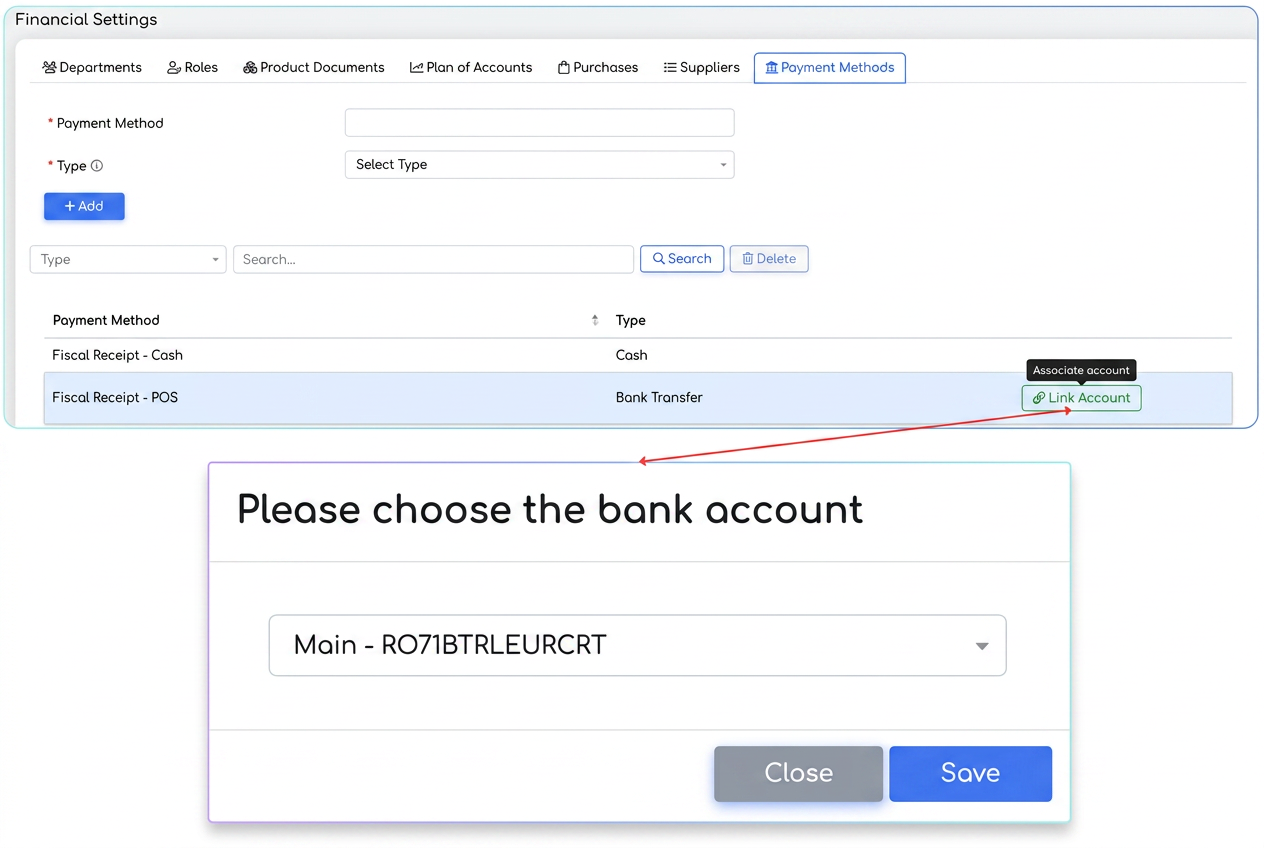
For the "Fiscal Receipt – POS" payment method to be functional, it is necessary to associate a bank account:
- .
- In the payment methods list, identify the row for "Fiscal Receipt – POS".
- In the Actions column, click the "Associate account" button.
- Choose from the displayed list the bank account dedicated to the POS.
- The list of displayed accounts comes from the , where bank accounts are previously defined.
- To facilitate identification, accounts are displayed in the format ACCOUNT NAME – IBAN.
Note:
- The association button symbol will be blue before an account is associated.
- After association, the symbol will change color to orange, signaling that the payment method has a bank account assigned.
Generating the Fiscal Receipt
- .
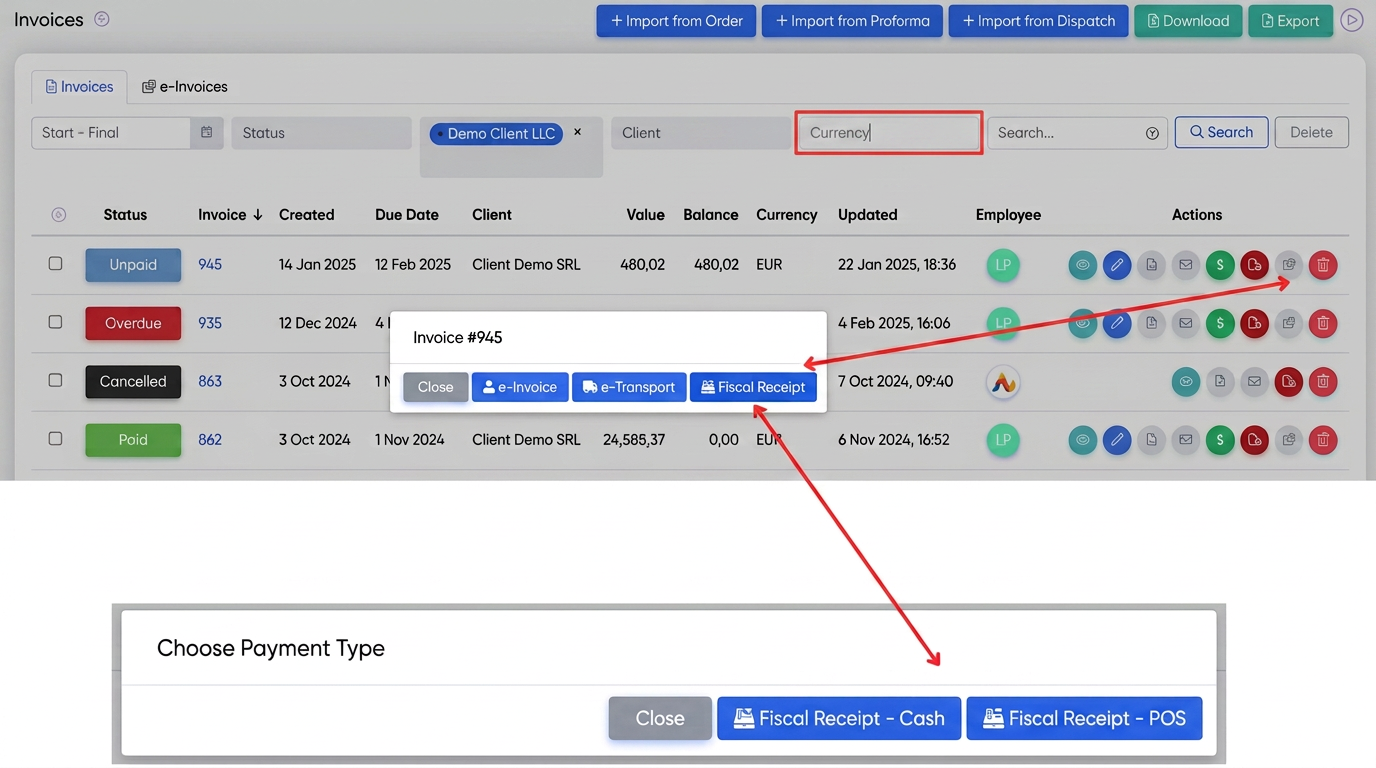
- Identify the invoice for which you want to generate the receipt and, in the Actions column, click the "Integrations" button.
- In the pop-up window that appears, select the desired type of fiscal receipt:
- Fiscal Receipt – Cash (cash receipts, go to the petty cash register)
- Fiscal Receipt – POS (card receipts, go to the bank register)
- After confirmation, iflows will automatically generate the fiscal receipt and record the payment.
2. Viewing Receipts and the Fiscal Receipt
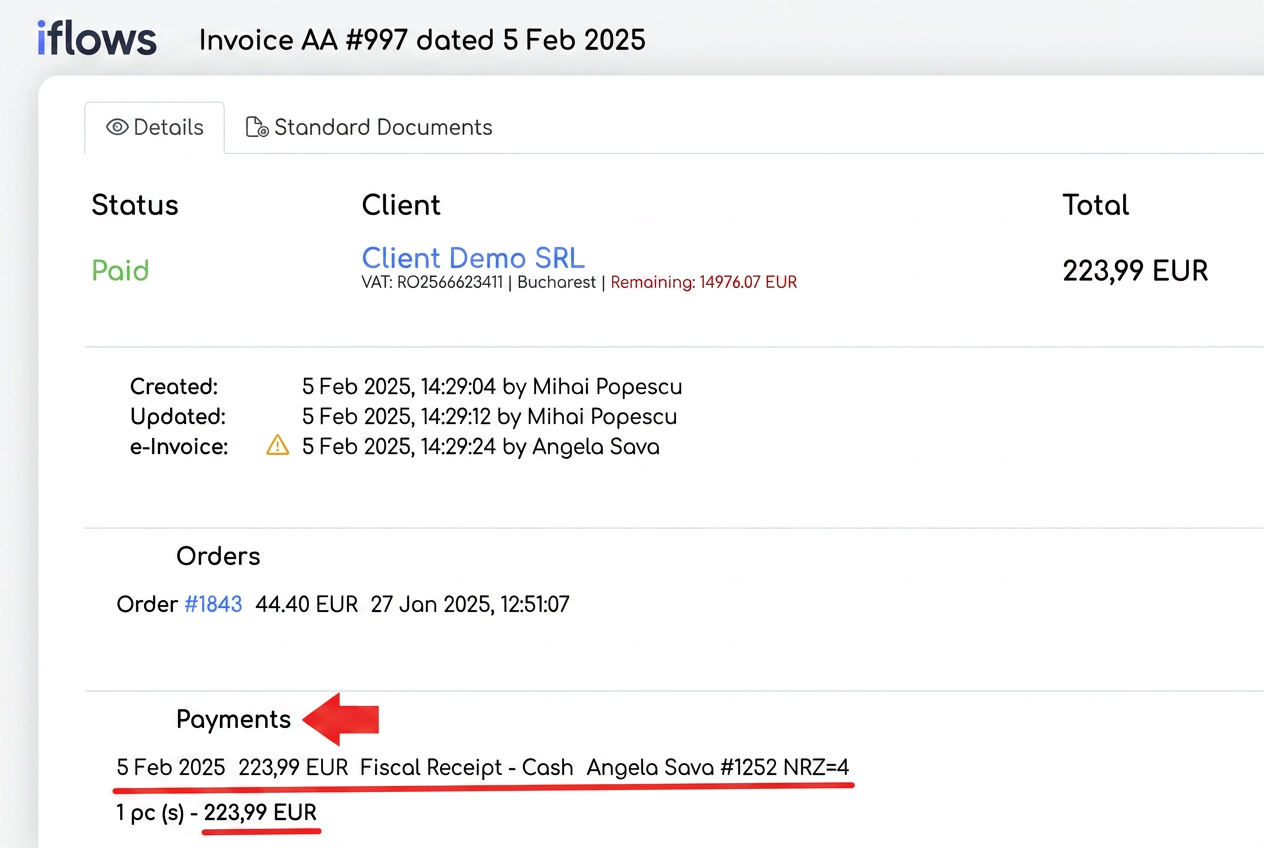
- On the Invoice page:
The "Payments" section in the invoice view mode displays the transaction details (date, amount, type of fiscal receipt, etc.).
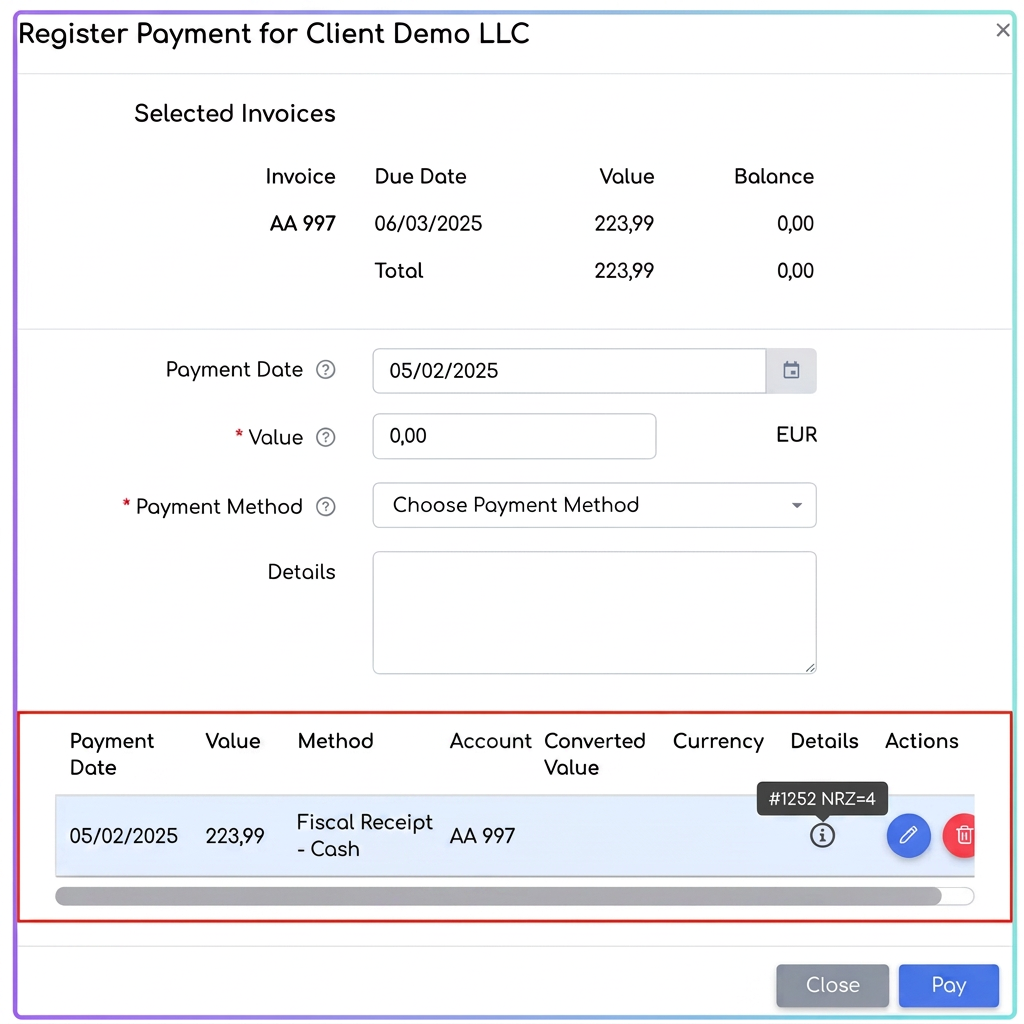
- On the "Record payment" button
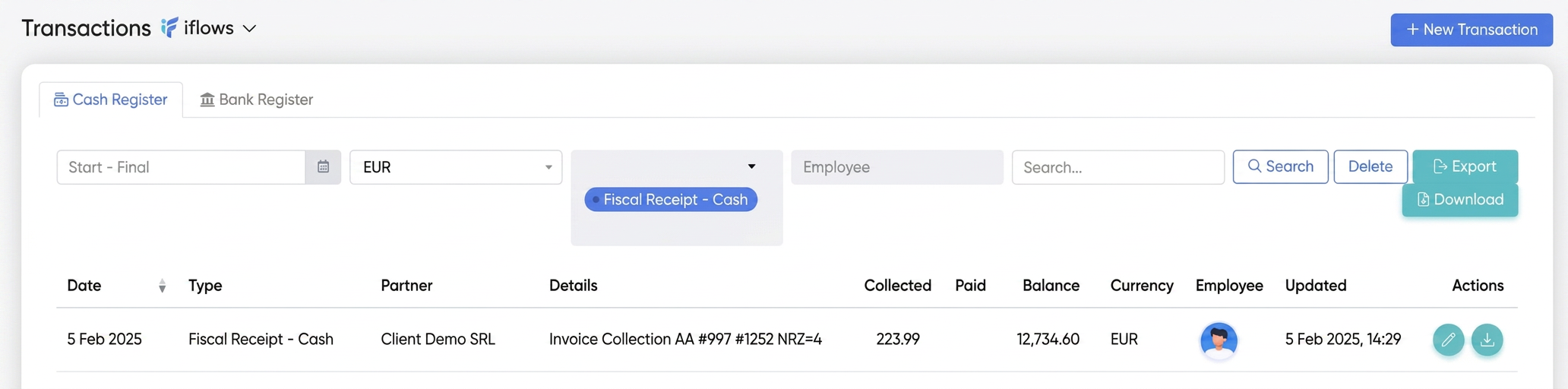
- In the Petty Cash Register / Bank Register:
, select the appropriate register type (petty cash or bank) and filter by payment method (Fiscal Receipt – Cash or Fiscal Receipt – POS).
Thus, all recorded fiscal receipt type payments will be displayed.
3. Important Aspects
- e-Factura:
An invoice already sent to e-Factura can no longer generate a fiscal receipt. - Manual Payment ≠ Automatic Receipt Generation:
Caution: The invoice can also be collected manually, with the "Fiscal Receipt" method set for payment, but this will not actually generate a fiscal receipt. Generation occurs only by following the steps described above.
Warning: Regardless of whether the invoice has a manually recorded fiscal receipt associated or if the receipt is generated through the platform (FiscalNet integration), the invoice code will automatically change from "380" to "751". Thus, the information transmitted to SPV will reflect the fact that the respective invoice has an associated fiscal receipt.