
Integration with NETOPIA Payments offers the possibility of including a payment link directly in the PDF invoice issued through iflows, facilitating online card payments for customers. Below you will find the necessary steps for activation and configuration, as well as how to use it.
1. Requirements for activation
-
Active NETOPIA Payments account
-
Point of sale
-
It is necessary to add a point of sale in the NETOPIA application, according to the instructions.
-
Once you have created an active NETOPIA Payments account, follow these steps to create a dedicated point of sale for the iflows integration:
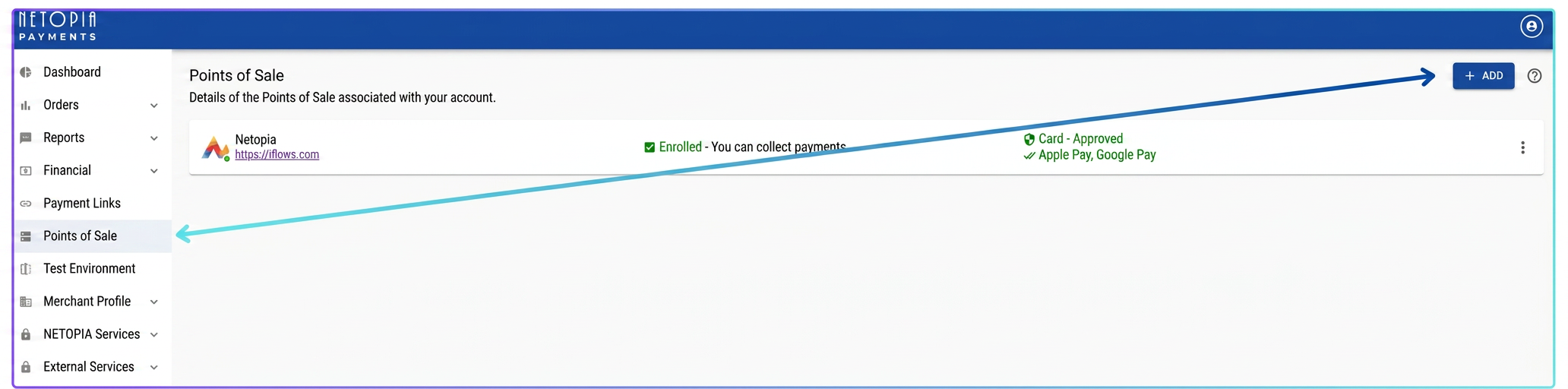
Step 1: Access the side menu and select Puncte de vânzare (Points of Sale), then press the „+ ADAUGĂ” (+ ADD) button (top right corner).
Step 2: From the list of available platforms, locate and select iflows, then press „ADAUGĂ UN PUNCT DE VÂNZARE (POS)” (ADD A POINT OF SALE (POS)).
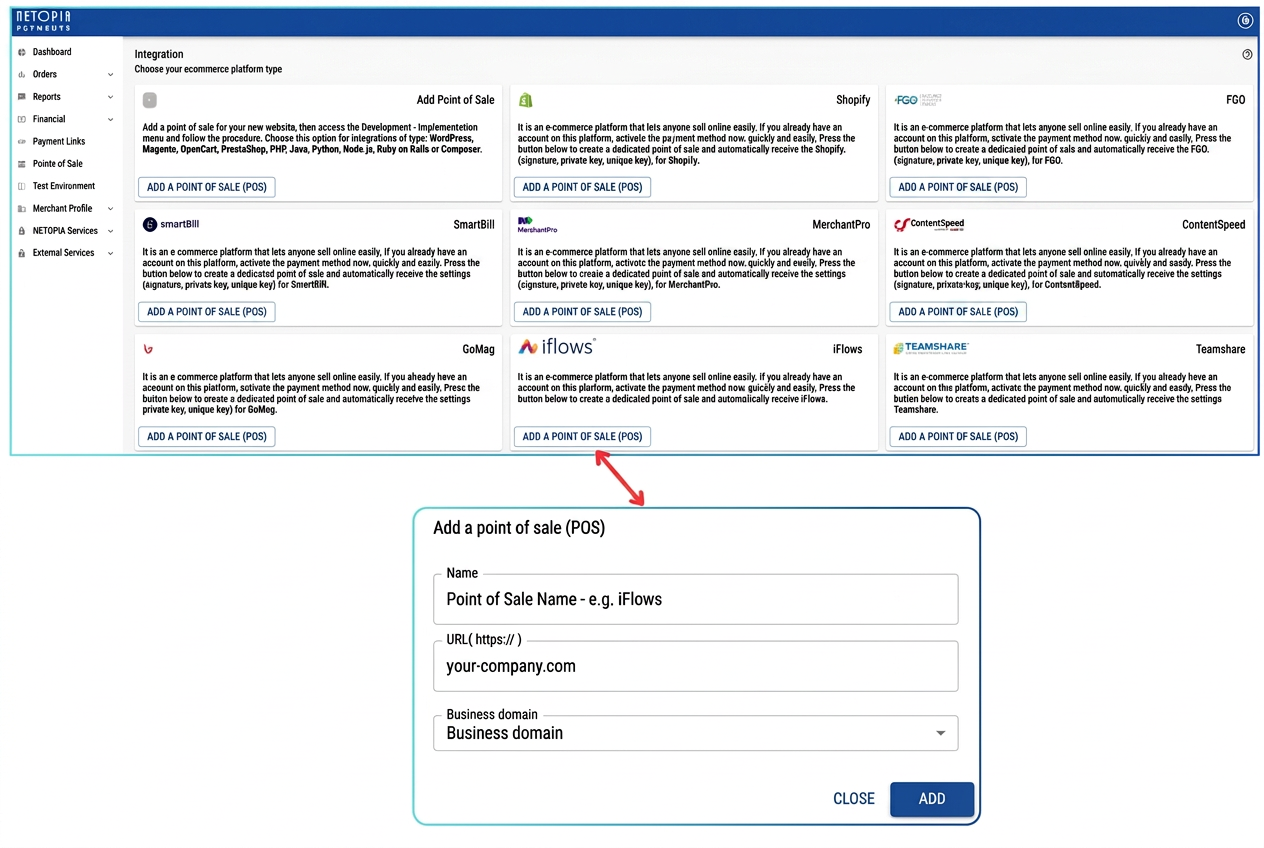
Step 3: In the window that appears, fill in the following fields:
-
Name: Choose a representative name for the point of sale / company.
-
URL: Enter your own website address — NOT the iflows.com address.
-
Activity Domain: Select the field of activity you operate in.
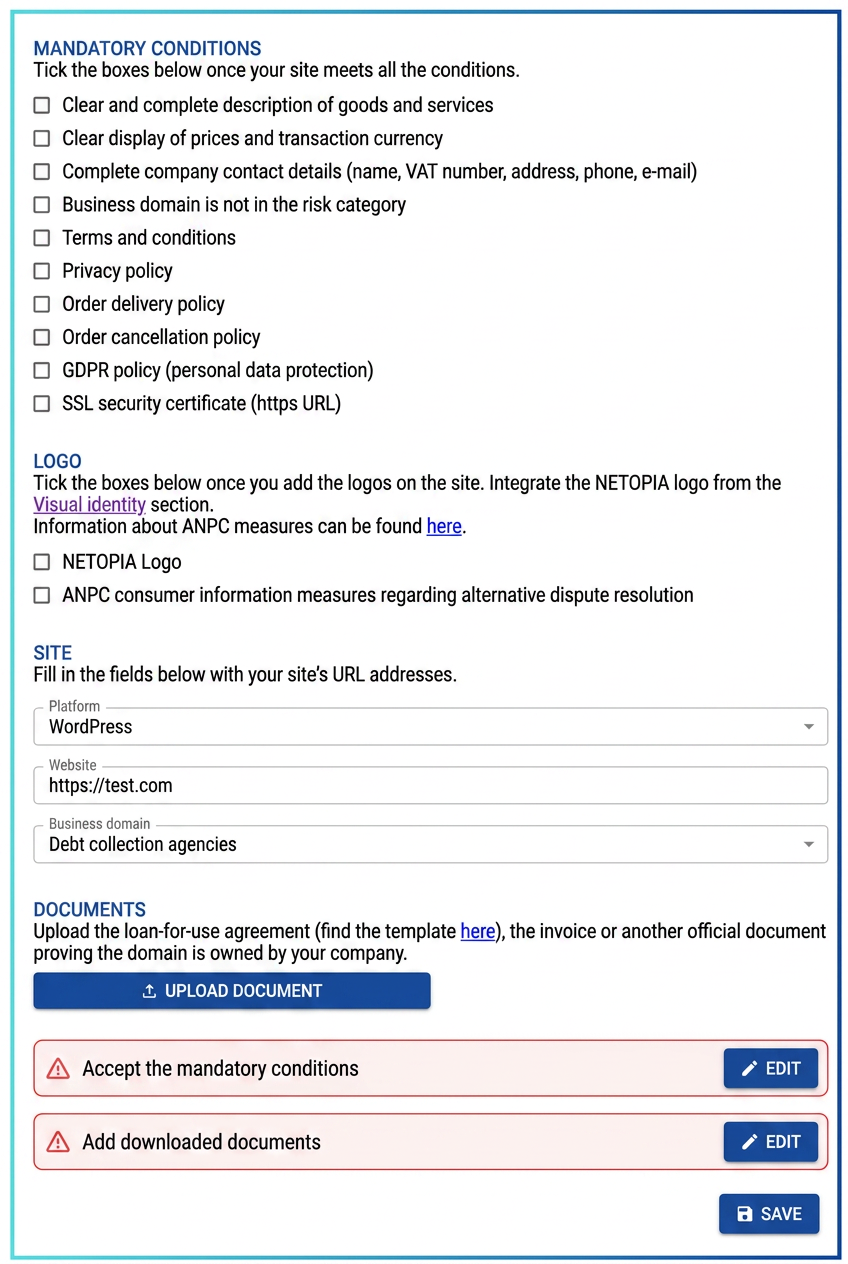
To activate the account and use payment services, it is necessary to consult the conditions imposed by NETOPIA Payments and ensure that your site meets all minimum mandatory requirements, such as:
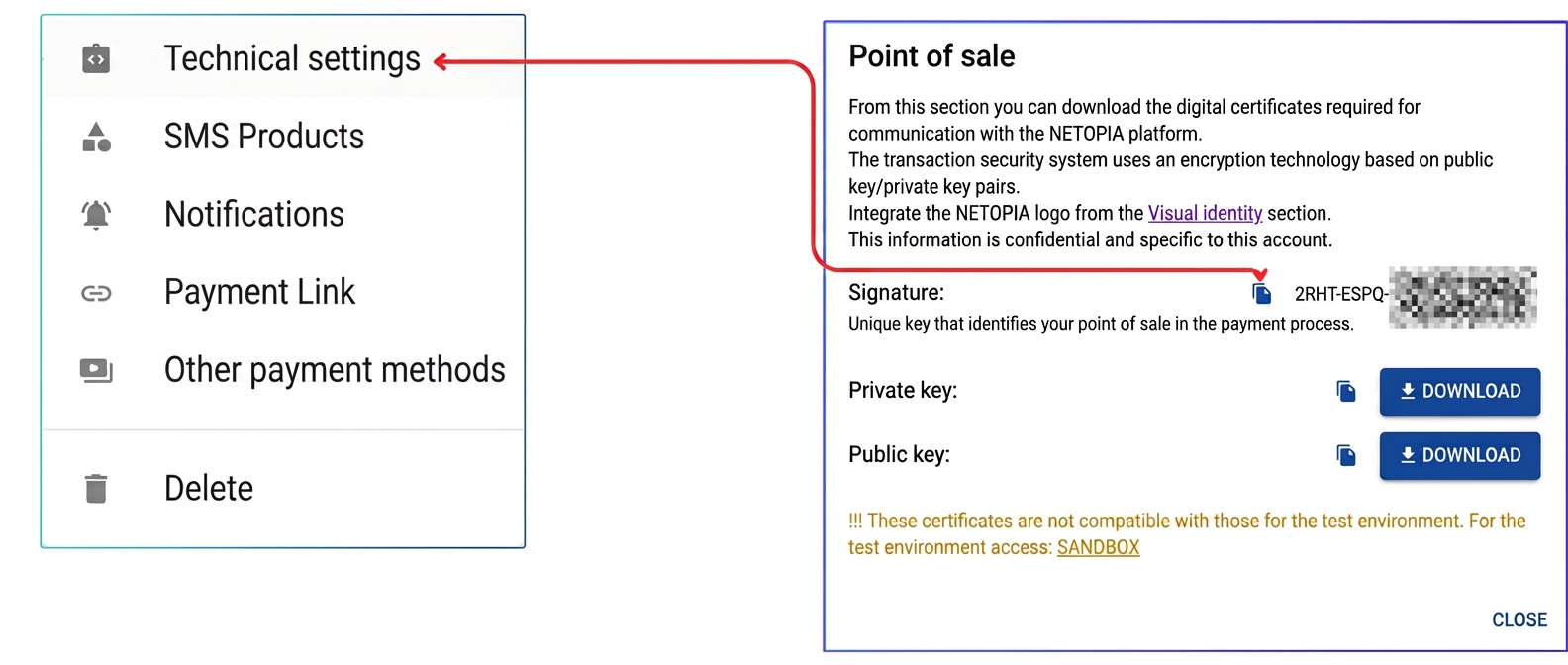
Step 4: After saving and approval, the point of sale will be activated. Access the Setări tehnice (Technical Settings) section from the side menu to copy the generated Semnătură (Signature).
2. How to activate the integration in iflows
-
-
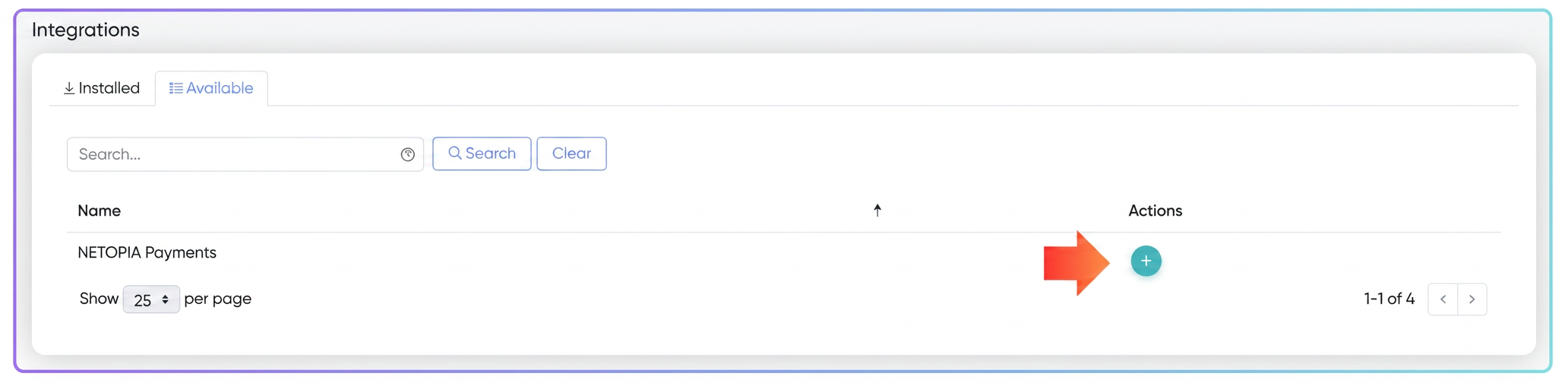
Press the „+” button to install the dedicated module.
-
-
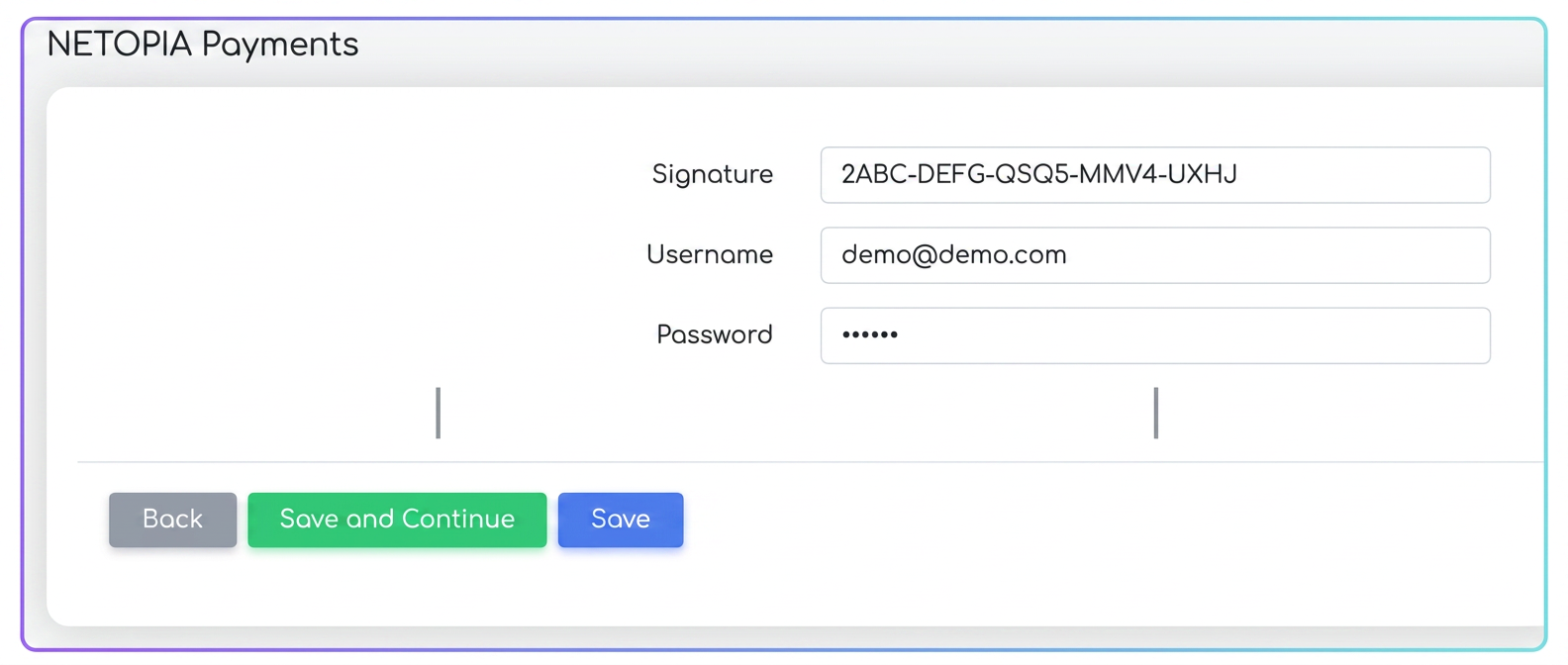
Enter login credentials
-
Complete the Signature, Username, and Password fields as they appear in the NETOPIA account.
-
-
Save changes
-
Activating the payment option in invoices
-
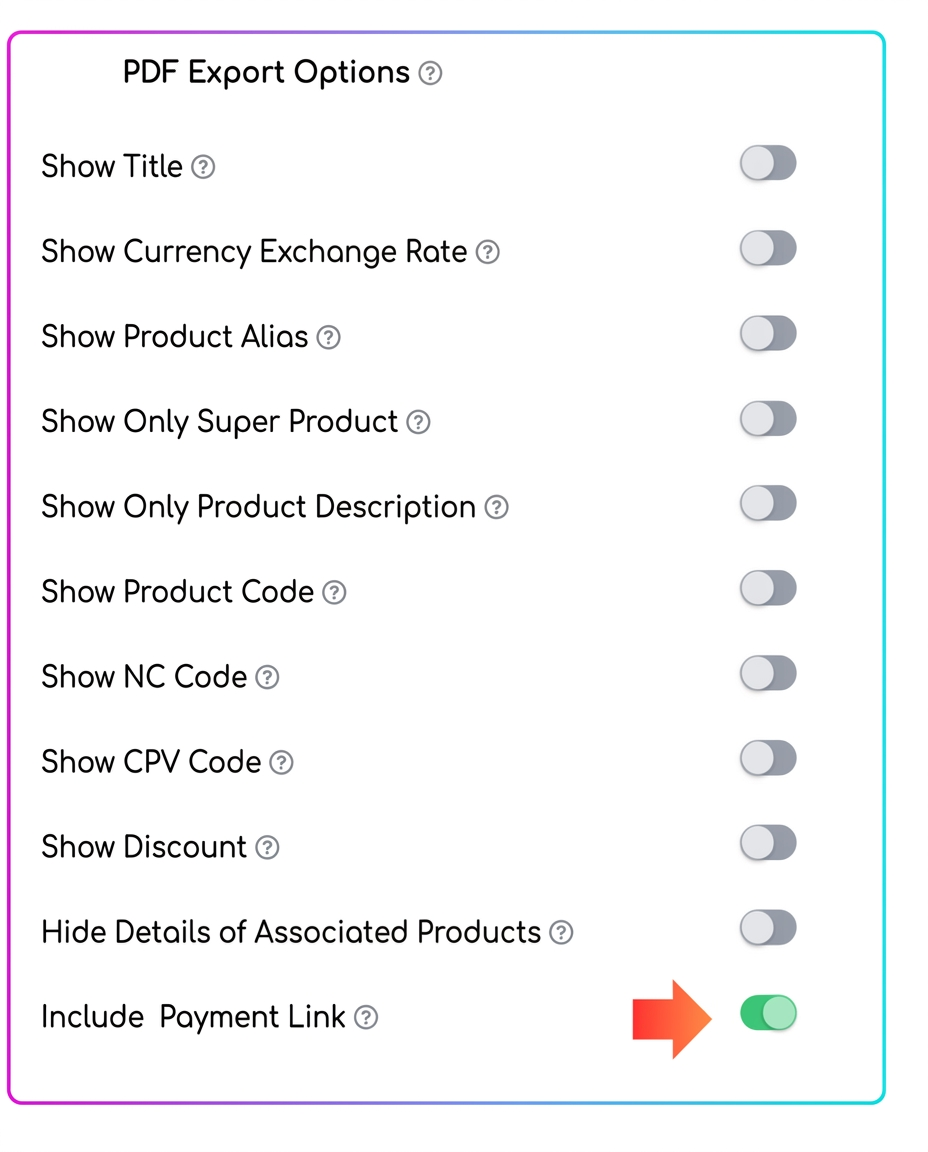
Once the integration is configured, the „Include Payment Link” option (toggle) will appear in the PDF Export settings for invoices.
-
3. How to use the functionality
-
Generate the PDF invoice
-
Issue the invoice through iflows and send it either by direct export or via the „Send Email” button (the invoice will already contain the payment link).
-
-
The „Pay by card” button
-
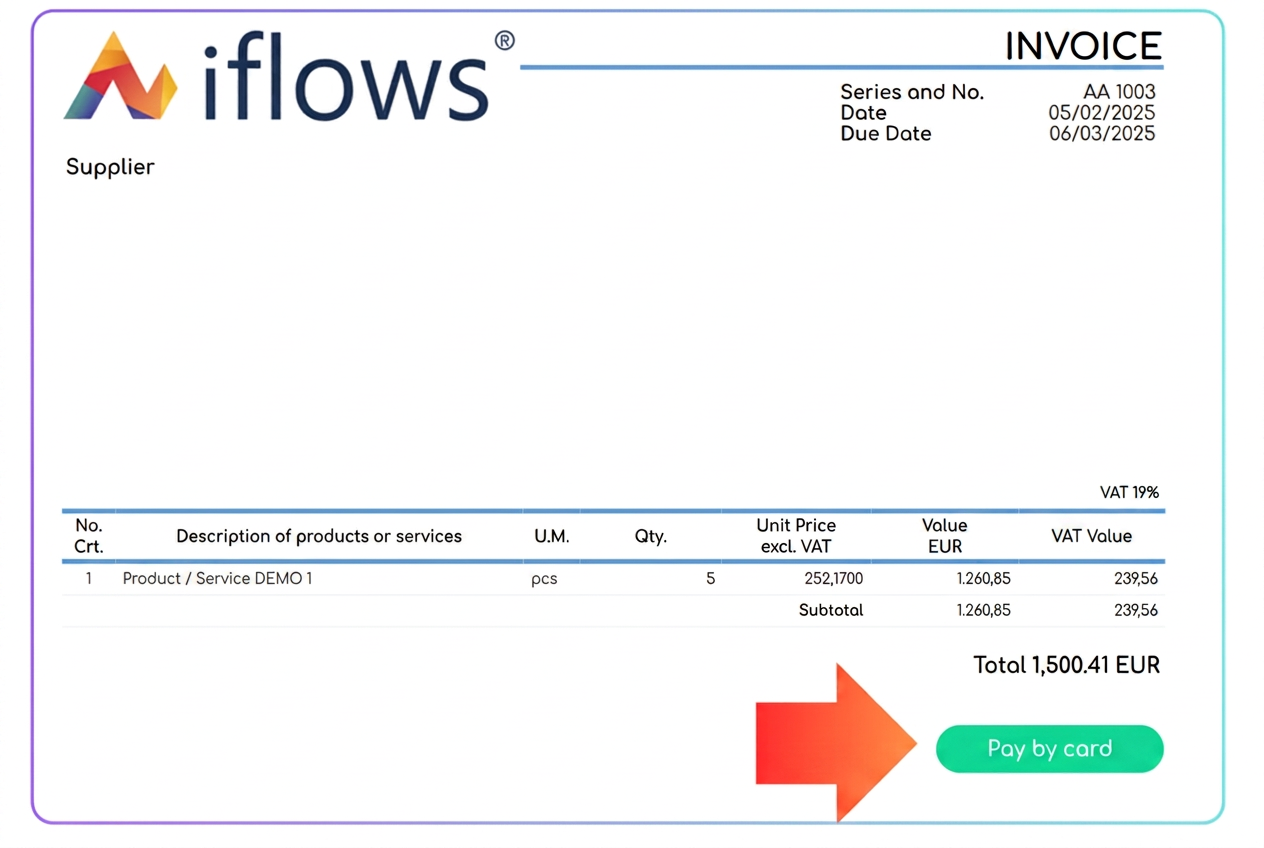
In the PDF, under the subtotal, the „Pay by card” button appears.
-
The customer clicks this button and is redirected to the secure NETOPIA payment page.
-
4. Default setting in the invoice template
-
To generate the payment link in all issued PDF invoices, go to .
Activate „Include Payment Link” as a default option. This way, every document issued will automatically contain the online payment button.
Important: NETOPIA Payments requires the customer's mobile phone number to generate the payment link. iflows checks for its existence in the customer profile, in the following order:
-
Phone number saved at the company level
-
If there is a mobile phone number in the company profile, it will be used to generate the link.
-
-
Phone number of contact persons
-
If not available at the company level, iflows looks for the mobile number among the company's contact persons.
-
-
Missing phone number
-
If no mobile phone number is found, the payment link will not be generated.
-
Ensure that contact details are updated and complete to guarantee customer access to online payment through NETOPIA Payments.